> ## Documentation Index
> Fetch the complete documentation index at: https://cloudinary.com/documentation/llms.txt
> Use this file to discover all available pages before exploring further.
# Client-side uploading
The [upload API method](upload_images#basic_uploading) uploads files to Cloudinary via your server-side code. For example, if you have a web form that allows your users to upload media files, the file data is first sent to your server and only then uploaded to Cloudinary.
In some cases, you may prefer to upload [user-generated content](user_generated_content) directly from the browser or your mobile app to Cloudinary instead of going through your servers. This allows for faster uploading and better user experience for your visitors. It also reduces load from your servers and reduces the complexity of your applications.
Client-side uploading can be implemented as follows:
* A [Direct call to the API](#direct_call_to_the_api) for a pure client-side app with no backend, where you want to design your own custom interface for uploading files.
* Cloudinary's [Upload widget](#upload_widget) is an interactive, feature rich, simple to integrate method to upload files directly to Cloudinary, eliminating the hassle of developing an in-house interactive file upload solution.
* [Directly upload from a browser via a Cloudinary backend SDK](#direct_uploading_from_the_browser) and Cloudinary's jQuery plugin, while bypassing your own servers.
## Direct call to the API
If you don't want to (or can't) use the Cloudinary SDKs for uploading, you have the option to [use Cloudinary's REST API directly](upload_images#basic_uploading) to upload files to your product environment.
Check out the [video tutorial](#upload_images_with_fetch_api_video_tutorial) for uploading images using the Fetch API, then take a look at the various code explorers/sample projects, which cover some scenarios for uploading using the REST API:
* [Upload multiple files using a form (unsigned)](#code_explorer_upload_multiple_files_using_a_form_unsigned) via an unauthenticated POST request and client-side code.
* [Chunked asset upload from the client-side](#code_explorer_chunked_asset_upload_from_the_client_side) for uploading large files using pure client-side code, in this case React.
* [Upload multiple files using a form (signed)](#sample_project_upload_multiple_files_using_a_form_signed) with authenticated requests that need to call a server-side component to [generate a signature](authentication_signatures).
### Upload images with Fetch API video tutorial
Watch this video tutorial to learn how to upload images to Cloudinary using JavaScript's Fetch API.
This video is brought to you by Cloudinary's video player - embed your own!Use the controls to set the playback speed, navigate to chapters of interest and select subtitles in your preferred language.
#### Tutorial contents This tutorial presents the following topics. Click a timestamp to jump to that part of the video.### Introduction to the Fetch API
{table:class=tutorial-bullets}| |
| --- | --- |
|{videotime:id=media :min=0 :sec=00 :player=cld} | The Fetch API is the standard way to make HTTP requests from the browser. You can use it to get data from an API, submit forms to a backend, or upload media like images and videos to a server.
### Demo application overview
{table:class=tutorial-bullets}| |
| --- | --- |
|{videotime:id=media :min=0 :sec=25 :player=cld} | This simple application is built using vanilla JavaScript. It has an input to choose images to upload, a button to start the upload, and displays the file paths of selected images and the uploaded images after they've been processed.
### HTML structure and setup
{table:class=tutorial-bullets}| |
| --- | --- |
|{videotime:id=media :min=1 :sec=01 :player=cld} | The HTML includes a form element that wraps an input for choosing images and a button to submit the form. Everything is tied together with a `main.ts` file that sets up listeners and handlers on the input and form elements.
### Implementing the upload function
{table:class=tutorial-bullets}| |
| --- | --- |
|{videotime:id=media :min=1 :sec=30 :player=cld} | Use the browser's built-in Fetch API to communicate with Cloudinary's [Upload API](image_upload_api_reference#upload). Start by defining the fetch call with the upload endpoint URL (`https://api.cloudinary.com/v1_1/YOUR_CLOUD_NAME/image/upload`) and specify the HTTP method as POST.
### Using FormData to pass upload parameters
{table:class=tutorial-bullets}| |
| --- | --- |
|{videotime:id=media :min=2 :sec=12 :player=cld} | Cloudinary's REST API uses FormData to pass information from the client to the server. Initialize a new FormData object and use the `append` method to add the file you want to upload. Include the FormData in the fetch request body.
### Configure upload presets
{table:class=tutorial-bullets}| |
| --- | --- |
|{videotime:id=media :min=2 :sec=50 :player=cld} | In the Cloudinary Console, navigate to **Settings > Upload > Upload presets** to create [upload presets](upload_presets) so you don't have to specify upload parameters every time. You can create unsigned or signed versions depending on your security requirements.
### Add the upload preset to FormData
{table:class=tutorial-bullets}| |
| --- | --- |
|{videotime:id=media :min=3 :sec=25 :player=cld} | Append the upload preset to your FormData using `formData.append('upload_preset', 'your_preset_name')`. This tells Cloudinary which preset configuration to use for the upload.
### Parse and handle the response
{table:class=tutorial-bullets}| |
| --- | --- |
|{videotime:id=media :min=3 :sec=36 :player=cld} | After sending the fetch request, parse the response using `await response.json()`. The response includes an object representing the uploaded image with the URL from Cloudinary where the image now lives, along with other metadata like the public ID.
### Test the complete upload flow
{table:class=tutorial-bullets}| |
| --- | --- |
|{videotime:id=media :min=4 :sec=17 :player=cld} | Choose an image to upload, press the upload button, and see the preview show up properly. Check your Cloudinary Media Library to confirm the image was successfully uploaded using just vanilla JavaScript and the Fetch API.
### Code explorer: Upload multiple files using a form (unsigned)
This example shows one way to upload selected local files to Cloudinary using a direct call to the REST API without using the SDKs. The call is made via an unauthenticated POST request as this is purely client-side code, so an unsigned upload preset (`docs_upload_example_us_preset`) is used.
This code is also available in [GitHub](https://github.com/cloudinary-devs/cld-form-multiple-upload).
> **NOTE**: For security reasons, the upload preset used in this example sets the [access control mode](control_access_to_media#access_controlled_media_assets) of the uploaded assets to restricted, so the URLs returned in the response will return 404 errors.
> **TIP**: Enjoy interactive learning? Check out more [code explorers](code_explorers)!
### Code explorer: Chunked asset upload from the client-side
Although the Cloudinary SDKs include the `upload_large` method for [chunked asset uploading](#chunked_asset_upload), here's an example of uploading large files using pure client-side code, in this case React. The code explorer makes use of the byte Content-Range entity-header HTTP specification to send the file in multiple calls.
> **TIP**:
>
> :title=Run the app
> To try this out you'll need an **unsigned** [upload preset](upload_presets) configured for your product environment.
> Set your cloud name and the name of the upload preset in **Chunked.tsx**.
This code is also available in [GitHub](https://github.com/cloudinary-devs/react-chunked-upload).
> **TIP**: Enjoy interactive learning? Check out more [code explorers](code_explorers)!
### Sample project: Upload multiple files using a form (signed)
This example shows one way to upload multiple files to Cloudinary using direct calls to the REST API. To perform an authenticated request, you need to call a server-side component to [generate a signature](authentication_signatures) using your API secret, which should never be exposed on the client side.
Having obtained the signature and timestamp from your server, you can use similar code to the unauthenticated example, just appending your API key, timestamp and signature to `formData`.
> **TIP**: :title=Go to the code
See [signed-uploads/public/js/uploadclientform.js](https://github.com/cloudinary-devs/cld-signed-upload-examples/blob/main/signed-uploads/public/js/uploadclientform.js) in the [cloudinary-devs/cld-signed-upload-examples](https://github.com/cloudinary-devs/cld-signed-upload-examples) GitHub repo.
#### Setup instructions (after cloning from GitHub)
1. Install all dependencies from the top level:
```Terminal
npm install
```
1. Open **signed-uploads/public/js/config.js**
1. Set `cloud_name`, `api_key` and `api_secret` with the corresponding account details from the [API Keys](https://console.cloudinary.com/app/settings/api-keys) page of the Console Settings.
1. Run the app to start the server:
```Terminal
node signed-uploads/app.js
```
The response should be:
```Terminal
Server is up on http://localhost:3000
```
1. Open `http://localhost:3000` in a browser.
Go to [GitHub](https://github.com/cloudinary-devs/cld-signed-upload-examples) to try it out:
## Upload widget
Cloudinary's upload widget is an interactive, feature-rich, simple to integrate method to allow your users to upload media files directly to Cloudinary. The widget eliminates the hassle of developing an in-house interactive file upload solution.
Cloudinary's upload widget includes a complete graphical interface and allows your website visitors to upload files from multiple sources. For example, one or more local files, a remote file (URL) or just snapping a photo directly from the computer or mobile device's camera. The widget supports drag & drop functionality, interactive cropping, upload progress indication and thumbnail previews, and also monitors and handles uploading errors. The upload widget's behavior can be configured and the look & feel can be customized.
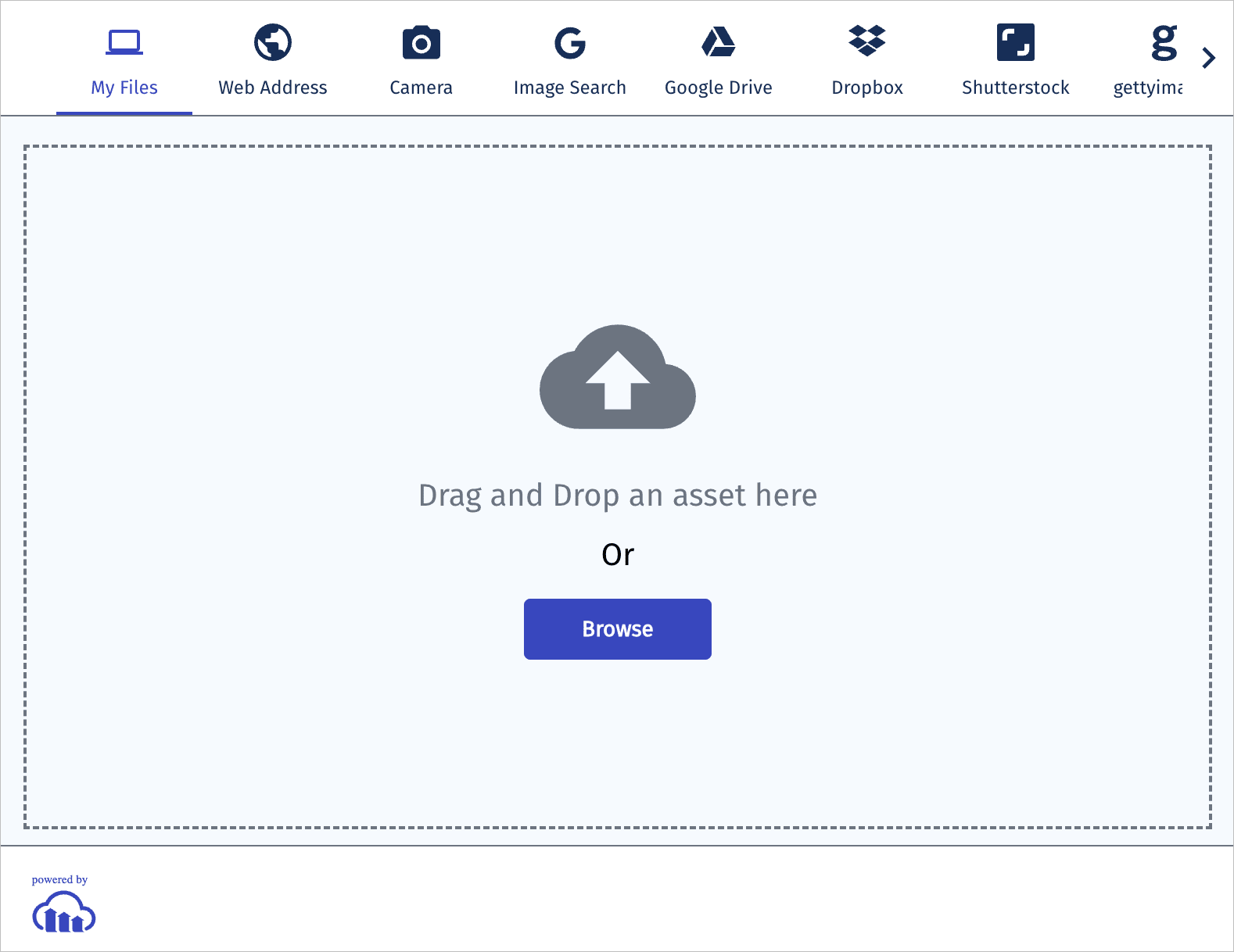
Cloudinary's upload widget requires pure JavaScript to integrate and is easy to use with any web development framework. Advanced features are also available when using jQuery.
Integrating the widget in your site is very simple. First, include the remote JavaScript file of the upload widget:
```javascript
```
The upload widget can now be opened programmatically with, for example, the `cloudinary.openUploadWidget` method:
```javascript
```
For more information and specific details, including the parameters used in the `openUploadWidget` method, see the [Upload Widget documentation](upload_widget).
## Direct uploading from the browser via a backend SDK
This section gives details on how to use one of Cloudinary's [Backend SDKs](backend_sdks) to upload a file directly to Cloudinary and bypass your own servers. This is enabled by Cloudinary's jQuery plugin, which requires a small setup: including jQuery, Cloudinary's jQuery plugin, jQuery-File-Upload plugin files and defining your cloud name and API Key. For more information on direct uploading from the browser see the relevant [SDK integration guide](backend_sdks).
Activate signed client-side asset uploading by embedding an upload input field in your HTML pages. The Cloudinary SDKs have helper methods (e.g., the `cl_image_upload_tag` method) that automatically add a file input field to your form. Selecting or dragging a file to this input field will automatically initiate uploading from the browser to Cloudinary. For example, using Ruby on Rails (other frameworks use the same concept):
```ruby
cl_image_upload_tag(:image_id, options = {})
```
When uploading is completed, the identifier of the uploaded asset is set as the value of the given input field in your HTML page (the `image_id` parameter in the example above). You can then process the identifier received by your controller and store it for future use, exactly as if you're using standard server side uploading.
> **NOTE**: If you manually create your own file input field (i.e., you don't use one of Cloudinary's helper methods), make sure to include the `name="file"` attribute in the input field (e.g., ``)
### Upload multiple assets
The file input field can be configured to support multiple file uploading simultaneously by setting the `multiple` HTML parameter to `true`. You should manually bind to the `cloudinarydone` event to handle the results of multiple uploads. Here's an example:
```multi
|ruby
<%= cl_image_upload_tag(:image_id,
html: { multiple: true }) %>
|php
["multiple" => true ]]); ?>
|python
image = CloudinaryJsFileField(
attrs = { "multiple": 1 })
|nodejs
cloudinary.uploader.image_upload_tag(
'image_id', { html: { multiple: 1 } });
|java
String html = cloudinary.uploader().imageUploadTag("image_id",
ObjectUtils.asMap("multiple", true));
|go
Not supported in this SDK
```
### Display preview thumbnails and indicate upload progress
Cloudinary's jQuery library also enables an enhanced uploading experience - show a progress bar, display a thumbnail of the uploaded file, drag & drop support and more.
Bind to Cloudinary's `cloudinarydone` event if you want to be notified when an upload to Cloudinary has completed. You will have access to the full details of the uploaded asset and you can display a cloud-generated thumbnail of the uploaded assets using Cloudinary's jQuery plugin.
The following sample code creates a 150x100 thumbnail of an uploaded image and updates an input field with the public ID of this image.
```javascript
$('.cloudinary-fileupload').bind('cloudinarydone', function(e, data) {
$('.preview').html(
$.cloudinary.image(data.result.public_id,
{ format: data.result.format, version: data.result.version,
crop: 'fill', width: 150, height: 100 })
);
$('.image_public_id').val(data.result.public_id);
return true;
});
```
You can track the upload progress by binding to the following events: `fileuploadsend`, `fileuploadprogress`, `fileuploaddone` and `fileuploadfail`. You can find more details and options in the [documentation of jQuery-File-Upload](https://github.com/blueimp/jQuery-File-Upload/wiki).
The following JavaScript code updates a progress bar according to the data of the `fileuploadprogress` event:
```javascript
$('.cloudinary-fileupload').bind('fileuploadprogress', function(e, data) {
$('.progress_bar').css('width', Math.round((data.loaded * 100.0) / data.total) + '%');
});
```
You can find some more examples as well as an upload button style customization in our [Photo Album sample project](https://github.com/cloudinary/cloudinary_gem/blob/master/samples/photo_album/app/views/photos/new_direct.html.erb).
### Deleting client-side uploaded assets
The Cloudinary jQuery library supports using a delete token to delete assets on the client side for a limited time of 10 minutes after being uploaded. After 10 minutes have passed, the image cannot be deleted from the client side, only via the [Destroy](image_upload_api_reference#destroy_method) method of the Upload API or using the [delete_resources](admin_api#delete_resources) method of the Admin API.
In order to also receive a deletion token in the upload response, add the `return_delete_token` parameter to the upload method and set it to `true`. This parameter is not supported when using unsigned uploads (although it can be set within the upload preset for the unsigned upload).
For example:
```multi
|ruby
<%= cl_image_upload_tag(:image_id,
return_delete_token: true) %>
|php
true ]); ?>
|python
image = CloudinaryJsFileField(
options = { "return_delete_token": 1 })
|nodejs
cloudinary.uploader.image_upload_tag('image_id',
{ return_delete_token: 1 });
|java
String html = cloudinary.uploader().imageUploadTag(
"image_id", ObjectUtils.asMap("return_delete_token", true));
|go
Not supported in this SDK
|android
MediaManager.get().upload("sample.jpg")
.option("return_delete_token", "true").dispatch();
|swift
let params = CLDUploadRequestParams()
.setReturnDeleteToken(true)
var mySig = MyFunction(params) // your own function that returns a signature generated on your backend
params.setSignature(CLDSignature(signature: mySig.signature, timestamp: mySig.timestamp))
let request = cloudinary.createUploader().signedUpload(
url: "sample.jpg", params: params)
|curl
curl https://api.cloudinary.com/v1_1/demo/image/upload -X POST -F 'file=@/path/to/sample.jpg' -F 'return_delete_token=true' -F 'timestamp=173719931' -F 'api_key=436464676' -F 'signature=a781d61f86a6f818af'
```
The `delete_token` returned in the upload response can be used to delete the uploaded asset using the `delete_by_token` method of the jQuery SDK. For example:
```javascript
$.cloudinary.delete_by_token(delete_token)
```
Alternatively, you can access the `delete_by_token` endpoint directly with a POST request. For example:
```curl
curl https://api.cloudinary.com/v1_1/demo/delete_by_token -X POST --data 'token=delete_token'
```