> ## Documentation Index
> Fetch the complete documentation index at: https://cloudinary.com/documentation/llms.txt
> Use this file to discover all available pages before exploring further.
# Python image and video upload
[githublink]: https://github.com/cloudinary-devs/my-django-app
Cloudinary provides an API for uploading images, videos, and any other kind of file to the cloud. Files uploaded to Cloudinary are stored safely in the cloud with secure [backups and revision history](backups_and_version_management). Cloudinary's APIs allow secure uploading from your servers, directly from your visitors' browsers or mobile applications, or fetched via remote public URLs.
Cloudinary's Python SDK wraps Cloudinary's upload API and simplifies the integration. Python methods are available for easily performing Python image and video uploads to the cloud and Python view helper methods are available for uploading directly from a browser to Cloudinary.
This page covers common usage patterns for Python image and video upload with Cloudinary.
For details on all available upload functionality, see the [Upload](upload_images) guide, and the [upload](image_upload_api_reference#upload) method of the Upload API Reference.
> **NOTE**: Most of the functionality provided by Cloudinary can be implemented using Python, regardless of your framework. Some features are only available with Django, as described in the documentation.
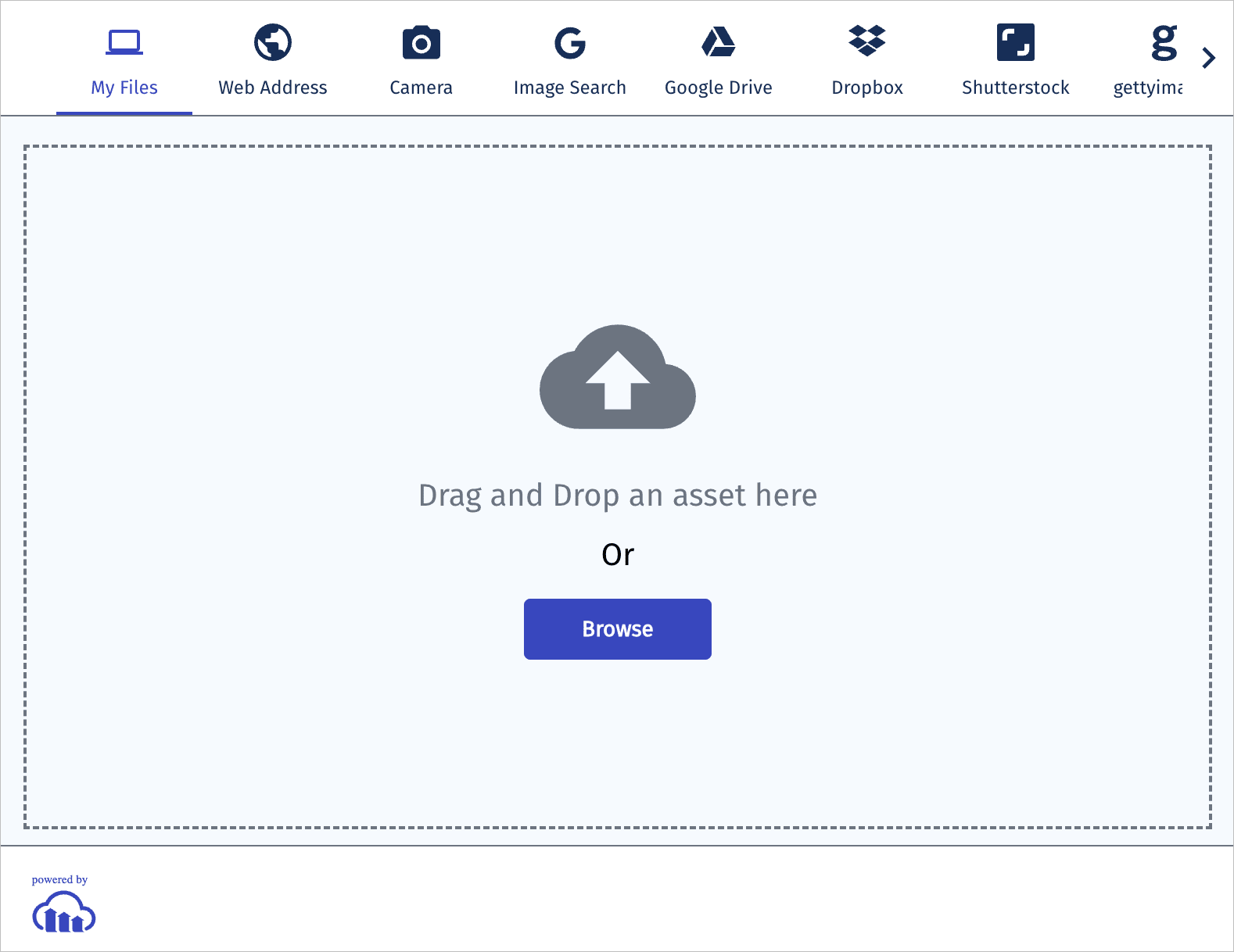
> **TIP**: Cloudinary's [Upload widget](upload_widget) provides an alternative to using a Cloudinary SDK to add upload functionality to your application, eliminating the need to develop in-house interactive upload capabilities. The upload widget is an interactive, feature rich, simple-to-integrate user interface that enables you to add Cloudinary upload support to your website. The widget can be easily embedded in your web application with just a few lines of JavaScript code. See the [Upload widget](upload_widget) documentation for detailed information.
## Server-side upload
You can upload images, videos, or any other raw file to Cloudinary from your Python code. Uploading is done over HTTPS using a secure protocol based on your product environment's `api_key` and `api_secret` parameters.
### Python image upload
The following method uploads an image to the cloud:
```python
def upload(file, **options)
```
For example, uploading a local image file named 'my\_image.jpg':
```python
cloudinary.uploader.upload("my_image.jpg")
```
Here's a more advanced example. To upload a remote image file, apply transformations including cropping to a square with automatic crop and gravity, as well as applying a special effect to enhance the image, then store the transformed image under the public ID `file_wine`:
```python
cloudinary.uploader.upload(
"https://res.cloudinary.com/demo/image/upload/v1702378721/docs/wines.jpg",
public_id = "fine_wine",
transformation=
[{"width": 400, "height": 400, "crop": "auto", "gravity":"auto", "effect": "improve:50"}]
)
```
In addition to a local path and a remote HTTP or HTTPS URL, the file to upload can also be specified as an allowlisted storage bucket (S3 or Google Storage) URL, a data stream, a base64 data URI, or an FTP URL. For details and code examples of uploading using each of these data source types, see [Required upload parameters](upload_parameters#required_file_parameter).
#### Customizing uploads
You can customize your upload by passing additional parameters in the options object. This allows you to assign metadata, organize assets, reuse filenames, request moderation, and more. For more details, see [Customizing uploads](upload_parameters).
**Example: Upload with tags, metadata, moderation, and analysis**
This example sets:
* **Tags**: `summer`, `new-arrival`
* **Contextual metadata**:
* Set the `department` as `apparel`
* Set the `photographer` as `Jane Doe`
* **Structured metadata**:
* Set the field with external ID `sku-id` as `SKU12345678`
* Set the field with external ID `product-id` as `PROD-9081-WHT`
* **Additional options**:
* `use_filename: true` – use original file name as the base for public ID
* `unique_filename: true` – append a random suffix to avoid overwriting
* `moderation: "webpurify"` – automatically flag assets for moderation
* `quality_analysis: true` – request Cloudinary’s AI quality scoring
> **NOTE**:
>
> Before running this example in your product environment, [create](media_library_for_developers#managing_structured_metadata_fields) text fields with external IDs `sku-id` and `product-id`, and register for the **WebPurify** [add-on](cloudinary_add_ons). Replace `/home/my_image.jpg` with the path to an image in your local directory.
```python
result = cloudinary.uploader.upload(
"/home/my_image.jpg",
use_filename=True,
unique_filename=True,
moderation="webpurify",
tags=["summer", "new-arrival"],
context={
"department": "apparel",
"photographer": "Jane Doe"
},
quality_analysis=True
)
```
For details on all available upload functionality, see the [Upload](upload_images) guide, and the [upload](image_upload_api_reference#upload) method of the Upload API Reference.
#### Image upload tutorials
Watch these video tutorials to learn more about uploading images in Python and auto-tagging images on upload:
Upload Images in Python
Upload images to Cloudinary using the Python SDK
Auto-Tag Images in Python
Use AI to auto-tag uploaded images with the Python SDK
### Python video upload
You upload videos in the same way as images. However, with videos, you must specify the resource type as 'video' within the `upload` method. In addition, the `upload` method supports uploading files only up to 100 MB. To upload larger videos, use the [upload_large](upload_images#chunked_asset_upload) method, which uploads large files to the cloud in chunks.
The `upload_large` method has the identical signature and options as the `upload` method, with the addition of an optional `chunk_size` parameter (default 20 MB).
The following example uploads `dog.mp4` to Cloudinary and stores it with the public ID `dog_closeup`. It also performs two eager transformations that resize the video to a square and a small rectangle.
```python
cloudinary.uploader.upload_large("dog.mp4",
resource_type = "video",
public_id = "dog_closeup",
chunk_size = 6000000,
eager = [
{ "width": 300, "height": 300, "crop": "pad", "audio_codec": "none"},
{ "width": 160, "height": 100, "crop": "crop", "gravity": "south",
"audio_codec": "none"}],
eager_async = True,
eager_notification_url = "https://mysite.example.com/notify_endpoint")
```
#### Video upload tutorial
Watch a [video tutorial](upload_videos_in_python_tutorial) demonstrating how to upload small and large videos:
Upload Videos in Python
Upload videos to Cloudinary using the Python SDK
### Upload response
By default, uploading is performed synchronously. Once finished, the uploaded image or video is immediately available for transformation and delivery. An upload call returns a Hash with content similar to the following:
```python
{
u'asset_id': u'86ca8ba13b17e21d23534b7e842b8847',
u'public_id': u'do8wnccnlzrfvwv1mqkq',
u'version': 1719309138,
u'version_id': u'1a2b0a8ef0bf8e9f20a922f38704eda6',
u'signature': u'afb6a3374ba12e4e0307e23e625d939b242ddb5c',
u'width': 1920,
u'height': 1281,
u'format': u'jpg',
u'resource_type': u'image',
u'created_at': u'2024-06-25T09:52:18Z',
u'tags': [],
u'bytes': 310479,
u'type': u'upload',
u'etag': u'a8f8236455d352b8cee6aba0e3fbc87e',
u'placeholder': false,
u'url': u'http://res.cloudinary.com/cld-docs/image/upload/v1719309138/do8wnccnlzrfvwv1mqkq.jpg',
u'secure_url': u'https://res.cloudinary.com/cld-docs/image/upload/v1719309138/do8wnccnlzrfvwv1mqkq.jpg',
u'asset_folder': '',
u'display_name': u'do8wnccnlzrfvwv1mqkq',
u'original_filename': u'f5lq8lfq8pfj0xmd9dak',
u'api_key': u'614335564976464'
}
```
> **NOTE**: If you need the upload response to return the actual image instead of a Hash then use the `upload_resource` method (which is identical to the upload method except for the response).
The response includes HTTP and HTTPS URLs for accessing the uploaded media asset as well as additional information regarding the uploaded asset: public ID, resource type, width and height, file format, file size in bytes, a signature for verifying the response and more.
### File sources
Cloudinary's Python library supports uploading files from various sources.
* You can upload an asset by specifying a local path of an asset. For example:
```python
cloudinary.uploader.upload('/home/my_image.jpg')
```
* You can provide an IO object that you created:
```python
cloudinary.uploader.upload(open('/tmp/image1.jpg', 'rb'))
```
* If your assets are already publicly available online, you can specify their remote HTTP URLs instead of uploading the actual data. In this case, Cloudinary will fetch the asset from its remote URL for you. This option allows for a much faster migration of your existing assets. Here's an example:
```python
cloudinary.uploader.upload('https://www.example.com/image.jpg')
```
* If you have existing assets in an Amazon S3 bucket, you can point Cloudinary to their S3 URLs. Note - this option requires a quick manual setup. Contact us and we'll guide you on how to allow Cloudinary access to your relevant S3 buckets.
```python
cloudinary.uploader.upload('s3://my-bucket/my-path/my-file.jpg')
```
> **NOTE**: If you are coding an application in Django where users upload assets through a web form, you can pass the parameter of your Django's `request.FILES` to the upload method:
```python
cloudinary.uploader.upload(request.FILES['file'])
```
For more information on file sources for upload, see [File sources](upload_parameters#file_sources).
## Django forms and models workflow
If you're using Django, you can seamlessly integrate Cloudinary's capabilities into your forms and models using Cloudinary's helper classes. This approach ensures that you can continue your standard workflow of saving delivery URLs directly into your database during uploads, while also enabling the delivery of optimized and transformed assets on your website or app with Cloudinary's features.
As shown in the example below, you can define a model class `Photo` in your `models.py` file. This class has an `image` field of the `CloudinaryField` class.
```python
from django.db import models
from cloudinary.models import CloudinaryField
class Photo(models.Model):
image = CloudinaryField('image')
```
In the `forms.py` file we define a `PhotoForm` class that has a form field named `image` of the `CloudinaryFileField` class (by default).
```python
from django.forms import ModelForm
from .models import Photo
class PhotoForm(ModelForm):
class Meta:
model = Photo
```
The `views.py` file defines a view named `upload` which displays an HTML upload form and also handles posting of image files. Such images are uploaded to Cloudinary from your Django server by the `CloudinaryFileField` class.
```python
from django import forms
from django.http import HttpResponse
from cloudinary.forms import cl_init_js_callbacks
from .models import Photo
from .forms import PhotoForm
def upload(request):
context = dict( backend_form = PhotoForm())
if request.method == 'POST':
form = PhotoForm(request.POST, request.FILES)
context['posted'] = form.instance
if form.is_valid():
form.save()
return render(request, 'upload.html', context)
```
The following HTML templates includes a form that uploads images to your server for uploading to Cloudinary:
```python
{% load cloudinary %}
{% load url from future %}
{% block body %}
{% endblock %}
```
Having stored the image ID, you can now embed the image or a transformed version of it using the `cloudinary` template tag:
```python
{% load cloudinary %}
{% cloudinary photo.image format="jpg" width=120 height=80 crop="fill" %}
```
In addition, you can assign tags, apply transformation or specify any Cloudinary's upload options when initializing the `CloudinaryFileField` class. The assets will be saved in the transformed state as specified by the provided upload options.
```python
from django.forms import ModelForm
from cloudinary.forms import CloudinaryFileField
from .models import Photo
class PhotoForm(ModelForm):
class Meta:
model = Photo
image = CloudinaryFileField(
attrs = { 'style': "margin-top: 30px" },
options = {
'tags': "directly_uploaded",
'crop': 'limit', 'width': 1000, 'height': 1000,
'eager': [{ 'crop': 'fill', 'width': 150, 'height': 100 }]
})
```
### Manage images in a Django app video tutorial
Watch this video tutorial to see how to integrate Cloudinary in a Django app using the forms and modes helper methods:
This video is brought to you by Cloudinary's video player - embed your own!Use the controls to set the playback speed, navigate to chapters of interest and select subtitles in your preferred language.
> **TIP**: :title=View the code
You can find the code from this tutorial in [GitHub][githublink].
#### Tutorial contents This tutorial presents the following topics. Click a timestamp to jump to that part of the video.
### Image handling in Django apps
{table:class=tutorial-bullets}| |
| --- | --- |
|{videotime:id=djangoHelpers :min=0 :sec=00 :player=cld} | Utilize Cloudinary's Django helper methods for seamless image management. These methods handle automatic tasks like uploading, cloud storage, AI-driven smart cropping and resizing, and image compression. Cloudinary automatically saves delivery URLs in the database. This tutorial demonstrates integrating Cloudinary into an existing Django app.|
### Django app structure overview
{table:class=tutorial-bullets}| |
| --- | --- |
|{videotime:id=djangoHelpers :min=0 :sec=42 :player=cld} | The app comprises Python files: `forms.py`, `models.py` and `views.py`, along with HTML templates: `upload.html` and `display.html`. `settings.py` and `urls.py` contain code for configuring upload and storage settings. |
### Explore the original Django app
{table:class=tutorial-bullets}| |
| --- | --- |
|{videotime:id=djangoHelpers :min=1 :sec=04 :player=cld} | The app facilitates selecting and uploading images from the file system, displaying all stored images in the database. Images within the pre-Cloudinary are distorted to fit their designated areas. Additionally, the [Media Inspector chrome extension](https://chromewebstore.google.com/detail/cloudinary-media-inspecto/ehnkhkglbafecknplfmjklnnjimokpkg?pli=1) verifies image sizes, highlighting their weightiness. |
### Adding Cloudinary credentials
{table:class=tutorial-bullets}| |
| --- | --- |
|{videotime:id=djangoHelpers :min=2 :sec=08 :player=cld} | The first step to integrating Cloudinary is adding your credentials. Update the `settings.py` file by removing code handling media files and incorporating the `dotenv` library to automatically load credentials from the `.env` file. Create a `.env` file in the `django_app` folder and paste the Cloudinary environment variable from your [Dashboard](https://console.cloudinary.com/app/home/dashboard/). |
> **NOTE**:
>
> You can no longer access your full credentials directly from the Dashboard. Find your **Cloud name** on the Dashboard, and all credentials, including **API Key**, **API Secret**, and **API environment variable**, on the [API Keys](https://console.cloudinary.com/app/settings/api-keys) page of the Cloudinary Console Settings.
```python
from dotenv import load_dotenv
load_dotenv()
# Remove this when integrating Cloudinary
# import os
# BASE_DIR = os.path.dirname(os.path.dirname(os.path.abspath(__file__)))
# MEDIA_URL = '/media/'
# MEDIA_ROOT = ox.path.join(BASE_DIR, 'media')
```
> **INFO**: When writing your own applications, follow your organization's policy on storing secrets and don't expose your API secret.
### Modify the `models.py` file
{table:class=tutorial-bullets}| |
| --- | --- |
|{videotime:id=djangoHelpers :min=2 :sec=32 :player=cld} | In the `models.py` file, replace the Django image field `image = models.ImageField(upload_to='photos/')` with the `CloudinaryField`. This grants access to Cloudinary functionalities, including uploading to the cloud and storing image delivery URLs in the database. |
```python
# django_app/models.py
from django.db import models
from cloudinary.models import CloudinaryField
class Photo(models.Model):
image = CloudinaryField('image')
# Remove the Django image field when integrating Cloudinary
# image = models.ImageField(upload_to='photos/')
```
### Adjust the `forms.py` file
{table:class=tutorial-bullets}| |
| --- | --- |
|{videotime:id=djangoHelpers :min=3 :sec=00 :player=cld} | Within the `forms.py` file, import and use the `CloudinaryFileField` for file upload handling and Cloudinary storage. |
```python
# django_app/forms.py
from django.forms import ModelForm
from cloudinary.forms import CloudinaryFileField
from .models import Photo
class PhotoForm(ModelForm):
image = CloudinaryFileField()
class Meta:
model = Photo
fields = ['image']
```
### `views.py` remains unchanged
{table:class=tutorial-bullets}| |
| --- | --- |
|{videotime:id=djangoHelpers :min=3 :sec=18 :player=cld} | No modifications are needed in the `views.py` file. The `CloudinaryField` addition in `models.py` file ensures that valid upload submissions are saved to Cloudinary and their URLs are saved in the database. The `display` function in `views.py` retrieves all `Photos` table images and displays them using the `display.html` template. |
### Update the `display.html` file
{table:class=tutorial-bullets}| |
| --- | --- |
|{videotime:id=djangoHelpers :min=3 :sec=47 :player=cld} | Replace the HTML image tag ` ` with Cloudinary's helper tags for image display. |
```python
{% for photo in photos %}
{% load cloudinary %}
{% cloudinary photo.image %}
{% endfor %}
```
### Transform and optimize images
{table:class=tutorial-bullets}| |
| --- | --- |
|{videotime:id=djangoHelpers :min=4 :sec=03 :player=cld} | The Cloudinary helper methods have already streamlined upload, storage and image retrieval and display. Now, apply a transformation to ensure your images fit the desired area, utilizing AI for outpainting and optimizing to reduce their file sizes. |
```python
{% for photo in photos %}
{% load cloudinary %}
{% cloudinary photo.image quality='auto' width=200 height=200 crop='pad' background='gen_fill:ignore-foreground_true' %}
{% endfor %}
```
> **NOTE**: The `ignore-foreground` option is not used in the latest version of the generative fill feature.
### Previewing the app with Cloudinary integration
{table:class=tutorial-bullets}| |
| --- | --- |
|{videotime:id=djangoHelpers :min=4 :sec=51 :player=cld} | Re-run the app to see the effects of Cloudinary integration. Images now fit their frames without distortion because Cloudinary's AI expands narrow images to fill the specified area perfectly. Additionally, confirm reduced image sizes using the [Media Inspector](https://chromewebstore.google.com/detail/cloudinary-media-inspecto/ehnkhkglbafecknplfmjklnnjimokpkg?pli=1). |
## Direct uploading from the browser
The upload samples shown above allow your server-side Python code to upload media assets to Cloudinary. In this flow, if you have a web form that allows your users to upload images or videos, the media file's data is first sent to your server and then uploaded to Cloudinary.
A more efficient and powerful option is to allow your users to upload images and videos in your client-side code directly from the browser to Cloudinary instead of going through your servers. This method allows for faster uploading and a better user experience. It also reduces load from your servers and reduces the complexity of your Python applications.
You can upload files directly from the browser using signed or unsigned calls to the upload endpoint, as shown in the [Upload multiple files using a form](client_side_uploading#code_explorer_upload_multiple_files_using_a_form_unsigned) examples.
For signed uploads from your client-side code, a [secure signature](authentication_signatures) must be generated in your server-side Python code. You can use the `api_sign_request` method to [generate SHA signatures](authentication_signatures#using_cloudinary_backend_sdks_to_generate_sha_authentication_signatures):
```python
cloudinary.utils.api_sign_request(params_to_sign, api_secret)
```
For the full list of parameters available for signed uploads, see the [upload](image_upload_api_reference#upload) method in the Upload API Reference.
> **NOTE**:
>
> For security reasons, only [this restricted set](image_upload_api_reference#unsigned_upload_parameters) of parameters can be used in an **unsigned** upload request. All other parameters you want to apply must be defined in the upload preset. For more information, see [Unsigned upload parameters](image_upload_api_reference#unsigned_upload_parameters).
> If a supported parameter is included both in the unsigned upload call and in the unsigned upload preset, the upload preset value usually takes precedence, but there are some exceptions. For details, see [Upload preset precedence](upload_presets#upload_preset_precedence).
> **READING**:
>
> * For more information on uploading media assets, see the [Upload](upload_images) guide.
> * For details on all available upload parameters, see the [upload](image_upload_api_reference#upload) method of the Upload API Reference.
` with Cloudinary's helper tags for image display. |
```python
{% for photo in photos %}
{% load cloudinary %}
{% cloudinary photo.image %}
{% endfor %}
```
### Transform and optimize images
{table:class=tutorial-bullets}| |
| --- | --- |
|{videotime:id=djangoHelpers :min=4 :sec=03 :player=cld} | The Cloudinary helper methods have already streamlined upload, storage and image retrieval and display. Now, apply a transformation to ensure your images fit the desired area, utilizing AI for outpainting and optimizing to reduce their file sizes. |
```python
{% for photo in photos %}
{% load cloudinary %}
{% cloudinary photo.image quality='auto' width=200 height=200 crop='pad' background='gen_fill:ignore-foreground_true' %}
{% endfor %}
```
> **NOTE**: The `ignore-foreground` option is not used in the latest version of the generative fill feature.
### Previewing the app with Cloudinary integration
{table:class=tutorial-bullets}| |
| --- | --- |
|{videotime:id=djangoHelpers :min=4 :sec=51 :player=cld} | Re-run the app to see the effects of Cloudinary integration. Images now fit their frames without distortion because Cloudinary's AI expands narrow images to fill the specified area perfectly. Additionally, confirm reduced image sizes using the [Media Inspector](https://chromewebstore.google.com/detail/cloudinary-media-inspecto/ehnkhkglbafecknplfmjklnnjimokpkg?pli=1). |
## Direct uploading from the browser
The upload samples shown above allow your server-side Python code to upload media assets to Cloudinary. In this flow, if you have a web form that allows your users to upload images or videos, the media file's data is first sent to your server and then uploaded to Cloudinary.
A more efficient and powerful option is to allow your users to upload images and videos in your client-side code directly from the browser to Cloudinary instead of going through your servers. This method allows for faster uploading and a better user experience. It also reduces load from your servers and reduces the complexity of your Python applications.
You can upload files directly from the browser using signed or unsigned calls to the upload endpoint, as shown in the [Upload multiple files using a form](client_side_uploading#code_explorer_upload_multiple_files_using_a_form_unsigned) examples.
For signed uploads from your client-side code, a [secure signature](authentication_signatures) must be generated in your server-side Python code. You can use the `api_sign_request` method to [generate SHA signatures](authentication_signatures#using_cloudinary_backend_sdks_to_generate_sha_authentication_signatures):
```python
cloudinary.utils.api_sign_request(params_to_sign, api_secret)
```
For the full list of parameters available for signed uploads, see the [upload](image_upload_api_reference#upload) method in the Upload API Reference.
> **NOTE**:
>
> For security reasons, only [this restricted set](image_upload_api_reference#unsigned_upload_parameters) of parameters can be used in an **unsigned** upload request. All other parameters you want to apply must be defined in the upload preset. For more information, see [Unsigned upload parameters](image_upload_api_reference#unsigned_upload_parameters).
> If a supported parameter is included both in the unsigned upload call and in the unsigned upload preset, the upload preset value usually takes precedence, but there are some exceptions. For details, see [Upload preset precedence](upload_presets#upload_preset_precedence).
> **READING**:
>
> * For more information on uploading media assets, see the [Upload](upload_images) guide.
> * For details on all available upload parameters, see the [upload](image_upload_api_reference#upload) method of the Upload API Reference.