> ## Documentation Index
> Fetch the complete documentation index at: https://cloudinary.com/documentation/llms.txt
> Use this file to discover all available pages before exploring further.
# Image upscaling and downscaling
When you resize images, the quality of the result depends on whether you're scaling up or down, and which method you use. This page covers how to upscale images with super resolution, how to preserve quality when downscaling, and how to use the device pixel ratio (DPR) parameter to deliver images at the right resolution for different devices.
## Upscaling with super resolution
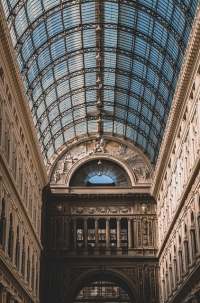
Normally, when you upscale a small image, the image loses detail and quality. Take, for example, this 200 x 303 pixel image of a hall:
```nodejs
cloudinary.image("docs/tall-hall.jpg")
```
```react
new CloudinaryImage("docs/tall-hall.jpg");
```
```vue
new CloudinaryImage("docs/tall-hall.jpg");
```
```angular
new CloudinaryImage("docs/tall-hall.jpg");
```
```js
new CloudinaryImage("docs/tall-hall.jpg");
```
```python
CloudinaryImage("docs/tall-hall.jpg").image()
```
```php
(new ImageTag('docs/tall-hall.jpg'));
```
```java
cloudinary.url().transformation(new Transformation().imageTag("docs/tall-hall.jpg");
```
```ruby
cl_image_tag("docs/tall-hall.jpg")
```
```csharp
cloudinary.Api.UrlImgUp.BuildImageTag("docs/tall-hall.jpg")
```
```dart
cloudinary.image('docs/tall-hall.jpg').transformation(Transformation());
```
```swift
imageView.cldSetImage(cloudinary.createUrl().generate("docs/tall-hall.jpg")!, cloudinary: cloudinary)
```
```android
MediaManager.get().url().transformation(new Transformation().generate("docs/tall-hall.jpg");
```
```flutter
cloudinary.image('docs/tall-hall.jpg').transformation(Transformation());
```
```kotlin
cloudinary.image {
publicId("docs/tall-hall.jpg")
}.generate()
```
```jquery
$.cloudinary.image("docs/tall-hall.jpg")
```
```react_native
new CloudinaryImage("docs/tall-hall.jpg");
```
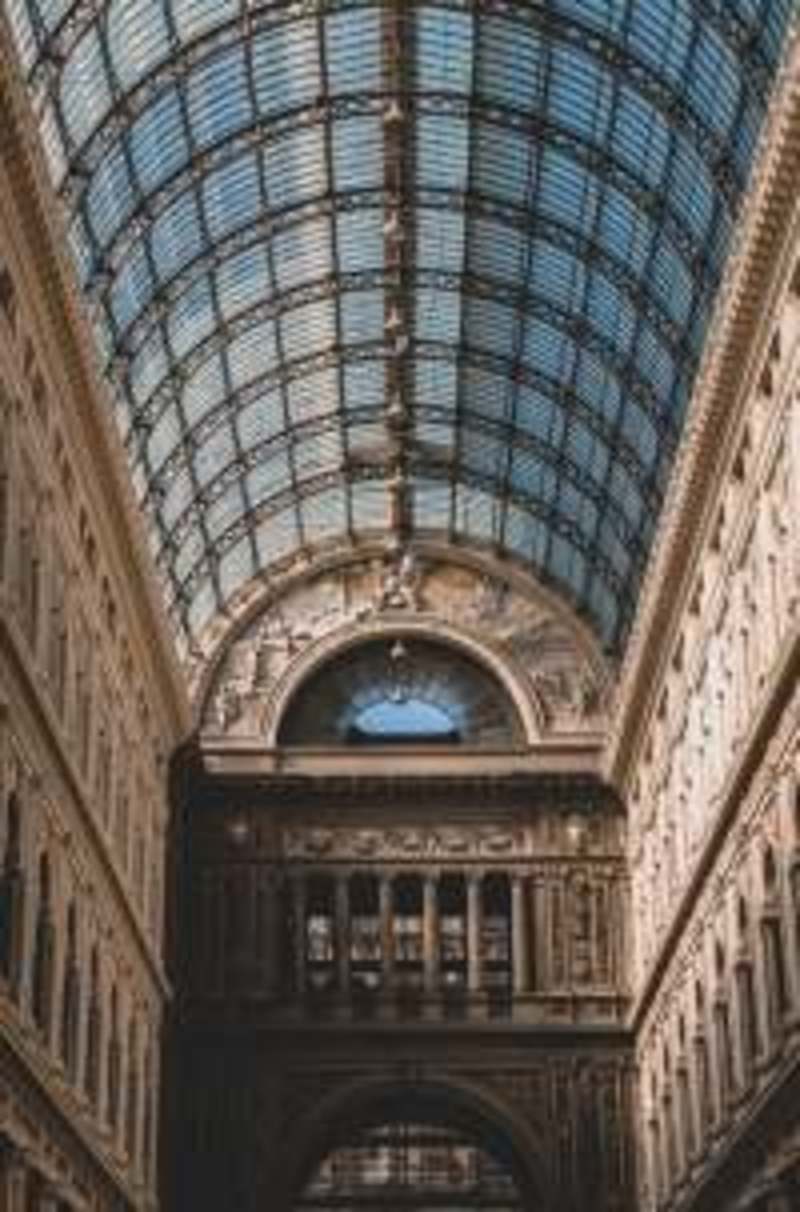
If you upscale it to four times its dimensions using `c_scale,w_4.0`, this is the result:
```nodejs
cloudinary.image("docs/tall-hall.jpg", {width: "4.0", crop: "scale"})
```
```react
import { scale } from "@cloudinary/url-gen/actions/resize";
new CloudinaryImage("docs/tall-hall.jpg").resize(scale().width("4.0"));
```
```vue
import { scale } from "@cloudinary/url-gen/actions/resize";
new CloudinaryImage("docs/tall-hall.jpg").resize(scale().width("4.0"));
```
```angular
import { scale } from "@cloudinary/url-gen/actions/resize";
new CloudinaryImage("docs/tall-hall.jpg").resize(scale().width("4.0"));
```
```js
import { scale } from "@cloudinary/url-gen/actions/resize";
new CloudinaryImage("docs/tall-hall.jpg").resize(scale().width("4.0"));
```
```python
CloudinaryImage("docs/tall-hall.jpg").image(width="4.0", crop="scale")
```
```php
use Cloudinary\Transformation\Resize;
(new ImageTag('docs/tall-hall.jpg'))
->resize(Resize::scale()->width(4.0));
```
```java
cloudinary.url().transformation(new Transformation().width(4.0).crop("scale")).imageTag("docs/tall-hall.jpg");
```
```ruby
cl_image_tag("docs/tall-hall.jpg", width: 4.0, crop: "scale")
```
```csharp
cloudinary.Api.UrlImgUp.Transform(new Transformation().Width(4.0).Crop("scale")).BuildImageTag("docs/tall-hall.jpg")
```
```dart
cloudinary.image('docs/tall-hall.jpg').transformation(Transformation()
.resize(Resize.scale().width('4.0')));
```
```swift
imageView.cldSetImage(cloudinary.createUrl().setTransformation(CLDTransformation().setWidth(4.0).setCrop("scale")).generate("docs/tall-hall.jpg")!, cloudinary: cloudinary)
```
```android
MediaManager.get().url().transformation(new Transformation().width(4.0).crop("scale")).generate("docs/tall-hall.jpg");
```
```flutter
cloudinary.image('docs/tall-hall.jpg').transformation(Transformation()
.resize(Resize.scale().width('4.0')));
```
```kotlin
cloudinary.image {
publicId("docs/tall-hall.jpg")
resize(Resize.scale() { width(4.0F) })
}.generate()
```
```jquery
$.cloudinary.image("docs/tall-hall.jpg", {width: "4.0", crop: "scale"})
```
```react_native
import { scale } from "@cloudinary/url-gen/actions/resize";
new CloudinaryImage("docs/tall-hall.jpg").resize(scale().width("4.0"));
```
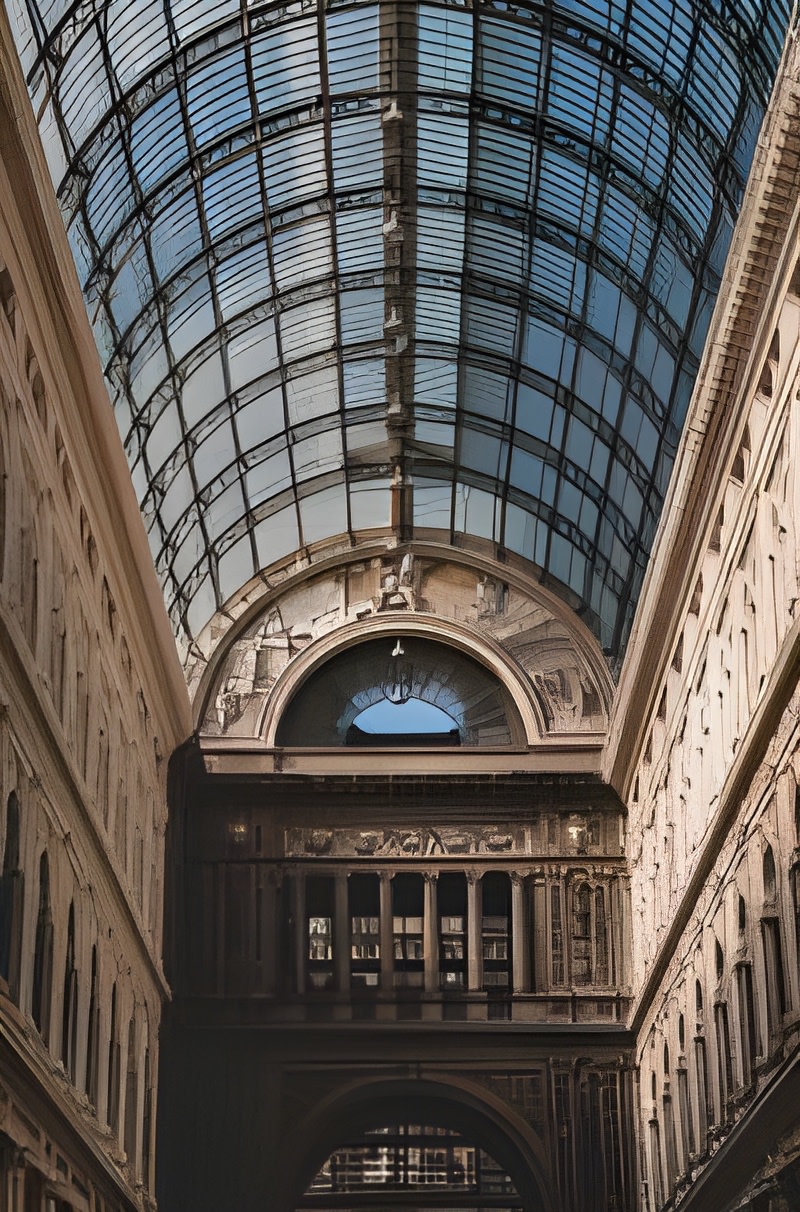
Using the generative AI [upscale effect](transformation_reference#e_upscale), you can retain much more detail for the same scaling factor:
```nodejs
cloudinary.image("docs/tall-hall.jpg", {effect: "upscale"})
```
```react
import { upscale } from "@cloudinary/url-gen/actions/effect";
new CloudinaryImage("docs/tall-hall.jpg").effect(upscale());
```
```vue
import { upscale } from "@cloudinary/url-gen/actions/effect";
new CloudinaryImage("docs/tall-hall.jpg").effect(upscale());
```
```angular
import { upscale } from "@cloudinary/url-gen/actions/effect";
new CloudinaryImage("docs/tall-hall.jpg").effect(upscale());
```
```js
import { upscale } from "@cloudinary/url-gen/actions/effect";
new CloudinaryImage("docs/tall-hall.jpg").effect(upscale());
```
```python
CloudinaryImage("docs/tall-hall.jpg").image(effect="upscale")
```
```php
use Cloudinary\Transformation\Effect;
(new ImageTag('docs/tall-hall.jpg'))
->effect(Effect::upscale());
```
```java
cloudinary.url().transformation(new Transformation().effect("upscale")).imageTag("docs/tall-hall.jpg");
```
```ruby
cl_image_tag("docs/tall-hall.jpg", effect: "upscale")
```
```csharp
cloudinary.Api.UrlImgUp.Transform(new Transformation().Effect("upscale")).BuildImageTag("docs/tall-hall.jpg")
```
```dart
cloudinary.image('docs/tall-hall.jpg').transformation(Transformation()
.effect(Effect.upscale()));
```
```swift
imageView.cldSetImage(cloudinary.createUrl().setTransformation(CLDTransformation().setEffect("upscale")).generate("docs/tall-hall.jpg")!, cloudinary: cloudinary)
```
```android
MediaManager.get().url().transformation(new Transformation().effect("upscale")).generate("docs/tall-hall.jpg");
```
```flutter
cloudinary.image('docs/tall-hall.jpg').transformation(Transformation()
.effect(Effect.upscale()));
```
```kotlin
cloudinary.image {
publicId("docs/tall-hall.jpg")
effect(Effect.upscale())
}.generate()
```
```jquery
$.cloudinary.image("docs/tall-hall.jpg", {effect: "upscale"})
```
```react_native
import { upscale } from "@cloudinary/url-gen/actions/effect";
new CloudinaryImage("docs/tall-hall.jpg").effect(upscale());
```
The `upscale` effect scales each dimension by four, multiplying the total number of pixels by 16, and uses AI-based prediction to fill in the details.
You can chain other transformations after the upscale, for example, creating a square image of the ceiling using the [fill](image_crop_modes#fill) cropping mode, and switching it to grayscale:

```nodejs
cloudinary.image("docs/tall-hall.jpg", {transformation: [
{effect: "upscale"},
{width: 400, height: 400, gravity: "north", crop: "fill"},
{effect: "grayscale"}
]})
```
```react
import { upscale, grayscale } from "@cloudinary/url-gen/actions/effect";
import { fill } from "@cloudinary/url-gen/actions/resize";
import { compass } from "@cloudinary/url-gen/qualifiers/gravity";
new CloudinaryImage("docs/tall-hall.jpg")
.effect(upscale())
.resize(
fill()
.width(400)
.height(400)
.gravity(compass("north"))
)
.effect(grayscale());
```
```vue
import { upscale, grayscale } from "@cloudinary/url-gen/actions/effect";
import { fill } from "@cloudinary/url-gen/actions/resize";
import { compass } from "@cloudinary/url-gen/qualifiers/gravity";
new CloudinaryImage("docs/tall-hall.jpg")
.effect(upscale())
.resize(
fill()
.width(400)
.height(400)
.gravity(compass("north"))
)
.effect(grayscale());
```
```angular
import { upscale, grayscale } from "@cloudinary/url-gen/actions/effect";
import { fill } from "@cloudinary/url-gen/actions/resize";
import { compass } from "@cloudinary/url-gen/qualifiers/gravity";
new CloudinaryImage("docs/tall-hall.jpg")
.effect(upscale())
.resize(
fill()
.width(400)
.height(400)
.gravity(compass("north"))
)
.effect(grayscale());
```
```js
import { upscale, grayscale } from "@cloudinary/url-gen/actions/effect";
import { fill } from "@cloudinary/url-gen/actions/resize";
import { compass } from "@cloudinary/url-gen/qualifiers/gravity";
new CloudinaryImage("docs/tall-hall.jpg")
.effect(upscale())
.resize(
fill()
.width(400)
.height(400)
.gravity(compass("north"))
)
.effect(grayscale());
```
```python
CloudinaryImage("docs/tall-hall.jpg").image(transformation=[
{'effect': "upscale"},
{'width': 400, 'height': 400, 'gravity': "north", 'crop': "fill"},
{'effect': "grayscale"}
])
```
```php
use Cloudinary\Transformation\Effect;
use Cloudinary\Transformation\Resize;
use Cloudinary\Transformation\Gravity;
use Cloudinary\Transformation\Compass;
(new ImageTag('docs/tall-hall.jpg'))
->effect(Effect::upscale())
->resize(Resize::fill()->width(400)
->height(400)
->gravity(
Gravity::compass(
Compass::north()))
)
->effect(Effect::grayscale());
```
```java
cloudinary.url().transformation(new Transformation()
.effect("upscale").chain()
.width(400).height(400).gravity("north").crop("fill").chain()
.effect("grayscale")).imageTag("docs/tall-hall.jpg");
```
```ruby
cl_image_tag("docs/tall-hall.jpg", transformation: [
{effect: "upscale"},
{width: 400, height: 400, gravity: "north", crop: "fill"},
{effect: "grayscale"}
])
```
```csharp
cloudinary.Api.UrlImgUp.Transform(new Transformation()
.Effect("upscale").Chain()
.Width(400).Height(400).Gravity("north").Crop("fill").Chain()
.Effect("grayscale")).BuildImageTag("docs/tall-hall.jpg")
```
```dart
cloudinary.image('docs/tall-hall.jpg').transformation(Transformation()
.effect(Effect.upscale())
.resize(Resize.fill().width(400)
.height(400)
.gravity(
Gravity.compass(
Compass.north()))
)
.effect(Effect.grayscale()));
```
```swift
imageView.cldSetImage(cloudinary.createUrl().setTransformation(CLDTransformation()
.setEffect("upscale").chain()
.setWidth(400).setHeight(400).setGravity("north").setCrop("fill").chain()
.setEffect("grayscale")).generate("docs/tall-hall.jpg")!, cloudinary: cloudinary)
```
```android
MediaManager.get().url().transformation(new Transformation()
.effect("upscale").chain()
.width(400).height(400).gravity("north").crop("fill").chain()
.effect("grayscale")).generate("docs/tall-hall.jpg");
```
```flutter
cloudinary.image('docs/tall-hall.jpg').transformation(Transformation()
.effect(Effect.upscale())
.resize(Resize.fill().width(400)
.height(400)
.gravity(
Gravity.compass(
Compass.north()))
)
.effect(Effect.grayscale()));
```
```kotlin
cloudinary.image {
publicId("docs/tall-hall.jpg")
effect(Effect.upscale())
resize(Resize.fill() { width(400)
height(400)
gravity(
Gravity.compass(
Compass.north()))
})
effect(Effect.grayscale())
}.generate()
```
```jquery
$.cloudinary.image("docs/tall-hall.jpg", {transformation: [
{effect: "upscale"},
{width: 400, height: 400, gravity: "north", crop: "fill"},
{effect: "grayscale"}
]})
```
```react_native
import { upscale, grayscale } from "@cloudinary/url-gen/actions/effect";
import { fill } from "@cloudinary/url-gen/actions/resize";
import { compass } from "@cloudinary/url-gen/qualifiers/gravity";
new CloudinaryImage("docs/tall-hall.jpg")
.effect(upscale())
.resize(
fill()
.width(400)
.height(400)
.gravity(compass("north"))
)
.effect(grayscale());
```
> **NOTES**:
>
> * To use the upscale effect, the input image must be smaller than 4.2 megapixels (the equivalent of 2048 x 2048 pixels).
> * There is a [special transformation count](transformation_counts#special_effect_calculations) for the upscale effect.
> * The upscale effect isn't supported for [animated](animated_images) images or [fetched](fetch_remote_images#fetch_and_deliver_remote_files) images.
> * When Cloudinary is generating a derived version, you may get a 423 response returned until the version is ready. You can prepare derived versions in advance using an [eager transformation](eager_and_incoming_transformations#eager_transformations).
> * When Cloudinary is generating an [incoming transformation](eager_and_incoming_transformations#incoming_transformations), you may get a 420 response returned, with status `pending` until the asset is ready.
**See full syntax**: [e_upscale](transformation_reference#e_upscale) in the _Transformation Reference_.
**Try it out**: [Upscale](https://console.cloudinary.com/app/image/home/upscale?media=image&collection=signs&sample=me%2Fupscale-sign-1).
## Downscaling tips
When downscaling images, you may notice a reduction in image quality. Here are several approaches to help preserve more details.
### Option 1: Use the sharpen effect
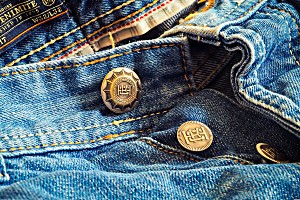
The `sharpen` effect adds definition to your images and can be used with any plan.
**To sharpen a downscaled image:**
1. Apply your resize transformation (e.g., `c_scale,w_300`).
2. Add the `sharpen` effect (`e_sharpen` in URLs).
This approach counts as one transformation.
```nodejs
cloudinary.image("docs/denim.jpg", {transformation: [
{width: 300, crop: "scale"},
{effect: "sharpen"}
]})
```
```react
import { scale } from "@cloudinary/url-gen/actions/resize";
import { sharpen } from "@cloudinary/url-gen/actions/adjust";
new CloudinaryImage("docs/denim.jpg")
.resize(scale().width(300))
.adjust(sharpen());
```
```vue
import { scale } from "@cloudinary/url-gen/actions/resize";
import { sharpen } from "@cloudinary/url-gen/actions/adjust";
new CloudinaryImage("docs/denim.jpg")
.resize(scale().width(300))
.adjust(sharpen());
```
```angular
import { scale } from "@cloudinary/url-gen/actions/resize";
import { sharpen } from "@cloudinary/url-gen/actions/adjust";
new CloudinaryImage("docs/denim.jpg")
.resize(scale().width(300))
.adjust(sharpen());
```
```js
import { scale } from "@cloudinary/url-gen/actions/resize";
import { sharpen } from "@cloudinary/url-gen/actions/adjust";
new CloudinaryImage("docs/denim.jpg")
.resize(scale().width(300))
.adjust(sharpen());
```
```python
CloudinaryImage("docs/denim.jpg").image(transformation=[
{'width': 300, 'crop': "scale"},
{'effect': "sharpen"}
])
```
```php
use Cloudinary\Transformation\Resize;
use Cloudinary\Transformation\Adjust;
(new ImageTag('docs/denim.jpg'))
->resize(Resize::scale()->width(300))
->adjust(Adjust::sharpen());
```
```java
cloudinary.url().transformation(new Transformation()
.width(300).crop("scale").chain()
.effect("sharpen")).imageTag("docs/denim.jpg");
```
```ruby
cl_image_tag("docs/denim.jpg", transformation: [
{width: 300, crop: "scale"},
{effect: "sharpen"}
])
```
```csharp
cloudinary.Api.UrlImgUp.Transform(new Transformation()
.Width(300).Crop("scale").Chain()
.Effect("sharpen")).BuildImageTag("docs/denim.jpg")
```
```dart
cloudinary.image('docs/denim.jpg').transformation(Transformation()
.resize(Resize.scale().width(300))
.adjust(Adjust.sharpen()));
```
```swift
imageView.cldSetImage(cloudinary.createUrl().setTransformation(CLDTransformation()
.setWidth(300).setCrop("scale").chain()
.setEffect("sharpen")).generate("docs/denim.jpg")!, cloudinary: cloudinary)
```
```android
MediaManager.get().url().transformation(new Transformation()
.width(300).crop("scale").chain()
.effect("sharpen")).generate("docs/denim.jpg");
```
```flutter
cloudinary.image('docs/denim.jpg').transformation(Transformation()
.resize(Resize.scale().width(300))
.adjust(Adjust.sharpen()));
```
```kotlin
cloudinary.image {
publicId("docs/denim.jpg")
resize(Resize.scale() { width(300) })
adjust(Adjust.sharpen())
}.generate()
```
```jquery
$.cloudinary.image("docs/denim.jpg", {transformation: [
{width: 300, crop: "scale"},
{effect: "sharpen"}
]})
```
```react_native
import { scale } from "@cloudinary/url-gen/actions/resize";
import { sharpen } from "@cloudinary/url-gen/actions/adjust";
new CloudinaryImage("docs/denim.jpg")
.resize(scale().width(300))
.adjust(sharpen());
```
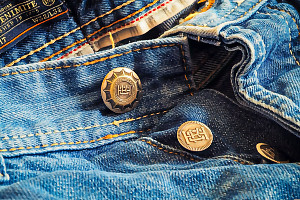
### Option 2: Use generative restore
The [generative restore](generative_ai_transformations#generative_restore) effect uses AI to enhance image quality and comes with any plan, but incurs a [higher transformation count](transformation_counts#effects_with_special_counts).
**To use generative restore on a downscaled image:**
1. Apply your resize transformation (e.g., `c_scale,w_300`).
2. Add the generative restore effect (`e_gen_restore` in URLs).
```nodejs
cloudinary.image("docs/denim.jpg", {transformation: [
{width: 300, crop: "scale"},
{effect: "gen_restore"}
]})
```
```react
import { scale } from "@cloudinary/url-gen/actions/resize";
import { generativeRestore } from "@cloudinary/url-gen/actions/effect";
new CloudinaryImage("docs/denim.jpg")
.resize(scale().width(300))
.effect(generativeRestore());
```
```vue
import { scale } from "@cloudinary/url-gen/actions/resize";
import { generativeRestore } from "@cloudinary/url-gen/actions/effect";
new CloudinaryImage("docs/denim.jpg")
.resize(scale().width(300))
.effect(generativeRestore());
```
```angular
import { scale } from "@cloudinary/url-gen/actions/resize";
import { generativeRestore } from "@cloudinary/url-gen/actions/effect";
new CloudinaryImage("docs/denim.jpg")
.resize(scale().width(300))
.effect(generativeRestore());
```
```js
import { scale } from "@cloudinary/url-gen/actions/resize";
import { generativeRestore } from "@cloudinary/url-gen/actions/effect";
new CloudinaryImage("docs/denim.jpg")
.resize(scale().width(300))
.effect(generativeRestore());
```
```python
CloudinaryImage("docs/denim.jpg").image(transformation=[
{'width': 300, 'crop': "scale"},
{'effect': "gen_restore"}
])
```
```php
use Cloudinary\Transformation\Resize;
use Cloudinary\Transformation\Effect;
(new ImageTag('docs/denim.jpg'))
->resize(Resize::scale()->width(300))
->effect(Effect::generativeRestore());
```
```java
cloudinary.url().transformation(new Transformation()
.width(300).crop("scale").chain()
.effect("gen_restore")).imageTag("docs/denim.jpg");
```
```ruby
cl_image_tag("docs/denim.jpg", transformation: [
{width: 300, crop: "scale"},
{effect: "gen_restore"}
])
```
```csharp
cloudinary.Api.UrlImgUp.Transform(new Transformation()
.Width(300).Crop("scale").Chain()
.Effect("gen_restore")).BuildImageTag("docs/denim.jpg")
```
```dart
cloudinary.image('docs/denim.jpg').transformation(Transformation()
.resize(Resize.scale().width(300))
.effect(Effect.generativeRestore()));
```
```swift
imageView.cldSetImage(cloudinary.createUrl().setTransformation(CLDTransformation()
.setWidth(300).setCrop("scale").chain()
.setEffect("gen_restore")).generate("docs/denim.jpg")!, cloudinary: cloudinary)
```
```android
MediaManager.get().url().transformation(new Transformation()
.width(300).crop("scale").chain()
.effect("gen_restore")).generate("docs/denim.jpg");
```
```flutter
cloudinary.image('docs/denim.jpg').transformation(Transformation()
.resize(Resize.scale().width(300))
.effect(Effect.generativeRestore()));
```
```kotlin
cloudinary.image {
publicId("docs/denim.jpg")
resize(Resize.scale() { width(300) })
effect(Effect.generativeRestore())
}.generate()
```
```jquery
$.cloudinary.image("docs/denim.jpg", {transformation: [
{width: 300, crop: "scale"},
{effect: "gen_restore"}
]})
```
```react_native
import { scale } from "@cloudinary/url-gen/actions/resize";
import { generativeRestore } from "@cloudinary/url-gen/actions/effect";
new CloudinaryImage("docs/denim.jpg")
.resize(scale().width(300))
.effect(generativeRestore());
```
### Option 3: Use premium downscaling (Enterprise plans)
Our premium downscaling algorithm is available for select [Enterprise plans](https://cloudinary.com/pricing#pricing-enterprise) and preserves more details by default, particularly at very low resolutions (less than 0.4 megapixels). It's great for small thumbnails, such as those used in product galleries.
**To use premium downscaling:**
Premium downscaling is applied automatically to any transformation that causes an image to be downscaled. You don't need to add any extra transformation parameters.
To enable premium downscaling for your account, contact your Customer Success Manager or our [sales team](https://cloudinary.com/contact).
## Device Pixel Ratio (DPR) {anchor:set_device_pixel_ratio_dpr}
Different devices support different DPR values, which is defined as the ratio between physical pixels and logical pixels. This means that a device with support for a higher DPR uses more physical pixels for displaying an image, resulting in a clearer, sharper image.
Use the `dpr` parameter to set the DPR value of the delivered image. The parameter accepts a numeric value specifying the DPR multiplier.
**To deliver images at the correct resolution for different device pixel ratios:**
1. Set a crop or resize mode and specify the dimensions in logical pixels (e.g., `c_fill,h_100,w_100`).
2. Set the `dpr` parameter to match the target device's pixel ratio:
* `dpr_1.0` for standard displays
* `dpr_2.0` for high-resolution displays (e.g., Retina)
* `dpr_3.0` for ultra-high-resolution displays
For example, the following URL dynamically generates a square (100x100) version of an image named `pepper`, and adds another image named `sale_icon` as a semi-transparent watermark to the bottom right with a width of 50% relative to the pepper image. Setting the `dpr` value to 1.0, 2.0 (as in the code example) or 3.0 generates the following images at the corresponding physical pixel dimensions.
[DPR 2.0 circular thumbnail with a watermark URL](https://res.cloudinary.com/demo/image/upload/c_fill,h_100,w_100/l_sale_icon/c_scale,fl_relative,w_0.5/o_60/e_brightness:100/fl_layer_apply,g_south_east/dpr_2.0/docs/pepper.jpg)
DPR 1.0
DPR 2.0
DPR 3.0
Now you can create a 100x100 HTML image tag and deliver an image with the resolution that best matches the specified pixel density of your users' devices. The three images below are all displayed within a 100x100 logical square using the `![]() ` tag width and height attributes, while you see more details and a better visual result for the last two images if you view this documentation using a device that supports a higher DPR.
```html
` tag width and height attributes, while you see more details and a better visual result for the last two images if you view this documentation using a device that supports a higher DPR.
```html
 ```
DPR 1.0(100x100, 4.1KB)
DPR 2.0(200x200, 10.1KB)
DPR 3.0(300x300, 22.3KB)
You can alternatively use `dpr_auto` to automatically deliver the best image based on the requesting device's DPR. For details, see the [Responsive images](responsive_client_side_js) documentation.
### How DPR affects transformations
The `dpr` parameter is more than a shortcut for multiplying the requested width or height. Cloudinary treats the specified dimensions as the intended logical display size and uses the DPR value to generate the required physical pixel dimensions. Some transformation settings are also adjusted relative to the DPR so that the displayed result remains visually consistent across devices.
For example, when applying a blur effect, a DPR 2.0 image is delivered with twice the physical pixels and is then displayed at the intended logical size by the browser. Using `dpr` enables Cloudinary to apply the transformation in a way that preserves the perceived blur strength after display scaling.
The following image is intended for DPR 1.0 display, delivered at 400 pixels wide:

```nodejs
cloudinary.image("docs/camera-640.jpg", {transformation: [
{effect: "blur:300"},
{width: 400, crop: "scale"}
]})
```
```react
import { blur } from "@cloudinary/url-gen/actions/effect";
import { scale } from "@cloudinary/url-gen/actions/resize";
new CloudinaryImage("docs/camera-640.jpg")
.effect(blur().strength(300))
.resize(scale().width(400));
```
```vue
import { blur } from "@cloudinary/url-gen/actions/effect";
import { scale } from "@cloudinary/url-gen/actions/resize";
new CloudinaryImage("docs/camera-640.jpg")
.effect(blur().strength(300))
.resize(scale().width(400));
```
```angular
import { blur } from "@cloudinary/url-gen/actions/effect";
import { scale } from "@cloudinary/url-gen/actions/resize";
new CloudinaryImage("docs/camera-640.jpg")
.effect(blur().strength(300))
.resize(scale().width(400));
```
```js
import { blur } from "@cloudinary/url-gen/actions/effect";
import { scale } from "@cloudinary/url-gen/actions/resize";
new CloudinaryImage("docs/camera-640.jpg")
.effect(blur().strength(300))
.resize(scale().width(400));
```
```python
CloudinaryImage("docs/camera-640.jpg").image(transformation=[
{'effect': "blur:300"},
{'width': 400, 'crop': "scale"}
])
```
```php
use Cloudinary\Transformation\Effect;
use Cloudinary\Transformation\Resize;
(new ImageTag('docs/camera-640.jpg'))
->effect(Effect::blur()->strength(300))
->resize(Resize::scale()->width(400));
```
```java
cloudinary.url().transformation(new Transformation()
.effect("blur:300").chain()
.width(400).crop("scale")).imageTag("docs/camera-640.jpg");
```
```ruby
cl_image_tag("docs/camera-640.jpg", transformation: [
{effect: "blur:300"},
{width: 400, crop: "scale"}
])
```
```csharp
cloudinary.Api.UrlImgUp.Transform(new Transformation()
.Effect("blur:300").Chain()
.Width(400).Crop("scale")).BuildImageTag("docs/camera-640.jpg")
```
```dart
cloudinary.image('docs/camera-640.jpg').transformation(Transformation()
.effect(Effect.blur().strength(300))
.resize(Resize.scale().width(400)));
```
```swift
imageView.cldSetImage(cloudinary.createUrl().setTransformation(CLDTransformation()
.setEffect("blur:300").chain()
.setWidth(400).setCrop("scale")).generate("docs/camera-640.jpg")!, cloudinary: cloudinary)
```
```android
MediaManager.get().url().transformation(new Transformation()
.effect("blur:300").chain()
.width(400).crop("scale")).generate("docs/camera-640.jpg");
```
```flutter
cloudinary.image('docs/camera-640.jpg').transformation(Transformation()
.effect(Effect.blur().strength(300))
.resize(Resize.scale().width(400)));
```
```kotlin
cloudinary.image {
publicId("docs/camera-640.jpg")
effect(Effect.blur() { strength(300) })
resize(Resize.scale() { width(400) })
}.generate()
```
```jquery
$.cloudinary.image("docs/camera-640.jpg", {transformation: [
{effect: "blur:300"},
{width: 400, crop: "scale"}
]})
```
```react_native
import { blur } from "@cloudinary/url-gen/actions/effect";
import { scale } from "@cloudinary/url-gen/actions/resize";
new CloudinaryImage("docs/camera-640.jpg")
.effect(blur().strength(300))
.resize(scale().width(400));
```
The equivalent URL for DPR 2.0 delivers the same image at 200 physical pixels — half the width — so that it displays at the same 200 logical pixel size on a high-density screen:

```nodejs
cloudinary.image("docs/camera-640.jpg", {transformation: [
{effect: "blur:300"},
{width: 200, crop: "scale"},
{dpr: "2.0"}
]})
```
```react
import { blur } from "@cloudinary/url-gen/actions/effect";
import { scale } from "@cloudinary/url-gen/actions/resize";
import { dpr } from "@cloudinary/url-gen/actions/delivery";
new CloudinaryImage("docs/camera-640.jpg")
.effect(blur().strength(300))
.resize(scale().width(200))
.delivery(dpr("2.0"));
```
```vue
import { blur } from "@cloudinary/url-gen/actions/effect";
import { scale } from "@cloudinary/url-gen/actions/resize";
import { dpr } from "@cloudinary/url-gen/actions/delivery";
new CloudinaryImage("docs/camera-640.jpg")
.effect(blur().strength(300))
.resize(scale().width(200))
.delivery(dpr("2.0"));
```
```angular
import { blur } from "@cloudinary/url-gen/actions/effect";
import { scale } from "@cloudinary/url-gen/actions/resize";
import { dpr } from "@cloudinary/url-gen/actions/delivery";
new CloudinaryImage("docs/camera-640.jpg")
.effect(blur().strength(300))
.resize(scale().width(200))
.delivery(dpr("2.0"));
```
```js
import { blur } from "@cloudinary/url-gen/actions/effect";
import { scale } from "@cloudinary/url-gen/actions/resize";
import { dpr } from "@cloudinary/url-gen/actions/delivery";
new CloudinaryImage("docs/camera-640.jpg")
.effect(blur().strength(300))
.resize(scale().width(200))
.delivery(dpr("2.0"));
```
```python
CloudinaryImage("docs/camera-640.jpg").image(transformation=[
{'effect': "blur:300"},
{'width': 200, 'crop': "scale"},
{'dpr': "2.0"}
])
```
```php
use Cloudinary\Transformation\Effect;
use Cloudinary\Transformation\Resize;
use Cloudinary\Transformation\Delivery;
(new ImageTag('docs/camera-640.jpg'))
->effect(Effect::blur()->strength(300))
->resize(Resize::scale()->width(200))
->delivery(Delivery::dpr(2.0));
```
```java
cloudinary.url().transformation(new Transformation()
.effect("blur:300").chain()
.width(200).crop("scale").chain()
.dpr(2.0)).imageTag("docs/camera-640.jpg");
```
```ruby
cl_image_tag("docs/camera-640.jpg", transformation: [
{effect: "blur:300"},
{width: 200, crop: "scale"},
{dpr: 2.0}
])
```
```csharp
cloudinary.Api.UrlImgUp.Transform(new Transformation()
.Effect("blur:300").Chain()
.Width(200).Crop("scale").Chain()
.Dpr(2.0)).BuildImageTag("docs/camera-640.jpg")
```
```dart
cloudinary.image('docs/camera-640.jpg').transformation(Transformation()
.effect(Effect.blur().strength(300))
.resize(Resize.scale().width(200))
.delivery(Delivery.dpr('2.0')));
```
```swift
imageView.cldSetImage(cloudinary.createUrl().setTransformation(CLDTransformation()
.setEffect("blur:300").chain()
.setWidth(200).setCrop("scale").chain()
.setDpr(2.0)).generate("docs/camera-640.jpg")!, cloudinary: cloudinary)
```
```android
MediaManager.get().url().transformation(new Transformation()
.effect("blur:300").chain()
.width(200).crop("scale").chain()
.dpr(2.0)).generate("docs/camera-640.jpg");
```
```flutter
cloudinary.image('docs/camera-640.jpg').transformation(Transformation()
.effect(Effect.blur().strength(300))
.resize(Resize.scale().width(200))
.delivery(Delivery.dpr('2.0')));
```
```kotlin
cloudinary.image {
publicId("docs/camera-640.jpg")
effect(Effect.blur() { strength(300) })
resize(Resize.scale() { width(200) })
delivery(Delivery.dpr(2.0F))
}.generate()
```
```jquery
$.cloudinary.image("docs/camera-640.jpg", {transformation: [
{effect: "blur:300"},
{width: 200, crop: "scale"},
{dpr: "2.0"}
]})
```
```react_native
import { blur } from "@cloudinary/url-gen/actions/effect";
import { scale } from "@cloudinary/url-gen/actions/resize";
import { dpr } from "@cloudinary/url-gen/actions/delivery";
new CloudinaryImage("docs/camera-640.jpg")
.effect(blur().strength(300))
.resize(scale().width(200))
.delivery(dpr("2.0"));
```
The same principle applies to other transformations: text and image overlays are sized relative to the logical dimensions, and visual effects are scaled so the result looks the same regardless of DPR.
> **NOTE**: When setting a DPR value, you must also include a [crop/resize transformation](transformation_reference#c_crop_resize) specifying a certain width or height.
**See full syntax**: [dpr (DPR)](transformation_reference#dpr_dpr) in the _Transformation Reference_.
> **READING**:
>
> * [Image crop modes](image_crop_modes): Detailed examples of fill, lfill, fill_pad, crop, thumb, auto, and auto_pad.
> * [Image resize modes](image_resize_modes): Detailed examples of scale, fit, limit, and mfit.
> * [Image padding modes](image_padding_modes): Detailed examples of pad, lpad, and mpad.
> * [Image gravity for crops](image_gravity): Control which part of the image to keep when cropping.
> * [Resizing and cropping interactive demo](resizing_and_cropping#resizing_and_cropping_interactive_demo): Try out all crop and resize modes interactively.
.twentytwenty-horizontal .twentytwenty-handle:before,
.twentytwenty-horizontal .twentytwenty-handle:after,
.twentytwenty-vertical .twentytwenty-handle:before,
.twentytwenty-vertical .twentytwenty-handle:after {
content: " ";
display: block;
background: white;
position: absolute;
z-index: 30;
-webkit-box-shadow: 0px 0px 12px rgba(51, 51, 51, 0.5);
-moz-box-shadow: 0px 0px 12px rgba(51, 51, 51, 0.5);
box-shadow: 0px 0px 12px rgba(51, 51, 51, 0.5);
}
.twentytwenty-horizontal .twentytwenty-handle:before,
.twentytwenty-horizontal .twentytwenty-handle:after {
width: 3px;
height: 9999px;
left: 50%;
margin-left: -1.5px;
}
.twentytwenty-vertical .twentytwenty-handle:before,
.twentytwenty-vertical .twentytwenty-handle:after {
width: 9999px;
height: 3px;
top: 50%;
margin-top: -1.5px;
}
.twentytwenty-left-arrow,
.twentytwenty-right-arrow,
.twentytwenty-up-arrow,
.twentytwenty-down-arrow {
width: 0;
height: 0;
border: 6px inset transparent;
position: absolute;
}
.twentytwenty-left-arrow,
.twentytwenty-right-arrow {
top: 50%;
margin-top: -6px;
}
.twentytwenty-up-arrow,
.twentytwenty-down-arrow {
left: 50%;
margin-left: -6px;
}
.twentytwenty-container {
-webkit-box-sizing: content-box;
-moz-box-sizing: content-box;
box-sizing: content-box;
z-index: 0;
overflow: hidden;
position: relative;
-webkit-user-select: none;
-moz-user-select: none;
-ms-user-select: none;
}
.twentytwenty-container img {
max-width: 100%;
position: absolute;
top: 0;
display: block;
}
.twentytwenty-container * {
-webkit-box-sizing: content-box;
-moz-box-sizing: content-box;
box-sizing: content-box;
}
.twentytwenty-before {
z-index: 20;
}
.twentytwenty-after {
z-index: 10;
}
.twentytwenty-handle {
height: 38px;
width: 38px;
position: absolute;
left: 50%;
top: 50%;
margin-left: -22px;
margin-top: -22px;
border: 3px solid white;
-webkit-border-radius: 1000px;
-moz-border-radius: 1000px;
border-radius: 1000px;
-webkit-box-shadow: 0px 0px 12px rgba(51, 51, 51, 0.5);
-moz-box-shadow: 0px 0px 12px rgba(51, 51, 51, 0.5);
box-shadow: 0px 0px 12px rgba(51, 51, 51, 0.5);
z-index: 40;
cursor: pointer;
}
.twentytwenty-horizontal .twentytwenty-handle:before {
bottom: 50%;
margin-bottom: 22px;
-webkit-box-shadow: 0 3px 0 white, 0px 0px 12px rgba(51, 51, 51, 0.5);
-moz-box-shadow: 0 3px 0 white, 0px 0px 12px rgba(51, 51, 51, 0.5);
box-shadow: 0 3px 0 white, 0px 0px 12px rgba(51, 51, 51, 0.5);
}
.twentytwenty-horizontal .twentytwenty-handle:after {
top: 50%;
margin-top: 22px;
-webkit-box-shadow: 0 -3px 0 white, 0px 0px 12px rgba(51, 51, 51, 0.5);
-moz-box-shadow: 0 -3px 0 white, 0px 0px 12px rgba(51, 51, 51, 0.5);
box-shadow: 0 -3px 0 white, 0px 0px 12px rgba(51, 51, 51, 0.5);
}
.twentytwenty-vertical .twentytwenty-handle:before {
left: 50%;
margin-left: 22px;
-webkit-box-shadow: 3px 0 0 white, 0px 0px 12px rgba(51, 51, 51, 0.5);
-moz-box-shadow: 3px 0 0 white, 0px 0px 12px rgba(51, 51, 51, 0.5);
box-shadow: 3px 0 0 white, 0px 0px 12px rgba(51, 51, 51, 0.5);
}
.twentytwenty-vertical .twentytwenty-handle:after {
right: 50%;
margin-right: 22px;
-webkit-box-shadow: -3px 0 0 white, 0px 0px 12px rgba(51, 51, 51, 0.5);
-moz-box-shadow: -3px 0 0 white, 0px 0px 12px rgba(51, 51, 51, 0.5);
box-shadow: -3px 0 0 white, 0px 0px 12px rgba(51, 51, 51, 0.5);
}
.twentytwenty-left-arrow {
border-right: 6px solid white;
left: 50%;
margin-left: -17px;
}
.twentytwenty-right-arrow {
border-left: 6px solid white;
right: 50%;
margin-right: -17px;
}
.twentytwenty-up-arrow {
border-bottom: 6px solid white;
top: 50%;
margin-top: -17px;
}
.twentytwenty-down-arrow {
border-top: 6px solid white;
bottom: 50%;
margin-bottom: -17px;
}
p.code {
padding: 5px 10px;
color: #fff;
background-color: #000044;
font-size: 14px;
font-family: georgia;
border-radius: 10px;
}
.small {
font-size: 0.8rem;
line-height: 1rem;
}
p.code span {
color: dodgerblue;
font-weight: bold;
font-size: 16px;
font-family: georgia;
font-family: georgia;
}
@media only screen and (max-width: 410px) {
p.code {
display: none;
}
}
```
DPR 1.0(100x100, 4.1KB)
DPR 2.0(200x200, 10.1KB)
DPR 3.0(300x300, 22.3KB)
You can alternatively use `dpr_auto` to automatically deliver the best image based on the requesting device's DPR. For details, see the [Responsive images](responsive_client_side_js) documentation.
### How DPR affects transformations
The `dpr` parameter is more than a shortcut for multiplying the requested width or height. Cloudinary treats the specified dimensions as the intended logical display size and uses the DPR value to generate the required physical pixel dimensions. Some transformation settings are also adjusted relative to the DPR so that the displayed result remains visually consistent across devices.
For example, when applying a blur effect, a DPR 2.0 image is delivered with twice the physical pixels and is then displayed at the intended logical size by the browser. Using `dpr` enables Cloudinary to apply the transformation in a way that preserves the perceived blur strength after display scaling.
The following image is intended for DPR 1.0 display, delivered at 400 pixels wide:

```nodejs
cloudinary.image("docs/camera-640.jpg", {transformation: [
{effect: "blur:300"},
{width: 400, crop: "scale"}
]})
```
```react
import { blur } from "@cloudinary/url-gen/actions/effect";
import { scale } from "@cloudinary/url-gen/actions/resize";
new CloudinaryImage("docs/camera-640.jpg")
.effect(blur().strength(300))
.resize(scale().width(400));
```
```vue
import { blur } from "@cloudinary/url-gen/actions/effect";
import { scale } from "@cloudinary/url-gen/actions/resize";
new CloudinaryImage("docs/camera-640.jpg")
.effect(blur().strength(300))
.resize(scale().width(400));
```
```angular
import { blur } from "@cloudinary/url-gen/actions/effect";
import { scale } from "@cloudinary/url-gen/actions/resize";
new CloudinaryImage("docs/camera-640.jpg")
.effect(blur().strength(300))
.resize(scale().width(400));
```
```js
import { blur } from "@cloudinary/url-gen/actions/effect";
import { scale } from "@cloudinary/url-gen/actions/resize";
new CloudinaryImage("docs/camera-640.jpg")
.effect(blur().strength(300))
.resize(scale().width(400));
```
```python
CloudinaryImage("docs/camera-640.jpg").image(transformation=[
{'effect': "blur:300"},
{'width': 400, 'crop': "scale"}
])
```
```php
use Cloudinary\Transformation\Effect;
use Cloudinary\Transformation\Resize;
(new ImageTag('docs/camera-640.jpg'))
->effect(Effect::blur()->strength(300))
->resize(Resize::scale()->width(400));
```
```java
cloudinary.url().transformation(new Transformation()
.effect("blur:300").chain()
.width(400).crop("scale")).imageTag("docs/camera-640.jpg");
```
```ruby
cl_image_tag("docs/camera-640.jpg", transformation: [
{effect: "blur:300"},
{width: 400, crop: "scale"}
])
```
```csharp
cloudinary.Api.UrlImgUp.Transform(new Transformation()
.Effect("blur:300").Chain()
.Width(400).Crop("scale")).BuildImageTag("docs/camera-640.jpg")
```
```dart
cloudinary.image('docs/camera-640.jpg').transformation(Transformation()
.effect(Effect.blur().strength(300))
.resize(Resize.scale().width(400)));
```
```swift
imageView.cldSetImage(cloudinary.createUrl().setTransformation(CLDTransformation()
.setEffect("blur:300").chain()
.setWidth(400).setCrop("scale")).generate("docs/camera-640.jpg")!, cloudinary: cloudinary)
```
```android
MediaManager.get().url().transformation(new Transformation()
.effect("blur:300").chain()
.width(400).crop("scale")).generate("docs/camera-640.jpg");
```
```flutter
cloudinary.image('docs/camera-640.jpg').transformation(Transformation()
.effect(Effect.blur().strength(300))
.resize(Resize.scale().width(400)));
```
```kotlin
cloudinary.image {
publicId("docs/camera-640.jpg")
effect(Effect.blur() { strength(300) })
resize(Resize.scale() { width(400) })
}.generate()
```
```jquery
$.cloudinary.image("docs/camera-640.jpg", {transformation: [
{effect: "blur:300"},
{width: 400, crop: "scale"}
]})
```
```react_native
import { blur } from "@cloudinary/url-gen/actions/effect";
import { scale } from "@cloudinary/url-gen/actions/resize";
new CloudinaryImage("docs/camera-640.jpg")
.effect(blur().strength(300))
.resize(scale().width(400));
```
The equivalent URL for DPR 2.0 delivers the same image at 200 physical pixels — half the width — so that it displays at the same 200 logical pixel size on a high-density screen:

```nodejs
cloudinary.image("docs/camera-640.jpg", {transformation: [
{effect: "blur:300"},
{width: 200, crop: "scale"},
{dpr: "2.0"}
]})
```
```react
import { blur } from "@cloudinary/url-gen/actions/effect";
import { scale } from "@cloudinary/url-gen/actions/resize";
import { dpr } from "@cloudinary/url-gen/actions/delivery";
new CloudinaryImage("docs/camera-640.jpg")
.effect(blur().strength(300))
.resize(scale().width(200))
.delivery(dpr("2.0"));
```
```vue
import { blur } from "@cloudinary/url-gen/actions/effect";
import { scale } from "@cloudinary/url-gen/actions/resize";
import { dpr } from "@cloudinary/url-gen/actions/delivery";
new CloudinaryImage("docs/camera-640.jpg")
.effect(blur().strength(300))
.resize(scale().width(200))
.delivery(dpr("2.0"));
```
```angular
import { blur } from "@cloudinary/url-gen/actions/effect";
import { scale } from "@cloudinary/url-gen/actions/resize";
import { dpr } from "@cloudinary/url-gen/actions/delivery";
new CloudinaryImage("docs/camera-640.jpg")
.effect(blur().strength(300))
.resize(scale().width(200))
.delivery(dpr("2.0"));
```
```js
import { blur } from "@cloudinary/url-gen/actions/effect";
import { scale } from "@cloudinary/url-gen/actions/resize";
import { dpr } from "@cloudinary/url-gen/actions/delivery";
new CloudinaryImage("docs/camera-640.jpg")
.effect(blur().strength(300))
.resize(scale().width(200))
.delivery(dpr("2.0"));
```
```python
CloudinaryImage("docs/camera-640.jpg").image(transformation=[
{'effect': "blur:300"},
{'width': 200, 'crop': "scale"},
{'dpr': "2.0"}
])
```
```php
use Cloudinary\Transformation\Effect;
use Cloudinary\Transformation\Resize;
use Cloudinary\Transformation\Delivery;
(new ImageTag('docs/camera-640.jpg'))
->effect(Effect::blur()->strength(300))
->resize(Resize::scale()->width(200))
->delivery(Delivery::dpr(2.0));
```
```java
cloudinary.url().transformation(new Transformation()
.effect("blur:300").chain()
.width(200).crop("scale").chain()
.dpr(2.0)).imageTag("docs/camera-640.jpg");
```
```ruby
cl_image_tag("docs/camera-640.jpg", transformation: [
{effect: "blur:300"},
{width: 200, crop: "scale"},
{dpr: 2.0}
])
```
```csharp
cloudinary.Api.UrlImgUp.Transform(new Transformation()
.Effect("blur:300").Chain()
.Width(200).Crop("scale").Chain()
.Dpr(2.0)).BuildImageTag("docs/camera-640.jpg")
```
```dart
cloudinary.image('docs/camera-640.jpg').transformation(Transformation()
.effect(Effect.blur().strength(300))
.resize(Resize.scale().width(200))
.delivery(Delivery.dpr('2.0')));
```
```swift
imageView.cldSetImage(cloudinary.createUrl().setTransformation(CLDTransformation()
.setEffect("blur:300").chain()
.setWidth(200).setCrop("scale").chain()
.setDpr(2.0)).generate("docs/camera-640.jpg")!, cloudinary: cloudinary)
```
```android
MediaManager.get().url().transformation(new Transformation()
.effect("blur:300").chain()
.width(200).crop("scale").chain()
.dpr(2.0)).generate("docs/camera-640.jpg");
```
```flutter
cloudinary.image('docs/camera-640.jpg').transformation(Transformation()
.effect(Effect.blur().strength(300))
.resize(Resize.scale().width(200))
.delivery(Delivery.dpr('2.0')));
```
```kotlin
cloudinary.image {
publicId("docs/camera-640.jpg")
effect(Effect.blur() { strength(300) })
resize(Resize.scale() { width(200) })
delivery(Delivery.dpr(2.0F))
}.generate()
```
```jquery
$.cloudinary.image("docs/camera-640.jpg", {transformation: [
{effect: "blur:300"},
{width: 200, crop: "scale"},
{dpr: "2.0"}
]})
```
```react_native
import { blur } from "@cloudinary/url-gen/actions/effect";
import { scale } from "@cloudinary/url-gen/actions/resize";
import { dpr } from "@cloudinary/url-gen/actions/delivery";
new CloudinaryImage("docs/camera-640.jpg")
.effect(blur().strength(300))
.resize(scale().width(200))
.delivery(dpr("2.0"));
```
The same principle applies to other transformations: text and image overlays are sized relative to the logical dimensions, and visual effects are scaled so the result looks the same regardless of DPR.
> **NOTE**: When setting a DPR value, you must also include a [crop/resize transformation](transformation_reference#c_crop_resize) specifying a certain width or height.
**See full syntax**: [dpr (DPR)](transformation_reference#dpr_dpr) in the _Transformation Reference_.
> **READING**:
>
> * [Image crop modes](image_crop_modes): Detailed examples of fill, lfill, fill_pad, crop, thumb, auto, and auto_pad.
> * [Image resize modes](image_resize_modes): Detailed examples of scale, fit, limit, and mfit.
> * [Image padding modes](image_padding_modes): Detailed examples of pad, lpad, and mpad.
> * [Image gravity for crops](image_gravity): Control which part of the image to keep when cropping.
> * [Resizing and cropping interactive demo](resizing_and_cropping#resizing_and_cropping_interactive_demo): Try out all crop and resize modes interactively.
.twentytwenty-horizontal .twentytwenty-handle:before,
.twentytwenty-horizontal .twentytwenty-handle:after,
.twentytwenty-vertical .twentytwenty-handle:before,
.twentytwenty-vertical .twentytwenty-handle:after {
content: " ";
display: block;
background: white;
position: absolute;
z-index: 30;
-webkit-box-shadow: 0px 0px 12px rgba(51, 51, 51, 0.5);
-moz-box-shadow: 0px 0px 12px rgba(51, 51, 51, 0.5);
box-shadow: 0px 0px 12px rgba(51, 51, 51, 0.5);
}
.twentytwenty-horizontal .twentytwenty-handle:before,
.twentytwenty-horizontal .twentytwenty-handle:after {
width: 3px;
height: 9999px;
left: 50%;
margin-left: -1.5px;
}
.twentytwenty-vertical .twentytwenty-handle:before,
.twentytwenty-vertical .twentytwenty-handle:after {
width: 9999px;
height: 3px;
top: 50%;
margin-top: -1.5px;
}
.twentytwenty-left-arrow,
.twentytwenty-right-arrow,
.twentytwenty-up-arrow,
.twentytwenty-down-arrow {
width: 0;
height: 0;
border: 6px inset transparent;
position: absolute;
}
.twentytwenty-left-arrow,
.twentytwenty-right-arrow {
top: 50%;
margin-top: -6px;
}
.twentytwenty-up-arrow,
.twentytwenty-down-arrow {
left: 50%;
margin-left: -6px;
}
.twentytwenty-container {
-webkit-box-sizing: content-box;
-moz-box-sizing: content-box;
box-sizing: content-box;
z-index: 0;
overflow: hidden;
position: relative;
-webkit-user-select: none;
-moz-user-select: none;
-ms-user-select: none;
}
.twentytwenty-container img {
max-width: 100%;
position: absolute;
top: 0;
display: block;
}
.twentytwenty-container * {
-webkit-box-sizing: content-box;
-moz-box-sizing: content-box;
box-sizing: content-box;
}
.twentytwenty-before {
z-index: 20;
}
.twentytwenty-after {
z-index: 10;
}
.twentytwenty-handle {
height: 38px;
width: 38px;
position: absolute;
left: 50%;
top: 50%;
margin-left: -22px;
margin-top: -22px;
border: 3px solid white;
-webkit-border-radius: 1000px;
-moz-border-radius: 1000px;
border-radius: 1000px;
-webkit-box-shadow: 0px 0px 12px rgba(51, 51, 51, 0.5);
-moz-box-shadow: 0px 0px 12px rgba(51, 51, 51, 0.5);
box-shadow: 0px 0px 12px rgba(51, 51, 51, 0.5);
z-index: 40;
cursor: pointer;
}
.twentytwenty-horizontal .twentytwenty-handle:before {
bottom: 50%;
margin-bottom: 22px;
-webkit-box-shadow: 0 3px 0 white, 0px 0px 12px rgba(51, 51, 51, 0.5);
-moz-box-shadow: 0 3px 0 white, 0px 0px 12px rgba(51, 51, 51, 0.5);
box-shadow: 0 3px 0 white, 0px 0px 12px rgba(51, 51, 51, 0.5);
}
.twentytwenty-horizontal .twentytwenty-handle:after {
top: 50%;
margin-top: 22px;
-webkit-box-shadow: 0 -3px 0 white, 0px 0px 12px rgba(51, 51, 51, 0.5);
-moz-box-shadow: 0 -3px 0 white, 0px 0px 12px rgba(51, 51, 51, 0.5);
box-shadow: 0 -3px 0 white, 0px 0px 12px rgba(51, 51, 51, 0.5);
}
.twentytwenty-vertical .twentytwenty-handle:before {
left: 50%;
margin-left: 22px;
-webkit-box-shadow: 3px 0 0 white, 0px 0px 12px rgba(51, 51, 51, 0.5);
-moz-box-shadow: 3px 0 0 white, 0px 0px 12px rgba(51, 51, 51, 0.5);
box-shadow: 3px 0 0 white, 0px 0px 12px rgba(51, 51, 51, 0.5);
}
.twentytwenty-vertical .twentytwenty-handle:after {
right: 50%;
margin-right: 22px;
-webkit-box-shadow: -3px 0 0 white, 0px 0px 12px rgba(51, 51, 51, 0.5);
-moz-box-shadow: -3px 0 0 white, 0px 0px 12px rgba(51, 51, 51, 0.5);
box-shadow: -3px 0 0 white, 0px 0px 12px rgba(51, 51, 51, 0.5);
}
.twentytwenty-left-arrow {
border-right: 6px solid white;
left: 50%;
margin-left: -17px;
}
.twentytwenty-right-arrow {
border-left: 6px solid white;
right: 50%;
margin-right: -17px;
}
.twentytwenty-up-arrow {
border-bottom: 6px solid white;
top: 50%;
margin-top: -17px;
}
.twentytwenty-down-arrow {
border-top: 6px solid white;
bottom: 50%;
margin-bottom: -17px;
}
p.code {
padding: 5px 10px;
color: #fff;
background-color: #000044;
font-size: 14px;
font-family: georgia;
border-radius: 10px;
}
.small {
font-size: 0.8rem;
line-height: 1rem;
}
p.code span {
color: dodgerblue;
font-weight: bold;
font-size: 16px;
font-family: georgia;
font-family: georgia;
}
@media only screen and (max-width: 410px) {
p.code {
display: none;
}
}