> ## Documentation Index
> Fetch the complete documentation index at: https://cloudinary.com/documentation/llms.txt
> Use this file to discover all available pages before exploring further.
# Media Editor
Cloudinary's Media Editor is an interactive user interface providing a set of common image editing actions to your users on your website or application. The Media Editor requires only native JavaScript to integrate, is easy to use within any web development framework, and eliminates the need to develop an in-house interactive media editor with just a few lines of code. The editor helps to scale internal operations by reducing dependency on designers for simple recurring tasks. Combined with AI for automating simple actions, this allows manual review / fixing of media assets when needed.
> **INFO**: Cloudinary supports only the documented configuration and the supplied files with the widget. Any direct changes to the widget code and its elements (for example, CSS and JS files) might break its functionality, and will not be supported.
## Quick example
To use Cloudinary's Media Editor widget in your site, include a remote JavaScript file, call the `mediaEditor` method to initialize the widget, and then specify the following required information when calling the `update` method:
* Your Cloudinary product environment *cloud name*.
* The *public_id* of the image to edit.
The `show` method is called to display the initialized widget:
```html
```
* Internet Explorer 11 is not supported.
* Mobile devices are not supported.
* If you flip or rotate after an interactive crop, the crop resets to the selected preset's initial value, and you need to re-crop the image.
## Workflow
To add Cloudinary's Media Editor widget to your site:
1. [Include the JavaScript file](#1_include_the_javascript_file): `https://media-editor.cloudinary.com/latest/all.js`.
2. [Initialize the Media Editor widget](#2_initialize_the_media_editor_widget) with the `cloudinary.mediaEditor()` method.
3. [Update the Media Editor configuration](#3_update_the_media_editor_widget) with the `update(options)` method.
3. [Show the Media Editor widget](#4_show_the_media_editor_widget) with the `show()` method.
> **TIP**: Check out the [Media Editor interactive demo](https://media-editor-demo.cloudinary.com) and try out some of the configuration options. Although the demo does not cover every possible option, it generates the required code for implementing the options you select, making for an ideal playground for getting started with widget.
### 1. Include the JavaScript file
All the Media Editor functionality is included in the `https://media-editor.cloudinary.com/latest/all.js` JavaScript file. The file is optimized and delivered via a fast CDN.
For example:
```html
```
### 2. Initialize the Media Editor widget
The JavaScript method for initializing the widget is publicly available after including the Media Editor's JavaScript file, which instantiates the `cloudinary` object and grants access to the `cloudinary.mediaEditor(options)` method. This method creates a Media Editor instance in memory.
For example:
```js
const myEditor = cloudinary.mediaEditor();
```
If you want the widget to open within an existing containing element on the page, you can pass the `mediaEditor` method a target element using a selector or DOM element as an `appendTo` parameter, for example:
```js
const myEditor = cloudinary.mediaEditor({appendTo: document.getElementById("my-widget-container");});
// OR
const myEditor = cloudinary.mediaEditor({appendTo: '#my-widget-container'})
```
> **NOTE**: When displayed as modal (by default), the z-index (stack order) of the widget is set to a high value of 99999 in order to appear above other elements on the page. You can change this z-index by overriding the css `cld-media-editor-iframe` stack order, for example:
```js
#cld-media-editor-iframe {
z-index: 100 !important
}
```
### 3. Update the Media Editor widget
The `update(options)` method configures the Media Editor, where `options` is an object containing a map of configuration [parameters](media_editor_reference#parameters) to apply.
The options must include at least the following 2 required parameters:
* Your Cloudinary product environment `cloudName` parameter.
* The `publicIds` parameter with the PublicID of the image to edit.
For a complete list of parameters available for configuring the Media Editor widget, see the [Parameter](media_editor_reference#parameters) tables.
For example, to update an instantiated widget with the "sample" image:
```js
myEditor.update({
cloudName: "demo",
publicIds: ["sample"],
});
```
> **NOTE**: In order to edit [private](control_access_to_media#private_media_assets) or [authenticated](control_access_to_media#authenticated_access_to_media_assets) assets within the widget you will also need to use the [onSign](media_editor_reference#onsign) method to resolve the delivery signature needed for a restricted asset.
### 4. Show the Media Editor widget
The `mediaEditor` method creates and initializes the widget but does not display it until the `show()` method of the returned instance is called.
For example:
```js
myEditor.show();
```
For a full listing of available methods, see the [Instance methods](media_editor_reference#instance_methods) section in the Media Editor API reference.
## Image Configuration
The Media Editor has various options for editing images. All the image editing parameters are given within an `image` object parameter.
For example:
```js
const myEditor= cloudinary.mediaEditor();
myEditor.update({
cloudName: "demo",
publicIds: ["sample"],
image: {
// image editing parameters are included here
}
});
```
> **NOTE**: All transformations use the JavaScript (legacy) syntax. When looking at transformation examples in the rest of the documentation, you can change the JS tab to display the legacy (cloudinary-core) code examples.
### Image widget steps
Use the `steps` parameter to define which steps are included in the widget.
Possible values:
* [resizeAndCrop](#resize_and_crop)
* [imageOverlay](#image_overlays)
* [textOverlays](#text_overlays)
* [export](#export)
For example:
```js
const myEditor= cloudinary.mediaEditor();
myEditor.update({
cloudName: "demo",
publicIds: ["sample"],
image: {
steps: [
"resizeAndCrop",
"imageOverlay",
"textOverlays",
"export"
]
}
});
```
> **NOTES**:
>
> * By default, the `resizeAndCrop` and `export` steps are already included if you don't add the `steps` parameter.
> * You can change the order of the steps. The `resizeAndCrop`, `textOverlays` and `imageOverlay` steps are displayed in the widget in the same order given in the `steps` parameter. The `export` step should always be the last step.
### Resize and crop
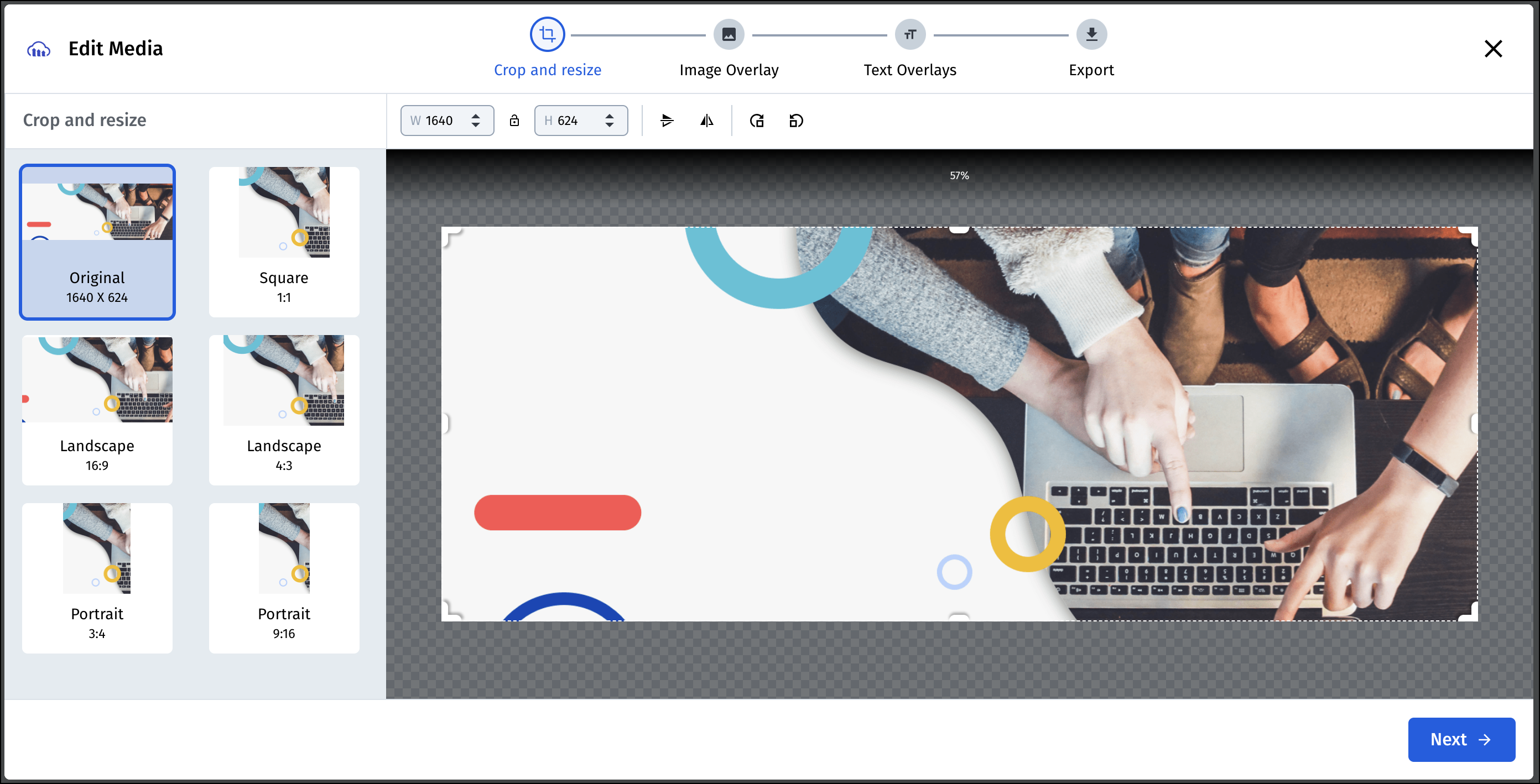
The resize and crop step of the widget enables your users to select a predefined option for resizing the image, to manually crop the image using the crop handles, and to flip or rotate the image.
Use the `resizeAndCrop` parameter to populate the Media Editor with an ordered array of `presets` that the user can choose from, in order to resize and crop the image. Each preset in the array can either be a [predefined named shortcut](media_editor_reference#predefinedpreset), or can be defined as a [custom preset](media_editor_reference#custompreset) with a `label`, `width`, `height` and/or `aspectRatio`. The `guidelinesUrl` property allows you to add an informative image (with cropping instructions for example) to the right-hand side of the display.
See the [ResizeProps](media_editor_reference#resizeprops) options for more details on the available options.
> **NOTE**: The following presets are included by default: Original, Square, Landscape 16:9, Landscape 4:3, Portrait 3:4, and Portrait 9:16
For example, to add the Twitter Ad and LinkedIn Ad predefined shortcuts, as well as a custom preset with the label "Cover Ad" and dimensions of 500 x 1000:
```js
const myEditor= cloudinary.mediaEditor();
myEditor.update({
cloudName: "demo",
publicIds: ["sample"],
image: {
steps: ["resizeAndCrop"],
resizeAndCrop: {
presets: ["facebookAd", "twitterAd",
{label: "Cover Ad", width: 500, height: 1000 }],
guidelinesUrl: "https://my.example.com/cropping_help.jpg"
}
}
});
```
### Image overlays
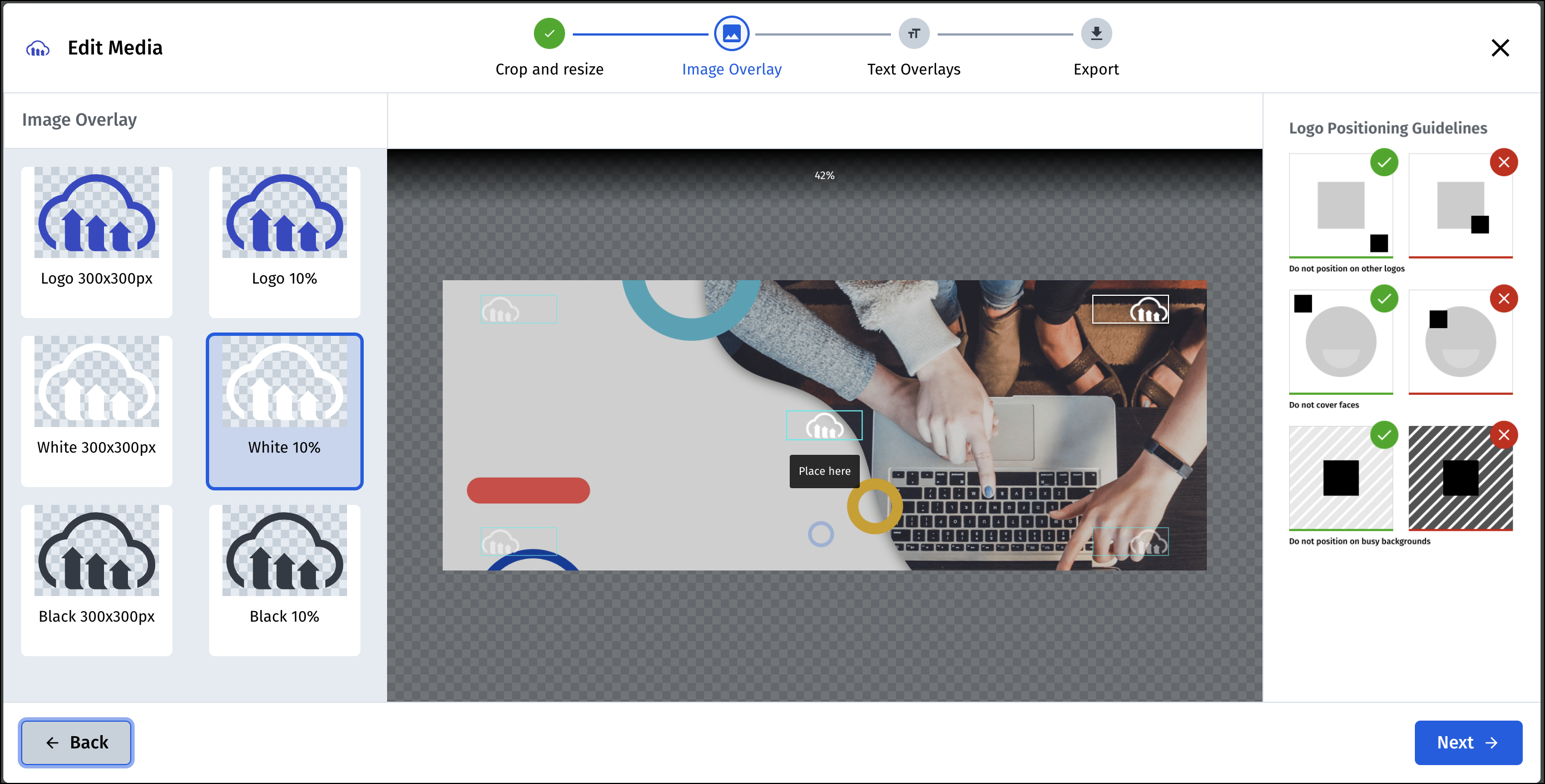
The image overlays step of the widget enables your users to choose an image overlay to add to the base image. Each of the overlay options is defined by a set of properties, including the size and allowed placements on the base image for the user to select.
* Use the `imageOverlay` parameter to populate the Media Editor with an ordered array of `overlays` that the user can choose from.
* Each overlay in the array is defined with a `publicId`, `label`, any `transformation` to apply, and an array of allowed `placementOptions`, where each placementOption is defined by a bounding box (width and height), a location on the base image (gravity) and any offset from the selected location (x and y).
* The `guidelinesUrl` property allows you to add an informative image (with overlay instructions for example) to the right-hand side of the display.
See the [ImageOverlayProps](media_editor_reference#imageoverlayprops) options for more details on the available options.
For example, to add 2 options for overlays as follows: The 'logo' image with a blackwhite effect applied and 2 placement options, and the 'logo_text' image with a negative effect applied and a single placement option:
```js
const myEditor= cloudinary.mediaEditor();
myEditor.update({
cloudName: "demo",
publicIds: ["flower"],
image: {
steps: ["imageOverlay"],
imageOverlay: {
overlays: [
{
"publicId": "logo",
"label": "Logo",
"transformation": [{ "effect": "blackwhite" }],
"placementOptions": [{
"x": 10,
"y": 10,
"width": 400,
"height": 400,
"gravity": "north_west"
},
{
"x": 0,
"y": 0,
"width": 400,
"height": 400,
"gravity": "north_east"
}
]
},
{
"publicId": "logo_text",
"label": "Logo with Text",
"transformation": [{ "effect": "negative" }],
"placementOptions": [{
"x": 0,
"y": 0,
"width": 400,
"height": 400,
"gravity": "north_east"
}
],
guidelinesUrl: "https://my.example.com/overlay_help.jpg"
}
}
});
```
### Text overlays
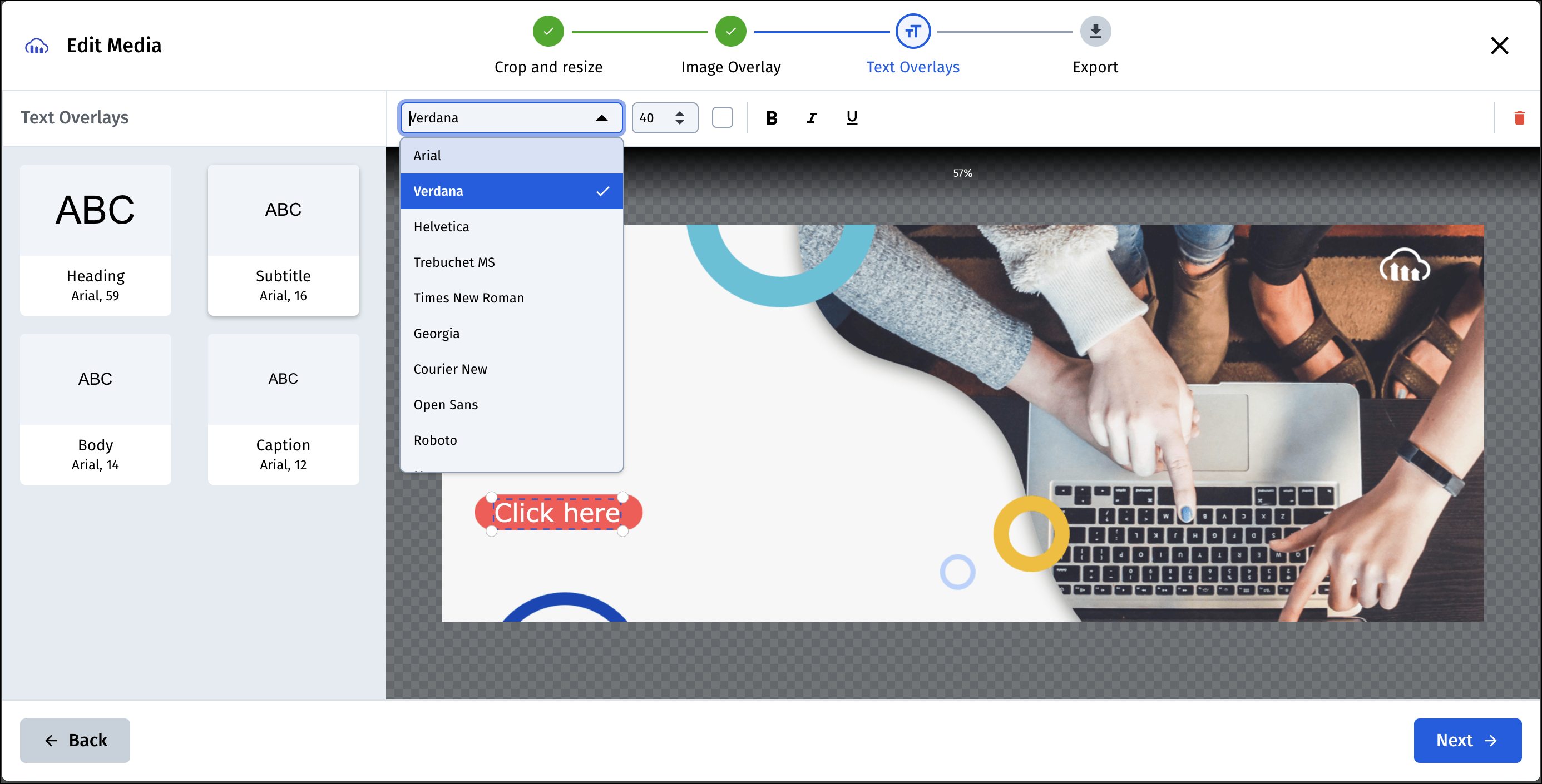
The text overlays step of the widget enables your users to add text to the base image. Once placed on the image, the overlay can be resized, the text can be edited, the color, font and style can be updated, and the overlay can be dragged to any location within the image. The editor supports multi line text boxes and displays alignment grids to help position the text overlay within the image or for aligning 2 text boxes.
Use the `textOverlays` parameter to customize the text overlay step with the following properties:
* The `fonts` property to define an array of allowed fonts. Default (all the built-in fonts): `["Ariel", "Verdana", "Helvetica", "Trebuchet MS", "Times New Roman", "Georgia", "Courier New", "Open Sans", "Roboto", "Montserrat"]`
* The `presets` property to define an array of text overlay presets available for the user to select. Default: `["heading", "body", "subtitle", "caption"]`
* The `guidelinesUrl` property to add an informative image (with overlay instructions for example) to the right-hand side of the display.
* The `initialColors` property to define an array of colors for the user to select. Default: `["#ffffff", "#000000"]`
* The `showColorPicker` boolean property to set whether the color picker is also available for the user to select a color.
{notes Notes for using custom fonts}
* All custom fonts you want to use need to be first uploaded to Cloudinary as [raw](upload_parameters#uploading_non_media_files_as_raw_files), [authenticated](upload_parameters#authenticated_assets) files.
* Since the custom font is uploaded as an [authenticated](upload_parameters#authenticated_assets) file, you will also need to implement the [onSign](media_editor_reference#onsign) method of the widget to return the signature needed to access a restricted asset.
* You need to specify the font's full `public_id` (as a raw file this will include the extension).
{/note}
See the [TextOverlaysProps](media_editor_reference#textoverlaysprops) options for more details on the available options.
For example, to allow 3 possible font options (Arial, Times New Roman, and a custom font called MyFont), and predefine 4 presets (heading, body and 2 custom presets), and set some initial color options while hiding the color picker:
```js
const myEditor= cloudinary.mediaEditor();
myEditor.update({
cloudName: "demo",
publicIds: ["flower"],
image: {
steps: ["textOverlays"],
textOverlays: {
fonts: [
"Arial",
"Times New Roman",
{
font: "MyFont",
styles: {
regular: "fonts/MyFont-Regular.ttf",
bold: "fonts/MyFont-Bold.ttf",
italic: "fonts/MyFont-Italic.ttf",
boldItalic: "fonts/MyFont-BoldItalic.ttf",
underline: true
}
}
],
presets: [
"heading", // predefined preset
"body", // predefined preset
{
label: "Custom Subtitle",
previewText: "DEF",
size: 40,
font: "MyFont", // requires the MyFont font to be defined in the fonts property
weight: "normal",
style: "normal",
color: "#ffffff",
underline: true
},
{
label: "My Header",
previewText: "ABC",
size: 70,
font: "Arial", // requires the Arial font to be defined in the fonts property
weight: "bold",
style: "italic",
color: "#fbff3a",
underline: true
}
],
initialColors: ["#3448c5", "#ff5050","#f7bc00"," #48c4d8" ,"#0052cc", "#a600cc", "#8ecc00"],
showColorPicker: false,
guidelinesUrl: "https://my.example.com/overlay_help.jpg"
}
}
});
// for custom fonts you need a signature service running.
myEditor.onSign(function (data) {
return new Promise(function (resolve) {
// you need to replace this with a working end-point with your signature service
fetch(
"http://my.endpoint.com/asset${encPath(data.publicId)}${encPath(
data.resourceType
)}${encPath(data.type)}${encPath(data.transformation)}"
)
.then((response) => response.json())
.then((d) => resolve(d));
});
});
```
### Export

The export step of the widget enables your users to select from provided exporting options.
Use the `export` parameter to populate the Media Editor with an ordered array of `formats` and `quality` to select from, and whether the HTTPS URL and Download options are displayed.
See the [ExportProps](media_editor_reference#exportprops) options for more details on the available options.
For example:
```js
const myEditor= cloudinary.mediaEditor();
myEditor.update({
cloudName: "demo",
publicIds: ["flower"],
image: {
steps: ["export"],
export: {
"formats": [
"auto",
"png",
"webp"
],
"quality": [
"auto",
55,
75,
"low"
],
"download": false,
"share": false
}
}
});
```
## Video configuration
> **INFO**:
>
> **Video** support in the Media Editor is currently in Beta. There may be minor changes to parameter names or other implementation details before the general access release. We invite you to try it out. We would appreciate any feedback via our [support team](https://support.cloudinary.com/hc/en-us/requests/new).
The Media Editor can also be used for editing videos. Specify the PublicID of the video to edit, and include the `resourceType`property set to "video". The video editing parameters are given within a `video` object parameter.
For example:
```js
const myEditor= cloudinary.mediaEditor();
myEditor.update({
cloudName: "demo",
publicIds: [{
publicId: "sample_vid",
resourceType: "video"
}],
video: {
// Video editing parameters are included here
}
});
```
### Video widget steps
Use the `steps` parameter to define which video steps are included in the widget. Currently the widget only supports a single [trim](#trim) step.
For example:
```js
const myEditor= cloudinary.mediaEditor();
myEditor.update({
cloudName: "demo",
publicIds: [{
publicId: "sample_vid",
resourceType: "video"
}],
video: {
steps: [
"trim"
]
}
});
```
### Trim
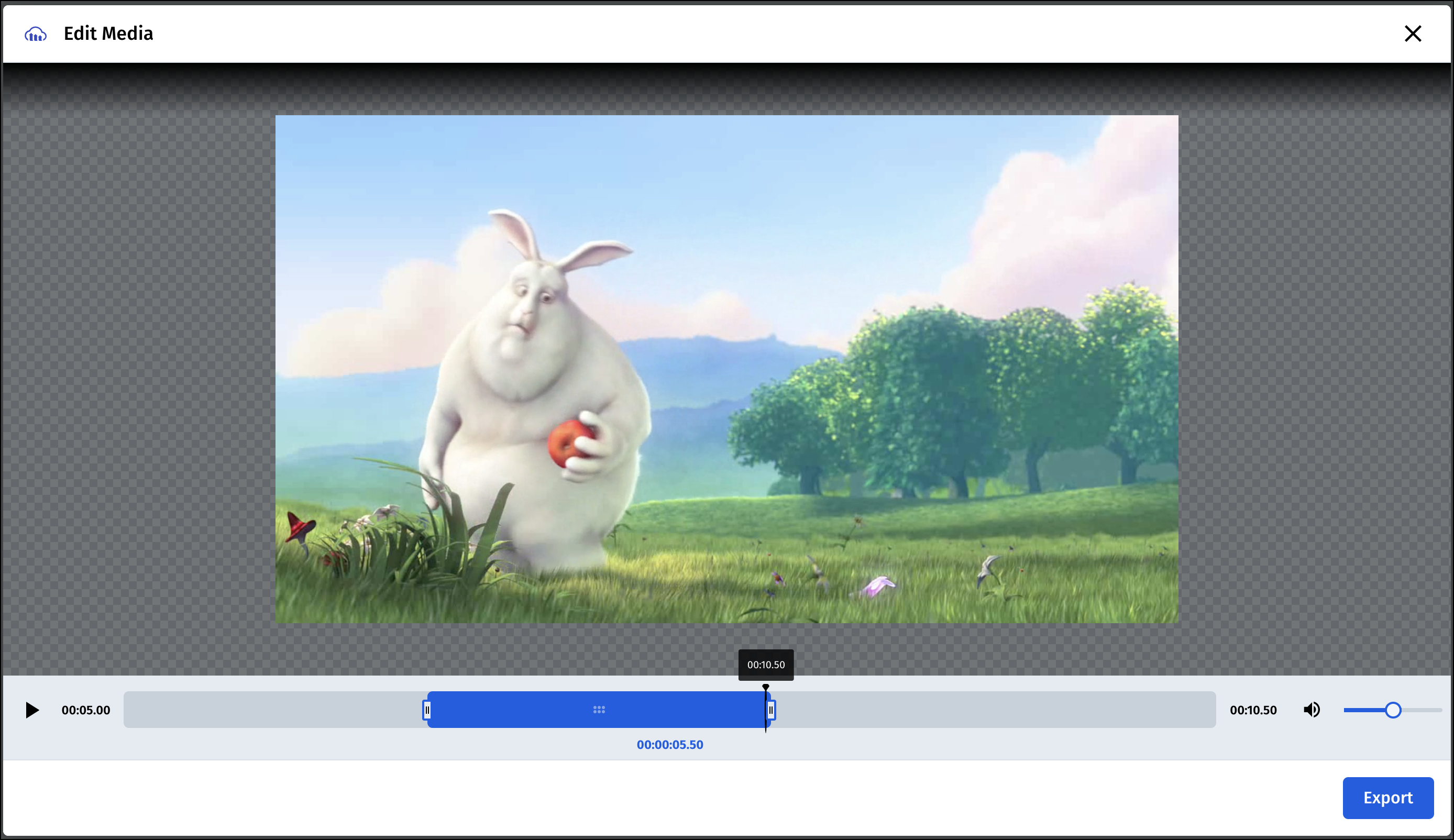
The trim step of the widget enables your users to manually trim the length of the video using the trim handles. You can define the initial location of the trim handles by adding the `startOffset` and `endOffset` properties to the `trim` parameter object, and optionally define a `maxDuration` and `minDuration` for the trimmed video.
For example:
```js
const myEditor= cloudinary.mediaEditor();
myEditor.update({
cloudName: "demo",
publicIds: [{
publicId: "sample_video",
resourceType: "video"
}],
video: {
steps: ["trim"],
trim: {
startOffset: 2,
endOffset: 10,
maxDuration: 8,
minDuration: 5
}
}
});
```
## Editor events
You can register to a variety of Media Editor widget events in order to introduce custom behavior in your application, or for analytics tracking once your application is deployed. Use the `on` method with an initialized widget to register to a specific event. For example, to register the initialized `myEditor` Media Editor widget to the `headerclick` event:
```js
myEditor.on("headerclick", (data) => {
console.log("HeaderClick: ", data);
});
```
> **INFO**:
>
> If you want your code to have access to the final delivery URLs once your user has finished interacting with the widget, make sure to register to the `export` event, which is called when the user clicks on the **Export** button.
For a full listing of available events, see the [Events](media_editor_reference#events) section in the Media Editor API reference.
## Localization
The text used in the widget can be fully customized for different languages or locales by specifying a `language` object parameter. The strings for each language are specified using the `messages` parameter, which accepts a JSON structure defining the value to use for each text element in each language. The `locale` parameter sets which of the string options to use from those defined in the messages parameter (`en-US` by default). To override any of the default values, you only need to include the elements you want to override.
All the default values can be found at: [https://media-editor.cloudinary.com/widget/messages.json](https://media-editor.cloudinary.com/widget/messages.json).
For example, to only customize the `header` and the `crop - presets - square` texts:
```js
const myEditor= cloudinary.mediaEditor();
myEditor.update({
cloudName: "demo",
publicIds: ["flower"],
language: {
locale: 'en_US',
messages: {
en_US: {
"header": "Edit Image",
"crop": {
"presets": {
"square": "Square",
}
}
}
}
}
});
```
## Media Editor widget reference
For details on all the available methods, parameters and events, see the [Media Editor reference](media_editor_reference).