div tags, we can initialize our Product Gallery. This can be as simple as declaring your product environment cloud name and the tagged assets, or as complex as adding custom options for each aspect. [**Try it yourself...**](https://jsfiddle.net/sambrace/d5jo04ay/)|
### Add transformations to assets
{table:class=tutorial-bullets}| |
| --- | --- |
|{videotime:id=media :min=5 :sec=05 :player=cld} | One of the main reasons people use Cloudinary is because of our amazing asset transformations, and you can apply those on the fly into your Product Gallery. All you have to do is declare the transformations in the mediaAssets parameter. [**Try it yourself...**](https://jsfiddle.net/sambrace/jm0hdovw/)|
### View default transformations
{table:class=tutorial-bullets}| |
| --- | --- |
|{videotime:id=media :min=5 :sec=26 :player=cld} | We do automatically apply some of our most generally useful transformations to the assets. So, don't worry about manually declaring any of the defaults. |
### Change the carousel styles
{table:class=tutorial-bullets}| |
| --- | --- |
|{videotime:id=media :min=5 :sec=50 :player=cld} | At default, we provide a carousel of all the assets as thumbnails. This allows your visitors to see a preview of each item in the Gallery, as well as a way to scroll or jump to a specific asset. However, you may want to change the thumbnails to be indicator shapes or remove the carousel altogether. [**Try it yourself...**](https://jsfiddle.net/sambrace/yL1cptv4/)|
### Adjust carousel properties
{table:class=tutorial-bullets}| |
| --- | --- |
|{videotime:id=media :min=6 :sec=20 :player=cld} | If you decide to further adjust how the carousel looks, you can do this by overriding the properties for each style. [**Try it yourself...**](https://jsfiddle.net/sambrace/9wbdkczv/)|
### Customize your video functionality
{table:class=tutorial-bullets}| |
| --- | --- |
|{videotime:id=media :min=6 :sec=39 :player=cld} | Customization is definitely possible with the videoProps parameter, such as allowing you to set whether videos play on load or if the visitor can manually pause and play the content. [**Try it yourself...**](https://jsfiddle.net/sambrace/gLb1f0nd/)|
### Place the Product Gallery on your site's pages and posts
{table:class=tutorial-bullets}| |
| --- | --- |
|{videotime:id=media :min=7 :sec=00 :player=cld} | At this point, you've likely got your Gallery code where you want it to be. So, all you have to do is embed it on your site.
### Allow JavaScript in WordPress
{table:class=tutorial-bullets}| |
| --- | --- |
|{videotime:id=media :min=7 :sec=12 :player=cld} | Some content management systems like WordPress block JavaScript in pages and posts at default. If this happens to you, you may need to install and activate certain plugins, such as [Code Embed](https://wordpress.org/plugins/simple-embed-code/#description). |
After watching this overview video, continue reading the sections below to get details on customizing and enhancing your Product Gallery.
## Displaying assets
The Product Gallery widget can display **images**, **videos**, **360 spin sets**, and **3D models**. Use the `mediaAssets` parameter to populate the widget with all media given as an array of asset objects. The individual objects in the array can be described either by an [Asset](product_gallery_reference#asset) object or by a PublicID string (as a shortcut for images only).
All assets are displayed alphanumerically by their PublicID in ascending order. You can add the [sort](product_gallery_reference#sort) parameter if you want to change the way the assets are ordered.
For example, to populate the widget with all images that have the "shoe" tag:
```js
const myGallery = cloudinary.galleryWidget({
container: "#my-gallery",
cloudName: "demo",
mediaAssets: [{ tag: "shoe" }] // by default mediaType: "image"
});
```
> **NOTES**:
>
> * The Product Gallery widget only displays media assets that were uploaded as delivery [type](control_access_to_media) `upload`.
> * The Product Gallery widget is incompatible with the [Strict Transformations](control_access_to_media#strict_transformations) feature due to the number of transformations that need to be generated on the fly.
> {/note}
> {reading:title=In this section}
> * [Videos](#videos)
> * [360 spin sets](#360_spin_sets)
> * [3D models](#3d_models)
> * [Display mode](#display_mode)
> * [Responsive assets](#responsive_assets)
> * [Applying transformations](#applying_transformations)
> * [Populating the widget examples](#populating_the_widget_examples)
> {/reading}
> ### Videos
> To play videos in the Product Gallery widget, populate the `mediaAssets` parameter with an [Asset](product_gallery_reference#asset) object: specify the `tag` used for all videos with the same tag or specify the `public_id` of the video asset, and specify the `mediaType` property with a value of "video".
> For example, to populate the widget with all videos that have the "shirt" tag:
> ```js
const myGallery = cloudinary.galleryWidget({
container: "#my-gallery",
cloudName: "demo",
mediaAssets: [{ tag: "shirt", mediaType: "video" }]
});
```
> {note}
> The Product Gallery widget plays videos using the HTML5 video player by default, but you can use the [Cloudinary Video Player](#cloudinary_video_player) instead.
> {/note}
> ### 360 spin sets
> 360 spin sets allow your users to spin a product around a central axis. In order to display a 360 spin set, the Product Gallery widget fetches all images with a particular tag and combines them into a single entity, where each image is included as a single frame of the resulting 360 spin set (sorted alphanumerically by their public ID).
> To add a 360 spin set, populate the `mediaAssets` parameter with an [Asset](product_gallery_reference#asset) object: specify the `tag` used for all images in the 360 spin set, and specify the `mediaType` with a value of "spin".
> For example, to populate the widget with a single 360 spin set created from all images in the `demo` product environment that have the `clock-360` tag:
> ```js
const myGallery = cloudinary.galleryWidget({
container: "#my-gallery",
cloudName: "demo",
mediaAssets: [{ tag: "clock-360", mediaType: "spin" }]
});
```
> #### Spin sets from Panoramic 360 images
> An interesting use case for spin sets is to display 360 panoramic images that can also be rotated by a user, giving the effect to the user of turning in place while seeing the 360 view. The Product Gallery below displays a 360 spin set and the original landscape image it was created from. For more details, as well as a simple script for making a spin set from a panoramic image, see the blog post on [How to Turn 360 Panoramic Images Into 360 Spin Sets](https://cloudinary.com/blog/how-to-turn-360-panoramic-images-into-360-spin-sets).
> ### 3D models
> 3D models are one of the best ways for your users to interact with a product and view it online from multiple angles. The Product Gallery widget supports 3D models that have been zipped and uploaded to Cloudinary (see [Uploading 3D models](upload_parameters#uploading_3d_models) for more information).
> To add a 3D model, populate the `mediaAssets` parameter with an [Asset](product_gallery_reference#asset) object: specify the `publicId` of a single model (or a `tag` for multiple models) and specify the `mediaType` with a value of "3d".
> You can also control how the model is displayed and the look and feel of the zoom and augmented reality (AR) controls by including the [ar3dProps](product_gallery_reference#ar3dprops) parameter.
> For example, to populate the widget with a 3D model in the `demo` product environment that has the public ID of `DamagedHelmet3D`, and set it to rotate automatically:
> ```js
```
> {note}
> The Product Gallery only supports 3D models in the GLB format. If an uploaded 3D model is in a different format (e.g., FBX) Cloudinary will try convert it to GLB. This conversion process is still in development and may result in errors. We recommend converting to the GLB format before uploading the model to Cloudinary.
> {/note}
> #### Customizing AR functionality
> You can customize the AR (augmented reality) experience by using your own custom AR modal and/or button instead of the default ones provided by the Product Gallery widget.
> ##### Using a custom AR modal
> To use a custom AR modal while keeping the native "view in AR" button, set `useCustomArModal: true` and listen to the `onArClick` event to display your custom modal when the button is clicked:
> ```js
const myWidget = cloudinary.galleryWidget({
cloudName: 'demo',
container: '#my-gallery',
carouselStyle: 'none',
ar3dProps: {
showAR: true,
useCustomArModal: true,
},
mediaAssets: [
{ publicId: "docs/3d/red_sneaker", mediaType: "3d" },
]
});
myWidget.on('onArClick', (e) => {
const { qrUrl, qrSvg } = e.data;
const modal = document.getElementById('ar-modal');
const qrContainer = document.getElementById('ar-qr-code');
const urlContainer = document.getElementById('ar-url');
qrContainer.innerHTML = qrSvg;
urlContainer.innerHTML = `${qrUrl}`;
modal.style.display = 'flex';
document.getElementById('close-modal').onclick = () => {
modal.style.display = 'none';
};
});
myWidget.render();
```
> HTML template:
> ```html
```
> AR Instructions
> Scan this QR code with your mobile device to view in AR
> Close
> ##### Using a custom AR button
> To use a custom "view in AR" button and a custom AR modal to display the QR code, set `showAR: false` to hide the native AR button and listen to the `onQrReady` event to capture the QR code data when it's ready:
> ```js
window.addEventListener('load', () => {
const myWidget = cloudinary.galleryWidget({
cloudName: 'demo',
container: '#my-gallery',
carouselStyle: 'none',
ar3dProps: {
showAR: false, // Hides the native "view in AR" button
},
mediaAssets: [
{ publicId: "docs/3d/red_sneaker", mediaType: "3d" },
]
});
myWidget.on('onQrReady', (e) => {
const { qrSvg, qrUrl } = e.data;
const customArButton = document.getElementById('custom-ar-button');
customArButton.onclick = () => {
const modal = document.getElementById('ar-modal');
const qrContainer = document.getElementById('ar-qr-code');
const urlContainer = document.getElementById('ar-url');
qrContainer.innerHTML = qrSvg;
urlContainer.innerHTML = `${qrUrl}`;
modal.style.display = 'flex';
document.getElementById('close-modal').onclick = () => {
modal.style.display = 'none';
};
};
});
myWidget.render();
});
```
> HTML template:
> ```html
```
> View in AR
> AR Instructions
> Scan this QR code with your mobile device to view in AR
> Close
> ### Display mode
> The following video gives a brief demonstration of the different display modes for the Product Gallery:
> The Cloudinary Product Gallery widget can be configured with the following parameters of the `displayProps` object:
> * `mode`:
> * **classic** - (Default) The assets are displayed one at a time in the main viewer.
> * **expanded** - The main viewer is expanded and all assets are displayed in vertical columns. Not supported by mobile devices where the widget always uses classic mode.
> The following parameters of the`displayProps` object are relevant only when the `mode` parameter is set to 'expanded':
> * `spacing` - The spacing between assets in pixels.
> * `columns`- The number of columns to display simultaneously (1 column by default).
> * `topOffset` - The offset of the carousel and the selected asset from the top of the page in pixels (to account for other elements on the page, like menus).
> * `bottomOffset` - The offset of the carousel and the selected asset from the bottom of the page in pixels (to account for other elements on the page, like footers).
> For example, to configure the widget to display all assets in an expanded viewer:
> ```js
var myGallery= cloudinary.galleryWidget({
container: "#my-gallery",
cloudName: "demo",
displayProps: {
mode: "expanded",
topOffset: 70 // to account for the menu element at the top of this documentation page
},
aspectRatio: "4:3", // most of the assets are in landscape orientation
mediaAssets: [
{tag: "electric_car_product_gallery_demo"}, // by default mediaType: "image"
{tag: "electric_car_product_gallery_demo", mediaType: "video"},
{tag: "electric_car_360_product_gallery_demo", mediaType: "spin"}
]
});
myGallery.render();
```
> {notes}
> When the widget is configured for `expanded` mode:
> * The [carousel](#carousel_options) is rendered as a floating element (by default). This property is controlled by the `sticky` parameter of the carousel customization object ([ThumbnailProps](product_gallery_reference#thumbnailprops) or [IndicatorProps](product_gallery_reference#indicatorprops)).
> * The height of your displayed assets shouldn't be larger than the viewport height, which can potentially be an issue on large screen resolutions. Note that the height is controlled indirectly by a combination of the container width + aspect ratio. Best practice is to either set a fixed width for your container, and/or select an appropriate aspectRatio (e.g., 4:3 for landscape).
> * Not all browsers support 'scrollTo' behavior by default. To smoothly scroll to selected assets, instead of 'jumping' to them instantly on Edge and Safari browsers, include a [polyfill for scrollTo behavior](https://github.com/iamdustan/smoothscroll).
### Responsive assets
The Cloudinary Product Gallery widget automatically resizes itself to fit within the available width of the containing HTML element. This feature includes an automatic responsive solution for displaying assets that works as follows:
* A Cloudinary dynamic transformation URL is automatically built on the fly to deliver an asset that's scaled to the closest breakpoint step (every 100 pixels by default) according to the available width and resolution.
* If the window is consequently enlarged then new higher resolution assets are automatically delivered, while using breakpoint steps (every 100 pixels by default) to prevent generating and delivering too many assets.
* If the window is scaled down, client-side scaling is used instead of delivering a new image.
To change the breakpoint step size, you can include the following optional parameters:
* `imageBreakpoint` to override the value for images and 360 spin sets assets (default: 100).
* `videoBreakpoint` to override the value for video assets (default: 100).
For example, to change the breakpoint step size to every 150 pixels for the images, and to 200 pixels for the videos:
```js
var myGallery = cloudinary.galleryWidget({
container: "#my-gallery",
cloudName: "demo",
mediaAssets: [
{ tag: "bag" },
{ tag: "bag", mediaType: "video" }
],
imageBreakpoint: 150,
videoBreakpoint: 200
});
myGallery.render();
```
### Applying transformations
By default, the widget applies the following [transformations](transformation_reference) to media assets displayed in the widget:
* **For images** (including 360 spin sets):
```json
{
background: "#FFFFFF", // only relevant for pad crop mode
crop: "pad", // only fill or pad mode is supported
dpr: 2,
fetch_format: "auto",
quality: "auto",
gravity: "auto" // only relevant for fill crop mode (default is "center" for 360 spin sets)
}
```
* **For videos**:
```json
{
background: "#FFFFFF", // only relevant for pad crop mode
crop: "pad", // only fill or pad mode is supported
dpr: 2,
duration: 30
}
```
You can override any of these default transformations by adding the `transformation` parameter to the [Asset](product_gallery_reference#asset) object when populating the widget with the `mediaAssets` parameter.
For example, to use the `fill` crop mode instead of the default `pad` crop mode:
```js
mediaAssets: [{ tag: "shirt", transformation: { crop: "fill" } }]
```
If you also want to add other transformation parameters, use the `transformation` *object* of the `transformation` *parameter*. For example, to add images tagged with "shirt" and also add an overlay of the `cloudinary_icon_blue` image in the top right corner:
```js
mediaAssets: [{ tag: "shirt", transformation:
{ transformation: [{ overlay: "cloudinary_icon_blue", gravity: "north_east" }]}}]
```
You can both override transformation parameters and supply additional parameters. For example, to add images tagged with "shirt" that now use the `fill` crop mode, and also add an overlay of the `cloudinary_icon_blue` image in the top right corner:
```js
mediaAssets: [{ tag: "shirt", transformation:
{ crop: "fill", transformation: [{ overlay: "cloudinary_icon_blue", gravity: "north_east" }]}}]
```
By default, the default transformations are applied before the additional transformations. If you want to apply the default transformations after the additional ones, set the `prefixed` parameter to `false`. For example, to remove the background of the images before applying the default transformations:
```js
mediaAssets: [{ tag: "shirt", transformation:
{ prefixed: false, effect: "background_removal" }}]
```
> **NOTE**: All transformations use the JavaScript (legacy) syntax. When looking at transformation examples in the rest of the documentation, you can change the JS tab to display the legacy (cloudinary-core) code examples.
### Populating the widget examples
The `mediaAssets` parameter is used to populate the widget. The parameter accepts an array of values where each of them can be described either by an [Asset](product_gallery_reference#asset) object or by a PublicID string (as a shortcut for a single image only).
The following are example values for the `mediaAssets` parameter:
1. All images tagged with "shirt":
```js
[{tag: "shirt"}] // by default mediaType: "image"
```
2. All video assets tagged with "bag":
```js
[{tag: "bag", mediaType: "video"}]
```
3. All images tagged with "bag" and all videos tagged with "luggage":
```js
[{tag: "bag", mediaType: "image"}, {tag: "luggage", mediaType: "video"}]
```
4. A video asset with the PublicID "t-shirt":
```js
[{publicId: "t-shirt", mediaType: "video"}]
```
5. A 360 spin set created from all static images tagged with "my-360-tag":
```js
[{tag: "my-360-tag", mediaType: "spin"}]
```
6. An image with the PublicID "bag" with a cartoonify effect applied:
```js
[{publicId: "bag", transformation: {effect: "cartoonify"}}]
```
7. An image created from the middle frame of a video asset with the PublicID "clock":
```js
[{publicId: "clock", mediaType: "image", resourceType: "video"}]
```
8. An image with the PublicID "book", a 360 spin set created from all static images tagged with "360-book", and a video with the PublicID "book-vid":
```js
["book", {tag: "360-book", mediaType: "spin"}, {publicId: "book-vid", mediaType: "video"}]
```
## Customizing styles
The Product Gallery interface is extensively customizable, whether you need to increase the size of thumbnails in the carousel, move the location of the zoom viewer or implement your own colorization scheme. See the [Product Gallery reference](product_gallery_reference) documentation for a listing of all the customization options.
> **TIP**: Check out the [Product Gallery interactive demo](https://demo.cloudinary.com/product-gallery/?editor) and try out some of the customization options.
## Carousel options
The carousel is the component of the widget that's used for indicating the amount of assets, showing which asset is currently displayed in the main viewer, and for cycling through the assets. There are 2 styles defined for the carousel, which can be set with the [carouselStyle](product_gallery_reference#carouselstyle) parameter:
* `thumbnails` - small thumbnail images.
* `indicators` - a series of small icons.
* `none` - no carousel component is displayed: only the main viewer navigation buttons are available for cycling through the assets.
Both styles are highly customizable and the default values can be changed by overriding the `thumbnailProps` parameter with a new [ThumbnailProps](product_gallery_reference#thumbnailprops) object or overriding the `indicatorProps` parameter with a new [IndicatorProps](product_gallery_reference#indicatorprops) object.
For example, to customize the thumbnail style to display 75x75 images, set a spacing of 4 pixels between the images, and color the navigation buttons green:
```js
var myGallery = cloudinary.galleryWidget({
container: "#my-gallery",
cloudName: "demo",
carouselStyle: "thumbnails", // default value: included for clarity
thumbnailProps: { width: 75, height: 75, spacing: 4, navigationColor: "green"},
mediaAssets: [{ tag: "bag" }] });
myGallery.render();
```
## Generating Product Gallery code for Media Library assets
You can select images, videos, and 360 spin sets from your Media Library and automatically generate the code for a Product Gallery containing these assets. When you use this option, the Product Gallery generator UI opens, displaying a preview of the Product Gallery with default style and carousel options. You can then use the Generator UI options to customize the Gallery styles and carousel options. As you make your selections, both the preview and gallery code update automatically.
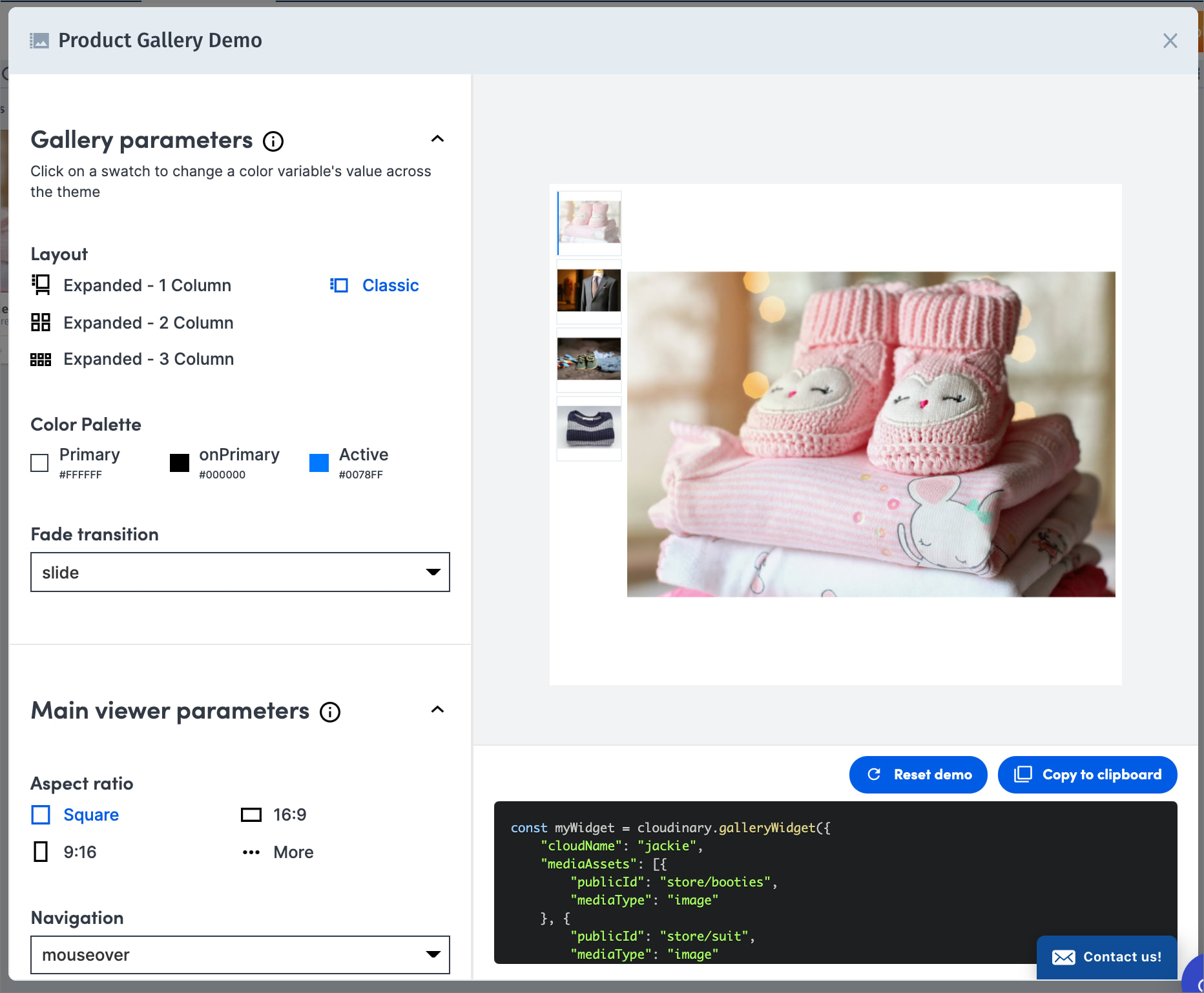
Besides enabling you to quickly generate your Product Gallery code and experiment with the various customization options, this can also be a useful tool for working together with product or marketing managers to decide on the preferred customizations before implementation.
> **NOTE**: The Product Gallery is accessible from the Media Library only if your Assets administrator has enabled the Product Gallery in the [Apps](dam_admin_media_library_options#dam_apps) marketplace.
**To generate Product Gallery code from the Media Library**:
1. In your application code, include the Product Gallery JavaScript file and a containing element for the widget, as described in the first steps of the Product Gallery [workflow](#workflow). Additionally, verify the following options are set in your [Console Settings](https://console.cloudinary.com/console):
* Make sure the **Resource List** checkbox is cleared in **Settings > Security > Restricted media types**.
* If your product environment is set to use [Strict Transformations](control_access_to_media#strict_transformations), add your domain to the list in **Settings > Security > Allowed strict referral domains**.
2. In the Media Library, select the assets you want to include in your gallery.
* If all the required assets aren't stored in the same folder, you may first want to add them all to the same [Media Library collection](dam_folders_collections_sharing) or perform an [advanced search](dam_advanced_search) (based on a tag value or other value that they have in common), so that all the required assets are in the same view for easy selection.
* The assets you select must be of type `upload` (not fetched or social media assets) and must be public (not restricted).
* By default, the assets you select will be added to the gallery in ascending alphabetical order by public ID. If you want to control the order of the assets, you must do some reparation. For details, see [Controlling the order of assets in a generated Product Gallery](#controlling_the_order_of_assets_in_a_generated_product_gallery)
* If you want to include 360 spin sets in your Product Gallery, you must do some preparation. For details, see [Including 360 spin sets in a generated Product Gallery](#including_360_spin_sets_in_a_generated_product_gallery).
* Currently, adding 3D models to a generated Product Gallery via the UI isn't supported. You can [add 3D models](#3d_models) to your code manually after you copy the embed code to your container element in your application or site code.
3. In the asset toolbar, select **Generate Product Gallery**.
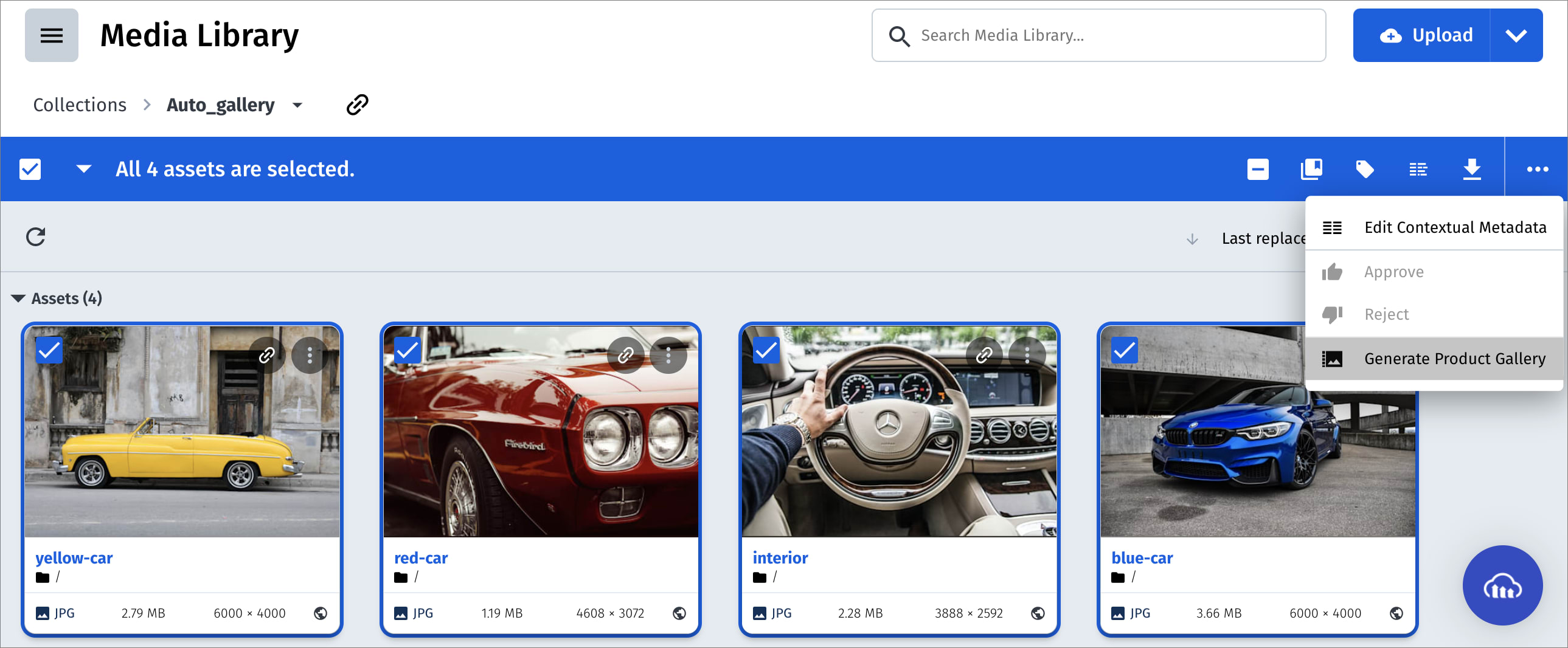
The Product Gallery Generator opens and displays the preview and embed code for the Product Gallery with your selected assets.
4. After customizing the Product Gallery options to fit your needs, use the **Copy to Clipboard** button to capture the embed code for your Product Gallery and paste it within a `script` HTML tag in your application code.The generated code assumes that your container ID is: `"#my-gallery"`. Adjust this as needed.
### Controlling the order of assets in a generated Product Gallery
When assets are added to a Product Gallery by public ID, the order that the assets are displayed is based on the order that they're specified within the `mediaAssets` object. By default, when you select assets from the Media Library for inclusion in the Product Gallery generator, they're added to the `mediaAssets` object in ascending alphabetical order by public ID. To instruct the Product Gallery generator to add the assets to the `mediaAssets` object in another order, add a **contextual metadata** key called `placement` to each asset. The value of this key for each asset should be a numerical value, where `1` represents the first asset displayed in the gallery.
> **TIP**:
>
> :title=Tips:
> * You can sort the assets displayed in the Assets, Folders and Collections Media Library pages where you are selecting assets by criteria such as upload date, creation date, original filename, file size, etc. This helps you determine the order for setting the `placement` values.
> * The quickest way to manually set contextual metadata for individual assets is by clicking each asset and then setting the context key and value in the Preview pane on the right side of the Media Library. If the Preview pane is closed, click the **Open Preview** button to display it.
### Including 360 spin sets in a generated Product Gallery
To include a 360 spin set in your Product Gallery, you must define both a unique tag and a corresponding contextual metadata key to indicate that assets with this tag should be recognized by the Product Gallery as `mediaType: "spin"`.
1. Apply a unique tag to all of the assets that make up a specific 360 spin set. You can do this easily from the Media Library, by selecting all of the assets, and then selecting the **Tag** option from the asset toolbar to add the same tag to all selected assets.
2. Apply a contextual metadata entry to all of the assets that make up the 360 spin set, with a key called `spinset_tag` and a value matching the unique tag value you set in step 1. You can do this easily from the Media Library, by selecting all of the assets, and then selecting the **Edit Contextual Metadata** option from the asset toolbar to add the same contextual key and value to all selected assets.
3. Follow the general instructions for [Generating Product Gallery code for Media Library assets](#generating_product_gallery_code_for_media_library_assets). When selecting the assets to include in the Product Gallery, it's enough to select any **one** of the assets from your spin set. Because that asset includes the `spinset_tag` contextual metadata key, this instructs the Product Gallery generator to include all assets with the specified tag as part of a single `mediaType: "spin"` asset.
## Responsive widget
The Product Gallery widget itself is also responsive to the available width of the user's view port (browser or mobile device). By default, the Product Gallery widget has a single `viewportBreakpoint` set for a width of 520 pixels, in effect creating 2 viewing modes as follows:
* *Width over 520 pixels*: A thumbnail styled carousel located on the left of the main viewer (the default main widget configuration).
* *Width up to 520 pixels*: A thumbnail styled carousel located below the main viewer.
You can set your own view port breakpoints for the Product Gallery widget by overriding the `viewportBreakpoints` parameter. This parameter accepts an array of [BreakpointProp](product_gallery_reference#breakpointprops) objects, where each object in the array defines the widget configuration settings for a specified width or less. The main widget configuration is used when the widget has a width larger than the largest given breakpoint in the array.
For example, to have 3 different viewing modes for the Product Gallery widget as follows:
* *over 600 pixels*: a thumbnail styled carousel located to the left of the main viewer
* *up to 600 pixels*: a thumbnail styled carousel located below the main viewer
* *up to 300 pixels*: an indicator styled carousel located below the main viewer with navigation buttons always enabled
```js
var myGallery = cloudinary.galleryWidget({
container: "#my-gallery",
cloudName: "demo",
mediaAssets: [{ tag: "bag" }],
carouselStyle: "thumbnails", // default value: included for clarity
carouselLocation: "left", // default value: included for clarity
viewportBreakpoints: [
{ breakpoint: 600, carouselStyle: "thumbnails", carouselLocation: "bottom" },
{ breakpoint: 300, carouselStyle: "indicators", carouselLocation: "bottom", navigation: "always" } ]
});
myGallery.render();
```
> **NOTE**:
>
> The Product Gallery widget itself is only responsive to the width of the viewport (any size constraints to the containing element are ignored). Assets *within* the Product Gallery are fully responsive to the available width (including constraints on the containing element). For more information, see [Responsive assets](#responsive_assets).
## Cloudinary video player
The Product Gallery also supports using the [Cloudinary Video Player](#cloudinary_video_player) to play videos, instead of using the default HTML5 video player. The Cloudinary Video Player is a JavaScript-based video player bundled with many valuable customization and integration capabilities, and is monetization and analytics-ready.
To use the Cloudinary Video Player within the Product Gallery set the `playerType` property of the `videoProps` parameter to 'cloudinary'. This is a global setting for the Product Gallery and affects all videos played within the Product Gallery.
For example, to use the Cloudinary Video Player to play all the video assets:
```js
const myGallery= cloudinary.galleryWidget({
container: "#my-gallery",
cloudName: "demo",
mediaAssets: [
{ publicId: "dog", mediaType: "video" },
{ publicId: "cat", mediaType: "video" }
],
videoProps: { playerType: "cloudinary" }
});
```
### Cloudinary Video Player configuration options
You can configure and customize the Cloudinary Video Player for the Product Gallery widget by also including any of the [Video Player configuration options](video_player_api_reference#configuration_options) in the `videoProps` parameter. All the configuration options added to the `videoProps` parameter will affect all the videos played within the Product Gallery.
For example, to only show a larger central play button when a video is initially loaded, include the `bigPlayButton` parameter set to 'init':
```js
const myGallery = cloudinary.galleryWidget({
container: "#my-gallery",
cloudName: "demo",
mediaAssets: [{ publicId: "dog", mediaType: "video" }],
videoProps: {
playerType: "cloudinary",
bigPlayButton: "init"
}
});
```
### Cloudinary Video Player source options
You can also individually configure each of the video assets (sources) you display within the Product Gallery by including any of the [Video Player source options](video_player_api_reference#source) within the `videoPlayerSource` property for each of the video assets given in the `mediaAssets` parameter.
For example, to configure [adaptive streaming](video_player_hls_dash) options for playing the "dog" video, with `hls` as the primary format and `dash` as a fallback option for browsers that don't support HLS:
```js
const myGallery = cloudinary.galleryWidget({
container: "#my-gallery",
cloudName: "demo",
mediaAssets: [{
publicId: "dog",
mediaType: "video",
videoPlayerSource: {
sourceTypes: ["hls", "dash"],
sourceTransformation: {
"hls": [{ streaming_profile: "hd_hls" }],
"dash": [{ streaming_profile: "hd_dash" }],
}
}
}],
videoProps: {
playerType: "cloudinary"
}
});
```
> **NOTE**: The example above assumes that the streaming profiles and adaptive streaming format were already generated with an eager transformation, ensuring that all required files and video representations are ready to be delivered upon request. For more details, see the [HLS and MPEG-DASH adaptive streaming](video_player_hls_dash) documentation.
### Cloudinary Video Player interactive video example
The following is an example of using the [Interactive Video](video_player_interactive_videos) feature of the Cloudinary Video Player in the Product Gallery. Using the `mediaAssets` parameter, the video is configured with 2 clickable interaction areas that each play a different zoomed in version of the video, and the `videoProps` parameter includes the theme and layout definitions for displaying the interactive functionality:
```js
const myGallery = cloudinary.galleryWidget({
container: "#my-gallery",
cloudName: "demo",
mediaAssets: [{
publicId: "docs/my_video",
mediaType: "video",
videoPlayerSource: {
interactionAreas: {
enable: true,
template: [
{
left : 10 ,
top: 10,
width: 80,
height: 40,
id: 'topSource'
},
{
left : 10 ,
top: 75,
width: 80,
height : 20,
id: 'bottomSource'
}
],
onClick: function (event) {
var sources = {
topSource : 'https://res.cloudinary.com/demo/video/upload/docs/my_video_top_zoom.mp4',
bottomSource: 'https://res.cloudinary.com/demo/video/upload/docs/my_video_bottom_zoom.mp4'
}
event.zoom(sources[event.item.id]);
}
}
}
}],
videoProps: {
playerType: "cloudinary",
interactionDisplay: {
theme:{
template : 'pulsing'
},
layout: {
enable: true ,
showAgain: true,
}
}
}
});
```
## Gallery events
You can register to a variety of Product Gallery widget events in order to introduce custom behavior in your application or for analytics tracking once your application is deployed. Use the `on` method with an initialized widget to register to a specific event. For example, to register the initialized `myGallery` Product Gallery widget to the `mouseenter` event:
```js
myGallery.on('mouseenter', (data) => {
console.log('MouseEnter', data);
});
```
For a full listing of available events, see the [Events](product_gallery_reference#events) section in the Product Gallery reference.
## Multiple zoom
If you have very high resolution images, you may want to enable the widget with multiple zoom steps to allow your users to see the fine detail in your images. The multi-zoom functionality is only available for the 'popup' type zoom option, and you can set the number of zoom steps between 0 and 5, where each step zooms in according to the value of the `level` property. You can also limit the number of steps, so as not to zoom in beyond the original image size, with the `stepLimit` boolean property.
For example:
```js
var myGallery = cloudinary.galleryWidget({
container: "#my-gallery",
cloudName: "demo",
mediaAssets: [{ tag: "shoes_product_gallery_demo" }],
zoom: true, // for demonstration purposes, true is the default value anyway
zoomProps: {
type: "popup",
steps: 3,
stepLimit: true,
level: 1.3 // each step zooms in another 130%
}
});
myGallery.render();
```
> **NOTES**:
>
> * For the best user experience, this feature should only be used when displaying high resolution images, as zooming in on a low resolution image will appear blurry and unclear.
> * The zoom popup covers the whole screen area, full screen, with +/- buttons that let the user zoom in and out (mobile devices use pinch to zoom, and the +/- buttons aren't displayed).
> * After zooming in, the user can drag the zoomed image to see all parts of the image - only a partial view of the image may be shown on screen each time as the image may be bigger than the screen size.
## Integrating with Google Tag Manager
If you have integrated Google Tag Manager on your page, you can tell the Product Gallery widget to update Google Tag Manager's `dataLayer` array whenever an [event](product_gallery_reference#events) is triggered by including the `analytics` boolean parameter set to `true`. For example:
```js
var myGallery = cloudinary.galleryWidget({
container: "#my-gallery",
cloudName: "demo",
mediaAssets: [{ tag: "bag" }],
analytics: true
});
myGallery.render();
```
> **NOTE**: Requires [Google Tag Manager](https://developers.google.com/tag-manager/devguide) already integrated on the page.
## Accessibility
### Accessible navigation
The Product Gallery enables keyboard accessibility, attending to users who only use a keyboard (unable to use a mouse) or are visually impaired and use a keyboard and a screen reader. Product Gallery end users can use the following keyboard actions as set by accessibility standards:
* **Tab** and **Shift+Tab** to navigate forwards and backwards
* **Enter** to view an asset or zoom
* **Esc** to exit zoom
* **Spacebar** to play/pause videos
Cloudinary recommends the following best practice configuration settings for the most 'accessible' experience:
* `displayProps: {mode: "expanded"}` - in expanded mode the focus area is more visually prominent.
* `zoomProp: {type: "popup"}` - zoom appears in a pop-up box.
* `videoProps: {controls: "play"}` - displays only the play/pause video controls.
### Accessible text
The Product Gallery adds alt texts to each asset for enhancing SEO and enabling screen readers. The alt text can be configured via the `accessibilityProps` parameter, which receives an object detailing the source of the alt text string to use for each asset. The Product Gallery can be configured to take this string either from an asset's [Contextual metadata](dam_manage_individual_assets#setting_contextual_metadata_values) field, or from an asset's [Structured metadata](dam_manage_individual_assets#setting_structured_metadata_values) field. If neither of these options is configured, the gallery will default to adding a string to the alt text of each asset in the form of "Gallery asset n of m".
The `AccessibilityProps` object includes the following properties:
* `mediaAltSource` - One of:
* `contextual`: use the value of a Contextual metadata field for each asset, as given by the **key** passed in the 'mediaAltId' property.
* `metadata`: use the value of a Structured metadata field for each asset as given by the **external\_id** passed in the 'mediaAltId' property.
* `auto`: (default) use the order of the asset within the gallery using the template: "Gallery asset n of m".
* `mediaAltId` - Either the **key** of a Contextual metadata key-value pair, or the **external_id** of a Structured metadata field.
For example:
```js
var myGallery = cloudinary.galleryWidget({
container: "#my-gallery",
cloudName: "demo",
mediaAssets: [{ tag: "shoes" }],
accessibilityProps: {
mediaAltSource: "metadata",
mediaAltId: "alt_id"
}
});
myGallery.render();
```
> **NOTE**: Text accessibility with a `mediaAltSource` of 'contextual' or 'metadata' only works when adding `mediaAssets` with 'tag', and not individually with 'publicId' (you can add the [altText](product_gallery_reference#asset) property for each individual asset you add)).
#### Code explorer: Product Gallery accessibility
Check out this [code sandbox](https://codesandbox.io/p/devbox/jolly-mayer-lssy4c) that demonstrates the Product Gallery's accessibility features.
> **TIP**: This sandbox parallels the steps shown in the [Product Gallery accessibility](product_gallery_accessibility_tutorial) video tutorial.
## Product Gallery tips and considerations
* The Product Gallery widget only displays media assets that were uploaded as delivery [type](control_access_to_media) `upload`.
* Take note of any special [configurations parameters](cloudinary_sdks#configuration_parameters) you may need to add when you [initialize](#3_initialize_the_product_gallery_widget) the Product Gallery widget, for example if you have a [private CDN distribution or a custom delivery hostname (CNAME)](advanced_url_delivery_options#private_cdns_and_custom_delivery_hostnames_cnames).
* The Product Gallery widget is incompatible with the [Strict Transformations](control_access_to_media#strict_transformations) feature due to the number of transformations that need to be generated on the fly. A possible workaround is to navigate to **Settings > Security > Allowed strict referral domains** in your [Console Settings](https://console.cloudinary.com/app/settings) and add your domain to the list.
* For best results, and depending on the assets you want to display, you may want to use the 'fill' crop mode and set the correct aspect ratio (especially for multi-columns expanded [mode](#display_mode)).
* Consider overriding the [default gravity](#applying_transformations) parameter to use `auto` gravity (see [Automatic cropping](resizing_and_cropping#automatic_cropping_g_auto) for more details).
* In order to comply with [Google autoplay policy changes](https://developers.google.com/web/updates/2017/09/autoplay-policy-changes):
* With video autoplay in **classic** [mode](#display_mode), a video will have sound muted by default if the video is the first asset presented, regardless of the value of the `sound` parameter in the [VideoProps](product_gallery_reference#videoprops) object.
* With video autoplay in **expanded** [mode](#display_mode), all videos will have sound muted by default regardless of the value of the `sound` parameter in the [VideoProps](product_gallery_reference#videoprops) object.
* Transformation vs bandwidth trade-off: By default, the Product Gallery widget is optimized for bandwidth savings by dynamically transforming assets to minimize file size while delivering the best image to the requesting device/browser, at a cost of using up a large number of transformations. If you want to reduce the number of transformations used at the cost of increasing bandwidth usage, you can:
* Set a larger value for the [imageBreakpoints](#responsive_assets) parameter to reduce the number of images generated.
* Set a fixed width for your Product Gallery [container](#2_add_a_containing_element_for_the_widget) element.
* Override the values of the [default transformations](#applying_transformations) for one or more of `dpr`, `fetch_format`, `quality`, to reduce the number of transformations needed.
* Set the [placeholderImage](product_gallery_reference#widget_parameters) parameter to false. This parameter determines whether to load and display a low-quality blurred placeholder image while waiting for a higher quality image, instead of displaying a loading spinner (which results in a better user experience for a person on a slow connection).
> **See also**:
>
> For details on the available parameters, types, ENUMS, events, and instance methods, see the [Product Gallery reference](product_gallery_reference).