> ## Documentation Index
> Fetch the complete documentation index at: https://cloudinary.com/documentation/llms.txt
> Use this file to discover all available pages before exploring further.
# React Native video player
The React Native SDK includes Cloudinary native video player components that make it easy to deliver your videos using the device's native player. For Android, the player uses [ExoPlayer](https://exoplayer.dev/) and for iOS it uses [AVPlayer](https://developer.apple.com/documentation/avfoundation/avplayer/).
## Video player options
The SDK provides two video player components:
* **`AdvancedVideo`**: A basic video player component with optional analytics tracking
* **`CLDVideoLayer`**: An advanced video player layer with overlay controls, seekbar, customizable buttons, subtitles, quality selection, and more
## Basic video player
The `AdvancedVideo` component provides video playback capabilities with optional analytics tracking.
> **NOTE**: The `AdvancedVideo` component requires either `expo-av` (Expo SDK 50-51) or `expo-video` (Expo SDK 52+) to be installed.
### Basic usage
To create a player, use the `AdvancedVideo` component and provide a Cloudinary video object or the full Cloudinary URL. You also need to define a height and width for the video player to display correctly:
```react
import { AdvancedVideo } from 'cloudinary-react-native';
import { Cloudinary } from '@cloudinary/url-gen';
const cld = new Cloudinary({
cloud: {
cloudName: 'demo'
}
});
const myVideo = cld.video('sea_turtle');
export default function App() {
return (
);
}
```
You can also use a direct URL:
```react
```
### Video transformations
You can include [video transformations](react_native_video_transformations) when creating your video instance, for example:
```react
import { streamingProfile } from '@cloudinary/url-gen/actions/transcode';
const myVideo = cld.video('sea_turtle.m3u8').transcode(streamingProfile("auto"));
```
### Analytics
Enable analytics tracking for detailed video performance insights:
```react
```
## Advanced video player with custom controls
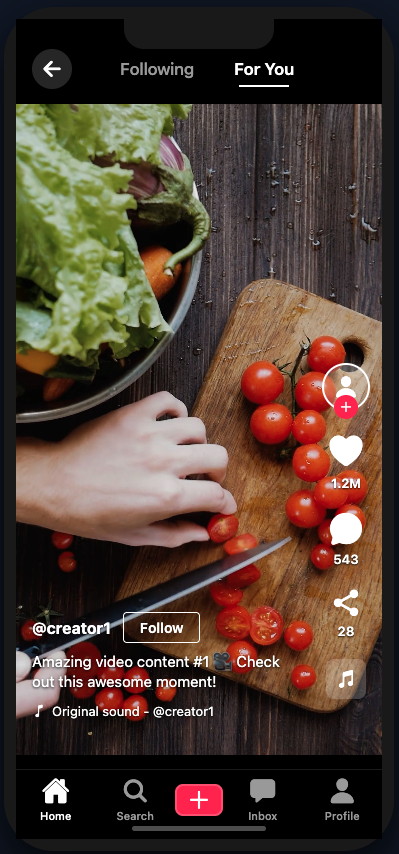
The `CLDVideoLayer` component provides a comprehensive full-screen video player with customizable controls, overlay buttons, and advanced features.
> **NOTE**: The `CLDVideoLayer` component requires `@expo/vector-icons` and `expo-font` in addition to either `expo-av` or `expo-video`.
### Installation
Install the required dependencies:
```bash
npm install @expo/vector-icons expo-font
```
### Features
The `CLDVideoLayer` component includes:
* **Full Video Controls**: Play/pause, seek, volume, and playback speed controls
* **Flexible Button Positioning**: Place custom buttons anywhere on the video overlay using compass-style positioning (North, South, East, West, and combinations)
* **Horizontal/Vertical Button Layouts**: Control how you arrange multiple buttons in button groups
* **Share Functionality**: Built-in sharing capabilities with customizable share handlers
* **Playback Speed Control**: Customizable playback speeds (0.5x, 1x, 1.25x, 1.5x, 2x, and more)
* **Subtitle Support**: Automatic HLS subtitle parsing and custom subtitle language configuration
* **Quality Selection**: Automatic HLS quality detection and manual quality selection options
* **Full Screen Support**: Landscape-optimized full screen mode with custom callbacks
* **Auto-hide Controls**: Controls automatically fade after 3 seconds of inactivity
* **Responsive Design**: Automatically adapts to portrait and landscape orientations
* **Bottom Button Bar**: Additional button bar positioned below the seekbar
* **Title and Subtitle Display**: Show video titles and subtitles with customizable positioning
### Basic usage
```react
import React from 'react';
import { View, StyleSheet } from 'react-native';
import { CLDVideoLayer, ButtonPosition } from 'cloudinary-react-native';
import { Cloudinary } from '@cloudinary/url-gen';
import { useFonts } from 'expo-font';
import { Ionicons } from '@expo/vector-icons';
const cld = new Cloudinary({
cloud: {
cloudName: 'demo'
},
url: {
secure: true
}
});
export default function App() {
// Preload fonts to prevent warnings
const [fontsLoaded] = useFonts({
...Ionicons.font,
});
if (!fontsLoaded) {
return null; // or a loading component
}
const video = cld.video('sea_turtle');
const handleBack = () => {
// Handle back navigation
};
const handleShare = () => {
// Handle custom share action
};
return (
);
}
const styles = StyleSheet.create({
container: {
flex: 1,
backgroundColor: '#000',
},
});
```
### Button positioning
The `CLDVideoLayer` component allows you to position buttons anywhere on the video overlay using the `ButtonPosition` enum.
#### Available positions
The following positions are available:
```react
enum ButtonPosition {
NE = 'NE', // North East (top-right)
NW = 'NW', // North West (top-left)
N = 'N', // North (top-center)
SE = 'SE', // South East (bottom-right)
SW = 'SW', // South West (bottom-left)
S = 'S', // South (bottom-center)
E = 'E', // East (middle-right)
W = 'W' // West (middle-left)
}
```
#### Single button example
Position individual buttons using the `backButtonPosition` and `shareButtonPosition` props:
```react
```
### Button groups
You can create groups of multiple buttons with customizable layouts using the `buttonGroups` prop.
#### Vertical layout
By default, buttons in a group stack vertically:
```react
Alert.alert('Liked!')
},
{
icon: 'bookmark-outline',
position: ButtonPosition.SE,
color: '#FF6B6B',
onPress: () => Alert.alert('Bookmarked!')
}
]
}
]}
/>
```
#### Horizontal layout
Arrange buttons horizontally using `ButtonLayoutDirection.HORIZONTAL`:
```react
openSettings()
},
{
icon: 'information-circle-outline',
position: ButtonPosition.N,
onPress: () => showInfo()
}
]
}
]}
/>
```
### Share functionality
The component includes built-in share functionality.
#### Default share behavior
Use the default share implementation:
```react
```
#### Custom share handler
Provide a custom share handler for more control:
```react
{
Share.share({
message: 'Check out this video!',
url: 'https://your-video-url.com'
});
}}
/>
```
### Playback speed control
Enable playback speed control with customizable speed options:
```react
```
### Subtitles
The component supports both manual subtitle configuration and automatic subtitle detection from HLS videos.
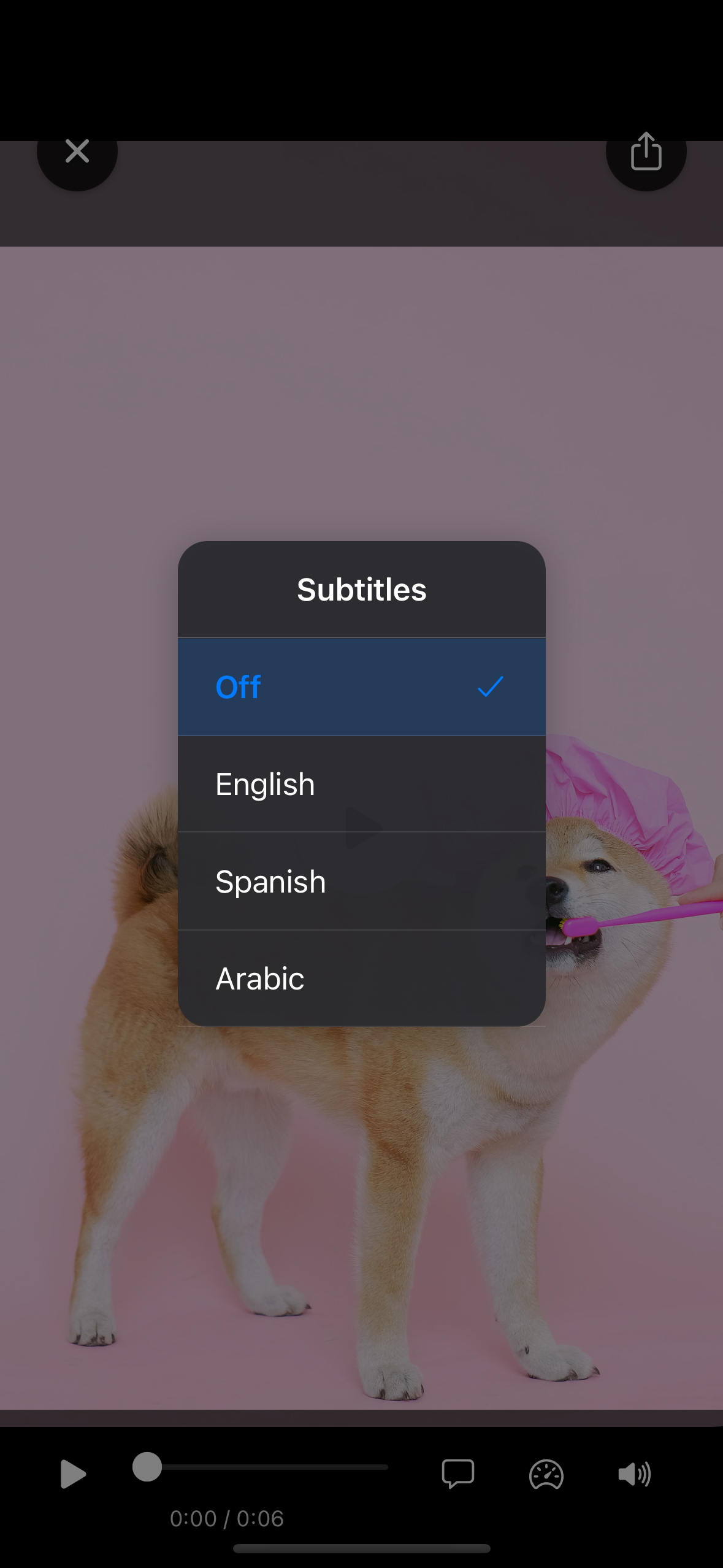
#### Manual subtitle configuration
Define available subtitle languages manually:
```react
```
#### Automatic HLS subtitle detection
For HLS videos (.m3u8), subtitles are automatically detected from the manifest:
```react
// Subtitles will be automatically parsed from HLS manifest
```
### Quality selection
Enable quality selection with manual or automatic quality detection.
#### Manual quality configuration
Define available quality options:
```react
```
#### Automatic HLS quality detection
For HLS videos, quality levels are automatically detected from the manifest:
```react
// Quality levels will be automatically parsed from HLS manifest
```
### Full screen support
Enable full screen mode with optional landscape-only orientation and custom callbacks:
```react
{
console.log('Entering full screen');
// Example: Lock orientation
// ScreenOrientation.lockAsync(ScreenOrientation.OrientationLock.LANDSCAPE);
},
onExitFullScreen: () => {
console.log('Exiting full screen');
// Example: Unlock orientation
// ScreenOrientation.unlockAsync();
}
}}
/>
```
### Seekbar customization
Customize the seekbar appearance and time display position:
```react
```
### Bottom button bar
Add a customizable button bar positioned below the seekbar:
```react
downloadVideo()
},
{
icon: 'star-outline',
color: '#FFD700',
size: 20,
text: 'Rate',
onPress: () => rateVideo()
},
{
icon: 'share-social-outline',
color: '#00BFFF',
size: 20,
onPress: () => shareToSocial()
}
],
style: {
backgroundColor: 'rgba(0,0,0,0.8)',
borderRadius: 25,
paddingHorizontal: 20,
paddingVertical: 12,
marginHorizontal: 20,
marginBottom: 10
}
}}
/>
```
### Title and subtitle
Display a video title and subtitle with customizable positioning:
```react
```
### Complete example
Here's a comprehensive example demonstrating multiple features:
```react
navigation.goBack()}
backButtonPosition={ButtonPosition.NW}
shareButtonPosition={ButtonPosition.NE}
showCenterPlayButton={true}
// Custom seekbar
seekBar={{
height: 25,
color: '#FF6B6B',
timePosition: TimePosition.BELOW
}}
// Full screen support
fullScreen={{
enabled: true,
landscapeOnly: true,
onEnterFullScreen: () => lockOrientation(),
onExitFullScreen: () => unlockOrientation()
}}
// Playback speed control
playbackSpeed={{
enabled: true,
defaultSpeed: 1.0,
speeds: [
{ value: 0.5, label: '0.5×' },
{ value: 1.0, label: 'Normal' },
{ value: 1.5, label: '1.5×' },
{ value: 2.0, label: '2×' }
]
}}
// Subtitle support
subtitles={{
enabled: true,
defaultLanguage: 'off'
}}
// Quality selection
quality={{
enabled: true,
defaultQuality: 'auto'
}}
// Multiple button groups
buttonGroups={[
{
position: ButtonPosition.SE,
layoutDirection: ButtonLayoutDirection.VERTICAL,
buttons: [
{
icon: 'heart-outline',
position: ButtonPosition.SE,
color: '#FF1493',
onPress: () => likeVideo()
},
{
icon: 'bookmark-outline',
position: ButtonPosition.SE,
color: '#FF6B6B',
onPress: () => bookmarkVideo()
}
]
}
]}
// Bottom button bar
bottomButtonBar={{
enabled: true,
buttons: [
{
icon: 'download-outline',
text: 'Download',
onPress: () => downloadVideo()
},
{
icon: 'star-outline',
text: 'Rate',
color: '#FFD700',
onPress: () => rateVideo()
}
],
style: {
backgroundColor: 'rgba(0,0,0,0.8)',
borderRadius: 20,
paddingHorizontal: 16,
paddingVertical: 8
}
}}
// Title and subtitle
title="Advanced Video Demo"
subtitle="With all features enabled"
titleLeftOffset={80}
/>
```
## Props reference
### AdvancedVideo props
Prop | Type | Description
-----|------|------------
`cldVideo` | `CloudinaryVideo` | Cloudinary video object (required if `videoUrl` not provided)
`videoUrl` | `string` | Alternative video URL (required if `cldVideo` not provided)
`videoStyle` | `StyleProp` | Style for the video container
`enableAnalytics` | `boolean` | Enable video analytics tracking
`autoTrackAnalytics` | `boolean` | Automatically track analytics events
`analyticsOptions` | `object` | Configuration options for analytics
### CLDVideoLayer props
Prop | Type | Description
-----|------|------------
`cldVideo` | `CloudinaryVideo` | Cloudinary video object (required)
`videoUrl` | `string` | Alternative video URL
`autoPlay` | `boolean` | Auto-play video on load
`muted` | `boolean` | Start video muted
`onBack` | `() => void` | Back button handler
`onShare` | `() => void` | Custom share handler
`hideControls` | `boolean` | Hide all video controls
`showCenterPlayButton` | `boolean` | Show large center play button (default: `true`)
`backButtonPosition` | `ButtonPosition` | Position of back button
`shareButtonPosition` | `ButtonPosition` | Position of share button
`seekBar` | `seekbarConfig` | seekbar customization options
`fullScreen` | `FullScreenConfig` | Full screen configuration
`playbackSpeed` | `PlaybackSpeedConfig` | Playback speed options
`subtitles` | `SubtitlesConfig` | Subtitle configuration
`quality` | `QualityConfig` | Quality selection configuration
`buttonGroups` | `ButtonGroupConfig[]` | Multiple button groups with layout control
`bottomButtonBar` | `BottomButtonBarConfig` | Bottom button bar configuration
`title` | `string` | Video title displayed in top-left
`subtitle` | `string` | Video subtitle displayed below title
`titleLeftOffset` | `number` | Custom left offset for title positioning
## Button layout directions
The `layoutDirection` property in button groups accepts the following values:
* **`VERTICAL`** (default): Buttons stack vertically (top to bottom or bottom to top)
* **`HORIZONTAL`**: Buttons arrange side by side (left to right)
## Responsive design
The `CLDVideoLayer` component automatically adapts to:
* **Portrait/Landscape orientation changes**
* **Different screen sizes**
* **Platform differences** (iOS/Android)
* **Safe area considerations**
## HLS video support
For HLS videos (.m3u8 files), the `CLDVideoLayer` component automatically:
* **Detects available subtitle tracks** from the manifest
* **Parses quality levels** and bitrates
* **Enables adaptive streaming** with manual override options