> ## Documentation Index
> Fetch the complete documentation index at: https://cloudinary.com/documentation/llms.txt
> Use this file to discover all available pages before exploring further.
# Upload widget
Cloudinary's Upload widget is a complete, interactive user interface that enables your users to upload files from a variety of sources to your website or application. The widget, requiring just a couple lines of code to integrate, eliminates the need to develop in-house interactive media upload capabilities.
This guide describes the latest [version](upload_widget_changelog) of the Cloudinary Upload widget.
> **NOTE**:
>
> The Cloudinary Upload widget, when configured with an accessible color theme, is designed to provide an inclusive asset sharing experience that meets **WCAG 2.1 AA** compliance. The Web Content Accessibility Guidelines (WCAG) are an internationally recognized set of recommendations for making web content more accessible to people with disabilities. These guidelines ensure that users with visual, auditory, motor, and cognitive impairments can fully engage with digital content through assistive technologies, keyboard navigation, and other accessibility-friendly enhancements. For more information, see [Accessibility](#accessibility).
> **INFO**: Cloudinary supports only the documented configuration and the supplied files with the widget. Any direct changes to the widget code and its elements (for example, CSS and JS files) might break its functionality, and will not be supported.
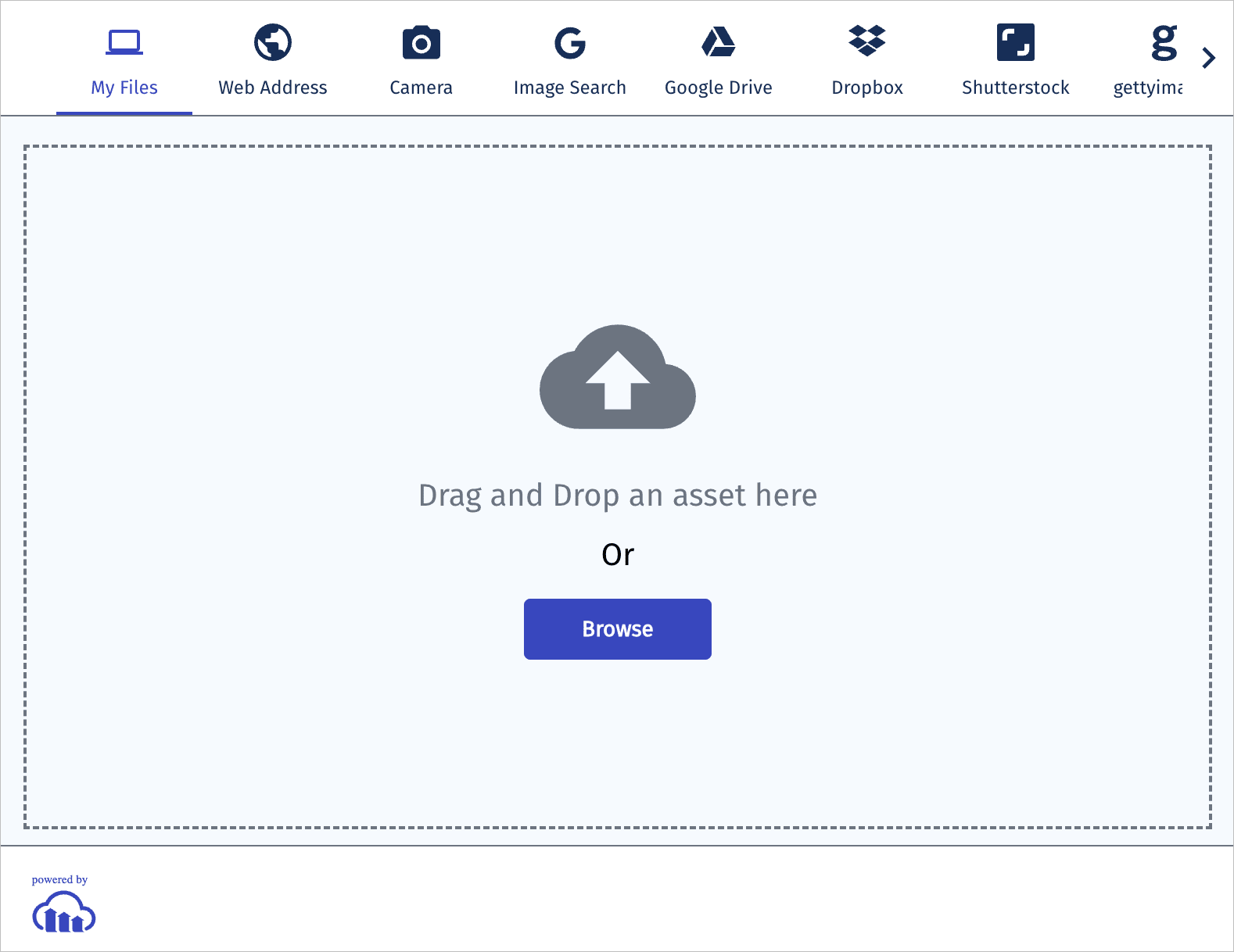
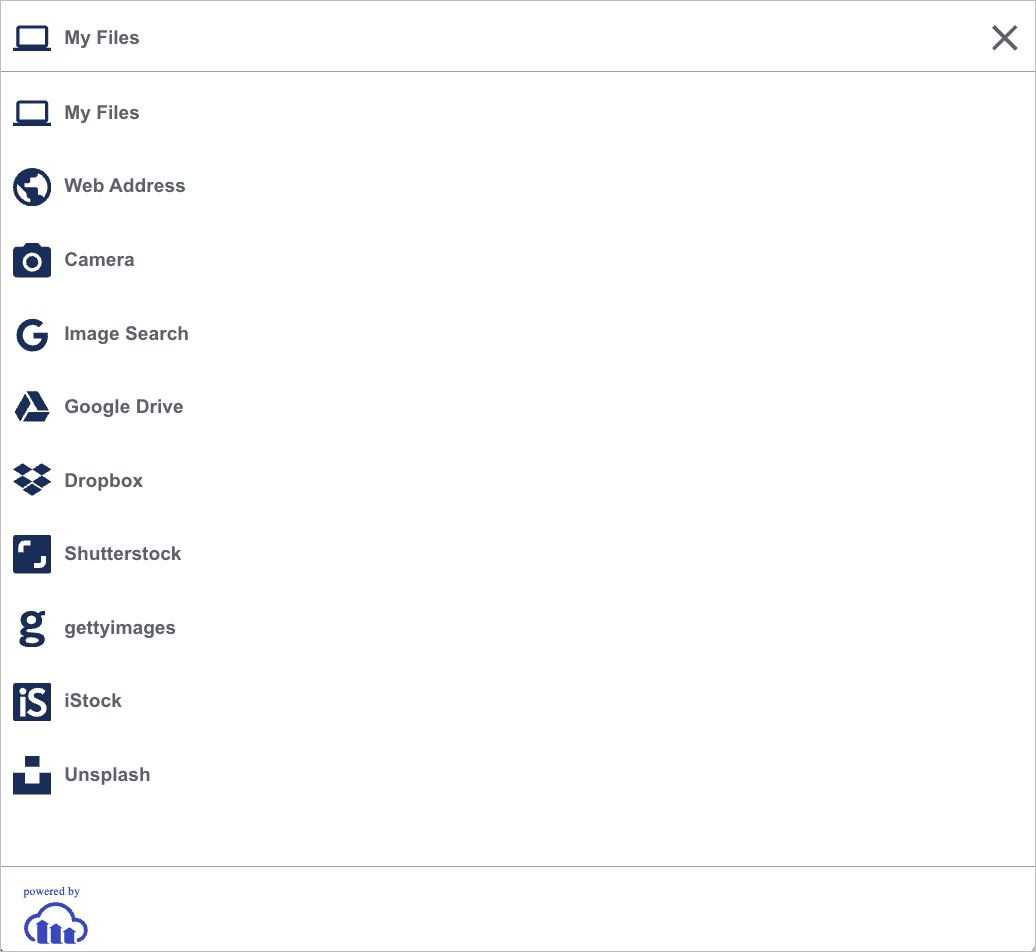
The Upload widget responsively resizes to fit in the available width, with the display functionality automatically adjusting on the fly for use in mobile applications.
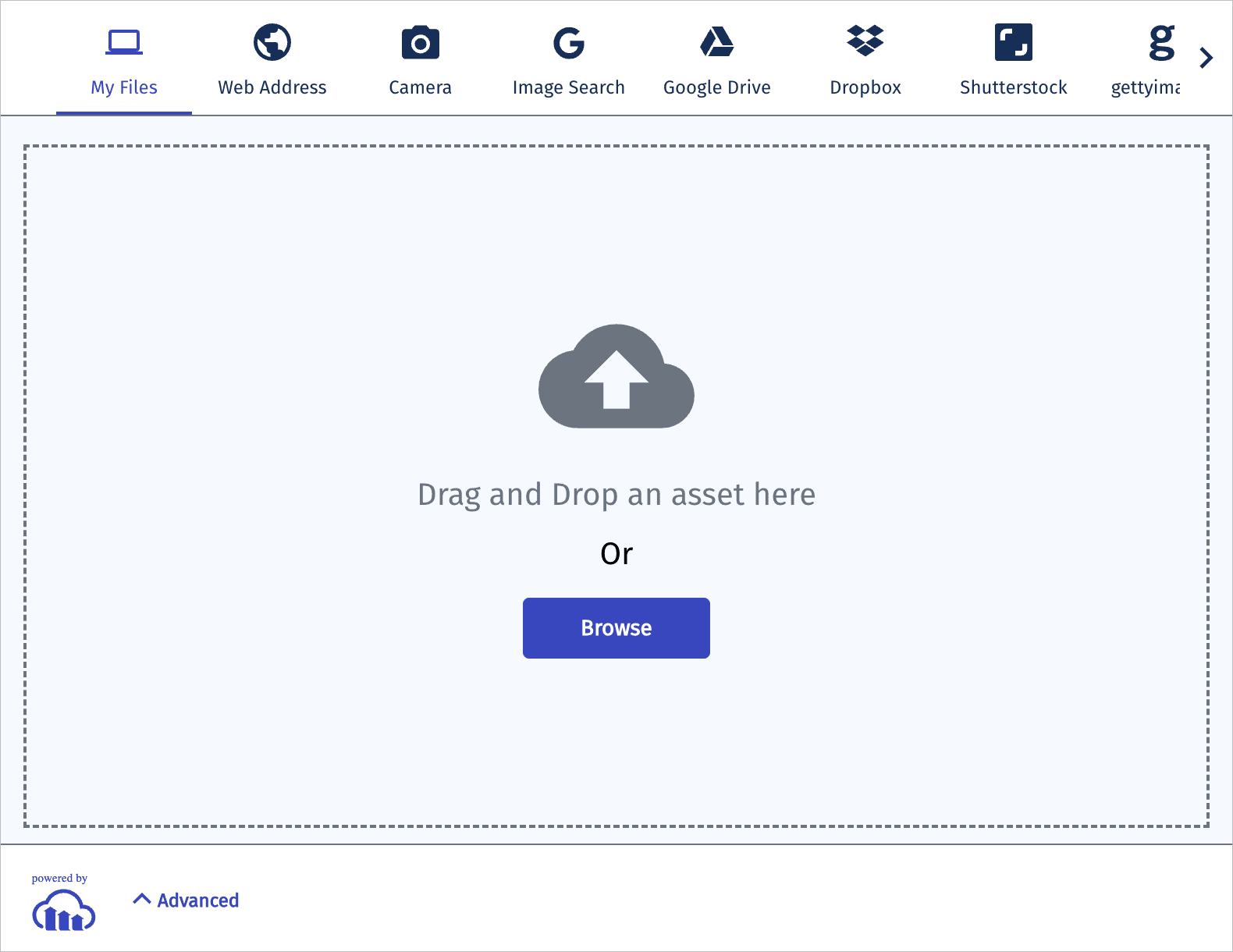
The widget offers uploading from a variety of [sources](#the_sources_parameter), such as: your local device, a remote URL, the device camera, image search, popular social media accounts and a variety of stock photography sites. The widget supports drag & drop functionality, interactive cropping, upload progress indication, and thumbnail previews. The widget also monitors and handles uploading errors and offers extensive event handling for integrating your own code.
You can implement the widget for [unsigned uploading](#unsigned_uploads) directly from the browser to Cloudinary storage, without involving your servers in the process. The widget sends JavaScript callbacks on successful uploads, so you can integrate the upload process back into your existing media pipeline. You can additionally configure Cloudinary to send server-side callbacks. Advanced users can also use the Upload widget with [signed uploads](#signed_uploads) for a more secure process when required.
Once uploaded, images and videos can be resized, cropped and transformed by Cloudinary on the fly so they can be embedded as needed in your website or mobile app.
The Upload widget requires only pure JavaScript to integrate and is easy to use within any web development framework.
## Quick example
To use Cloudinary's Upload widget in your site with unsigned uploads, include the widget's remote JavaScript file and then specify the following (minimum) information when calling the `createUploadWidget` method to initialize the widget:
* Your product environment _cloud name_
* The _upload preset_ to use for uploading files
Once initialized, the widget is ready to be rendered when needed. The following sample includes code for binding to the `click` event of a button element in a web page, in order to call the widget's `open` method and display the initialized widget:
```js
```
You can try out this simple Upload widget example by clicking the button below:
Upload files
The following buttons were implemented with a few additional parameters to demonstrate additional capabilities.
Crop and upload
Upload and display thumbnails
These and many additional options are described on the rest of this page.
> **TIP**: Take a look at the [profile picture sample project](profile_picture_sample_project), which demonstrates the use of the Upload widget in a Next.js app.
## Code explorers
### Code explorer: Basic Upload widget
Check out the following [Upload widget code explorer](https://stackblitz.com/edit/github-vt6fzc-wms1nc) that you can fork to try out some sample configuration changes:
> **NOTE**: Due to CORS issues with StackBlitz, you may have errors opening the widget with the preview. Try opening the preview in a new tab to resolve this or use the GitHub link below to run locally.
This code is also available in [GitHub](https://github.com/cloudinary-devs/cloudinary-upload-widget-js).
> **Try this code explorer in other frameworks:**:
>
> * [React Upload widget sandbox](https://stackblitz.com/edit/cloudinary-upload-widget-react) (also uses the [React SDK](react_integration) for displaying the uploaded image)
> * [Angular Upload widget sandbox](https://codesandbox.io/s/upload-widget-angular-hp2rmc)
> * [Vue Upload widget sandbox](https://codesandbox.io/s/upload-widget-vue-hmezny)
> **TIP**: Enjoy interactive learning? Check out more [code explorers](code_explorers)!
For implementation instructions, see [Unsigned uploads](#signed-uploads).
### Sample project: Signed uploads using the Upload widget
This Node.js app demonstrates how to perform a signed upload using the Upload widget.
The widget is constructed in [signed-uploads/public/js/uploadclientwidget.js](https://github.com/cloudinary-devs/cld-signed-upload-examples/blob/main/signed-uploads/public/js/uploadclientwidget.js) and the signature is generated in [signed-uploads/modules/signuploadwidget.js](https://github.com/cloudinary-devs/cld-signed-upload-examples/blob/main/signed-uploads/modules/signuploadwidget.js), using the `api_sign_request` method.
> **TIP**: :title=Go to the code
See [signed-uploads/public/js/uploadclientwidget.js](https://github.com/cloudinary-devs/cld-signed-upload-examples/blob/main/signed-uploads/public/js/uploadclientwidget.js) in the [cloudinary-devs/cld-signed-upload-examples](https://github.com/cloudinary-devs/cld-signed-upload-examples) GitHub repo.
#### Setup instructions (after cloning from GitHub)
1. Install all dependencies from the top level:
```Terminal
npm install
```
1. Open **signed-uploads/public/js/config.js**
1. Set `cloud_name`, `api_key` and `api_secret` with the corresponding account details from the [API Keys](https://console.cloudinary.com/app/settings/api-keys) page of the Console Settings.
1. Run the app to start the server:
```Terminal
node signed-uploads/app.js
```
The response should be:
```Terminal
Server is up on http://localhost:3000
```
1. Open `http://localhost:3000` in a browser.
Go to [GitHub](https://github.com/cloudinary-devs/cld-signed-upload-examples) to try it out:
For implementation instructions, see [Signed uploads](#signed_uploads).
## Cloudinary Upload widget video tutorial
This video demonstrates how to integrate a basic Upload widget using a code sandbox.
This video is brought to you by Cloudinary's video player - embed your own!Use the controls to set the playback speed, navigate to chapters of interest and select subtitles in your preferred language.
### Tutorial contents This tutorial presents the following topics. Click a timestamp to jump to that part of the video.
### Create an upload preset
{table:class=tutorial-bullets}| |
| --- | --- |
|{videotime:id=media :min=0 :sec=29 :player=cld} | In the Upload page of the Console Settings, create a new, unsigned upload preset. This preset serves as a form of security override, allowing client-side unsigned uploads. You supply the preset name in your widget creation call.|
### Create a code sandbox
{table:class=tutorial-bullets}| |
| --- | --- |
|{videotime:id=media :min=0 :sec=59 :player=cld} | Create a basic empty code sandbox project to implement the widget. |
### Include the JavaScript file
{table:class=tutorial-bullets}| |
| --- | --- |
|{videotime:id=media :min=1 :sec=08 :player=cld} | Include the cloudinary widget JavaScript file (`https://upload-widget.cloudinary.com/latest/global/all.js`) in your web page.|
### Add the widget
{table:class=tutorial-bullets}| |
| --- | --- |
|{videotime:id=media :min=1 :sec=16 :player=cld} | Use the `createUploadWidget` method to create your widget, specifying the upload preset that you created in the first step, your cloud name, and some additional widget options.|
### Add a button
{table:class=tutorial-bullets}| |
| --- | --- |
|{videotime:id=media :min=1 :sec=43 :player=cld} | Add an HTML button to the page to display the widget when clicked.|
### Add an event listener
{table:class=tutorial-bullets}| |
| --- | --- |
|{videotime:id=media :min=2 :sec=02 :player=cld} | Add an event listener to open the widget when the button is clicked.|
### Run the project
{table:class=tutorial-bullets}| |
| --- | --- |
|{videotime:id=media :min=2 :sec=12 :player=cld} | Run the project and upload a file. |
### See the response in the console
{table:class=tutorial-bullets}| |
| --- | --- |
|{videotime:id=media :min=2 :sec=22 :player=cld} | See the response to the upload logged to the console. |
### Additional information
{table:class=tutorial-bullets}| |
| --- | --- |
|{videotime:id=media :min=2 :sec=33 :player=cld} | You can find out more in the [Upload Widget documentation](upload_widget).|
## How to set up and integrate the Upload widget
For most needs, you can set up the Upload widget for `unsigned` uploads. Using unsigned uploads with your widget makes it quick and simple for you to provide a UI where users can upload content to your site.
Signed uploads require a bit more setup and coding, but provide a more secure upload process when required.
> **TIP**: You can use the [Cloudinary CLI](cloudinary_cli#make) to generate the basic code for an Upload widget:
```
cld make upload_widget
```
### Unsigned uploads
Unsigned uploads are somewhat less secure than signed uploads. For example, it is possible for a customer to inspect your client-side HTML code to find your cloud name and preset, and use that information to upload unwanted files to your Cloudinary product environment. For this reason, unsigned uploads have some [protective limitations](image_upload_api_reference#unsigned_upload_parameters). For example, existing assets can't be overwritten. The options you set in the unsigned preset can also limit the size or type of files that users can upload to your Cloudinary product environment using that preset.
**To setup and add an Upload widget for unsigned uploads:**
#### 1. Include the Cloudinary widget JavaScript file in your web page
You can choose between always importing the `latest` version of the Upload widget or importing a specific version:
```html
... **OR** to include a specific version (e.g., `2.26.12`):
```
> **INFO**:
>
> * We generally recommend including the `latest` version to ensure that your users always get the latest fixes and functionality. However, if you want to maintain more control over the pace of updates, you can test and use a specific version. In this case, we recommend that you watch the [Upload widget changelog](upload_widget_changelog) (or register for the [Upload widget changelog RSS feed](https://cloudinary.com/documentation/rss/cloudinary-uw-changelog.xml)) and regularly test and upgrade to the latest versions.
> * When using both the [Upload Widget](upload_widget) and [Video Player](cloudinary_video_player) on the same page, the video player scripts must be loaded first to prevent any conflicts.
#### 2. Optional. Set your cloud name globally
If you include multiple widgets in your web page, you can use the [setCloudName](upload_widget_reference#cloudinary_setcloudname_name) method to instruct all widgets on the page to upload to the same Cloudinary product environment.
Alternatively, you can set the product environment `cloud_name` as a parameter of each widget creation call.
#### 3. Create an unsigned upload preset
1. In the **Upload** section of the Console Settings, create a new, unsigned upload preset. This preset serves as a form of security override, allowing client-side unsigned uploads. Alternatively, you can [create an unsigned upload preset using the Admin API](admin_api#create_an_upload_preset) or in your LLM-based IDE using the Cloudinary Asset Management [MCP server](cloudinary_llm_mcp).
2. Note the preset name. You'll need it in your widget creation call, [step 4](#4_add_your_widget).
3. Optional. Edit the preset to:
* Modify its name
* Apply incoming transformations to control the size or type of asset users can upload using your widget
* Automatically generate certain eager transformations on all uploaded assets
For details, see [Upload presets](upload_presets).
#### 4. Add your widget
1. Use one of the [widget initialization methods](upload_widget_reference#initialization_methods) to create your widget.
2. When you call the method, specify:
* `uploadPreset` - The preset name you created in [step 3](#3_create_an_unsigned_upload_preset)
* `cloudName` - Your cloud name (if you did not set it [globally](upload_widget_reference#setcloudname))
* Any additional [widget options](upload_widget_reference#parameters) you want to apply
For example, in the [demo example](#crop_and_folder) earlier on this page, the [createUploadWidget](upload_widget_reference#createuploadwidget) method call includes the `cropping` option, which enables users to define cropping coordinates, and the `folder` option, which uploads all images from the widget to a specified folder:
```js
var myCropWidget = cloudinary.createUploadWidget({
cloudName: 'demo', uploadPreset: 'preset1', folder: 'widgetUpload', cropping: true},
(error, result) => { console.log(error, result) })
```
### Signed uploads
Instead of providing an upload preset name, you initialize the widget for signed uploads with the public API key and an upload signature that is generated either when the page is loaded or when the upload request is submitted.
> **See also:**:
>
> [Sample project: Signed uploads using the Upload widget](#sample_project_signed_uploads_using_the_upload_widget)
**To setup and implement the Upload widget for signed uploads:**
#### 1. Include the Cloudinary widget JavaScript file in your web page
You can choose between always importing the `latest` version of the Upload widget or importing a specific version:
```html
... **OR** to include a specific version (e.g., `2.26.12`):
```
> **INFO**:
>
> * We generally recommend including the `latest` version to ensure that your users always get the latest fixes and functionality. However, if you want to maintain more control over the pace of updates, you can test and use a specific version. In this case, we recommend that you watch the [Upload widget changelog](upload_widget_changelog) (or register for the [Upload widget changelog RSS feed](https://cloudinary.com/documentation/rss/cloudinary-uw-changelog.xml)) and regularly test and upgrade to the latest versions.
> * When using both the [Upload Widget](upload_widget) and [Video Player](cloudinary_video_player) on the same page, the video player scripts must be loaded first to prevent any conflicts.
#### 2. Optional. Set your cloud name globally
If you include multiple widgets in your web page, you can use the [setCloudName](upload_widget_reference#cloudinary_setcloudname_name) method to instruct all widgets on the page to upload to the same Cloudinary product environment.
Alternatively, you can set the product environment `cloud_name` as a parameter of each widget creation call.
#### 3. Optional. Create a signed upload preset
When you use the Upload widget for signed uploads, an upload preset isn't mandatory. However, you can optionally create a signed preset if you want to define incoming or eager transformations on the uploaded asset.
1. Define the signed upload preset as described in [Upload presets](upload_presets).
2. Supply the preset name in the `uploadPreset` option when you call the widget initialization method in [step 5](#5_add_your_widget_2).
#### 4. Select string or function as the upload_signature type and prepare the required code
Select one of the following options and prepare the required code:
**Option A: String signature**
Use this option when all parameters required for signing are known at page load time.
_Characteristics:_
* Requires your page to connect to the web server on page load to generate the signature.
* Requires that all parameters required for signing are known at page load time. If user input will affect the parameters (for example, if you are using the widget's interactive cropping option), you must use **Option B: Function signature**.
* The signature is valid for one hour from the timestamp used in the signature. If a user keeps the page open for a long time, the signature string may expire.
_To prepare a string signature:_
* Generate the signature string from all parameters used, including `source=uw`. The `source=uw` is a hidden parameter sent automatically by the Upload widget, but must still be included in the string to sign. **For example**:
```js
`public_id=dog&source=uw×tamp=155307631&upload_preset=myPreset`
```
> **NOTE**:
>
> The parameters in the string to sign need to be serialized **in alphabetical order** and require **snake_case**, which is in contrast to the camelCase used for the widget parameters. For details on generating the signature string, see [Generating authentication signatures](authentication_signatures).
**Option B: Function signature**
Use this option when user interaction will affect upload parameters.
_Characteristics:_
* Requires you to create a function to generate the signature.
* The function runs when the upload request is submitted, therefore, the timestamp does not risk expiring if the user keeps the page open.
* The function receives the final parameters of the upload, including any parameters impacted by user interaction.
_To prepare a function signature:_
* Create a function that uses a server-side endpoint to generate the signature.**For example**: A function that uses a server-side endpoint to generate the signature:
```js
var generateSignature = function(callback, params_to_sign){
$.ajax({
url : "https://www.my-domain.com/my_generate_signature",
type : "GET",
dataType: "text",
data : { data: params_to_sign},
complete: function() {console.log("complete")},
success : function(signature, textStatus, xhr) { callback(signature); },
error : function(xhr, status, error) { console.log(xhr, status, error); }
});
}
```
> **INFO**: You must use the timestamp value provided by the widget (passed in `params_to_sign`) and not create your own timestamp value.
#### 5. Add your widget
1. Use one of the [widget initialization methods](upload_widget_reference#initialization_methods) to create your widget.
2. When you call the method, specify:
* `api_key` - Your API key
* `cloudName` - Your cloud name (if you did not set it [globally](upload_widget_reference#setcloudname))
* `uploadSignature` - The string or function from [step 4](#4_select_string_or_function_as_the_upload_signature_type_and_prepare_the_required_code)
* `uploadSignatureTimestamp` - For string signatures only
* Any additional [widget options](upload_widget_reference#parameters) you want to apply
For example, the [applyUploadWidget](upload_widget_reference#applyUploadWidget) method creates the Upload widget and calls the signature function shown in the previous step:
```js
cloudinary.applyUploadWidget(document.getElementById('upload_widget_opener'),
{ api_key : "my_api_key", cloudName: "demo", uploadSignature: generateSignature },
(error, result) => { });
```
## Third-party upload sources
In addition to the 'My Files', 'Web Address', and 'Camera' sources, the Upload widget supports a variety of third‑party upload sources from which your users can upload images and videos.

**Desktop source tabs:**
* If there are more sources than fit within the widget width, carousel arrows appear for horizontal scrolling.
* The number of visible sources depends on the length of their labels. With default text, about 7–8 sources fit without scrolling.
* If you [customize or translate the labels](#localization), the number of visible sources may change accordingly.
**Mobile display:**
At responsive widths narrower than 768px, the widget switches to the mobile display with a collapsible side menu.

### The sources parameter
The `sources` parameter defines which upload options appear in the Upload Widget, and allows you to configure those options. Provide an array of strings, where each value adds a corresponding upload tab or option.
If you don’t include the `sources` parameter, all available sources are shown by default.
**To customize the sources available in your Upload widget:**
Include the `sources` parameter when creating the Upload Widget and specify the sources you want to enable:
* List the source values in the order you want them to appear.
* Select from the following possible values:
Value | Description
---|---
local| Upload a file from your local device. Adds the `My Files` source option.
url| Upload a file from a remote location. Adds the `Web Address` source option.
camera| Upload an image file via the device's camera. Adds the `Camera` source option. **Note**: Desktop/laptop only - a mobile device's camera is accessed through the `local` (My Files) source option.
dropbox| Upload a file from your Dropbox account. Adds the [Dropbox](#dropbox_source) source option.
image_search| Upload a file from the web using Google's Search Engine. Adds the [Image Search](#image_search_source) source option.
shutterstock| Upload an image from a Shutterstock account. Adds the [Shutterstock](#shutterstock_source) source option.
gettyimages| Upload an image from a Getty Images account. Adds the [gettyimages](#gettyimages) source option.
istock| Upload an image from an iStock account. Adds the [iStock](#istock_source) source option.
unsplash | Upload an image from Unsplash. Adds the [Unsplash](#unsplash_source) source option.
google_drive | Upload a file from a Google Drive account. Adds the [Google Drive](#google_drive_source) source option.
### Image Search source
The `image_search` option allows your users to select images from the web using your Google **Custom Search account**, and then upload them to Cloudinary. The search can be optionally confined to specific sites (e.g., your own website) and can be filtered by specified licensing criteria.

> **INFO**: To enable this search option, you must obtain an API Key from Google. The API Key is free to use within certain search rate limits, and there are various large scale commercial options as well. To enable Google Custom Search and generate your API Key see [https://developers.google.com/custom-search/json-api/v1/overview](https://developers.google.com/custom-search/json-api/v1/overview).
**To include Image Search in your customized sources:**
1. Add the `googleApiKey` parameter with the API key for your Google Custom Search account.
2. Add the `sources` parameter (array of strings) to customize the available upload options and include the `image_search` source.
3. Optional. Add the `searchBySites` parameter (array of strings) with the domain names of sites you want to allow for the search:
* If more than one site is specified, a **Search by Site** drop-down will be added so your users can select the site to search.
* To allow searching the entire web, use the value `all` (default).
4. Optional. Add the `searchByRights` parameter and set to `true` to add a drop-down box so that users can select a licensing filter to apply to the image search (default: `false`).
Basic example:
```js
cloudinary.openUploadWidget({
cloudName: "demo", uploadPreset: "preset1",
sources: [ 'local', 'url', 'image_search'],
googleApiKey: 'AIrFcR8hKiRo' }, (error, result) => { });
```
Example with sites filter and rights filter:
```js
cloudinary.openUploadWidget({
cloudName: "demo", uploadPreset: "preset1",
sources: [ 'local', 'url', 'image_search'],
googleApiKey: 'AIrFcR8hKiRo',
searchBySites: ["all", "cloudinary.com"],
searchByRights: true }, (error, result) => { });
```

### Dropbox source
The `dropbox` option allows your users to login to their own Dropbox account, browse through their folders and files, and then select the files to upload to Cloudinary. This option requires that the Upload widget is embedded in a secure (HTTPS) page because the user sign-in to Dropbox must be over a secure connection.
**To include Dropbox in your customized source:**
1. Create a new app on the [Dropbox App Console](https://www.dropbox.com/developers):
* Click **My apps**
* Select the **Dropbox API** and **Full Dropbox** options
* Name your app
* Click the **Create app** button
2. On the next page, set the following **redirect URI** for your Dropbox application: `https://widget.cloudinary.com/v2.0/global/auth/index.html`
3. Copy the auto-generated **App key** for your Dropbox app. You will supply it as the value of the `dropboxAppKey` parameter in [step 5](#5_configure_the_dropbox_source_in_your_upload_widget).
4. Set your Dropbox app status:
* Your Dropbox app is initially created in Development status for testing purposes.
* You can enable additional users with the **Enable additional users** button.
* When your app is ready to go live, click **Apply for Production** status to enable all your users to upload via the Dropbox app.
* For more information on creating Dropbox apps, see their [documentation](https://www.dropbox.com/developers/reference/developer-guide) and take note of their [branding guidelines](https://www.dropbox.com/developers/reference/branding-guide?oref=e).
Configure the Dropbox source in your Upload widget by adding the following parameters to the method you use for creating the Upload widget:
`dropboxAppKey` (String) - The App key from step 3.
`sources` (Array of strings) - Use this parameter to customize available sources, and include `dropbox` in the array to add the Dropbox option.
For example:
```js
cloudinary.openUploadWidget({
cloudName: "demo", uploadPreset: "preset1",
sources: [ 'local', 'url', 'dropbox'],
dropboxAppKey: '1dsf42dl1i2' }, (error, result) => { });
```
### Shutterstock source
The `shutterstock` option allows your users to log in to their own Shutterstock account, browse the assets and then select the ones to upload to Cloudinary. If they haven't yet purchased the Shutterstock asset they select, they can purchase it as part of this process.

**To include Shutterstock in your customized sources:**
Add the `sources` parameter (array of strings) to customize available sources, and include `shutterstock` in the array to add the Shutterstock option,For example:
```js
cloudinary.openUploadWidget({
cloudName: "demo", uploadPreset: "preset1",
sources: [ 'local', 'url', 'shutterstock']}, (error, result) => { });
```
### Getty Images source
The `gettyimages` option allows your users to log in to their own Getty Images account, browse the assets and then select the ones to upload to Cloudinary. If they have not yet purchased the asset they select, they can purchase it as part of this process.
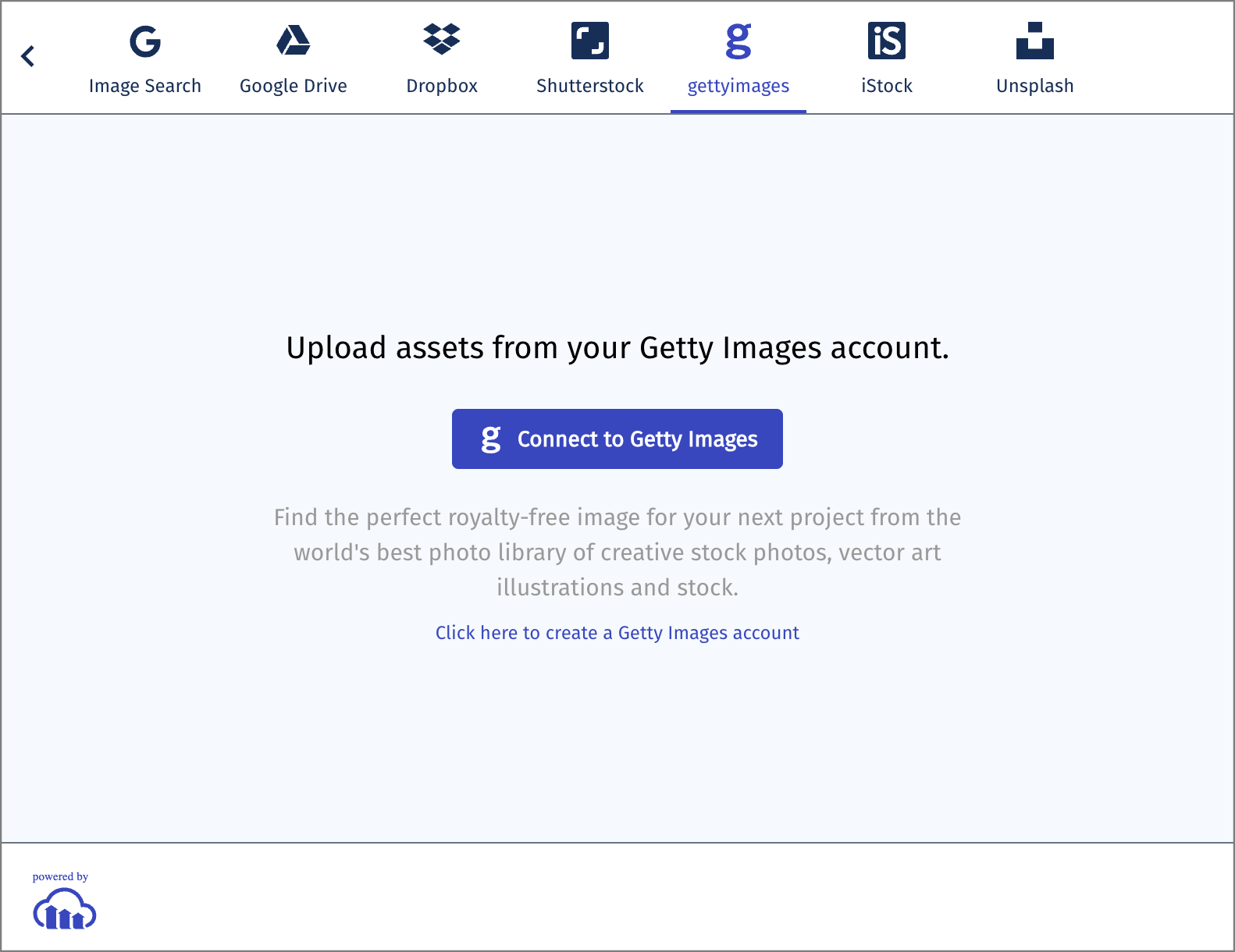
**To include Getty Images in your customized sources:**
Add the `sources` parameter (array of strings) to customize available sources, and include `gettyimages` in the array to add the Getty Images option.For example:
```js
cloudinary.openUploadWidget({
cloudName: "demo", uploadPreset: "preset1",
sources: [ 'local', 'url', 'gettyimages']}, (error, result) => { });
```
### iStock source
The `istock` option allows your users to log in to their own iStock account, browse the assets and then select the ones to upload to Cloudinary. If they haven't yet purchased the iStock asset they select, they can purchase it as part of this process.

**To include iStock in your customized sources:**
Add the `sources` parameter (array of strings) to customize available sources, and include `istock` in the array to add the iStock option.For example:
```js
cloudinary.openUploadWidget({
cloudName: "demo", uploadPreset: "preset1",
sources: [ 'local', 'url', 'istock']}, (error, result) => { });
```
### Unsplash source
The `unsplash` option allows your users to browse the assets on Unsplash, and then select the ones to upload to your Cloudinary account.

**To include Unsplash in your customized sources:**
Add the `sources` parameter (array of strings) to customize available sources, and include `unsplash` in the array to add the Unsplash option.For example:
```js
cloudinary.openUploadWidget({
cloudName: "demo", uploadPreset: "preset1",
sources: [ 'local', 'url', 'unsplash']}, (error, result) => { });
```
> **NOTE**: Some of the Unsplash filters are available only after conducting a textual search.
### Google Drive source
The `google_drive` option allows your users to login to their own Google Drive account, browse through their files and then select the files to upload to Cloudinary.

**To include the Google Drive in your customized sources:**
1. Add the `sources` parameter (array of strings) to customize available sources, and include `google_drive` in the array to add the Google Drive option.
2. Optional. Add the `googleDriveClientId` parameter (string) with the Client ID of your own Google Drive application for accessing your users' Google Drive accounts. If not provided, uses the Cloudinary Google Drive app.
For example:
```js
cloudinary.openUploadWidget({
cloudName: "demo", uploadPreset: "preset1",
sources: [ 'local', 'url', 'google_drive'],
googleDriveClientId: '1wsds35jrt34dsssw21' }, (error, result) => { });
```
> **NOTE**: The Google Drive source is not supported by either Internet Explorer 11 or by Safari browsers.
## API events
The Upload widget methods include a callback function for implementing event handling.
**To implement event handling in your Upload widget:**
1. Add a callback function with the signature: `function(error, result)`, where:
* `error` - Either `null` if successful or an error message if there was a failure
* `result` - A JSON object detailing the triggered event
2. In your callback function, check for specific events and handle them accordingly.
For example, to log a message to the console when a user clicks the 'show completed' button:
```js
cloudinary.openUploadWidget({
cloudName: "demo", uploadPreset: "preset1",
showCompletedButton: true,
}, (error, result) => {
if (!error && result.event === "show-completed") {
result.info.items.forEach((item) => {
console.log(`show completed for item with id:
${item.uploadInfo.public_id}`); //uploadInfo is the data returned in the upload response
});
}
});
```
For a full listing of available events, see the [Events](upload_widget_reference#events) section in the Upload widget API reference.
## Pre-batch validation
You can run validation on the files in the upload queue before they are uploaded to Cloudinary.
**To implement pre-batch validation:**
1. **Add `preBatch` to the widget configuration**Provide a function with the signature `(cb, data)`.
2. **Run your validation logic inside the `preBatch` function**Check `data.files` and then choose whether to continue or cancel the upload:
* **Cancel**: call `cb({ cancel: true })`
* **Proceed**: call `cb()`
For example, to cancel the upload if the file name is 'TopSecret':
```js
cloudinary.openUploadWidget({
cloudName: "demo", uploadPreset: "preset1",
preBatch: (cb, data) => {
if (data.files[0].name === "TopSecret") {
cb({cancel: true});
}
else {
cb();
}
}, (error, result) => { });
```
## Prepare upload parameters
You can prepare upload parameters for files in the upload queue before they're uploaded to Cloudinary. Use this to specify tags, metadata for each file, or prepare an upload signature for a signed upload.
**To prepare upload parameters:**
1. Set the `prepareUploadParams` parameter with a function to run before the upload.
2. In your function, prepare any upload parameters you need (see supported parameters in the note below).
3. Call the callback function with the prepared parameters.
The following example prepares an upload signature for a signed upload:
```js
cloudinary.openUploadWidget({
upload_preset: "preset1",
cloud_name: "demo",
prepareUploadParams: (cb, params) => {
params = [].concat(params); //params can be a single object or an array of objects
Promise.all(params.map((req) =>
makeAjaxRequest("https://mysite.example.com/prepare", req)
.then((response) => Object.assign({
signature: response.signature,
apiKey: response.api_key,
}, response.upload_params))
))
.then((results) =>
cb(results.length === 1 ? results[0] : results));
}
}, (error, result) => { });
```
> **NOTES**:
>
> * The prepareUploadParams callback only supports preparing the following parameters: `apiKey`, `auditContext`, `context`, `folder`, `invalidate`, `metadata`, `overwrite`, `publicId`, `qualityAnalysis`, `resourceType`, `signature`, `tags`, `uniqueFilename`, `uploadPreset` `uploadSignatureTimestamp`, `useFilename`.
> * If the `prepareUploadParmas` parameter is included then the `uploadSignature` parameter is ignored. If you also need to provide a signature, make sure to include that code in your `prepareUploadParams` function and pass the signature as part of the data passed to the callback (cb).
> * If the code in your function determines that the upload should be canceled, you can include the `cancel` boolean parameter set to `true` when calling the callback function (the same way you can cancel the upload with [Pre-batch validation](#pre_batch_validation)).
## Tagging suggestions
You can add tagging suggestions that appear while your users are typing in the **Add a Tag** (*Advanced options*) text field.
**To enable tagging suggestions:**
1. Create a function that's called whenever the text changes in the field. Your function should call the callback function with the list of tagging suggestions to display.
2. Add the `getTags` parameter with the function to call.
3. Set the `showAdvancedOptions` parameter to `true`.
The following example demonstrates a mini auto-complete function that returns only suggestions matching the current text entered in the field:
```js
const tags = ["extract", "amazing", "apple", "dog", "grass", "planes", "rocket", "rock", "movies",
"music", "sad", "light", "open", "mosaic", "entertainment", "test", "testament", "beach",
"vacation", "weather", "letter", "orchard"];
const getMyTags = (cb, prefix) => cb(prefix ? tags.filter((t) => !t.indexOf(prefix)) : tags);
cloudinary.openUploadWidget({
cloudName: "demo",
uploadPreset: "preset1",
showAdvancedOptions: true,
getTags: getMyTags, //provide callback to retrieve tagging suggestions
}, (error, result) => { });
```
Here's the Upload widget with tagging enabled:

## Upload preset selection
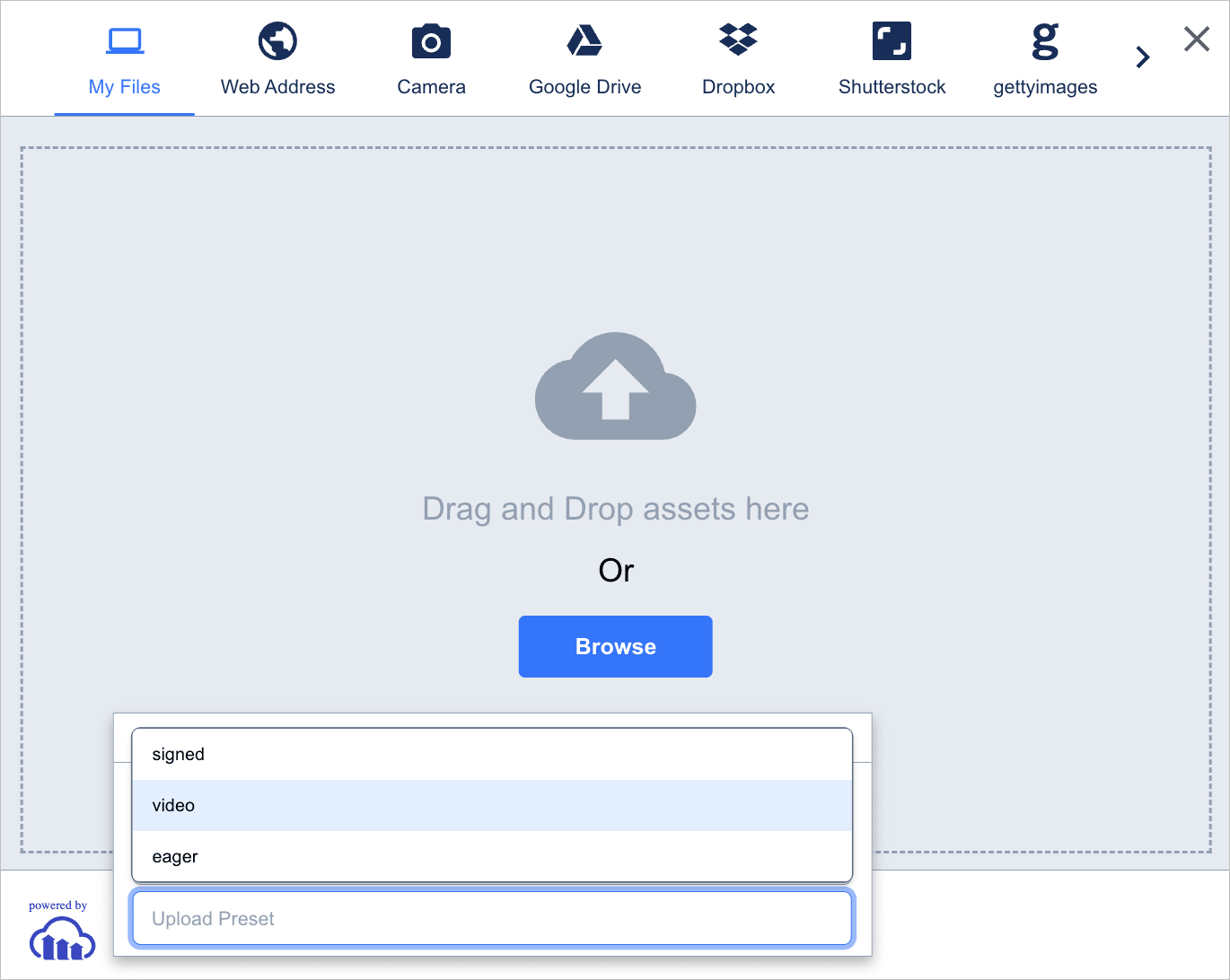
You can offer your users an additional _Advanced option_ with a selection of [Upload Presets](upload_presets) to choose from.
**To enable upload preset selection:**
1. Create a function that is called to provide the list of presets to offer. Your function should call the callback function with the list of presets to display.
2. Add the `getUploadPresets` parameter with the function to call.
3. Set the `showAdvancedOptions` parameter to `true`.
The following example demonstrates an upload preset selection function that returns 3 presets:
```js
const presets = ["signed", "video", "eager"];
const getMyUploadPresets = (cb) => cb(presets);
cloudinary.openUploadWidget({
cloudName: "demo",
uploadPreset: "preset1", // default preset
showAdvancedOptions: true,
getUploadPresets: getMyUploadPresets
}, (error, result) => { });
```
Here's the Upload widget with upload preset selection enabled:
## Webhook notifications
If you are implementing the widget and also need to process upload information in your server-side code, you can set up notifications.
**To receive server-side webhook notifications of widget uploads:**
1. Include a [notification URL](notifications) in the upload preset you use for the widget.
2. Create a server-side endpoint to receive the notification.
3. In your endpoint, parse the response from the widget upload.
4. Process the upload information as needed (e.g., store in database, trigger workflows).
In the following Python example, the widget response is used to store the image model:
```python
from flask import Flask, request, abort
from cloudinary.utils import verify_notification_signature
from yourapp.models import Photo
app = Flask(__name__)
@app.route("/upload/notify", methods=["POST"])
def upload_notify():
raw_body = request.data.decode("utf-8")
timestamp = request.headers.get("X-Cld-Timestamp")
signature = request.headers.get("X-Cld-Signature")
if not all([timestamp, signature]):
abort(400, "Missing required headers")
if not verify_notification_signature(raw_body, timestamp, signature, valid_for=300):
abort(403, "Invalid or expired signature")
json_data = request.get_json()
# Here goes your post-processing code
asset_info = {
"public_id": json_data.get("public_id"),
"resource_type": json_data.get("resource_type"),
"secure_url": json_data.get("secure_url"),
}
# You can log it
print("Cloudinary Upload Notification:", asset_info)
# Or save to your DB model
photo = Photo(title="Uploaded Image", image=asset_info["secure_url"])
photo.save()
return {"status": "OK"}, 200
```
## Look and feel customization
The look & feel of the Upload widget can be fully customized. You can modify the colors, fonts, and other elements.
**To customize the Upload widget appearance:**
1. Add the `styles` parameter to your widget creation method with a JSON structure defining the elements to override.
2. Within the `styles` parameter, specify:
* `palette` - To define the colors of the various elements as an RGB or RGBA hex triplet or quadruplet, or a 3- or 4-digit RGB/RGBA hex
* `fonts` - To define the font to use for all the text elements (currently only supports fonts from Google available via `fonts.googleapis.com`)
3. Include only the elements you want to override (all other elements will use default values).
The following example sets all elements to their default values (for reference purposes):
```js
cloudinary.openUploadWidget({
cloudName: "demo", uploadPreset: "preset1",
styles:{
palette: {
window: "#FFF",
windowBorder: "#90A0B3",
tabIcon: "#0E2F5A",
menuIcons: "#5A616A",
textDark: "#000000",
textLight: "#FFFFFF",
link: "#0078FF",
action: "#FF620C",
inactiveTabIcon: "#0E2F5A",
error: "#F44235",
inProgress: "#0078FF",
complete: "#20B832",
sourceBg: "#E4EBF1"
},
frame: {
background: "#0E2F5B99"
}
fonts: {
"'Cute Font', cursive": "https://fonts.googleapis.com/css?family=Cute+Font",
}
}, (error, result) => { });
```
> **TIP**:
>
> Use the [Upload widget Demo page](https://demo.cloudinary.com/uw/) to visualize the Upload widget customization options. You can select the pre-defined **Accessible** theme that meets **WCAG 2.1 AA** compliance, or choose any colors you like. When you're happy with the colors you selected, **Copy** the palette customization code to the clipboard.
## Accessibility
Web accessibility ensures that your website is inclusive for all visitors, including those with disabilities. The Web Content Accessibility Guidelines **(WCAG) 2.1 AA**
provide an internationally recognized standard for making digital content accessible.
The Cloudinary Upload widget is designed to meet these accessibility requirements. It includes built-in support for keyboard navigation, screen readers, and low-vision use cases ([requires configuration](#support_for_low_vision_and_color_blindness)), all without requiring changes to your core workflows.
> **NOTE**: Cloudinary offers additional tools and best practices to help make the media on your website or app more accessible. For guidance on captions, alt text, and other accessibility features, see our [Accessibility guide](accessible_media).
### Motor and mobility support
For users who rely on a keyboard instead of a mouse, the Upload widget is fully navigable:
* **Keyboard navigation:** Users can reach images and items in scrollable regions using **Tab** and **Shift+Tab**, following a logical and predictable focus order.
* This includes interactive items within scrollable regions, buttons, tabs, and other controls.
* **Enter** activates the currently focused element.
* **Focus management:** When panels open (e.g., filter results), focus moves automatically to the first control in the panel and stays within that panel until it closes, ensuring users never lose context or accidentally navigate behind an active modal.
> **NOTE**: On the preview screen, keyboard-based cropping is not currently supported.
### Support for screen readers
For users with sight disabilities, it's critical that assistive technologies are able to interpreted the interface accurately. The Upload widget provides semantic markup, accessible names, and other features to support this:
* All form controls have programmatically associated labels.
* Actionable elements, such as buttons and links, expose clear, descriptive names.
* Informative images include alternative text, while decorative images are marked to be ignored.
* Lists use semantic containers (`
`, ``), and landmarks are uniquely named to make navigation more efficient with screen readers.
* Filter results display in a live region so that screen reader users are aware of changes without needing to move focus.
### Support for low vision and color blindness
For users with low vision or color-vision deficiencies:
* **Zoom and scaling**: Users can enlarge text and interface elements as needed, ensuring they can comfortably read and interact with the widget.
* **Color and contrast**: You can configure an accessible color theme with sufficient contrast by.
**To configure an accessible color theme**:
1. Go to the [Upload widget Demo page](https://demo.cloudinary.com/uw/).
2. In the **Theme** dropdown, select the predefined **Accessible** theme.
3. Copy the generated Upload Widget instantiation code and paste it into your app to use the accessible color palette.
OR
Define your own accessible palette programmatically.
**Example: Upload widget configuration with the Accessible theme applied**
```js
cloudinary.openUploadWidget({
cloudName: "",
uploadPreset: "",
styles: {
palette: {
window: "#FFFFFF",
windowBorder: "#6A7481",
tabIcon: "#3448C5",
menuIcons: "#5A616A",
textDark: "#000000",
textLight: "#FFFFFF",
link: "#3448C5",
action: "#3448C5",
inactiveTabIcon: "#0E2F5A",
error: "#F44235",
inProgress: "#3448C5",
complete: "#20B832",
sourceBg: "#F5FAFE"
},
fonts: {
default: null,
"'Fira Sans', sans-serif": {
url: "https://fonts.googleapis.com/css?family=Fira+Sans",
active: true
}
}
}
}, (err, info) => {
if (!err) {
console.log("Upload widget event - ", info);
}
});
```
**See also**: [Cloudinary Upload widget](accessible_media_interactive_controls#cloudinary_upload_widget) in the Accessibility guide.
## Localization
The text used in the Upload widget can be fully customized for different languages.
**To localize the Upload widget:**
1. Add the `text` parameter with a JSON structure defining the value to use for each text element in each language.
2. Add the `language` parameter to specify which language to use from those defined in the `text` parameter (default: `en`).
3. Specify any elements from the [upload widget text.json](https://widget.cloudinary.com/v2.0/global/text.json) that you want to override. Any element you don't specify will use the default values shown in that file.
For example, to customize only the queue `title`, queue `title_uploading_with_counter`, and the crop `title`:
```js
cloudinary.openUploadWidget({
cloudName: "demo", uploadPreset: "preset1",
language: "en",
text: {
"en": {
"queue": {
"title": "Files to upload",
"title_uploading_with_counter": "Uploading {{num}} files"
},
"crop": {
"title": "Crop your image"
}
}
}
}, (error, result) => { });
```
> **NOTE**: Elements that support a variable value (specified inside double braces `{{...}}`) are replaced with the actual value at runtime. Only the elements that already contain the double braces in the [default localization file](https://widget.cloudinary.com/v2.0/global/text.json) support variables.
## Encryption
Files can be encrypted and then uploaded to Cloudinary as `raw` files. These files cannot be previewed within Cloudinary and will need to be decrypted after downloading them.
**To enable file encryption in the Upload widget:**
1. Add the `encryption` parameter to your widget creation method.
2. Within the `encryption` parameter, specify:
* `key` - Your encryption key
* `iv` - Your initialization vector
The widget uses the browser's AES-GCM `TextEncoder` encryption with the [SubtleCrypto library](https://developer.mozilla.org/en-US/docs/Web/API/SubtleCrypto/encrypt#aes-gcm_2).
For example:
```js
cloudinary.openUploadWidget({
cloudName: "demo", uploadPreset: "preset1",
encryption: {
key: "ff234fe526725753fa45b53325",
iv: "cd8a46d72e26a365dca78ef"
}
}, (error, result) => { });
```
### Decryption
Files that are uploaded and encrypted by the widget can be decrypted using the AES-GCM [SubtleCrypto library](https://developer.mozilla.org/en-US/docs/Web/API/SubtleCrypto/decrypt#aes-gcm).
**To decrypt a file that was encrypted by the Upload widget:**
1. Use the AES-GCM SubtleCrypto library's `decrypt` method.
2. Pass the following parameters to the `decrypt` method:
* `key` - The same encryption key used when uploading the file
* `iv` - The same initialization vector used when uploading the file
* `buffer` - The file in base64 format
The `decrypt` method signature:
```js
subtleCrypto.decrypt(
{
name: "AES-GCM",
iv: iv
},
key,
buffer
);
```
For example, using the `decrypt` method that passes the "dog.jpg" file in base64 format, a key of "ff234fe526725753fa45b53325", and an iv of "cd8a46d72e26a365dca78ef":
```js
const response = await fetch('https://res.cloudinary.com/demo/image/upload/shirt.jpg');
const buffer = await response.arrayBuffer();
let decryptedFile = await subtleCrypto.decrypt(
{
name: "AES-GCM",
iv: "cd8a46d72e26a365dca78ef"
},
'ff234fe526725753fa45b53325',
buffer
);
```
## Upload widget reference
For details on all the available methods, parameters and events, see the [Upload widget reference](upload_widget_reference).