> ## Documentation Index
> This page is part of the Image and Video APIs product. Fetch the complete documentation index for Image and Video APIs at: https://cloudinary.com/documentation/llms-image-and-video-apis.txt?referrer=docpage and then use it to discover all relevant pages before exploring further.
> If your task extends beyond this product, fetch the top-level index covering all Cloudinary products and topics at: https://cloudinary.com/documentation/llms.txt?referrer=docpage
# User-defined variables and arithmetic image transformations
[conditional-transformations-link]:conditional_transformations
You can add arithmetic and/or user-defined variables to your transformations. These expressions are evaluated on the fly, enabling you to add an additional layer of sophistication and flexibility to your transformations.
* **[Arithmetic expressions](#arithmetic_expressions)** enable you to assign values to a parameter or variable based on an arithmetic equation.
* **[User-defined variables](#user_defined_variables_overview)** enable you to keep value assignment separate from the transformation definition.
User-defined variables are especially valuable when used within [named transformations](named_transformations). This enables complete separation of the transformation from the varying values used for delivery. This also makes it significantly easier to reuse common transformations for many assets, even when some specific adjustments must be made to the transformation depending on the specific asset or other data passed from another source.
You can achieve many complex transformation goals by using user-defined variables in conjunction with arithmetic expressions and [conditional transformations][conditional-transformations-link].
**See also**: [Variable and arithmetic video transformations](video_user_defined_variables).
## Arithmetic expressions
You can create arithmetic expressions by using arithmetic operators with numeric transformation parameters or [user-defined variables](#user_defined_variables_overview).
For example, you could set a relative shadow size for an image (the `x` and `y` of the e\_shadow parameter) by setting these parameters to be equal to 2% of the current width of that image (`w_div_50`):

```nodejs
cloudinary.image("docs/pizza_wine.jpg", {transformation: [
{width: 300, crop: "scale"},
{effect: "shadow", x: "w / 50", y: "w / 50"}
]})
```
```react
import { scale } from "@cloudinary/url-gen/actions/resize";
import { shadow } from "@cloudinary/url-gen/actions/effect";
import { expression } from "@cloudinary/url-gen/qualifiers/expression";
new CloudinaryImage("docs/pizza_wine.jpg").resize(scale().width(300)).effect(
shadow()
.offsetX(expression("width / 50"))
.offsetY(expression("width / 50"))
);
```
```vue
import { scale } from "@cloudinary/url-gen/actions/resize";
import { shadow } from "@cloudinary/url-gen/actions/effect";
import { expression } from "@cloudinary/url-gen/qualifiers/expression";
new CloudinaryImage("docs/pizza_wine.jpg").resize(scale().width(300)).effect(
shadow()
.offsetX(expression("width / 50"))
.offsetY(expression("width / 50"))
);
```
```angular
import { scale } from "@cloudinary/url-gen/actions/resize";
import { shadow } from "@cloudinary/url-gen/actions/effect";
import { expression } from "@cloudinary/url-gen/qualifiers/expression";
new CloudinaryImage("docs/pizza_wine.jpg").resize(scale().width(300)).effect(
shadow()
.offsetX(expression("width / 50"))
.offsetY(expression("width / 50"))
);
```
```js
import { scale } from "@cloudinary/url-gen/actions/resize";
import { shadow } from "@cloudinary/url-gen/actions/effect";
import { expression } from "@cloudinary/url-gen/qualifiers/expression";
new CloudinaryImage("docs/pizza_wine.jpg").resize(scale().width(300)).effect(
shadow()
.offsetX(expression("width / 50"))
.offsetY(expression("width / 50"))
);
```
```python
CloudinaryImage("docs/pizza_wine.jpg").image(transformation=[
{'width': 300, 'crop': "scale"},
{'effect': "shadow", 'x': "w / 50", 'y': "w / 50"}
])
```
```php
use Cloudinary\Transformation\Resize;
use Cloudinary\Transformation\Effect;
use Cloudinary\Transformation\Expression;
(new ImageTag('docs/pizza_wine.jpg'))
->resize(Resize::scale()->width(300))
->effect(Effect::shadow()
->offsetX(
Expression::expression("width / 50"))
->offsetY(
Expression::expression("width / 50"))
);
```
```java
cloudinary.url().transformation(new Transformation()
.width(300).crop("scale").chain()
.effect("shadow").x("w / 50").y("w / 50")).imageTag("docs/pizza_wine.jpg");
```
```ruby
cl_image_tag("docs/pizza_wine.jpg", transformation: [
{width: 300, crop: "scale"},
{effect: "shadow", x: "w / 50", y: "w / 50"}
])
```
```csharp
cloudinary.Api.UrlImgUp.Transform(new Transformation()
.Width(300).Crop("scale").Chain()
.Effect("shadow").X("w / 50").Y("w / 50")).BuildImageTag("docs/pizza_wine.jpg")
```
```dart
cloudinary.image('docs/pizza_wine.jpg').transformation(Transformation()
.resize(Resize.scale().width(300))
.effect(Effect.shadow()
.offsetX(
Expression.expression("width / 50"))
.offsetY(
Expression.expression("width / 50"))
));
```
```swift
imageView.cldSetImage(cloudinary.createUrl().setTransformation(CLDTransformation()
.setWidth(300).setCrop("scale").chain()
.setEffect("shadow").setX("w / 50").setY("w / 50")).generate("docs/pizza_wine.jpg")!, cloudinary: cloudinary)
```
```android
MediaManager.get().url().transformation(new Transformation()
.width(300).crop("scale").chain()
.effect("shadow").x("w / 50").y("w / 50")).generate("docs/pizza_wine.jpg");
```
```flutter
cloudinary.image('docs/pizza_wine.jpg').transformation(Transformation()
.resize(Resize.scale().width(300))
.effect(Effect.shadow()
.offsetX(
Expression.expression("width / 50"))
.offsetY(
Expression.expression("width / 50"))
));
```
```kotlin
cloudinary.image {
publicId("docs/pizza_wine.jpg")
resize(Resize.scale() { width(300) })
effect(Effect.shadow() {
offsetX(
Expression.expression("width / 50"))
offsetY(
Expression.expression("width / 50"))
})
}.generate()
```
```jquery
$.cloudinary.image("docs/pizza_wine.jpg", {transformation: [
{width: 300, crop: "scale"},
{effect: "shadow", x: "w / 50", y: "w / 50"}
]})
```
```react_native
import { scale } from "@cloudinary/url-gen/actions/resize";
import { shadow } from "@cloudinary/url-gen/actions/effect";
import { expression } from "@cloudinary/url-gen/qualifiers/expression";
new CloudinaryImage("docs/pizza_wine.jpg").resize(scale().width(300)).effect(
shadow()
.offsetX(expression("width / 50"))
.offsetY(expression("width / 50"))
);
```
```nodejs
cloudinary.image("docs/pizza_wine.jpg", {transformation: [
{width: 300, crop: "scale"},
{effect: "shadow", x: "w / 50", y: "w / 50"}
]})
```
```react
import { scale } from "@cloudinary/url-gen/actions/resize";
import { shadow } from "@cloudinary/url-gen/actions/effect";
import { expression } from "@cloudinary/url-gen/qualifiers/expression";
new CloudinaryImage("docs/pizza_wine.jpg").resize(scale().width(300)).effect(
shadow()
.offsetX(expression("width / 50"))
.offsetY(expression("width / 50"))
);
```
```vue
import { scale } from "@cloudinary/url-gen/actions/resize";
import { shadow } from "@cloudinary/url-gen/actions/effect";
import { expression } from "@cloudinary/url-gen/qualifiers/expression";
new CloudinaryImage("docs/pizza_wine.jpg").resize(scale().width(300)).effect(
shadow()
.offsetX(expression("width / 50"))
.offsetY(expression("width / 50"))
);
```
```angular
import { scale } from "@cloudinary/url-gen/actions/resize";
import { shadow } from "@cloudinary/url-gen/actions/effect";
import { expression } from "@cloudinary/url-gen/qualifiers/expression";
new CloudinaryImage("docs/pizza_wine.jpg").resize(scale().width(300)).effect(
shadow()
.offsetX(expression("width / 50"))
.offsetY(expression("width / 50"))
);
```
```js
import { scale } from "@cloudinary/url-gen/actions/resize";
import { shadow } from "@cloudinary/url-gen/actions/effect";
import { expression } from "@cloudinary/url-gen/qualifiers/expression";
new CloudinaryImage("docs/pizza_wine.jpg").resize(scale().width(300)).effect(
shadow()
.offsetX(expression("width / 50"))
.offsetY(expression("width / 50"))
);
```
```python
CloudinaryImage("docs/pizza_wine.jpg").image(transformation=[
{'width': 300, 'crop': "scale"},
{'effect': "shadow", 'x': "w / 50", 'y': "w / 50"}
])
```
```php
use Cloudinary\Transformation\Resize;
use Cloudinary\Transformation\Effect;
use Cloudinary\Transformation\Expression;
(new ImageTag('docs/pizza_wine.jpg'))
->resize(Resize::scale()->width(300))
->effect(Effect::shadow()
->offsetX(
Expression::expression("width / 50"))
->offsetY(
Expression::expression("width / 50"))
);
```
```java
cloudinary.url().transformation(new Transformation()
.width(300).crop("scale").chain()
.effect("shadow").x("w / 50").y("w / 50")).imageTag("docs/pizza_wine.jpg");
```
```ruby
cl_image_tag("docs/pizza_wine.jpg", transformation: [
{width: 300, crop: "scale"},
{effect: "shadow", x: "w / 50", y: "w / 50"}
])
```
```csharp
cloudinary.Api.UrlImgUp.Transform(new Transformation()
.Width(300).Crop("scale").Chain()
.Effect("shadow").X("w / 50").Y("w / 50")).BuildImageTag("docs/pizza_wine.jpg")
```
```dart
cloudinary.image('docs/pizza_wine.jpg').transformation(Transformation()
.resize(Resize.scale().width(300))
.effect(Effect.shadow()
.offsetX(
Expression.expression("width / 50"))
.offsetY(
Expression.expression("width / 50"))
));
```
```swift
imageView.cldSetImage(cloudinary.createUrl().setTransformation(CLDTransformation()
.setWidth(300).setCrop("scale").chain()
.setEffect("shadow").setX("w / 50").setY("w / 50")).generate("docs/pizza_wine.jpg")!, cloudinary: cloudinary)
```
```android
MediaManager.get().url().transformation(new Transformation()
.width(300).crop("scale").chain()
.effect("shadow").x("w / 50").y("w / 50")).generate("docs/pizza_wine.jpg");
```
```flutter
cloudinary.image('docs/pizza_wine.jpg').transformation(Transformation()
.resize(Resize.scale().width(300))
.effect(Effect.shadow()
.offsetX(
Expression.expression("width / 50"))
.offsetY(
Expression.expression("width / 50"))
));
```
```kotlin
cloudinary.image {
publicId("docs/pizza_wine.jpg")
resize(Resize.scale() { width(300) })
effect(Effect.shadow() {
offsetX(
Expression.expression("width / 50"))
offsetY(
Expression.expression("width / 50"))
})
}.generate()
```
```jquery
$.cloudinary.image("docs/pizza_wine.jpg", {transformation: [
{width: 300, crop: "scale"},
{effect: "shadow", x: "w / 50", y: "w / 50"}
]})
```
```react_native
import { scale } from "@cloudinary/url-gen/actions/resize";
import { shadow } from "@cloudinary/url-gen/actions/effect";
import { expression } from "@cloudinary/url-gen/qualifiers/expression";
new CloudinaryImage("docs/pizza_wine.jpg").resize(scale().width(300)).effect(
shadow()
.offsetX(expression("width / 50"))
.offsetY(expression("width / 50"))
);
```
> **NOTE**: When you use multiple arithmetic operators in an expression, standard order of operations apply (multiplication and division before addition and subtraction).
For example, `iw_mul_2_add_ih_mul_2` would give you the perimeter measurement of the initial asset by first multiplying both the initial width by 2 and the initial height by 2, and then adding these two products.
### Supported arithmetic operators
|operation | URL syntax | SDK syntax
|---|---|---|
| add | _add_ | +
| subtract | _sub_ | -
| multiply | _mul_ | *
| divide | _div_ | /
| modulo (remainder) | _mod_ | %
| pow (to the power of) | _pow_ | ^
## User-defined variables - overview
To use user-defined variables in your transformations, you first declare and assign values to the variables you want to use. In later components of your chained transformation, you can use the variables as the values of your transformation parameters.
> **NOTE**: Not all transformation parameters are supported for use with variables. For details, see [Variable types and supported parameters](#variable_types_and_supported_parameters).
### Variable naming
User-defined variables start with the `
[conditional-transformations-link]:conditional_transformations
You can add arithmetic and/or user-defined variables to your transformations. These expressions are evaluated on the fly, enabling you to add an additional layer of sophistication and flexibility to your transformations.
* **[Arithmetic expressions](#arithmetic_expressions)** enable you to assign values to a parameter or variable based on an arithmetic equation.
* **[User-defined variables](#user_defined_variables_overview)** enable you to keep value assignment separate from the transformation definition.
User-defined variables are especially valuable when used within [named transformations](named_transformations). This enables complete separation of the transformation from the varying values used for delivery. This also makes it significantly easier to reuse common transformations for many assets, even when some specific adjustments must be made to the transformation depending on the specific asset or other data passed from another source.
You can achieve many complex transformation goals by using user-defined variables in conjunction with arithmetic expressions and [conditional transformations][conditional-transformations-link].
**See also**: [Variable and arithmetic video transformations](video_user_defined_variables).
## Arithmetic expressions
You can create arithmetic expressions by using arithmetic operators with numeric transformation parameters or [user-defined variables](#user_defined_variables_overview).
For example, you could set a relative shadow size for an image (the `x` and `y` of the e\_shadow parameter) by setting these parameters to be equal to 2% of the current width of that image (`w_div_50`):

> **NOTE**: When you use multiple arithmetic operators in an expression, standard order of operations apply (multiplication and division before addition and subtraction).
For example, `iw_mul_2_add_ih_mul_2` would give you the perimeter measurement of the initial asset by first multiplying both the initial width by 2 and the initial height by 2, and then adding these two products.
### Supported arithmetic operators
|operation | URL syntax | SDK syntax
|---|---|---|
| add | _add_ | +
| subtract | _sub_ | -
| multiply | _mul_ | *
| divide | _div_ | /
| modulo (remainder) | _mod_ | %
| pow
(to the power of) | _pow_ | ^
## User-defined variables - overview
sign, for example `$newwidth`. The name can include only alphanumeric characters and must begin with a letter.
### Variable value types
Variables can be assigned a number value, string value, or they can take on the value of a numeric asset characteristic, such as `iw` (initial width) or
`fc` (face count).
When working with string values:
* String values are bounded by `! !`.
* To assign the value of an existing **contextual metadata** key to a variable, use the syntax: `ctx:!key_name!`. When you set a transformation parameter to that variable, it gets the value of the specified contextual metadata key.
* To assign the value of a **structured metadata** ID to a variable, use the syntax: `md:!!`, for example `md:!structid!`. Be sure to use the external ID, not the label. When you set a transformation parameter to that variable, it gets the value of the specified metadata.
* You can provide several values in a string using a colon `:` as the delimiter. For example: `!string1:string2:string3!`. These multiple-value strings can be used:
* as separators for public IDs with slashes when the variable will be used to control the public ID of an overlay.
* for comparing multiple values when the variable will be used in conjunction with the `_in_` or `_nin_` [conditional transformation comparison operators](conditional_transformations#supported_operators).
* to specify RGB Hex values for the `border`, `background` or `color` parameters. For example: `!rgb:008000!`.
When a variable that is defined as a string value and contains a colon, is passed to any other parameter, the colon is treated as a literal character.
### Assigning values to variables
Use the underscore to assign a value to a variable. For example:
* `$newwidth_200`
* `$newheight_iw`
* `$label_!sale!`
* `$stringset_!string1:string2!`
To convert a string value to a numeric value, append `_to_i` for an integer, or `_to_f` for a float. For example, to assign the value of the **contextual metadata** key, `breadth`, to the variable `$newwidth`:
* as an integer, use the syntax: `$newwidth_ctx:!breadth!_to_i`
* as a float, use the syntax: `$newwidth_ctx:!breadth!_to_f`
If assigning structured metadata to a variable, and the metadata type is numeric, you do not need to specify `_to_i`. For example, if you have a number field with external ID, `position`, you can use the syntax: `$newwidth_md:!position!`. However, if it is a text field you still need to append `_to_i` or `_to_f` to convert it to an integer or float.
### Using arithmetic expressions with variables
You can use [arithmetic operators](#arithmetic_expressions) with numeric variables just as you do with numeric transformation parameters, or even in combination. Consider this example:
`$small_150/$big_2_mul_$small/c_fill,h_$small_add_20,w_$big`
* The `$small` variable is set to 150
* The `$big` variable is assigned the value of 2 times the `$small` variable
* The `height` parameter is set to use the value of `$small` plus 20
* The `width` parameter is set to use the value of `$big`
### Testing whether a variable has been defined
You can test whether or not a variable has been defined using the parameters `if_isdef_$` and `if_isndef_$`.
For example, check if the `$big` variable has been defined, and if so, set the width:
`if_isdef_$big/c_scale,w_$big/if_end`
Similarly, if the `$small` variable is not defined, set it to a default value:
`if_isndef_$small/$small_300/if_end`
Learn more about [conditional transformations][conditional-transformations-link].
## Variable types and supported parameters
User-defined variables for images support the following variable types and parameters:
### Numeric variables
You can apply a numeric variable value to the following transformation parameters:
* `w (width)`
* `h (height)`
* `x`, `y`
* `q (quality)`
* `if`
* `ar (aspect_ratio)`
* `a (angle)`
* `z (zoom)`
* `o (opacity)`
* `r (radius)`
* `dpr`
* `e (effect)`: for the numeric strength value of an effect. For example: `$strength_50/e_hue:$strength`
* `bo (border)`: for the numeric pixel width of the border. For example: `$pixwidth_w_mul_0.1/bo_$pixwidth_solid_white`
Note that even though the syntax for directly setting the border width is usually a string element (e.g. `7px`), when you want to pass the value as a variable, you pass it as a number value and not a string.
**Use-case example**: [Set width and aspect ratio using variables](#variable_simple)
### String variables
You can apply a string variable for the following:
* [Effects](#variables_effects)
* [Text overlays](#variables_text_overlays)
* [Image overlays](#variables_image_overlays)
* [Multiple string value comparisons](#variables_multiple_string_value_comparisons)
* [Border and background color](#variables_border_background_color)
* [Self-referencing variables](#variables_self_referencing)
#### Effects
You can use a variable for the name and/or any value of an effect. For example:
* `$effect_!brightness!/e_$effect:60`
* `$artfilter_!incognito!/e_art:$artfilter`
* `$firstcolor_!red!/$secondcolor_!008000!/e_tint:50:$firstcolor:$secondcolor`
> **NOTE**: Some effects allow you to specify arrays of strings, for example, the `prompt` parameter of the [gen_recolor](transformation_reference#e_gen_recolor) effect. Variables cannot currently be used in arrays.
#### Text overlays
You can use a variable for all or part of the text value in a text overlay.
To mix static text with a string variable when specifying a text overlay, use the syntax: `static text $(variable) more static text`. For example:
* `$name_!Max!/l_text:arial_10:My name is $(name) the Magnificent/fl_layer_apply`
You can also use variables for the text style and color. For example:
* `$style_!Arial_12!/$color_!rgb:ff33cc!/co_$color,l_text:$style:hello/fl_layer_apply`
**Use-case example**: [Text overlay with string variable](#variable_text_overlay)
#### Image overlays
You can use a variable for the public ID of an image overlay. For example:
`$overlay_!sample!/c_fill,h_400,w_400/l_$overlay/c_scale,w_100/fl_layer_apply,g_south_east,x_20,y_20`
> **INFO**:
>
> * If the public ID for the overlay includes slashes, replace the slashes with colons. For example, the same transformation from above, but overlaying 'mypath/myimage': `$overlay_!mypath:myimage!/c_fill,h_400,w_400/l_$overlay/c_scale,w_100/fl_layer_apply,g_south_east,x_20,y_20`
> * To use a variable with authenticated overlays, include the authenticated string as part of the variable as well, for example: `.../$overlay_!authenticated:donotdelete:ueezkavitxmcnsdpavzi!/l_$overlay,w_600/...`
**Use-case example**: [Image overlay variable in a named transformation](#variable_image_overlay)
#### Border and background color
You can use a variable to set the color of a `border` (`bo` in URLs) or `background` (`b` in URLs) to either a color name or an RGB Hex value. For RGB hex values, use the syntax `$var_!rgb:######!`.
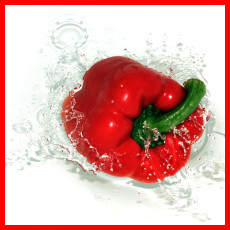
For example, the following transformation sets the variable `$bcolor` to red. Afterwards, a condition checks whether the image has at least one face (`face_count > 0`), and if so, it changes the `$bcolor` variable value to a specific shade of blue (#374663). Lastly, the image is given a border whose color is determined by the `$bcolor` variable.
```nodejs
cloudinary.image("docs/pepper.jpg", {transformation: [
{variables: [["$bcolor", "!red!"]]},
{if: "fc_gt_0"},
{variables: [["$bcolor", "!rgb:374663!"]]},
{if: "end"},
{height: 220, width: 220, crop: "fill"},
{border: "5px_solid_$bcolor"}
]})
```
```react
import { set } from "@cloudinary/url-gen/actions/variable";
import { ifCondition } from "@cloudinary/url-gen/actions/conditional";
import { fill } from "@cloudinary/url-gen/actions/resize";
import { solid } from "@cloudinary/url-gen/actions/border";
new CloudinaryImage("docs/pepper.jpg")
.addVariable(set("bcolor", "red"))
.conditional(
ifCondition(
"face_count > 0",
new Transformation().addVariable(set("bcolor", "rgb:374663"))
)
)
.resize(fill().width(220).height(220))
.border(solid(5, "$bcolor"));
```
```vue
import { set } from "@cloudinary/url-gen/actions/variable";
import { ifCondition } from "@cloudinary/url-gen/actions/conditional";
import { fill } from "@cloudinary/url-gen/actions/resize";
import { solid } from "@cloudinary/url-gen/actions/border";
new CloudinaryImage("docs/pepper.jpg")
.addVariable(set("bcolor", "red"))
.conditional(
ifCondition(
"face_count > 0",
new Transformation().addVariable(set("bcolor", "rgb:374663"))
)
)
.resize(fill().width(220).height(220))
.border(solid(5, "$bcolor"));
```
```angular
import { set } from "@cloudinary/url-gen/actions/variable";
import { ifCondition } from "@cloudinary/url-gen/actions/conditional";
import { fill } from "@cloudinary/url-gen/actions/resize";
import { solid } from "@cloudinary/url-gen/actions/border";
new CloudinaryImage("docs/pepper.jpg")
.addVariable(set("bcolor", "red"))
.conditional(
ifCondition(
"face_count > 0",
new Transformation().addVariable(set("bcolor", "rgb:374663"))
)
)
.resize(fill().width(220).height(220))
.border(solid(5, "$bcolor"));
```
```js
import { set } from "@cloudinary/url-gen/actions/variable";
import { ifCondition } from "@cloudinary/url-gen/actions/conditional";
import { fill } from "@cloudinary/url-gen/actions/resize";
import { solid } from "@cloudinary/url-gen/actions/border";
new CloudinaryImage("docs/pepper.jpg")
.addVariable(set("bcolor", "red"))
.conditional(
ifCondition(
"face_count > 0",
new Transformation().addVariable(set("bcolor", "rgb:374663"))
)
)
.resize(fill().width(220).height(220))
.border(solid(5, "$bcolor"));
```
```python
CloudinaryImage("docs/pepper.jpg").image(transformation=[
{'variables': [["$bcolor", "!red!"]]},
{'if': "fc_gt_0"},
{'variables': [["$bcolor", "!rgb:374663!"]]},
{'if': "end"},
{'height': 220, 'width': 220, 'crop': "fill"},
{'border': "5px_solid_$bcolor"}
])
```
```php
use Cloudinary\Transformation\Variable;
use Cloudinary\Transformation\Conditional;
use Cloudinary\Transformation\Resize;
use Cloudinary\Transformation\Border;
(new ImageTag('docs/pepper.jpg'))
->addVariable(Variable::set("bcolor","red"))
->conditional(Conditional::ifCondition("face_count > 0",(new Transformation())
->addVariable(Variable::set("bcolor","rgb:374663"))))
->resize(Resize::fill()->width(220)
->height(220))
->border(Border::solid(5,"$bcolor"));
```
```java
cloudinary.url().transformation(new Transformation()
.variables(variable("$bcolor","!red!")).chain()
.if("fc_gt_0").chain()
.variables(variable("$bcolor","!red!")).variables(variable("$bcolor","!rgb:374663!")).chain()
.if("end").chain()
.height(220).width(220).crop("fill").chain()
.border("5px_solid_$bcolor")).imageTag("docs/pepper.jpg");
```
```ruby
cl_image_tag("docs/pepper.jpg", transformation: [
{variables: [["$bcolor", "!red!"]]},
{if: "fc_gt_0"},
{variables: [["$bcolor", "!rgb:374663!"]]},
{if: "end"},
{height: 220, width: 220, crop: "fill"},
{border: "5px_solid_$bcolor"}
])
```
```csharp
cloudinary.Api.UrlImgUp.Transform(new Transformation()
.Variables("$bcolor", !red!).Chain()
.If("fc_gt_0").Chain()
.Variables("$bcolor", !rgb:374663!).Chain()
.If("end").Chain()
.Height(220).Width(220).Crop("fill").Chain()
.Border("5px_solid_$bcolor")).BuildImageTag("docs/pepper.jpg")
```
```dart
cloudinary.image('docs/pepper.jpg').transformation(Transformation()
.addTransformation("$bcolor_!red!/if_fc_gt_0/$bcolor_!rgb:374663!/if_end/c_fill,h_220,w_220/bo_5px_solid_$bcolor"));
```
```swift
imageView.cldSetImage(cloudinary.createUrl().setTransformation(CLDTransformation()
.chain()
.setIf("fc_gt_0").chain()
.chain()
.setIf("end").chain()
.setHeight(220).setWidth(220).setCrop("fill").chain()
.setBorder("5px_solid_$bcolor")).generate("docs/pepper.jpg")!, cloudinary: cloudinary)
```
```android
MediaManager.get().url().transformation(new Transformation()
.variables(variable("$bcolor","!red!")).chain()
.if("fc_gt_0").chain()
.variables(variable("$bcolor","!red!")).variables(variable("$bcolor","!rgb:374663!")).chain()
.if("end").chain()
.height(220).width(220).crop("fill").chain()
.border("5px_solid_$bcolor")).generate("docs/pepper.jpg");
```
```flutter
cloudinary.image('docs/pepper.jpg').transformation(Transformation()
.addTransformation("$bcolor_!red!/if_fc_gt_0/$bcolor_!rgb:374663!/if_end/c_fill,h_220,w_220/bo_5px_solid_$bcolor"));
```
```kotlin
cloudinary.image {
publicId("docs/pepper.jpg")
addTransformation("\$bcolor_!red!/if_fc_gt_0/\$bcolor_!rgb:374663!/if_end/c_fill,h_220,w_220/bo_5px_solid_\$bcolor")
}.generate()
```
```jquery
$.cloudinary.image("docs/pepper.jpg", {transformation: [
{variables: [["$bcolor", "!red!"]]},
{if: "fc_gt_0"},
{variables: [["$bcolor", "!rgb:374663!"]]},
{if: "end"},
{height: 220, width: 220, crop: "fill"},
{border: "5px_solid_$bcolor"}
]})
```
```react_native
import { set } from "@cloudinary/url-gen/actions/variable";
import { ifCondition } from "@cloudinary/url-gen/actions/conditional";
import { fill } from "@cloudinary/url-gen/actions/resize";
import { solid } from "@cloudinary/url-gen/actions/border";
new CloudinaryImage("docs/pepper.jpg")
.addVariable(set("bcolor", "red"))
.conditional(
ifCondition(
"face_count > 0",
new Transformation().addVariable(set("bcolor", "rgb:374663"))
)
)
.resize(fill().width(220).height(220))
.border(solid(5, "$bcolor"));
```
Using the identical transformation on an image with at least one face applies the defined blue color for the border:

#### Multiple string value comparisons
You can use a variable when verifying that all of the specified values are (or are not) contained within another set of values. For example:
`$mystringset_!string1:string2:string3!/if_$mystringset_in_tags,....`
> **NOTE**:
>
> When you use variable or conditional expressions that include the `tags`, `ctx` or `md` parameters, their values are exposed publicly in the URL. If you want to prevent such values from being exposed, you can disable the **Usage of tags/context/metadata in transformation URLs** option in the **Security** Settings (enabled by default). When this setting is disabled, any URL that exposes tags, contextual metadata or structured metadata values will return an error.
### File reference variables
You can send additional files to a Custom function by passing them as a base64 encoded string using reference variables. These variables are passed to WebAssembly and remote functions through a JSON metadata structure together with contextual metadata and tags, as explained in the [Custom functions](custom_functions) documentation.
To define a reference variable, insert `ref:` before the value of the variable. For example:
`$file_ref:!myfile!/fn_wasm:my_example.wasm`
In the above example, `myfile` can be the public ID of any file stored in Cloudinary or a URI. If the public ID includes slashes, replace the slashes with colons. For example, to reference 'path1/path2/myfile', use:
`$file_ref:!path1:path2:myfile!/fn_wasm:my_example.wasm`
**Use-case example**: [Pass a PNG file to a WebAssembly function to use as an overlay](#variable_reference)
### Image buffer references
You can reference an image buffer by its public ID using a reference variable, for use in transformation effects such as [embed_clipping_path](transformation_reference#e_embed_clipping_path).
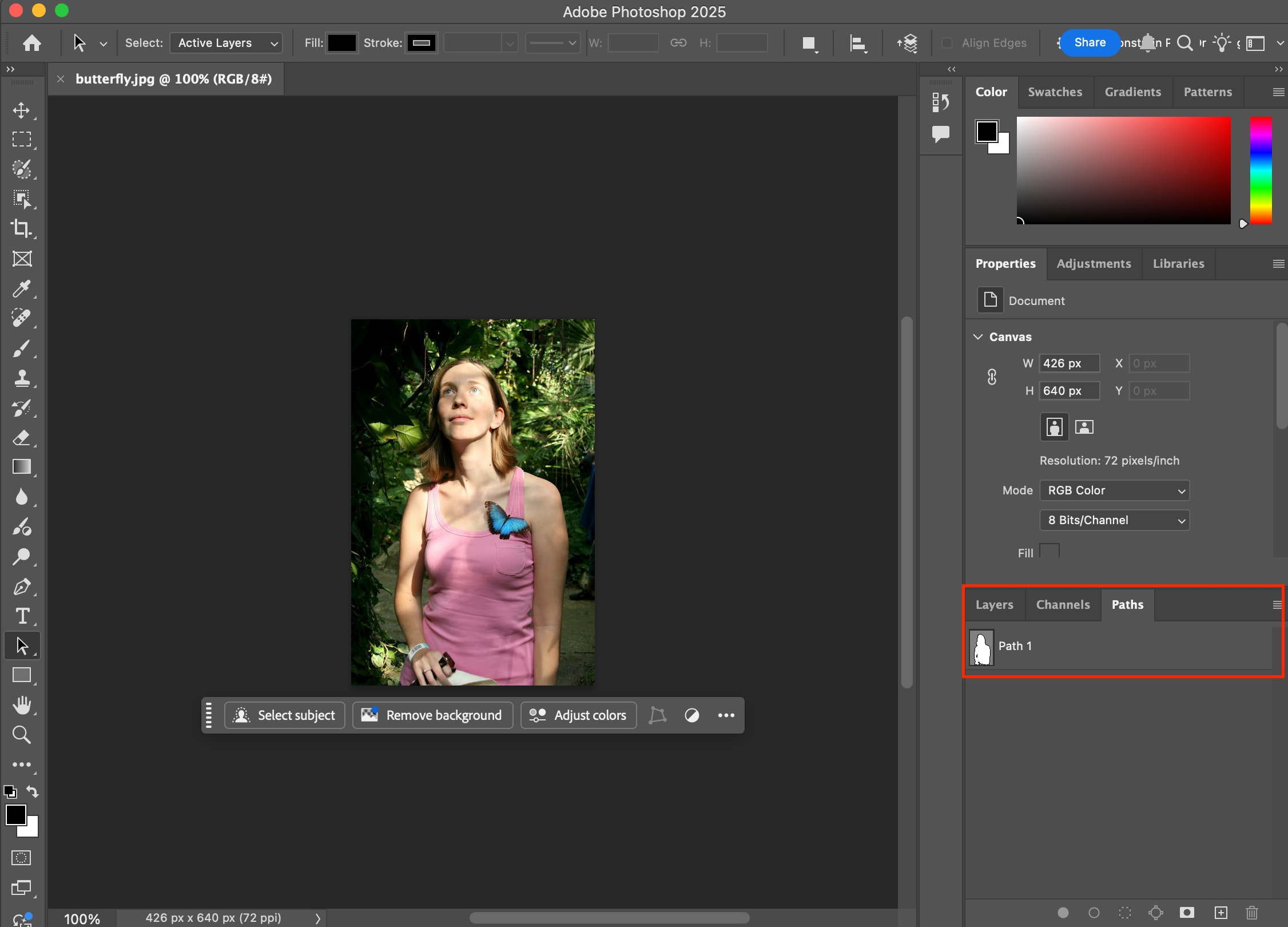
For example, to set a variable `$mask` to the image buffer of the image with public ID `butterflywomanmask` and embed a clipping path into the image metadata:
`$mask_ref:!butterflywomanmask!/e_embed_clipping_path:mask_$mask/q_90`

```nodejs
cloudinary.image("butterfly.jpg", {transformation: [
{variables: [["$mask", "ref:!butterflywomanmask!"]]},
{effect: "embed_clipping_path:mask_$mask"},
{quality: 90}
]})
```
```react
new CloudinaryImage("butterfly.jpg").addTransformation(
"$mask_ref:!butterflywomanmask!/e_embed_clipping_path:mask_$mask/q_90"
);
```
```vue
new CloudinaryImage("butterfly.jpg").addTransformation(
"$mask_ref:!butterflywomanmask!/e_embed_clipping_path:mask_$mask/q_90"
);
```
```angular
new CloudinaryImage("butterfly.jpg").addTransformation(
"$mask_ref:!butterflywomanmask!/e_embed_clipping_path:mask_$mask/q_90"
);
```
```js
new CloudinaryImage("butterfly.jpg").addTransformation(
"$mask_ref:!butterflywomanmask!/e_embed_clipping_path:mask_$mask/q_90"
);
```
```python
CloudinaryImage("butterfly.jpg").image(transformation=[
{'variables': [["$mask", "ref:!butterflywomanmask!"]]},
{'effect': "embed_clipping_path:mask_$mask"},
{'quality': 90}
])
```
```php
(new ImageTag('butterfly.jpg'))
->addTransformation("$mask_ref:!butterflywomanmask!/e_embed_clipping_path:mask_$mask/q_90");
```
```java
cloudinary.url().transformation(new Transformation()
.variables(variable("$mask","ref:!butterflywomanmask!")).chain()
.effect("embed_clipping_path:mask_$mask").chain()
.quality(90)).imageTag("butterfly.jpg");
```
```ruby
cl_image_tag("butterfly.jpg", transformation: [
{variables: [["$mask", "ref:!butterflywomanmask!"]]},
{effect: "embed_clipping_path:mask_$mask"},
{quality: 90}
])
```
```csharp
cloudinary.Api.UrlImgUp.Transform(new Transformation()
.Variables("$mask", ref:!butterflywomanmask!).Chain()
.Effect("embed_clipping_path:mask_$mask").Chain()
.Quality(90)).BuildImageTag("butterfly.jpg")
```
```dart
cloudinary.image('butterfly.jpg').transformation(Transformation()
.addTransformation("$mask_ref:!butterflywomanmask!/e_embed_clipping_path:mask_$mask/q_90"));
```
```swift
imageView.cldSetImage(cloudinary.createUrl().setTransformation(CLDTransformation()
.chain()
.setEffect("embed_clipping_path:mask_$mask").chain()
.setQuality(90)).generate("butterfly.jpg")!, cloudinary: cloudinary)
```
```android
MediaManager.get().url().transformation(new Transformation()
.variables(variable("$mask","ref:!butterflywomanmask!")).chain()
.effect("embed_clipping_path:mask_$mask").chain()
.quality(90)).generate("butterfly.jpg");
```
```flutter
cloudinary.image('butterfly.jpg').transformation(Transformation()
.addTransformation("$mask_ref:!butterflywomanmask!/e_embed_clipping_path:mask_$mask/q_90"));
```
```kotlin
cloudinary.image {
publicId("butterfly.jpg")
addTransformation("\$mask_ref:!butterflywomanmask!/e_embed_clipping_path:mask_\$mask/q_90")
}.generate()
```
```jquery
$.cloudinary.image("butterfly.jpg", {transformation: [
{variables: [["$mask", "ref:!butterflywomanmask!"]]},
{effect: "embed_clipping_path:mask_$mask"},
{quality: 90}
]})
```
```react_native
new CloudinaryImage("butterfly.jpg").addTransformation(
"$mask_ref:!butterflywomanmask!/e_embed_clipping_path:mask_$mask/q_90"
);
```
> **NOTE**: `q_90` is specified explicitly because the default auto quality optimization strips embedded metadata from the delivered image. To preserve the clipping path in the output, you must set a fixed quality value. See [Metadata stripping](image_optimization#metadata_stripping) for details.
In Photoshop, for example, you can see the embedded clipping mask:
### Self-referencing variables
You can set a user-defined variable to `current` to refer to the image being delivered in the current URL. This enables you to use the image being delivered as the value for other transformations without needing to know the image's public_id when you are building the transformation. This also enables you to reference the delivered image from within a named transformation.
For example:
`$img_current/e_grayscale/l_$img/bo_30px_solid_white/c_scale,w_0.3/fl_layer_apply,g_north_west`
This will cause the delivered grayscale image to also be used as a color overlay, in this case, displayed at the top left with a white border:

There are two ways to use the `current` variable.
* **pixel buffer**: The default `current` represents the actual current pixel buffer. This means that if you apply transformations to the delivered image and then assign `current` to a variable, `current` takes on the transformed pixel buffer at that point. If in the example above, we had first applied the `e_grayscale` transformation, and in the next component of the chain, we defined `$img_current`, and following that applied the `$img` variable as an overlay, the overlay would get the transformed grayscale image.
* **public_id**: You can alternatively assign a variable to `current:public_id`. This captures the `unique identifier` of the original asset (type, resource type and public ID) as a string. You can pass this value to an image overlay or underlay parameter if you want to reference the original image, regardless of where it is defined in the transformation chain.
**Use-case example**: [Use a self-referencing variable to create a blurred padding background](#variable_self-referencing)
## Expression evaluation order
Within a transformation component, condition (if) statements are evaluated first, then variable assignments, then transformations. Therefore:
* When an assignment is made in a conditional component, the assignment is evaluated only if the condition is true.
* Even if a transformation is specified before a variable assignment within the same URL component, the value is assigned before the transformation. For example, if you deliver a URL containing the following condition:
`if_w_gt_5,w_$x,$x_5`
Even though the variable `x` is assigned the value `5` only at the end of the transformation, that assignment will be applied first. Afterwards, the `width` transformation takes on the value (5) of the `x` variable.
However, the best practice is to separate conditions from results in separate URL components in the order you want them evaluated. For example: `if_w_gt_5/$x_5/c_scale,w_$x/if_end`, as explained in [Conditional transformations](using_conditional_transformations#specifying_transformations_for_a_condition).
**Use-case example**: [Set height based on aspect ratio](#variable_conditional)
## Use-case examples
> **NOTE**: For purposes of simplicity, most of these examples do not use named transformations. However, in reality, you will often get the most value from variables when used with named transformations.
### Simple
Set the variable `$w` to `200`, and the `$ar` parameter to `0.56` (9:16). Then set aspect ratio parameter to the `$ar` value and the width parameter to the `$w` value, along with `face`-based `fill` cropping:

```nodejs
cloudinary.image("docs/reporter.jpg", {transformation: [
{variables: [["$w", "200"]]},
{variables: [["$ar", "0.6"]]},
{aspect_ratio: "$ar", gravity: "face", width: "$w", crop: "fill"}
]})
```
```react
import { set } from "@cloudinary/url-gen/actions/variable";
import { fill } from "@cloudinary/url-gen/actions/resize";
import { focusOn } from "@cloudinary/url-gen/qualifiers/gravity";
import { face } from "@cloudinary/url-gen/qualifiers/focusOn";
new CloudinaryImage("docs/reporter.jpg")
.addVariable(set("w", 200))
.addVariable(set("ar", 0.6))
.resize(
fill()
.width("$w")
.aspectRatio("$ar")
.gravity(focusOn(face()))
);
```
```vue
import { set } from "@cloudinary/url-gen/actions/variable";
import { fill } from "@cloudinary/url-gen/actions/resize";
import { focusOn } from "@cloudinary/url-gen/qualifiers/gravity";
import { face } from "@cloudinary/url-gen/qualifiers/focusOn";
new CloudinaryImage("docs/reporter.jpg")
.addVariable(set("w", 200))
.addVariable(set("ar", 0.6))
.resize(
fill()
.width("$w")
.aspectRatio("$ar")
.gravity(focusOn(face()))
);
```
```angular
import { set } from "@cloudinary/url-gen/actions/variable";
import { fill } from "@cloudinary/url-gen/actions/resize";
import { focusOn } from "@cloudinary/url-gen/qualifiers/gravity";
import { face } from "@cloudinary/url-gen/qualifiers/focusOn";
new CloudinaryImage("docs/reporter.jpg")
.addVariable(set("w", 200))
.addVariable(set("ar", 0.6))
.resize(
fill()
.width("$w")
.aspectRatio("$ar")
.gravity(focusOn(face()))
);
```
```js
import { set } from "@cloudinary/url-gen/actions/variable";
import { fill } from "@cloudinary/url-gen/actions/resize";
import { focusOn } from "@cloudinary/url-gen/qualifiers/gravity";
import { face } from "@cloudinary/url-gen/qualifiers/focusOn";
new CloudinaryImage("docs/reporter.jpg")
.addVariable(set("w", 200))
.addVariable(set("ar", 0.6))
.resize(
fill()
.width("$w")
.aspectRatio("$ar")
.gravity(focusOn(face()))
);
```
```python
CloudinaryImage("docs/reporter.jpg").image(transformation=[
{'variables': [["$w", "200"]]},
{'variables': [["$ar", "0.6"]]},
{'aspect_ratio': "$ar", 'gravity': "face", 'width': "$w", 'crop': "fill"}
])
```
```php
use Cloudinary\Transformation\Variable;
use Cloudinary\Transformation\Resize;
use Cloudinary\Transformation\Gravity;
use Cloudinary\Transformation\FocusOn;
(new ImageTag('docs/reporter.jpg'))
->addVariable(Variable::set("w",200))
->addVariable(Variable::set("ar",0.6))
->resize(Resize::fill()->width("$w")
->aspectRatio("$ar")
->gravity(
Gravity::focusOn(
FocusOn::face()))
);
```
```java
cloudinary.url().transformation(new Transformation()
.variables(variable("$w","200")).chain()
.variables(variable("$w","200")).variables(variable("$ar","0.6")).chain()
.aspectRatio("$ar").gravity("face").width("$w").crop("fill")).imageTag("docs/reporter.jpg");
```
```ruby
cl_image_tag("docs/reporter.jpg", transformation: [
{variables: [["$w", "200"]]},
{variables: [["$ar", "0.6"]]},
{aspect_ratio: "$ar", gravity: "face", width: "$w", crop: "fill"}
])
```
```csharp
cloudinary.Api.UrlImgUp.Transform(new Transformation()
.Variables("$w", 200).Chain()
.Variables("$ar", 0.6).Chain()
.AspectRatio("$ar").Gravity("face").Width("$w").Crop("fill")).BuildImageTag("docs/reporter.jpg")
```
```dart
cloudinary.image('docs/reporter.jpg').transformation(Transformation()
.addVariable(Variable.set("w",200))
.addVariable(Variable.set("ar",0.6))
.resize(Resize.fill().width("$w")
.aspectRatio("$ar")
.gravity(
Gravity.focusOn(
FocusOn.face()))
));
```
```swift
imageView.cldSetImage(cloudinary.createUrl().setTransformation(CLDTransformation()
.chain()
.chain()
.setAspectRatio("$ar").setGravity("face").setWidth("$w").setCrop("fill")).generate("docs/reporter.jpg")!, cloudinary: cloudinary)
```
```android
MediaManager.get().url().transformation(new Transformation()
.variables(variable("$w","200")).chain()
.variables(variable("$w","200")).variables(variable("$ar","0.6")).chain()
.aspectRatio("$ar").gravity("face").width("$w").crop("fill")).generate("docs/reporter.jpg");
```
```flutter
cloudinary.image('docs/reporter.jpg').transformation(Transformation()
.addVariable(Variable.set("w",200))
.addVariable(Variable.set("ar",0.6))
.resize(Resize.fill().width("$w")
.aspectRatio("$ar")
.gravity(
Gravity.focusOn(
FocusOn.face()))
));
```
```kotlin
cloudinary.image {
publicId("docs/reporter.jpg")
addVariable(Variable.set("w",200))
addVariable(Variable.set("ar",0.6F))
resize(Resize.fill() { width("\$w")
aspectRatio("\$ar")
gravity(
Gravity.focusOn(
FocusOn.face()))
})
}.generate()
```
```jquery
$.cloudinary.image("docs/reporter.jpg", {transformation: [
{variables: [["$w", "200"]]},
{variables: [["$ar", "0.6"]]},
{aspect_ratio: "$ar", gravity: "face", width: "$w", crop: "fill"}
]})
```
```react_native
import { set } from "@cloudinary/url-gen/actions/variable";
import { fill } from "@cloudinary/url-gen/actions/resize";
import { focusOn } from "@cloudinary/url-gen/qualifiers/gravity";
import { face } from "@cloudinary/url-gen/qualifiers/focusOn";
new CloudinaryImage("docs/reporter.jpg")
.addVariable(set("w", 200))
.addVariable(set("ar", 0.6))
.resize(
fill()
.width("$w")
.aspectRatio("$ar")
.gravity(focusOn(face()))
);
```
Use the initial height and width (`c_lpad,h_ih,w_iw`) to center an object in an image after trimming (`e_trim`):

```nodejs
cloudinary.image("nice_bird.jpg", {transformation: [
{effect: "trim"},
{height: "ih", width: "iw", crop: "lpad"},
{border: "4px_solid_green"}
]})
```
```react
import { trim } from "@cloudinary/url-gen/actions/reshape";
import { limitPad } from "@cloudinary/url-gen/actions/resize";
import { solid } from "@cloudinary/url-gen/actions/border";
import { expression } from "@cloudinary/url-gen/qualifiers/expression";
new CloudinaryImage("nice_bird.jpg")
.reshape(trim())
.resize(
limitPad()
.width(expression("initial_width"))
.height(expression("initial_height"))
)
.border(solid(4, "green"));
```
```vue
import { trim } from "@cloudinary/url-gen/actions/reshape";
import { limitPad } from "@cloudinary/url-gen/actions/resize";
import { solid } from "@cloudinary/url-gen/actions/border";
import { expression } from "@cloudinary/url-gen/qualifiers/expression";
new CloudinaryImage("nice_bird.jpg")
.reshape(trim())
.resize(
limitPad()
.width(expression("initial_width"))
.height(expression("initial_height"))
)
.border(solid(4, "green"));
```
```angular
import { trim } from "@cloudinary/url-gen/actions/reshape";
import { limitPad } from "@cloudinary/url-gen/actions/resize";
import { solid } from "@cloudinary/url-gen/actions/border";
import { expression } from "@cloudinary/url-gen/qualifiers/expression";
new CloudinaryImage("nice_bird.jpg")
.reshape(trim())
.resize(
limitPad()
.width(expression("initial_width"))
.height(expression("initial_height"))
)
.border(solid(4, "green"));
```
```js
import { trim } from "@cloudinary/url-gen/actions/reshape";
import { limitPad } from "@cloudinary/url-gen/actions/resize";
import { solid } from "@cloudinary/url-gen/actions/border";
import { expression } from "@cloudinary/url-gen/qualifiers/expression";
new CloudinaryImage("nice_bird.jpg")
.reshape(trim())
.resize(
limitPad()
.width(expression("initial_width"))
.height(expression("initial_height"))
)
.border(solid(4, "green"));
```
```python
CloudinaryImage("nice_bird.jpg").image(transformation=[
{'effect': "trim"},
{'height': "ih", 'width': "iw", 'crop': "lpad"},
{'border': "4px_solid_green"}
])
```
```php
use Cloudinary\Transformation\Reshape;
use Cloudinary\Transformation\Resize;
use Cloudinary\Transformation\Border;
use Cloudinary\Transformation\Expression;
(new ImageTag('nice_bird.jpg'))
->reshape(Reshape::trim())
->resize(Resize::limitPad()
->width(
Expression::expression("initial_width"))
->height(
Expression::expression("initial_height"))
)
->border(Border::solid(4,Color::GREEN));
```
```java
cloudinary.url().transformation(new Transformation()
.effect("trim").chain()
.height("ih").width("iw").crop("lpad").chain()
.border("4px_solid_green")).imageTag("nice_bird.jpg");
```
```ruby
cl_image_tag("nice_bird.jpg", transformation: [
{effect: "trim"},
{height: "ih", width: "iw", crop: "lpad"},
{border: "4px_solid_green"}
])
```
```csharp
cloudinary.Api.UrlImgUp.Transform(new Transformation()
.Effect("trim").Chain()
.Height("ih").Width("iw").Crop("lpad").Chain()
.Border("4px_solid_green")).BuildImageTag("nice_bird.jpg")
```
```dart
cloudinary.image('nice_bird.jpg').transformation(Transformation()
.reshape(Reshape.trim())
.resize(Resize.limitPad()
.width(
Expression.expression("initial_width"))
.height(
Expression.expression("initial_height"))
)
.border(Border.solid(4,Color.GREEN)));
```
```swift
imageView.cldSetImage(cloudinary.createUrl().setTransformation(CLDTransformation()
.setEffect("trim").chain()
.setHeight("ih").setWidth("iw").setCrop("lpad").chain()
.setBorder("4px_solid_green")).generate("nice_bird.jpg")!, cloudinary: cloudinary)
```
```android
MediaManager.get().url().transformation(new Transformation()
.effect("trim").chain()
.height("ih").width("iw").crop("lpad").chain()
.border("4px_solid_green")).generate("nice_bird.jpg");
```
```flutter
cloudinary.image('nice_bird.jpg').transformation(Transformation()
.reshape(Reshape.trim())
.resize(Resize.limitPad()
.width(
Expression.expression("initial_width"))
.height(
Expression.expression("initial_height"))
)
.border(Border.solid(4,Color.GREEN)));
```
```kotlin
cloudinary.image {
publicId("nice_bird.jpg")
reshape(Reshape.trim())
resize(Resize.limitPad() {
width(
Expression.expression("initial_width"))
height(
Expression.expression("initial_height"))
})
border(Border.solid(4,Color.GREEN))
}.generate()
```
```jquery
$.cloudinary.image("nice_bird.jpg", {transformation: [
{effect: "trim"},
{height: "ih", width: "iw", crop: "lpad"},
{border: "4px_solid_green"}
]})
```
```react_native
import { trim } from "@cloudinary/url-gen/actions/reshape";
import { limitPad } from "@cloudinary/url-gen/actions/resize";
import { solid } from "@cloudinary/url-gen/actions/border";
import { expression } from "@cloudinary/url-gen/qualifiers/expression";
new CloudinaryImage("nice_bird.jpg")
.reshape(trim())
.resize(
limitPad()
.width(expression("initial_width"))
.height(expression("initial_height"))
)
.border(solid(4, "green"));
```
### Arithmetic
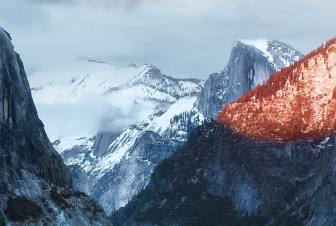
Create a new variable called `$newwidth`. Set the value of the variable to be the image's initial width multiplied by `0.3` (according to that standard order of operations), and then add `10`. Resize the image by setting the width parameter to the `$newwidth` value:
```nodejs
cloudinary.image("docs/mountains.jpg", {transformation: [
{variables: [["$newwidth", "10 + iw * 0.3"]]},
{width: "$newwidth", crop: "scale"}
]})
```
```react
import { set } from "@cloudinary/url-gen/actions/variable";
import { scale } from "@cloudinary/url-gen/actions/resize";
import { expression } from "@cloudinary/url-gen/qualifiers/expression";
new CloudinaryImage("docs/mountains.jpg")
.addVariable(set("newwidth", expression("10 + initial_width * 0.3")))
.resize(scale().width("$newwidth"));
```
```vue
import { set } from "@cloudinary/url-gen/actions/variable";
import { scale } from "@cloudinary/url-gen/actions/resize";
import { expression } from "@cloudinary/url-gen/qualifiers/expression";
new CloudinaryImage("docs/mountains.jpg")
.addVariable(set("newwidth", expression("10 + initial_width * 0.3")))
.resize(scale().width("$newwidth"));
```
```angular
import { set } from "@cloudinary/url-gen/actions/variable";
import { scale } from "@cloudinary/url-gen/actions/resize";
import { expression } from "@cloudinary/url-gen/qualifiers/expression";
new CloudinaryImage("docs/mountains.jpg")
.addVariable(set("newwidth", expression("10 + initial_width * 0.3")))
.resize(scale().width("$newwidth"));
```
```js
import { set } from "@cloudinary/url-gen/actions/variable";
import { scale } from "@cloudinary/url-gen/actions/resize";
import { expression } from "@cloudinary/url-gen/qualifiers/expression";
new CloudinaryImage("docs/mountains.jpg")
.addVariable(set("newwidth", expression("10 + initial_width * 0.3")))
.resize(scale().width("$newwidth"));
```
```python
CloudinaryImage("docs/mountains.jpg").image(transformation=[
{'variables': [["$newwidth", "10 + iw * 0.3"]]},
{'width': "$newwidth", 'crop': "scale"}
])
```
```php
use Cloudinary\Transformation\Variable;
use Cloudinary\Transformation\Resize;
use Cloudinary\Transformation\Expression;
(new ImageTag('docs/mountains.jpg'))
->addVariable(Variable::set("newwidth",
Expression::expression("10 + initial_width * 0.3")))
->resize(Resize::scale()->width("$newwidth"));
```
```java
cloudinary.url().transformation(new Transformation()
.variables(variable("$newwidth","10 + iw * 0.3")).chain()
.width("$newwidth").crop("scale")).imageTag("docs/mountains.jpg");
```
```ruby
cl_image_tag("docs/mountains.jpg", transformation: [
{variables: [["$newwidth", "10 + iw * 0.3"]]},
{width: "$newwidth", crop: "scale"}
])
```
```csharp
cloudinary.Api.UrlImgUp.Transform(new Transformation()
.Variables("$newwidth", 10 + iw * 0.3).Chain()
.Width("$newwidth").Crop("scale")).BuildImageTag("docs/mountains.jpg")
```
```dart
cloudinary.image('docs/mountains.jpg').transformation(Transformation()
.addVariable(Variable.set("newwidth",
Expression.expression("10 + initial_width * 0.3")))
.resize(Resize.scale().width("$newwidth")));
```
```swift
imageView.cldSetImage(cloudinary.createUrl().setTransformation(CLDTransformation()
.chain()
.setWidth("$newwidth").setCrop("scale")).generate("docs/mountains.jpg")!, cloudinary: cloudinary)
```
```android
MediaManager.get().url().transformation(new Transformation()
.variables(variable("$newwidth","10 + iw * 0.3")).chain()
.width("$newwidth").crop("scale")).generate("docs/mountains.jpg");
```
```flutter
cloudinary.image('docs/mountains.jpg').transformation(Transformation()
.addVariable(Variable.set("newwidth",
Expression.expression("10 + initial_width * 0.3")))
.resize(Resize.scale().width("$newwidth")));
```
```kotlin
cloudinary.image {
publicId("docs/mountains.jpg")
addVariable(Variable.set("newwidth",
Expression.expression("10 + initial_width * 0.3")))
resize(Resize.scale() { width("\$newwidth") })
}.generate()
```
```jquery
$.cloudinary.image("docs/mountains.jpg", {transformation: [
{variables: [["$newwidth", "10 + iw * 0.3"]]},
{width: "$newwidth", crop: "scale"}
]})
```
```react_native
import { set } from "@cloudinary/url-gen/actions/variable";
import { scale } from "@cloudinary/url-gen/actions/resize";
import { expression } from "@cloudinary/url-gen/qualifiers/expression";
new CloudinaryImage("docs/mountains.jpg")
.addVariable(set("newwidth", expression("10 + initial_width * 0.3")))
.resize(scale().width("$newwidth"));
```
### Conditional
Check whether the image has portrait orientation (aspect ratio !` syntax. The variable names below use an `_md` suffix as a naming convention to make metadata-backed variables easy to spot:
```
$desc_md:!description!
$stock_md:!stock!
$price_md:!price!
```
#### Step 2: Use metadata variables in transformations
You can then use these variables in text overlays and conditions within the transformation URL.
##### Example

```nodejs
cloudinary.image("l_text:arial_20:$(desc", {transformation: [
{variables: [["$desc", "md:!description!"]]},
{variables: [["$stock", "md:!stock!"]]},
{variables: [["$price", "md:!price!"]]}
]})
```
```react
import { setFromMetadata } from "@cloudinary/url-gen/actions/variable";
new CloudinaryImage("l_text:arial_20:$(desc")
.addVariable(setFromMetadata("desc", "description"))
.addVariable(setFromMetadata("stock", "stock"))
.addVariable(setFromMetadata("price", "price"));
```
```vue
import { setFromMetadata } from "@cloudinary/url-gen/actions/variable";
new CloudinaryImage("l_text:arial_20:$(desc")
.addVariable(setFromMetadata("desc", "description"))
.addVariable(setFromMetadata("stock", "stock"))
.addVariable(setFromMetadata("price", "price"));
```
```angular
import { setFromMetadata } from "@cloudinary/url-gen/actions/variable";
new CloudinaryImage("l_text:arial_20:$(desc")
.addVariable(setFromMetadata("desc", "description"))
.addVariable(setFromMetadata("stock", "stock"))
.addVariable(setFromMetadata("price", "price"));
```
```js
import { setFromMetadata } from "@cloudinary/url-gen/actions/variable";
new CloudinaryImage("l_text:arial_20:$(desc")
.addVariable(setFromMetadata("desc", "description"))
.addVariable(setFromMetadata("stock", "stock"))
.addVariable(setFromMetadata("price", "price"));
```
```python
CloudinaryImage("l_text:arial_20:$(desc").image(transformation=[
{'variables': [["$desc", "md:!description!"]]},
{'variables': [["$stock", "md:!stock!"]]},
{'variables': [["$price", "md:!price!"]]}
])
```
```php
use Cloudinary\Transformation\Variable;
(new ImageTag('l_text:arial_20:$(desc'))
->addVariable(Variable::setFromMetadata("desc","description"))
->addVariable(Variable::setFromMetadata("stock","stock"))
->addVariable(Variable::setFromMetadata("price","price"));
```
```java
cloudinary.url().transformation(new Transformation()
.variables(variable("$desc","md:!description!")).chain()
.variables(variable("$desc","md:!description!")).variables(variable("$stock","md:!stock!")).chain()
.variables(variable("$desc","md:!description!")).variables(variable("$stock","md:!stock!")).variables(variable("$price","md:!price!"))).imageTag("l_text:arial_20:$(desc");
```
```ruby
cl_image_tag("l_text:arial_20:$(desc", transformation: [
{variables: [["$desc", "md:!description!"]]},
{variables: [["$stock", "md:!stock!"]]},
{variables: [["$price", "md:!price!"]]}
])
```
```csharp
cloudinary.Api.UrlImgUp.Transform(new Transformation()
.Variables("$desc", md:!description!).Chain()
.Variables("$stock", md:!stock!).Chain()
.Variables("$price", md:!price!)).BuildImageTag("l_text:arial_20:$(desc")
```
```dart
cloudinary.image('l_text:arial_20:$(desc').transformation(Transformation()
.addVariable(Variable.setFromMetadata("desc","description"))
.addVariable(Variable.setFromMetadata("stock","stock"))
.addVariable(Variable.setFromMetadata("price","price")));
```
```swift
imageView.cldSetImage(cloudinary.createUrl().setTransformation(CLDTransformation()
.chain()
.chain()
).generate("l_text:arial_20:$(desc")!, cloudinary: cloudinary)
```
```android
MediaManager.get().url().transformation(new Transformation()
.variables(variable("$desc","md:!description!")).chain()
.variables(variable("$desc","md:!description!")).variables(variable("$stock","md:!stock!")).chain()
.variables(variable("$desc","md:!description!")).variables(variable("$stock","md:!stock!")).variables(variable("$price","md:!price!"))).generate("l_text:arial_20:$(desc");
```
```flutter
cloudinary.image('l_text:arial_20:$(desc').transformation(Transformation()
.addVariable(Variable.setFromMetadata("desc","description"))
.addVariable(Variable.setFromMetadata("stock","stock"))
.addVariable(Variable.setFromMetadata("price","price")));
```
```kotlin
cloudinary.image {
publicId("l_text:arial_20:\$(desc")
addVariable(Variable.setFromMetadata("desc","description"))
addVariable(Variable.setFromMetadata("stock","stock"))
addVariable(Variable.setFromMetadata("price","price"))
}.generate()
```
```jquery
$.cloudinary.image("l_text:arial_20:$(desc", {transformation: [
{variables: [["$desc", "md:!description!"]]},
{variables: [["$stock", "md:!stock!"]]},
{variables: [["$price", "md:!price!"]]}
]})
```
```react_native
import { setFromMetadata } from "@cloudinary/url-gen/actions/variable";
new CloudinaryImage("l_text:arial_20:$(desc")
.addVariable(setFromMetadata("desc", "description"))
.addVariable(setFromMetadata("stock", "stock"))
.addVariable(setFromMetadata("price", "price"));
```,g_north_west,co_white,b_gray/l_text:arial_50:$$(price),g_north_east,co_red/l_text:arial_14:Only%20$(stock)%20left,g_south_east/if_$stock_lt_1/l_text:arial_80:SOLD%20OUT,co_red/if_end/sunset_shoes.jpg "thumb:c_scale,w_400")
#### How this works
* The text overlays dynamically display values from the asset’s metadata.
* If the `stock` metadata value is less than 1, a **SOLD OUT** overlay is automatically applied using a conditional transformation.
* Updating the metadata values updates subsequent renders of the asset (subject to your CDN cache), with no need to upload a new image.
#### Scaling this approach
For reuse across multiple assets, you can save this logic as a [named transformation](named_transformations) and apply it consistently at scale.
Learn more about:
* [Conditional transformations](conditional_transformations)
* [Text overlays](image_text_layers#text_layer_options)