> ## Documentation Index
> Fetch the complete documentation index at: https://cloudinary.com/documentation/llms.txt
> Use this file to discover all available pages before exploring further.
# Vue.js SDK (Legacy)
> **INFO**:
>
> This is the **legacy** version of the Vue.js SDK (`cloudinary-vue` v1.x).
> For details on migrating to the [current version](vue_integration) of the SDK (`frontend-frameworks` v1.x + `js-url-gen` v1.x), see the [Vue.js SDK migration guide](vue1_migration_guide).
## Overview
Cloudinary's Vue.js SDK provides simple, yet comprehensive image and video upload, transformation, optimization, and delivery capabilities that you can implement using code that integrates seamlessly with your existing Vue.js application.
You might also want to know...
* If you're brand new to Cloudinary, you may want to start with the [Developer Kickstart](dev_kickstart) for a hands-on, step-by-step introduction to Cloudinary features.
* You may also find our [Glossary](cloudinary_glossary) helpful to understand Cloudinary-specific terminology.
* Keep in mind that this guide focuses on how to set up and implement popular Cloudinary capabilities using the Vue.js SDK, but it doesn't cover every feature or option. The complete documentation for all Cloudinary features including sample code for each SDK can be found in our [Guides](programmable_media_guides) and [References](cloudinary_references).
> **READING**: :no-title
**This guide relates to the latest released version of the [Cloudinary Vue.js](https://github.com/cloudinary/cloudinary-vue) library.**
For details on all new features and fixes from previous versions, see the [CHANGELOG](https://github.com/cloudinary/cloudinary-vue/blob/master/CHANGELOG.md).
## Quick example
Take a look at the following transformation code and the image it delivers:

```vue
```
This relatively simple code performs all of the following on the original front_face.jpg image before delivering it:
* **Crop** to a 150x150 thumbnail using face-detection gravity to automatically determine the location for the crop
* **Round the corners** with a 20 pixel radius
* Apply a **sepia effect**
* **Overlay the Cloudinary logo** on the southeast corner of the image (with a slight offset). The logo is scaled down to a 50 pixel width, with increased brightness and partial transparency (opacity = 60%)
* **Rotate** the resulting image (including the overlay) by 10 degrees
* **Convert** and deliver the image in PNG format (the originally uploaded image was a JPG)
And here's the URL that would be included in the image tag that's automatically generated from the above code:

In a similar way, you can [transform a video](vue1_video_manipulation#video_transformation_examples).
> **Learn more about transformations**:
>
> * See all possible transformations in the [Transformation URL API reference](transformation_reference).
> * See more examples of [image](vue1_image_manipulation) and [video](vue1_video_manipulation) transformations using the Cloudinary Vue.js library.
## Vue.js SDK features
* Build URLs for [image](vue1_image_manipulation) and [video](vue1_video_manipulation) transformation
* [Helper components](vue1_image_manipulation#deliver_and_transform_images) for embedding and transforming images, and more
## Installation and Setup
The Vue.js SDK is available as open source at [https://github.com/cloudinary/cloudinary-vue](https://github.com/cloudinary/cloudinary-vue). There is also a tool for integrating Cloudinary into your Vue.js project at [https://github.com/cloudinary/vue-cli-plugin-cloudinary](https://github.com/cloudinary/vue-cli-plugin-cloudinary).
### 1. Install the Vue.js SDK
The Cloudinary Vue.js SDK serves as a layer on top of Cloudinary's JavaScript (cloudinary-core) library. Install the SDK by running the following command:
```
npm install cloudinary-vue
```
### 2. Set Cloudinary configuration
To use the Cloudinary Vue.js components, you must configure at least your product environment `cloudName`. You can additionally define a number of optional [configuration parameters](cloudinary_sdks#configuration_parameters) if relevant. You can find your product environment-specific configuration credentials on the [API Keys](https://console.cloudinary.com/app/settings/api-keys) page of the Cloudinary Console Settings.
> **NOTES**:
>
> * Most functionality implemented on the client side doesn't require authentication, so only your `cloud_name` is _required_ to be configured, and not your API key or secret. Your API secret should never be exposed on the client side, so if you want to use [signed uploads](upload_images#authenticated_requests) or [generate delivery signatures](delivery_url_signatures), you'll also need server-side code, for which you can use one of our [backend SDKs](cloudinary_sdks#cloudinary_sdks).* For backward compatibility reasons, the default value of the optional `secure` configuration parameter is `false`. However, for most modern applications, it's recommended to configure the `secure` parameter to `true` to ensure that your transformation URLs are always generated as HTTPS.
The following 5 Cloudinary Vue.js components are available:
* **CldContext** - allows you to define shared parameters that are applied to all child components.
* **CldImage** - defines a Cloudinary Image tag.
* **CldVideo** - defines a Cloudinary Video tag.
* **CldPoster** - allows you to specify an *image* resource for a CldVideo parent component, to be used as the `poster` attribute of the generated `video` tag.
* **CldTransformation** - allows you to define additional transformations for a parent component (CldImage, CldVideo or CldPoster).
You can apply these options globally on the app level, directly to each component, or you can apply them to all child components using a `CldContext` component.
For example:
* Globally on the app level, you can use one of the following options:
```vue
// all Cloudinary components:
import Cloudinary from "cloudinary-vue";
Vue.use(Cloudinary, {
configuration: {
cloudName: "demo",
secure: true }
});
// specify which components to install:
import Cloudinary, { CldImage } from "cloudinary-vue";
Vue.use(Cloudinary, {
configuration: {
cloudName: "demo",
secure: true },
components: [ "CldImage" ]
});
// define them in object of components, and rename any component if needed:
import Cloudinary, { CldImage, CldTransformation } from "cloudinary-vue";
Vue.use(Cloudinary, {
configuration: {
cloudName: "demo",
secure: true },
components: {
CldImage: true,
CldTransformation: "CldXf"
//^ a custom name
}
});
```
* Directly in the component:
```vue
```
* Configuration with `cld-context` applies to all child components:
```vue
....
...
```
## Using core Cloudinary JavaScript features
The [JavaScript cloudinary-core](javascript1_integration) library is the foundation library underlying Cloudinary's Vue.js SDK. You can access any of the core JavaScript functionality within your Vue.js code after importing the `cloudinary-core` library. For example:
```vue
import {Cloudinary} from 'cloudinary-core';
const cloudinaryCore = new cloudinary.Cloudinary({cloud_name: 'demo'});
//...
computed: {
cloudinarySrc() {return cloudinaryCore.url('sample');}
}
```
## Vue.js capitalization and data type guidelines
When using the Vue.js SDK, keep these guidelines in mind:
* Parameter names: `kebab-case`. For example: **public-id** (`camelCase` is also supported)
* Define Components: `PascalCase`. For example: **CldImage**
* Use Components: `PascalCase` or `kebab-case`. For example: **CldImage** or **cld-image**
* Pass parameter data as: `Object`
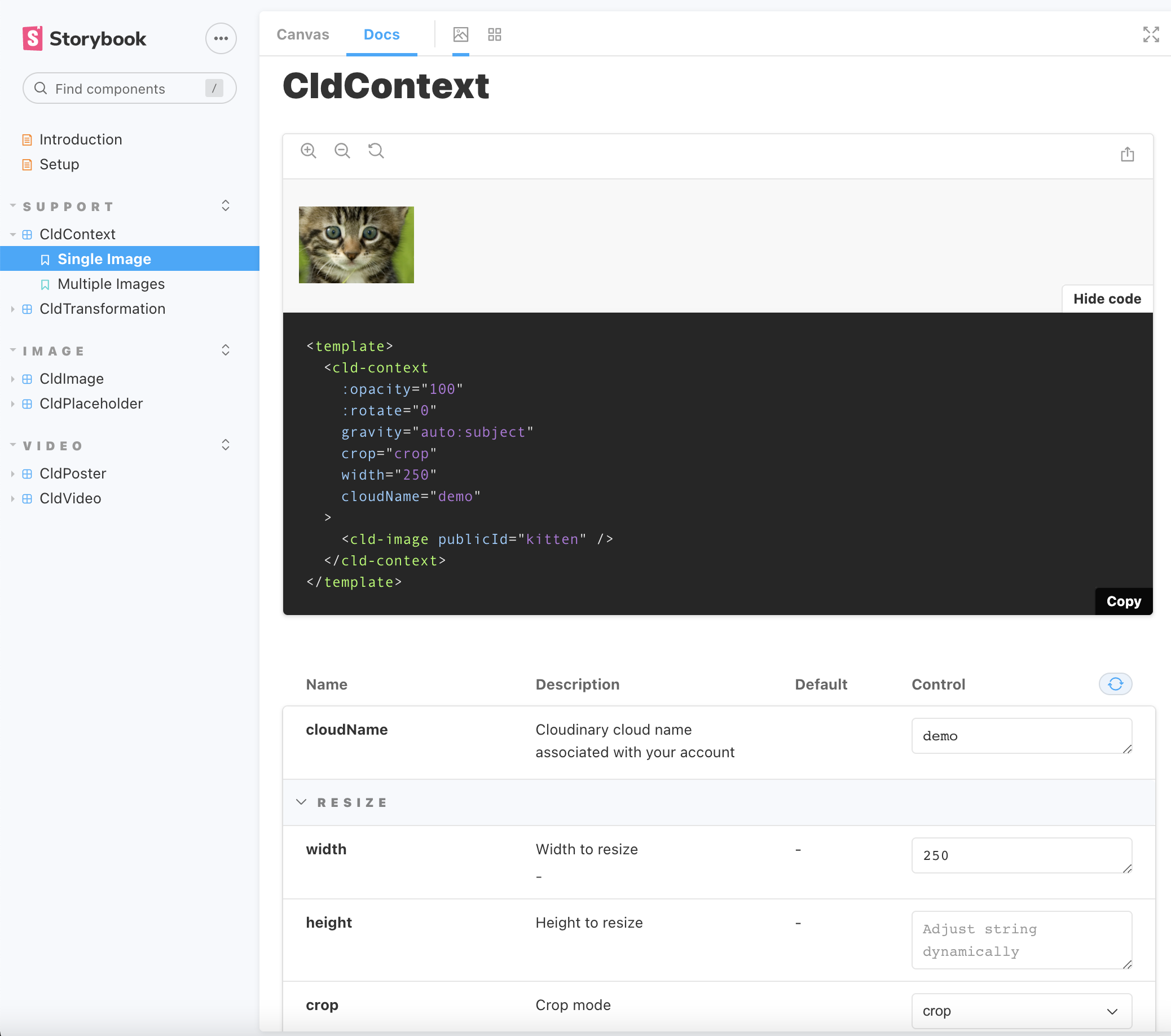
## Vue.js Storybook tool
You can try out Cloudinary components quickly and easily with our Vue SDK [Storybook](https://cloudinary.github.io/cloudinary-vue), which provides you with a rich visual interface, code playground and inline documentation.
To start experimenting with the storybook, select a component from the left-hand menu. You can enter your cloud name and public ID to view an asset from your product environment, or you can view the asset displayed from Cloudinary's `demo` product environment. Change parameters and see what happens; the display immediately reflects the changes you make. When you've achieved the desired effect, you can copy that code to conveniently implement the results.
> **READING**:
>
> * [Vue.js image and video upload](vue1_image_and_video_upload)
> * [Vue.js image transformations](vue1_image_manipulation)
> * [Vue.js video transformations](vue1_video_manipulation)