
Cloudinary PowerFlows are building blocks for automating tasks with your images and videos. Most PowerFlow elements are actions that you execute and chain together sequentially. For example, every time a photo is uploaded, you can send an email notification to a specific person. Each PowerFlow element does one job, and together they create a step-by-step automatic workflow.
PowerFlows also have the ability to call some external APIs or services via HTTP requests. Often, these services are protected behind an API key, which you can obtain from the service provider. Until now, there was no secure way to store this key on the Cloudinary platform. As of July 2025, you can securely store your API keys in the Cloudinary dashboard and use them in your PowerFlows thanks to the Flow Secrets feature.
In this blog post, we’ll show you how to create and use secrets in your PowerFlows by building a simple workflow that sends an email via Postmark.
PowerFlows has long offered the option to use custom variables in your blocks. Flow secrets work the same way. Click the little arrow next to your flow name, and you can see the Flow Secrets option next to Flow Variables:
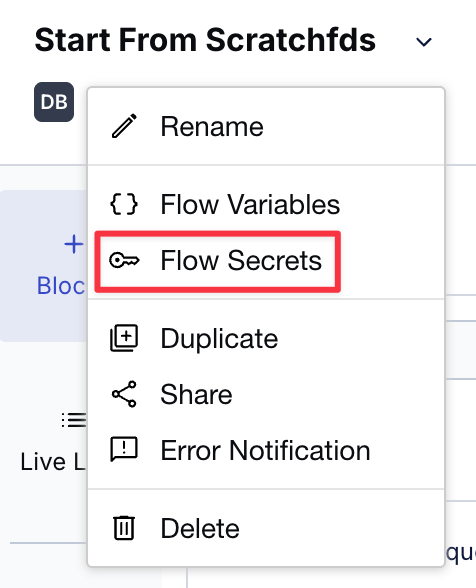
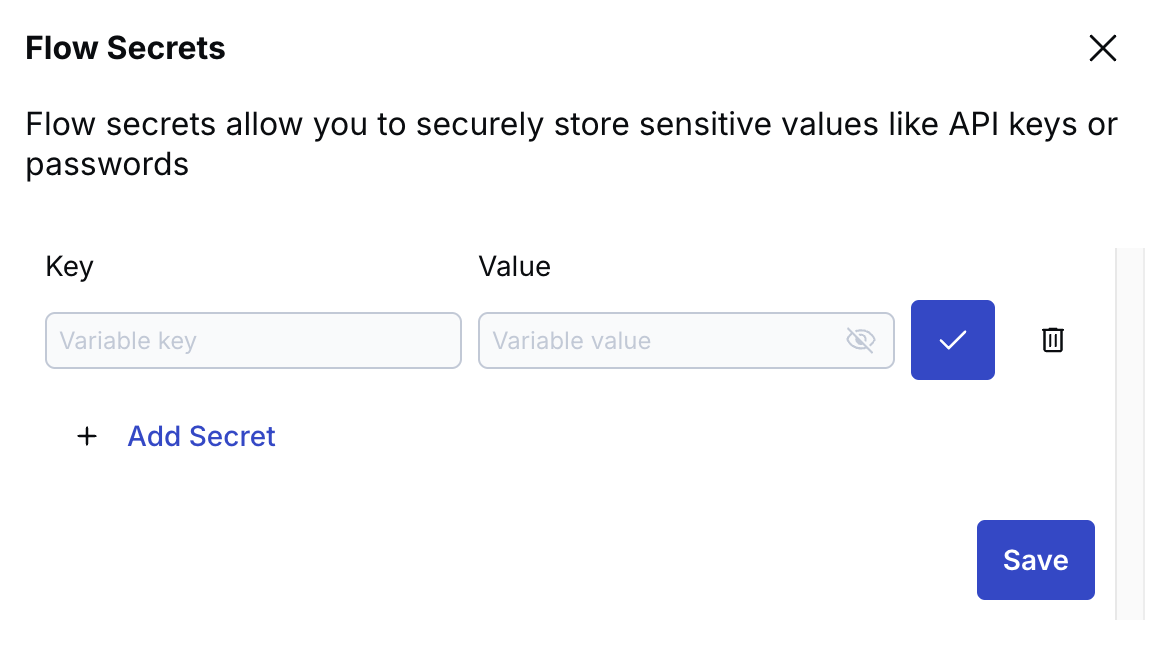
Flow secrets are only accessible within the PowerFlow where they’re defined. They’re perfect for storing sensitive data, such as API keys, tokens, or credentials. Each flow secret has a key and a value.
Once you save the flow secret, you can reference it like any variable in your workflow. Many blocks have input fields that allow you to customize the block. In most cases, they’ll have a “+” icon where you can click and reference the secret.
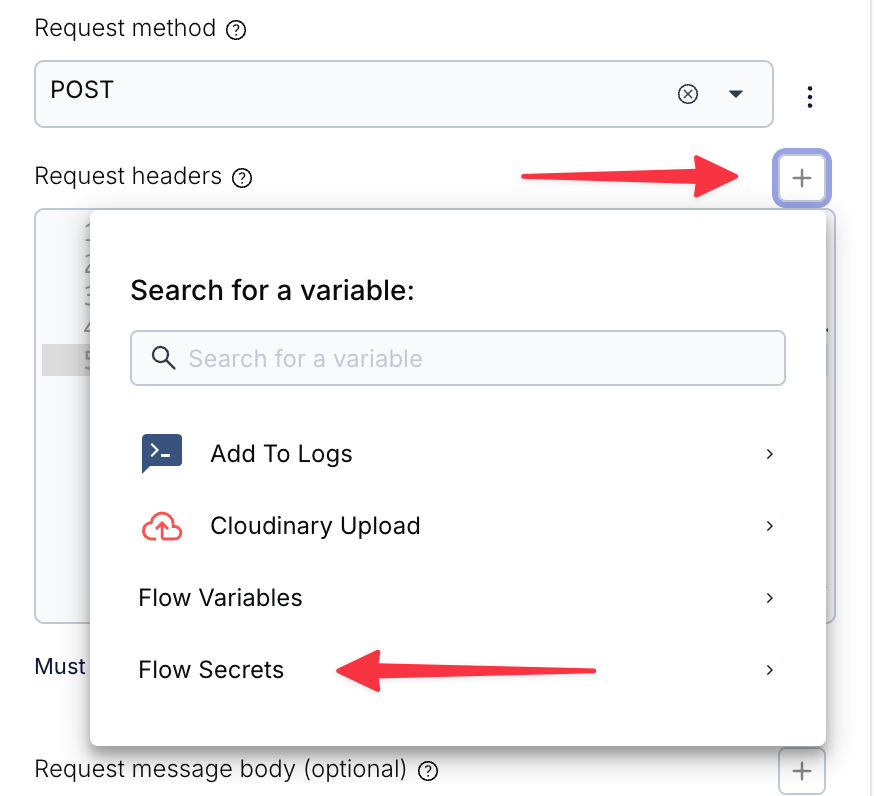
Once you select the secret, it will be injected into the input field with a syntax like {{SECRETS.your_secret_name}}.
To use secrets in a PowerFlow, you’ll create a simple workflow that will send an email via Postmark. Click the MediaFlows button on the left of the dashboard and click New PowerFlow. Click the menu next to the flow name and define a new secret called postmark_api_key.
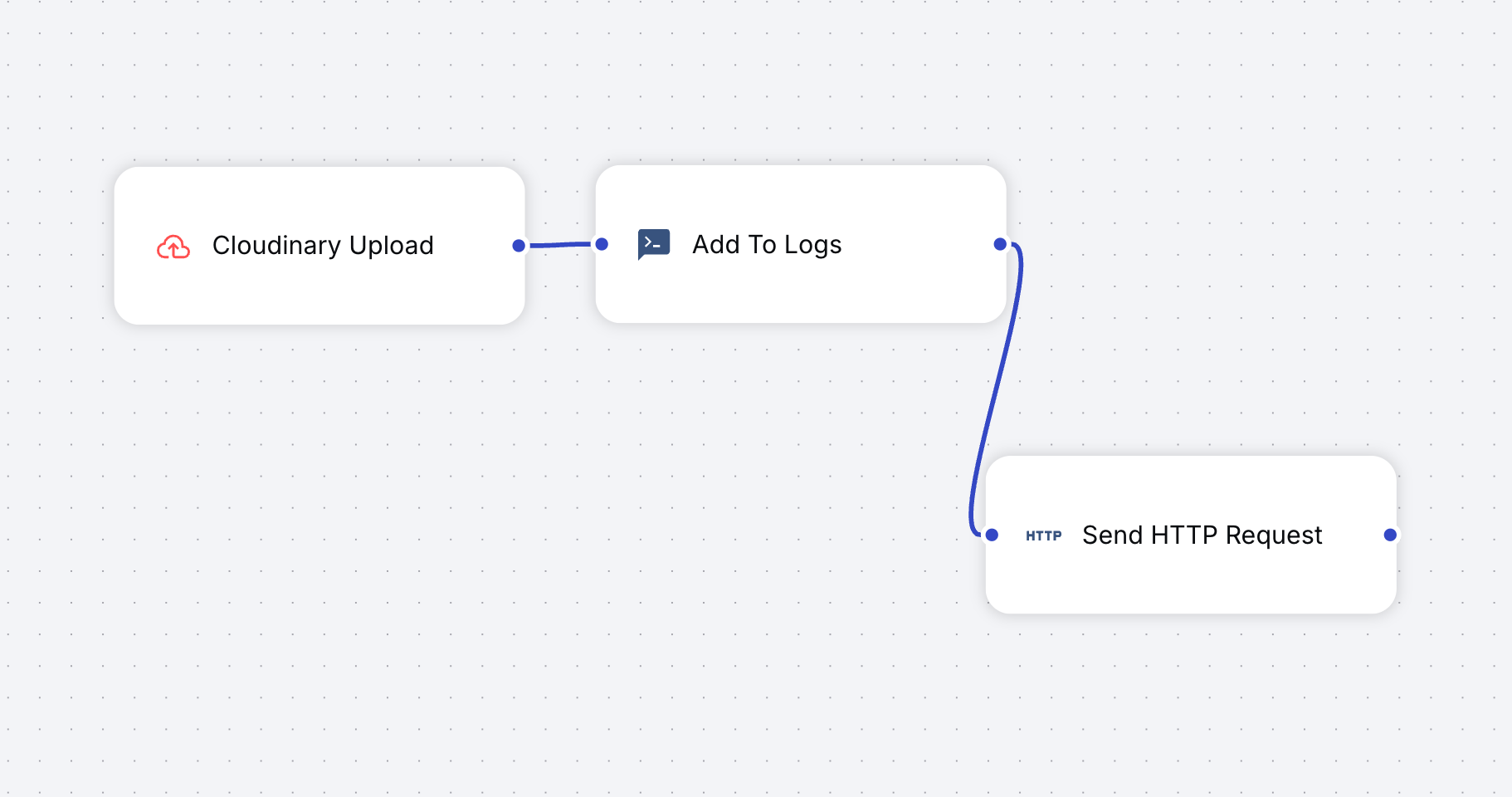
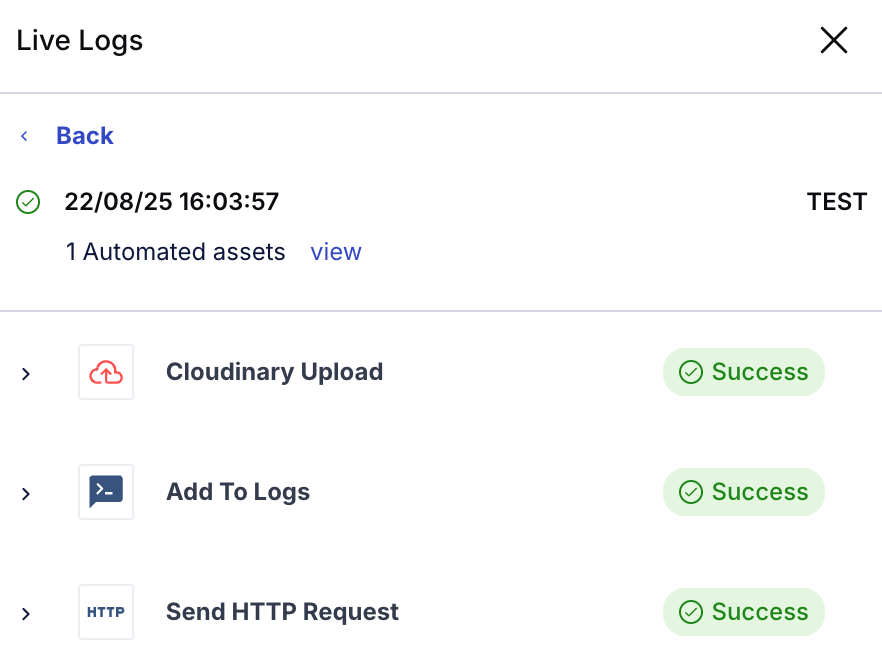
Now, in the **Add Blocks/88 section, search for “http” to find the Send HTTP Request block. Click and drag it to the canvas, and connect it to the previous block, which should be Add to Logs by default. You should now have three blocks in total if you followed the default setup: “Cloudinary Upload”, followed by “Add to Logs”, followed by “Send HTTP Request”.
Click the Send HTTP Request block and click Configure block. You’ll usePostmark for this example, so add https://api.postmarkapp.com/email/withTemplate as the POST URL. Postmark requires a special header named X-Postmark-Server-Token, which you can obtain from your Postmark account, among other headers. The full value of the Request headers field should look like this:
{
   "Content-Type": "application/json",
   "Accept": "application/json",
   "X-Postmark-Server-Token": "{{SECRETS.postmark_api_key}}"
}
Code language: JSON / JSON with Comments (json)
When the workflow is executed, the value of the secret will be injected into the header instead of the {{SECRETS.postmark_api_key}} placeholder.
The request body should look somewhat like this:
{
   "From": "sender@example.com",
   "To": "recipient@example.com",
   "TemplateId": 123456,
   "TemplateModel": {
      "name": "John Doe",
      "message": "Hello, world!"
   }
}
Code language: JSON / JSON with Comments (json)
Now you can click the Test button to execute the workflow and send the email. If everything works as expected, you should see everything marked as successful in the live logs.
With the introduction of the Flow Secrets feature, Cloudinary has improved the management of sensitive data in PowerFlows. It’s now possible to store API keys, tokens, or credentials securely, without exposing them in plain format.
Contact us today to learn more about how Cloudinary can help simplify your content development workflows.


