
Every few weeks there’s a new image model everyone says you should be using: FLUX, Recraft, Ideogram, GPT Image. Each one has different strengths, different tradeoffs, and another decision for developers to make before they’ve even written a line of code.
So when I started experimenting with Cloudinary’s new Image Generation API, I caught myself doing something familiar:
generate_image(
prompt=prompt,
model="flux"
)Code language: JavaScript (javascript)
Then I realized I shouldn’t be choosing the model at all.
I’ve spent the last few years building AI agents that decide what actions to take based on context. They choose tools, call APIs, verify their own work. So I stopped making this decision myself.
Most examples, including the ones you’ll find in documentation, explicitly choose a model. That makes perfect sense for a quickstart, but production applications don’t receive the same prompt over and over again.
One request might be “create a photorealistic product shot.” Another might be “design a conference poster with large readable typography.” Another might be “generate a hand drawn sketchnote from these lecture notes.” You probably wouldn’t use the same model for all three. Different models have genuinely different strengths. Some are better at photorealism, others produce stronger illustrations, others handle typography more effectively.
So instead of asking which model I should hardcode, I started asking whether my agent should decide instead.
I wrote a choose_model() function that matches keywords in the prompt to model strengths:
def choose_model_simple(prompt: str) -> dict:
prompt_lower = prompt.lower()

if any(w in prompt_lower for w in ["text", "poster", "logo", "typography", "sign"]):
    return {"family": "ideogram", "tier": "standard", "reason": "Prompt likely needs strong text handling."}

if any(w in prompt_lower for w in ["photo", "realistic", "portrait", "cinematic"]):
    return {"family": "flux", "tier": "premium", "reason": "Prompt is photorealistic, so Flux is a strong fit."}

if any(w in prompt_lower for w in ["illustration", "sketchnote", "diagram", "vector"]):
    return {"family": "recraft", "tier": "standard", "reason": "Prompt sounds illustration-heavy."}

return {"family": "nano-banana", "tier": "standard", "reason": "No specific requirement detected; using the default."}Code language: JavaScript (javascript)
It works for obvious cases. But it breaks the moment prompts get ambiguous, and prompts are almost always a little ambiguous.
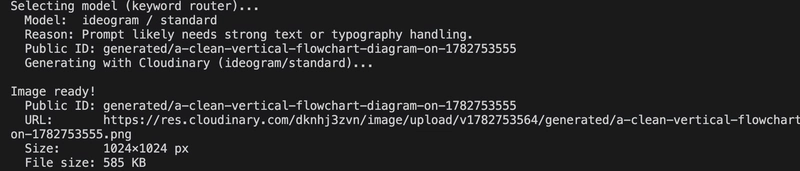
The keyword router explains why it selected Ideogram before calling Cloudinary.
Try this prompt: “A sketchnote of my lecture on photorealistic rendering techniques.”
A keyword router sees “photorealistic” and picks Flux. But the output you actually want is an illustration. The word photorealistic describes the subject, not the style.
A keyword router matches words. Your agent understands intent. It understands that the output should be a sketchnote, not a photorealistic rendering.
Replacing the keyword router with Claude is one function change:
def choose_model_claude(prompt: str) -> dict:
client = anthropic.Anthropic()
message = client.messages.create(
model="claude-sonnet-4-6",
max_tokens=256,
system="""You are a model router for an image generation pipeline.
Given a prompt, return ONLY a JSON object:
{"family": "…", "tier": "…", "reason": "One sentence."}
Available families: flux, ideogram, recraft, gpt-image, nano-banana.""",
messages=[{"role": "user", "content": f'Prompt: "{prompt}"'}],
)
return json.loads(message.content[0].text.strip())Code language: PHP (php)
The keyword router makes a decision by matching keywords. Claude reasons about the intent of the request before choosing a model.
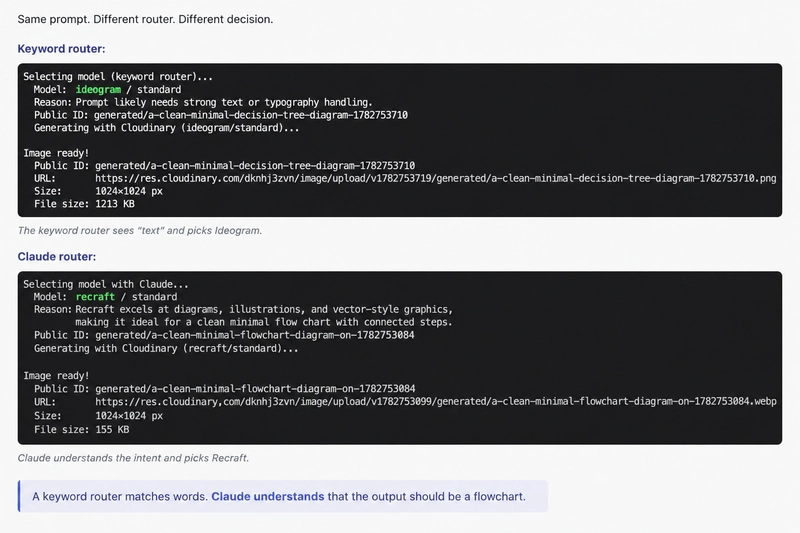
Notice what changed. The agent isn’t generating the image, it isn’t replacing Cloudinary. It’s making a routing decision. Cloudinary remains the execution layer while the agent decides which model best fits the request. Because Cloudinary exposes multiple model families through the same API, the router only has to decide what to use, not how to call it.
This example uses a small routing script to make that decision explicit, but the same idea applies to larger agent workflows. If you’re already building agents, model selection can become just another reasoning step before the API call. I wrote it as a standalone script because it’s easier to understand, easier to experiment with, and easier to adapt to your own projects.
The model choice matters more than I expected. The same prompt can produce very different results depending on which model you pick, and those differences aren’t subtle. Text rendering in particular is still surprisingly hard. Generating a beautiful image is relatively easy, but generating a beautiful image with readable text is a different problem entirely.
What I found most interesting was that the routing decision itself was the interesting part, not the generation. Once you separate “which model should I use” from “call the API,” that first question becomes something an agent can reason about rather than something you have to answer in advance every time.
I wasn’t looking for another image model. I was looking for a consistent interface to multiple image models. Without that, swapping models means learning new APIs, new authentication, and new response shapes.
With Cloudinary’s Image Generation API, the router just returns a family name. Everything else stays the same.
Generated images also land directly in Cloudinary as managed assets, immediately available for transformation and delivery without me needing to do any extra steps.
If you’d like to experiment with this pattern, I’ve shared the complete routing script as a GitHub Gist.
The script uses Cloudinary’s Image Generation API to select a model, generate the image, and save it as a managed asset.
To get started:
- View the routing script (GitHub Gist).
- Read the Image Generation docs.
- Browse the API reference.
Every few weeks there’s another model everyone says you should be using. I don’t think any of us will be choosing most of them manually. We’ll be spending more time teaching our agents how to choose instead.
Ready to level up your media workflow? Start using Cloudinary for free and build better visual experiences today.


