PDFs are simple to create and share, but don’t offer much control. Once a raw file is downloaded, there’s no trail of who accessed it or whether it’s been shared. In this guide, you’ll build a secure portal that transforms static PDFs into dynamic, traceable assets using Next.js, Cloudinary, and pdf-lib.
Instead of just storing files, this system handles the entire lifecycle: instant previews, user-specific watermarking, and multi-format delivery.
This will be your stack:
-
Next.js for Application framework and server-side logic.
-
Cloudinary handles uploads, page-to-image previews, and format exports.
-
pdf-libinjects permanent watermarks into the PDF on the server. -
shadcn/uifor a clean, responsive portal interface. -
Live Demo:https://secure-pdf-portal.vercel.app/
-
Source Code: https://secure-pdf-portal.vercel.app/
Most tools stop at the upload. This project focuses on the next step of making files fast to view and traceable.
- Upload. Send PDFs to Cloudinary via the Upload Widget.
- Preview. Instantly view any page as an image without downloading the full file.
- Watermark. Apply a unique user ID to both the UI preview and the final download.
- Deliver. Generate optimized browser links, export specific page ranges, or convert pages to JPG/PNG.
Standard file links are blunt and create three friction points. The first is a lack of visible accountability, if the PDF is identical for everyone. The second being heavy previews, because users shouldn’t have to download a large file just to check a single page. Lastly, a plain URL doesn’t allow for page ranges or image exports like JPG or PNG.
It’s time to move away from treating PDFs as dead assets.
The Traditional Approach:
Upload file → Share raw link → Same file for everyone → Single download format → Zero visibility
The Secure Approach:
Upload file → Preview pages first → Watermark by user → Multiple delivery options → Traceable output
A standard storage layer treats a PDF like an opaque file in a bucket. To show a preview or export a page, you’d usually need to build custom rendering logic and store extra assets.
Cloudinary changes the architecture by treating PDFs as a media pipeline. Instead of just storing the file, you’ll use it to derive multiple outputs from a single source:
- Instant previews. Pages are rendered as fast-loading images via URL transformations, eliminating the need for manual thumbnail generation.
- Multi-format export. One uploaded PDF can instantly serve as a JPG, a PNG, or a specific page range without duplicating files.
- Clean uploads. Using Upload Presets, you’ll centralize folder destinations and format rules in the Cloudinary dashboard rather than scattering them throughout our code.
While Cloudinary powers the delivery and preview experience, you’ll use pdf-lib for the final download. This ensures the user-based watermark is permanently baked into the PDF on the server, creating a technical and psychological barrier to careless sharing.
By combining these tools, you’re building a delivery system where the file is flexible, previewable, and traceable.
Keep the architecture lean with Next.js for the app logic, Cloudinary for the media pipeline, and pdf-lib for server-side watermarking.
Create a fresh Next.js project and install the necessary dependencies for the document workflow and UI.
npx create-next-app@latest secure-pdf-portal
cd secure-pdf-portal

# Install core logic and UI components
npm install cloudinary next-cloudinary pdf-lib
npx shadcn@latest init -t next
npx shadcn@latest add button card input badge separator label
Code language: CSS (css)To keep the logic easy to follow, organize the project by responsibility:
-
src/lib/cloudinary/for SDK configuration and URL generation helpers. -
src/lib/pdf/for server-side watermarking logic usingpdf-lib. -
src/components/demo/for modular UI pieces (Upload, Preview, and Delivery actions). - **
src/types/as shared TypeScript definitions for our uploaded assets.
Add your Cloudinary credentials to your .env file. Use public variables for the client-side upload widget and secret keys for the server-side SDK.
NEXT_PUBLIC_CLOUDINARY_CLOUD_NAME=your_cloud_name
NEXT_PUBLIC_CLOUDINARY_UPLOAD_PRESET=your_preset
CLOUDINARY_API_KEY=your_api_key
CLOUDINARY_API_SECRET=your_api_secret
Then, initialize the Cloudinary SDK in src/lib/cloudinary/config.ts:
import { v2 as cloudinary } from "cloudinary"

cloudinary.config({
  cloud_name: process.env.NEXT_PUBLIC_CLOUDINARY_CLOUD_NAME,
  api_key: process.env.CLOUDINARY_API_KEY,
  api_secret: process.env.CLOUDINARY_API_SECRET,
  secure: true,
})

export { cloudinary }
Code language: JavaScript (javascript)Since the PDF data flows from the upload widget to the preview and delivery components, you should define a shared UploadedDocument type to keep things consistent.
In src/types/document.ts, the uploaded asset shape looks like this:
export type UploadedDocument = {
  publicId: string
  originalFilename: string
  format: string
  bytes: number
  pages: number
  secureUrl: string
  resourceType: string
}
Code language: JavaScript (javascript)
By modularizing the UI and isolating the Cloudinary config, you’re building a foundation that makes the actual implementation of the upload and watermarking flows straightforward.
Before the widget can handle uploads, Cloudinary needs a preset — a central rule-book that defines where files go and what formats are allowed. This keeps your frontend code clean and ensures your portal doesn’t end up with unsupported file types.
For this project, use an Unsigned upload preset. While production systems might require signed uploads for maximum security, an unsigned preset is ideal for this workflow because it reduces friction while maintaining strict format guardrails.
Key settings:
- Name:
secure_pdf_unsigned - Mode: Unsigned
- Folder:
secure-pdf-portal - Allowed Formats:
pdf(strictly enforced)
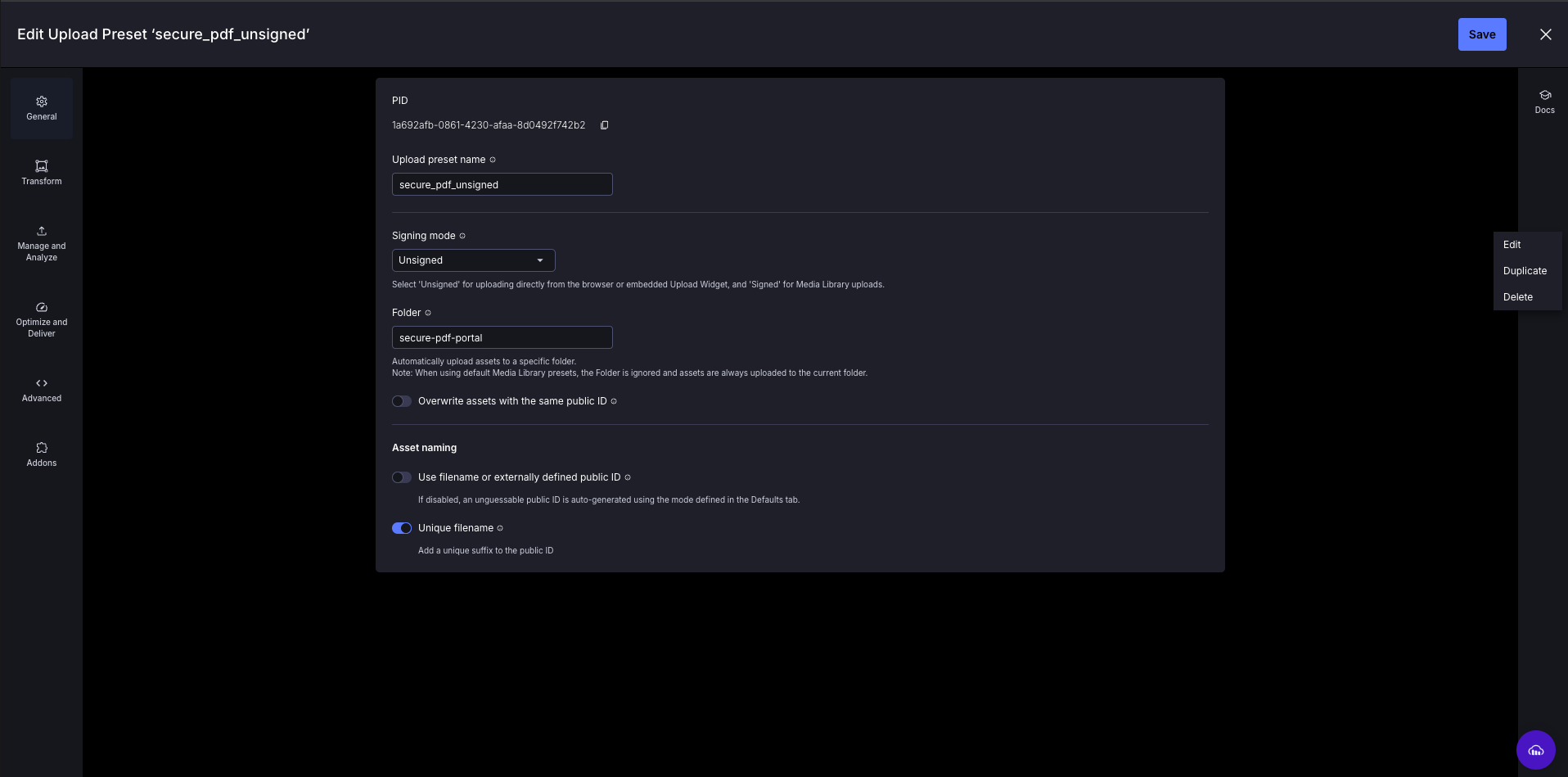
Restricting the format to PDF at the preset level is critical. Our portal logic relies on PDF-specific features like page-to-image previews and server-side watermarking. By enforcing this rule in Cloudinary, you’ll protect the application from processing incompatible assets.
To use the preset, ensure the name in your Cloudinary dashboard matches your .env.local file exactly. We then reference these values in src/lib/cloudinary/constants.ts to keep the UI components focused on the interaction rather than the configuration.
export const cloudinaryConfig = {
  cloudName: process.env.NEXT_PUBLIC_CLOUDINARY_CLOUD_NAME || "",
  uploadPreset: process.env.NEXT_PUBLIC_CLOUDINARY_UPLOAD_PRESET || "",
  folder: "secure-pdf-portal",
} as const
Code language: JavaScript (javascript)
With the preset configured, the upload path is now focused, organized, and ready to feed the rest of the document workflow.
The upload flow is the heart of the portal. Instead of building a custom file handler, we use the Cloudinary Upload Widget to manage file selection and progress. Once the upload finishes, the widget hands off metadata like the publicId and pages count; to the application state to drive the rest of the experience.
The core interaction happens within the CldUploadWidget. By setting resourceType: "image", we unlock Cloudinary’s ability to treat PDF pages as transformable image assets later in the build.
// src/components/demo/upload-pdf-button.tsx

<CldUploadWidget
  uploadPreset={cloudinaryConfig.uploadPreset}
  options={{
    clientAllowedFormats: ["pdf"],
    folder: cloudinaryConfig.folder,
    multiple: false,
    maxFiles: 1,
    resourceType: "image",
  }}
  onSuccess={(result) => {
    const info = result?.info as any;
    if (!info?.public_id) return;

    onUploadSuccess({
      publicId: info.public_id,
      originalFilename: info.original_filename,
      format: info.format,
      bytes: info.bytes,
      pages: info.pages,
      secureUrl: info.secure_url,
      resourceType: info.resource_type,
    });
  }}
>
  {({ open }) => <Button onClick={() => open()}>Upload PDF</Button>}
</CldUploadWidget>
Code language: PHP (php)
View the full component here.
The upload button doesn’t own the document experience; it simply returns the asset to the parent page. In src/components/demo/demo-page-client.tsx, you’ll use React state to capture this data and reset the UI for the new file.
const [document, setDocument] = useState<UploadedDocument | null>(null)

function handleUploadSuccess(nextDocument: UploadedDocument) {
  setDocument(nextDocument)
  setPreviewPage(1) // Reset to the first page
  setPageRange(`1-${Math.min(nextDocument.pages || 1, 2)}`) // Default range
}
Code language: JavaScript (javascript)As soon as setDocument is called, the portal shifts from an empty state to an active workflow:
- The Document Info Card populates with the filename, size, and page count.
- The Preview Panel immediately renders the first page of the PDF.
- The Delivery Actions (Watermarking and Exports) become functional.
This handoff ensures the application stays in sync with the Cloudinary asset, providing instant feedback and a polished user experience.
A document portal shouldn’t make users guess what they uploaded. By rendering a PDF page as a JPG, you’ll provide instant confirmation that the file is correct and the watermark is targeting the right area.
Without Cloudinary, this would require manual rendering libraries or separate thumbnail storage. Here, the preview is just a delivery URL.
The logic lives in a simple helper that generates a transformation URL. You’ll use three key parameters:
-
pg_${page}selects the specific PDF page to render. -
f_jpgtells Cloudinary to convert that page into a standard image format. -
q_autoautomatically optimizes the image quality for fast loading.
// src/lib/cloudinary/urls.ts

export function getPdfPreviewImageUrl(publicId: string, page = 1) {
  const cloudName = process.env.NEXT_PUBLIC_CLOUDINARY_CLOUD_NAME

  if (!cloudName || !publicId) return ""

  return `https://res.cloudinary.com/${cloudName}/image/upload/pg_${page},f_jpg,q_auto/${publicId}.pdf`
}
Code language: JavaScript (javascript)The preview panel uses the helper above to feed a Next.js Image component. You’ll utilize object-contain to ensure that regardless of the PDF’s aspect ratio (portrait vs. landscape), the entire page remains visible within the preview container.
// src/components/demo/preview-panel.tsx

const previewUrl = document
  ? getPdfPreviewImageUrl(document.publicId, previewPage)
  : ""

<div className="relative aspect-3/4 w-full overflow-hidden rounded-lg border bg-muted">
  <Image
    src={previewUrl}
    alt={`${document.originalFilename} preview`}
    fill
    className="object-contain"
    sizes="(max-width: 640px) 100vw, (max-width: 1280px) 66vw, 50vw"
    unoptimized
  />
</div>
Code language: HTML, XML (xml)To let users navigate the document, wire a simple number input to the previewPage state and enforce boundaries so the user can’t select a page index that doesn’t exist in the document metadata.
// src/components/demo/delivery-options-form.tsx

<Input
  id="preview-page"
  type="number"
  min={1}
  max={maxPage}
  value={previewPage}
  onChange={(event) => {
    const nextValue = Number(event.target.value) || 1
    const safeValue = Math.min(Math.max(1, nextValue), maxPage)
    onPreviewPageChange(safeValue)
  }}
/>
Code language: JavaScript (javascript)
By the end of this step, the PDF is no longer a static file in a bucket, but an interactive asset. This sets the stage for the next section, where we’ll overlay a dynamic watermark on this preview before generating the final secure document.
A preview without a watermark shows a document; a preview with one shows it in context. Before generating a real PDF on the server, you’ll show a visual overlay in the UI. This provides instant feedback, allowing users to see exactly how the document is personalized before they download it.
Use a simple input to capture a unique identifier (like a username or employee ID). This value is stored in a shared state so that both the preview panel and the final delivery logic stay in sync.
// src/components/demo/user-watermark-form.tsx
export function UserWatermarkForm({ userId, onUserIdChange }) {
  return (
    <Input
      id="user-id"
      placeholder="eugene_1024"
      value={userId}
      onChange={(event) => onUserIdChange(event.target.value)}
    />
  );
}
Code language: JavaScript (javascript)
By lifting this state to the parent page (src/components/demo/demo-page-client.tsx), you’ll ensure the ID is available globally:
const [userId, setUserId] = useState("eugene_1024");

// Shared between components
<UserWatermarkForm userId={userId} onUserIdChange={setUserId} />
<PreviewPanel document={document} userId={userId} previewPage={previewPage} />
Code language: JavaScript (javascript)The preview watermark is a CSS layer that sits above the rendered Cloudinary page image. It doesn’t require a server round-trip, so it updates instantly as the user types.
Use a rotated, repeated stack of text with low opacity to ensure it is visible without obstructing the document content.
// Inside src/components/demo/preview-panel.tsx

const watermarkText = userId.trim() || "guest_user";
const watermarkRows = Array.from({ length: 3 });

<div className="pointer-events-none absolute inset-0 overflow-hidden">
  <div className="absolute left-1/2 top-1/2 flex w-[130%] -translate-x-1/2 -translate-y-1/2 -rotate-30 flex-col gap-14 sm:gap-20">
    {watermarkRows.map((_, index) => (
      <p
        key={index}
        className="whitespace-nowrap text-center text-sm font-semibold uppercase tracking-[0.3em] text-foreground/12 sm:text-base"
      >
        {watermarkText} • {watermarkText} • {watermarkText}
      </p>
    ))}
  </div>
</div>;
Code language: JavaScript (javascript)This split is a key design choice for a responsive portal. A preview watermark is a fast UI overlay for visual confirmation. No PDF rewriting needed. A delivered watermark is a permanent modification generated on the server. A traceable, final document.
This approach keeps the app feeling snappy while ensuring the final output remains secure and accountable.
A PDF isn’t always the ideal final output. Sometimes a user needs a lightweight browser version, a single-page image for a quick share, or a specific page range. Cloudinary allows us to derive these outputs from a single publicId via delivery URLs, keeping our application architecture lean.
Not every document needs to be delivered at full resolution. For faster browser viewing or reduced bandwidth, you can generate an optimized PDF link using Cloudinary’s quality: "auto" transformation.
// src/lib/cloudinary/download.ts

import { cloudinary } from "@/lib/cloudinary/config"

export function getOptimizedPdfUrl(publicId: string, filename?: string) {
  const safeFilename = filename
    ? filename.replace(/[^\w\-]+/g, "-").toLowerCase()
    : "document"

  return cloudinary.url(`${publicId}.pdf`, {
    resource_type: "image",
    type: "upload",
    secure: true,
    flags: `attachment:${safeFilename}`,
    transformation: [{ quality: "auto" }],
  })
}
Code language: JavaScript (javascript)Since Cloudinary treats PDF pages as transformable images, you can export specific pages as JPGs or PNGs. You can even apply a delivery watermark directly within the URL, avoiding the need for a separate image processing pipeline.
// src/lib/cloudinary/urls.ts

export function getWatermarkedPdfPageImageUrl(
  publicId: string,
  userId: string,
  page = 1,
  format: "jpg" | "png" = "jpg"
) {
  const cloudName = process.env.NEXT_PUBLIC_CLOUDINARY_CLOUD_NAME || "";
  if (!cloudName || !publicId) return "";

  const safeUserId = userId.trim() || "guest_user";
  const overlayText = encodeURIComponent(`Downloaded by ${safeUserId}`);
  const textLayer = `l_text:Arial_42_bold:${overlayText}`;

  // pg_ selects page, f_ defines format, l_text adds the watermark
  return `https://res.cloudinary.com/${cloudName}/image/upload/pg_${page},f_${format},q_auto/${textLayer}/co_rgb:555555,o_28/g_center,a_-30/fl_layer_apply/${publicId}.pdf`;
}
Code language: JavaScript (javascript)If a user only needs a subset of a document (e.g., pages 1-3 or specific pages like 2;4), you can request exactly that through the pg parameter. This reduces file weight and prevents over-sharing content.
// src/lib/cloudinary/urls.ts

export function getPdfPageRangeUrl(publicId: string, pageRange: string) {
  const cloudName = process.env.NEXT_PUBLIC_CLOUDINARY_CLOUD_NAME || ""
  if (!cloudName || !publicId || !pageRange.trim()) return ""

  return `https://res.cloudinary.com/${cloudName}/image/upload/pg_${pageRange}/${publicId}.pdf`
}
Code language: JavaScript (javascript)The core advantage is derived media. By using URL-based logic, you’ll avoid:
- Generating and storing separate JPG/PNG files manually.
- Building a custom PDF splitting service.
- Managing a separate preview rendering service.
The result is a highly flexible portal where the user can upload once and choose the output that fits their specific needs; whether it’s a traceable, watermarked PDF or a quick-share image.
To ensure the portal is production-ready, move through the application as a user would. Verify each touchpoint to confirm the data handoff is seamless.
- Upload. Confirm the widget restricts files to PDF and that the document info card updates immediately with the correct metadata.
- Preview. Verify that switching page numbers renders the correct page image instantly and respects the document’s total page count.
- Visual watermark. Ensure the UI overlay updates in real-time as you type the User ID and remains visible across different preview pages.
- Real PDF delivery. Download the watermarked file. Every page should contain the permanent server-side stamp reflecting the current User ID.
- Multi-format exports. Test the JPG/PNG exports and the selected page-range links to confirm Cloudinary is correctly deriving these from the source PDF.
As you test, pay close attention to state consistency. Does the filename in the UI match the file in Cloudinary? Does the watermark in the preview match the final download? A reliable portal depends on these layers staying perfectly in sync.
You can explore the final build and review the full implementation through the links below:
A standard PDF upload flow is easy to build, but a secure delivery experience requires more intention. The strength of this project lies in its modularity:
- Cloudinary handles the heavy lifting of the media pipeline (uploads, previews, and format exports).
- Next.js manages the application shell and secure server-side routes.
- pdf-lib provides the specialized logic needed for permanent document modification.
This foundation is built to scale. You can easily extend this portal by adding user authentication, audit logs for downloads, or role-based access to specific document folders.
By treating the PDF as a dynamic asset rather than a static file, you’ve created a system that’s faster to preview, easier to deliver, and more accountable. If you’re ready to start building, sign up for a free Cloudinary account today.