
Before a video reaches an audience, it needs to be reviewed. Hate speech, violence, explicit content, and misleading metadata all need to be caught before publishing. For small libraries, manual review works. For libraries with hundreds or thousands of videos, it doesn’t.
Human reviewers tire, vary in judgment, and can’t keep pace with upload volume. Publishing delays stack up. Costs increase. Harmful content slips through. AI moderation tools solve this by scanning every uploaded video automatically, flagging violations in minutes, and escalating only edge cases to human reviewers.
In this guide, you’ll learn how AI video moderation works, then set up Cloudinary Google AI Video Moderation add-on to automatically scan uploaded videos, categorize results by confidence level, and take action on flagged content.
By the end, you’ll know how to:
- Enable Cloudinary Google AI Video Moderation add-on.
- Upload videos with moderation enabled so every upload is scanned automatically.
- Read moderation results including per-frame confidence scores.
- Filter approved and rejected videos through the API and the Media Library.
- Set up webhook notifications to act on moderation results in real time.
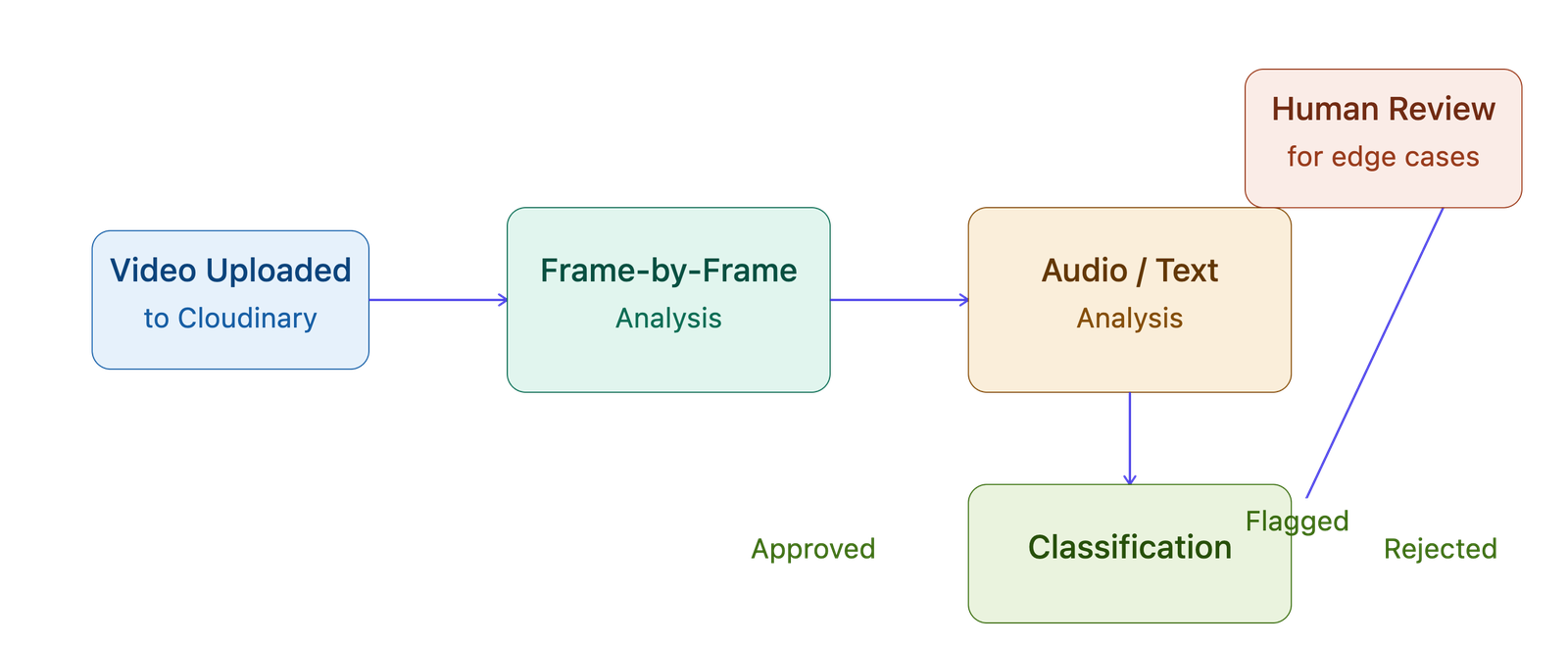
AI video moderation combines several technologies to analyze video content at scale: computer vision for frame-by-frame image analysis, natural language processing for audio transcription and text detection, and machine learning models trained to classify content against policy thresholds.
The workflow follows a consistent pattern:
- Video ingestion. The video is uploaded into the moderation system.
- Frame analysis. Computer vision examines each frame for inappropriate imagery (nudity, violence, self-harm, graphic content).
- Audio and text analysis. The audio track is transcribed and scanned for hate speech, harassment, or explicit language. On-screen text is analyzed separately.
- Metadata review. Titles, tags, and descriptions are checked for compliance and misleading language.
- Classification. The system compares findings against policy thresholds and assigns a status: approved, flagged for review, or rejected.
- Action. Based on the classification, the video is published, routed to a human reviewer, or blocked.
This pattern applies across industries: social media platforms detecting harmful content before it reaches audiences, educational platforms keeping course materials safe, streaming services enforcing content guidelines, and online marketplaces screening product videos.
Building a custom moderation system from scratch requires significant resources. Cloudinary offers a ready-to-use integration that adds AI video moderation to your upload workflow without training custom models.
To follow along, you need:
- A free Cloudinary account.
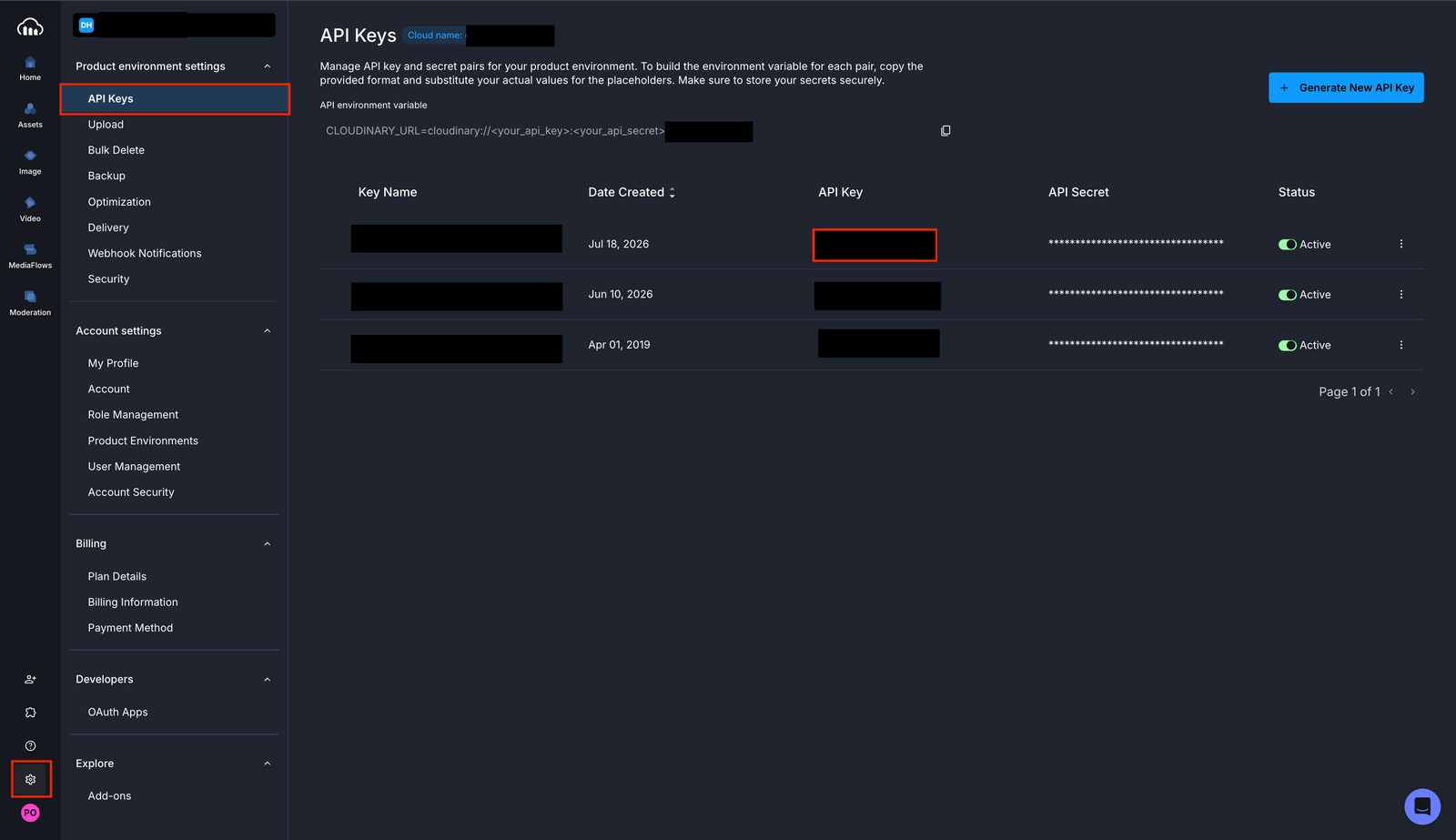
- Your cloud name, API key, and API secret from the Cloudinary console (how to find them).
- Node.js installed on your computer.
- A test video file to upload.
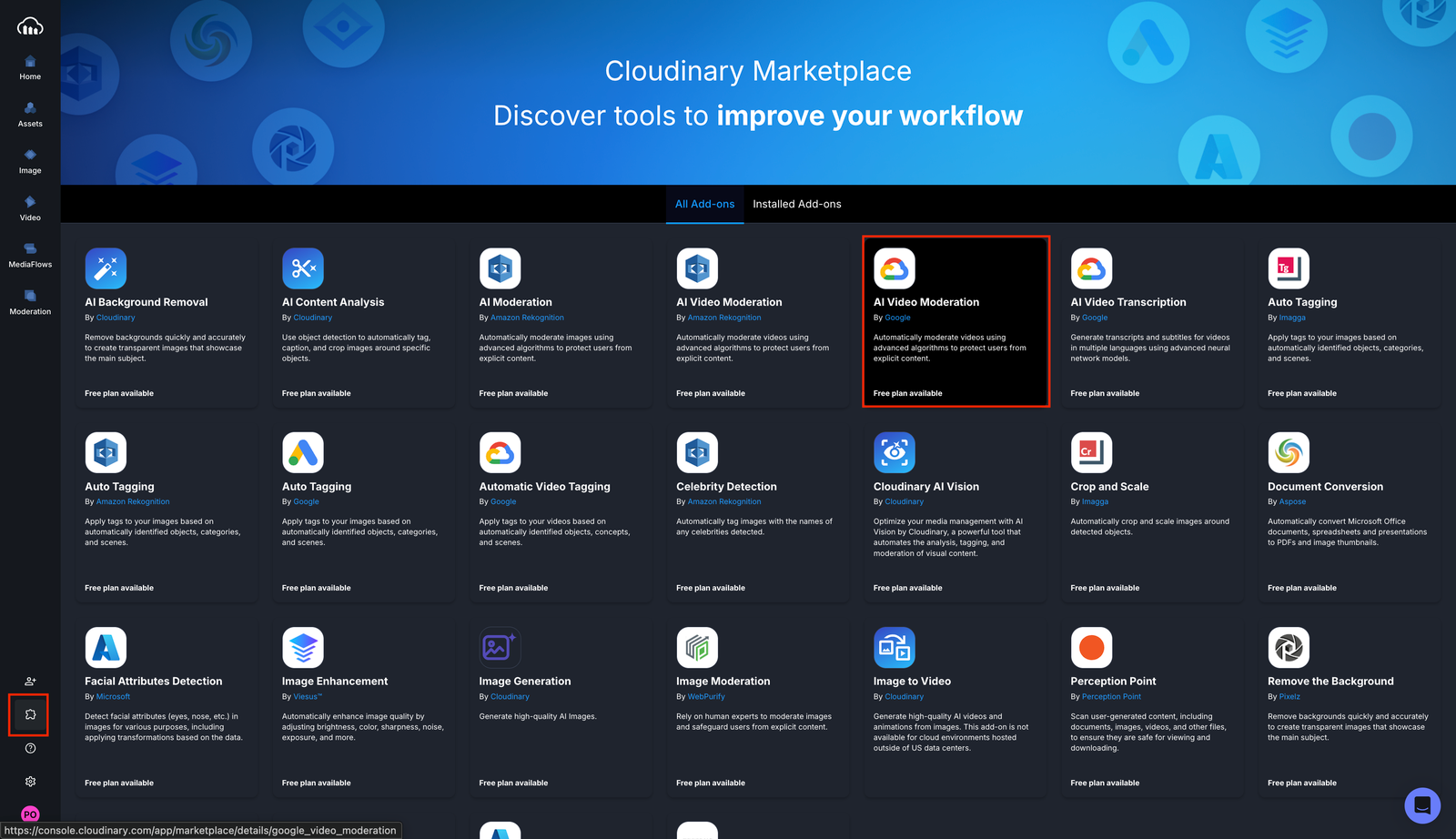
Log in to your Cloudinary account and navigate to the Add-ons section. Find Google AI Video Moderation, select it, and choose a plan. The free plan works for this tutorial.
Create a project directory and install the Cloudinary Node.js SDK:
mkdir video-moderation

cd video-moderation

npm init -y

npm install cloudinary dotenv
Create a .env file with your Cloudinary credentials:
CLOUDINARY_CLOUD_NAME=YOUR_CLOUD_NAME

CLOUDINARY_API_KEY=YOUR_API_KEY

CLOUDINARY_API_SECRET=YOUR_API_SECRET
Replace the placeholders with your actual values from Settings > API Keys in the Cloudinary console.
Create a file called moderation.js. Configure the Cloudinary SDK and upload a video with the moderation parameter set to google_video_moderation:
// moderation.js

import 'dotenv/config';

import { v2 as cloudinary } from 'cloudinary';

cloudinary.config({

  cloud_name: process.env.CLOUDINARY_CLOUD_NAME,

  api_key: process.env.CLOUDINARY_API_KEY,

  api_secret: process.env.CLOUDINARY_API_SECRET,

});

cloudinary.uploader.upload('sample.mp4', {

  resource_type: 'video',

  moderation: 'google_video_moderation',

  notification_url: 'https://mysite.example.com/my_notification_endpoint',

})

.then(result => console.log(result))

.catch(error => console.error(error));Code language: JavaScript (javascript)
The moderation: google_video_moderation parameter tells Cloudinary to pass the video to the Google Cloud Video Intelligence API after upload. Google analyzes the video frame by frame and checks for inappropriate content.
The notification_url parameter sets up a webhook. When moderation completes (which can take a few minutes depending on video length), Cloudinary sends the results to your endpoint.
Run the script:
<code>node moderation.js</code>Code language: HTML, XML (xml)The upload response confirms the moderation is in progress:
{

  "public_id": "sample",

  "resource_type": "video",

  "moderation": [

    {

      "kind": "google_video_moderation",

      "status": "pending"

    }

  ]

}Code language: JSON / JSON with Comments (json)
The status: “pending” means the video is uploaded and queued for analysis. The actual moderation results arrive asynchronously through the webhook.
When moderation completes, Cloudinary sends a webhook notification with the detailed results. Each frame in the video gets a confidence score: very_unlikely, unlikely, possible, likely, or very_likely.
By default, if any frame is rated likely or higher for inappropriate content, the video is rejected.
Here’s what a rejection looks like:
{

  "moderation_response": {

    "moderation_confidence": "POSSIBLE",

    "frames": [

      {

        "pornography_likelihood": "POSSIBLE",

        "time_offset": 0.510936

      },

      {

        "pornography_likelihood": "LIKELY",

        "time_offset": 2.832345

      },

      {

        "pornography_likelihood": "VERY_LIKELY",

        "time_offset": 14.014693

      }

    ],

    "moderation_status": "rejected",

    "moderation_kind": "google_video_moderation",

    "moderation_updated_at": "2025-08-13T12:37:30Z",

    "asset_id": "466ee700176d83ccf05cad3c33f590c7"

  }

}Code language: JSON / JSON with Comments (json)
The frames array shows exactly which moments in the video triggered the rejection and at what confidence level. The time_offset values (in seconds) tell you where the flagged content appears.
This per-frame detail is useful for human reviewers. Instead of watching the entire video, they can jump directly to the flagged timestamps and make a final decision.
Cloudinary assigns every moderated video a status of approved or rejected. You can query these results through the API or the Media Library UI.
Use the resources_by_moderation method to fetch videos by status. For example, to list all rejected videos:
cloudinary.api

  .resources_by_moderation('google_video_moderation', 'rejected', {

    resource_type: 'video',

  })

  .then(result => console.log(result));Code language: JavaScript (javascript)
This returns a JSON response with each video’s public_id, moderation status, and delivery URL. You can use this to build automated workflows: archive rejected content, notify content teams, or route flagged videos to a review queue.
To list approved videos, change “rejected” to “approved”.
For a visual workflow, navigate to the Media Library in your Cloudinary console. Click Moderation in the left navigation, select Google Video, and filter by status (approved or rejected).
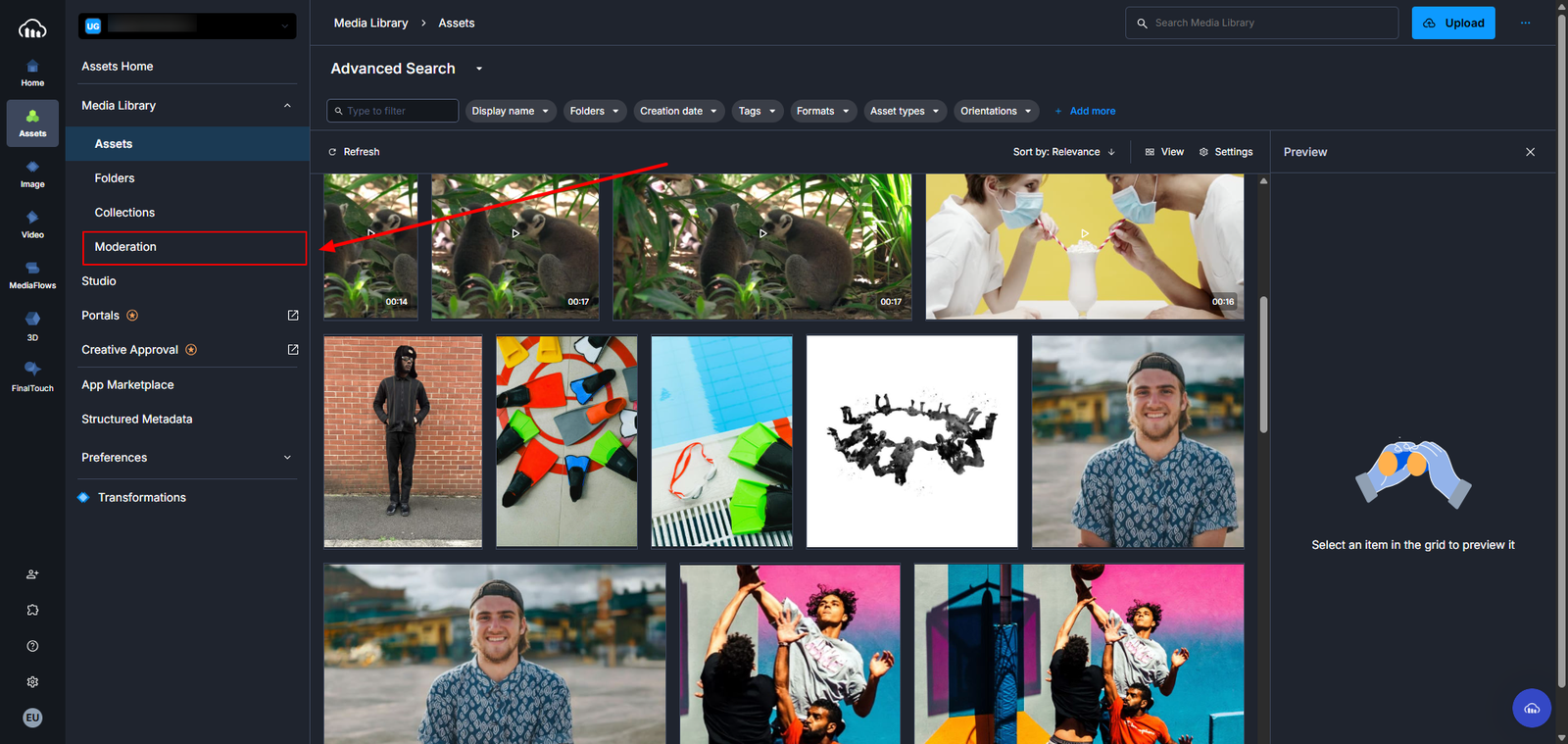
This gives content teams a visual interface to review moderation decisions without writing code.
Before going live, confirm:
- Uploading a video with moderation:
google_video_moderationreturns a pending status - Your webhook endpoint receives the moderation results when processing completes.
- Rejected videos appear in the Media Library under Moderation > Google Video > Rejected.
- The
resources_by_moderationAPI returns the correct videos for each status.
You set up AI-powered video moderation using the Cloudinary Google AI Video Moderation add-on. Every video uploaded with the moderation parameter is automatically scanned, classified, and routed based on confidence scores. Human reviewers handle only the edge cases.
Here are a few ways to extend this setup:
- Add moderation to upload presets. Configure an upload preset with moderation:
google_video_moderationso every video uploaded through that preset is scanned automatically. No per-upload configuration needed. - Build an approval workflow. Combine AI moderation with Creative Approval flows to route approved videos through editorial review before publishing.
- Automate with MediaFlows. Use MediaFlows to trigger actions based on moderation results: move approved videos to a “ready to publish” folder, archive rejected content, or notify teams via email.
- Moderate images, too. Cloudinary also offers image moderation add-ons that apply the same AI analysis to uploaded images.
- Adjust confidence thresholds. If the default likely threshold is too strict or too lenient for your use case, you can adjust the sensitivity in your moderation configuration.
Sign up for a free Cloudinary account to try it yourself.
Resources:
- Google AI Video Moderation add-on documentation
- Cloudinary webhook notifications
- Video moderation overview
- Upload presets documentation
- Creative Approval documentation
What is AI video moderation and how does it work?
How does Cloudinary’s Google AI Video Moderation add-on work?
very_unlikely to very_likely — for inappropriate content. If any frame meets or exceeds the likely threshold, the video is automatically rejected. Full setup and parameter details are in Cloudinary’s Google AI Video Moderation add-on documentation.How do I get moderation results after uploading a video?
notification_url on your upload call, and Cloudinary sends a signed POST request to that endpoint once analysis completes, including per-frame confidence scores and timestamps. See Cloudinary’s webhook notifications documentation for setup and signature verification details.How do I find and review rejected or flagged videos?
resources_by_moderation Admin API method, filtering by status (approved or rejected), or browse them visually in the Cloudinary Media Library under Moderation > Google Video. The per-frame timestamps in the moderation payload let reviewers jump straight to the flagged moment instead of watching the full video. See the moderation of media assets overview for the full API reference.

