 Ask AI
Creative approval flows
Last updated: Aug-02-2026
Creative Approval streamlines the review and approval process for creative assets, such as images, videos, and documents. It allows teams to manage feedback through structured workflows where users can view, comment, annotate, and approve or request changes to assets in various stages. Assets can't move to the next stage until approved in the current one, ensuring that feedback is well-organized and that the approval process remains efficient and consistent.
Assets Enterprise plans:
- Creative Approval is a premium offering for our Assets product. Availability depends on your account setup and incurs an additional cost. If Creative Approval isn't yet enabled for your account and you'd like to activate it, please contact your Customer Success Manager.
Assets Free plan:
- This feature isn’t included in the Media Library available with the Assets Free plan, which offers basic management. It’s available for activation in the Media Library (or Media Library Pro) included with Assets Enterprise plans.
- To learn more about the features available in the Assets Free plan and how they can support development workflows, see Media Library for Developers.
- For upgrade options or more information, contact us.
Overview
Creative approval is driven by two main components: proofs and approval flows.
Proof: A collection of assets that follows a specific approval flow.
Approval flow: A reusable template that defines the stages a proof must pass through for approval. At each stage, designated users are assigned to review, comment on, and approve the proof. Progress to the next stage is blocked until all assigned assets receive the necessary approvals. You can specify whether all assigned reviewers must approve the assets or if a single approval is enough to move forward.
Only administrators can create approval flows. However, users with the Media Library user role, granted the appropriate permissions, can start a new proof, which includes initiating the proof within a selected approval flow. To do so, Media Library users need at least Can view folder permissions for all assets included in the proof, and the Create proof global permission (coming soon).
For more information about creating and managing proofs, see Manage proofs in the Assets user guide.
Programmatic access via API
You can automate creative approval workflows using the Creative Approval API. The API enables you to programmatically create and manage approval flows, add reviewers, submit proofs for review, and track proof status—making it easy to integrate creative approval into your existing development workflows and applications.
Manage approval flows
Navigate to Creative Approval > Approval Flows in the Assets Product Navigation menu.
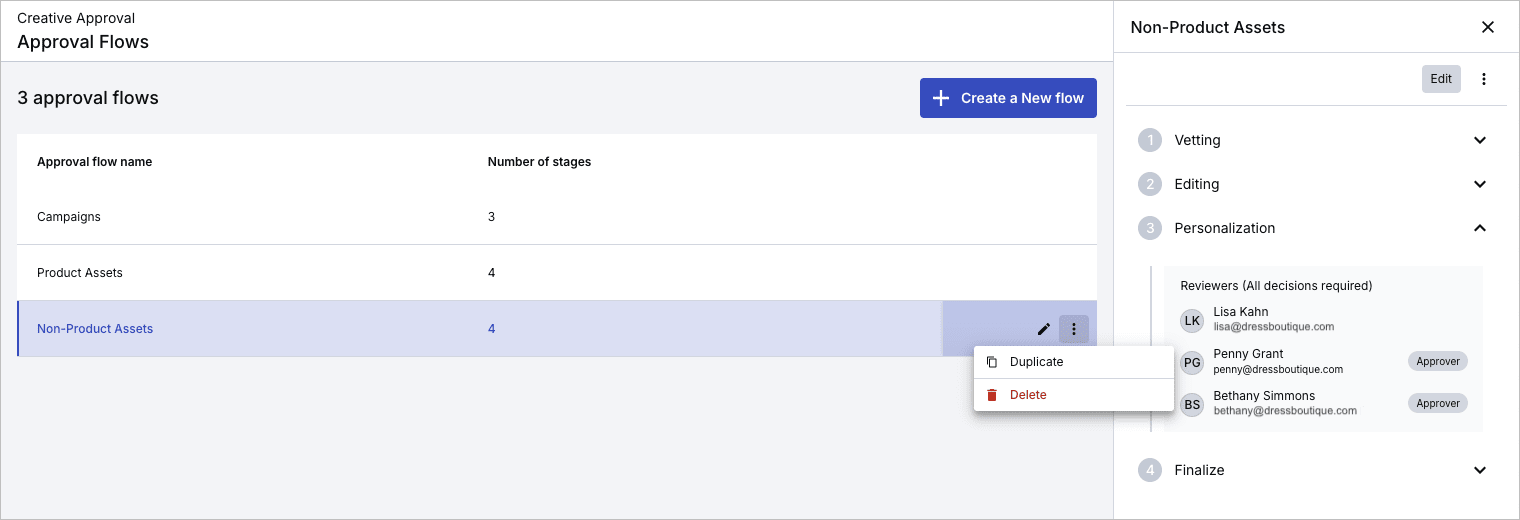
In the main approval flows view, you can:
- View all approval flows for your product environment and the number of stages each contains.
- View all stages for specific approval flows, including users assigned to each stage, with assigned reviewers highlighted, by clicking on any approval flow to open the details pane.
- Delete or duplicate the flow from the options (3-dots) menu.
- Create a new approval flow.
- Delete an approval flow.
Create and edit approval flows
When creating and editing approval flows, you can:
- Set a meaningful name for the approval flow and each stage.
-
Select reviewers for each stage, assigning them roles as viewers, collaborators who can comment, or decision makers.
- Only reviewers with the Approve action checked can make decisions at each stage, which help determine the final status of the proof and whether it's approved or requires changes.
- Reviewers can be Cloudinary users or external stakeholders.
- Set whether all reviewers or just one must approve: Toggle All approvals are required to proceed to the next stage on to require approval from all reviewers before moving to the next stage. When the toggle is off, approval from just one reviewer is sufficient.
- Add multiple stages as needed.

Once created, the approval flow can be assigned to proofs, ensuring that assets follow the defined approval structure. For information about how proofs move through the stages you configure, see How proofs progress through approval stages.
External reviewers
You can add external reviewers, such as partners, vendors, and third parties, to the creative approval flow, enabling participants without a Cloudinary account to review and approve content via a direct email link.
When setting up a proof in the creative approval workflow, you can enter the email address of an external reviewer. The external reviewer receives an email containing a direct link to the proof, which allows them to access the content without needing a Cloudinary account. Once they click the link, they can review the proof, comment, and submit their decision.
The external feedback is integrated into the approval workflow just like internal approvals, streamlining the process and improving collaboration with external stakeholders. For more information about how notifications work throughout the approval process, see Email notifications.
Here's a video showing the process of adding external reviewers:
How proofs progress through approval stages
Once a proof is assigned to an approval flow, it progresses through the configured stages one at a time. Only reviewers with the Approve action checked can make decisions at each stage and determine whether the proof is approved or requires changes.
Progression through stages
The way a proof moves through stages depends on the stage configuration you set when creating and editing approval flows. Specifically, the All approvals are required to proceed to the next stage toggle determines whether all reviewers with the Approve action checked must approve, or just one:
- If approval is required from all reviewers: Reviewers are notified one at a time. The next reviewer is notified only after the previous reviewer has approved.
- If only one reviewer is required for a stage: All reviewers for that stage are notified simultaneously. The proof advances to the next stage as soon as any one reviewer gives approval.
- If any reviewer sets the decision to Changes required: The final status of the proof is immediately set to Changes required and the proof stops progressing through any remaining stages. For more information, see How stage decisions are calculated.
If no reviewers set the decision to Changes required, the proof proceeds through all stages and the final proof decision is calculated. For more information, see How final proof decisions are calculated.
Email notifications
Email notifications are sent automatically at key points in the approval flow:
- Reviewers (internal or external) receive an email with a direct link to access the proof when it's their turn to review. External reviewers can access the proof and provide feedback directly via the link without needing a Cloudinary account.
- Proof owner receives an email notification whenever a final decision is made on the proof.
Once a decision is made, the proof owner must manage the assets accordingly, either notifying stakeholders that the proof has been approved or following up with the necessary parties to address requested changes from the proof comments. Alternatively, administrators can automate those next steps. For more information, see Automate actions based on proof status.
-
Users: Opt in or out via the Email Preferences tab of the My Profile page in Console Settings.
- External reviewers: Use the opt-out link provided in email notifications. To opt back in, follow the instructions in the same email.
Understanding proof decision calculation
When reviewers submit their decisions on a proof, the system calculates both stage decisions and the final proof decision based on specific rules. Understanding how these decisions are calculated helps you configure approval flows that match your organization's requirements.
When a final proof decision is determined, the system sends a proof status changed notification.
How stage decisions are calculated
Once all decision makers have submitted their decisions within a stage, the stage decision is calculated based on the following rules:
| Reviewer decisions | Stage decision |
|---|---|
| At least one decision was set to Changes required | Changes required |
| At least one decision was set to Approved with changes and nobody in the stage selected Changes required | Approved with changes |
|
If all approvals are required to proceed: All decisions are set to Approved If only one approval is required to proceed: At least one decision is Approved and nobody in the stage selected Changes required or Approved with changes |
Approved |
| All decisions are set to Not relevant | Not relevant |
How final proof decisions are calculated
Once all stages are complete, the final proof decision is calculated in the same way as stage decisions. The final decision is calculated based on the following rules:
| Stage decisions | Final proof decision |
|---|---|
| At least one stage status calculation is set to Changes required | Changes required |
| At least one stage status calculation is set to Approved with changes and none of the stages are Changes required | Approved with changes |
| At least one stage status calculation is Approved and none of the stages are Changes required or Approved with changes | Approved |
| All stages are Not relevant | Not relevant |
Automate actions based on proof status
After a proof completes its approval workflow, you may need to take additional actions based on whether it was approved or requires changes. For example:
- When approved: Move assets to a "Ready to use" folder, update structured metadata to mark them as production-ready, or trigger a notification to your publishing team.
- When changes are required: Restrict access control, add a "Rejected" status in structured metadata, or move assets to a revision folder.
Rather than manually handling these follow-up actions, you can automate them using EasyFlows for simple automations or PowerFlows for more complex workflows.
To automate actions based on proof status:
- Navigate to MediaFlows.
- Click New EasyFlow and select When a proof status changes as the trigger.
- Select the creative approval flow to which the automation applies.
- From the dropdown, select the status to trigger the actions.
- Click Add an action.
- Select the action to perform when that status occurs and configure the relevant details.
- Save the EasyFlow.
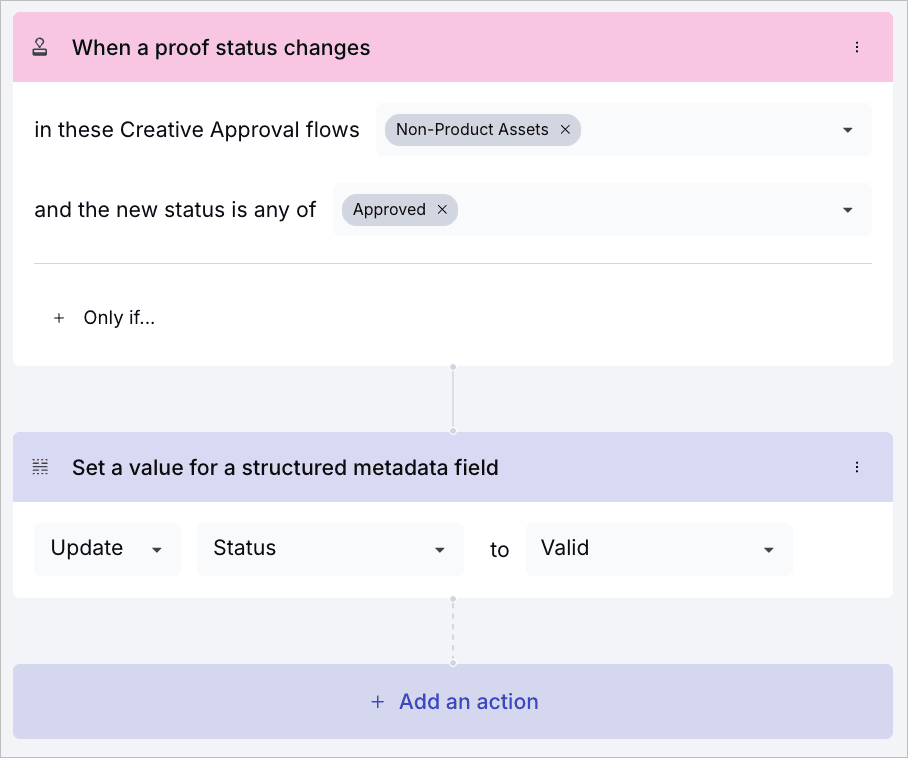
The automation will now run whenever a decision is made about the proof in the selected approval flow, ensuring consistent handling of approved and rejected assets without manual intervention.
To use PowerFlows for more complex automations:
For advanced workflows that require multiple steps, conditional logic, or integration with external systems, you can create a PowerFlow using the On Proof Status Change trigger. This gives you access to the full range of PowerFlow blocks for building sophisticated automation workflows.
Error
Rate this page:
