 Ask AI
AI agents (Beta)
Last updated: Oct-22-2026
Cloudinary AI agents turn natural language into concrete help using live context from your product environment. Suggestions stay in chat until you choose to apply them.
Use agents as expert partners that propose practical solutions to your requests, helping your team improve metadata quality, discovery, and workflow design while keeping human decisions and existing governance at the center of each change.
Agents are enterprise-ready today and still evolving quickly. There may be changes to functionality, user interface, and other implementation details before the general access release. Start with common workflows, then expand based on how your team uses them.
We'd love to hear how you're using agents, what features you'd like to see, or any feedback you have. Share it with Cloudinary support.Permissions and safety
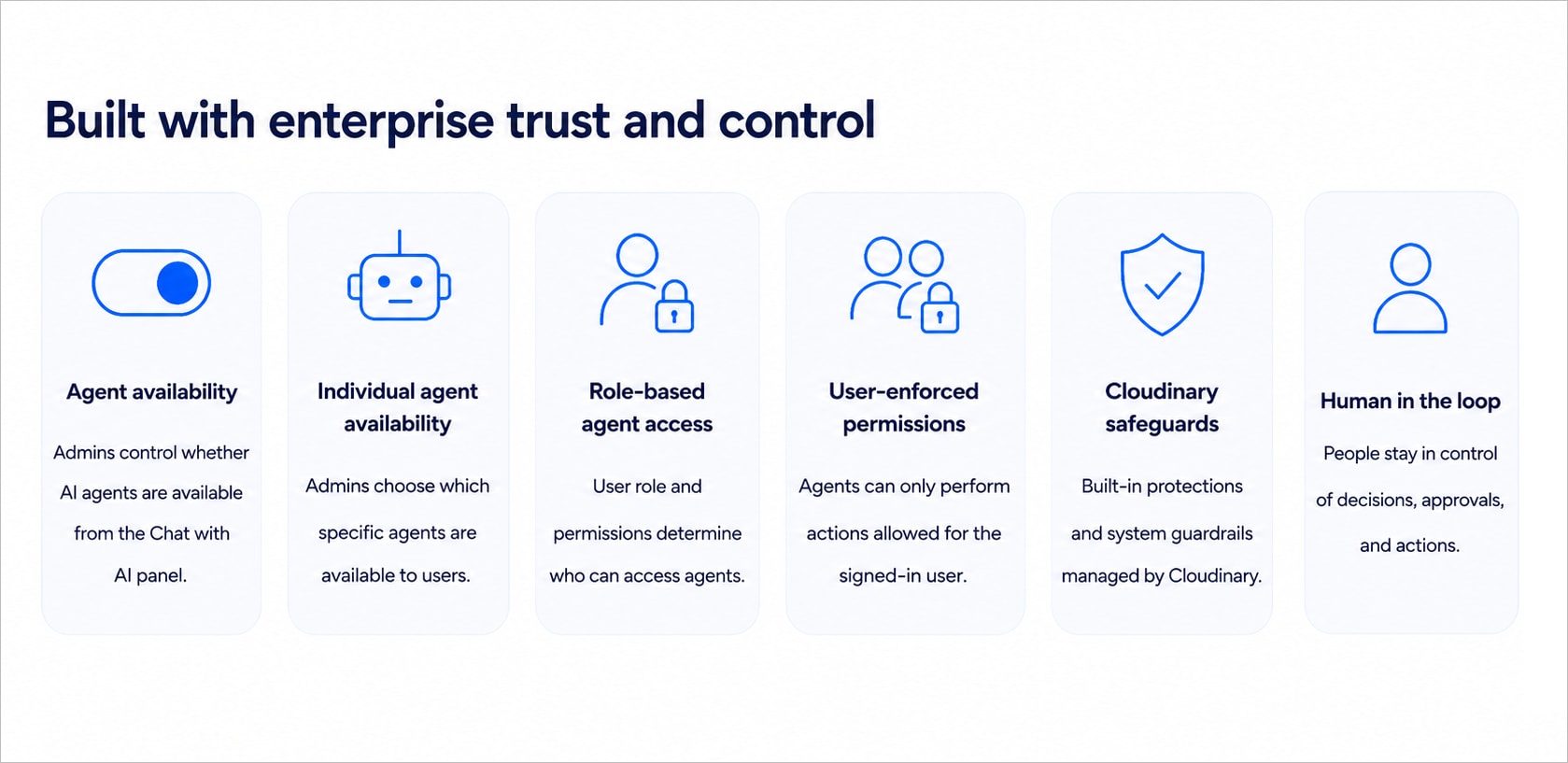
AI agents follow seven control layers. The permissions and safety diagram summarizes these layers, and the sections below explain how each one works in practice.
Agent availability
Administrators can determine whether Cloudinary AI agents are available or not from the Chat with AI panel in the Console Options sidebar via the AI agent settings page of the Console Settings.
Individual agent availability
Even when Cloudinary AI agents are available, administrators can still determine which specific agents users can access from the Chat with AI panel. This is configured from the AI agent settings page of the Console Settings.
Role-based agent access
Even when an agent is enabled, users can access only the agents their role explicitly allows. Users without the required permissions can't use the agent.
In the legacy permissions system, only users with the Master admin role can access agents and agent settings.
Cloudinary is gradually rolling out Roles and Permissions. See Roles and Permissions vs. legacy to find out which system your product environment uses and the differences between them.
In Roles and Permissions, you must configure a custom role that includes agents and agent settings permissions, then assign that role to users who require access.
For more information, see:
User-enforced permissions
Even when users can access an agent, the agent can't view, update, access, or perform actions beyond the permissions of the signed-in user. If a user isn't permitted to perform an action directly, the agent can't perform it either.
Cloudinary safeguards
Cloudinary applies system-level guardrails designed to reduce misuse and unsafe behavior. These safeguards work alongside your account configuration and permission model.
Human in the loop
People remain responsible for review and decision-making. Agents can suggest changes, but changes aren't applied until a user explicitly approves, applies, or saves them.
Working with agents
Agents are available from the Chat with AI panel in the Console (when enabled by an administrator).
To open the panel, click the Chat with AI icon  in the Console Options on the left sidebar.

Opening agents from where you're working
Additional entry points let you reach an agent without leaving what you're doing. When you open an agent from an asset, the assets you're working with are passed to the agent automatically, so you don't need to identify them in your prompt:
-
Top bar: Click Agents in the Assets top bar to open the Chat with AI panel from anywhere in Assets.

-
Manage page: Click Agents to open the panel with the current asset already in context. The asset context is cleared when you leave the Manage page.

-
Bulk selection: Select assets in the Media Library and click Agents to pass the selected assets to the agent, then ask it to update their tags, contextual metadata, or structured metadata values.

-
Preview pane: Ask the Taxonomy Agent to create a new structured metadata field for the asset you're previewing.

-
Manage Structured Metadata page: Click Create with Agent to have the Taxonomy Agent draft a new structured metadata field for you. See Adding structured metadata fields.


Available agents
Each agent focuses on a different specialty:
- Taxonomy Agent: Creates, improves, and maintains your full taxonomy, including structured metadata, tags, and contextual metadata, at scale.
- Search Agent: Helps teams find the right assets faster using natural-language search.
- Workflow Agent: Turns operational intent into governed MediaFlows automations.
Using the Chat with AI panel
In the Chat with AI panel, you can:
- Select the agent you want to work with.
- Communicate with the agent and receive guidance within its specialty.
- Follow the agent's reasoning as it processes your prompt, so you can see how it interpreted your request and whether it's heading in the direction you intended.
- Review and apply proposed changes.
Chat panel controls
From the toolbar at the top right of the panel, you can also:
- Expand the panel to full screen.
- Copy the thread ID.
- Start a new chat.
- View chat history.
Taxonomy Agent
The Taxonomy Agent helps create, improve, and maintain taxonomy and metadata quality at scale.
It handles requests involving metadata field definitions, list values, naming patterns, tagging, metadata rules, and governance consistency. The Taxonomy Agent proposes ideas and drafts, and you decide what to apply.
To work directly with this agent, open the Chat with AI panel from the Console Options on the left sidebar, select Taxonomy Agent, then continue in the thread.
Supported metadata types
The Taxonomy Agent covers your full taxonomy. You can ask it to work on each of the following custom metadata types:
- Structured metadata: Define fields, list values, validations, and naming conventions, and set field values on assets. See Structured metadata.
- Tags: Add, replace, or remove tags on assets, and consolidate overlapping or duplicate tags. See Setting tags.
- Contextual metadata: Add or update contextual metadata key-value pairs on assets. See Setting contextual metadata values.
Select any number of assets in the Media Library and click Agents to work on them together: you can ask the agent to update the tags, contextual metadata, or structured metadata values of all the selected assets in one request. You can also ask it to define a new structured metadata field, and then populate that field on the assets you selected.
Use cases and example prompts
Teams often open Taxonomy Agent when they want to:
- Improve list and field consistency: Consolidate overlapping list values, eliminate duplicate meanings, and standardize naming conventions across structured metadata, tags, and contextual metadata.
- Design or evolve a schema: Add new fields, define allowed values, establish naming conventions, and configure validation rules before rolling out schema changes.
- Audit metadata health: Identify empty, inconsistent, or outdated metadata, and assess the scope and impact of cleanup or migration efforts.
- Apply values across many assets: Select a set of assets and set their structured metadata values, tags, or contextual metadata in one request.
Walkthrough: The video below shows a typical Taxonomy Agent session in the Console, in particular, how you describe the problem, what you see in chat, and how answers relate to live metadata before anything is saved.
This video is brought to you by Cloudinary's video player - embed your own!
Use the controls to set the playback speed, navigate to chapters of interest and select subtitles in your preferred language.
Example prompts: Use these patterns. Adapt field names, lists, and tags to your product environment:
- Standardize the values in our Campaign field and recommend how to migrate existing assets.
- Recommend a naming convention for new product SKU metadata fields we'll add next quarter.
- Identify structured metadata fields that appear to be underused on assets tagged for ecommerce.
- Assess the impact of changing the allowed values in the Department field on existing assets, searches, and approval workflows.
- Add the holiday-2026 tag to every asset in the Winter Campaign folder.
- Replace the draft tag with approved on the assets I've selected.
- Set the photographer contextual metadata key to Dana Levi on these assets.
- Create a Usage Rights single-selection field with the values Unlimited, Web only, and Internal, then set it to Web only on the assets I've selected.
What you get back
Expect recommendations about metadata quality and organization, including:
- Gaps, inconsistencies, and duplicate values.
- Suggested fields, list values, and naming conventions.
- Recommended cleanup or migration plans.
- Comparisons between tags and structured metadata.
- Potential risks to search, reporting, integrations, or approval workflows.
Suggestions aren't applied automatically. Metadata isn't updated until you explicitly ask the agent to apply changes, and only if your role has permission to make them (see User-enforced permissions).
When you ask the agent to apply the same value across multiple assets, it makes the change in a single bulk operation rather than updating the assets one by one, so large updates finish quickly. The agent then reports what it changed.
The agent only analyzes assets and metadata that your user can already access in the Media Library.
See also: Structured metadata overview and Setting structured metadata values.
Search Agent
The Search Agent helps teams find the right assets faster using natural-language prompts.
Use the Search Agent from the Chat with AI panel when you want to find assets based on the same criteria as Advanced Search, including metadata, tags, folders, names, formats, dates, and other asset details, as well as visual similarity using Cloudinary's Visual Search natural language capabilities.
To refine the results, change your prompt or continue in the same thread with follow-up requests.
Use cases and example prompts
Teams typically use Search Agent to:
- Find assets quickly from natural language: Describe what you're looking for instead of building advanced search queries manually.
- Combine visual and metadata criteria: Search using visual characteristics such as color, style, scene, or subject matter together with metadata like approval status, campaign, or product category.
- Search across metadata without knowing the schema: Find assets without needing to know which metadata field contains the information.
- Refine results through conversation: Start with a broad request, then narrow or expand the results by iterating in chat.
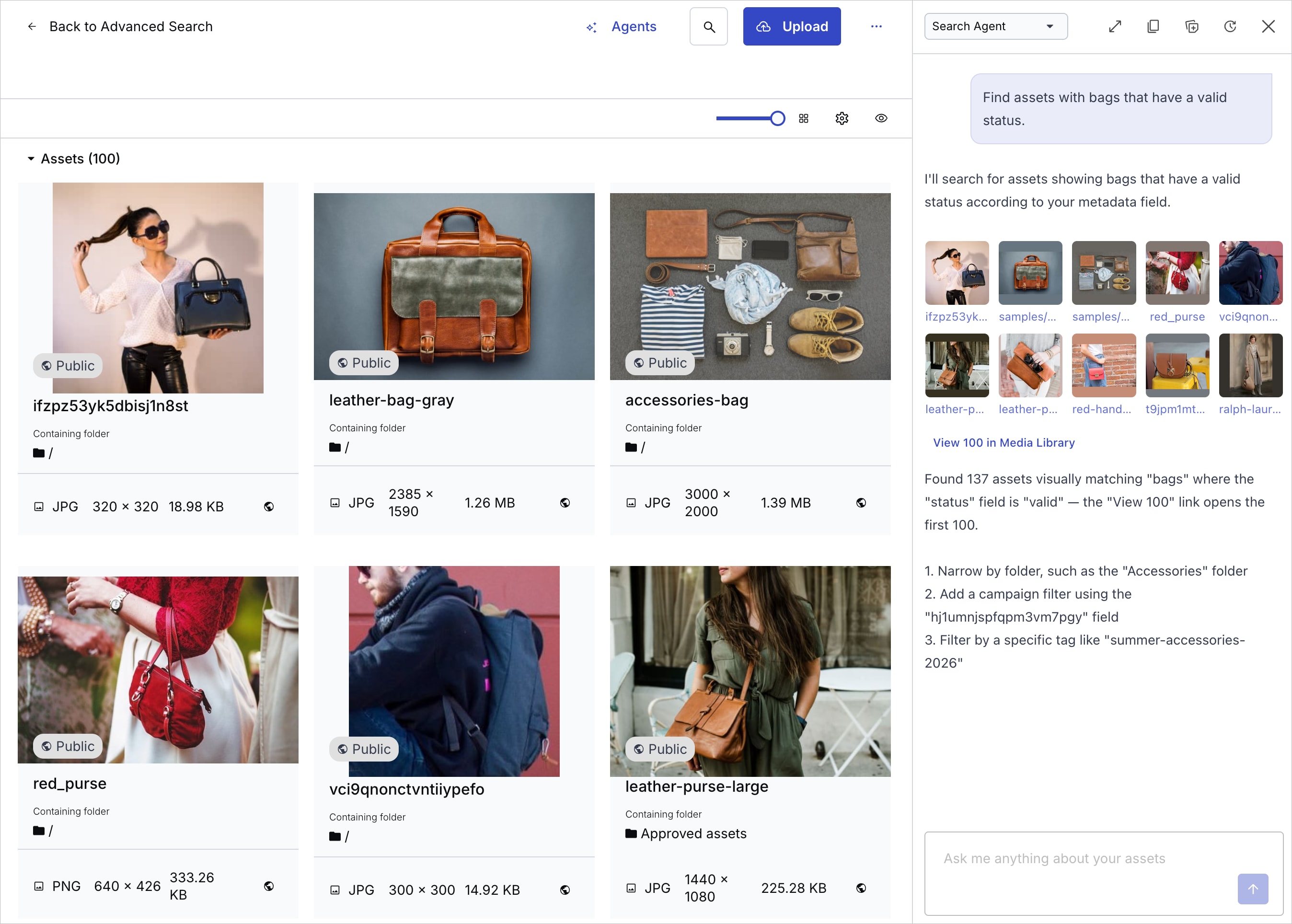
Example prompts: Use these as starting points. Replace folder names, tags, metadata fields, and other values to match your product environment.
- Show approved hero images in the Spring 2025 folder that match our brand color palette.
- Find PDFs in the Legal folder uploaded in the last 30 days.
- Find campaign assets where the Channel structured metadata field is Retail, but the tags still mention DTC.
- Find assets similar to our desert reference shot that are tagged for APAC.
- Show approved lifestyle images similar to our beach campaign that are approved for social use.
What you get back
- The total number of assets matching your natural-language search.
- A preview of the first 10 matching assets, including thumbnail, public ID, and a link to each asset's Manage page, displayed directly in the Chat with AI panel.
- A link to open 100 results at a time in the Media Library, where you can perform actions and bulk actions on the matching assets.
- A summary explaining how the agent interpreted your search, what assets were matched, and suggested follow-up prompts to help you refine, broaden, or narrow the results. You can continue the conversation to refine your search further.
Workflow Agent
The Workflow Agent helps you create MediaFlows using natural language.
MediaFlows automate tasks that happen when events occur, such as assets being uploaded or metadata being updated. A workflow can tag assets, run transformations or moderation, update structured metadata, send notifications, call external systems, and more.
Describe what you want to happen in the Chat with AI panel. The agent suggests a MediaFlow with the appropriate trigger and actions, and you can refine it through conversation. The agent creates the MediaFlow only after you explicitly approve it.
Use cases and example prompts
Teams typically use Workflow Agent when they want to:
- Automate repetitive tasks: Create workflows for tagging, moderation, notifications, metadata updates, and other routine operations.
- Standardize business processes: Ensure the same steps are followed for uploads, approvals, publishing, and other common workflows.
- Integrate with external systems: Trigger actions in other services or exchange information between Cloudinary and external tools.
- Enforce asset policies: Apply approval, expiration, compliance, and usage rules consistently across assets and collections.

Example prompts: Use these as starting points. Replace folder names, metadata fields, thresholds, and endpoints to match your product environment.
- When assets are uploaded to the "Campaign Intake" folder, tag them based on the filename and notify the content team in Slack.
- If an asset's moderation score exceeds our rejection threshold, move it to a review folder and notify the Legal team.
- When hero images are approved, transform them for web and social channels, then publish the delivery URLs to our CMS.
- When an asset's usage rights are about to expire, notify the asset owner and restrict delivery.
What you get back
Replies stay in chat as draft workflow proposals. You typically get recommended triggers, action steps, sequencing, and suggested conditions you can review and refine before saving in MediaFlows.
Treat proposed logic and integration details as drafts until you validate them in your environment, especially for production automations and external system calls.
See also: Workflow Agent, MediaFlows, and MediaFlows MCP server.
- AI agent settings in Assets admin guides
- Structured metadata for administering metadata fields and rules in the product
- MediaFlows for the Workflow Agent
- Cloudinary MCP servers and LLM tools for the Skills pack, LLM-friendly docs, and MCP servers you use from IDEs and other MCP clients (such as Cursor or Claude)
- MediaFlows MCP server for PowerFlows, the MediaFlows MCP endpoint, and Workflow Agent in the MediaFlows console
Error
Rate this page:
