 Ask AI
Agent settings
Last updated: Sep-01-2026
Safety and trust are very important to us, and we've implemented a series of guardrails to make sure your experience with Cloudinary AI agents is reliable. See Permissions and safety.
This page covers agent configuration and permissions, which are key guardrails for using AI agents. As an administrator, you can control whether agents are available in the Chat with AI panel, which individual agents are enabled, and who has permission to access them.
Make sure you can access AI agent settings in Console Settings. If the settings area is unavailable, contact an administrator who manages roles and permissions.
Cloudinary is gradually rolling out Roles and Permissions. See Roles and Permissions vs. legacy to find out which system your product environment uses and the differences between them.
If you have Roles and Permissions, you can assign agent permissions via a system role configured with those permissions, or by creating a custom role that contains the necessary permissions (Enterprise customers only). For more information, see Agent roles and permissions
In the Legacy system, only Master Admins have access to agents.
Make agents available in the Chat with AI panel
Use this global control, available on the AI Agents page of the Console Settings, to make AI agents available in the Chat with AI panel for a product environment.
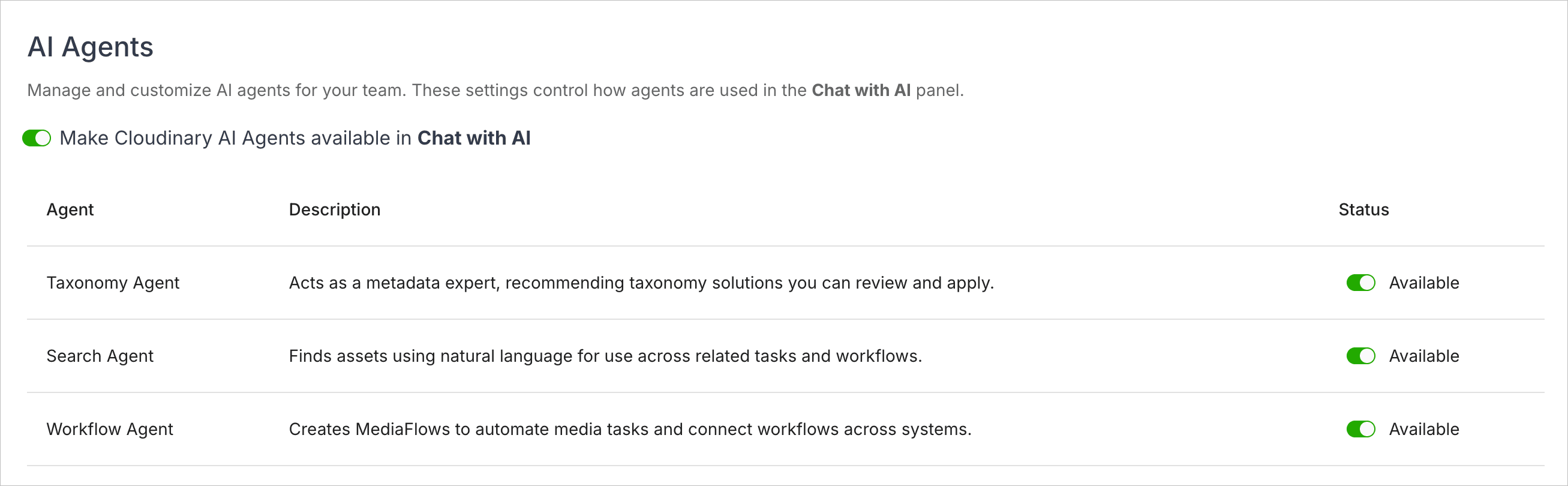
When Not available:
- Agent chat entry points are unavailable from the Chat with AI panel.
- Individual agent toggles don't grant agent access.
- Existing work remains unchanged, but users can't start new agent interactions from the Chat with AI panel.
- The Workflow Agent prompt box isn't available on the MediaFlows home page.
When Available:
- Users can access enabled agents from the Chat with AI panel in Console Options.
- Individual agent settings determine which specific agents are accessible.
Make individual agents available in the Chat with AI panel
Use individual toggles to control which agents your users can access from the Chat with AI panel.
Configure each agent based on operational readiness, team needs, and governance requirements:
- Taxonomy Agent for creating, improving, and maintaining taxonomy and metadata quality at scale.
- Search Agent for helping teams find the right assets faster using natural-language search.
- Workflow Agent for turning operational intent into governed MediaFlows automations.
Agent roles and permissions
If your account uses the granular Roles and Permissions system, you can grant access to AI agents using system or custom roles.
Map system roles to agent permissions
This table shows which agent permissions are included in each system role. Assign the appropriate system role to grant agent access.
| Permission | Master Admin | Admin | Tech Admin | Media Library Admin | Media Library User | MediaFlow Admin |
|---|---|---|---|---|---|---|
| Manage agent settings | ✔️ | ✔️ | ✔️ | |||
| Use the Taxonomy Agent | ✔️ | ✔️ | ✔️ | ✔️ | ✔️ | |
| Use the Search Agent | ✔️ | ✔️ | ✔️ | ✔️ | ✔️ | ✔️ |
| Use the Workflow Agent | ✔️ | ✔️ | ✔️ | ✔️ | ✔️ |
Agent permission policies
To create custom roles that grant agent access, include the following policies. For more information about policies, see Permissions, system roles and policies.
| Policy ID | Name | Description | Policy Statement |
|---|---|---|---|
| cld::policy::global::agents::manage | Manage agent settings | View and manage all agent settings. | permit(principal, action == Cloudinary::Action::"update_agent_settings", resource is Cloudinary::ProductEnvironment); |
| cld::policy::global::agents::taxonomy::invoke | Use the Taxonomy Agent | Use the Taxonomy Agent to create, improve, and maintain metadata and taxonomy at scale. The agent can only view content and perform actions permitted to the user. | permit (principal, action, resource == Cloudinary::Feature::"cld::global::agent::invoke"); permit (principal, action == Cloudinary::Action::"invoke", resource == Cloudinary::Agent::"taxonomy"); |
| cld::policy::global::agents::search::invoke | Use the Search Agent | Use the Search Agent to find assets with natural-language search. The agent can only view content and perform actions permitted to the user. | permit (principal, action, resource == Cloudinary::Feature::"cld::global::agent::invoke"); permit (principal, action == Cloudinary::Action::"invoke", resource == Cloudinary::Agent::"search"); |
| cld::policy::global::agents::workflow::invoke | Use the Workflow Agent | Use the Workflow Agent to create and manage automated MediaFlows using natural-language instructions. The agent can only view content and perform actions permitted to the user. | permit (principal, action, resource == Cloudinary::Feature::"cld::global::agent::invoke"); permit (principal, action == Cloudinary::Action::"invoke", resource == Cloudinary::Agent::"workflow"); |
Error
Rate this page:
