 Ask AI
Legacy permissions reference
Last updated: Nov-04-2026
All Cloudinary accounts have moved to the Roles and Permissions system, except for a small number of accounts that still use the legacy permissions system. This page describes the legacy system for those accounts and for reference.
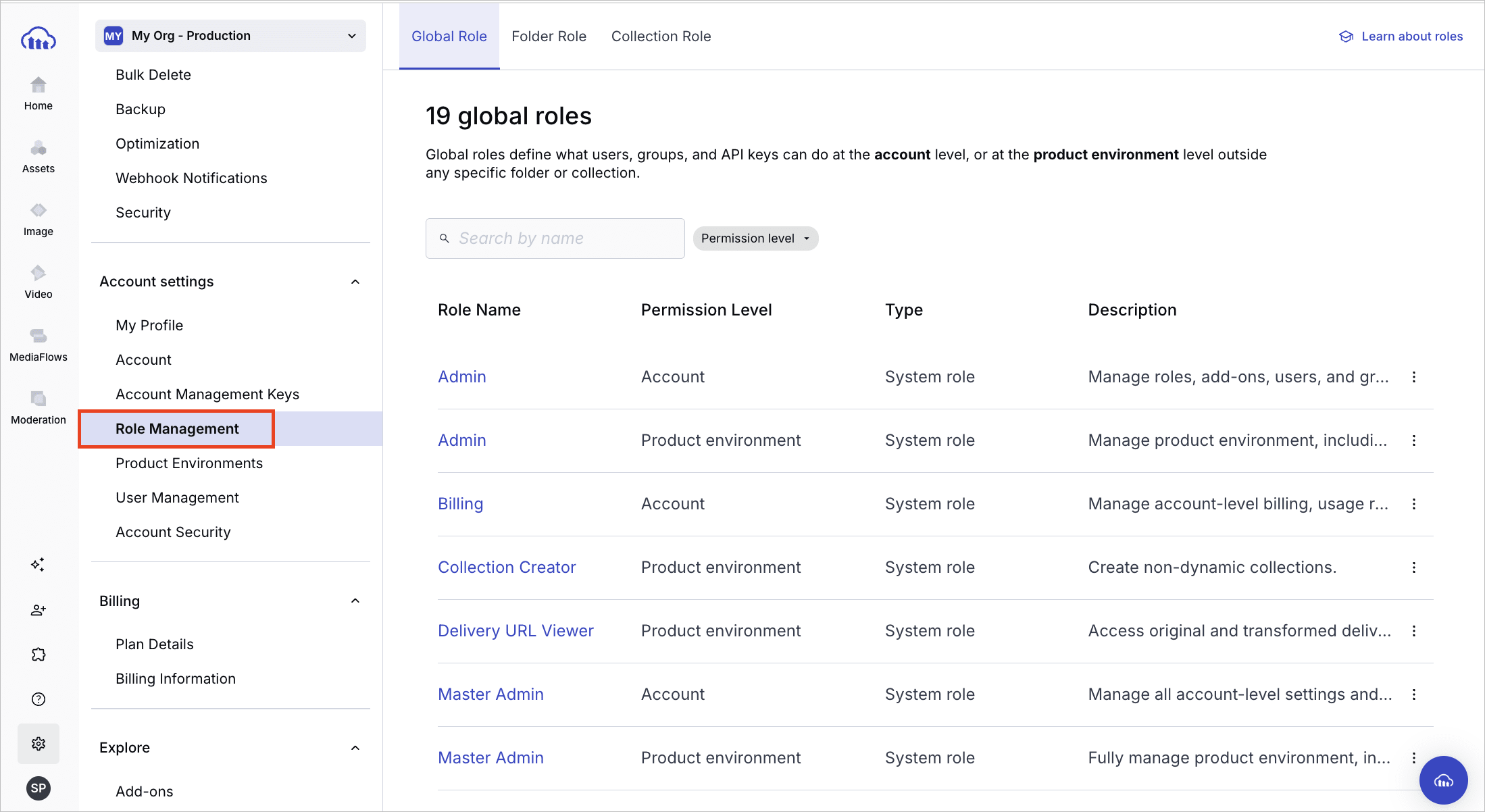
To understand what changes when your account migrates, including how your existing roles map to the new system, see Migrating to Roles and Permissions.
Legacy permissions vs. Roles and Permissions
This table compares the legacy system with Roles and Permissions:
| Legacy | Roles and Permissions | |
|---|---|---|
| Roles | Fixed set of roles controlling which areas of the Console a user can access. See Legacy roles. |
All plans: Predefined system roles covering common access levels (Master Admin to Media Library User), assigned at the account or product environment level. Enterprise: Custom roles built from individual permissions for precise, fine-grained control. |
| Role assignment | Each user is assigned a single role that defines their overall access level. | Multiple roles can be assigned to a user, group, or API key, allowing precise combinations of access. |
| User groups | Groups carry folder and collection access permissions only. Roles must be assigned to each user individually. | Members inherit all role types assigned to the group, including global (account and product environment) and content (folder and collection) roles. |
| Access bundles | Not applicable. Each role defines its own fixed scope. Some cover both account and product environment access (such as Master admin), others are product environment-only (such as Media Library user). | A predefined set of roles for a common user type, for quick user setup when inviting new users. A bundle can include account-level roles, product environment-level roles (applied across all product environments), or both. |
| Folder and collection access | Managed by sharing folders and collections with Media Library user role members and groups from the Media Library, at fixed folder and collection permission levels. | Shared from the Media Library, using system content roles (all plans) or custom content roles (Enterprise). |
Legacy roles
Each user in your Cloudinary account is assigned a role. This role defines the operations a user can perform, the areas of the Cloudinary Console that they can view or change, and the settings they can control.
Whereas Master admins have access to all product environments, users with other roles can be set to have access to all or only specified product environments. Users have the same role in all product environments they have access to.
Below are tables summarizing the permission details for each role, divided by Console areas:
- The Assets digital asset management product
- Account and product environment Console Settings
Permissions for the Assets digital asset management product

1 In the Assets Free plan, the Getting Started page isn't available.
2 The Dashboard is unavailable in the Assets Free plan. For more options and information, contact us.
3 The Activity Reports feature is a premium offering for Assets Enterprise plans, and its availability depends on your account setup. The feature is unavailable in the Assets Free plan. For more information, see Assets activity reports.
4 In the Assets Free plan, you can access the Transformations page only via the Manage Transformations option in the Image product.
Additional Assets role considerations and guidelines
- If you don't add a Media Library user to any groups or share any folders with those groups or directly with that user, the user won't see any content in the Media Library.
- The Media Library user role replaces the obsolete Contributor and Viewer roles. For users with these roles, Cloudinary made the following adjustments to keep their access permissions unchanged:
- Users in either of these roles were automatically migrated to the Media Library user role.
-
Viewer and Contributor user groups were automatically created, and these users are included in the relevant group.
- These two user groups have permissions to the Home folder at the corresponding level (Can view or Can contribute).
Permissions for Console Settings

Managing users in the legacy system
In the legacy system, users with the Master admin or Admin role can configure settings for all account users, including adding, modifying, or removing users.
Adding users
You can add up to five users at a time by either:
- Using the Invite New Users Console option
- Clicking the Invite button on the User Management page of the Console Settings
For each user, you can set:
- E-mail: The new user receives an email asking them to confirm this address, which they also use to log in to Cloudinary.
- Role: The user's level of access in the Console. For details, see Legacy roles.
-
Product environment access: If your account includes more than one product environment, choose which product environments the users can access: all of them, or up to 30 specific ones.
- A user has the same role, and the same permissions, in every product environment they can access.
- This option isn't displayed if all the users you're adding are Master admins, because Master admins always have full control in all product environments.
The role and product environment access you set apply to all the users you add in the same form. To give users different roles or access, complete a separate form for each.
You can also add users in these ways:
-
SAML provisioning: Use the legacy role values in the
User.CloudinaryRoleattribute. See SAML assertion fields. - Provisioning API: Add and manage users programmatically. See Provisioning API.
Additional options for users with the Media Library user role
- User groups: Assign the new user to one or more groups to inherit their folder and collection access permissions. In the legacy system, groups can only be used to manage folder and collection access for users with the Media Library user role. You can assign a group one of several permission levels for each folder and collection, rather than configuring access for each Media Library user individually.
-
User permissions: Displayed as toggles when adding users with the Media Library user role. These apply to all new Media Library users you're adding:
- Create collection: Enables a Media Library user to create non-dynamic collections.
-
Share collection: Enables a Media Library user with Owner, Can share, or Can manage permissions on a non-dynamic collection to share that collection both internally and externally.NoteWithout these permissions, a Media Library user can still view or contribute to collections shared with them, but they can't create collections or share collections with others, even if they're assigned Owner level permissions for a collection.
These permissions allow Media Library users to create and share only non-dynamic collections to help protect against unintended asset exposure.
-
Show delivery URL: Allows a Media Library user with Can edit or Can manage folder permissions to edit the asset's public ID. It also sets the main action on the card to Copy Delivery URL, which users can change individually.NoteDepending on your setup, the Show delivery URL permission might not be available in your product environment. If it's not, Media Library users can edit the public ID with only Can edit or Can manage permissions on the folder. To add this permission and control public ID editing, contact support.
-
Moderate asset: Enables the Media Library user to moderate assets in any folder that they have Can edit or Can manage permissions to.NoteTo enable Media Library users to access the moderation queue, contact support.
- Create proof: Enables Media Library users to start a new proof and manage proofs they created. This permission is available only for Enterprise plans with the creative approval premium feature enabled. For more information, see Manage Creative Approval proofs.
Updating users
The Edit form on the User Management page lets you update a user's details, role, and permissions in one place. If a user is a Master admin, the Product Environment value is All (full access) and can't be changed without first changing the user's role.
Other user management tasks, such as deleting users, resetting passwords, and managing additional user subscriptions, work the same way in both permissions systems. See Users and groups.
Legacy folder permission levels
Folder permission levels apply to users with the Media Library user role and to the groups they belong to. Admin roles have full access to all folders.
When you share a folder in the legacy system, you can set one of the following permission levels, which apply to the folder and all its subfolders: Can view, Can contribute, Can edit, and Can manage.
Users with any admin role, or users with the Media Library user role and Can manage permissions on the folder, can share the folder with others.
The table below summarizes the actions available at each legacy folder permission level.
| Can View | Can Contribute | Can Edit | Can Manage | |
|---|---|---|---|---|
| View assets | ✔ | ✔ | ✔ | ✔ |
| View who else has access | ✔ | ✔ | ✔ | ✔ |
| Download assets | ✔ | ✔ | ✔ | ✔ |
| Edit transformations1 (via Edit Transformation page or directly in browser URL) |
✔ | ✔ | ✔ | ✔ |
| Comment on assets | ✔ | ✔ | ✔ | ✔ |
| Search (including Advanced Search)2 | ✔ | ✔ | ✔ | ✔ |
| View version history | ✔ | ✔ | ✔ | ✔ |
| Upload assets | ✔ | ✔ | ✔ | |
| Create sub-folders | ✔ | ✔ | ✔ | |
| Overwrite existing on upload | ✔ | ✔ | ||
| Edit assets3 (including original asset, tags, structured and contextual metadata, rename, move to another folder) | ✔ | ✔ | ||
| Restore previous versions | ✔ | ✔ | ||
| Moderate assets4 | ✔ | ✔ | ||
| Delete assets | ✔ | |||
| Delete the folder | ✔ | |||
| Share the folder | ✔ |
- Editing transformations doesn't have any impact on the original asset, but any new transformations that are generated are counted against your monthly transformation quota.
- Search results include only assets in folders where the user has at least Can view access.
- Users with Can contribute access or higher can use the Add a tag option in the Media Library upload widget while uploading, and, depending on admin preferences, may be prompted to fill in metadata fields before uploading. However, Can edit permissions or higher are needed to add tags to existing assets.
- Media Library users with the Moderate asset administrator permission can access the Moderation page and moderate assets in folders where they have Can Edit or Can Manage access. Users will only see assets they have permission to moderate from the moderation queue.
Legacy collection permission levels
Collection permission levels apply to users with the Media Library user role and to the groups they belong to. Admin roles have full access to all collections.
When you invite teammates to a collection in the legacy system, you can set one of the following permission levels: Can view, Can share, Can collaborate, and Can manage.
You control what these users can do with collections by assigning specific user permissions:
- Create: Requires the Create collection permission.
- Invite teammates and publish: Requires the Share collection permission, and the user must be the collection creator or have Can manage permissions on the collection.
The Create collection and Share collection permissions act as overrides. Without them, a Media Library user can't create collections or share them with others, even with Can manage permissions on a collection. With them, users with Can share or Can manage permissions can share collections both internally and externally.
The table below summarizes the permissions available to each level:
| Can view | Can share | Can collaborate | Can manage | |
|---|---|---|---|---|
| View assets in the collection1 | ✔ | ✔ | ✔ | ✔ |
| Download assets in the collection | ✔ | ✔ | ✔ | ✔ |
| View who else has access | ✔ | ✔ | ✔ | ✔ |
| Invite teammates to a collection2 | ✔ | ✔ | ||
| Publish a collection2 | ✔ | ✔ | ||
| Add assets to the collection | ✔ | ✔ | ||
| Remove assets from collection | ✔ | |||
| Rename the collection | ✔ | |||
| Delete collection | ✔ |
- Anyone with Can view or higher permissions to a collection can view (but not otherwise modify) all assets in that collection, even if they don't have Can view permissions for the folders containing those assets.
- Even if a user group or Media Library user was invited to a collection at Can manage level permissions, the user must also have Share collection permissions (set by an administrator) in order to invite teammates or publish the collection.
Error
Rate this page:
