 Ask AI
Legacy permissions reference
Last updated: Nov-04-2026
All Cloudinary accounts have moved to the Roles and Permissions system, except for a small number of accounts that still use the legacy permissions system. This page describes the legacy system for those accounts and for reference.
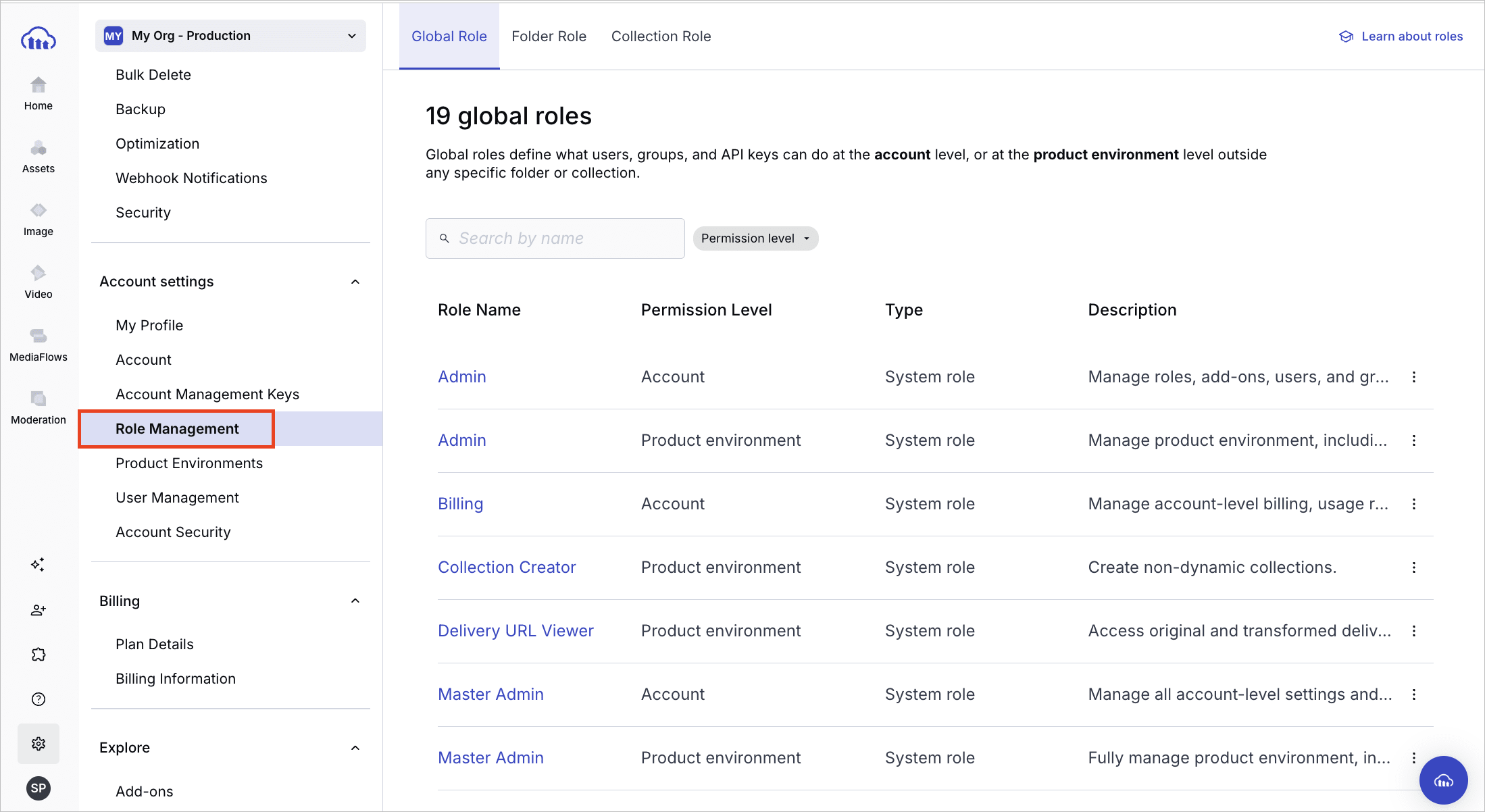
To understand what changes when your account migrates, including how your existing roles map to the new system, see Migrating to Roles and Permissions.
Legacy permissions vs. Roles and Permissions
This table compares the legacy system with Roles and Permissions:
| Legacy | Roles and Permissions | |
|---|---|---|
| Roles | Fixed set of roles controlling which areas of the Console a user can access. See Legacy roles. |
All plans: Predefined system roles covering common access levels (Master Admin to Media Library User), assigned at the account or product environment level. Enterprise: Custom roles built from individual permissions for precise, fine-grained control. |
| Role assignment | Each user is assigned a single role that defines their overall access level. | Multiple roles can be assigned to a user, group, or API key, allowing precise combinations of access. |
| User groups | Groups carry folder and collection access permissions only. Roles must be assigned to each user individually. | Members inherit all role types assigned to the group, including global (account and product environment) and content (folder and collection) roles. See User group management. |
| Access bundles | Not applicable. Each role defines its own fixed scope. | A predefined set of roles for a common user type, for quick user setup when inviting new users. A bundle can include account-level roles, product environment-level roles (applied across all product environments), or both. See access bundles. |
| API keys | All API keys have unrestricted access within the product environment. Assigning roles to individual API keys isn't supported. | Global and content roles (including folder roles) can be assigned to API keys for granular programmatic access control. See API key permissions. |
Legacy roles
Each user in your Cloudinary account is assigned a role. This role defines the operations a user can perform, the areas of the Cloudinary Console that they can view or change, and the settings they can control.
Whereas Master admins have access to all product environments, users with other roles can be set to have access to all or only specified product environments. Users have the same role in all product environments they have access to.
Below are tables summarizing the permission details for each role, divided by Console areas:
Permissions for Console pages
- Master admin, Admin, and Technical admin roles can access every page of the Console.
- Billing and Reports roles can access only the dashboard and reports located in the Home area of the Console.
- The Media Library admin role can access the Media Library for full usage and administration.
- The Media Library user role can access specific folders and collections within the Media Library according to their assigned permissions.
Permissions for Console Settings

Managing users in the legacy system
In the legacy system, users with the Master admin or Admin role can configure settings for all account users, including adding, modifying, or removing users.
Adding users
You can add up to five users at a time by either:
- Using the Invite New Users Console Option
- Clicking the Invite button on the User Management page of the Console Settings
For each user, you can set:
- E-mail: The new user receives an email asking them to confirm this address, which they also use to log in to Cloudinary.
- Role: The user's level of access in the Console. For details, see Legacy roles.
-
Product environment access: If your account includes more than one product environment, choose which product environments the users can access: all of them, or up to 30 specific ones.
- A user has the same role, and the same permissions, in every product environment they can access.
- This option isn't displayed if all the users you're adding are Master admins, because Master admins always have full control in all product environments.
The role and product environment access you set apply to all the users you add in the same form. To give users different roles or access, complete a separate form for each.
For additional options for users with the Media Library user role, see Additional options for users with the Media Library user role.
You can also add users in these ways:
-
SAML provisioning: Use the legacy role values in the
User.CloudinaryRoleattribute. See SAML assertion fields. - Provisioning API: Add and manage users programmatically. See Provisioning API.
Updating users
The Edit form on the User Management page lets you update a user's details, role, and permissions in one place. If a user is a Master admin, the Product Environment value is All (full access) and can't be changed without first changing the user's role.
Other user management tasks, such as deleting users, resetting passwords, and managing additional user subscriptions, work the same way in both permissions systems. See User provisioning.
Error
Rate this page:
