 Ask AI
Video resize modes
Last updated: Jun-26-2026
The resize modes adjust the dimensions of a video without cropping out any elements from the original. This page covers scale, fit, limit, pad, and lpad — modes that fit the video within a bounding box or add padding as needed. For crop modes (fill, fill_pad, crop), see Video crop modes.
scale
The scale resize mode changes the size of the video exactly to the specified dimensions without necessarily retaining the original aspect ratio: all original video parts are visible but might be stretched or squashed. If only the width or height is specified, then the video is scaled to the new dimension while retaining the original aspect ratio.
See full syntax: c_scale in the Transformation Reference.
Example 1: Scale while maintaining aspect ratio
Scale the video to a width of 150 pixels (maintains the aspect ratio by default):
Example 2: Scale without maintaining aspect ratio
Scale the video to a width and height of 150 pixels without maintaining the aspect ratio:
Example 3: Scale by a percentage
Scale the video to a width of 25% (maintains the aspect ratio by default):
Example 4: Scale by setting the aspect ratio and width
Scale the video to a width of 100, changing the aspect ratio to 1:2:
fit
The fit resize mode resizes the video so that it takes up as much space as possible within a bounding box defined by the specified dimensions. The original aspect ratio is retained and all of the original video is visible.
See full syntax: c_fit in the Transformation Reference.
Example 1: Fit the video inside a square bounding box
Resize the video to fit within a width and height of 250 pixels while retaining the aspect ratio:
Example 2: Use aspect ratio to define a bounding box
Resize the video to fit within a 150-pixel square defined by aspect ratio and height:
limit
The limit resize mode behaves the same as the fit mode but only if the original video is larger than the specified limit (width and height), in which case the video is scaled down so that it takes up as much space as possible within a bounding box defined by the specified dimensions. The original aspect ratio is retained and all of the original video is visible. This mode doesn't scale up the video if your requested dimensions are larger than the original video's.
See full syntax: c_limit in the Transformation Reference.
Example 1: Limit the size of the video to a square bounding box
Limit the video to a width and height of 250 pixels while retaining the aspect ratio:
Example 2: Use aspect ratio to define a limiting bounding box
Limit the video to a 150-pixel square defined by aspect ratio and height:
pad
The pad resize mode resizes the video to fill the specified dimensions while retaining the original aspect ratio and with all of the original video visible. If the proportions of the original video do not match the specified dimensions, padding is added to the video to reach the required size. You can also specify where the original video is placed by using the gravity parameter (set to center by default), and specify the color of the background in the case that padding is added.
If you're looking to apply padding to all sides of a video, consider using the limit pad resize mode.
See full syntax: c_pad in the Transformation Reference.
Example 1: Resize and pad a video to fill the square defined by width and height
Resize and pad the video with a brown background to a width and height of 250 pixels:
Example 2: Resize and pad a video to fill the rectangle defined by aspect ratio
Resize and pad the video with a brown background to a rectangle of height of 150 pixels, and aspect ratio 2:1:
Example 3: Pad with blurred video background
You may sometimes need to deliver a video with an aspect ratio very different than the target video player dimensions, for example delivering a portrait video in a landscape-oriented video player. In these cases, you can use a blurred version of the same video as the padding background. To do this, specify the blurred value instead of a color as the background. You can also optionally specify the intensity of the blur effect (range: 1-2000, default 100) and the brightness of the background video (range: -300-100, default 0).
For example, deliver the Rubik's cube video in a 320*480 HTML5 video player by padding the portrait video with a blurred version of the same video at an intensity of 400 and a brightness of 15.
lpad (limit pad)
The lpad resize mode behaves the same as the pad mode but only if the original video is larger than the specified limit (width and height), in which case the video is scaled down to fill the specified dimensions while retaining the original aspect ratio and with all of the original video visible. This mode doesn't scale up the video if your requested dimensions are bigger than the original video's. If the proportions of the original video do not match the specified dimensions, padding is added to the video to reach the required size. You can also specify where the original video is placed by using the gravity parameter (set to center by default), and specify the color of the background in the case that padding is added.
See full syntax: c_lpad in the Transformation Reference.
Example 1: Scale down and pad a video
Limit the video to a bounding box of 400 x 150 pixels, and pad with a green background:
Example 2: Scale down and pad a video using aspect ratio
Limit the video to a bounding box specified by an aspect ratio of 0.66 with a width of 100 pixels, and pad with a green background:
Example 3: Pad a video on all sides
Apply padding to all sides of the video by specifying a bounding box that's square, and has a width of 1.1 times the original width:
Device Pixel Ratio (DPR)
Different devices support different DPR values, which is defined as the ratio between physical pixels and logical pixels. This means that a device with support for a higher DPR uses more physical pixels for displaying a video, resulting in a clearer, sharper video.
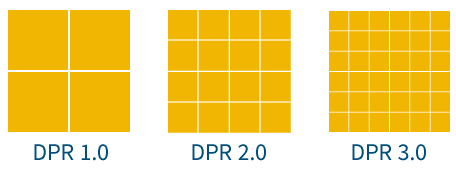
Use the dpr parameter to set the DPR value of the delivered video. The parameter accepts a numeric value specifying the DPR multiplier.
For example, the following URL dynamically generates the video scaled to a width of 100 pixels. Setting the dpr value to 1.0, 2.0 (as in the code example) or 3.0 generates the following videos, while resizing the video to match the required DPR.
Now you can create an HTML video tag with the required dimensions and deliver a video with the resolution that best matches the specified pixel density of your users' devices. The three videos below are all displayed with a width of 200 pixels using the <video> tag width attribute, while you see more details and a better visual result for the last two videos (dpr 2 and dpr 3 respectively) if you view this documentation using a device that supports a higher DPR.
How DPR affects transformations
The dpr parameter is more than a shortcut for multiplying the requested width or height. Cloudinary treats the specified dimensions as the intended logical display size and uses the DPR value to generate the required physical pixel dimensions. Some transformation settings are also adjusted relative to the DPR so that the displayed result remains visually consistent across devices.
For example, when adding a text overlay to a video, a DPR 2.0 video is delivered with twice the physical pixels and is then displayed at the intended logical size by the browser. Using dpr enables Cloudinary to size the text layer appropriately so the text appears at the intended visual size on higher-DPR devices.
The same principle applies to other transformations: image overlays and visual effects are scaled so the result looks the same regardless of DPR.
See full syntax: dpr (DPR) in the Transformation Reference.
-
Video crop modes: Detailed examples of
fill,fill_pad, andcropmodes, plus cropping videos with non-standard DAR. - Video gravity for crops: Control which part of the video is kept when cropping, using compass positions, face detection, and automatic gravity.
Error
Rate this page:
