 Ask AI
Image resize modes
Last updated: Jun-19-2026
The resize modes adjust the dimensions of an image without cropping out any elements from the original. This page covers scale, fit, limit, and mfit — modes that fit the image within a bounding box. For padding modes (pad, lpad, mpad), see Image padding modes. For crop modes (fill, crop, thumb, auto, and others), see Image crop modes.
scale
The scale resize mode changes the size of the image exactly to the specified dimensions without necessarily retaining the original aspect ratio: all original image parts are visible but might be stretched or squashed. If only the width or height is specified, then the image is scaled to the new dimension while retaining the original aspect ratio.
See full syntax: c_scale in the Transformation Reference.
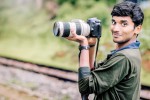
Example 1: Scale while maintaining aspect ratio
Scale the camera image to a width of 150 pixels (maintains the aspect ratio by default):
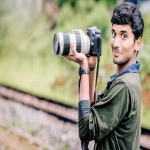
Example 2: Scale without maintaining aspect ratio
Scale the camera image to a width and height of 150 pixels without maintaining the aspect ratio:
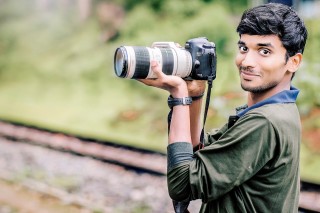
Example 3: Scale by a percentage
Scale the camera image to a width of 25% (maintains the aspect ratio by default):
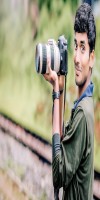
Example 4: Scale by setting the aspect ratio and width
Scale the camera image to a width of 100, changing the aspect ratio to 1:2:
Example 5: Scale in one dimension ignoring the aspect ratio
You can override the default aspect ratio retention by including the ignore_aspect_ratio flag. For example, scale the image to a height of 150, ignoring the aspect ratio:
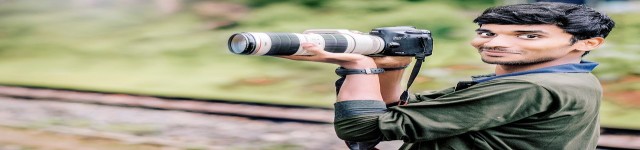
scale mode can be used to scale up or scale down an image, however when scaling up, the image often loses clarity. To retain clarity while upscaling an image, consider upscaling with super resolution.fit
The fit resize mode resizes the image so that it takes up as much space as possible within a bounding box defined by the specified dimensions. The original aspect ratio is retained and all of the original image is visible.
See full syntax: c_fit in the Transformation Reference.
Example 1: Fit the image inside a square bounding box
Resize the camera image to fit within a width and height of 250 pixels while retaining the aspect ratio:
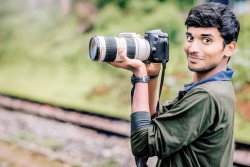
Example 2: Use aspect ratio to define a bounding box
Resize the camera image to fit within a 150-pixel square defined by aspect ratio and height:
limit
The limit resize mode behaves the same as the fit mode but only if the original image is larger than the specified limit (width and height), in which case the image is scaled down so that it takes up as much space as possible within a bounding box defined by the specified dimensions. The original aspect ratio is retained and all of the original image is visible. This mode doesn't scale up the image if your requested dimensions are larger than the original image's.
See full syntax: c_limit in the Transformation Reference.
Example 1: Limit the size of the image to a square bounding box
Limit the camera image to a width and height of 250 pixels while retaining the aspect ratio:
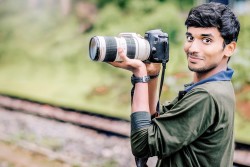
Example 2: Use aspect ratio to define a limiting bounding box
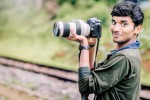
Limit the camera image to a 150-pixel square defined by aspect ratio and height:
mfit (minimum fit)
The mfit resize mode behaves the same as the fit mode but only if the original image is smaller than the specified minimum (width and height), in which case the image is scaled up so that it takes up as much space as possible within a bounding box defined by the specified dimensions. The original aspect ratio is retained and all of the original image is visible. This mode doesn't scale down the image if your requested dimensions are smaller than the original image's.
See full syntax: c_mfit in the Transformation Reference.
Example 1: Ensure an image fits a minimum bounding box
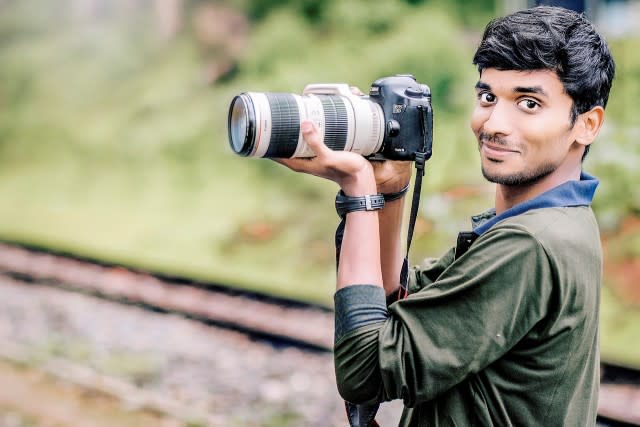
Fit the camera-640 image (640 x 427 pixels) to a minimum width and height of 250 pixels while retaining the aspect ratio. This results in the original larger image being delivered:
Example 2: Use aspect ratio to define a minimum size
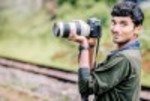
Scale up the 100-pixel wide camera-100 image to fit a 150-pixel square defined by aspect ratio and height.
-
Image padding modes: Detailed examples of
pad,lpad, andmpad. -
Image crop modes: Detailed examples of
fill,lfill,fill_pad,crop,thumb,auto, andauto_pad. - Resizing and cropping interactive demo: Try out all crop and resize modes interactively.
Error
Rate this page:
