 Ask AI
Named transformations
Last updated: Oct-07-2026
A named transformation is a pre-defined set of transformation parameters that has been given a custom name for easy reference. Instead of applying each of the required transformations separately to an asset, you can apply a single named transformation to apply all the transformations defined for it. This makes it easy to:
- Reuse transformations on multiple assets
- Shorten complex transformation URLs
- Hide the details of a transformation in your delivery URL.
- Simplify the enabling/disabling of transformations in Strict Transformations mode.
Named transformations can include other named transformations, which allows you to define a chain of transformations to run on multiple assets more easily.
They're required for baseline transformations, which save processing time and cost by avoiding regeneration of shared transformation steps.
You can create and manage named transformations via the API or from the Templates page in the Console.
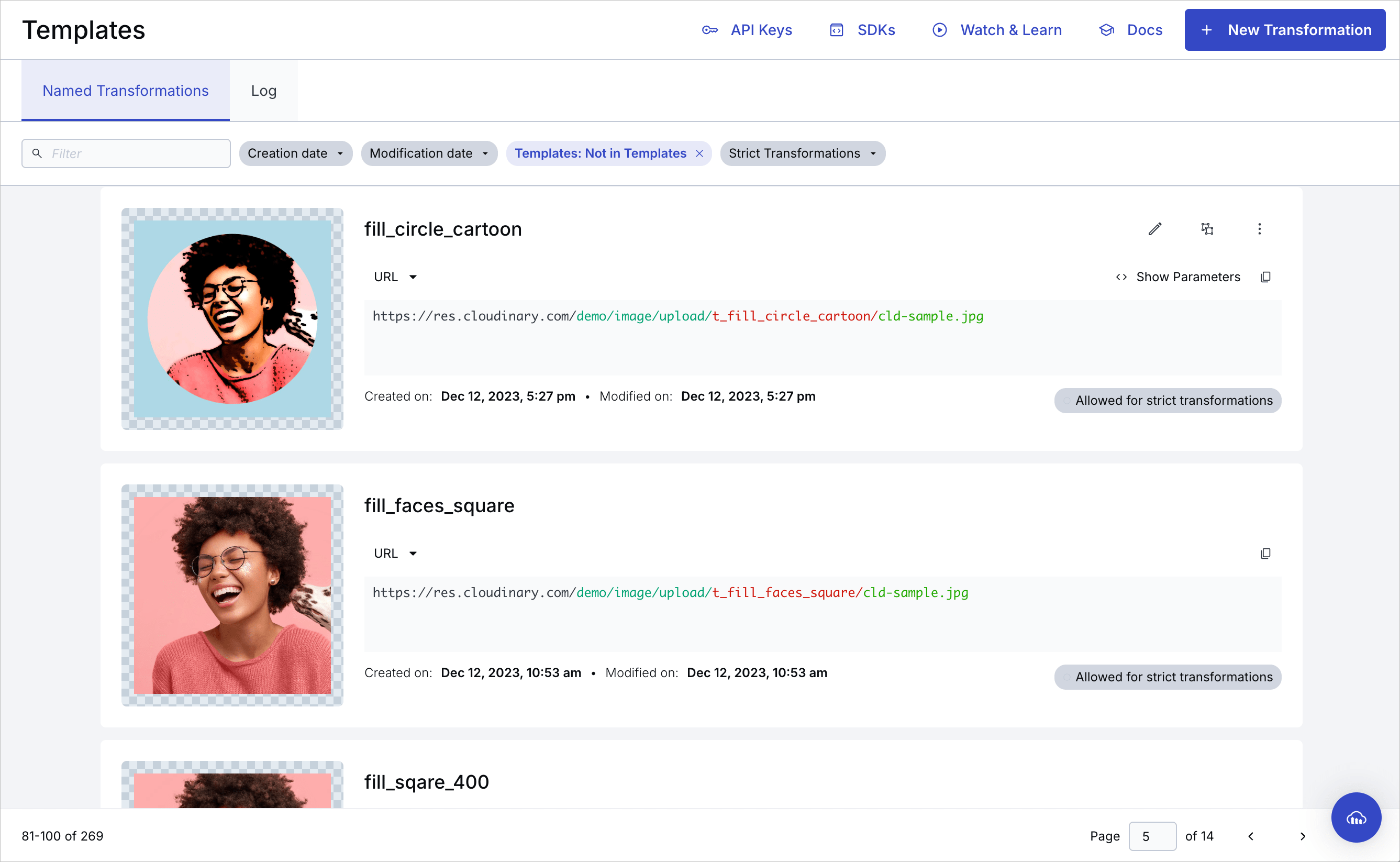
Once defined, you can apply a named transformation by setting the transformation parameter (or t in a URL) to the transformation's name. For example t_instagram-auto-crop.
You can include user-defined variables in your named transformations, and then pass the value for the user-defined variable into the transformation from an external source. This enables creating a named transformation 'template' with a lot of flexibility.
For example, you could define a complex named transformation that includes a text overlay as a named transformation, using a user-defined variable for the text string value.
For more details, see user-defined variables. For a use-case example demonstrating named transformations with user-defined variables, see Named transformation with a user-defined variable.
Cloudinary automatically tracks which named transformations were used to generate each derived asset. You can view this information in the Derived Assets tab of the Manage page. For more information, see Derived Assets in the Media Library for developers guide.
You can also set named transformations as transformation templates, which you can apply as templates in the Media Library so that you can preview how assets will look with different named transformations applied.
- Keep in mind that not all transformations support all asset types and formats. Applying a named transformation to an asset of an unsupported type or format will fail and return a 404 error. You can check whether you can use the parameters in your named transformation for both images and videos in the transformation reference. You can also check the supported formats for transformations.
- Before you update the transformation parameters of an existing named transformation that's already used in production, make sure you're aware of all existing instances. To mitigate risk, when you update the parameters of an existing named transformation (via the Console UI or API), existing derived assets using the named transformation are not automatically invalidated and regenerated.
If you're sure you want to apply the new definition to any already derived assets with that named transformation, you must specifically invalidate those transformations or otherwise modify the other parameters in that delivery URL, so that the asset will be re-derived using the new definition on next request.
Tip: You can use the regen_derived CLI command to invalidate and then regenerate derived assets after updating the definition for a named transformation. - Before you delete an existing named transformation, make sure you aren't using that transformation in production. When you delete an existing named transformation via the Console UI or API, and if there are fewer than 1000 existing derived assets using that named transformation, they're automatically invalidated (and will return a
404error on the next request).
If there are 1000 or more such derived assets, the delete request fails with a403error indicating that your named transformation hastoo many derived resourcesortoo many dependent transformations(when the derived assets use the named transformation in combination with other parameters).
Creating named transformations
You can create a named transformation programmatically or using the Cloudinary Console.
Create a named transformation programmatically
To create a named transformation programmatically, use the Transformations Admin API method.
For example, the following defines a named transformation called small_profile_thumbnail that uses automatic cropping to resize assets to the required size for a particular application's thumbnail display:
For more details and examples, see the Create Transformation method in the Admin API Reference.
Create a named transformation in the Console Studio
Use Studio to build your transformation step-by-step and save it with your chosen name. Open Studio by clicking Studio from the left navigation menu.

For more details see Studio.
You can also start with a pre-defined transformation. Select a transformation from the Image Playground examples as a template and experiment with it in the UI. Click Use it to open Studio and refine the transformation to your needs, and save it with your chosen name.

- Must contain valid UTF8 characters only
- Must not contain more than 1024 characters
- Must not contain any of these characters:
\,/,?,&,#,%,.,,,<,>
Once you've saved your named transformations, you can view a list of them in the Console in the Image > Templates > Named Transformations tab. From here, you can edit, copy, or enable/disable Strict Transformations.
You can also select to include a transformation as a template so that users can apply it to assets using the Download Options tab of the asset management drill-down page (available for Assets Enterprise plans).
Named transformation examples
Below are two quite different named transformations applied to the same lighthouse_reflection image:
-
fill_square_400 is defined as
ar_1:1,c_fill,g_auto,w_400, which fills (scales and crops) the image into a 400*400 square, automatically focussing on the most interesting area of the image:
-
rounded_cartoonified_frame is defined as
e_cartoonify/r_max/co_rgb:add8e6,e_outline:30/b_rgb:add8e6, which applies a cartoonify effect, rounds it to a circle or oval shape, adds a light blue outline around the oval so that the image won't be touching the edges of the frame, and then fills the transparent background with the same color as the outline:


Chaining named transformations
You can chain named transformations before or after other transformations. For example, here the oval_cartoonified_frame named transformation is applied after a grayscale effect:

You can also chain multiple named transformations. For example, to chain the named transformations defined in the previous section:

Chaining transformations can create long URLs, so instead you could define a named transformation that includes a chain of other transformations, including other named transformations. For example, we can create a named transformation that is a composite of the named transformations from the section above.
It is now simple to specify a single named transformation and apply it to any asset:

Where the fill_circle_cartoon named transformation is defined as: t_fill_square_400/t_rounded_cartoonified_frame.
Limitations of named transformations
Automatic format
The automatic format transformation parameter (f_auto) is not applied if used in named transformations.
When f_auto is used in a delivery URL, the CDN layer determines the best format for the requesting browser. If f_auto is hidden inside a named transformation, it's not visible to the CDN, so the format selection can't take place.
You can use f_auto together with a named transformation by chaining the components, for example, t_square/f_auto.
Automatic quality
The automatic quality transformation parameter (q_auto) is effective in named transformations, except in one situation.
When q_auto is used in a delivery URL and the browser sets the Save-Data HTTP header to on in the request, q_auto is translated to q_auto:eco at the CDN level. If this parameter is hidden in a named transformation then it is not visible to the CDN, so the default level is applied, q_auto:good.
To accommodate this situation, you may prefer to use q_auto together with a named transformation by chaining the components, for example, t_square/q_auto.
q_auto:best, then there are no concerns as there are no dependencies on the CDN level.Learn more: Save-Data support
Default image placeholder caching
When a requested asset doesn't exist and a default image is delivered, Cloudinary sets stricter cache headers than for regular non-default images:
- Default image: private, with a short max-age (five minutes)
-
Non-default image: public, with a max-age of 30 days for a
res.cloudinary.comhostname or one year for a custom hostname.
The shorter max-age causes browsers to check back sooner for the real asset.
If you include the default image parameter (d_) inside a named transformation, the stricter cache settings don't apply. To ensure short caching for placeholders, use d_ directly in the delivery URL, not within a named transformation.
Automatic width
The automatic width transformation parameter (w_auto) is not effective if used in named transformations.
For responsive image solutions, w_auto must appear directly in the delivery URL. If it's hidden within a named transformation, it won't be visible to the client or CDN (depending on the solution) and therefore won't take effect.
See Responsive images using the cloudinary-core JS library and Responsive images using client hints.
Automatic device pixel ratio
The automatic device pixel ratio transformation parameter (dpr_auto) is not effective if used in named transformations.
For responsive image solutions, dpr_auto must appear directly in the delivery URL. If it's hidden within a named transformation, it won't be visible to the client or CDN (depending on the solution) and therefore won't take effect.
See Responsive images using the cloudinary-core JS library and Responsive images using client hints.
Copying named transformations between product environments
You can copy named transformations from one product environment to another using the Admin API.
- In the source product environment, list named transformations using Get transformations with
named=true. - If the response includes
next_cursor, continue requesting additional pages until all named transformations are returned. - In the destination product environment, recreate each named transformation using Create a named transformation.
Java example
For Java SDK implementations, this workflow is typically handled by:
- calling
api.transformations(...)on the source product environment - iterating through the returned named transformations
- calling
api.createTransformation(...)on the destination product environment for each transformation you want to copy
If your source response includes a next_cursor value, continue requesting additional pages until all named transformations have been processed.
Error
Rate this page:
