 Ask AI
Generative recolor
Last updated: Aug-17-2026
Recolor elements of your images using generative AI.
In e-commerce, this lets you present every color a product comes in, such as apparel, furniture, or accessories, from a single photograph rather than shooting each variant. Shoppers see accurate options generated on the fly, while your team avoids producing and storing dozens of near-identical images.
Explore the complete syntax and all options for this effect, or try it out on your own images in the Console:
- See full syntax: e_gen_recolor in the Transformation Reference
- Try it out: Generative recolor

Generative recolor overview
Use natural language to describe what you want to recolor in the image. For example, turn the jacket on the right pink (e_gen_recolor:prompt_the%20jacket%20on%20the%20right;to-color_pink):
 Original image
 Right jacket recolored pink
Recolor multiple elements
To recolor all instances of the prompt in the image, specify multiple_true, for example, recolor all the devices in the following image to a particular orange color, with hex code EA672A:
 Original image
 All devices recolored orange
If there are a number of different things that you want to recolor, you can specify more than one prompt. Note that when you specify more than one prompt, multiple instances of each prompt are recolored, regardless of the multiple parameter setting. For example, in this image, all devices and both people's hair are recolored:
;to-color_EA672A/docs/devices.jpg "Devices and hair recolored")
Recolor multicolored objects
If the items to recolor contain many colors, you can specify the colors to change based on their dominance in the items (using a zero-based index). For example, in the image below, the blue is the third most dominant color of the dress and the most dominant color of the jacket. Therefore, to recolor both of these to a burgundy color (hex color #800020), you can chain two recolor actions:
-
e_gen_recolor:prompt_dress;apply-to-tier_(2);to-color_800020: recolors the third most dominant color in the dress to burgundy. -
e_gen_recolor:prompt_jacket;apply-to-tier_(0);to-color_800020: recolors the most dominant color in the jacket to burgundy.
 Original image
;to-color_800020/e_gen_recolor:prompt_jacket;apply-to-tier_(0);to-color_800020/docs/pattern-dress.jpg "Color changes by dominance") Color changes by dominance
Color changes by dominance
Specify multiple colors to change by separating the dominant indices with semicolons. For example, change the fourth and fifth most dominant colors to green (hex color #58d68d) in the sweater (prompt_sweater;to-color_58d68d;apply-to-tier_(3;4)). The yellow and gray colors change to green:
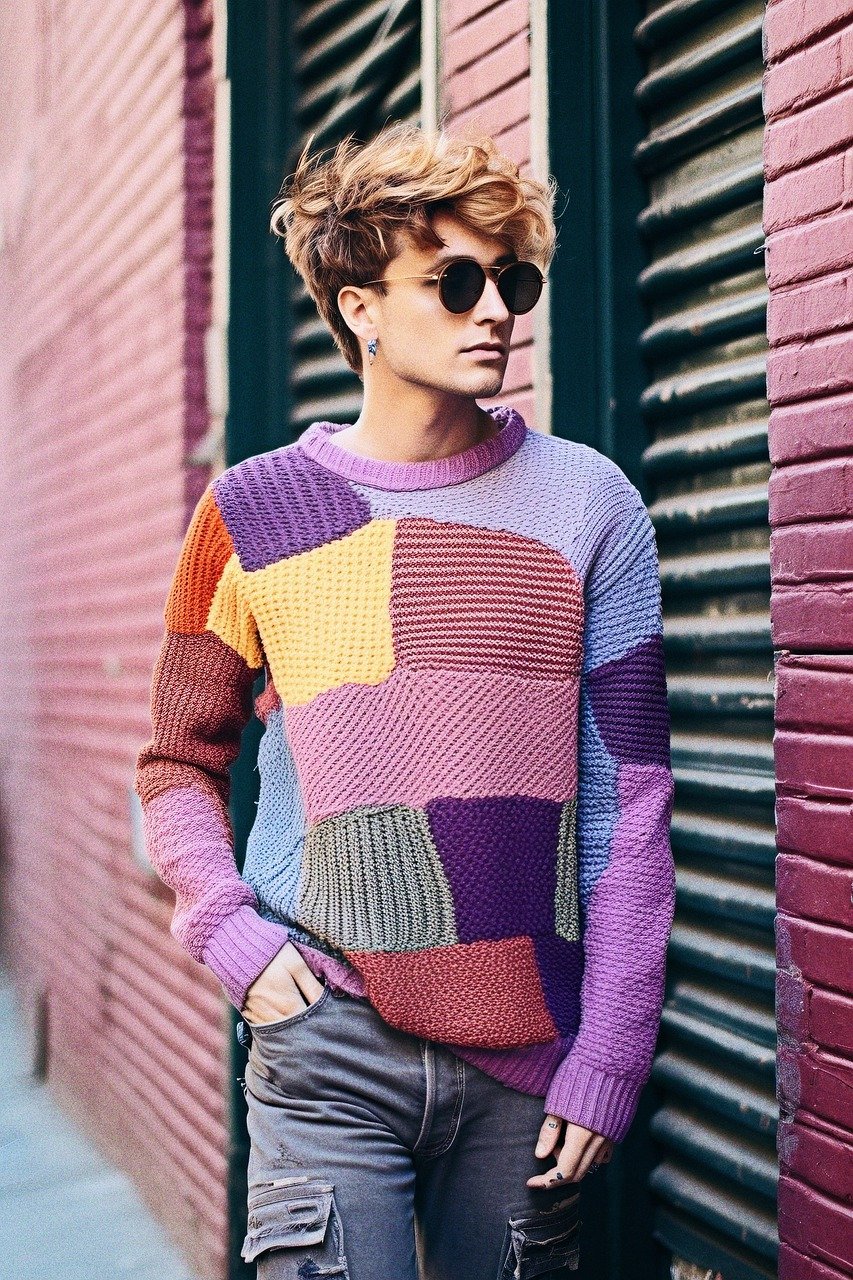 Original image
/docs/multi-sweater.jpg "Color changes by dominance") Color changes by dominance
Color changes by dominance
Sample app: AI-powered object recolor demo
This demo shows how visitors can upload an image and choose new colors for the objects detected in it.
 Fork the repo and try it yourself
The code for this app is available in GitHub.
- Enjoy interactive learning? Check out more sample apps!
Limitations
- The generative recolor effect can only be used on non-transparent images.
- The use of generative AI means that results may not be 100% accurate.
- The generative recolor effect works best on simple objects that are clearly visible, and not abstract concepts such as "background".
- Very small objects and very large objects may not be detected.
- During processing, large images are downscaled to a maximum of 2048 x 2048 pixels, then upscaled back to their original size, which may affect quality.
- When you specify more than one prompt, all the objects specified in each of the prompts will be recolored whether or not
multiple_trueis specified in the URL. - There is a special transformation count for the generative recolor effect.
- The generative recolor effect isn't supported for animated images or fetched images.
- User-defined variables can't be used for the prompt when more than one prompt is specified.
- When Cloudinary is generating a derived version, you may get a 423 response returned until the version is ready. You can prepare derived versions in advance using an eager transformation.
- When Cloudinary is generating an incoming transformation, you may get a 420 response returned, with status
pendinguntil the asset is ready. - If you're using our Asia Pacific data center, you currently can't apply the generative recolor effect.
Error
Rate this page:
