 Ask AI
User provisioning
Last updated: Apr-20-2026
If your account has multiple users, you can use roles to control access and permissions within the Console, in line with your data and asset governance policy.
Start by identifying key workflows, assets, and resources that each user needs to access, as well as actions they should be able to perform.
- Every user who accesses the Console requires a separate seat license.
- Users and user groups are configured on the account level, so you can manage them from within any of your product environments.
Roles and Permissions vs. legacy
- Free and self-serve paid accounts: All free and self-serve paid accounts have been migrated to the new Roles and Permissions system.
- Enterprise accounts: Enterprise rollout has begun. If your team hasn't already been moved with Cloudinary's help, you're still on the legacy system.
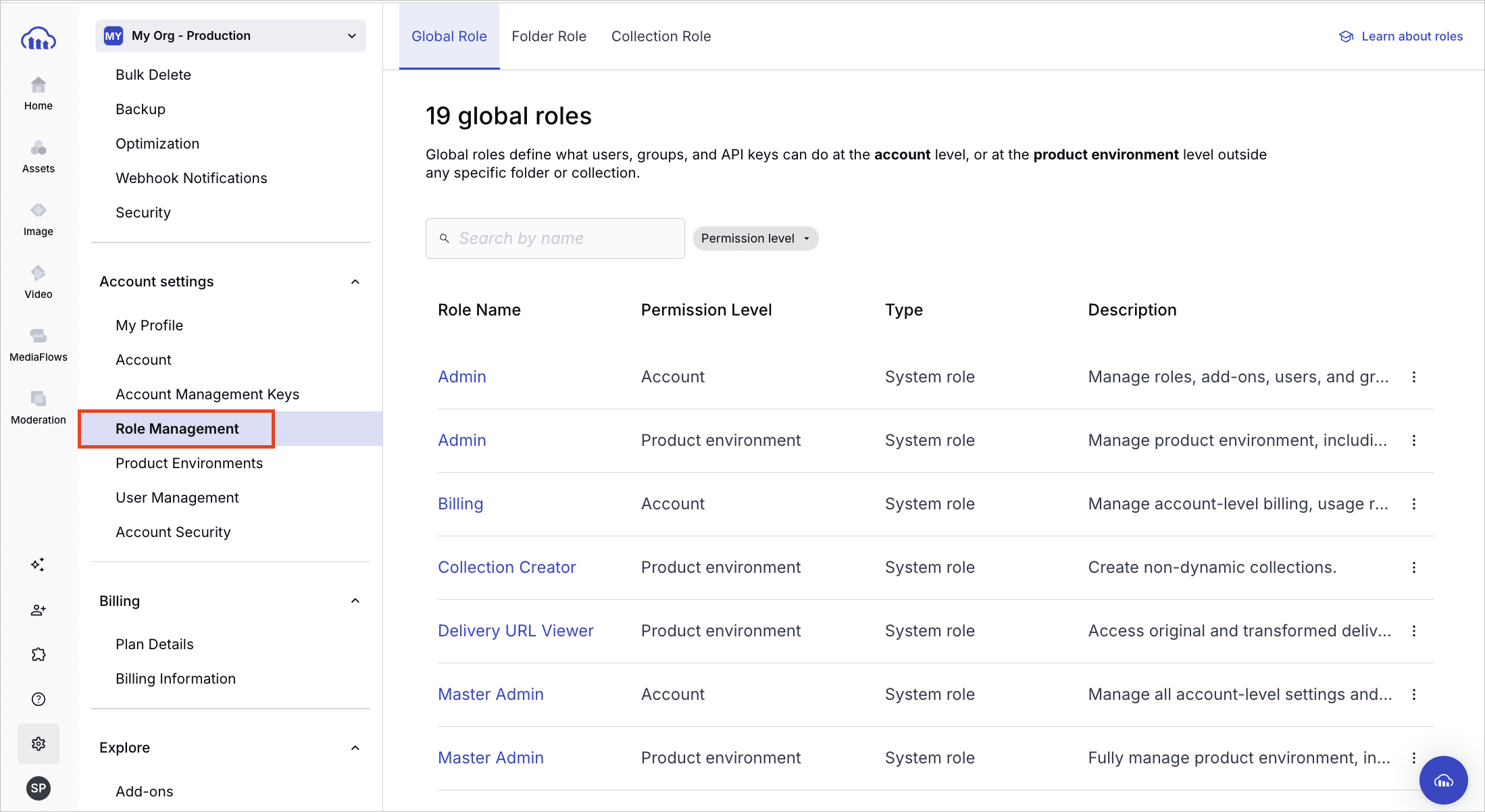
You can confirm which permissions system you have. Open Console Settings and look for Role Management. If it's listed, your account is on Roles and Permissions. If it isn't listed, you're still on the legacy permissions model.
- For an in-depth description of Roles and Permissions, see Roles and permissions overview.
- For details on all roles available in the legacy system, see Role-based permissions.
If your account is being migrated, see Migrating to Roles and Permissions to understand the changes, including how your existing roles map to the new system. This table provides a quick comparison:
| Roles and Permissions | Legacy | |
|---|---|---|
| Roles |
All plans: Predefined system roles covering common access levels (Master Admin to Media Library User), assigned at the account or product environment level. Enterprise: Custom roles built from individual permissions for precise, fine-grained control. |
Fixed set of roles controlling which areas of the Console a user can access. See Role-based permissions (legacy). |
| Role assignment | Multiple roles can be assigned to a user, group, or API key, allowing precise combinations of access. | Each user is assigned a single role that defines their overall access level. |
| User groups | Members inherit all role types assigned to the group, including global (account and product environment) and content (folder and collection) roles. See User group management. | Groups carry folder and collection access permissions only. Roles must be assigned to each user individually. |
| Access bundles | Pairs an account-level and product environment-level system role for quick user setup when inviting new users. See access bundles. | Not applicable. Each role defines its own fixed scope. |
| API keys | Global and content roles (including folder roles) can be assigned to API keys for granular programmatic access control. See API key permissions. | All API keys have unrestricted access within the product environment. Assigning roles to individual API keys is not supported. |
Provisioning API
This guide focuses primarily on provisioning users from the User Management page of the Cloudinary Console. However, accounts with access to the Provisioning API can also create and manage users and user groups programmatically using the RESTful Provisioning API.
Provisioning API access is available for accounts on an Enterprise plan. If you don’t currently have access and would like to explore your options, contact us.
The Provisioning API uses Basic Authentication over HTTPS. Your account management key and account management secret are used for the authentication. These credentials (as well as your ACCOUNT_ID) are located in the Account Management Keys page of the Console Settings.
The Provisioning API provides the following capabilities:
User configuration endpoints: Manage users by retrieving a list of users and details of a single user, creating a user, updating details, or deleting users.
User group management endpoints: Manage user groups by creating groups, updating group details, retrieving a list of groups, retrieving group information including a list of members, adding or removing users, and deleting groups.
For more details, see the Provisioning API reference.
User configuration
The My Profile page of Console Settings includes your personal profile details, email preferences, and two-factor authentication setup. Any user can update their personal information here.
To configure settings for all account users (adding, modifying, or removing users), you need user management permissions. In Roles and Permissions, the Master Admin and Admin system roles include this by default; Enterprise customers can also grant it via custom roles. In the legacy system, the Master admin or Admin role is required.
- You can view and manage all account users, including adding users, removing users, changing their roles, and more.
- You can activate SAML login for your organization from the Account Security page of the Console Settings.
Root user
The Root User is automatically created in a Cloudinary account as the first user and holds permanent, full administrative access. This user is essential to account management, is clearly marked in the interface, and is the only user who can cancel the account. The Root User is subject to the following restrictions:
Can't be deleted, disabled, force-logged out, or have its password revoked
Can't be assigned to roles
Is always assigned to all product environments
Having a root user ensures there is always a reliable point of authority with full access to manage and maintain the account.
- You can't change or replace the root user yourself in the Console. To transfer root user responsibilities (for example, when the root user leaves your organization) submit a Support ticket. Support updates the root user for your account.
- Only accounts created on or after June 5, 2025 include a root user. If you have a root user, it's visibly labeled in the Console.
Managing users
You can manage account users within the Console in one of the following ways:
- Via the Invite New Users Console option
- From the User Management page within your Console Settings
- Automatically, using SAML provisioning with any SAML-compliant identity provider
Adding users
You can add up to five users at a time (depending on how many users your plan allows) by either:
- Using the Invite New Users Console option
- Clicking the Invite button from the User Management page within your Console Settings
For each user, you can set:
-
E-mail: After creating a new user, that user will receive an email that requires confirmation to this address. This email address is also used for logging in to Cloudinary. NoteIf you'd like to prevent users with email addresses on your domain from signing up for separate free accounts, which would prevent you from adding them to your main account as a user, please contact support.
-
Role: Assigns the user's level of access in the Console. Roles range from Master Admin (full account and product environment access) to Media Library User (content access via assigned folder and collection roles only). Admin-level roles (Master Admin, Admin, Tech Admin, and Media Library Admin) provide broad access without requiring individual folder or collection assignments.
- In Roles and Permissions: Use predefined system roles. Enterprise customers can also create custom roles built from individual permissions. For quick setup, use an access bundle.
- In the legacy permissions system: See Role-based permissions below.
The following permission levels apply to all new users with common roles, as described below. If you want your new users to have different permissions or levels of access, you need to complete a separate form for each:
-
Product environment access1: If your account includes more than one product environment, you can define which product environments the new users can access.
- In Roles and Permissions: Use access bundles (which apply roles to all product environments automatically) or customize access per environment. For details, see Define access when inviting new users.
- In the legacy permissions system: Users with the Master admin role always get full control in all product environments, so this option is displayed only when you're adding at least one user with a role other than Master admin.
- Regardless of the permissions system, you can assign a user access to all product environments or manually select up to 30 specific ones. For additional options for users with the Media Library user role in the legacy permissions system, see Additional options for users with the Media Library user role.
Updating users
You can update a user's details, including name, email, and group assignments, from the User Management page in Console Settings. To assign product environments, click the entry in the Product Environment column. You can assign a user access to all product environments, or manually select up to 30 specific ones.
In Roles and Permissions, the Edit Details option in the (3-dots) option menu for the user allows you to edit basic details such as email, first name, last name, and groups. Manage user roles via the Assign Roles option. See Assign global roles to existing users.
In the legacy permissions system, the Edit form lets you update a user's details as well as role and permissions in one place. Note that if a user is a Master admin, the Product Environment value is All (full access) and can't be changed without first changing the user's role.
Resetting user passwords
You can initiate a password reset for an individual user to ensure account security.
To initiate a password reset, select Reset Password from the kebab menu at the end of a specific user's row in the User Management page within your Console Settings. This action:
- Immediately terminates the user's active session.
- Invalidates the old password, rendering it unusable for login. The user must set a new password to regain access.
- Triggers an email containing a link that allows the user to set a new password. Alternatively, users can initiate the password reset process themselves by clicking on the Forgot your password link on the login page.
Users undergoing a password reset are marked with a specific status in the User Management table, clearly indicating that they are in the process of changing their password. This makes it easy to identify and manage such users.
Force immediate logout
You can initiate a force logout for an individual user to ensure account security. This feature is particularly helpful when you prefer not to require a password reset, or for users logged in via Google, GitHub, or SAML, who lack passwords, making it impossible to link session termination with a password reset.
To force a user to logout, select Force Logout from the kebab menu at the end of a specific user's row in the User Management page within your Console Settings. This action terminates the user's active session within ten minutes.
Deleting users
To delete a user, select Delete from the kebab menu at the end of a specific user's row in the User Management page within your Console Settings.
Alternatively, Enterprise customers with access to the Provisioning API can disable users programmatically using the Delete user endpoint.
When a user leaves your organization and needs to be removed from your system, certain information about them must still be retained. This includes details like the collections they created and the assets they uploaded.
To address those needs, user deletion is handled in the following ways:
- The deleted user's status is changed to Inactive on the User Management page in the Console Settings. This status is permanent, and the user can't be reactivated.
- Throughout the user interface, a label indicating Inactive is displayed wherever the deleted user is mentioned.
- Deleted users no longer count against your account's user quota.
- You have the option to reuse the deleted user's email and assign it to a completely new user.
Managing additional user subscriptions
You can see the maximum number of users that you're eligible for via your base plan in the panel on the right side of your Account Settings page of the Cloudinary Console. If you need to increase your user limit, you can upgrade your plan by clicking the Change Plan button.
Alternatively, you can purchase additional user subscriptions over and above your plan's limit. If you've reached the maximum number of users allowed for your plan, a banner will appear in the User Management page within your Console Settings. Click the Change user limit link displayed in the banner. You can extend your limit by up to 20 additional user subscriptions, with no need to switch plans.
Afterwards, you can increase or decrease the number of additional user subscriptions on your account anytime.
For additional help, or to add more than 20 additional users, contact support.
Role-based permissions (legacy permissions system)
Each user in your Cloudinary account is assigned a role. This role defines the operations a user can perform, the areas of the Cloudinary Console that they can view or change, and the settings they can control.
Whereas Master admins have access to all product environments, users with other roles can be set to have access to all or only specified product environments. Users have the same role in all product environments they have access to.
Below are tables summarizing the permission details for each role, divided by Console areas:
Permissions for Console Pages
- Master admin, Admin, and Technical admin roles can access every page of the Console.
- Billing and Reports roles can access only the dashboard and reports located in the Home area of the Console.
- The Media Library admin role can access the Media Library for full usage and administration.
- The Media Library user role can access specific folders and collections within the Media Library according to their assigned permissions.
Permissions for Console Settings

SAML/SSO login
Find the option to activate SAML (SSO) login in the Account Security page of the Console Settings:
SAML Login: This option enables the administrator to activate SAML (SSO) login. This can enable users in your organization to log in using the same authentication system that they use for other SSO-supported applications. If you activate this option, you can globally select whether to Enforce SAML login or to allow users to choose whether to log in either via the SSO application or via the Cloudinary Console login window. If you choose the latter ('Enforce' is disabled), then when creating new users, you can optionally select Send invitation email for that user. When selected, that user receives an email inviting them to create a Console password.
- If your account has SAML (SSO) login enabled and you use the Media Library Widget or one of our Integrations, you must allowlist the domain
console.cloudinary.com. If you need assistance, contact Support. - If you also use the [SAML Provisioning][saml-sso-provisioining] feature, make sure the Two-Factor Authentication user setting (2FA) is Disabled. You can configure two-factor authentication through your IdP, if required.
- The two-factor authentication (2FA) user setting is ignored when using SAML login to log in to Cloudinary, as the SSO IdP is trusted.
- Even if you set Enforce SAML login to Enabled, any user created with the Master admin role will automatically get an invitation to set a Console password and will be able to log in directly to the Console, if needed.
Error
Rate this page:
