 Ask AI
Customize and optimize assets on delivery
Last updated: Jul-21-2026
Cloudinary lets you store a master copy of your assets in your product environment and deliver optimized, customized variations on the fly. This page explains how to optimize and customize assets in preparation for delivery, with plenty of examples.
To optimize and customize assets for delivery, you can:
Apply transformations directly to your assets and use the resulting delivery URLs to serve the enhanced variations.
Create a named transformation, which is a reusable set of transformations. You can then apply it to your assets and use the resulting delivery URL.
While direct transformations work well for one-off use cases and if the transformation string is short and manageable, in most cases, we recommend using named transformations to manage delivery more effectively. Named transformations offer several advantages:
Shorter URLs, which are better for SEO.
Easier reuse across assets and projects.
Greater clarity when given meaningful names.
Compare direct transformations to named transformations
Let’s say you want to apply a set of transformations to an image for a dynamic banner ad. For example:
Resize the image to a width of 850px and height of 1150px
Generatively fill the background to fit the bounding box
Remove the food and plate from the image
Add three text overlays using different fonts, sizes, and placements
Optimize the image’s format and quality
Option 1: Direct transformation
Here's the transformation string you'd apply:
And here’s an example of how you might deliver this image with a direct transformation URL in HTML:

Option 2: Named transformation
To shorten and simplify this delivery, save the above set of transformations as a named transformation using Studio. Copy the transformation into the Custom Syntax form and save it under a meaningful name, such as billboard_ad.
Now, instead of a long URL, you can apply the same transformation like this:

You can also reuse that same named transformation on different images:


Creating named transformations programmatically
To create a named transformation programmatically, use the transformation Admin API method. The following example defines a named transformation called small_profile_thumbnail that uses automatic cropping to resize assets to the required size for a particular application's thumbnail display:
Creating named transformations in the Console
You can create all the transformations and optimizations described in this guide programmatically. For a UI-based approach, Cloudinary provides two tools depending on the asset type:
- Images: Use Studio in the Image product to build transformations, preview results, and save them as named transformations.
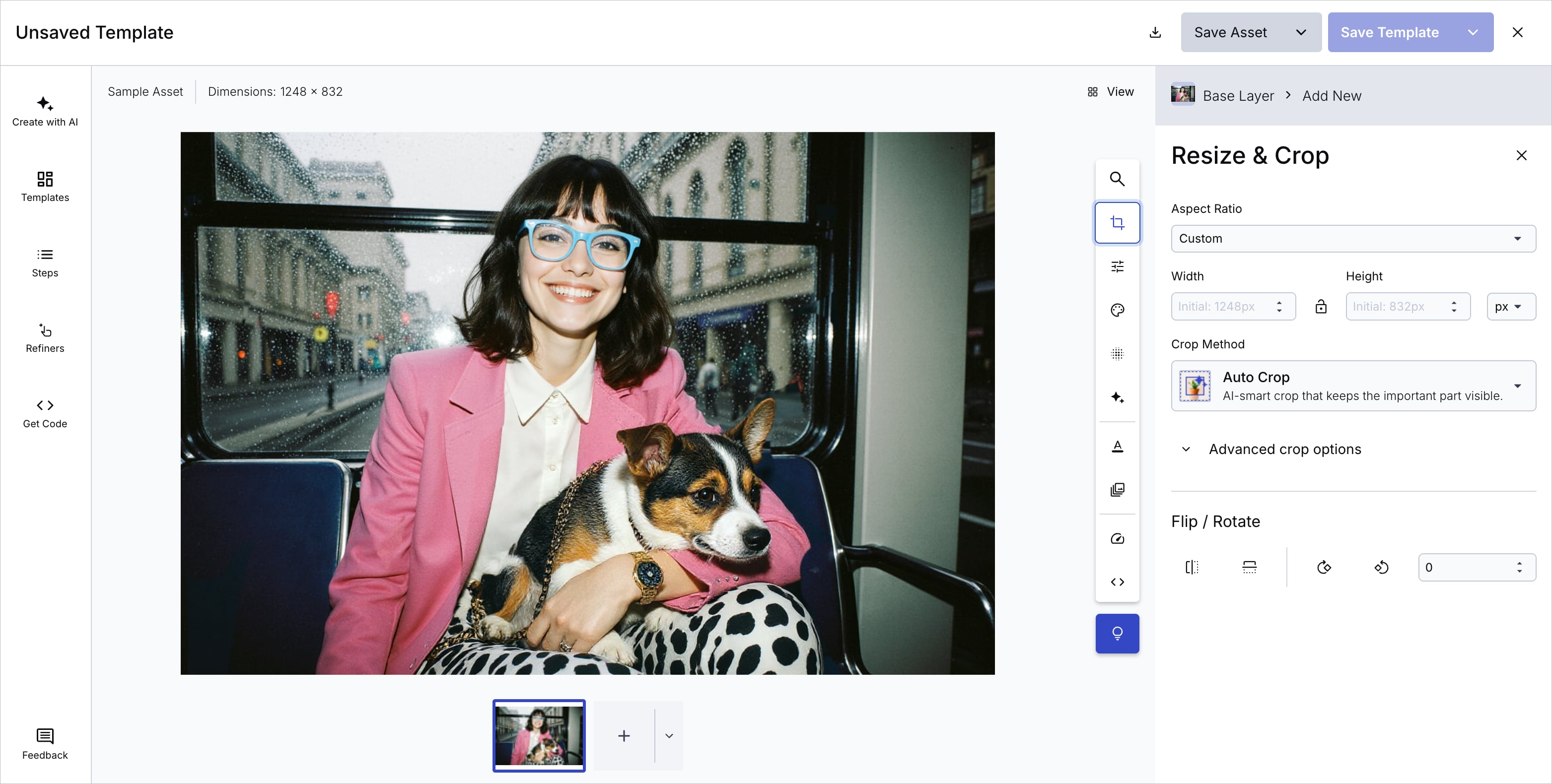
- Videos: Use the Transformation Builder to apply and save video transformations.
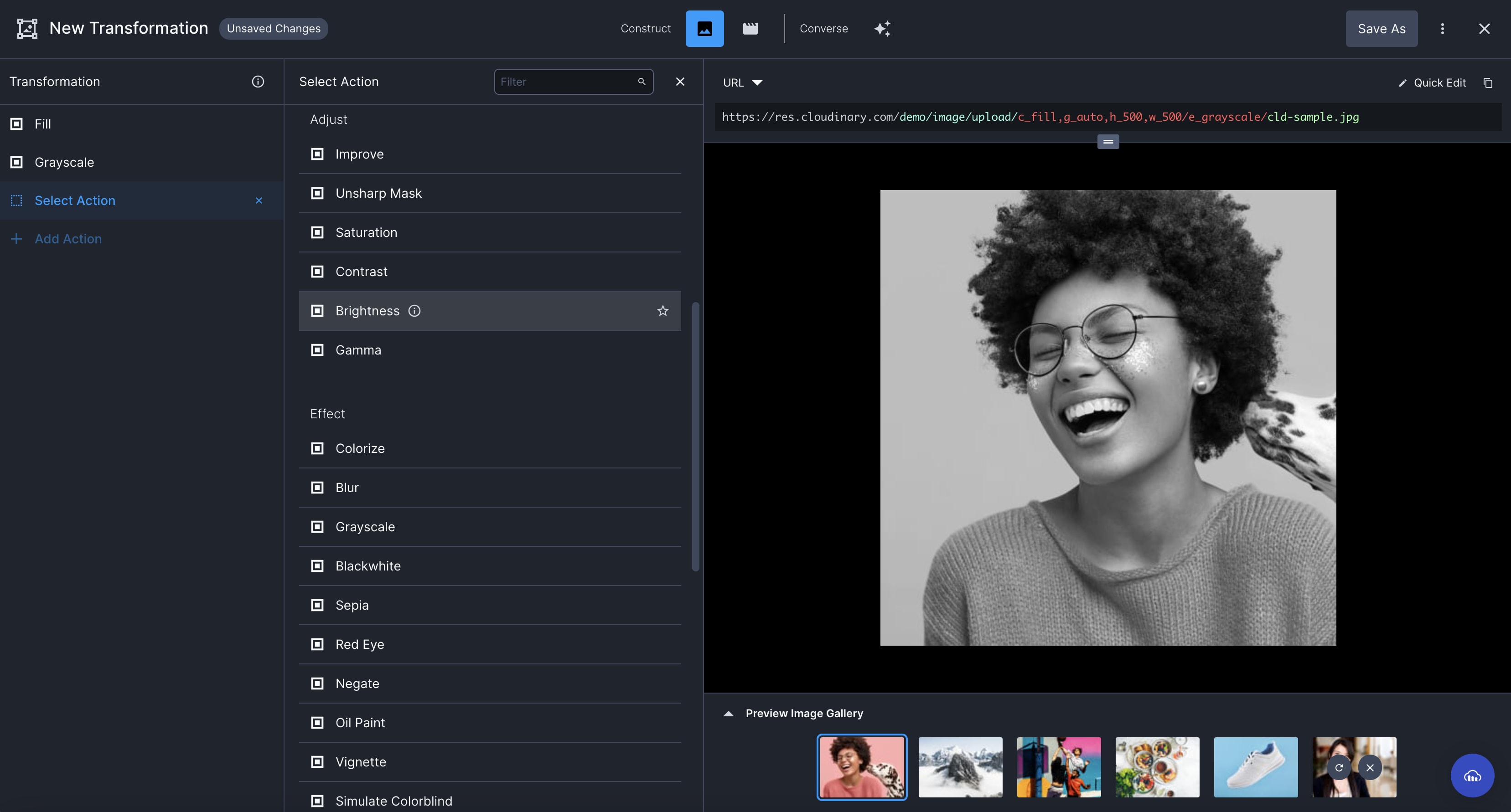
Once finalized, the named transformations are automatically enabled as templates for use in the Media Library (Assets Enterprise only):
Adding optimization
You can include q_auto (automatic quality) in named transformations to optimize delivery. For format, you can set a specific format (such as f_webp or f_avif) but not automatic format (f_auto).
Images: In Studio, select Optimization in the toolbar to set format, quality, color space, and DPR options.
Videos: In the Transformation Builder, add optimization parameters using the Converse (natural language) or Construct mode. For quality, select Quality from the transformation options and choose a compression level: Auto, Auto Best, Auto Good, Auto Eco, Auto Low, or a numerical value (higher = less compression, higher quality; lower = more compression, smaller file).
Considerations when applying quality
q_auto applies compression at the optimal level to make your asset as light as possible without compromising on visual quality. However, any level of compression presents some trade-off between quality and asset size. So:
- If keeping your website light is the highest priority: Select a more aggressive compression level.
- If you need to maintain extremely high quality for a certain image, such as a hero image that's displayed on high resolution viewports: Use the least aggressive compression algorithm, or even none at all.
Here is an example of a photograph encoded using various automatic quality parameter values and the resulting file sizes:
 Original (569KB)
 q_auto:best (65.9KB)
 q_auto:good (56.9KB)
 q_auto:eco (45.0KB)
 q_auto:low:sensitive (39.6KB)
 q_auto:low (35.0KB)
Adding customization and personalization
You can configure transformations for different content types, such as hero images and carousels, as well as specialized areas within the website. Here are some customization and personalization examples you can configure as named transformations.
We'll provide the transformation string you can enter in Quick Edit to reproduce the ones shown.
Cropping and resizing assets
Apply different crop and size transformations, depending on where you're delivering the asset, for example hero assets vs. carousel assets.
Here's an example:
 Original
 Hero image
Name:
heroc_pad,b_gen_fill,ar_16:9,w_2000
/f_auto/q_auto
 Carousel image
Name:
carouselc_auto,g_auto,ar_1:1,w_2000
/f_auto/q_autoc_pad,b_gen_fill. If you don't want to lose any of the image, use pad to add space to the shorter side. To maintain a natural look, use gen_fill, which expands the image and naturally fills the shorter side with AI-generated content.Focus on specific objects
Use the Cloudinary AI Content Analysis add-on to specify a focus area, such as box, ring, refrigerator or microwave, which you can specify depending on the context. Here's an example:
 Original
 Focus on the box
Name:
box_variationw_550,h_450,c_crop,g_auto:box
/f_auto/q_auto
 Focus on the ring
Name:
ring_variationw_500,h_500,c_auto,g_auto:ring
/f_auto/q_auto
Background and drop shadow
You can remove backgrounds or replace them with AI-generated content using the e_background_removal and e_gen_background_replace transformations. You can also add a drop shadow effect.
e_background_removal yields a high percentage of good results, which is valuable for large-scale operations. However, it's important to catch any that need improvement in the Creative Approval process.Here's an example:
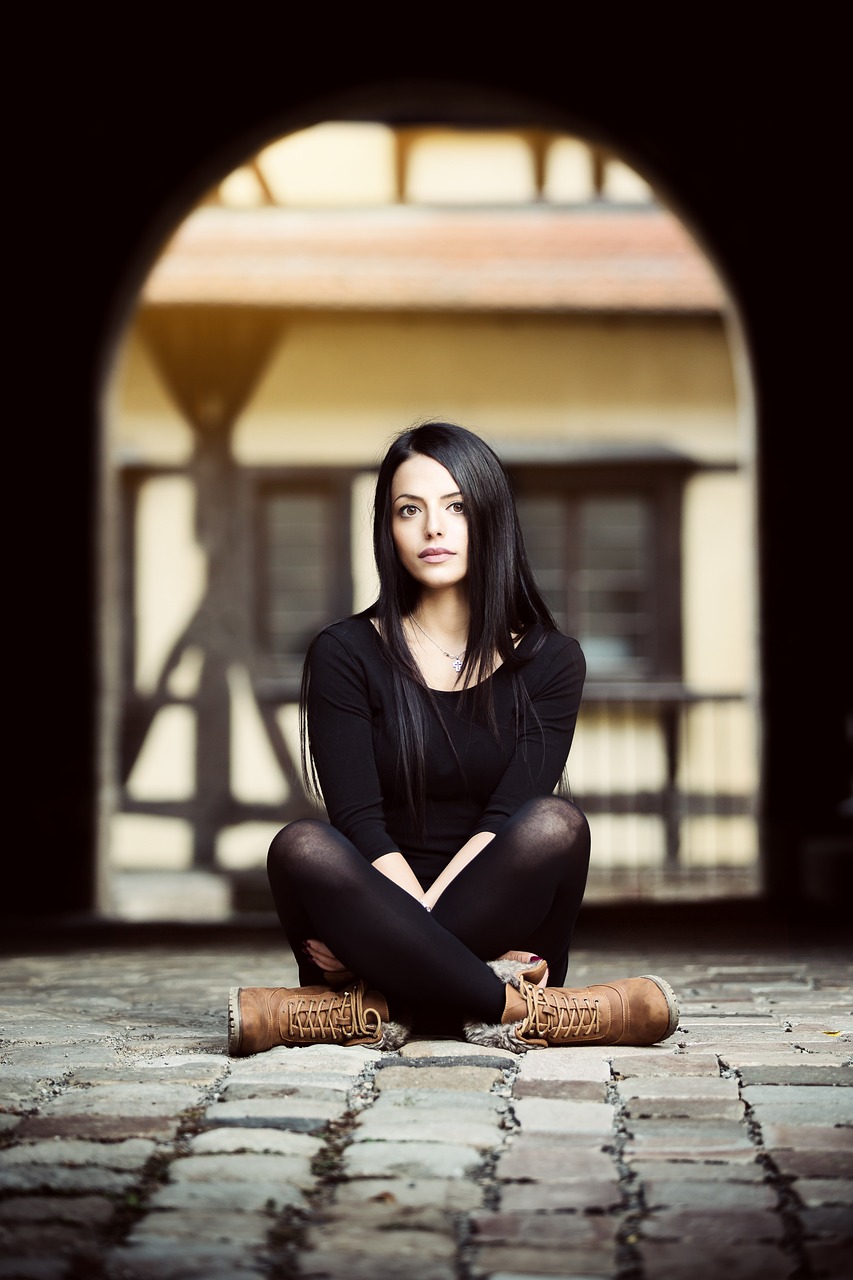 Original image
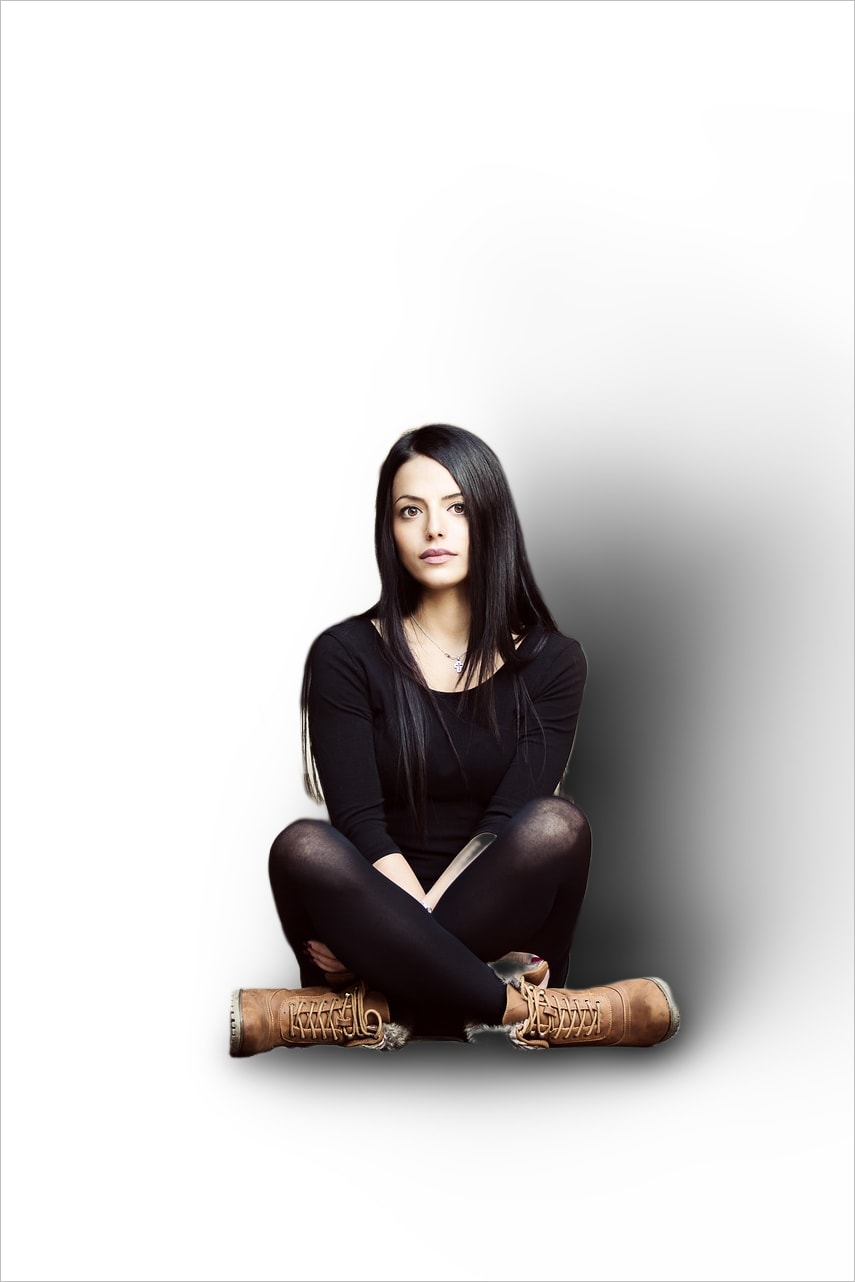 Remove the BackgroundName:
 no_background
e_background_removal
/e_dropshadow
/bo_1px_solid_grey
/f_auto/q_auto
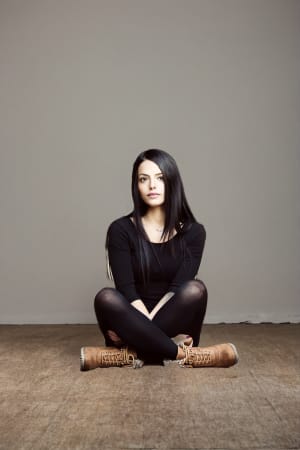 Remove the BackgroundName:
 new_background
e_gen_background_replace
/c_scale,w_300/f_auto/q_auto
Image overlays
Apply another image in your product environment as an overlay for branding, personalization, or watermarking. Here's an example:
-
Apply a watermark: The
cloudinary_logonamed transformation applies the cloudinary logocloudinary_icon_blueto images and videos. It scales the logo down to 50% of its original width, and turns it into a watermark by reducing the opacity to 70% and increasing the brightness to 50% using thebrightnesseffect. The transformed image is then placed as a layer in the top-right corner of the base image and video (l_cloudinary_icon_blue/c_scale,w_0.5/o_70/e_brightness:50/fl_layer_apply,g_north_east):

Text overlays
Overlay customized messages on your assets, such as engraved monograms, personalized gift messages, sales labels, or prices. Here's an example:
-
Add a text overlay: The
big_text_overlaynamed transformation applies a white text with font Roboto and size 280 px to the bottom left corner of a video:co_rgb:ffffff,l_text:Roboto_280_bold:Explore%0Athe%20mountains/fl_layer_apply,g_south_west,x_80,y_80.
Trimming videos and removing sound
Trim video clips and remove the sound, if needed. Here's an example:
-
Standardize videos: The
standard_videonamed transformation trims the video to a length of 15 seconds, removes the sound, and optimizes for format and quality:eo_15/ac_none/f_auto/q_auto.
Changing video orientation
Deliver videos in different orientations while keeping key content visible using g_auto. This allows for scalable video cropping, ensuring your videos remain intact without requiring manual adjustments or specialized tools.
Here's an example:
-
The original
windy_sundressvideo:
-
Resized for mobile: The
mobile_videonamed transformation applies a crop mode offillto expand the image to fill the bounding box, andg_autoto automatically follow the main object in the video throughout. Crop to a width of 720 px and height of 1280 px:c_fill,g_auto,w_720,h_1280.
-
Resized for tablets: The
tablet_videonamed transformation applies an aspect ratio of 1:1 and a crop mode offillto expand the image to fill the bounding box. It sets the width to 1080 px, and usesg_autoto automatically follow the main object in the video throughout:ar_1:1,c_fill,g_auto,w_1080.
Color accessibility
Provide an option to view colorblind-friendly images.
- Click Custom Syntax in Studio and enter the string
e_assist_colorblind:xrayore_assist_colorblind:xray.
- For more information, see Enhancing color accessibility.
Error
Rate this page:
