 Ask AI
Roles and Permissions overview
Last updated: Oct-21-2026
- Free and self-serve paid accounts: All free and self-serve paid accounts have been migrated to the new Roles and Permissions system. Use this guide.
- Enterprise accounts: Enterprise rollout has begun. If your team hasn't already been moved with Cloudinary's help, you're still on the legacy system. See Role-based permissions.
You can confirm which permissions system you have. Open Console Settings and look for Role Management. If it's listed, your account is on Roles and Permissions. If it isn't listed, you're still on the legacy permissions model.
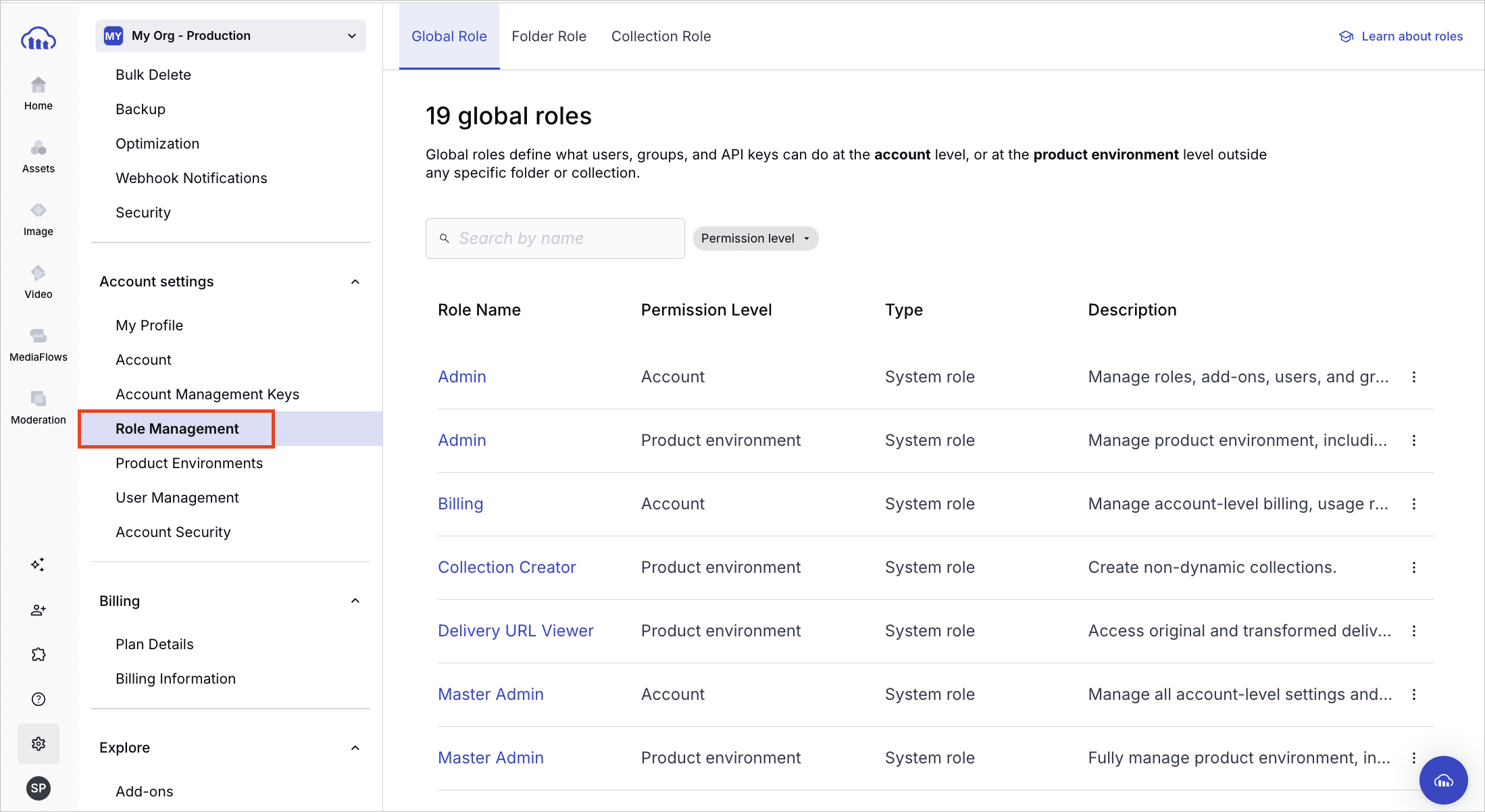
- For a quick comparison, see Roles and Permissions vs. legacy.
- If your account is being migrated, see Migrating to Roles and Permissions to understand what changes.
Overview
On the Free plan and on self-serve paid plans, you can:
- Manage and assign system roles on the Role Management page of the Console Settings.
- Assign folder roles to API keys and other principals programmatically via the Admin API.
Cloudinary's role-based permission system with granular permissions lets you control what principals (users, groups, and API keys) can do across your account and product environments. Permissions are managed through roles, which contain one or more policies that define specific capabilities.
This page introduces key concepts shared across the Console and Permissions API.
Who you can assign roles to
Principals are actors in your Cloudinary account and product environments that you can assign roles to.
They can be:
-
Users: Named users with login access to the Console.
Roles control which areas of the Console a user can access. -
Groups: Groups of users.
Roles assigned to a group apply to all users within it. -
Product environment API keys: Used for programmatic access to a product environment.
Roles determine the actions the key can perform via the Admin and Upload APIs. -
Account Management Keys: Used to perform account administrative tasks, e,g. user provisioning.
Roles determine the actions the key can perform via the Provisioning and Permissions APIs.
Key role attributes
Cloudinary supports three types of roles: global, folder, and collection.
Each type of role is scoped to either the account or one or more product environments, and is relevant to a different set of principals:
| Role Type | Permission Level (Scope) | Description | Applies to | System Roles |
|---|---|---|---|---|
| Global | Account | Controls permissions for account-wide features, such as user management and billing. | Users, groups, and account management keys | View predefined global account-level roles |
| Global | Product environment | Controls permissions for specific capabilities (such as upload presets and transformations), or across all folders and collections in a product environment. |
Users, groups, and product environment API keys Note: Some global product environment roles also apply to account management keys |
View predefined global product environment-level roles |
| Folder | Product environment | Controls permissions for specific folders and their assets. |
Users, groups, and product environment API keys Note: Folder roles can only be assigned to API keys [programmatically].(permissions_assign_roles_api#assign_folder_roles_via_the_admin_api) |
View predefined folder roles |
| Collection | Product environment | Controls permissions for specific collections in the Media Library. | Users and groups only | View predefined collection roles |
How to manage roles:
- Via the Console (all plans, but creating custom roles is Enterprise only)
- Via the Permissions API (Enterprise plans only)
How to assign roles:
- Via the Console (all plans)
- Via the Permissions API, for global, folder, and collection roles (Enterprise plans only)
- Via the Admin API, for folder roles (all plans)
API vs. Console terminology:
- In the API:
- The
permission_typeparameter acceptsglobalorcontent(which covers both folders and collections). - The
scope_typeparameter acceptsaccountorprodenv.
- The
- In the Console:
- Role type can be Global, Folder, or Collection.
- Permission level can be Account or Product environment.
System roles vs. custom roles
Each role is either a system or custom management type. Both types use system policies, which are predefined permission rules defined by Cloudinary.
-
System roles are predefined by Cloudinary and include a fixed set of system policies. They can't be edited but are ideal for consistent, quick setup. You can assign them to principals.
For the full list of system roles that Cloudinary provides and what each role allows, see System roles and policies list. Alternatively, you can browse the public catalog of predefined system roles and policies via a public endpoint that doesn't require authentication.
Custom roles are defined by you. You choose the name, description, and which system policies to include. This lets you tailor roles to your team's exact needs.
| Role Type | Description |
|---|---|
| System role | Predefined by Cloudinary. Can't be modified. Useful for quick setup. |
| Custom role | Created by you. You define the name, description, and permission policies it includes. |
Policies and permissions
Policies allow principals to perform specific actions. A role includes one or more system policies, which:
- Cloudinary defines (you can't change them)
- Apply either globally or to specific content instances (such as a folder)
Each system policy includes a policy_statement, a Cedar expression that defines exactly what the policy allows. You can view this statement in the Permissions API (see Understanding the policy_statement) and in the Role Management page of the Console Settings (see View role permissions).
Both system and custom roles consist of one or more system policies. Assigning a role to a user, group, or API key applies all of the policies included in that role.
If the system policies that Cloudinary provides don't meet your needs, you can create custom policies using the API. You can't include custom policies in roles, and you must assign them directly to principals.
| Policy Type | Applies To | Created By | Assignment method |
|---|---|---|---|
| System Policy | All principals (users, groups, API keys) | Cloudinary | Included in roles and assigned to principals via roles |
| Custom Policy | All principals (users, groups, API keys) | You (via API) | Assigned directly to principals; not usable in roles |
Quick setup with access bundles (Console only)
For faster user onboarding, the Console offers access bundles, predefined combinations of system roles designed for common user types (Master Admin, Admin, Technical Admin, Billing, Reports, Media Library Admin, and Media Library User).
Access bundles streamline the invitation process for organizations that don't need granular role customization. When inviting new users in the Console, you can select an access bundle instead of manually assigning individual roles. Each bundle translates into a set of roles applied at the appropriate level — account or product environment — across all product environments.
For full details on access bundles and user invitation workflows, see Define access when inviting new users.
Common fields glossary
| Field | Description |
|---|---|
scope_type |
account or prodenv. Indicates where the role or policy applies. |
scope_id |
Required if scope_type is prodenv. Specifies the target product environment. |
permission_type |
global or content. Global policies apply broadly; content policies apply to specific content instances such as folders or collections. |
policy_parameters |
Used only for content roles. Defines what folder or collection the role applies to. |
Which method to use?
| Goal | Method |
|---|---|
| View all system policies | GET /policies/system |
| Create a custom role | POST /roles |
| View all roles | GET /roles |
| Assign one role to multiple users | PUT /roles/{role_id}/principals |
| Assign multiple roles to one user | PUT /principal_roles |
| View a user or key's current roles | GET /principal_roles |
| View all users with a specific role | GET /roles/{role_id}/principals |
| Inspect effective access | GET /principal_roles/inspect |
Next steps
Error
Rate this page:
