 Ask AI
- Get Started
- Image & Video APIs overview
- Developer kickstart
- SDK quick starts
- AI agent tools and MCP servers
- Try it!
- VS Code Extension (Beta)
- Video tutorial library
- Programmatic asset management
- Image onboarding
- Programmatic upload
- Upload programmatically
- Upload with Fetch API
- Create upload presets (Node.js)
- Create upload presets (Console UI)
- Auto upload
- Moderate images with AI
- Use AI to generate image captions
- Upload images in Flutter
- Upload images in Node.js
- Auto-tag images in Node.js
- Upload multiple files in Node.js
- Upload videos in Node.js
- Upload images in Python
- Auto-tag images in Python
- Upload videos in Python
- Upload images in PHP
- Upload images in Go
- Upload assets in a React app
- Upload assets in a Vue.js app
- Drag-and-drop uploads in React
- Upload assets in a Next.js app
- Upload assets with Server Actions
- Upload assets in Svelte
- Upload assets in a SvelteKit app
- Upload assets in a Remix app
- Upload images in Astro
- Upload images in Hono
- Use webhooks to remove backgrounds
- Upload images in Laravel
- Interaction with Cloudinary APIs
- Cloudinary SDKs
- Find your credentials
- Configure the JavaScript SDK
- Configure the React SDK
- Configure the Angular SDK
- Configure the Flutter SDK
- Configure Svelte Cloudinary
- Configure the Javascript SDK in Svelte
- Getting started with Cloudinary in Node.js
- Configure the Node.js SDK
- Configure the Python SDK
- Configure the PHP SDK
- Install and configure Laravel SDK
- Configure the Go SDK
- Configure the Vue.js SDK
- Configure the Next.js SDK
- List images in Next.js
- Lazy load images with Next.js
- Image fallbacks in JavaScript
- Captioning on upload with Node.js
- Create PDFs from images in Node.js
- Delete assets with Node.js
- Manage images in a Django app
- Image gallery with Astro
- Cloudinary CLI
- Widgets and tools
- Optimization and delivery
- Transformations
- Get started with transformations
- Advanced transformation features
- Text overlay transformations
- Add watermarks in JavaScript
- Complex transformations
- Named transformations
- Named transformations using TX Builder
- Advanced image components
- Trim videos in Node.js
- Splice videos in Node.js
- Zoompan effect
- Video transformations
- Crop and resize images in React
- Crop and resize videos in React
- Crop and resize images in Python
- Remove backgrounds and add drop shadows
- AI generative fill in Next.js
- Color accessibility in JavaScript
- Transformations for social media
- Dev Hints on YouTube
- Dev Hints en Español
- Cloudinary Café Training Sessions
- Programmatic asset management
- Additional onboarding resources
- Guides
- Cloudinary Image
- Product overview
- Image transformations
- Image optimization and delivery
- Programmatic image creation
- Product Gallery widget
- Media Editor widget
- Image add-ons
- Troubleshooting and tips
- Troubleshooting image transformation errors
- 40x errors and X-Cld-Error messages
- Add a solid color overlay
- Images delivered without gzip compression
- Long time to first byte (TTFB) on WebPageTest.org
- Update a named transformation
- Cloudinary vs Imagga cropping
- Placeholder images (LQIP)
- How to detect corrupted images
- Force specific image when sharing links on Facebook
- Blurry images
- Offset face-detection gravity
- Cloudinary Video
- Product overview
- Cloudinary Video Player
- Video Player features
- Installation and setup
- How to embed the Video Player
- Video Player Studio
- Video Player customization
- Playlists and recommendations
- HLS and MPEG-DASH
- Video Player accessibility
- Video Player advanced features
- Video Player API reference
- Player profiles API reference
- Video config API reference
- Adaptive bitrate streaming
- Video transformations
- Video and audio optimization
- Video transcription
- Video analytics
- Live streaming
- Video add-ons
- Video best practices
- Social media videos
- Troubleshooting and tips
- Upload
- Asset management
- CRUD asset management APIs
- Media Library for developers
- Search for assets
- Eager and incoming transformations
- Custom metadata
- Analyze assets
- Moderate assets
- Webhook notifications
- Advanced asset management
- Add-ons
- Troubleshooting and tips
- Admin API authentication issues
- Why has the public ID of my asset changed?
- Check resource type and delivery type
- Get image or video dimensions
- Download account assets
- Delete or modify original images
- Does Cloudinary store any cookies?
- Underscores in public IDs or folder names
- Update already fetched asset
- Upload, manage, and deliver PDFs
- Cloudinary "sample" images
- Avoiding duplicate uploads
- Permitted naming conventions
- Adult/NSFW content policy
- High transformation rate
- Account management
- Retail and e-commerce
- User-generated content
- Accessible media
- AI in action
- Native mobile
- Add-ons
- Advanced Facial Attributes Detection
- Amazon Rekognition AI Moderation
- Amazon Rekognition Video Moderation
- Amazon Rekognition Auto Tagging
- Amazon Rekognition Celebrity Detection
- Aspose Document Conversion
- Cloudinary AI Background Removal
- Cloudinary AI Content Analysis
- Cloudinary AI Vision
- Cloudinary Duplicate Image Detection
- Google AI Video Moderation
- Google AI Video Transcription
- Google Auto Tagging
- Google Automatic Video Tagging
- Google Translation
- Imagga Auto Tagging
- Imagga Crop and Scale
- Perception Point Malware Detection
- Microsoft Azure Video Indexer
- OCR Text Detection and Extraction
- Pixelz - Remove the Background
- URL2PNG Website Screenshots
- VIESUS™ Automatic Image Enhancement
- WebPurify Image Moderation
- Cloudinary Image
- References
- SDKs
- Release Notes
How can I get the size or dimensions of an asset by its public ID?
Install Cloudinary Agent Skills
Cloudinary agent skills give your AI coding assistant first-class context for working with Cloudinary.
Run to install or update the skills:
View the Skills repo on GitHub | Learn about Cloudinary Skills
Last updated: May-07-2026
Get asset dimensions via API
Upload response includes dimensions
When uploading using the upload endpoint of the Upload API, every upload call automatically returns a JSON response with the file's details including the bytes, width, and height parameters.
Example: Image upload response:
Example: Video upload response:
See also: Upload endpoint
Query assets via Admin API
You can also use the Admin API endpoints to get details of a single resource.
For example, in Ruby:
See also: Get details of a single resource
Return metadata in a client-side request using the 'getinfo' flag
You can return dimensions and other metadata about both the input asset and the transformed output asset in a JSON format as a client-side request by using the getinfo flag parameter (fl_getinfo in URLs).
The example below shows what's returned for an image transformation that includes g_auto.
Learn more about all the getinfo options: getinfo flag
View asset dimensions in the Media Library
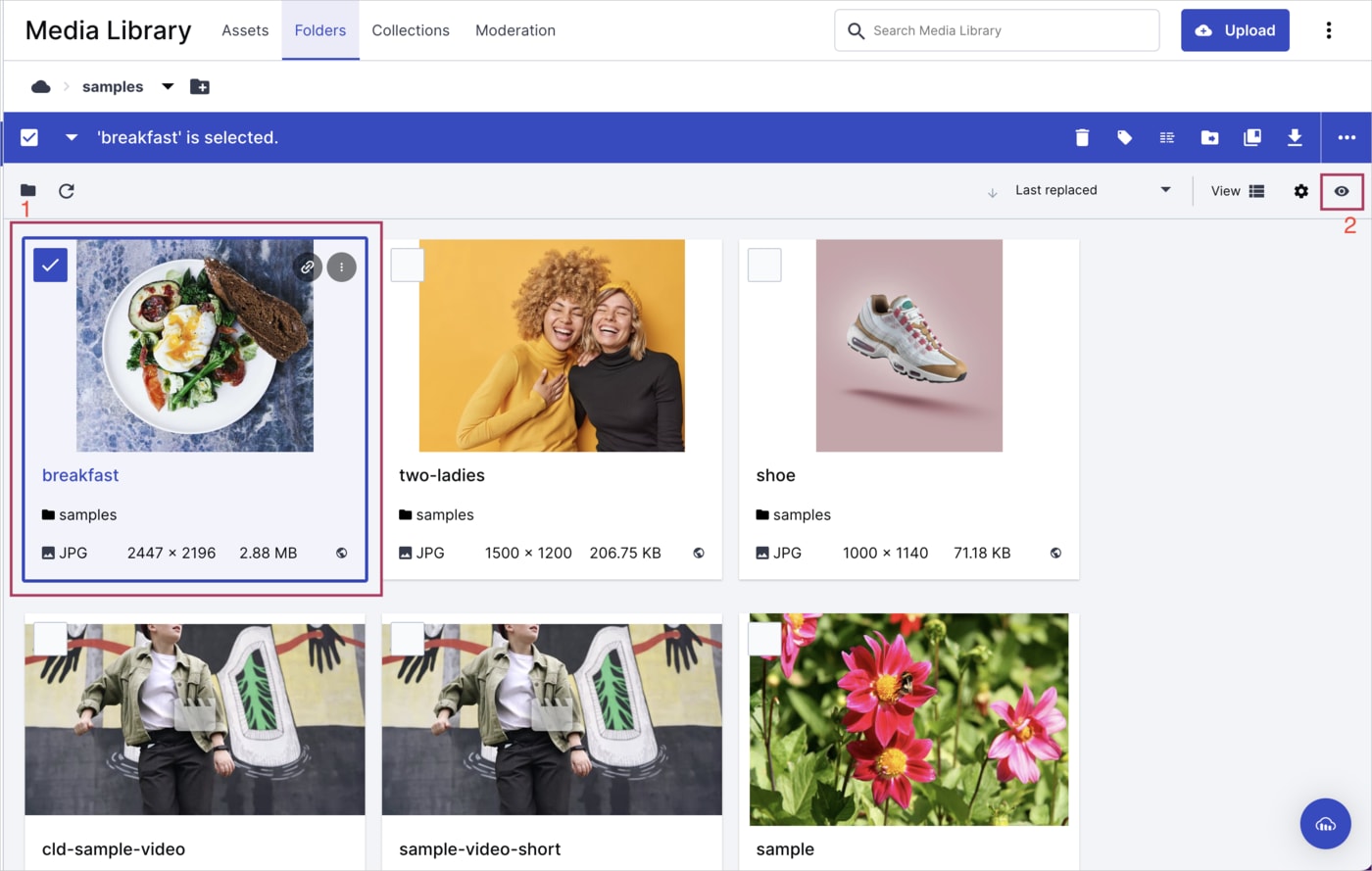
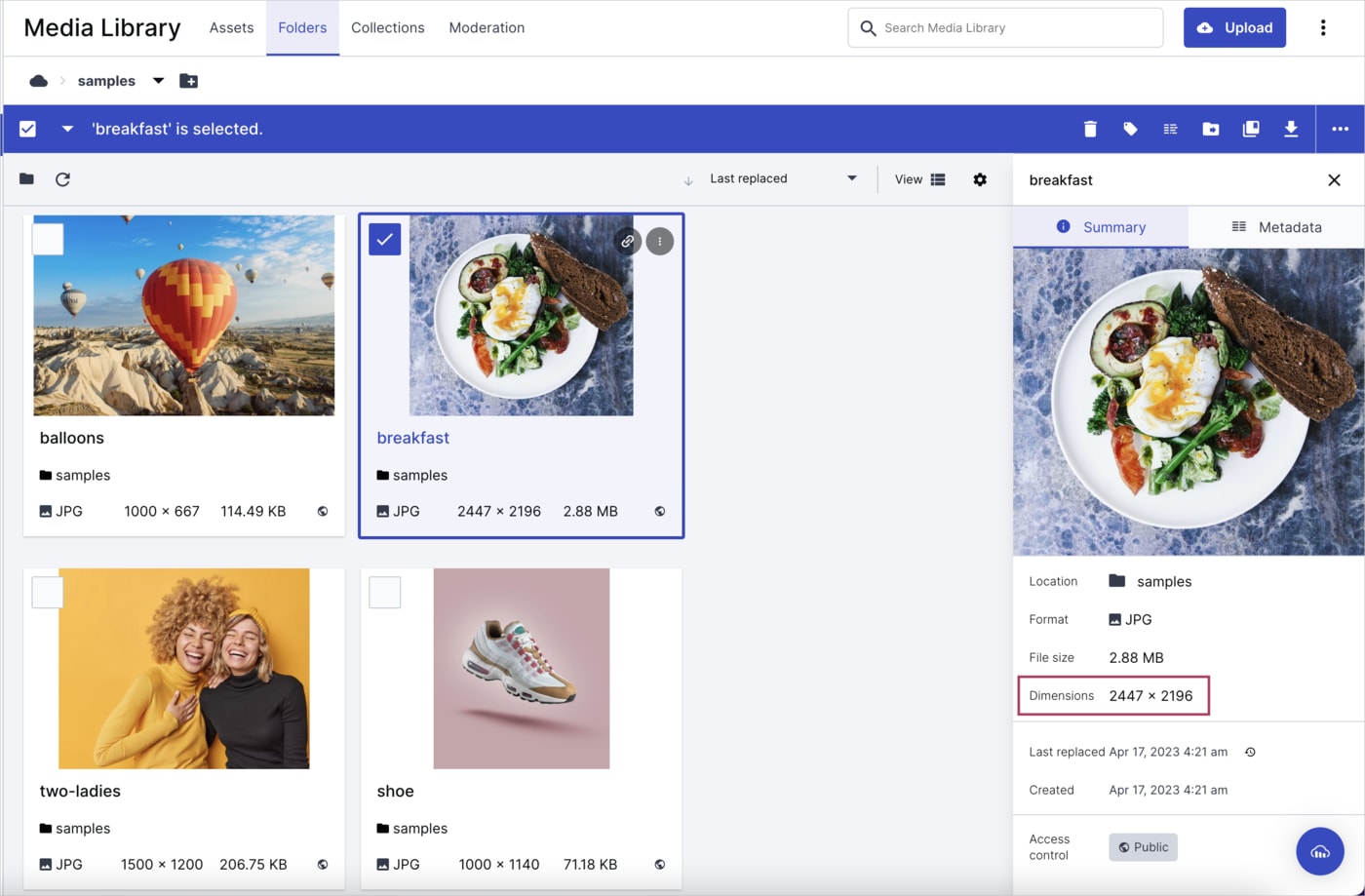
Media Library's asset preview tab
- Go to the Media Library and search for the asset.
- Select the asset and click the previous icon (eye) in the upper-right hand corner of the Media Library and under the assets toolbar.
- View the asset dimensions in the Summary tab of the Preview Pane.
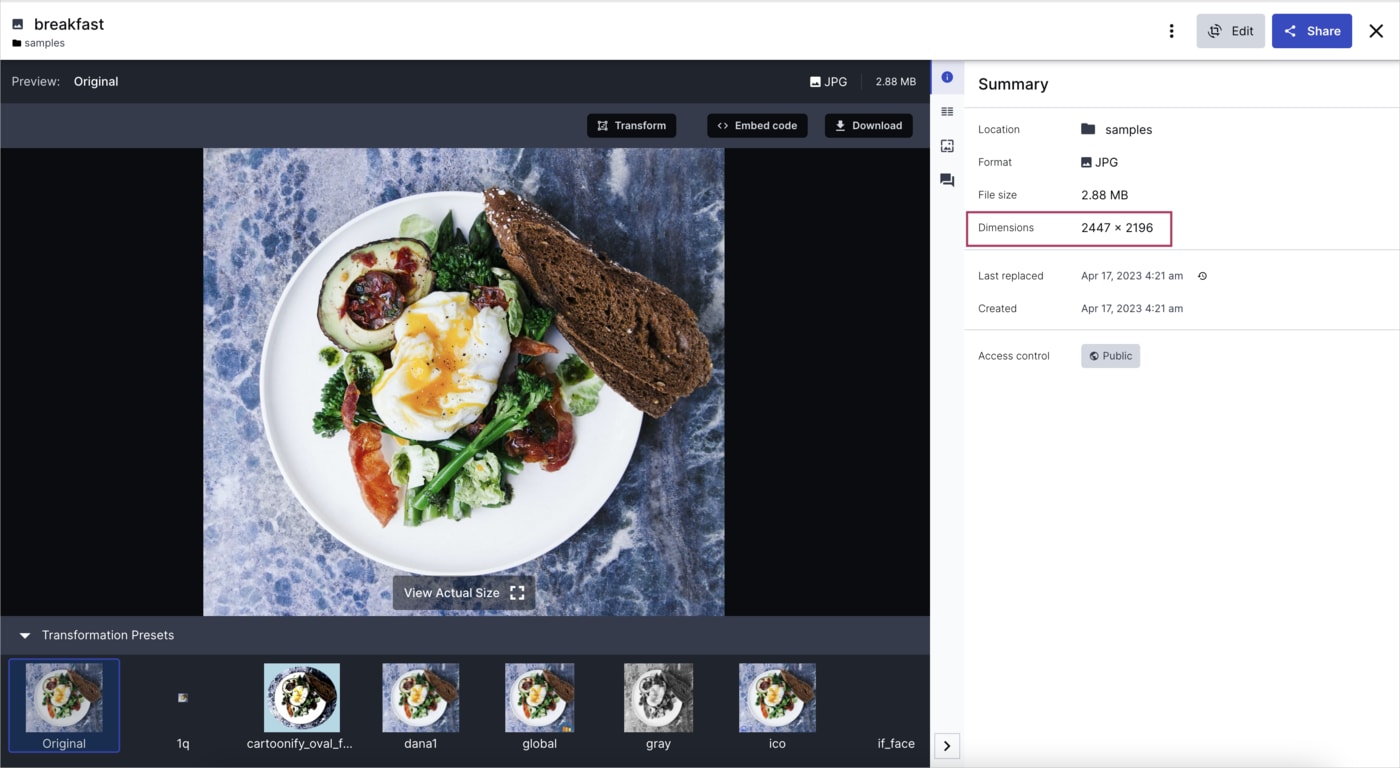
Drill down into the manage page
- Go to the Media Library and search for the asset.
- Double-click the asset. The Manage page opens.
- In the Manage page, select the Summary tab to view the asset dimensions.
✔️ Feedback sent!
Error
Unfortunately there's been an error sending your feedback.
Rate this page:
