 Ask AI
Named transformations
Last updated: Oct-19-2026
A named transformation is a pre-defined set of transformation parameters that has been given a custom name for easy reference. Instead of applying each of the required transformations separately to an asset, you can apply a single named transformation to apply all the transformations defined for it. This makes it easy to:
- Reuse transformations on multiple assets
- Shorten complex transformation URLs
- Hide the details of a transformation in your delivery URL.
- Simplify the enabling/disabling of transformations in Strict Transformations mode.
Named transformations can include other named transformations, which allows you to define a chain of transformations to run on multiple assets more easily.
They're required for baseline transformations, which save processing time and cost by avoiding regeneration of shared transformation steps.
You can create and manage named transformations via the API or from the Templates page in the Console.
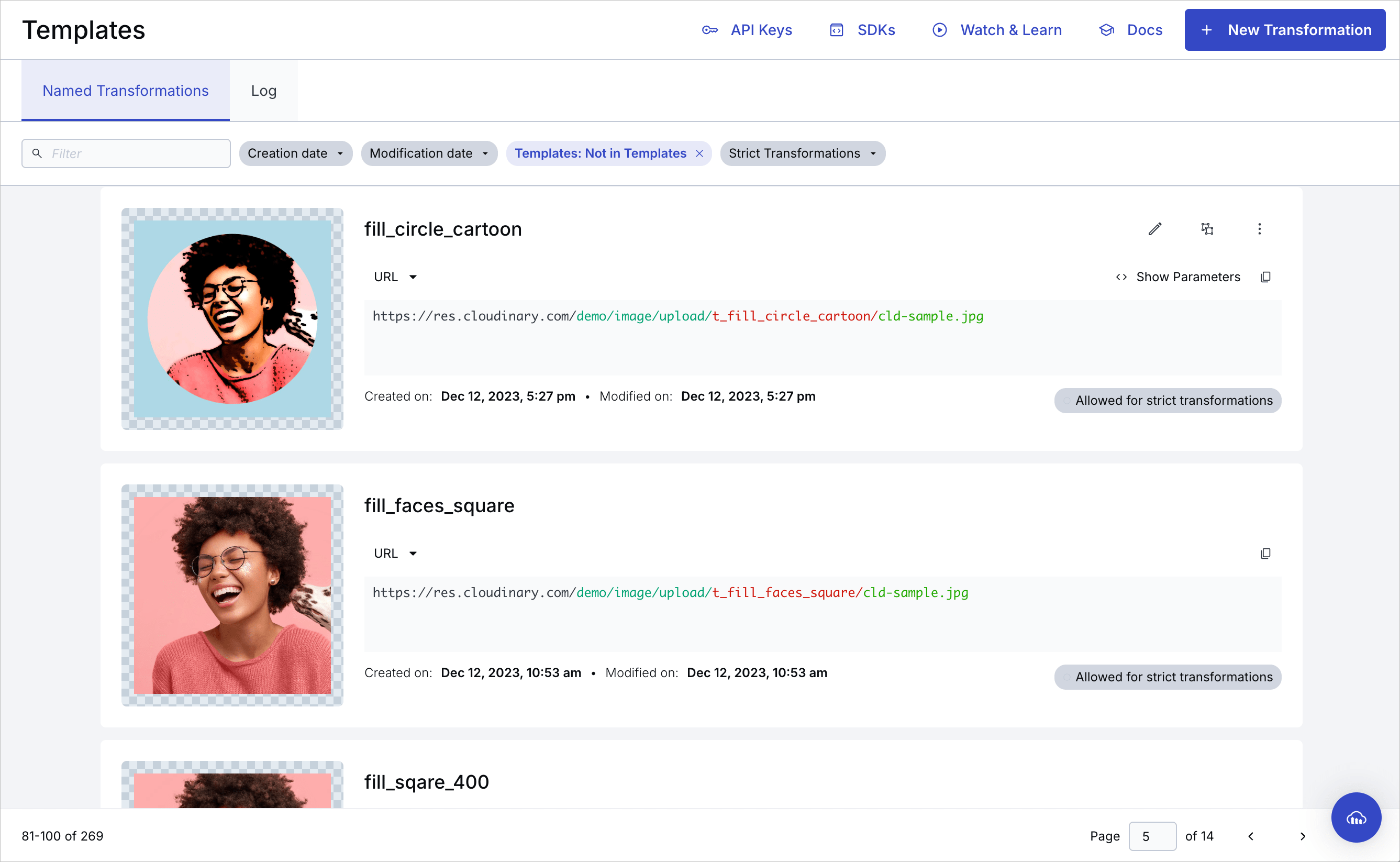
Once defined, you can apply a named transformation by setting the transformation parameter (or t in a URL) to the transformation's name. For example t_instagram-auto-crop.
You can include user-defined variables in your named transformations, and then pass the value for the user-defined variable into the transformation from an external source. This enables creating a named transformation 'template' with a lot of flexibility.
For example, you could define a complex named transformation that includes a text overlay as a named transformation, using a user-defined variable for the text string value.
For more details, see user-defined variables. For a use-case example demonstrating named transformations with user-defined variables, see Named transformation with a user-defined variable.
Cloudinary automatically tracks which named transformations were used to generate each derived asset. You can view this information in the Derived Assets tab of the Manage page. For more information, see Derived Assets in the Media Library for developers guide.
You can also set named transformations as transformation templates, which you can apply as templates in the Media Library so that you can preview how assets will look with different named transformations applied.
- Keep in mind that not all transformations support all asset types and formats. Applying a named transformation to an asset of an unsupported type or format will fail and return a 404 error. You can check whether you can use the parameters in your named transformation for both images and videos in the transformation reference. You can also check the supported formats for transformations.
- Before you update the transformation parameters of an existing named transformation that's already used in production, make sure you're aware of all existing instances. To mitigate risk, when you update the parameters of an existing named transformation (via the Console UI or API), existing derived assets using the named transformation are not automatically invalidated and regenerated.
If you're sure you want to apply the new definition to any already derived assets with that named transformation, you must specifically invalidate those transformations or otherwise modify the other parameters in that delivery URL, so that the asset will be re-derived using the new definition on next request.
Tip: You can use the regen_derived CLI command to invalidate and then regenerate derived assets after updating the definition for a named transformation. - Before you delete an existing named transformation, make sure you aren't using that transformation in production. When you delete an existing named transformation via the Console UI or API, and if there are fewer than 1000 existing derived assets using that named transformation, they're automatically invalidated (and will return a
404error on the next request).
If there are 1000 or more such derived assets, the delete request fails with a403error indicating that your named transformation hastoo many derived resourcesortoo many dependent transformations(when the derived assets use the named transformation in combination with other parameters).
Creating named transformations
You can create a named transformation programmatically or using the Cloudinary Console.
Create a named transformation programmatically
To create a named transformation programmatically, use the Transformations Admin API method.
For example, the following defines a named transformation called small_profile_thumbnail that uses automatic cropping to resize assets to the required size for a particular application's thumbnail display:
For more details and examples, see the Create Transformation method in the Admin API Reference.
Create a video named transformation in the Console
To create video named transformations, open the Transformation Builder, apply transformation actions and save it with your chosen name.
- Must contain valid UTF8 characters only
- Must not contain more than 1024 characters
- Must not contain any of these characters:
\,/,?,&,#,%,.,,,<,>
Once you've saved your named transformations, you can view a list of them in the Console in the Image > Templates > Named Transformations tab. From here, you can edit, copy, or enable/disable Strict Transformations.
You can also select to include a transformation as a template so that users can apply it to assets using the Download Options tab of the asset management drill-down page (available for Assets Enterprise plans).
You can also build and save video transformations visually with Video Canvas, a node-based editor that saves each pipeline as a named transformation.
Transformation Builder
The Cloudinary Transformation Builder is the UI for creating and saving your transformations in a simple and easy to use way. The Transformation Builder has two modes of operation:
- Construct: Build transformations manually by selecting and configuring transformation actions.
- Converse: Build transformations using AI chat by describing the transformation with natural language.
Transformation Builder video tutorial
Watch this video for a quick introduction to the Transformation Builder:
This video is brought to you by Cloudinary's video player - embed your own!
Use the controls to set the playback speed, navigate to chapters of interest and select subtitles in your preferred language.
Tutorial contents
Create a transformation using the Builder
To create a new transformation:
- Open the Builder.
- Select the mode to use.

Construct mode
The Transformation Builder in construct mode provides:
- A simple and intuitive UI for selecting and configuring transformation actions - easily discover actions and parameters as you build.
- Transformations built as a series of self-contained actions so you can see the results of each one as you apply it.
- URL and SDK code ready to copy and paste directly to your code.
- The ability to update the default preview image to something from your own product environment.
- Quick edit functionality, to easily add transformations using URL syntax.
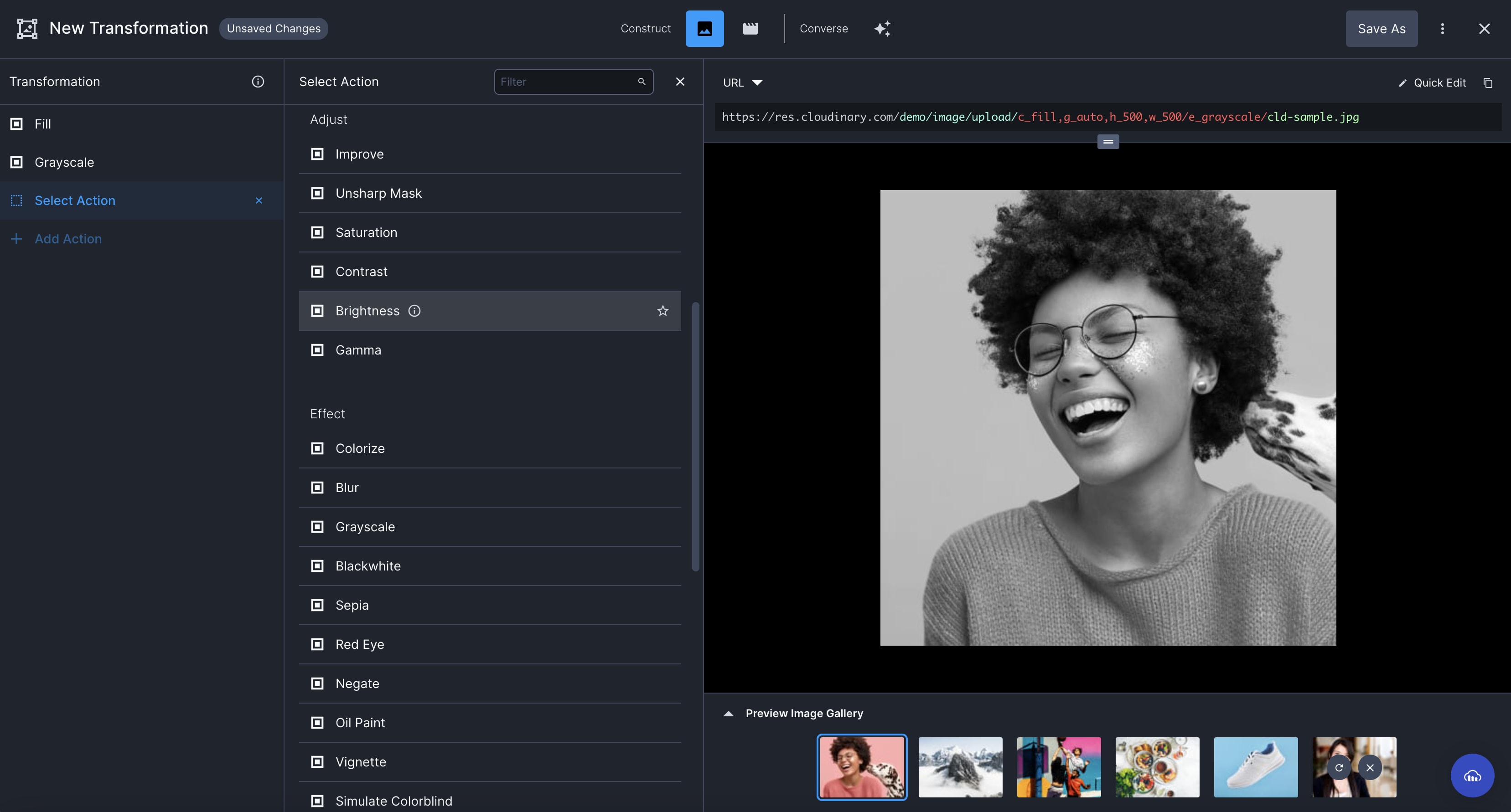
The builder supports most common transformation actions. If the transformation action you are trying to apply is not listed, you can add an Additional Transformation action and use transformation URL syntax to specify your transformation. Alternatively, you can switch to the legacy editor to create your transformation.
Converse mode
The Transformation Builder in converse mode provides:
- An AI-powered conversational interface to describe the transformation you want to create with natural language.
- Iterative prompts to continue the conversation and perfect the transformation.
- URL and SDK code ready to copy and paste directly to your code.
- The ability to update the default preview image to something from your own product environment.
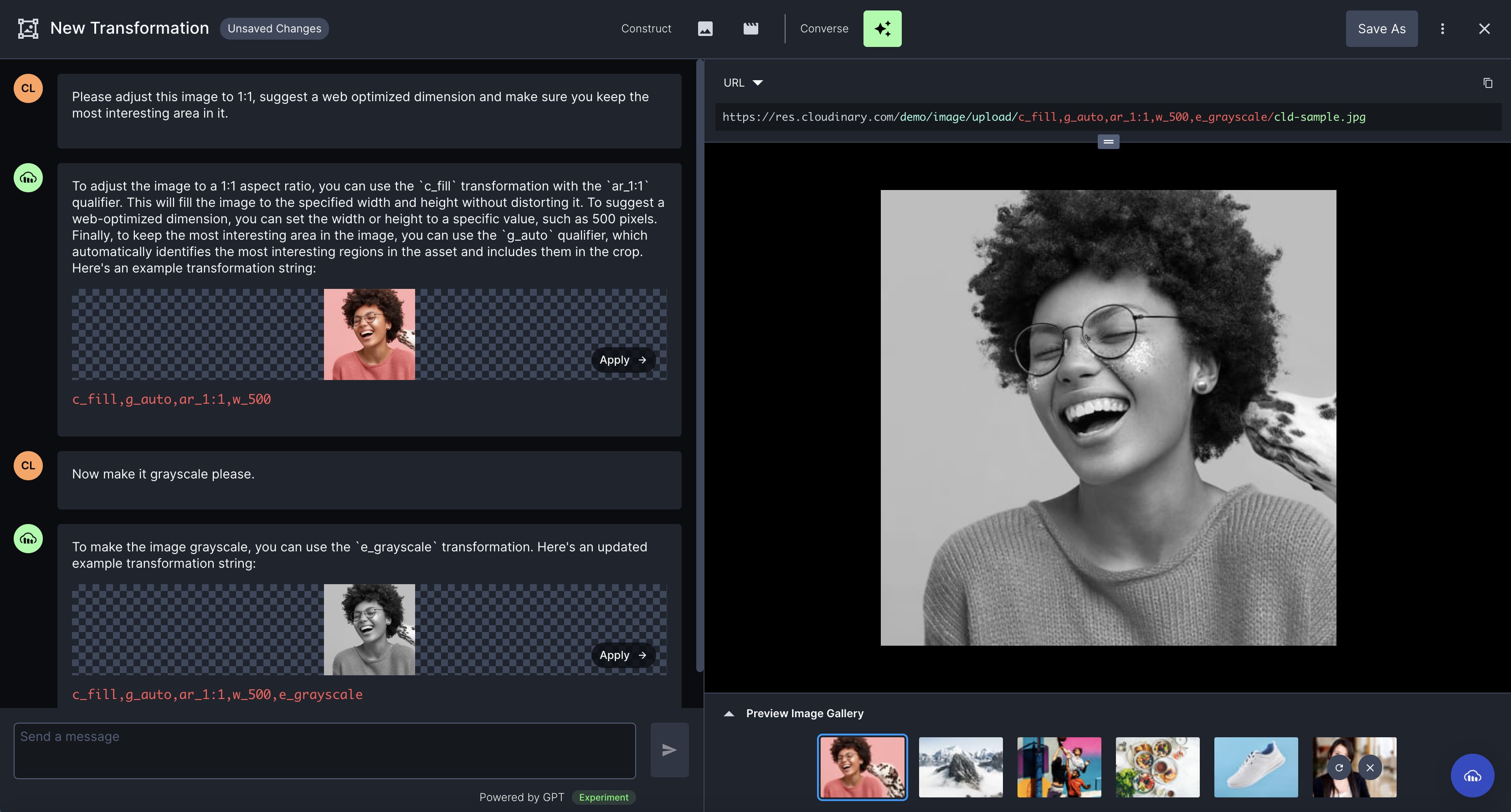
- The conversational interface is powered by GPT.
- It answers questions related to Cloudinary transformations only.
- The use of AI, including the GPT model, means that answers may not be 100% accurate.
- We have implemented mechanisms to improve the accuracy of results for transaction-related queries compared to using ChatGPT directly.
- We are continually learning and making improvements as this technology progresses.
Working with video transformation templates
You can save and load named transformations directly from the Transformation Builder when working with video assets. With Assets Enterprise plans, they're also automatically available as transformation templates in the Media Library. This lets you reuse transformations across videos without recreating them each time.

To save the current transformation as a template, click Save as Template at the top of the page. In the Save Template dialog, enter a unique name and click Save. Template names can't duplicate existing template names. After saving, use t_<name> when referencing the template in your code. For naming rules, see creating named transformations.
To load a saved template, click Load Template at the top of the page and select a template from the drop-down.
Named transformation examples
Below are some examples using named transformations that have been defined for the Cloudinary demo product environment:
-
round-if-portrait (defined as
if_ar_lt_1/r_50/if_end): If the original video's aspect ratio is less than 1 (portrait), round the edges of the video. -
portrait-resize-g_auto (defined as
ar_3:4,c_fill,g_auto,h_300): Fill crop the video to a height of 300 and an aspect ratio of 3:4, automatically retaining focus on the main subject in the cropped video.
-
logo-overlay: (defined as
l_cloudinary_icon_white/o_50/e_brightness:100/w_0.2,fl_relative/fl_layer_apply,g_north_east,y_0.01,x_0.01): Add a brightened and partially transparent logo to the top right of the video. Scale the logo width to be 20% of the overall video width.
Chaining named transformations
You can chain named transformations before or after other transformations. For example, here the logo-overlay named transformation is applied after a brightness effect:
You can also chain multiple named transformations. For example, to chain the named transformations defined in the previous section (along with an additional transformation to shorten the video duration):
Chaining transformations can create long URLs, so instead you could define a named transformation that includes a chain of other transformations, including other named transformations. For example, we can create a named transformation that is a composite of the named transformations from the section above.
It is now simple to specify a single named transformation and apply it to any asset:
Where the demo-combine-named named transformation is defined as: t_round-if-portrait/t_portrait-resize-g_auto/t_logo-overlay.
Limitations of named transformations
Automatic format
The automatic format transformation parameter (f_auto) is not applied if used in named transformations.
When f_auto is used in a delivery URL, the CDN layer determines the best format for the requesting browser. If f_auto is hidden inside a named transformation, it's not visible to the CDN, so the format selection can't take place.
You can use f_auto together with a named transformation by chaining the components, for example, t_square/f_auto.
Automatic quality
The automatic quality transformation parameter (q_auto) is effective in named transformations, except in one situation.
When q_auto is used in a delivery URL and the browser sets the Save-Data HTTP header to on in the request, q_auto is translated to q_auto:eco at the CDN level. If this parameter is hidden in a named transformation then it is not visible to the CDN, so the default level is applied, q_auto:good.
To accommodate this situation, you may prefer to use q_auto together with a named transformation by chaining the components, for example, t_square/q_auto.
q_auto:best, then there are no concerns as there are no dependencies on the CDN level.Learn more: Save-Data support
Error
Rate this page:
