 Ask AI
How do I crop an image around a person so their whole body stays in the frame?
Last updated: Nov-09-2026
g_person (requires the Cloudinary AI Content Analysis add-on), and then extend the canvas to size with generative fill:c_crop,g_person/b_gen_fill,c_pad,h_1600,w_1200
If the background is a plain color and you don't have the add-on, trim it and pad to size instead: e_trim:30/b_auto,c_pad,h_1600,w_1200. See The solution for all the options.
The question
"How do I crop the photo around the model and keep it at 1200x1600? I want the model's whole body, not just the face."
You have a photo of a person (a model, a portrait, a product shot with a person in it) and you need a fixed-size crop, such as 1200x1600 pixels, where the entire subject stays in the frame and is centered.
The original asset
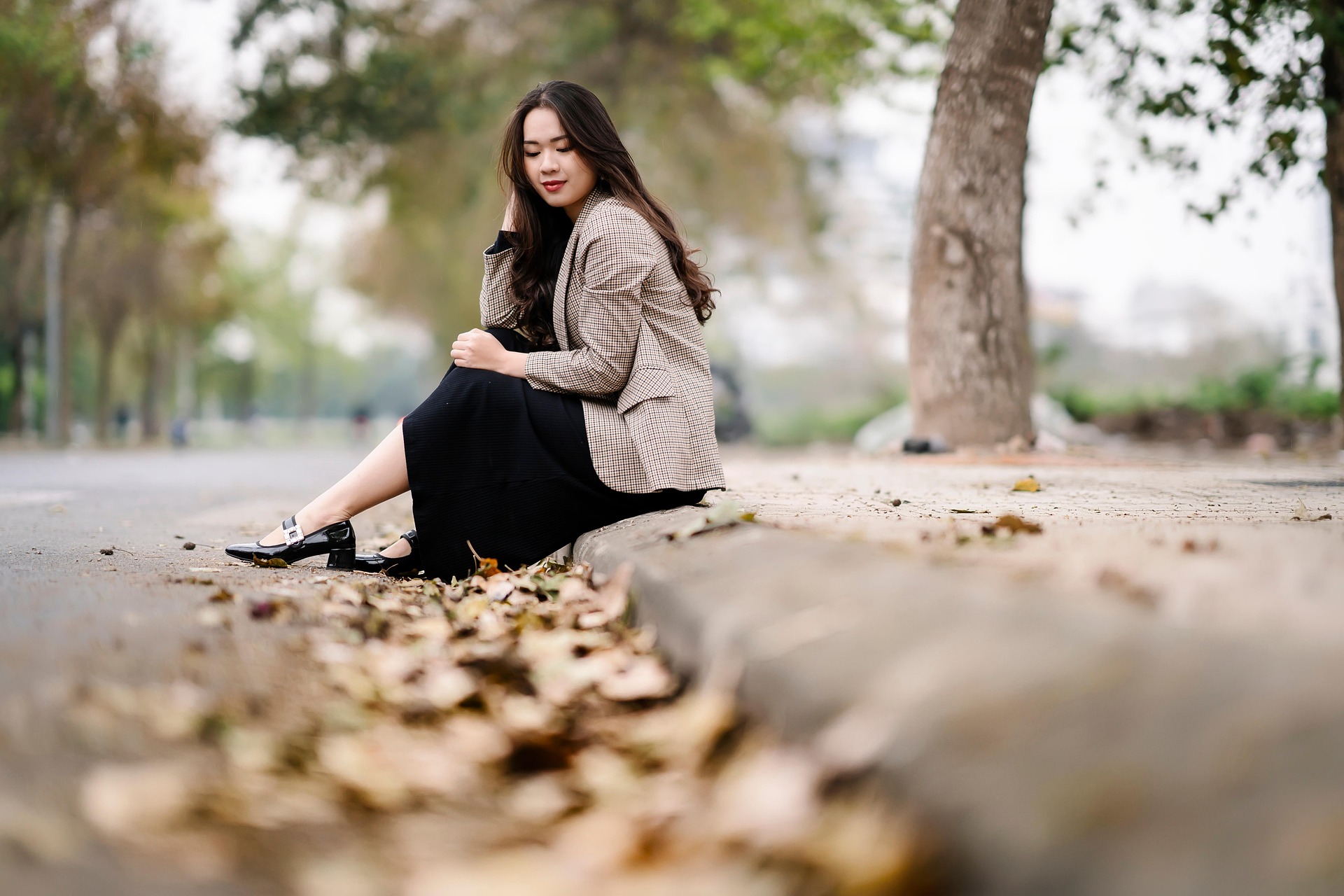
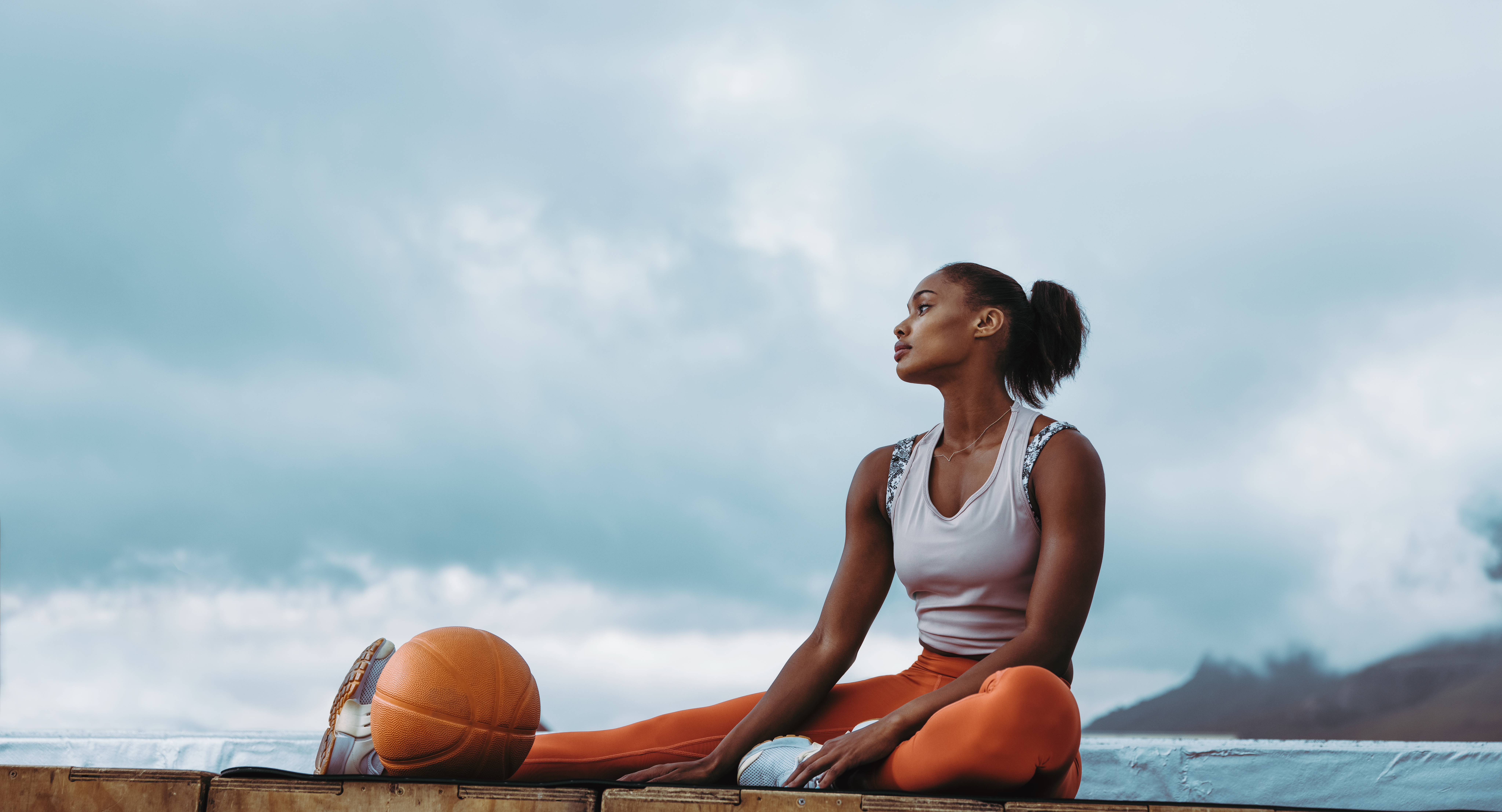
The original image is a landscape (3:2) photo of a seated model:
The solution
The best approach depends on whether you can use the Cloudinary AI Content Analysis add-on, and on whether any part of the person can be cut off:
- Option 1: crop to the exact size around the detected person (requires the add-on).
- Option 2: crop tightly around the whole person, then extend the canvas to the exact size. This keeps the whole person in the frame (requires the add-on).
- Option 3: crop with automatic gravity (no add-on required).
- Option 4: if the background is a plain color, trim it and pad the image to size (no add-on required).
Option 1: Crop with c_fill and g_person
Use the c_fill crop mode with the g_person gravity, which is part of the Cloudinary AI Content Analysis add-on. It uses object detection to find the person in the image and bases the crop on them, instead of on the face or on the most prominent area:
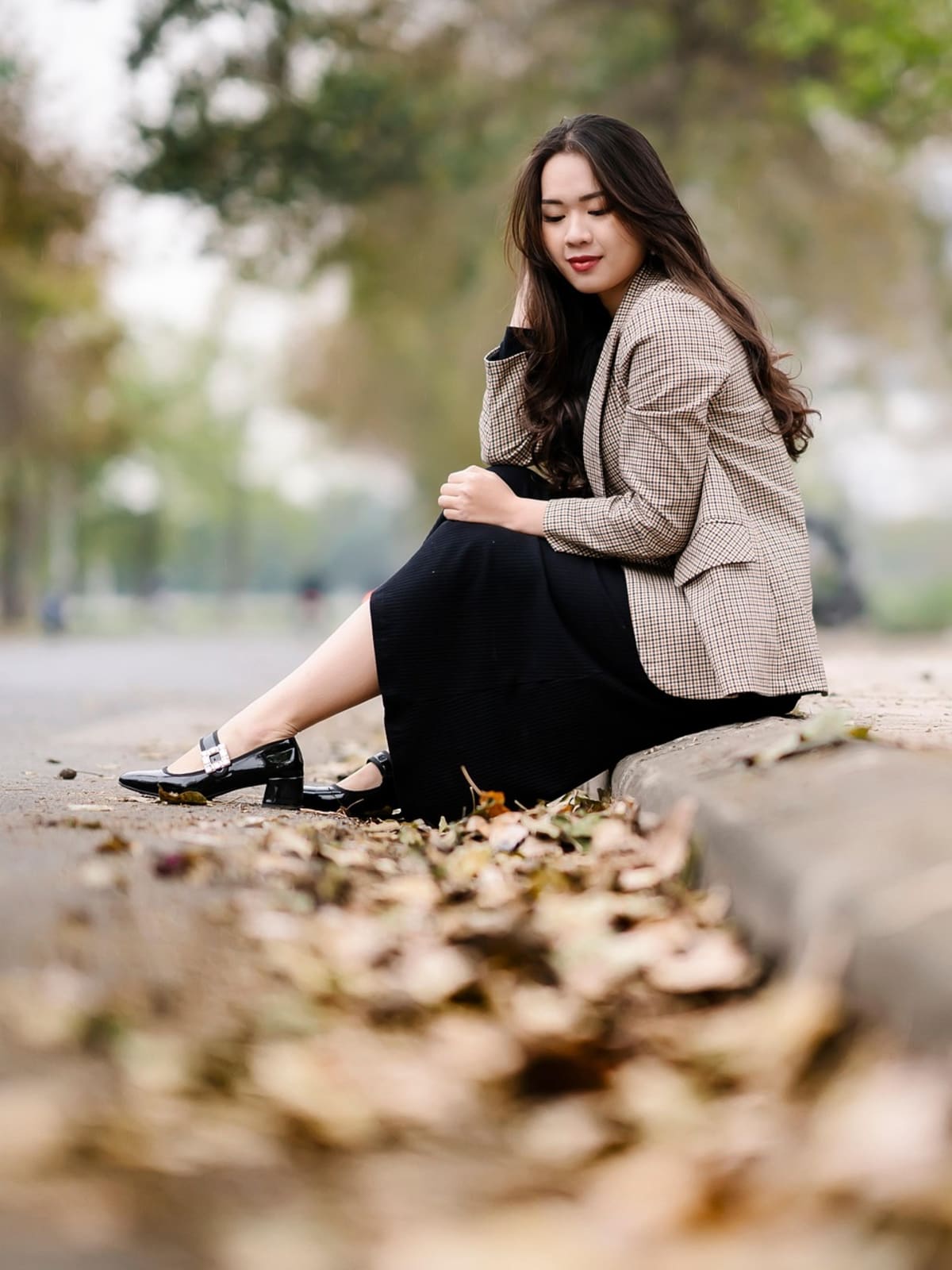
The result is exactly 1200x1600 pixels. Keep these points in mind when using g_person:
- If no person is detected, the gravity falls back to the center of the image.
- If there are several people,
g_personbases the crop on the most prominent one. - To prefer people but still let automatic gravity consider the rest of the image, use
g_auto:person. - By default, delivery URLs that use the add-on must be signed or eagerly generated. For details, see Signed URLs.
g_person in your own product environment, you first need to subscribe to the Cloudinary AI Content Analysis add-on:
- Make sure you're logged in to your Cloudinary account, and then go to the Add-ons page in the Console Settings.
- Select the Cloudinary AI Content Analysis add-on and choose a plan.
For more information, see Registering for add-ons.
For more details, see Object-aware cropping.
Option 2: Crop tightly around the person, then extend the canvas
c_fill always has to cut away part of the image to reach a different aspect ratio, so even with g_person it can cut off part of the person, as the comparison below shows. If you can't afford to lose any of the person, and you don't mind some added background, do it in two steps:
-
c_crop,g_personcrops tightly around the whole detected person, without a fixed size. -
b_gen_fill,c_pad,h_1600,w_1200pads the result out to exactly 1200x1600, and uses generative fill to extend the background with realistic generated pixels instead of a flat color.
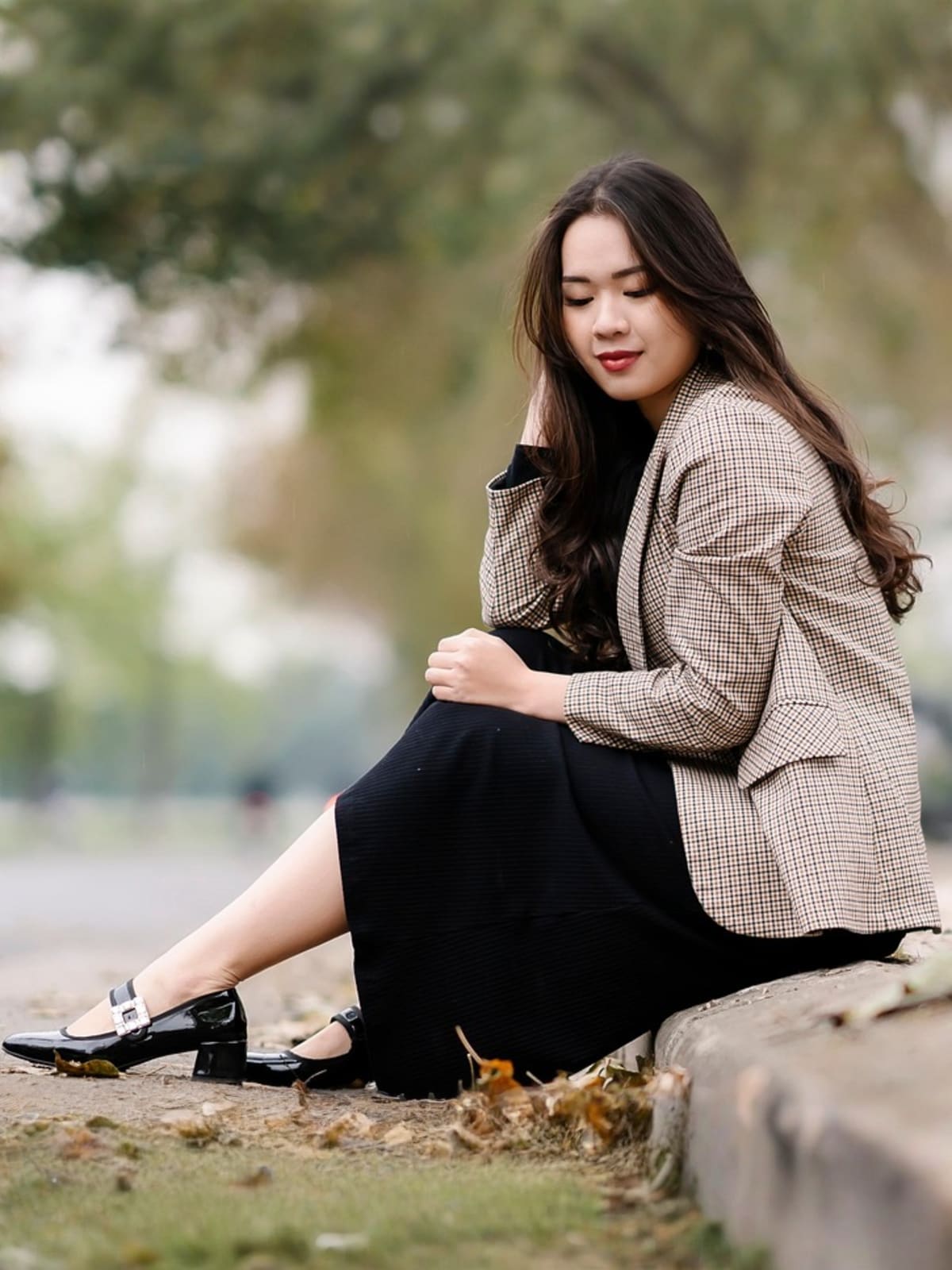
The output is exactly 1200x1600. Generative fill invents new content, so check that the result looks right for your images. To fill the extra space with a plain color instead, replace b_gen_fill with a color, such as b_white. Option 2 requires the Cloudinary AI Content Analysis add-on for g_person, and the same signed URL requirement applies.
Option 3: Crop with c_fill and g_auto
If you don't use the add-on, use the c_fill crop mode with automatic gravity (g_auto). Cloudinary analyzes the image and keeps the most important area in the frame, giving priority to faces by default. For this photo, the result keeps the whole model in the frame:
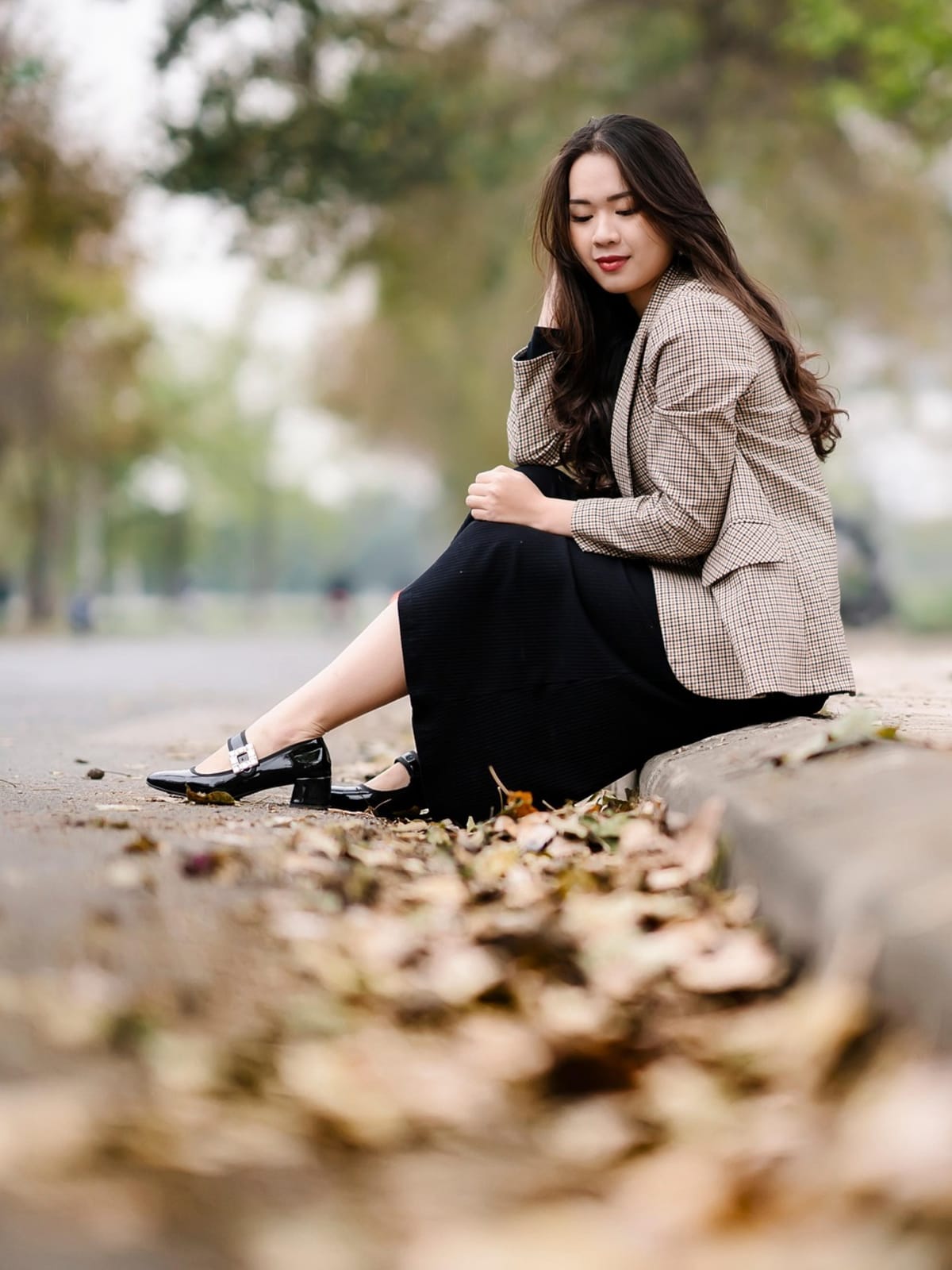
The result is exactly 1200x1600 pixels, with the model's head, body, and feet all in the frame.
c_fill always produces the exact w_ x h_ size you ask for. If the source image has a different aspect ratio, c_fill resizes the image to cover the area and then crops away the overflow. The gravity decides which part is cropped away.Option 4: Trim the background, then pad to size
If the photo has a plain, single-color background (such as a studio shot), you don't need to crop the person at all. Trim away the plain background, and then pad the result out to the exact size with a matching color:
-
e_trim:30removes the border areas that match the background color. The number is the color tolerance (the higher the value, the more it removes), so increase it if some background remains, and lower it if it starts to cut into the person. -
b_auto,c_pad,h_1600,w_1200fits the whole trimmed image inside 1200x1600, and fills the rest with a color that matches the image (b_auto). To use a specific color, replaceb_autowith a color, such asb_white.

The result is exactly 1200x1600, and the whole person is in the frame, because nothing is cropped away except the background.
c_pad (or c_lpad) for the second step, not c_mpad. The c_mpad mode never scales an image down, so if the trimmed image is larger than the requested size, it's left at its trimmed size instead of being resized to 1200x1600. Use c_mpad only if the trimmed image is smaller than the requested size.This works only when the background is plain. If it has a pattern, a gradient, or other objects, e_trim can leave some of it behind, or cut into the person at a higher tolerance. In that case, use Option 2.
How the result depends on the aspect ratio
The same transformation can crop different images very differently, because the gravity can only choose which area to keep, and the amount that has to be cut away depends on the aspect ratio of the original image compared with the one you request. All of these images are cropped to 1200x1600 (3:4):
Seated model (3:2 landscape)
c_fill,g_autoc_fill,g_personSeated woman (1.85:1 wide landscape)
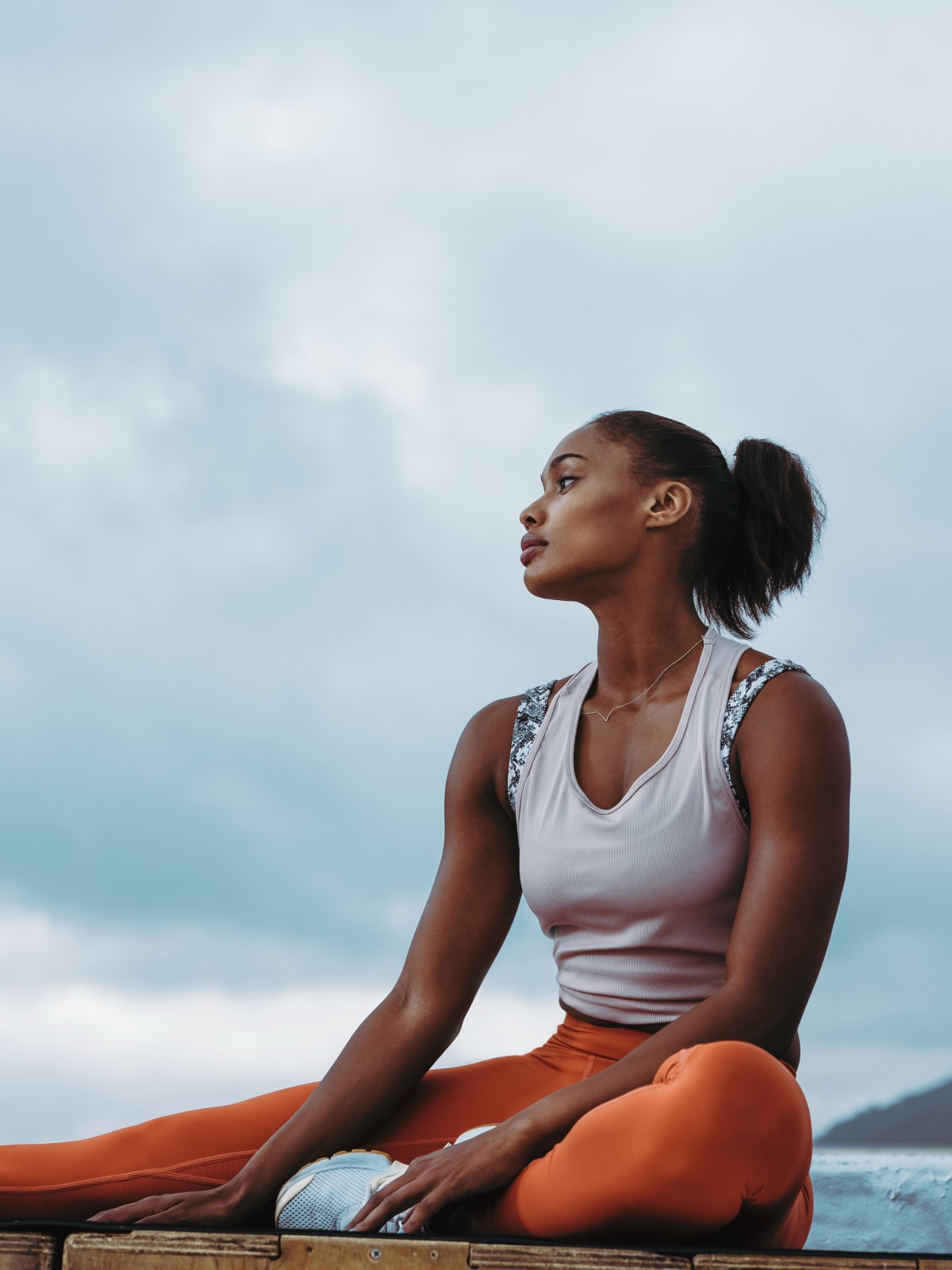
c_fill,g_auto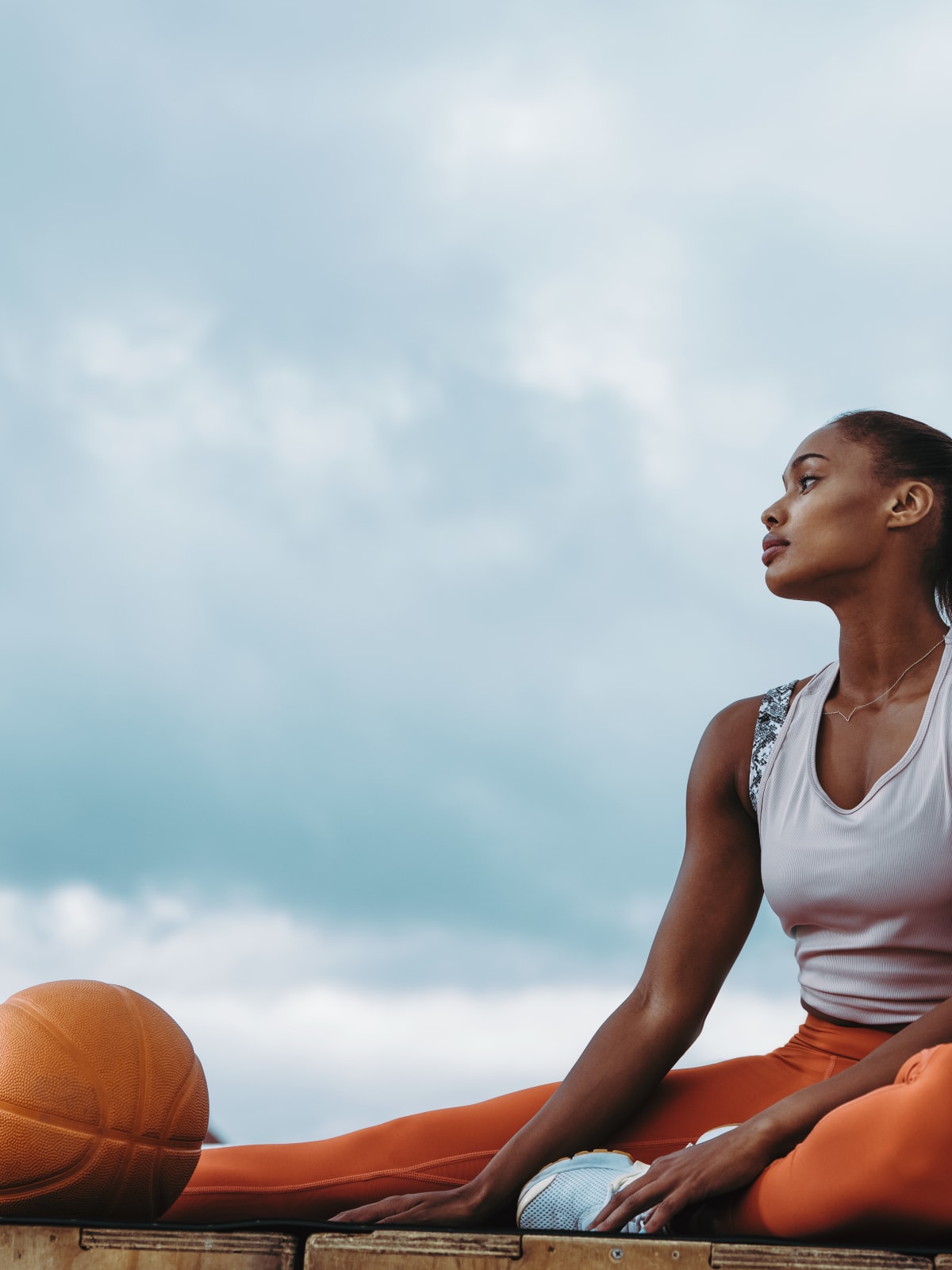
c_fill,g_personSeated woman (2:3 portrait)
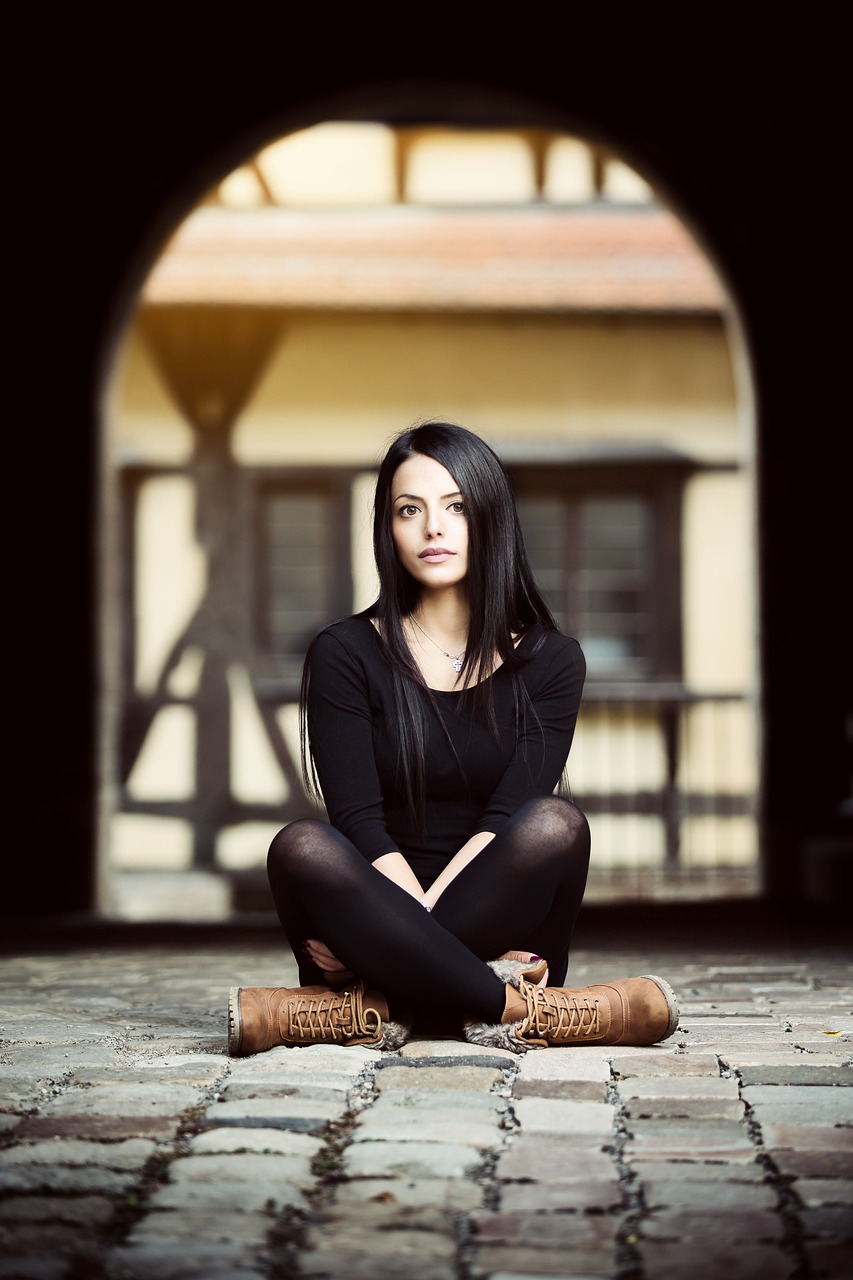
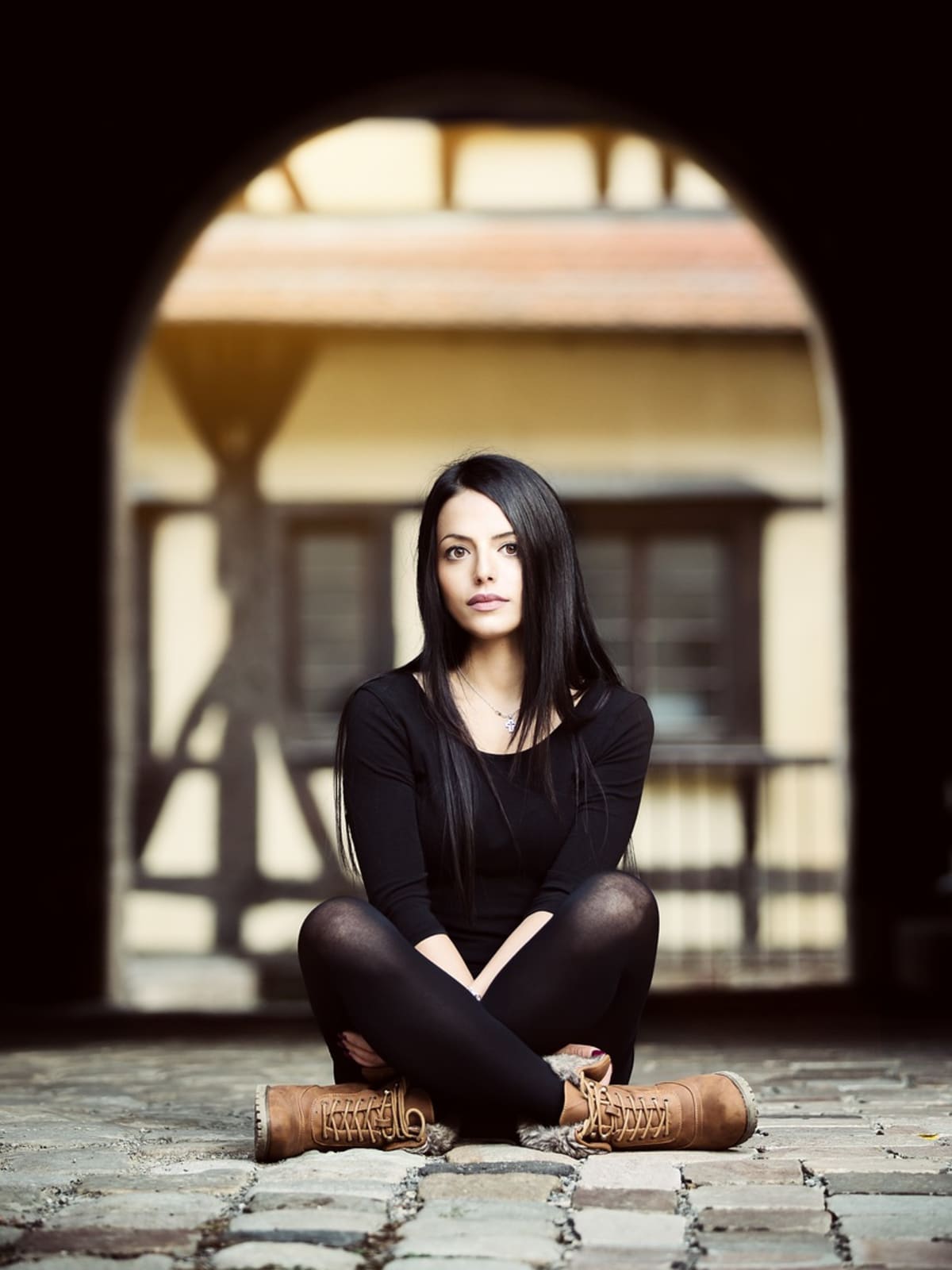
c_fill,g_auto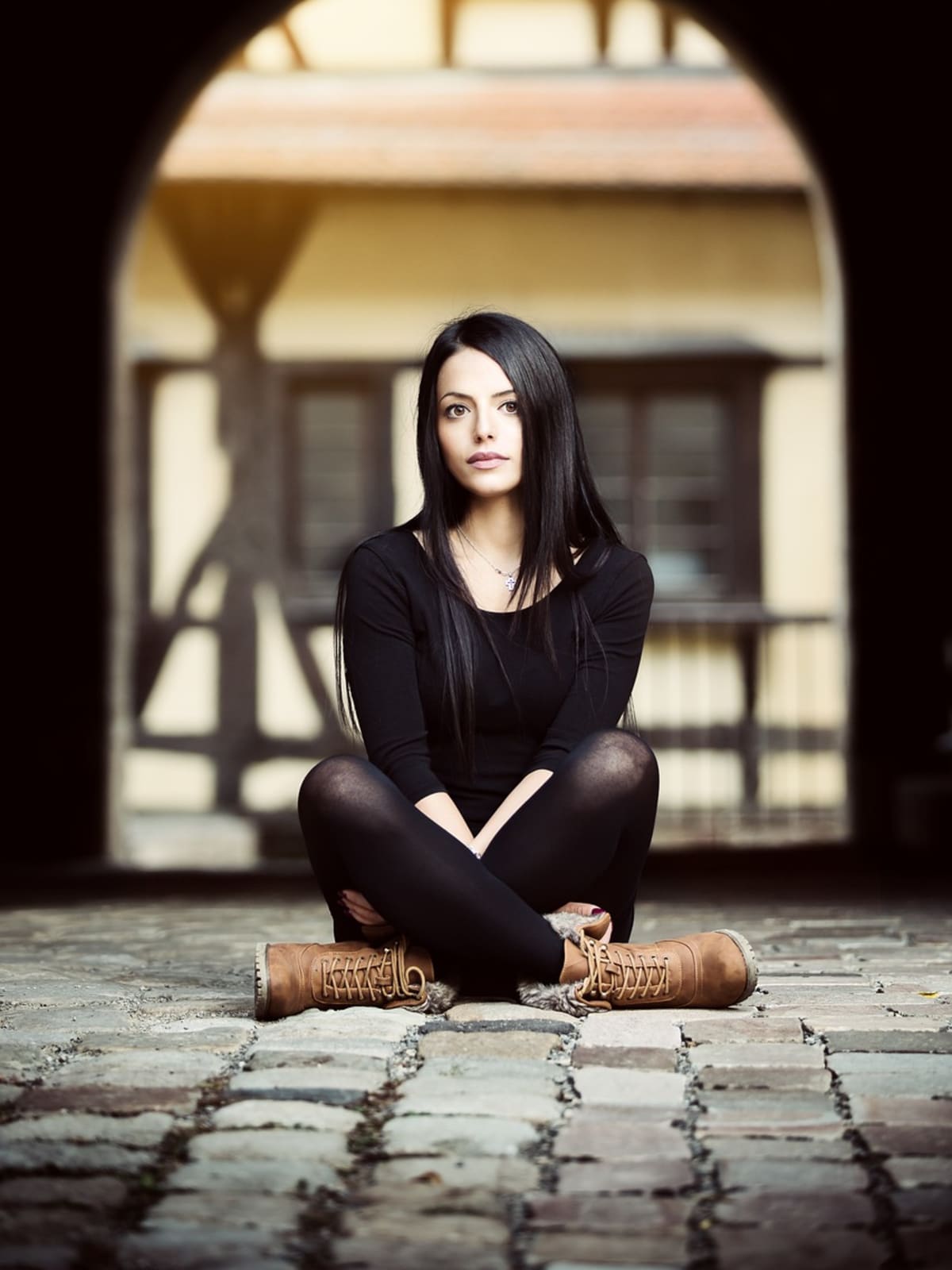
c_fill,g_personStanding woman, subject fills the frame (2:3 portrait)
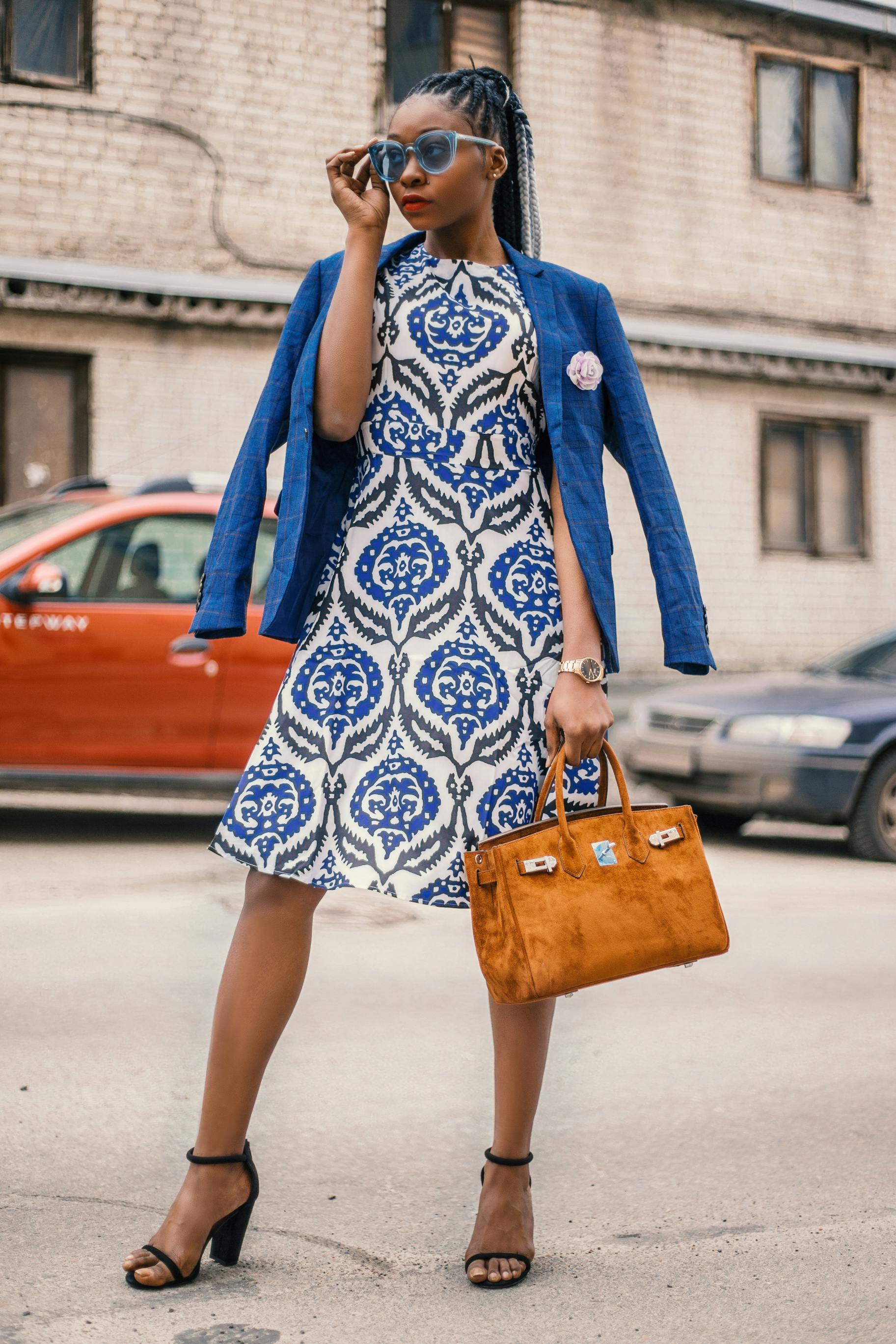
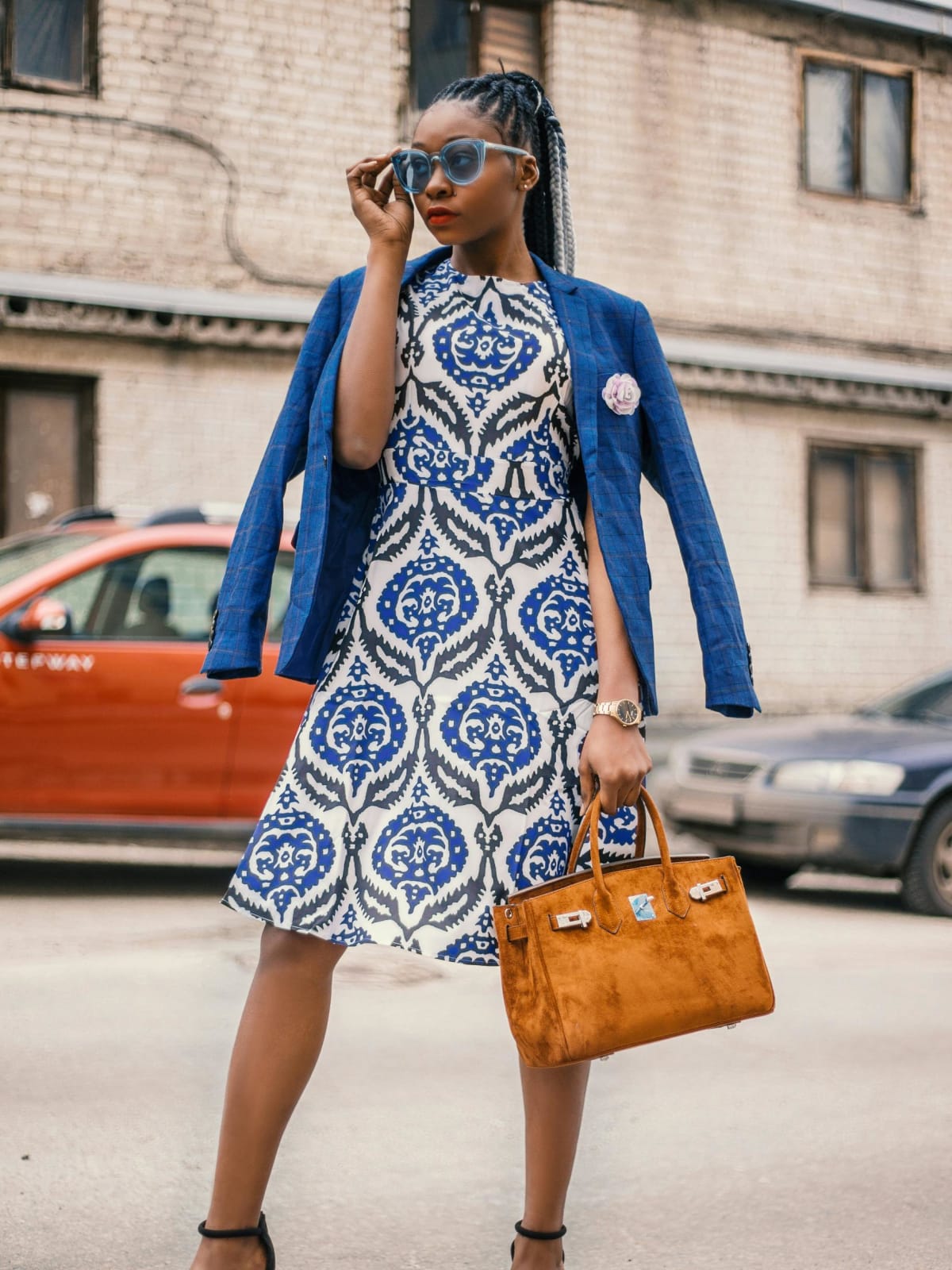
c_fill,g_auto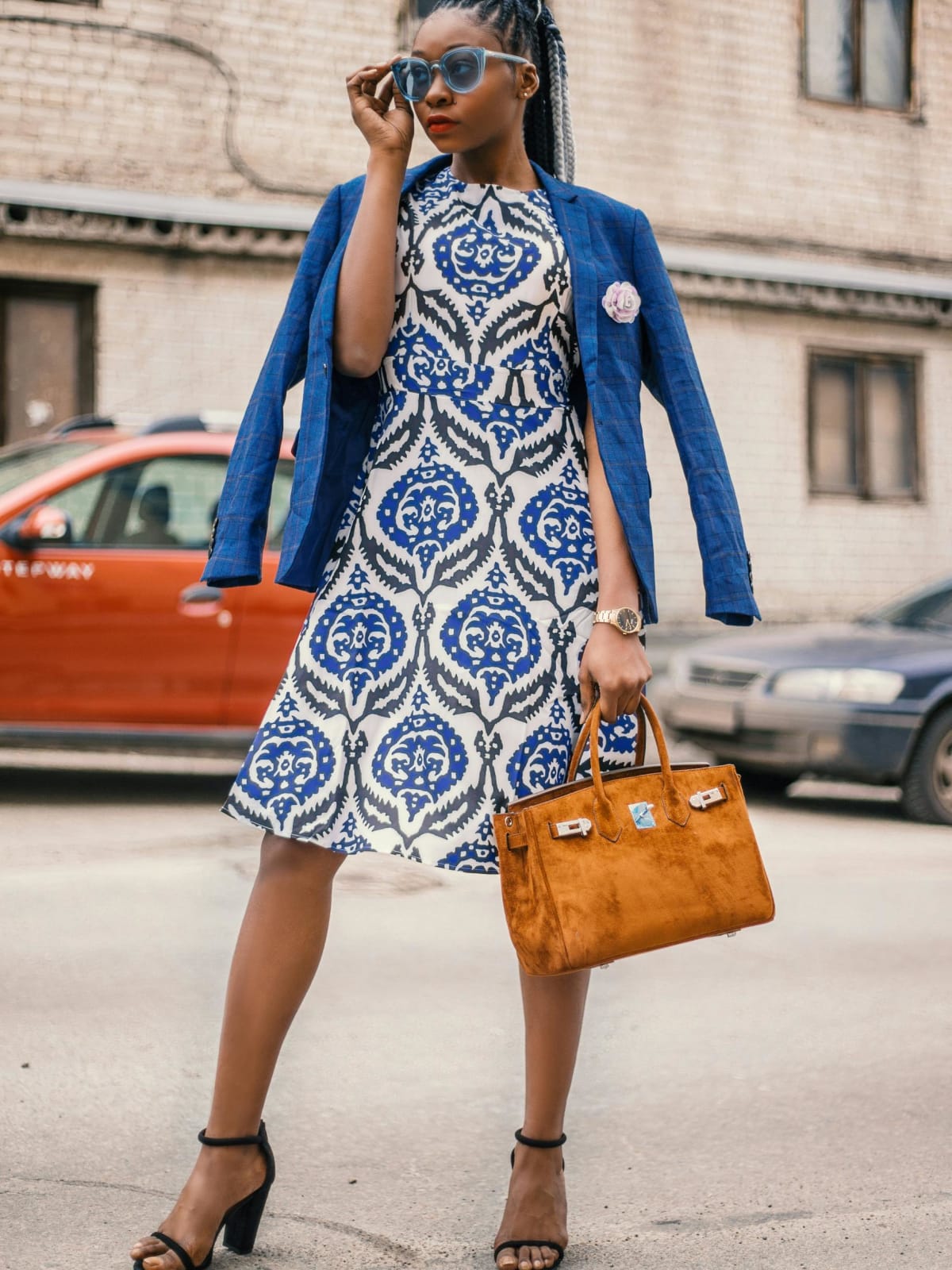
c_fill,g_personIn these examples:
- Seated model (3:2): both gravities keep the whole model.
-
Wide landscape (1.85:1):
g_autokeeps the face and upper body, but cuts off part of the legs.g_personcuts off part of the head, because so much of the width has to be removed. -
Portrait, seated (2:3): both keep the whole person. The
g_personcrop is tighter and off-center. -
Portrait, subject fills the frame (2:3): there's little room to crop, and whichever gravity you choose cuts off something.
g_autocuts off the feet, andg_personcuts off the top of the head.
When the subject fills most of the original image, or when the original is much wider than the requested size, no gravity can promise to keep all of the person. Use Option 2, which crops around the whole person and then adds background, or Option 4 if the background is a plain color, instead of cutting away more of the image.
Related topics
- Resizing and cropping images
- Object-aware cropping
- Generative fill
- Face-detection based transformations
- Why is my image blurry?: if the cropped image looks soft after you enlarge it.
Error
Rate this page:
