 Ask AI
Image crop modes
Last updated: Jul-22-2026
When the dimensions you want to deliver differ from your original image, you can either crop the image to fit or pad it with extra space. Crop modes control how Cloudinary crops the image, determining which part to keep, whether to scale first, and how aggressively to crop. This page covers fill, lfill, fill_pad, crop, thumb, auto, and auto_pad. For resize-padding modes (pad, lpad, mpad) see Image padding modes, and for resize-only modes (scale, fit, limit, mfit) see Image resize modes.
The following examples use two versions of the same image: camera.jpg (1280 x 853 pixels) and camera-640.jpg (640 x 427 pixels). Where resolution affects the behavior of the mode, the smaller version is used.
fill
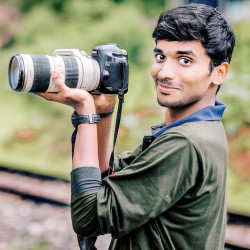
The fill cropping mode creates an image with the exact specified dimensions, without distorting the image. This option first scales up or down as much as needed to at least fill both of the specified dimensions. If the requested aspect ratio is different than the original, cropping will occur on the dimension that exceeds the requested size after scaling. You can specify which part of the original image you want to keep if cropping occurs, using the gravity parameter (set to center by default).
See full syntax: c_fill in the Transformation Reference.
Example 1: Fill a specific area with an image
Fill a 250-pixel square with the camera image:
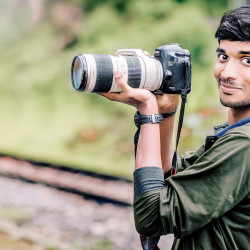
Example 2: Fill a specific area with a specific part of an image
Fill a 250-pixel square with the top-right part (gravity northeast) of the camera image:
lfill (limit fill)
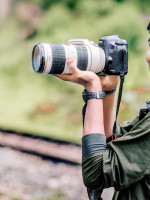
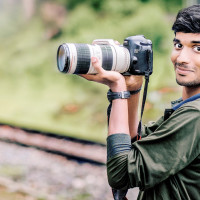
The lfill cropping mode behaves the same as the fill mode, but only if the original image is larger than the specified resolution limits, in which case the image is scaled down to fill the specified dimensions without distorting the image, and then the dimension that exceeds the request is cropped. If the original dimensions are smaller than the requested size, it's not resized at all. This prevents upscaling. You can specify which part of the original image you want to keep if cropping occurs using the gravity parameter (set to center by default).
See full syntax: c_lfill in the Transformation Reference.
Example 1: Scale down and fill an area defined by width and height
Fill a 150 x 200 pixel area with the camera image and limiting the size to no larger than the original image:
Example 2: Scale down and fill an area defined by aspect ratio and height
Scale down the camera image to fill a 200-pixel square defined by aspect ratio and height:
fill_pad
The fill_pad cropping mode tries to prevent a "bad crop" by first attempting to use the fill mode, but adds padding if it's determined that more of the original image needs to be included in the final image. It's especially useful if the aspect ratio of the delivered image is considerably different from the original's aspect ratio. It's only supported in conjunction with Automatic gravity (g_auto), and not supported for animated images.
See full syntax: c_fill_pad in the Transformation Reference.
Example: Compare standard fill mode with fill_pad mode
Compare the camera image delivered as an 80 x 400 image using the fill mode on the left, with the fill_pad mode on the right:
 fill
fill
 fill_pad
crop
The crop cropping mode extracts a region of the specified dimensions or a detected object from the original image. No scaling is applied, so if you specify dimensions, applying the crop mode to the same image of different resolutions can provide very different results. You can specify the gravity parameter to select which area or object to extract, or use fixed coordinates cropping.
See full syntax: c_crop in the Transformation Reference.
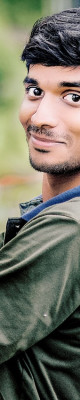
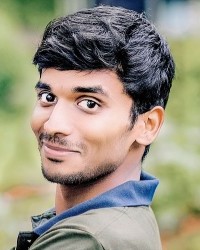
camera-640 image, which is a 640 pixel wide version of the camera image. If you replace the public ID with camera (1280 pixels wide), you'll see how the resulting image differs based on the resolution.Example 1: Crop an image to specified dimensions (width and height)
Crop the camera-640 image to a width of 200 pixels and a height of 250 pixels, with northeast gravity:
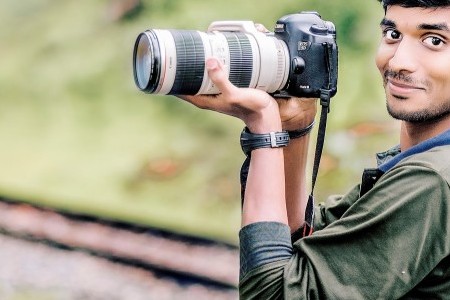
Example 2: Crop an image to specified dimensions (aspect ratio and width)
Crop the camera-640 image to a width of 450 pixels and an aspect ratio of 1.5:
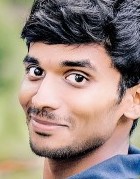
Example 3: Crop an image to keep only the face
Crop the camera-640 image without specifying dimensions, to keep only the face.
Example 4: Crop an image to keep only the largest image in a composition
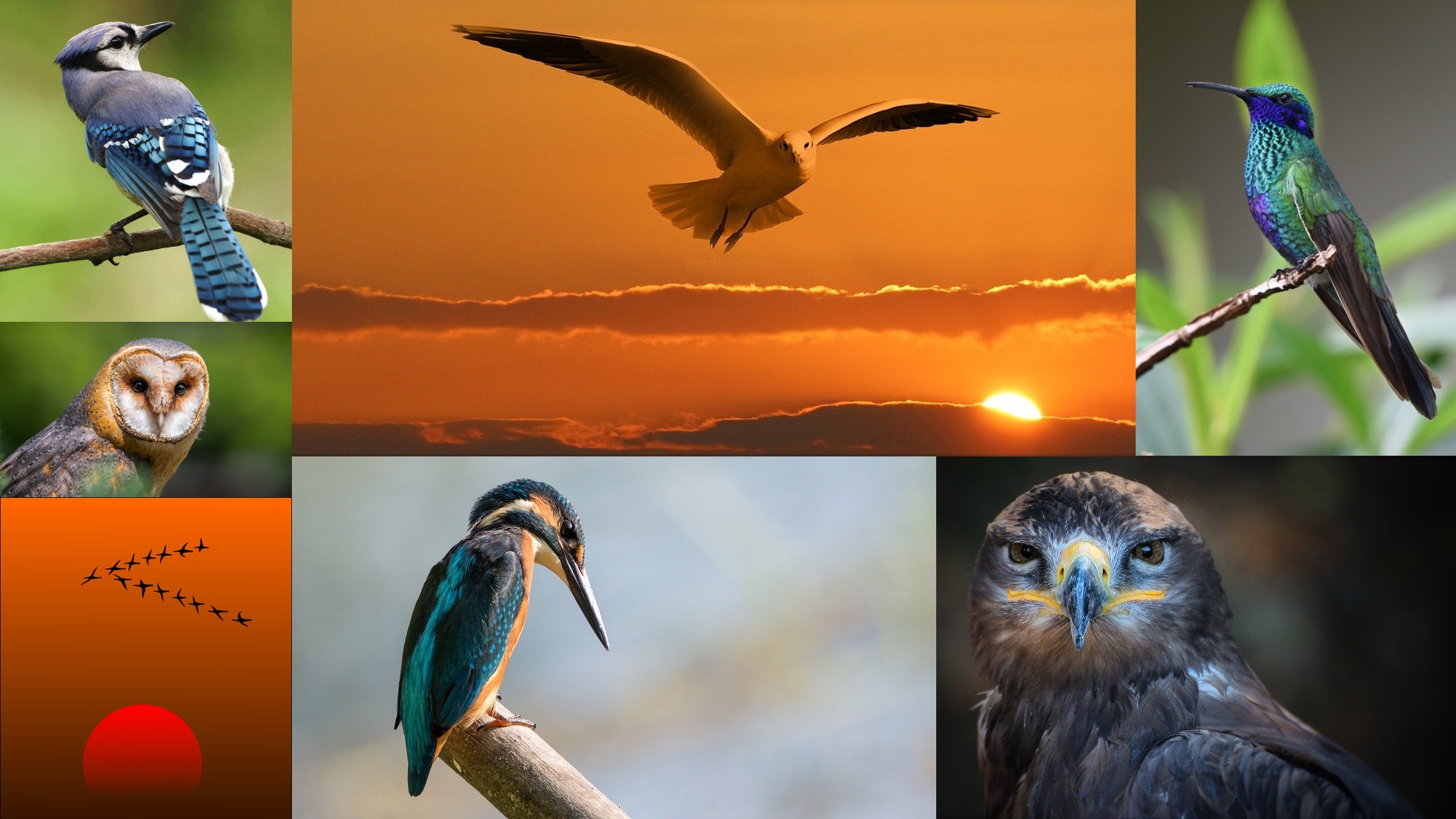
Use the cld-decompose_tile special gravity position to crop an image composed of many images, such as this, keeping only the largest "tile":

Fixed coordinates cropping
You can specify a region of the original image to crop by giving the exact coordinates of the area you want to keep. This is useful when you know beforehand what the correct absolute cropping coordinates are, as in when your users manually select the region to crop out of the original image.
To crop using fixed coordinates:
- Set the crop mode to
crop(c_cropin URLs). - Specify the
xcoordinate for the left edge of the region to keep. - Specify the
ycoordinate for the top edge of the region to keep. - Specify the
widthof the region to keep. - Specify the
heightof the region to keep.
Alternatively, you can use percentage-based numbers instead of exact coordinates for x, y, w and h (e.g., 0.5 for 50%). When using percentages, all four parameters must be percentage-based.
For example, here's the full camera-640 image (640 x 427 px).
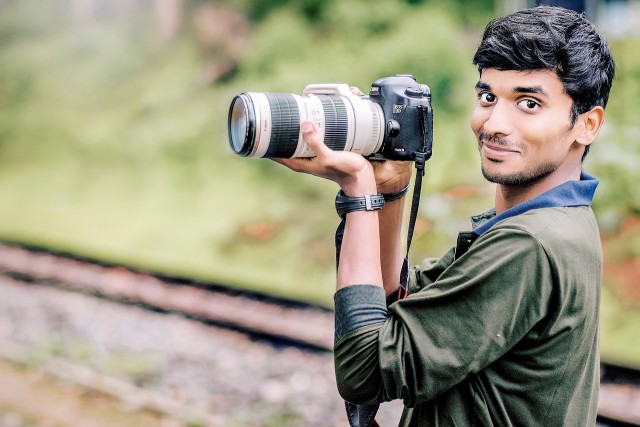
To resize the picture so that only the camera is visible, the image is cropped to a 300x170 region starting at the coordinate x = 170 and y = 40:
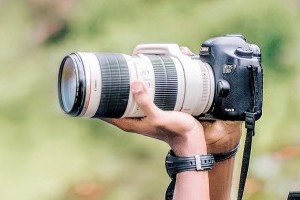
The image can be further resized with chained transformations. For example, the 300x170 cropped version above, also scaled down to half that size:
thumb
The thumb cropping mode is specifically used for creating image thumbnails and must always be accompanied by the gravity parameter. This cropping mode generates a thumbnail of an image with the exact specified dimensions and with the original proportions retained, but the resulting image might be scaled to fit in the specified dimensions. You can specify the zoom parameter to determine how much to scale the resulting image within the specified dimensions.
See full syntax: c_thumb in the Transformation Reference.
Example 1: Crop to a thumbnail of a face
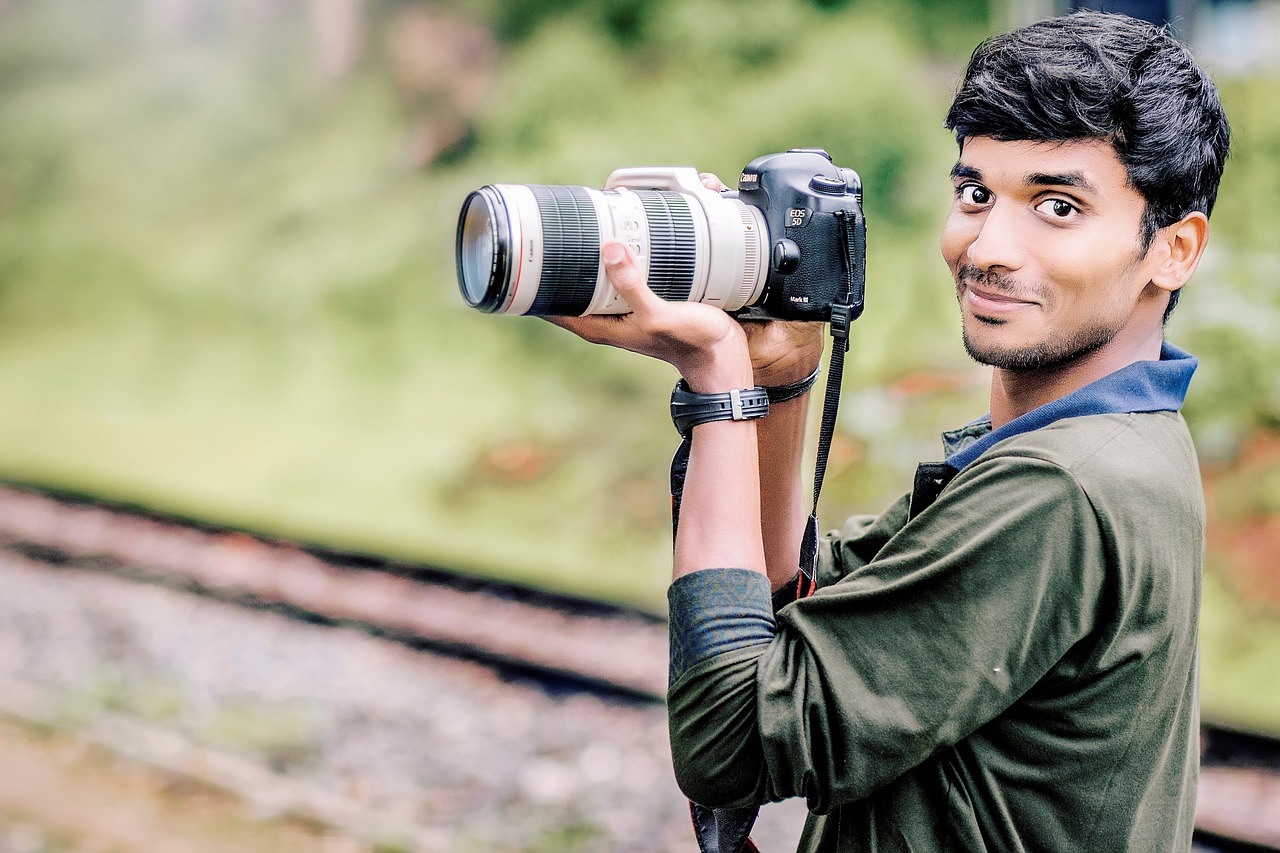
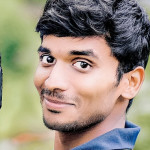
Create a 150 x 150 thumbnail with face detection, of the camera image. Below you can see the original image as well as the face detection based thumbnail:
Example 2: Crop to a thumbnail of a face using aspect ratio and zoom
Create a 150-pixel high thumbnail with aspect ratio 5:6 and face detection of the camera image, zoomed out by 75%.

auto
The auto cropping mode automatically determines the best crop based on the gravity and specified dimensions. It's less aggressive than thumb and provides more focus than fill. If the requested dimensions are smaller than the best crop, the result is downscaled. If the requested dimensions are larger than the original image, the result is upscaled. Use this mode in conjunction with the gravity parameter, in particular automatic gravity and with object aware cropping.
See full syntax: c_auto in the Transformation Reference.
Try it out: Content-aware cropping.

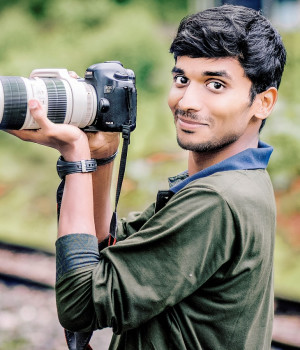
Example 1: Automatically crop to the most interesting part of the image (width and height)
Create a 300 x 350 crop of an image, automatically deciding which parts of the image to keep.
Example 2: Automatically crop to the camera (width and aspect ratio)
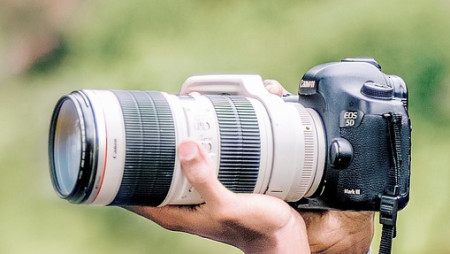
Create a 16:9 aspect ratio crop of an image, keeping focus on the camera (requires the Cloudinary AI Content Analysis add-on).
See also: Automatic gravity with the auto cropping mode
auto_pad
The auto_pad cropping mode tries to prevent a "bad crop" by first attempting to use the auto mode, but adds padding if it's determined that more of the original image needs to be included in the final image. It's especially useful if the aspect ratio of the delivered image is considerably different from the original's aspect ratio. It's only supported in conjunction with Automatic gravity (g_auto), and not supported for animated images.
See full syntax: c_auto_pad in the Transformation Reference.
Example 1: Compare standard auto cropping mode with auto_pad mode
Compare the following image delivered as a 110 x 300 image using the auto mode on the left, with the auto_pad mode on the right:
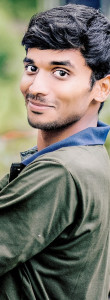 auto
auto
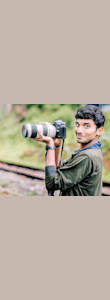 auto_pad
Example 2: Use auto_pad mode with auto_fill background
Rather than use a solid color to pad the background, use generative fill:
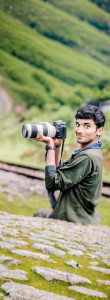
-
Image resize modes: Detailed examples of
scale,fit,limit, andmfit. -
Image padding modes: Detailed examples of
pad,lpad, andmpad. - Resizing and cropping interactive demo: Try out all crop and resize modes interactively.
Error
Rate this page:
