 Ask AI
Image padding modes
Last updated: Jun-26-2026
The padding modes resize an image to fit within a bounding box and fill any remaining space with padding. This page covers pad, lpad, and mpad. For crop modes (fill, crop, thumb, auto, and others), see Image crop modes. For resize-only modes (scale, fit, limit, mfit), see Image resize modes.
pad
The pad resize mode resizes the image to fill the specified dimensions while retaining the original aspect ratio and with all of the original image visible. If the proportions of the original image do not match the specified dimensions, padding is added to the image to reach the required size. You can also specify where the original image is placed by using the gravity parameter (set to center by default), and specify the color of the background in the case that padding is added.
If you're looking to apply padding to all sides of an image, consider using the limit pad resize mode.
See full syntax: c_pad in the Transformation Reference.
Example 1: Resize and pad an image to fill the square defined by width and height
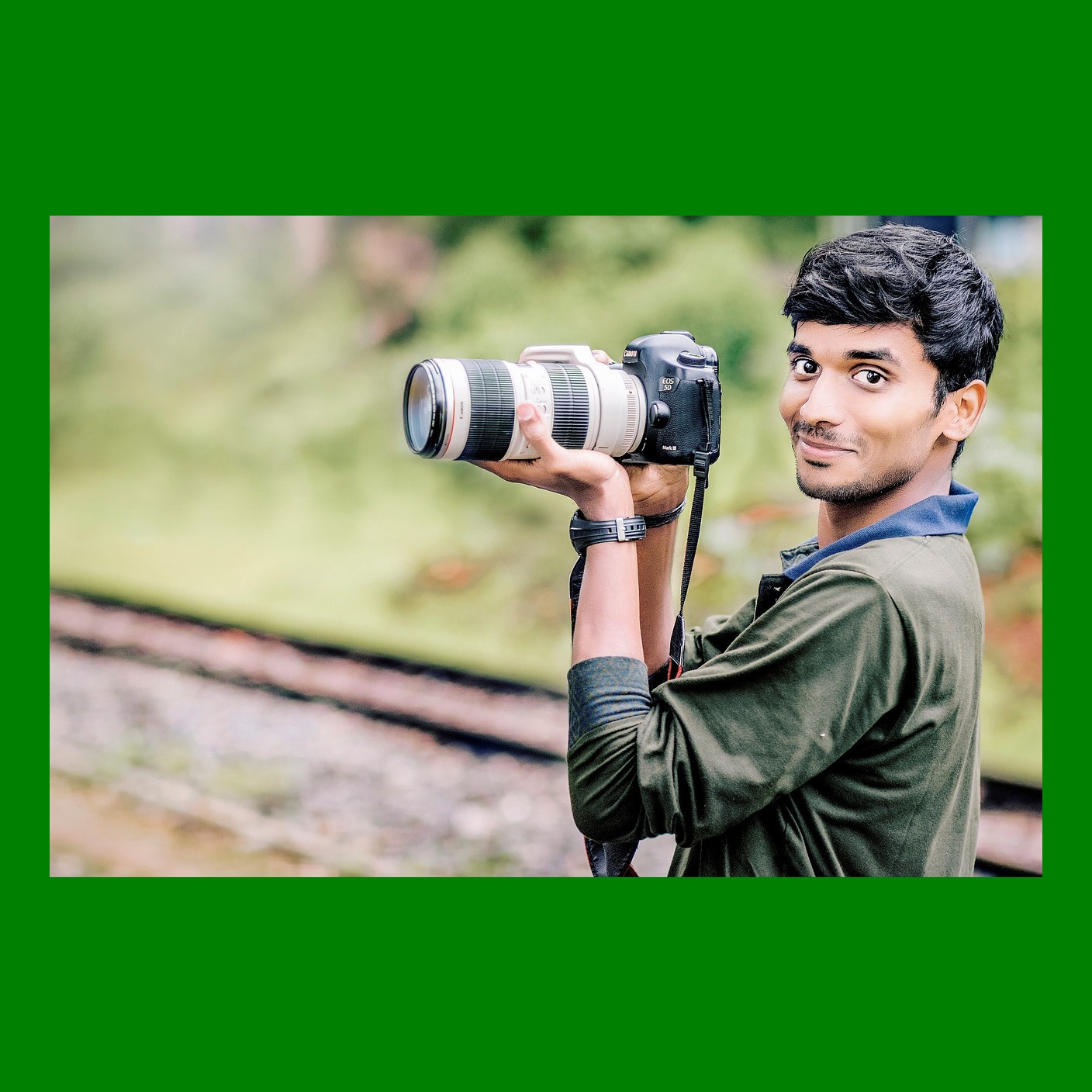
Resize and pad the camera image with a brown background to a width and height of 250 pixels:
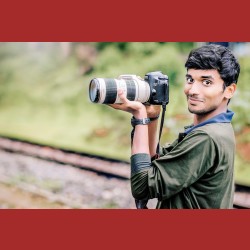
Example 2: Resize and pad an image to fill the rectangle defined by aspect ratio
Resize and pad the camera image with a brown background to a rectangle of height of 150 pixels, and aspect ratio 2:1:
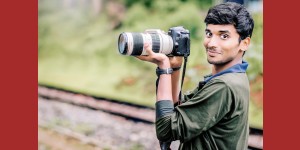
lpad (limit pad)
The lpad resize mode behaves the same as the pad mode but only if the original image is larger than the specified limit (width and height), in which case the image is scaled down to fill the specified dimensions while retaining the original aspect ratio and with all of the original image visible. This mode doesn't scale up the image if your requested dimensions are bigger than the original image's. If the proportions of the original image do not match the specified dimensions, padding is added to the image to reach the required size. You can also specify where the original image is placed by using the gravity parameter (set to center by default), and specify the color of the background in the case that padding is added.
See full syntax: c_lpad in the Transformation Reference.
Example 1: Scale down and pad an image
Limit the sample image to a bounding box of 400 x 150 pixels, and pad with a green background:
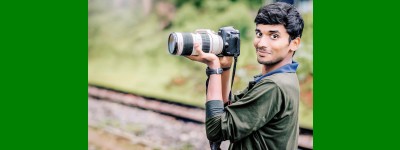
Example 2: Scale down and pad an image using aspect ratio
Limit the sample image to a bounding box specified by an aspect ratio of 0.66 with a width of 100 pixels, and pad with a green background:
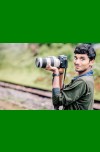
Example 3: Pad an image on all sides
Apply padding to all sides of the sample image by specifying a bounding box that's square, and has a width of 1.1 times the original width:
mpad (minimum pad)
The mpad resize mode applies padding to fill the whole area specified by the dimensions if those dimensions are larger than the original image's dimensions. This mode doesn't scale down the image if the requested dimensions are smaller than the original image's. In that case, the original image is delivered. You can also specify where the original image is placed by using the gravity parameter (set to center by default), and specify the color of the background in the case that padding is added.
You can use the mpad resize mode as a way of applying padding to all sides of an image, like a border, or frame.
See full syntax: c_mpad in the Transformation Reference.
Example 1: Pad an image to the specified width and height
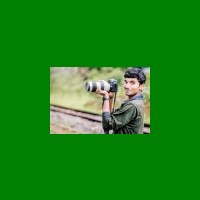
Minimum pad the 100-pixel wide image camera-100 to a width and height of 200 pixels while retaining the aspect ratio:
Example 2: Ensure an image fits a minimum bounding box using padding
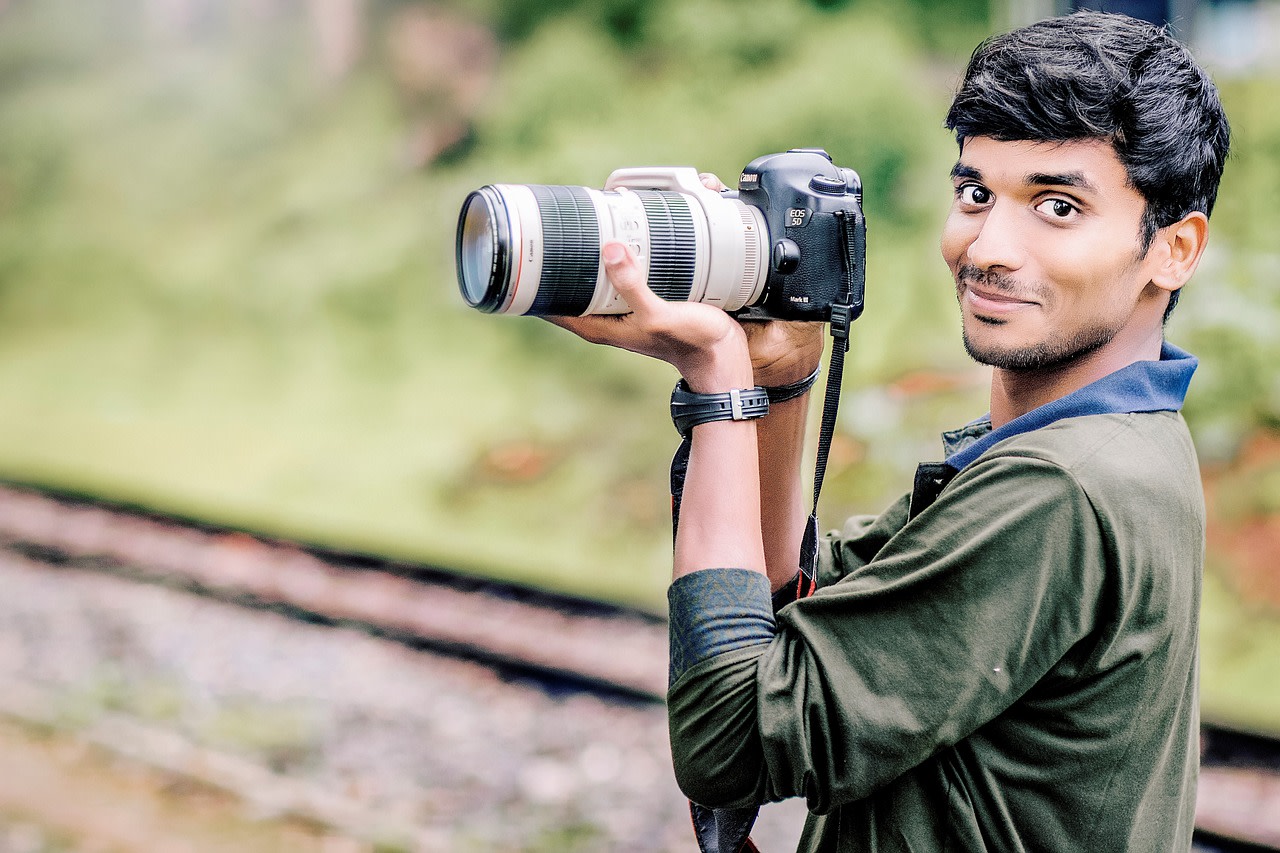
Minimum pad the camera image to a square of 200 pixels, defined by aspect ratio and width. This results in the original image being delivered, as it's larger than the dimensions specified for the padding:
Example 3: Pad non-centered image to the specified width and height
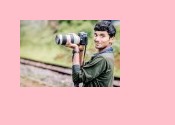
Minimum pad the 100-pixel wide image camera-100 to a 175 x 125 pixel rectangle, positioned offset from the top-left:
Example 4: Apply a border to an image
Use relative numbers for height and width to specify a border around the image:
-
Image crop modes: Detailed examples of
fill,lfill,fill_pad,crop,thumb,auto, andauto_pad. -
Image resize modes: Detailed examples of
scale,fit,limit, andmfit. - Resizing and cropping interactive demo: Try out all crop and resize modes interactively.
Error
Rate this page:
