 Ask AI
Transform and customize UGC
Last updated: Jul-27-2026
There are many transformations that you could make available to your users once they've uploaded their images or videos. Unlike incoming transformations, these transformations don't affect the stored asset, but create different versions for on-the-fly delivery.
This page presents a few ideas that you may want to consider for the four example use cases followed throughout this guide: profile pictures, video reviews, marketplace products, and try before you buy.
Recommended features by use case
The following table shows which features we recommend (marked ✅) for each of these use cases:
| Profile pictures | Video reviews | Marketplace products | Try before you buy | |
|---|---|---|---|---|
| Improve image quality | ✅ | ✅ | ||
| Change the aspect ratio of an image | ✅ | ✅ | ✅ | |
| Change the aspect ratio of a video | ✅ | ✅ | ||
| Standardize product images | ✅ | |||
| Conditionally apply transformations | ✅ | |||
| Apply a watermark | ✅ | |||
| Recompose an image for personalization | ✅ | ✅ | ||
| Help customers try before they buy | ✅ | ✅ |
Improve image quality
To ensure that your users' images are displayed at their best, there are various transformations that you can apply to improve the way they look. See the image enhancement options, which you can combine to achieve the best results.
Here, the image on the right uses generative restore, upscale, enhance and improve:


Change the aspect ratio of an image
If you need to change the aspect ratio of an image to fit a certain display layout, you have the options of padding the image to fill the extra dimensions, or cropping out certain parts of the image.
If padding, you can choose a background color for the padding, use an automatically determined color, or you can choose to use generative AI to fill the extra dimensions with realistic pixels.
 b_black
 b_auto
 b_gen_fill
If cropping, you'll want to make sure you keep the most important part of the image in the crop, which may not necessarily be in the center. You can use automatic cropping with automatic gravity to achieve this.
 Uploaded image
 Automatic Crop
Change the aspect ratio of a video
Similar to changing the aspect ratio of an image, you can resize a video to fit specific dimensions either by padding the video to fill the extra dimensions, or by cropping out certain parts of the video.
If padding, you can choose a background color for the padding, or blur the video for the padding.
b_pink,c_pad
Pad with blurred backgroundc_pad,b_blurred:400:15
If cropping, you'll want to make sure you keep the most important part of the video in the crop, which may not necessarily be in the center. You can use fill cropping with automatic gravity to achieve this.
Standardize product images
If your website is a marketplace that allows businesses to sell their products, you can help them to standardize their product images, supporting branding, and saving them valuable time ensuring that images meet specific requirements of the platform.
For example, remove backgrounds, apply the same background color, center objects, and round corners.
 Uploaded image
 Standardized product image
Conditionally apply transformations
You can apply conditional transformations to selectively transform certain images or videos. This is great for UGC use cases where you don't know what your users are uploading. You can test attributes of the media, or look at tags that may have been applied on upload.
For example, if the uploaded video has a portrait aspect ratio, then apply blurred padding when delivering it, otherwise fill the display area with the video:
Apply a watermark
You may want to add a watermark to images or videos uploaded to your site, either for branding purposes, or so that other people can't download and use the media for their own benefit.
When watermarks are applied with anti-removal, it makes them much harder to remove:
Recompose an image for personalization
Using the extract transformation, you can isolate parts of an image and recompose the image using layers. Using natural language prompts, you can make the transformation as generic as you need it to be so that it can be reused on lots of different images, assuming they have particular contents.
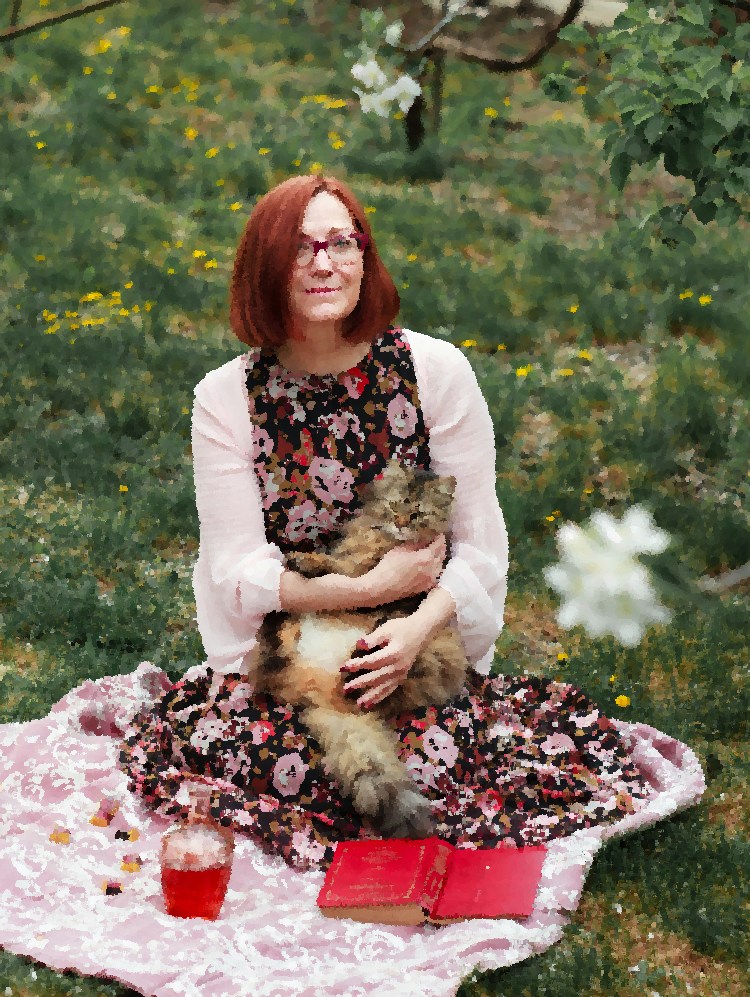
For example, if a user uploads a photo of themselves with a pet, say, for personalizing a t-shirt, you can extract just their heads, and recompose the image so they're side by side, like this:
 Uploaded image
 Recomposed image
Help customers try before they buy
A popular use case of UGC is to allow customers to visualize how your product will look in their environment, or applied to their personal items.
For example, let a customer try a different color of paint on their walls using generative recolor:
 Uploaded image
 Recolored walls
Or, try out a particular frame on their painting. Here, the painting is underlaid beneath the frame, and resized relative to the frame:
 Frame for sale
 Uploaded painting
 Framed painting for visualization
- User-generated content: Overview and the UGC workflow diagram.
- Upload UGC: Upload methods, upload behavior, access control, and transform on upload.
- Manage and analyze UGC: Moderate, scan for malware, analyze, transcribe, and automate workflows.
- Optimize and deliver UGC: Optimize on the fly and deliver videos with the Cloudinary Video Player.
Error
Rate this page:
