 Ask AI
Placing images side by side, vertically, or in a collage
Last updated: Jun-22-2026
This page covers arranging images side by side, stacked vertically, or in a collage using layer offsets. For basic layer positioning with gravity, see Layer placement. For the layer syntax itself, see Layer syntax.
You can concatenate, append, or arrange images adjacent to each other, whether side by side, stacked vertically, or in a 2×2 grid or larger mosaic. To do this, use overlays with gravity and x,y placement offsets. Instead of overlaying one image on top of another, you position each additional image outside the canvas of the base image, which automatically expands the canvas to include it.
Simple side-by-side or vertical arrangement
To place two images next to each other (concatenate them), crop both to a fixed size, then set the x offset of the second image to equal the width of the first for a side-by-side arrangement, or the y offset to equal the height for vertical stacking.
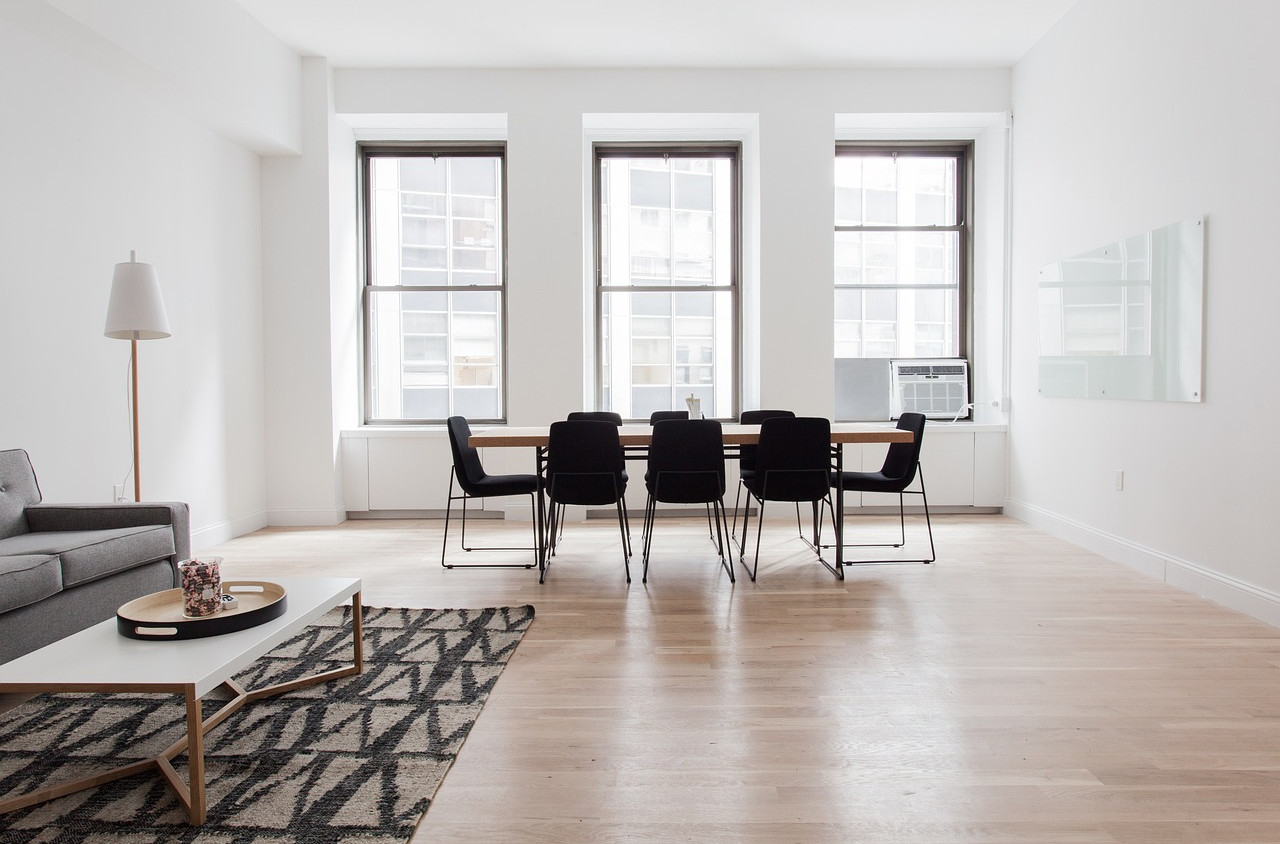
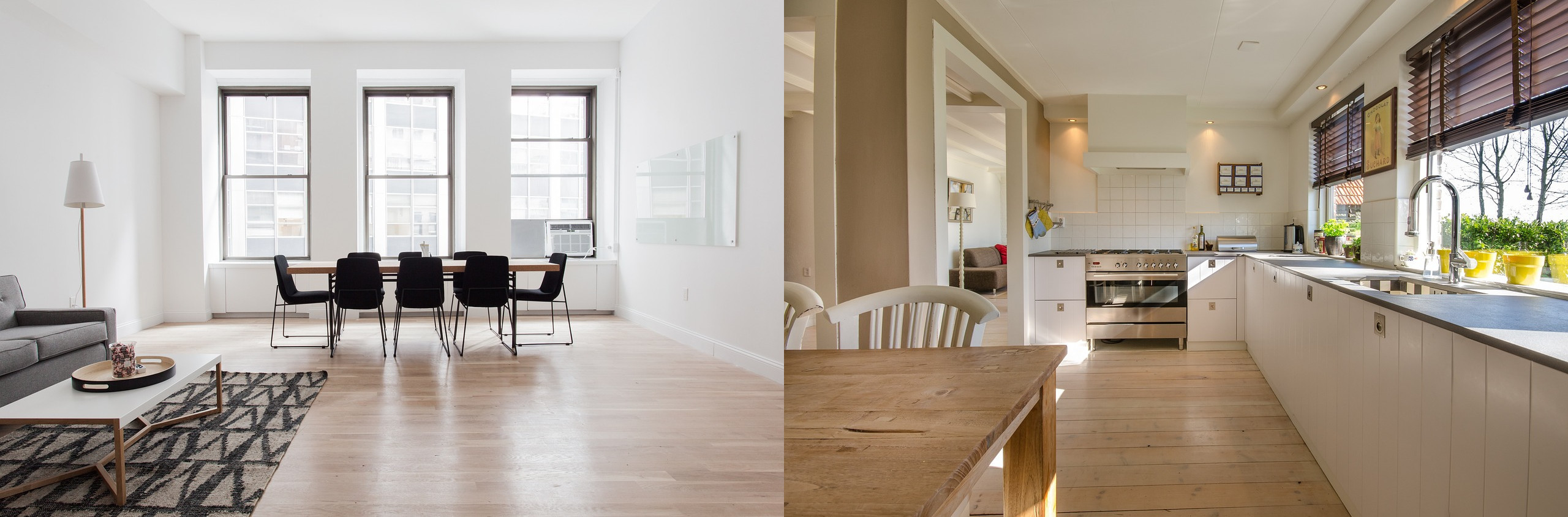
Side by side — dining room image on the left, kitchen image appended to the right:

Looking at the URL:
-
c_fill,h_300,w_400crops the base image (dining room) to 400 × 300 pixels. -
l_docs:kitchen-apartmentadds the kitchen image as an overlay. -
c_fill,h_300,w_400crops the overlay to the same 400 × 300 pixel size. -
fl_layer_apply,x_400positions the overlay 400 pixels to the right of the base image center, placing it immediately adjacent to the right edge.
Stacked vertically — dining room image on top, kitchen image appended below:

This time, the vertical (y) offset of 300 pixels places it immediately below the bottom edge.
Multi-image collages and mosaics using variables
For more complex arrangements — such as a 2×2 grid, a mosaic, or a larger collage — you can use user-defined variables such as $w_iw and $h_ih to dynamically capture each image's width and height. This approach lets you append images of any size side by side or vertically without knowing their exact dimensions in advance.
Here's an example of four apartment images combined into a 2×2 collage:
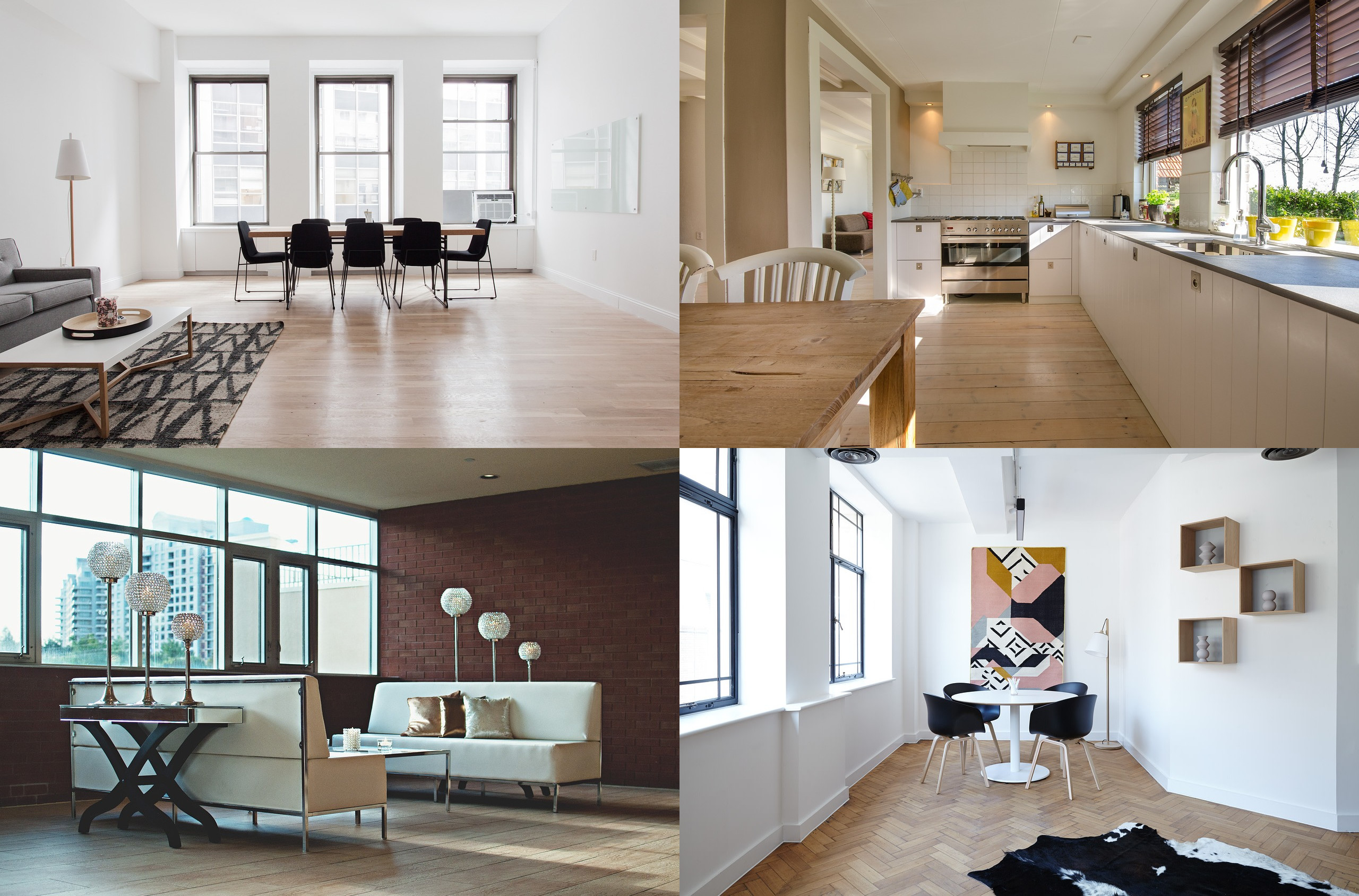
- The base image (
docs/dining-apartment) goes in the top left.
- The kitchen image appends to the right using the base image width as the
xoffset ($w_iw/l_docs:kitchen-apartment/fl_layer_apply,x_$w):-
$w_iwsets the$wvariable to the initial width of the base image. -
fl_layer_apply,x_$wpositions the overlay immediately adjacent to the right edge.
-
- The study image stacks below the kitchen image using
eastgravity and the base image height as theyoffset ($h_ih/l_docs:study-apartment/fl_layer_apply,g_east,y_$h):-
$h_ihsets the$hvariable to the initial height of the base image. -
fl_layer_apply,g_east,y_$hpositions the overlay directly below the kitchen image.
-
- The lounge image fills the bottom left corner using
south_westgravity.

You can also set fixed dimensions for each image and add spacing and background colors. For example, the following collage crops each image to 250 × 250 pixels, adds 30 pixels of spacing between them, and applies a burlywood background:
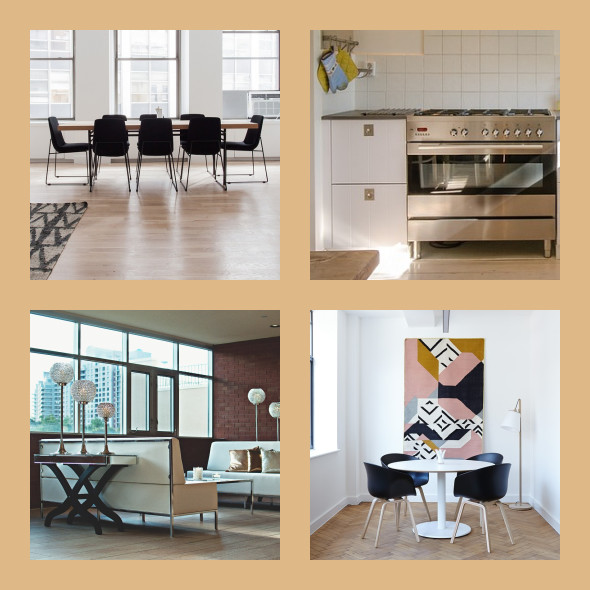
In this example:
- Each image uses
c_auto,g_autoto crop to a 250 × 250 pixel square, focusing on the most interesting area. - The
xandyoffsets include 30 extra pixels to space out the images (for example,fl_layer_apply,x_$w_add_30). - The background color uses
burlywood. - The
lpadcrop mode pads the whole collage to form a uniform border.
- Layer syntax: Learn the layer URL syntax and overlay types for images.
- Layer placement: Position layers using gravity, offsets, and overflow behavior.
- Transforming layers: Apply transformations, multiple overlays, and relative sizing to layers.
Error
Rate this page:
