 Ask AI
Image gravity for crops
Last updated: Jun-19-2026
The gravity parameter (g in URLs) controls which part of an image to keep when cropping. By default, Cloudinary keeps the center of the image. You can specify compass positions, face detection, object detection, or let AI automatically determine the best focal point.
See full syntax: g (gravity) in the Transformation Reference.
Compass positions
The basic gravity value is specified by giving a compass direction to include: north_east, north, north_west, west, south_west, south, south_east, east, or center (the default value). The compass direction represents a location in the image, for example, north_east represents the top right corner.
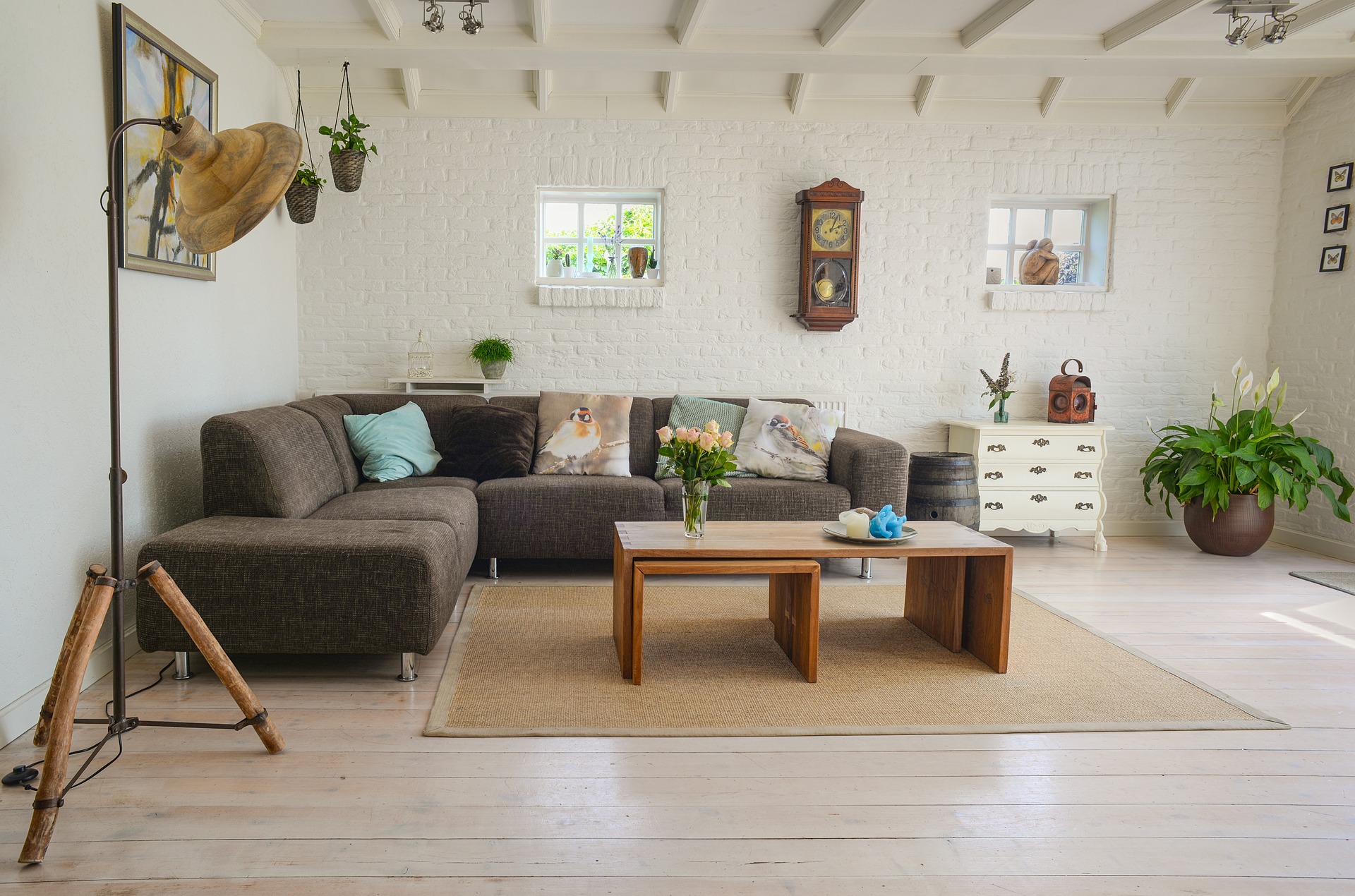
For example, fill a 250-pixel square with the sample image while retaining the aspect ratio:
- Original image:

- With gravity set to east:

- With gravity set to west:

Special positions
There are a number of special positions available to use as the focal point for image cropping, for example g_face to automatically detect the largest face in an image and make it the focus of the crop, and g_custom to use custom coordinates that were previously specified (e.g., as part of the image upload method) and make them the focus of the transformation.
Here's an example of focusing on the largest face using g_face:
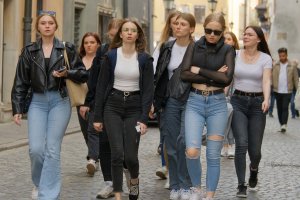 Original
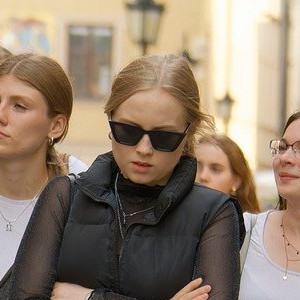 ar_1:1,w_300,c_auto,g_face
Focus on the largest face
Or, keep all the faces in the crop with g_faces:
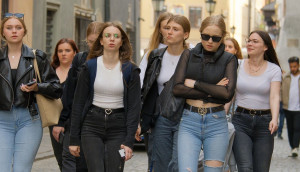
Some of the special positions require add-ons, such as the Advanced Facial Attributes Detection add-on to focus on the eyes in this case:
 Original
 c_auto,g_adv_eyes,h_70,w_210
Focus on the eyes
For a full listing of the available gravity positions, see special positions in the Transformation URL API Reference.
Object positions
Using the Cloudinary AI Content Analysis add-on, you can specify specific objects to focus on when cropping images. There are thousands of different supported objects that you can choose to focus on (see Supported objects and categories).
For example, crop this image to focus on the hat:
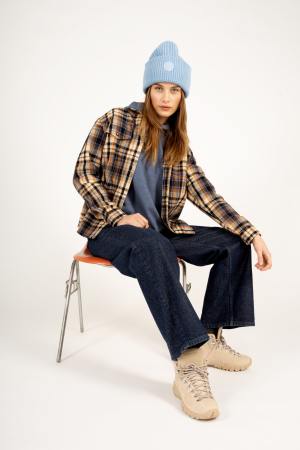 Original
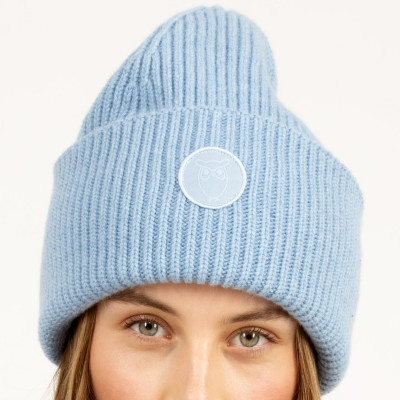 ar_1:1,c_auto,g_hat,w_400
Focus on the hat
In this case, we've used the auto cropping mode, but you can also use object gravity with the crop, thumb, fill, and lfill cropping modes.
Liquid rescaling
Content-aware liquid rescaling (also sometimes known as 'seam carving') can be useful when changing the aspect ratio of an image. Normal scaling retains all image content even when aspect ratios change, so important elements of an image can be distorted. Liquid rescaling intelligently removes or duplicates 'seams' of pixels that may zig zag horizontally or vertically through the picture. The seams are determined using an algorithm that selects pixels with the least importance (least color change on either side of the seam). The result is an image where the most 'important' elements of the image are retained and generally do not appear distorted although the relative height or width of items in an image may change, especially if you significantly change the aspect ratio.
To use liquid rescaling:
- Set the crop mode to
scale(c_scalein URLs). - Set the gravity to
liquid(g_liquidin URLs). - Specify your desired dimensions (width and/or height).
Tips for best results:
- Liquid gravity works best when applied to scenic images with large 'unbusy' sections such as sky, grass, or water.
- It works best when applied to larger images. Use this gravity to change aspect ratio using relative widths and heights, where one of the two dimensions remains at or close to
1.0. - If you also want to resize the image, apply the resize on a different component of a chained transformation.
- In some cases, over-aggressive liquid rescaling can result in significant artifacts.
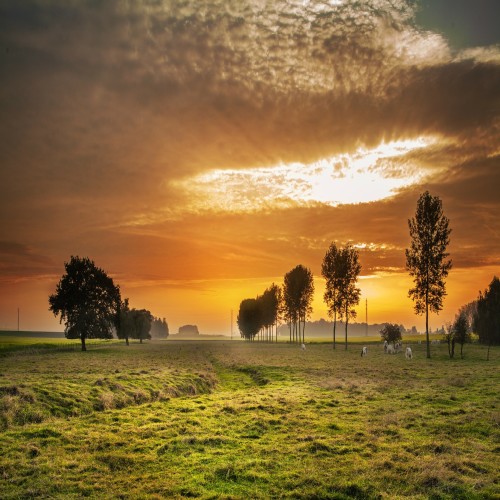
For example, using liquid scaling to change an image to a square (aspect ratio of 1:1) based on the original image width, and then resize the result to 500x500:
- Image automatic gravity: AI-powered gravity for intelligent cropping based on content.
-
Image crop modes: Detailed examples of
fill,lfill,fill_pad,crop,thumb,auto, andauto_pad. -
Image resize modes: Detailed examples of
scale,fit,limit, andmfit. - Resizing and cropping interactive demo: Try out all crop and resize modes interactively.
Error
Rate this page:
