 Ask AI
Video transition effects
Last updated: Jul-22-2026
Use transition effects when concatenating videos or combining videos with images. This page covers cross fade transitions and the deprecated custom transition workflow. For basic concatenation syntax, see Video concatenation.
Cross fade transitions
You can cross fade between videos or between videos and images, by adding a transition to the splice flag. The transition takes the name of a supported cross fade transition and a duration. Try out each of the transitions using the interactive demo.
Cross fading overlaps the assets for the duration of the transition. Therefore, the total video length is less than the sum of the concatenated parts. The duration of the transition that you specify must be less than the length of each of the videos that you're concatenating.
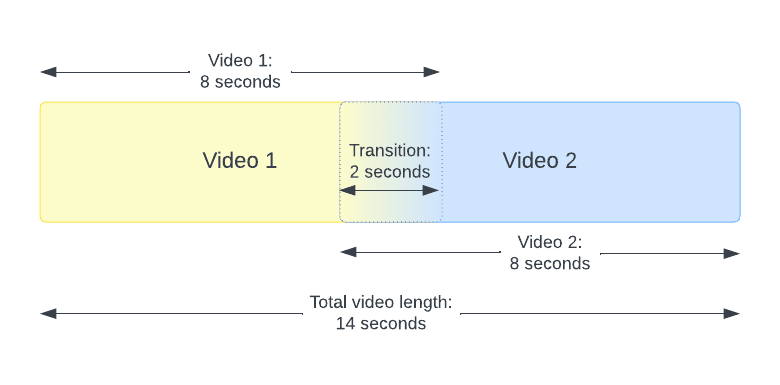
In the following example, the living space video cross fades into the kitchen video using a transition called circleopen for two seconds (fl_splice:transition_(name_circleopen;du_2)):
In this next example, the video cross fades into an image of a house using the fade transition for three seconds (fl_splice:transition_(name_fade;du_3)):
You can also create a slideshow out of images, using an underlying blank video. The blank video fades into the first image with a default transition of one second:
Cross fade transitions interactive demo
Use this interactive demo to see how the different transitions look.
Choose a cross fade transition, then click the button to generate the new video.
Custom transitions
Cloudinary supports the concatenation of videos with a custom transition by including a transition video as an additional layer and specifying the transition effect (e_transition in URLs).
splice flag when concatenating with a custom transition.To add a custom transition:
- Add your base video as usual.
- Add the second video using the overlay video parameter (
l_video: in URLs), ensuring height and width are the same as the base video. - Specify the transition video as follows:
- Add a luma matte transition video using the overlay video parameter (
l_video: in URLs). - Specify the
transitioneffect to use this video overlay as a transition between the base and second video. - Add the
layer_applyflag (fl_layer_apply) to close the transition layer.
- Add a luma matte transition video using the overlay video parameter (
- Add a second
layer_applyflag to close the second video layer. For more information, see the documentation on layer_apply.
Here's an example showing the walking video transitioning to the sunglasses video:
Transition videos with luma matte
A luma matte transition video is a grayscale video that uses lightness values to indicate the transparency (alpha channel) of two transitioning videos. For example, the base video will be transparent in the completely white areas and opaque in the completely black areas of the matte. The second video will then be visible in the areas of transparency of the base video; anywhere between will show both videos with the opacity of each determined by the lightness values.
You need to upload your own luma matte transition videos to your Cloudinary product environment. The examples in this section use luma matte videos from the Cloudinary demo product environment:
The transition you see above starts black and adds increasing areas of white. When applied as a transition video, the base video will display first and the second video will take up increasing space until none of the base video is visible.
As the luma matte is a video itself, you can also add transformations in the same way you would with any other uploaded video. For example, you can use the accelerate effect (e_accelerate) to adjust the speed of the transition or flip the transition using the angle parameter (a in URLs). You'll need to be careful when applying transformations to the matte as this could cause issues with the transition, particularly if you change the aspect ratio. Here's the same video as above with the transition slowed to 5 seconds and flipped 180 degrees:
You can concatenate multiple videos with (and without) transitions by chaining additional videos and transition overlays. Here's an example of two transitions followed by a standard fl_splice concatenation (with no transition):
Related topics
Error
Rate this page:
