 Ask AI
Manage and assign roles in the Console
Last updated: Oct-21-2026
- Free and self-serve paid accounts: All free and self-serve paid accounts have been migrated to the new Roles and Permissions system. Use this guide.
- Enterprise accounts: Enterprise rollout has begun. If your team hasn't already been moved with Cloudinary's help, you're still on the legacy system. See Role-based permissions.
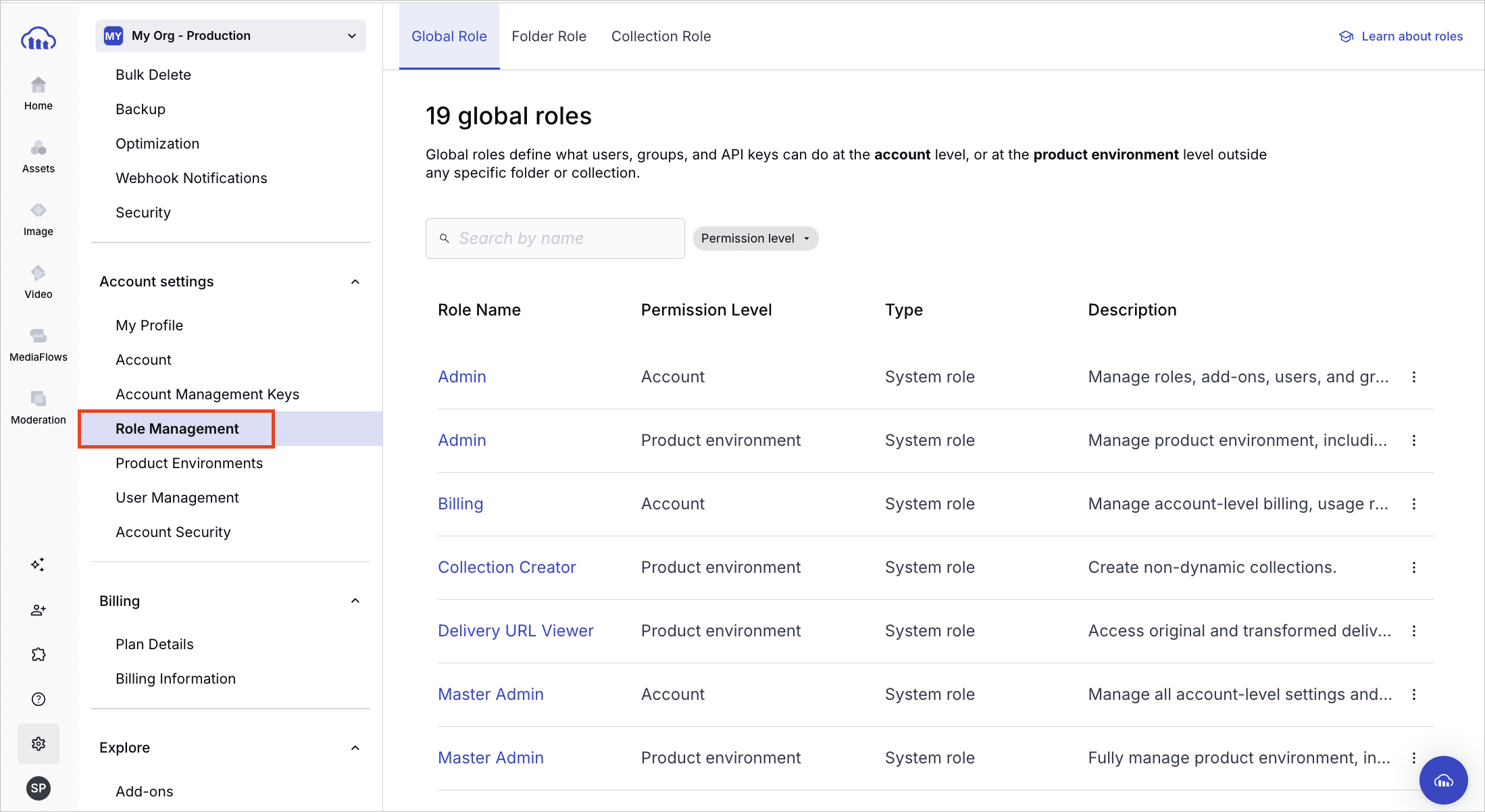
You can confirm which permissions system you have. Open Console Settings and look for Role Management. If it's listed, your account is on Roles and Permissions. If it isn't listed, you're still on the legacy permissions model.
- For a quick comparison, see Roles and Permissions vs. legacy.
- If your account is being migrated, see Migrating to Roles and Permissions to understand what changes.
Overview
Use the Cloudinary Console to define and manage roles that control access to features, settings, assets, and other types of content. Roles are reusable sets of granular permissions that you assign to users and groups to manage access within the Console, or to API keys to control what developers and applications can do via Cloudinary's APIs.
To view and manage roles, go to the Role Management page in Console Settings and select the Global Roles, Folder Roles, or Collection Roles tab.
Manage roles with granular permissions
You can:
- View global, folder, and collection system roles
- View, create, edit, and delete global and folder custom roles (Enterprise plans only, not available on the Free plan or on self-serve paid plans)
All roles contain permissions (called system_policies in the API) that are pre-defined by Cloudinary. These permissions determine what the role allows.
- System roles include a fixed set of permissions. You can view them, but you can't choose which ones to include.
- Custom roles let you choose which permissions to include, giving you granular control over access.
-
Global roles apply permissions broadly, either:
- On the account level (such as user management or billing management)
OR
- To specific capabilities (such as upload presets and transformations), or across all folders and collections in a product environment.
- On the account level (such as user management or billing management)
- Folder roles and collection roles grant permissions to specific entities within a product environment (e.g., download all assets in the Accessories folder or add assets to the Winter Campaign collection).
To learn more about role types, see Key role attributes.
The following sections explain how to handle roles of all different types.
Video tutorial: View global roles and create your own
This video is brought to you by Cloudinary's video player - embed your own!
Use the controls to set the playback speed, navigate to chapters of interest and select subtitles in your preferred language.
View all roles
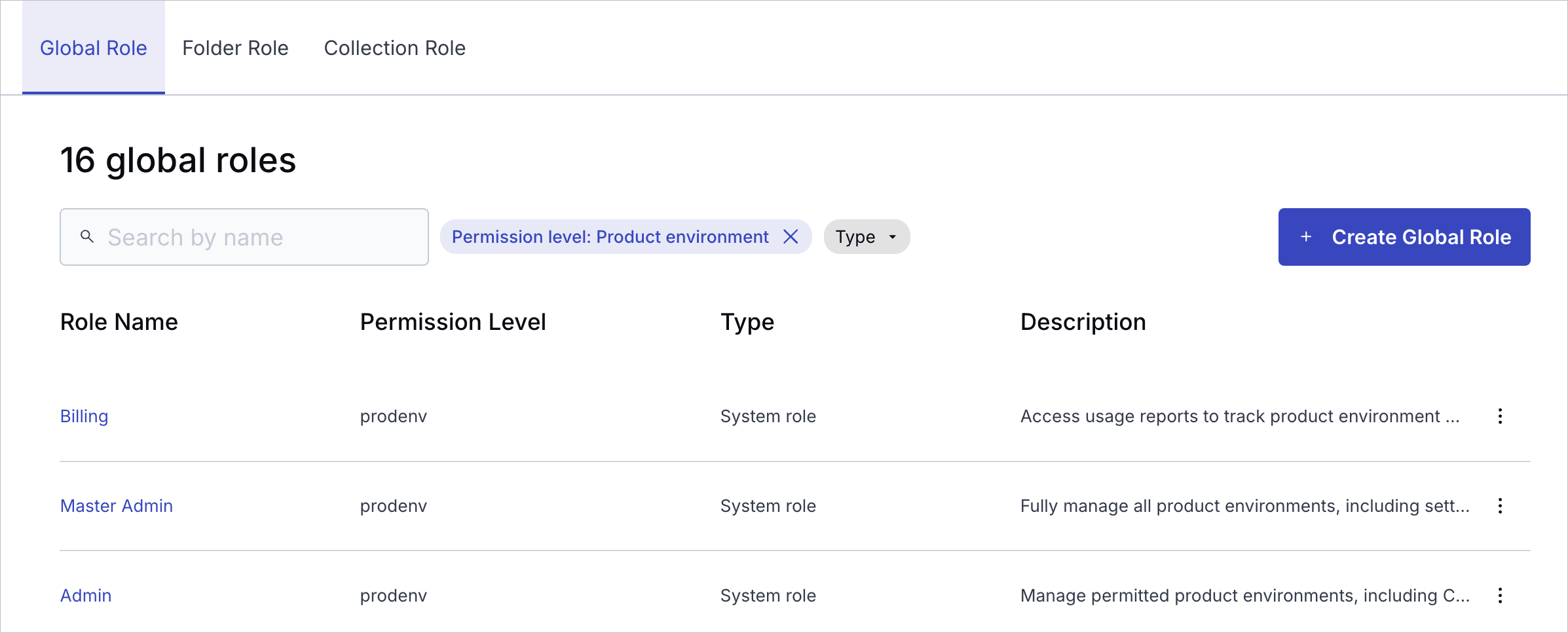
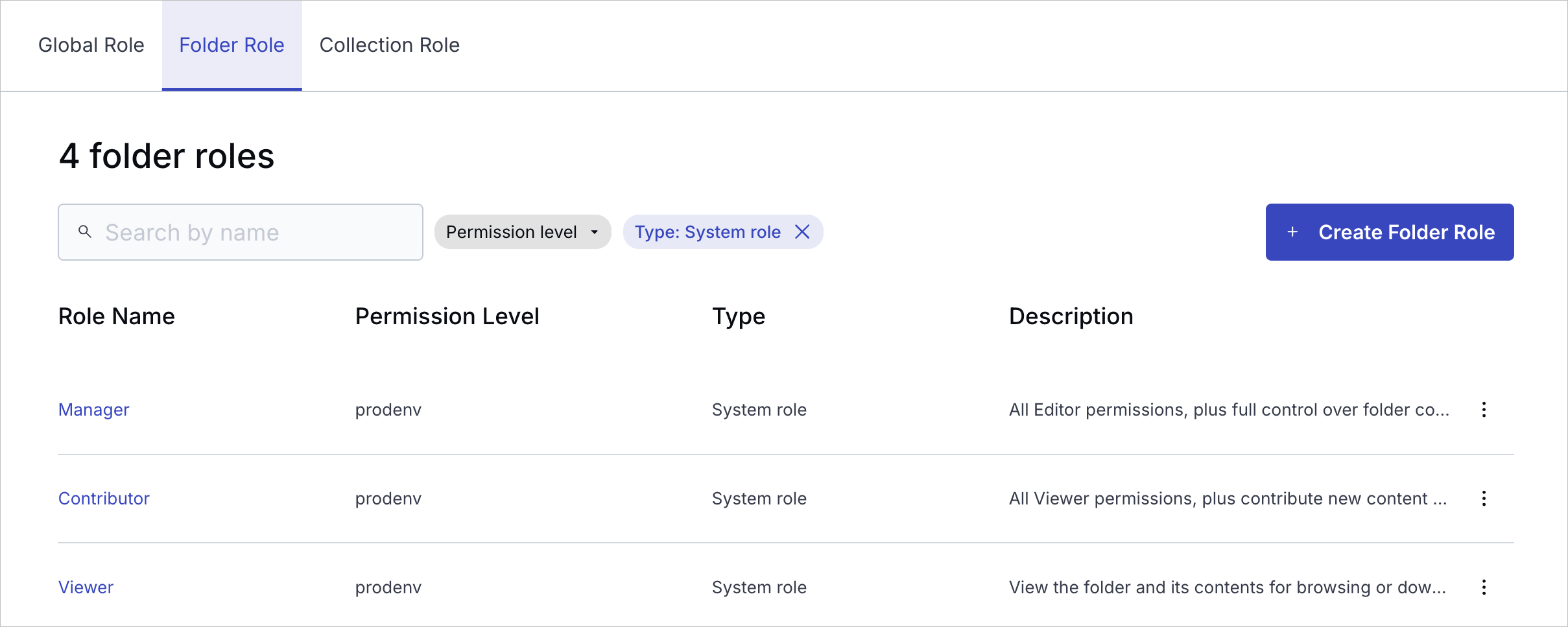
The Role Management page includes separate tabs for Global Roles, Folder Roles, and Collection Roles.
All tabs display:
- A role count at the top
- Filters tailored to that role type
- A table of existing roles with the following columns:
- Role Name: Name of the role. You can click it to view details (system roles) or edit (custom roles).
- Permission Level (scope): Whether the role applies at the account level or to product environments. Folder and collection roles are always scoped to a single product environment.
- Type: Indicates whether the role is a System Role (predefined by Cloudinary) or a Custom Role (created by your organization).
- Description: Optional explanation of the role's purpose.
The Global Role and Folder Role tabs have a Create Role button for creating custom roles for global and folder roles. However, you can't create custom collection roles.
Global role management:
Folder role management:
Collection role management:

View role details
In the roles tables of Role Management tabs, you can see each role's name, permission level, type, and description.
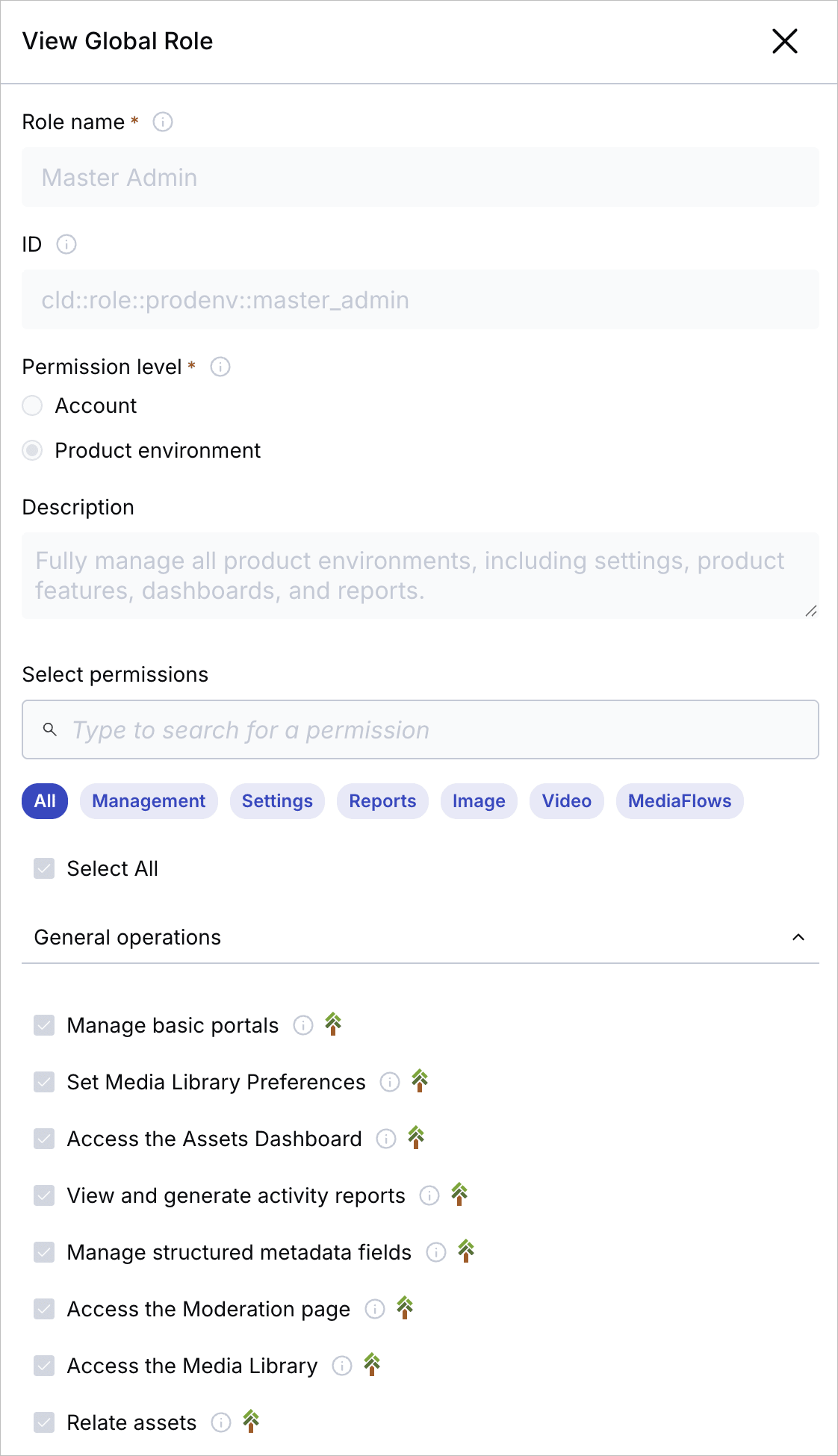
To understand what a role actually allows, open the role's details to view its specific permissions.
To view the role's details:
Select View (for system roles) or Edit (for custom roles) from the (3-dots) options menu.
 Global role
 Folder role
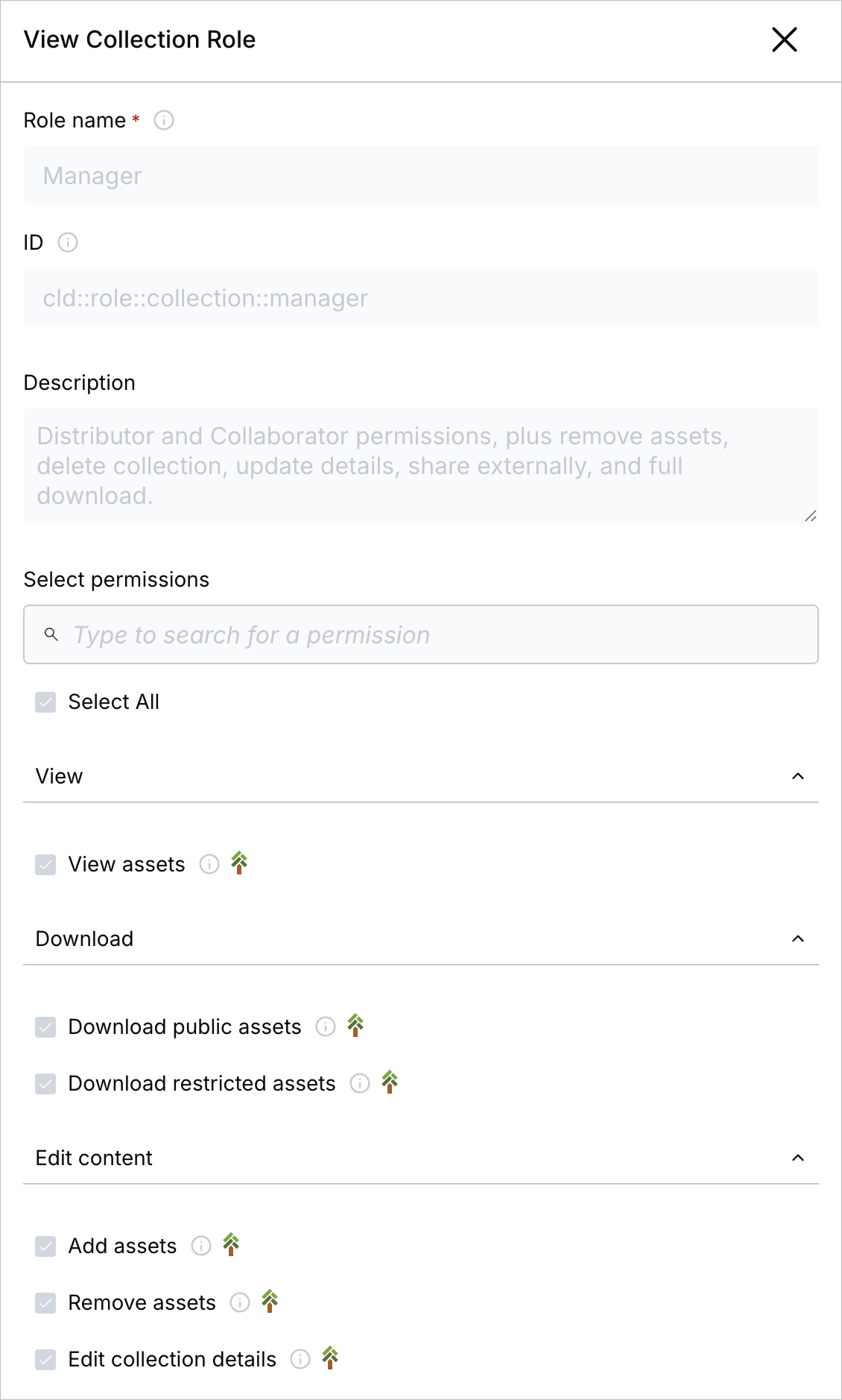 Collection role
Role details
The panel displays the following details:
- Role name: The name shown in the roles tables of Role Management tabs.
- Role ID: Useful for developers when assigning roles programmatically.
- Permission level: For global roles only, indicates whether the role applies at the account or product environment level. All folder and collection roles are product environment–level.
- Description: A summary of the role's purpose shown in the roles tables of Role Management tabs.
- Permissions list: Displays all available permissions for the selected role type, with the assigned ones checked.
Role permissions
You can see a list of all the permissions included in the role.
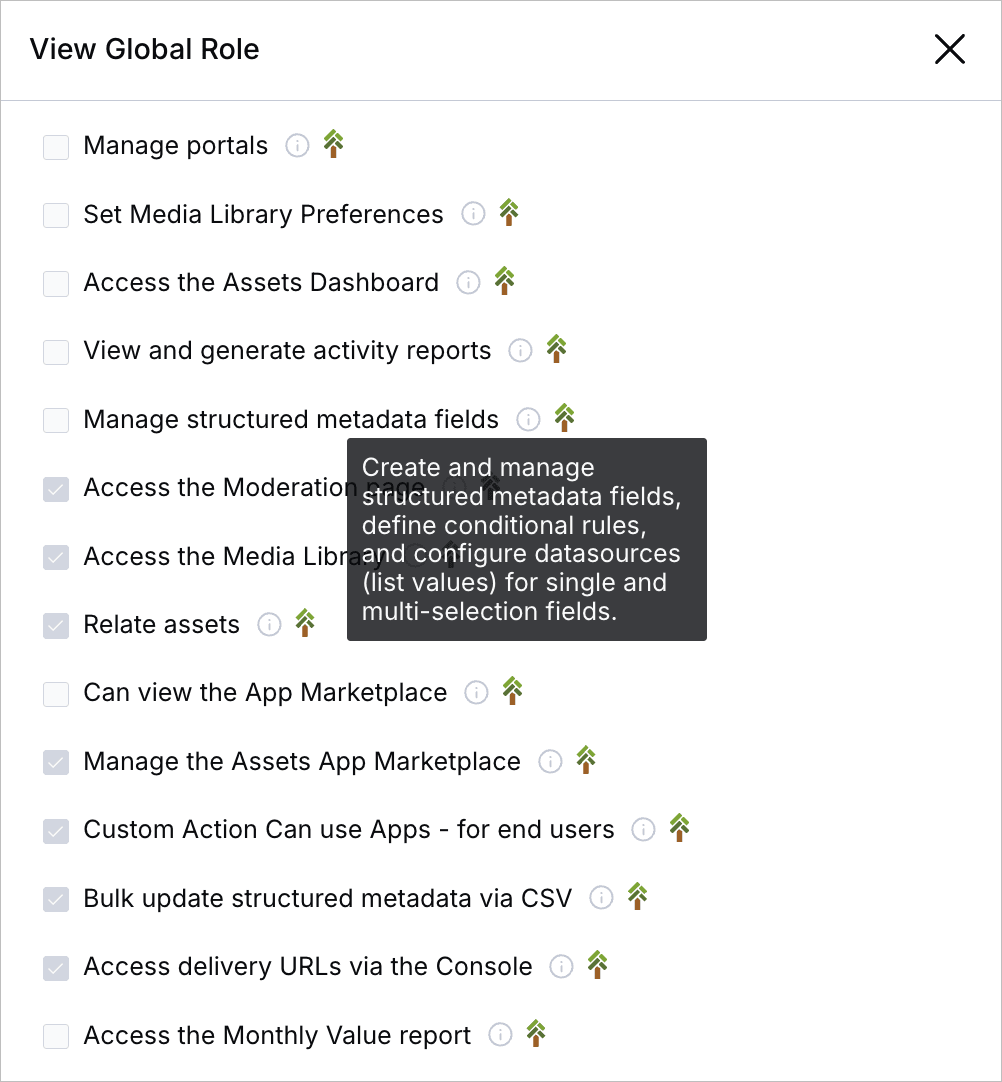
You can expand tooltips with additional information to help you understand what each permission enables:
- Hover over the
iicon to view a tooltip that describes what the permission allows. - Hover over the tree icon to see the corresponding system policy statement, which specifies the exact resources, features, and actions the permission grants access to.
Here's a global role example of an expanded tooltip:
Create custom roles
You can only create custom roles for global and folder roles, but not for collection roles.
When creating custom roles, you can customize the same attributes you see when viewing role details.
When creating a new custom role, you define the Role name and Description. Additional options include:
- ID: The unique identifier for this role. You can enter a custom ID that follows your company's naming conventions, or leave it blank to have one auto-generated.
- Copy from existing role (global roles only): Use an existing role as a template.
- Permission level (global roles only): Specify whether the role applies at the account level or in product environments.
- Permissions: Select the system policies to include in the role. These determine what users with the role are allowed to do.
 Create global roles
 Create folder roles
Permission levels and available permissions
All roles have a permission level, which determines where the role applies and which permissions you can include in the role.
-
When creating a global roles, you choose whether the role applies at the account level or at the product environment level.
The permission level you select determines which permissions are available in the role creation form. The list of permissions is dynamically filtered to match your chosen level.
ImportantAssigning a global role at the product environment level doesn't grant access to the product environment itself. To explicitly assign access to product environments, see Grant product environment access to existing users. -
Folder (and collection) roles are always scoped to a product environment.
They’re assigned from within specific content areas (folders or collections) that are inherently tied to a single product environment.
Edit custom roles
While system roles are view-only, you can edit custom Global and Folder roles.
To edit custom roles:
Click Edit from the role's (3-dots) option menu. The Edit Role panel displays the same information as the View Role panel.
From the Edit Role panel, you can change the role's name, description, and permissions. You can't change the permission level (global roles only) or role ID (global and folder roles).
Assign roles
You can assign roles to groups, users, product environment API keys, and account management keys.
This section covers:
-
Define access when inviting new users
Grant new users access to product environments and assign account and product environment roles during the invitation process, either directly or via groups. -
Create and manage groups
Create groups with shared permissions to simplify managing multiple users. -
Assign global roles to existing users directly
Add or remove roles for individual users. -
Grant product environment access to existing users
Grant access to product environments for existing users.NoteAssigning product environment roles doesn't automatically grant access to those environments. -
Assign folder and collection roles to users and groups
Grant access to specific folders and collections from within the Media Library. -
Assign roles to API keys
Grant permissions to product environment and account management keys.
Define access when inviting new users
When inviting new users, you must define their access permissions. You can do this in one of the following ways:
- Select an access bundle to quickly apply a predefined access type.
- Customize access by manually assigning specific roles for the account and product environments.
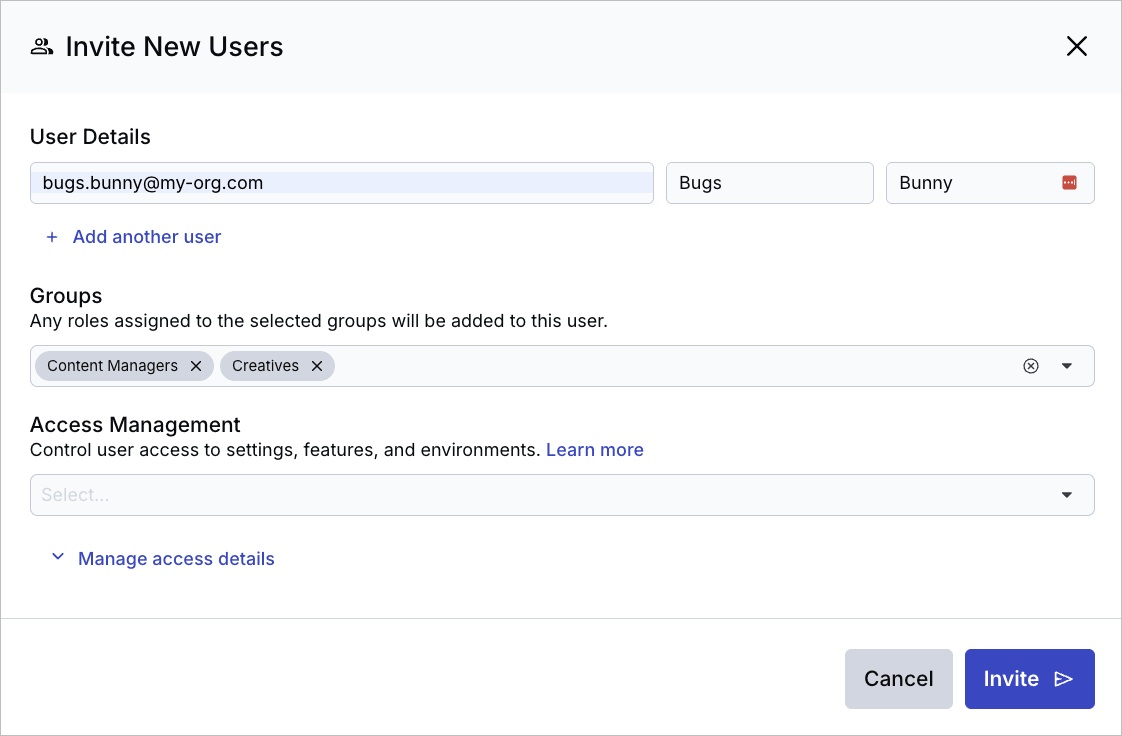
- Add new users to groups to inherit existing group roles.
To invite users and grant them access, go to User Management > Users and click Invite.
Access bundles
The easiest way to assign access permissions to new users is by selecting an access bundle. Access bundles automatically apply predefined sets of roles that grant account-level and/or product-environment–level permissions.
If the bundle includes product environment roles, they apply to all product environments.
Each access bundle represents a permission profile designed to match common user types, from full administrators to focused Media Library users. Only one access bundle can be applied per user invitation.
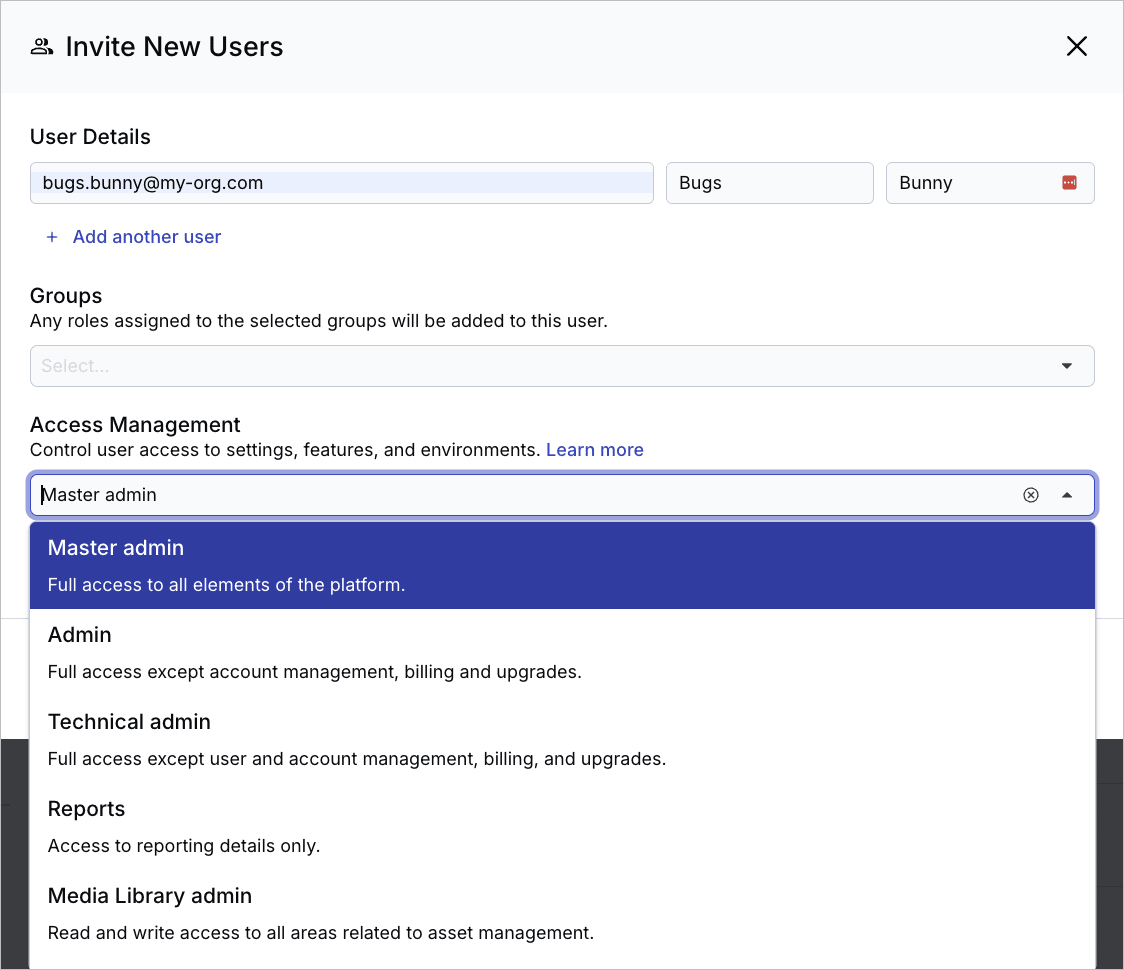
Here's a summary showing what each access bundle applies:
| Access Bundle | Description | Roles |
|---|---|---|
| Master Admin | Full access to all elements of the platform. | Assigns account and product environment Master Admin roles for all product environments. |
| Admin | Full access except account management, billing, and upgrades. | Assigns account and product environment Admin roles for all product environments. |
| Technical Admin | Full access except user and account management, billing, and upgrades. | Assigns account and product environment Technical Admin roles for all product environments. |
| Billing | Access to billing, usage reports and upgrades only. | Assigns account and product environment Billing roles for all product environments. |
| Reports | Access to reporting details only. | Assigns account and product environment Reports roles for all product environments. |
| Media Library Admin | Read and write access to all areas related to image and video management. | Assigns the product environment Media Library Admin role for all product environments. |
| Media Library User | Controlled access to assets and their management. | Assigns the product environment Media Library User role for all product environments. |
Customize access for new users
You can customize access for invited users beyond the predefined options offered by access bundles.
To customize access:
- Select an access bundle from the Access Management dropdown.
- Click Manage access details to view and adjust the predefined selections. The section expands, and the button changes to Hide access details to collapse it.
OR
- Select Custom access from the Access Management dropdown to configure roles from a clean slate. When selected, the Manage access details section expands automatically.
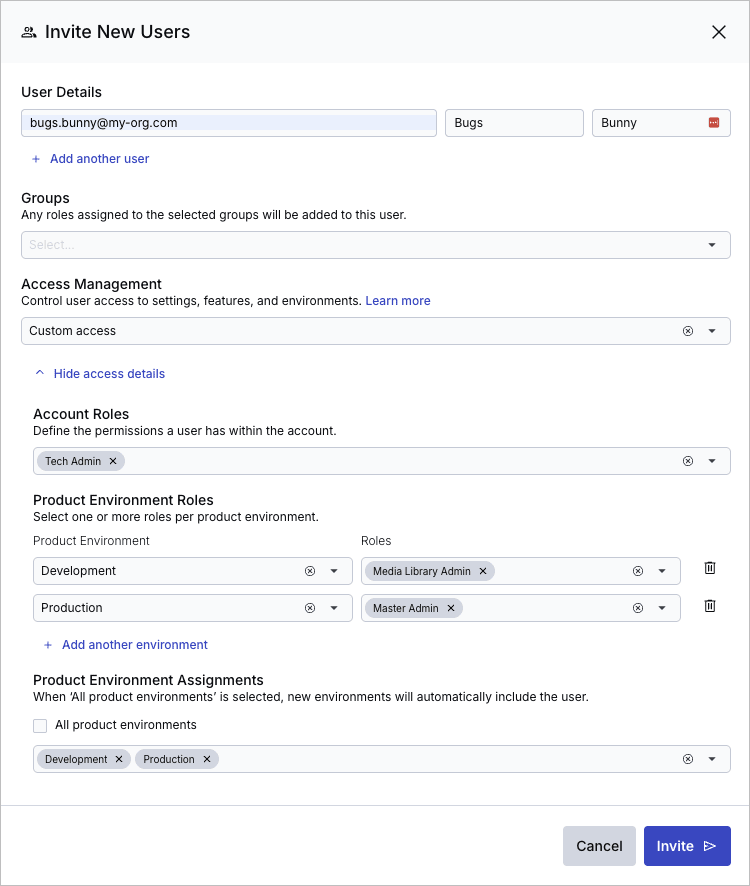
When customizing access:
- You must assign at least one role, either account-level or product-environment–level.
- You can assign roles for both levels, but it’s not required.
In the Access Management details section:
- Under Account Roles, select one or more account-level roles.
- Under Product Environment Roles, choose a product environment and the roles to assign.
- You can add multiple product environments and assign different roles to each.
- You can also select All product environments to apply the selected roles to all product environments.
- Either assign All product environments to grant access across all product environments, or select individual product environments manually.ImportantIf you assign roles to specific product environments, ensure those same environments are selected under Product Environment Assignments, or select All product environments.
Add new users to groups
If you've already created groups, you can assign new users to them. They automatically inherit all roles assigned to those groups.
However, this action doesn't assign group members to product environments. Once you've invited the users, assign product environments to them individually in order for the group permissions to take effect. For more information, see Grant product environment access to existing users.
Create and manage groups
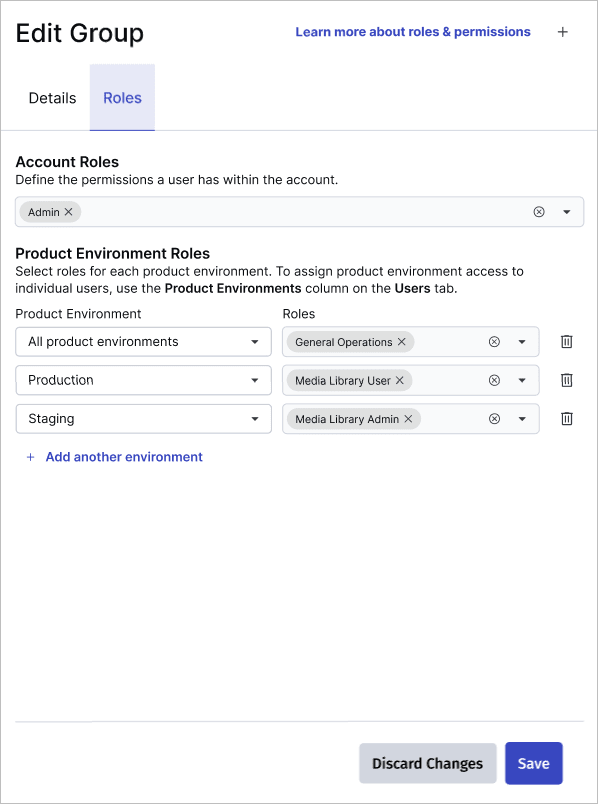
Group roles allow all group members to inherit the same permissions, making it easier to manage teams with shared access needs. Users inherit all roles from the groups they belong to. Managing roles through groups helps apply consistent permissions across multiple users and simplifies ongoing governance.
Create groups
Plan your governance and decide which groups of employees need to perform similar functions in Cloudinary. Based on that plan, create the groups, add users, and assign roles.
- Go to User Management > Groups.
- Click Create a Group.
- From the Details tab, give the group a meaningful name and add users to the group.

- Select the Roles tab to assign permissions.

- Under Account Roles, select one or more account-level roles.
- Under Product Environment Roles, choose a product environment and the roles to assign.
- You can add multiple product environments and assign different roles to each.
- You can also select All product environments to apply the selected roles to all product environments.

Edit existing groups and manage group membership
Once you've created groups, you can edit their membership or role assignments at any time.
Video tutorial: Assign global roles to groups
This video is brought to you by Cloudinary's video player - embed your own!
Use the controls to set the playback speed, navigate to chapters of interest and select subtitles in your preferred language.
Step-by-step instructions
To edit group membership or roles:
- Go to User Management > Groups.
- Click the name of the group.
- From the Details tab, add or remove users.NoteBecause group membership can give you permissions you don't already have, you can't add yourself to a group in the Console. When you add users to an existing group, you aren't listed. If you select yourself when you create a group or add selected users to a group, the other users are added, but you aren't. Another user with user management permissions can add you, and you can still remove yourself from a group. The root user isn't subject to this restriction.
- From the Roles tab, add or remove account and product environment roles.
principal_type=group, which supports groups as well as individual users.Assign groups to users
You can also assign groups to users directly from the Users tab.
To assign groups from the Users tab:
- Go to User Management > Users.
- Click the value in the user's Groups column to open the Edit User Details dialog box.
 NoteYou'll only see the Groups option if groups already exist. For more information on creating new groups, see Create groups.
 - Select or remove groups.

Assign global roles to existing users directly
You can assign roles to users when you initially invite them, but you can grant or remove additional roles or groups later.
You can edit user access at any time, either directly or by updating group membership.
To edit roles for existing users directly:
- Go to User Management > Users.
- From the user’s context menu, select Assign Roles.
- Under Account Roles, select one or more account-level roles.
- Under Product Environment Roles, choose a product environment and the roles to assign.
- You can add multiple product environments and assign different roles to each.
- You can also select All product environments to apply the selected roles to all product environments.

Grant product environment access to existing users
Product environment access is typically defined during the user invitation process, but you can grant or remove access later as needed.
When you assign product environment roles to a user, you're defining what they can do within that environment. However, assigning roles doesn't automatically grant them access to view or work in that environment. You must explicitly assign the product environment itself to give the user access.
To grant product environment access:
- Go to User Management > Users.
- In the Product Environments column, click the edit icon.
- Select the product environments to assign.

Assign folder and collection roles to users and groups
Content roles apply to specific folders or collections. You can assign these roles to users and groups from the Media Library using the Share menu, or via the Permissions API.
Video tutorial: Assign folder roles to users and groups
This video is brought to you by Cloudinary's video player - embed your own!
Use the controls to set the playback speed, navigate to chapters of interest and select subtitles in your preferred language.
Step-by-step instructions
Follow the instructions for granting permissions to folders and collections:
Assign roles to API keys
Product environment API keys
Product environment API keys support programmatic access to a specific product environment. You can assign roles that:
Grant global permissions, such as managing transformations and upload presets, or uploading, downloading, and renaming assets across all folders.
Grant folder-level permissions for specific folders, such as viewing or downloading all assets in a particular folder. You can only set folder permissions for API keys programmatically.
You can assign different permissions to keys in different product environments. For example, you might grant broader permissions to keys in a staging environment while keeping production keys more restrictive.
Product environment API keys are commonly used with the Upload and Admin APIs, as well as other Cloudinary APIs such as the Analyze API and Live Streaming API, to manage media, metadata, and related product environment entities.
Video tutorial: Assign global roles to product environment API keys
This video is brought to you by Cloudinary's video player - embed your own!
Use the controls to set the playback speed, navigate to chapters of interest and select subtitles in your preferred language.
Step-by-step instructions
To assign global roles for product environment API keys:
- Go to Settings > API Keys.
- Select Assign Roles from a key's (3-dots) options menu.
- Select the roles you want to assign.

Account Management Keys
Account management keys support only global roles that can be applied programmatically via the Provisioning and Permissions APIs, such as user provisioning, role management, API key management, and product environment creation.
Most permissions relevant to account management keys are account-level. However, a few product environment-level permissions are also relevant, such as View a product environment and Manage product environments. These permissions let you manage product environment information through the Provisioning API and Console Settings, but don't grant permissions to manage assets within those environments.
To assign global roles for account management keys:
- Go to Settings > Account Management Keys.
- Select Assign Roles from a key's (3-dots) options menu.
- Select the account roles you want to assign.
- Select the product environment roles you want to assign.ImportantAccount management keys can only perform actions via the Permissions and Provisioning APIs. If you assign permissions for actions that can't be performed through these APIs, those permissions will have no effect.

Plan availability: The Permissions API is available on Enterprise plans only. It isn't available on the Free plan or on self-serve paid plans. On those plans, manage and assign roles in the Console, and assign folder roles to API keys and other principals programmatically via the Admin API.
Advanced role usage
SAML SSO
If your account uses SAML SSO, you can assign Roles and Permissions roles via the CloudinaryRole SAML Assertion Field using a different syntax from legacy role names. For setup instructions and the full role assignment syntax, see step 4 of the SAML provisioning setup.
Considerations for planning roles effectively
Assignment considerations
You can assign roles to groups, users, product environment API keys, and account management keys.
All role types can be assigned to any of these principals. However, some assignments may have no practical effect, depending on permission level (scope) or usage context:
Permission-level matters: Account management keys can only perform actions via the Permissions and Provisioning APIs. If you assign permissions for actions that can't be performed through these APIs, those permissions will have no effect.
-
UI-based permissions: Roles that grant access to UI areas, such as viewing dashboards or reports, don’t apply to API keys, since only users (not API keys) can interact with the Console.
Exception: If you’re using an API key to authenticate an integration that embeds the Media Library Widget, you must assign a role that grants access to the Media Library. For more information, see Integrations.
See the full list of system permission policies for details on which permissions are available by scope.
Integrations
You connect to your Cloudinary integrations using a product environment API key. For the integration to work correctly, you must assign the key access the Cloudinary functionality it requires, such as accessing the Media Library, viewing folders, or adding assets to collections.
When setting roles and permissions for API keys used to access integrations:
Avoid giving broad roles like Master Admin to an integration’s API key. It opens more access than what the integration likely needs.
Instead, understand what the integration needs to do. Then assign an appropriate role.
-
For integrations that use the Media Library Widget, the API key needs specific permissions to access content. Consider one of the following options:
-
Global roles
- System roles: Use a role like Media Library User or Media Library Admin, if it matches the required access level.
- Custom roles: Assign a custom global role that includes the Access the Media Library permission as well as global folder permissions (e.g., view, upload, delete).
-
Content roles
- Assign system or custom folder or collection roles for targeted access to specific instances.Notes
- When assigning content roles, you must also assign a global role that grants the Access the Media Library permission
- You can only assign content roles to API keys programmatically. For more information, see Assign roles.
- Assign system or custom folder or collection roles for targeted access to specific instances.
-
Global roles
Multiple permissions (custom roles)
In some cases, doing a single task, like moving an asset or creating a collection, requires more than one permission. If the user or API key doesn't have all the required permissions, they won't be able to complete the task.
When creating custom roles, it's important to understand which permissions work together to enable specific actions. The table below shows the permissions needed for common tasks, separated into two approaches: assigning global permissions that work across all content instances, or assigning content-specific permissions to particular folders or collections.
For example:
| Action | Global Permissions (All Content) |
Content-Specific Permissions (Per Folder/Collection) |
|---|---|---|
| Use Moderation tab to moderate assets | Access the Moderation page Moderate all assets View all folders and assets |
Access the Moderation page Moderate assets View assets |
| Add assets to (non-dynamic) collections | Manage all (non-dynamic) collections View all (non-dynamic) collections View all folders and assets |
Add assets View collection View assets |
| Remove assets from (non-dynamic) collections | Manage all (non-dynamic) collections View all (non-dynamic) collections View all folders and assets |
Remove assets View collection View assets |
| Relate one asset to another | Relate assets View all folders and assets |
View assets Note: Relate assets permission is only available as a global permission |
| Move assets between folders | Update all folders and assets View all folders and assets |
Add assets (on the destination folder) Move assets (on the folder of origin) View assets (on the folder of origin) |
| Start creative approval proofs | Start creative approval proofs View all folders and assets |
View assets Note: Start creative approval proofs permission is only available as a global permission |
| Manage public links for assets and collections | Manage public links View all folders and assets |
View assets Note: Manage public links permission is only available as a global permission |
| Move folders | View all folders and assets | Move folder Move assets - required in fixed-folder mode View assets |
To avoid frustration, double-check that the roles you assign include all the permissions needed for the actions your team or tools are expected to perform.
Use cases (custom roles)
Give developers broad access to metadata and assets
A developer building internal tools or dashboards may need access across multiple folders. You can create a custom global role scoped to a product environment that grants:
- View all assets
- Manage tags and metadata
- Access usage reports
Then assign the role to an API key, using either the Console or API Keys page, and provide the key to the developer for use in their application.
Assign roles to match team structures
Map roles to internal groups like "Creative," "Marketing," or "Staging" for folder-specific access. For example:
-
Creative team: Full access to
/Creative -
Marketing: Read-only access to
/Creative, full access to/Marketing
Steps:
- Create user groups in User Management
- Create custom folder roles
- Assign them via the Share button in the Media Library
Grant access for platform administration
DevOps or technical admins may need to manage users, groups, product environments, and security settings, without media access.
Create a global role scoped to the account, with permissions like:
- Manage users and groups
- Manage product environmens
- Manage account security settings
Then assign it via User Management or the Permissions API.
- Role-based permissions: An overview of Cloudinary's role-based permissions solution
- Manage roles: How to manage roles via API
- Assign roles: How to assign roles via API
- System role and policy reference: A list of all system roles and system permission polices provided by Cloudinary
- Permissions API reference: Full list of endpoints and schemas
- Define custom policies: Create and apply policies outside of roles
Error
Rate this page:
