 Ask AI
Define custom policies
Last updated: Oct-21-2026
- Free and self-serve paid accounts: All free and self-serve paid accounts have been migrated to the new Roles and Permissions system. Use this guide.
- Enterprise accounts: Enterprise rollout has begun. If your team hasn't already been moved with Cloudinary's help, you're still on the legacy system. See Role-based permissions.
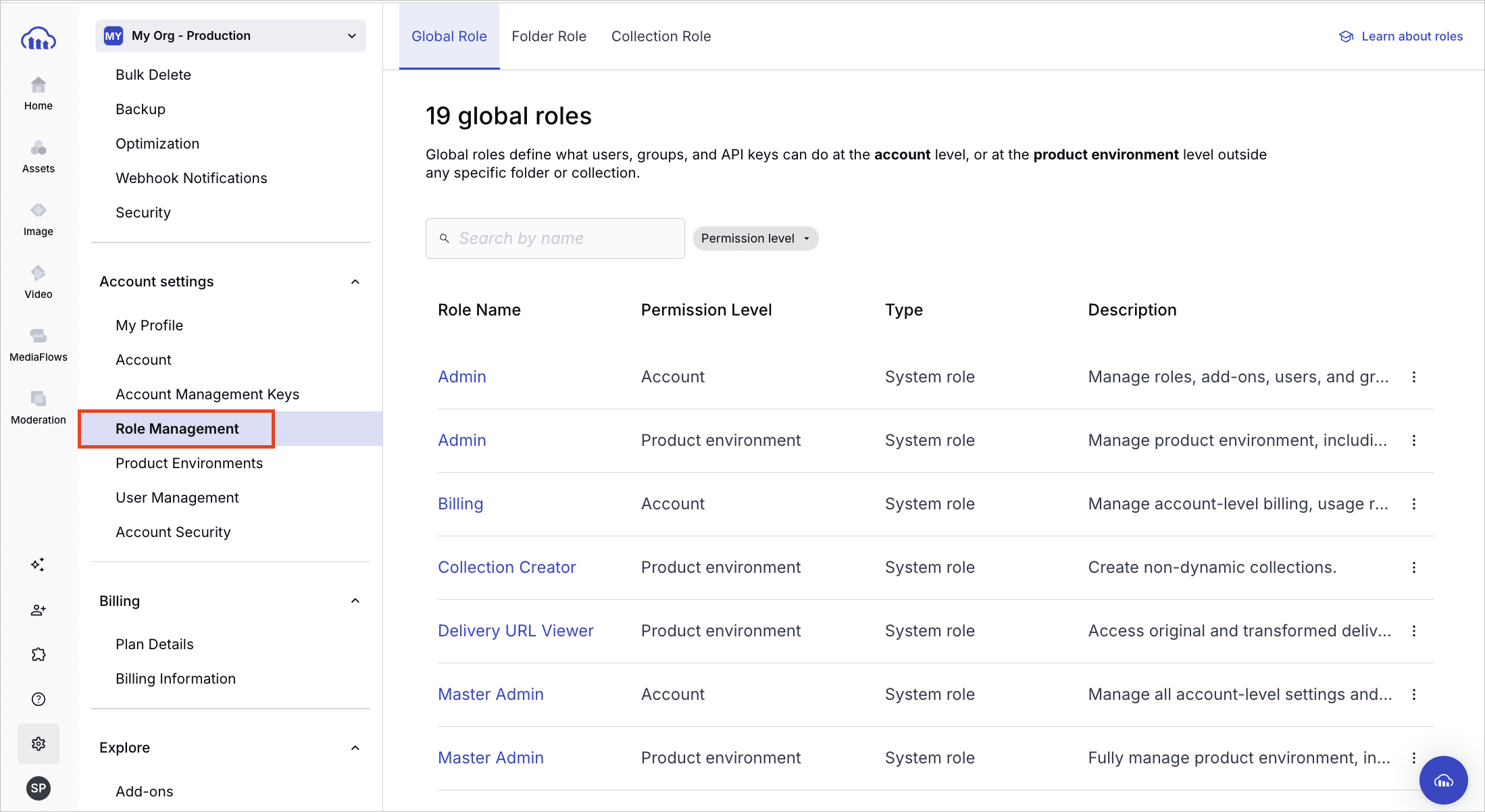
You can confirm which permissions system you have. Open Console Settings and look for Role Management. If it's listed, your account is on Roles and Permissions. If it isn't listed, you're still on the legacy permissions model.
- For a quick comparison, see Roles and Permissions vs. legacy.
- If your account is being migrated, see Migrating to Roles and Permissions to understand what changes.
Overview
Cloudinary custom policies let you define fine-grained API-level permissions using Cedar-based policy statements. These policies allow precise control over what API keys can do, including folder-level access, asset operations, metadata updates, upload configurations, collections, user and group management, video players, streaming profiles, and more.
Use custom policies to grant secure, automated access to developers building AI workflows, integrating with CI/CD pipelines, or working in specialized product environments. Cloudinary provides a comprehensive Cedar schema and a Permissions API to help you enforce policy as code at scale.
Creating custom roles is also Enterprise only, whether you do it in the Console or via the Permissions API.
This guide contains the following sections:
- Custom policies overview: Explains how to create and manage API key permissions using custom policies.
- Policy statement overview: Describes the components of a policy statement and includes the Cloudinary-defined Cedar schema, which details the valid resources, actions, and principals you can use in your policy statements.
- Notes and considerations: Covers important details and considerations when implementing custom policies.
- Use cases and examples: Presents various scenarios and examples to demonstrate practical applications of custom policies and how they can be effectively utilized. It includes sample Admin and Upload API calls and responses to illustrate the impact of custom policies.
Custom policies
Unlike system policies, you can't include custom policies in roles. You assign them directly to principals.
By default, all actions on all resources are forbidden for all principals. Consider which developers within your organization have common permission needs, and create corresponding API keys from the API Keys page of the Console Settings.
After creating your API keys, use the Create custom policies endpoint to grant specific actions to each API key and assign them to the appropriate developers. Any actions not specified in your policies will remain prohibited.
Custom policies include the following attributes:
-
scope_type: Specifies the level that the permissions apply to. Currently, the only available option isprodenv(product environment). -
scope_id: Specifies the ID of the product environment that you want the permission to apply to. You can find the product IDs for all your product environments on the Product Environments page of the Console Settings. Make sure you're copying the ID for the correct product environment and that it corresponds with the API keys you're trying to set permissions for. -
policy_statement: The Cedar statement that specifies the permissions. You can use any valid combination of actions, principals, and resources as defined in the Cedar schema to grant permissions for API keys relevant to your organization.
If your custom policy applies to a specific folder or asset, you'll need to specify the folder's external ID within the policy_statement. Find the folder's external ID using the Get root folders or Get subfolders method.
Policy statement overview
The policy_statement, written in Cedar language, is required when creating and updating custom policies using the Permissions API. This statement defines who can or cannot perform specific actions on designated entities.
Here's an example of a policy_statement that allows the API key 1234 to read all assets in the Clothing folder:
Not specifying a particular principal, action or resource will result in automatically allowing permissions to all instances of the unspecified entity. For example, permit(principal, action, resource) allows all actions on all resources for all principals.
Here are some examples of common actions with their applicable principals and resource types. For the complete list of all actions, principal types, and resource types, refer to the Cedar schema below.
ProvisioningKey and AccountAPIKey in the Cedar schema both refer to the API keys that authenticate the Permissions and Provisioning APIs. You'll see those keys referred to as Account Management Keys in the Console UI, and provisioningKey is the parameter value in the Permissions API.action |
resourceTypes |
principalTypes |
|---|---|---|
| read | Folder, Asset, MetadataField, UploadPreset, Collection, User, Group, Role, and more | APIKey, User, Group, AccountManagementKey |
| create | Folder, Asset, MetadataField, UploadPreset, Collection, User, Group, Role, and more | APIKey, User, Group, AccountManagementKey |
| update | Folder, Asset, MetadataField, UploadPreset, Collection, User, Group, Role, and more | APIKey, User, Group, AccountManagementKey |
| delete | Folder, Asset, MetadataField, UploadPreset, Collection, User, Group, Role, and more | APIKey, User, Group, AccountManagementKey |
| rename | Asset, Folder | APIKey, User, Group |
| move | Asset, Folder | APIKey, User, Group |
| download | Collection, DynamicCollection, Folder, Asset | APIKey, User, Group |
| moderate | Asset | APIKey, User, Group |
AccountManagementKey was previously called ProvisioningKey and AccountAPIKey.Here are some examples of common entity types and the filters (when statement in the policy_statement) that can be applied to them. For complete entity type definitions including all available attributes, refer to the entityTypes section in the Cedar schema below.
entityType |
Example when Filters |
|---|---|
| Folder |
resource.ancestor_ids.contains(\"<ancestor_folder_id>\"), resource.path == \"<folder_path>\"
|
| Asset |
resource.ancestor_ids.contains(\"<ancestor_folder_id>\"), resource.resource_type == \"<type>\", resource.type == \"<delivery_type>\"
|
| Collection |
resource.owner == Cloudinary::User::\"<user_id>\", resource.name.contains(\"<collection_name>\")
|
| UploadPreset | resource.name.contains(\"<upload_preset_name>\") |
| MetadataField | `resource.allow_dynamic_list_values == <true |
Cedar schema
The Cedar schema is predefined and provided by Cloudinary, detailing the valid parameters within the policy_statement. The Cedar schema corresponds to the elements of the policy_statement:
| Policy Statement | Cedar Schema | Description |
|---|---|---|
principal |
principalTypes |
The actor for whom the action is being permitted or forbidden. Valid principals include APIKey, User, Group, and AccountManagementKey (previously called ProvisioningKey and AccountAPIKey) depending on the action and resource. |
action |
actions |
The type of operation being permitted or forbidden. Each action in the schema defines which principalTypes and resourceTypes it applies to. |
resource |
resourceTypes / entityTypes
|
The entity on which the action is permitted or forbidden. - - |
The Cedar schema below includes four main namespaces:
- Cloudinary: The primary namespace containing general product environment actions and entities
- CreativeApproval: Actions and entities related to proofs and approval workflows (available for Enterprise customers by request for additional cost)
- IDP: Actions and entities related to the OAuth clients used for identity provider integrations
- MediaFlows: Actions and entities related to EasyFlow and PowerFlow automation
Here's the Cedar schema:
Understanding the Cedar schema
The Cedar schema above provides the complete specification for all valid policy statements. Here's how to use it:
Finding valid action combinations:
- Locate the action you want to use (e.g.,
read,create,update) in theactionssection of the relevant namespace - Check the
appliesToobject to see whichprincipalTypes(who can perform the action) andresourceTypes(what the action can be performed on) are valid for that action
Using entity attributes in when clauses:
- Find the entity type you want to filter in the
entityTypessection (e.g.,Folder,Asset,Collection) - Review the
attributeslisted undershapeto see what properties are available for filtering - Use these attributes in your
whenclauses to create conditional policies (e.g.,resource.ancestor_ids.contains("folder_id"))
Example: To allow an API key to read assets, look at the read action in the Cloudinary namespace. You'll see that APIKey is a valid principalType and Asset is a valid resourceType. Then check the Asset entity type to see available attributes like ancestor_ids, resource_type, collection_ids, etc. that you can use for filtering.
Notes and considerations
Review the following sections for key information on managing your custom policies.
Permit and forbid policy statements
A Cedar policy statement allows you to either permit or forbid a certain action. Forbid statements always take precedence over permit statements. For example, if an action on a particular folder is forbidden for a principal, you can't permit that action on an asset or subfolder within that folder for the same principal.
It's important to review your custom policies to verify the permissions granted to each API key and ensure there are no policy conflicts. Use the Get custom policies endpoint to retrieve all enabled policies for a specific scope_id.
Permissions API scope and limitations
The Permissions API is available only in product environments that have been migrated to the Roles and Permissions system. Enterprise rollout is still in progress, so if yours isn't migrated yet, you can't use Roles and Permissions capabilities in it, including custom policies.
Many permission configurations are fully supported by the roles and permissions available on the Role Management page of the Console Settings. We recommend using the Console wherever it supports what you need, as creating custom policies programmatically can have unexpected results.
Admin access to API keys
Users whose roles include the View API keys or Manage API keys permission can access all product environment API keys, including keys you've scoped with custom policies. Admin-level system roles such as Master Admin, Admin, and Tech Admin include these permissions. For the full list, see System roles and policies.
Critical default policy
Cloudinary provides the permission prodenv allow DAM custom policy to allow full use of the Console. Ensure this policy isn't deleted, as its removal will block Console access for all users.
API permissions setup method
By default, all API actions on all resources are forbidden for all principals. To set up API permissions, explicitly grant specific actions to individual API keys. Any actions not specified in your policies will remain prohibited. Consider which developers within your organization have common permission needs, and create corresponding API keys from the API Keys page of the Console Settings.
For more details about administering permissions, see Permissions API requests.
Behavior of forbidden actions in API calls
Behavior for informing the user that an attempted action was forbidden may vary in different API calls.Some calls will return a 403 error, while others—especially those involving a mix of permitted and forbidden actions—will return a 200 status with detailed responses. Here are some examples:
Example 1: Update metadata
When attempting to add metadata to several assets using the metadata endpoint of the Upload API, the response may return a 200 status and include an object specifying which assets were successfully updated and which were unauthorized:
Example 2: Get subfolders
For the Get subfolders endpoint, if the request is forbidden, the response will indicate this:
Example 4: Get root folders
For the Get root folders endpoint, forbidden folders won't appear in the response, while the total_count will reflect the total number of folders in the product environment:
Use cases and examples
Below are example configurations for different scenarios and use cases:
Setup for product detail page (PDP) developers
Suppose the developers working on your e-commerce website's product detail pages (PDP) need full access to product-related assets only. Use the Create custom policy endpoint to set up the following permissions for the API key you'll give those developers:
Forbid access to non-product assets in the dedicated Non-product folder. (Access is prohibited by default, so no additional permissions need to be set.)
Allow full management of the Product folder, including permission to retrieve information about it,
create(upload assets to it),update, anddeleteit, as well asmoveassets and subfolders from the Product folder.Allow
readaccess to structured metadata, meaning, the ability to retrieve information about all structured metadata fields and their attributes.
Allow full management access over the Product folder
- For moving an asset to a different folder to succeed, the API key must also have
updateaccess to the destination folder. - When no
actionis specified, all actions are included.
Sample response:
Allow read access to structured metadata
Sample response:
Sample responses for permitted and forbidden API calls
Setup for configuration administrators
Suppose some developers are in charge of system configuration, such as metadata and upload presets. Use the Create custom policy endpoint to set up the following permissions for the API key you'll give those developers:
Forbid access to all assets and folders. (Access is prohibited by default, so no additional permissions need to be set.)
Allow full management of structured metadata fields, including permission to
read(retrieve information about them),create,update, anddeletethem.
Allow full management of structured metadata fields
action is specified, all actions are included.Sample response:
Sample responses for permitted and forbidden API calls
- Role-based permissions: An overview of Cloudinary's role-based permissions solution
- Role management in the Console: UI-based role management
- Manage roles: How to manage roles via API
- Assign roles: How to assign roles via API
- System role and policy reference: A list of all system roles and system permission polices provided by Cloudinary
- Permissions API reference: Full list of endpoints and schemas
Error
Rate this page:
