 Ask AI
Advanced text layer options
Last updated: Jul-15-2026
This page covers auto-line breaks and text layer flags for images. For custom fonts, Google Fonts, and predefined text templates, see Custom fonts. For styling parameters, color, multi-line text, and special characters, see Text layer options. For the layer syntax itself, see Layer syntax.
Auto-line breaks
Cloudinary can also automatically wrap your text into multiple lines based on a specified maximum width for the text string. To do this, apply the fit crop mode to the text layer and specify the width to use for word wrapping. This setting tells Cloudinary to automatically wrap the actual text content onto a new line once the width is reached.
- Automatic text wrapping is only supported when you specify a numeric pixel width for your text layer together with the fit crop mode, for example
w_220,c_fit. Percentage-based widths are not supported for text wrapping.Relative widths or using
fl_relativewill resize the text layer but won't trigger automatic line breaks. -
c_fit(calledtextFitin the latest major version of some SDKs) is the only 'resize' option that you can use as a qualifier of text overlays.
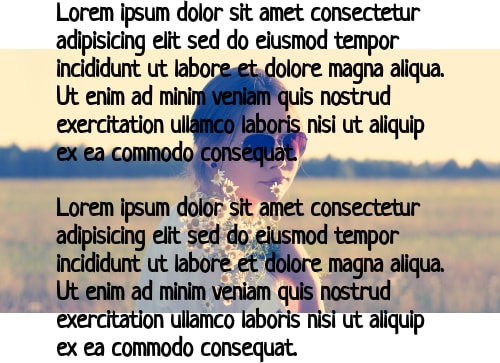
For example, to add a long text string in bold Neucha font with a size of 26 pixels to the base image that wraps at a width of 400 pixels:

When using the fit (textFit in some SDKs) crop mode, you must specify a width for your text overlay, but height is optional. Line breaks are applied as needed to achieve the requested width and/or height rectangle.
The specified font size of your overlay stays as is, even if the resulting text overlay height exceeds the height of its hosting image. So, if you don't limit the overlay height, the height of the image expands to accommodate large texts:
If you do limit the height of your overlay, any text that does not fit within the space defined is cut and an ellipsis (...) is added to the end of the text string to indicate that the text was truncated.
To define a maximum height for the multi-line text add the height parameter in addition to width in the 'resize' transformation of your text layer:

You can also set text alignment and line spacing values to further control the text's appearance. Other resize parameters can be applied as an action over the entire overlay (before the fl_layer_apply) to resize the resulting the text-image overlay as a whole after it's created.
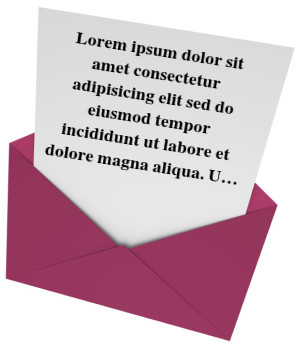
For example, to add a long text string in center aligned bold Times font with a size of 14 pixels to the base image, that wraps at a width of 200 pixels and is limited to a height of 150 pixels; and then rotate the text by 9 degrees and set 30 pixels from the north border to better align with the underlying image:
Text layer flags
The text content for text layers is often supplied in real time by your application users or another external source. You may want to use the following flags to help handle these scenarios:
-
fl_text_disallow_overflow (images only): As mentioned in layer overflow behavior, you can control whether large image or text layers will result in expanding the size of the delivered image using the
fl_no_overflowflag (images only).However, for text overlays on images, if you don't want long text to impact the expected delivery image size, but an unexpected trim might risk cutting off essential text, you can apply the
fl_text_disallow_overflowflag, which will cause URLs with overflowing text layers to fail and return a 400 (bad request) error that you can check for and handle in your application.For more details and examples, see fl_no_overflow and fl_text_disallow_overflow in the Transformation Reference.
-
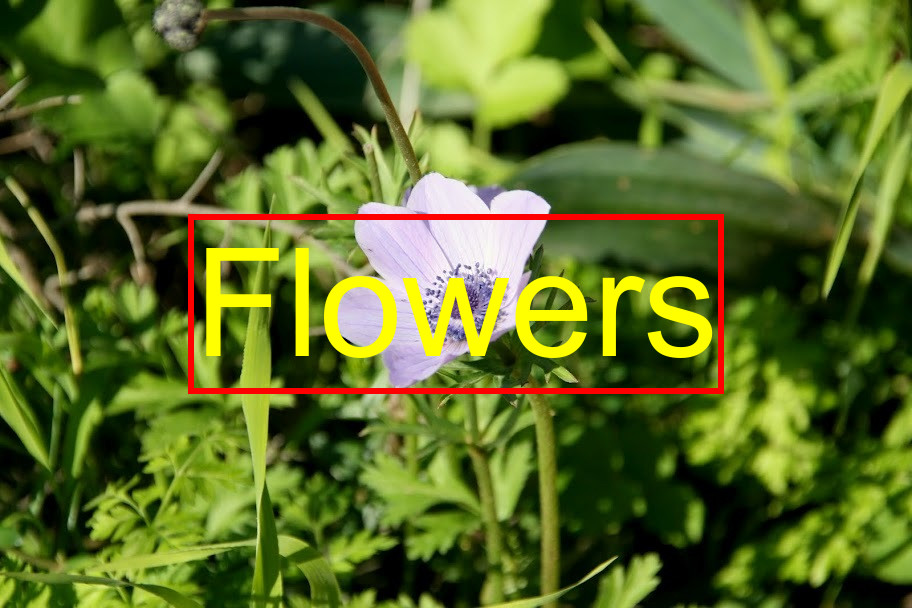
fl_text_no_trim: By default, text layers are tightly trimmed on all sides. In some cases, especially if you add a border around the text, or you are using a gravity for your text layer that might place the text too close to the edge of the layer behind it, you can use the
fl_text_no_trimflag to add a small amount of padding around the text overlay string. For example:
l_text:Arial_100:Flowers,b_green), Cloudinary automatically adds this padding, so this padding flag isn't necessary. - Layer syntax: Learn the layer URL syntax and overlay types for images.
- Text layer options: Text styling, color, multi-line text, and special characters.
- Custom fonts: Custom fonts, Google Fonts, predefined templates, and Chinese and Japanese font support.
Error
Rate this page:
