 Ask AI
Transforming layers
Last updated: Jun-26-2026
This page covers applying transformations to layers, including multiple overlays and relative sizing. For positioning layers, see Layer placement. For the layer syntax itself, see Layer syntax.
Applying transformations to overlays
You can apply resizing and other transformation options on your overlays just like any other asset delivered from Cloudinary. You can apply multiple (chained) transformations to overlays by adding them in separate components before the layer_apply component. All chained transformations, until a transformation component that includes the layer_apply flag, are applied on the last added overlay or underlay instead of applying them on the base asset (the layer_apply flag closes the layer, similar to a closing bracket).
For example:
-
Adding a logo overlay scaled down to 50% of its original width and made into a watermark by reducing the opacity to 70% and increasing the brightness to 50% using the
brightnesseffect. The transformed image is then placed as a layer in the top-right corner of the base image (l_cloudinary_icon_blue/c_scale,w_0.5/o_70/e_brightness:50/fl_layer_apply,g_north_east):
-
The base image is scaled to a width of 500 pixels before adding an image overlay, where the overlay is automatically cropped to a 150px thumbnail including only the detected face and placed in the top left corner (
c_scale,w_500/l_docs:model/c_thumb,g_face,w_150/fl_layer_apply,g_north_west):


Multiple overlays
Multiple overlays can easily be added as chained transformations to an asset. The following example adds both image and text overlays to the base image as follows:
- An overlay of an image called
umbrella, scaled to a 300px and place in the top left corner (l_umbrella/c_scale,w_300/fl_layer_apply,g_north_west). - An overlay of an image called
cloudinary_icon_whitewith a relative width of 50% of the base image and an opacity of 50% and a brightness of 100 (l_cloudinary_icon_white/c_scale,fl_relative,w_0.5/o_50/e_brightness:100/fl_layer_apply). - The white text string "London" in bold 'Roboto' font with a size of 80 pixels, placed at a distance of 20 pixels from the bottom of the base image (
co_white,l_text:roboto_80_bold:London/fl_layer_apply,g_south,y_20).

Nesting layers
Layers can be nested within layers. Each layer must have its own layer and layer_apply components, and the inner layer must be closed before the outer one, like with any nested programming statement.
For example, adding text to the moon overlay:
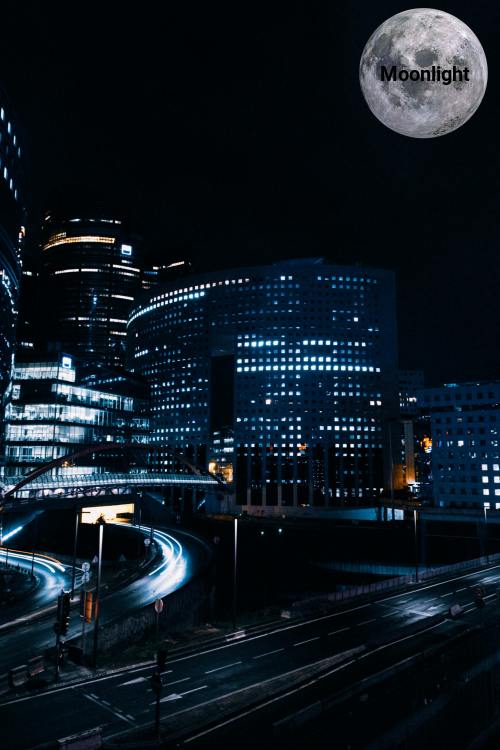
The first image layer has a transformation that changes its size and the second layer is a text layer configured with a font and size. The second layer is closed and placed by the first (inner) fl_layer_apply. Since no gravity was specified for that later, it's placed in the center of the first overlay. Then the outer layer apply closes and places the entire layer (including its nested layer) and positions it in the northeast corner.
Relative layer sizing
By default, whenever you apply relative resize transformations to your overlay, the overlay image is resized relative to its own original size. However, you can use one of the following flags to resize relative to other elements.
Sizing relative to the base image
You can add the relative flag (fl_relative in URLs) to specify that percentage-based width & height parameters of overlays (e.g., w_0.5) are relative to the size of the base image instead of to the original size of the overlaying image itself.
For example, to add an overlay of the image called stamp-exclusive-premium, where the overlay is resized to 70% of the width of the base image (l_stamp-exclusive-premium/c_scale,fl_relative,w_0.7/fl_layer_apply):

Sizing relative to the detected region
You can add the region_relative flag (fl_region_relative in URLs) to instruct Cloudinary to size your layers relative to the regions detected by the specified gravity type.
- The region can be detected faces (
g_face,g_faces), detected OCR text regions (g_ocr_text) or pre-defined custom regions (g_custom). - This flag must be used in conjunction with a relative (decimal value) width or height qualifier.
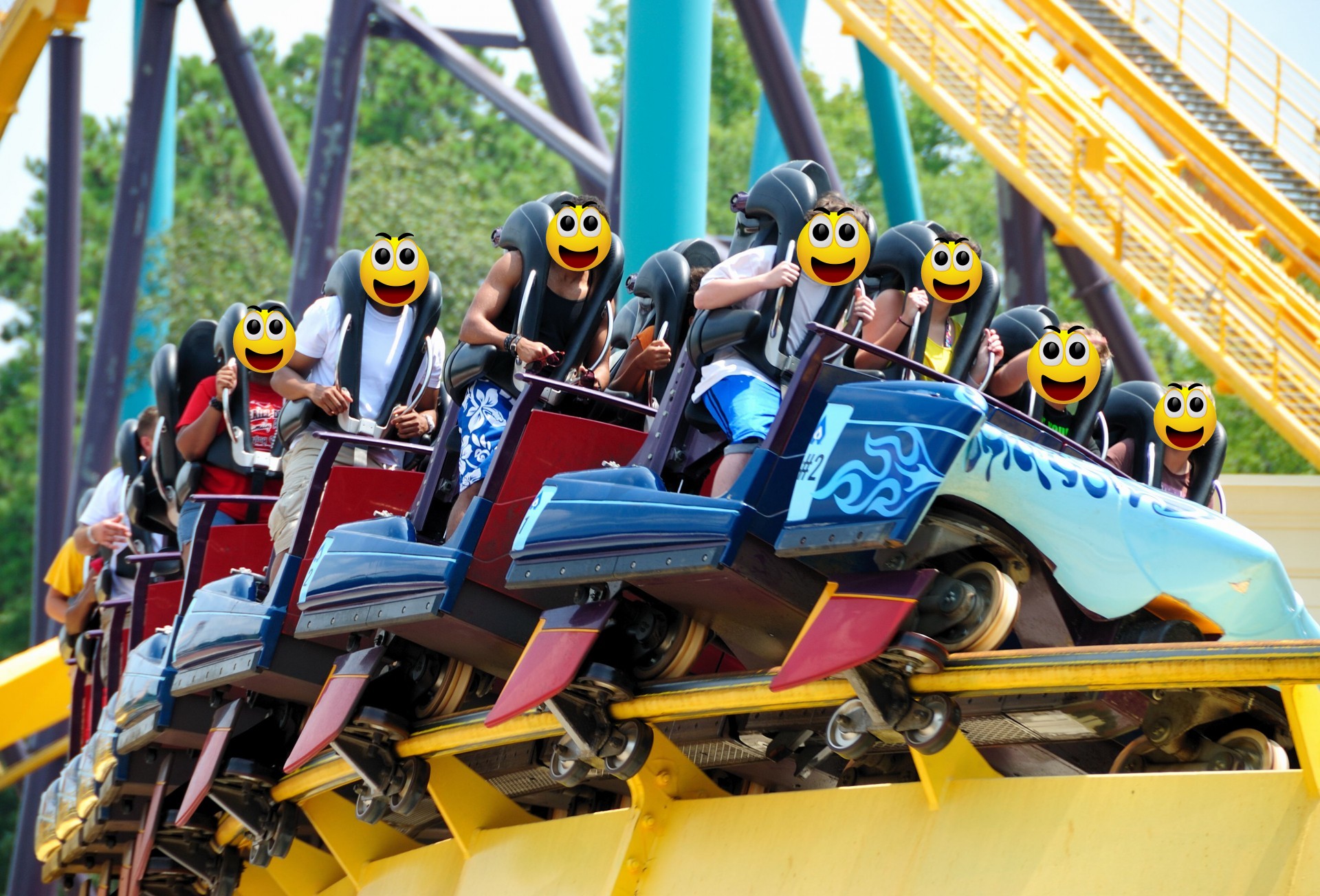
For example, to hide all the faces in an image by covering them with an emoji overlay, where each overlay is sized at 1.3x (130%) of each detected face (l_happy_smiley/c_scale,fl_region_relative,w_1.3/fl_layer_apply,g_faces):
Blending and masking layers
Effects: screen, multiply, overlay, mask, anti_removal
These effects are used for blending an overlay with an image.
For example, to make each pixel of the boy_tree image brighter according to the pixel value of the overlaid cloudinary_icon_blue image:

See full syntax: e_screen, e_multiply, e_overlay, e_mask, e_anti_removal in the Transformation Reference.
- Layer syntax: Learn the layer URL syntax and overlay types for images.
- Layer placement: Position layers using gravity, offsets, and overflow behavior.
- Text layer options: Text styling, color, multi-line text, and special characters.
- Underlays, watermarking, and special effects: Image underlays, watermarking, tiling, and special layer applications.
Error
Rate this page:
