 Ask AI
Generative remove
Last updated: Jul-22-2026
Use generative AI to remove an object from an image and fill in the space with artificially generated, visually realistic pixels.
Clean up distracting or unwanted content at scale, such as photobombers, stray objects, signage, or on-image text, without ever opening a photo editor. This helps you get a whole library of user-generated content, uploads, and catalog images presentation-ready for your site or app.
Explore the complete syntax and all options for this effect, or try it out on your own images in the Console:
- See full syntax: e_gen_remove in the Transformation Reference
- Try it out: Generative remove

Generative remove overview
Use natural language to describe what you want to remove from the image, for example, remove the stick from this image of a dog with a stick in its mouth (e_gen_remove:prompt_the%20stick):
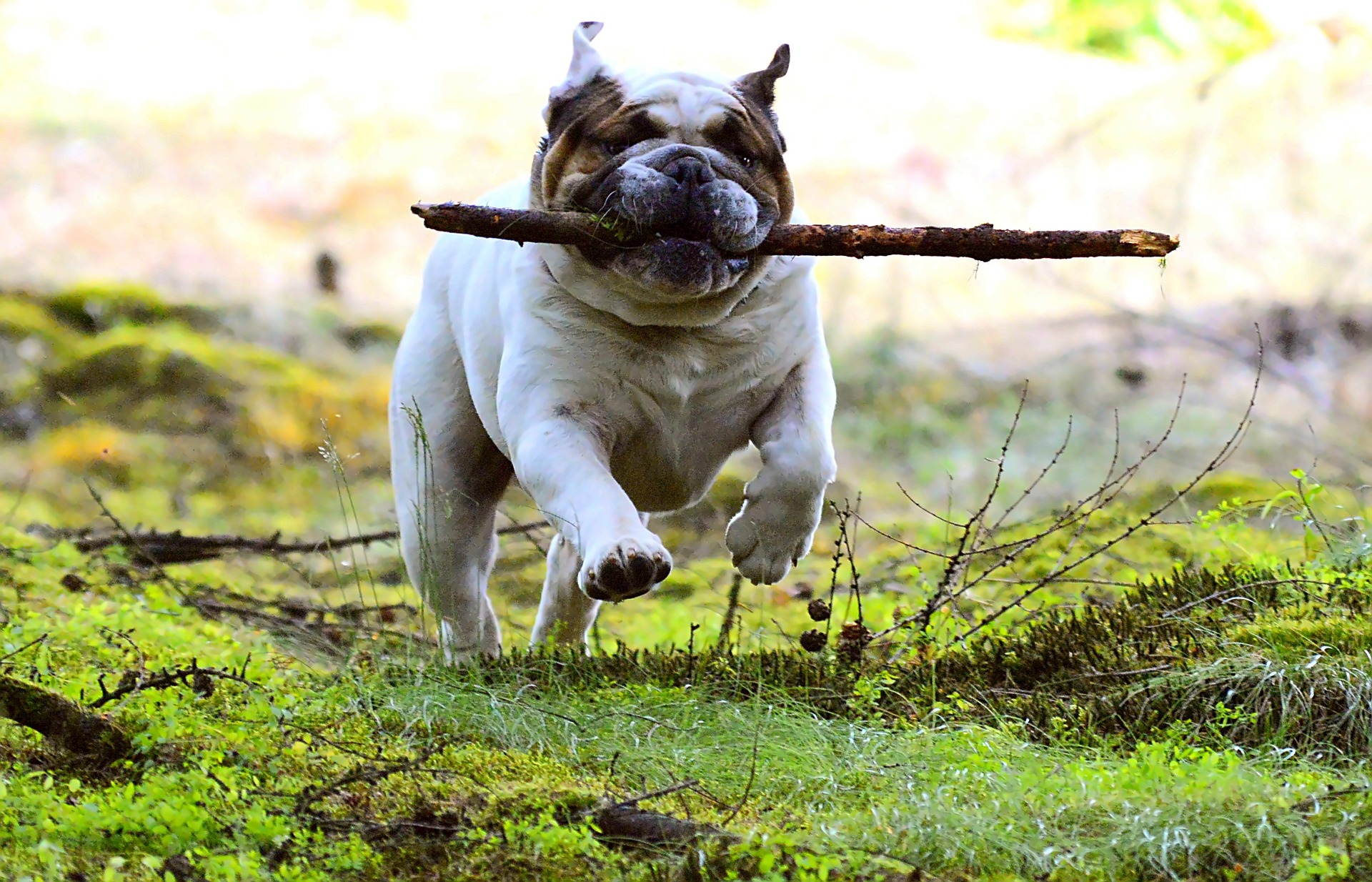 Original image
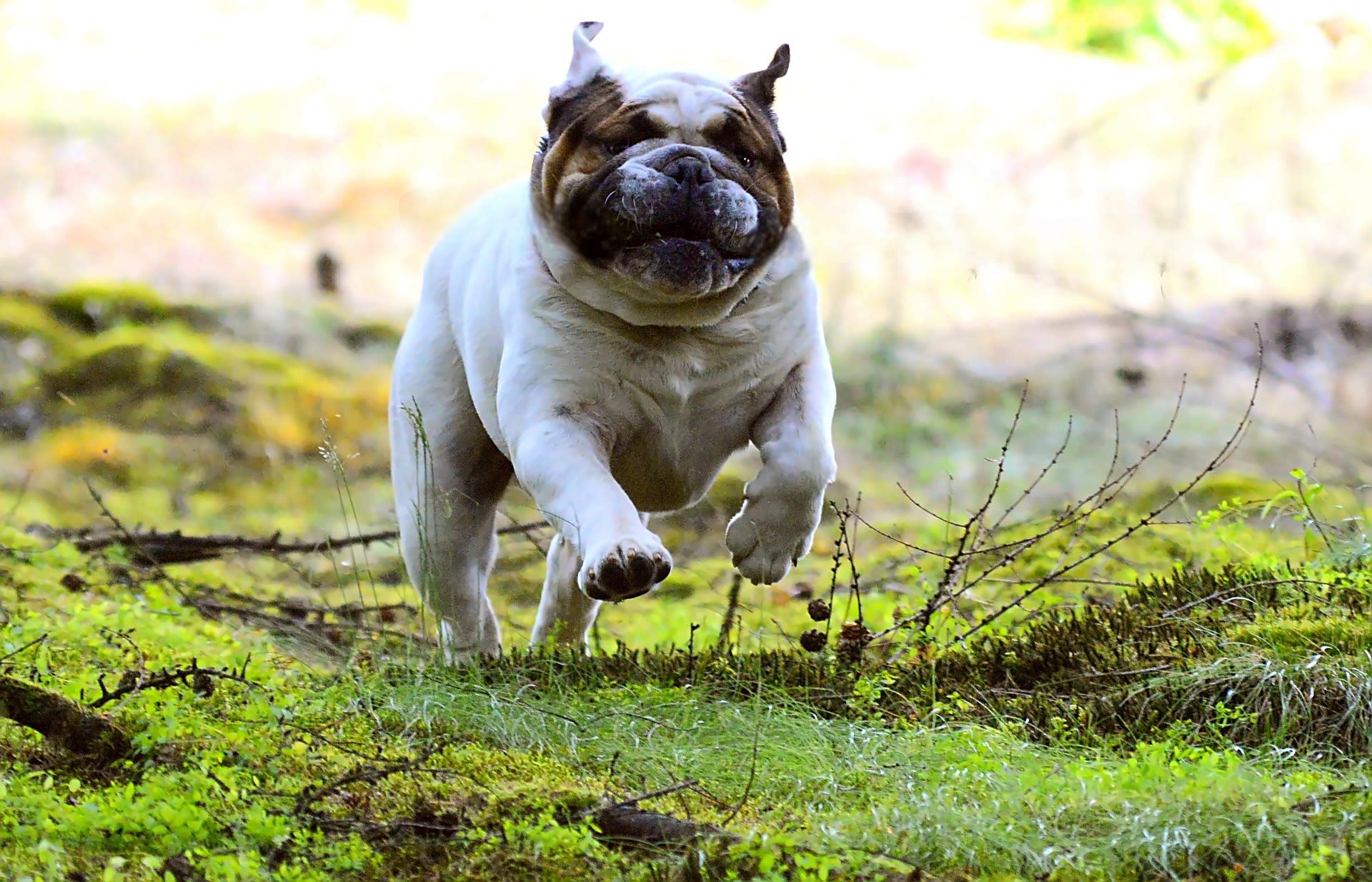 Remove the stick
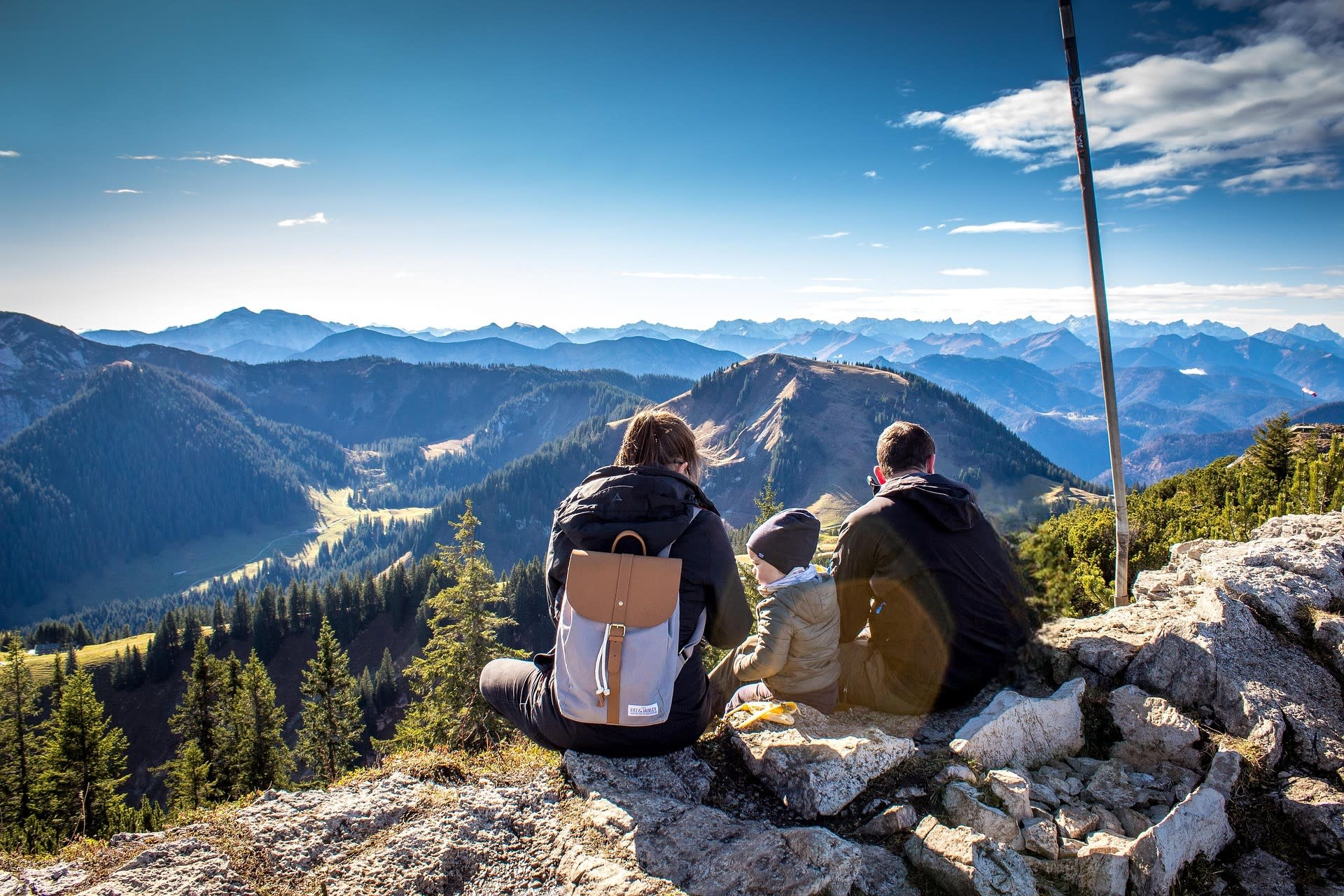
The natural language lets you be specific about what you want to remove. In the following example, specifying only 'the child' removes the child in the middle, whereas specifying the 'the child in green' removes the child wearing the green jacket:
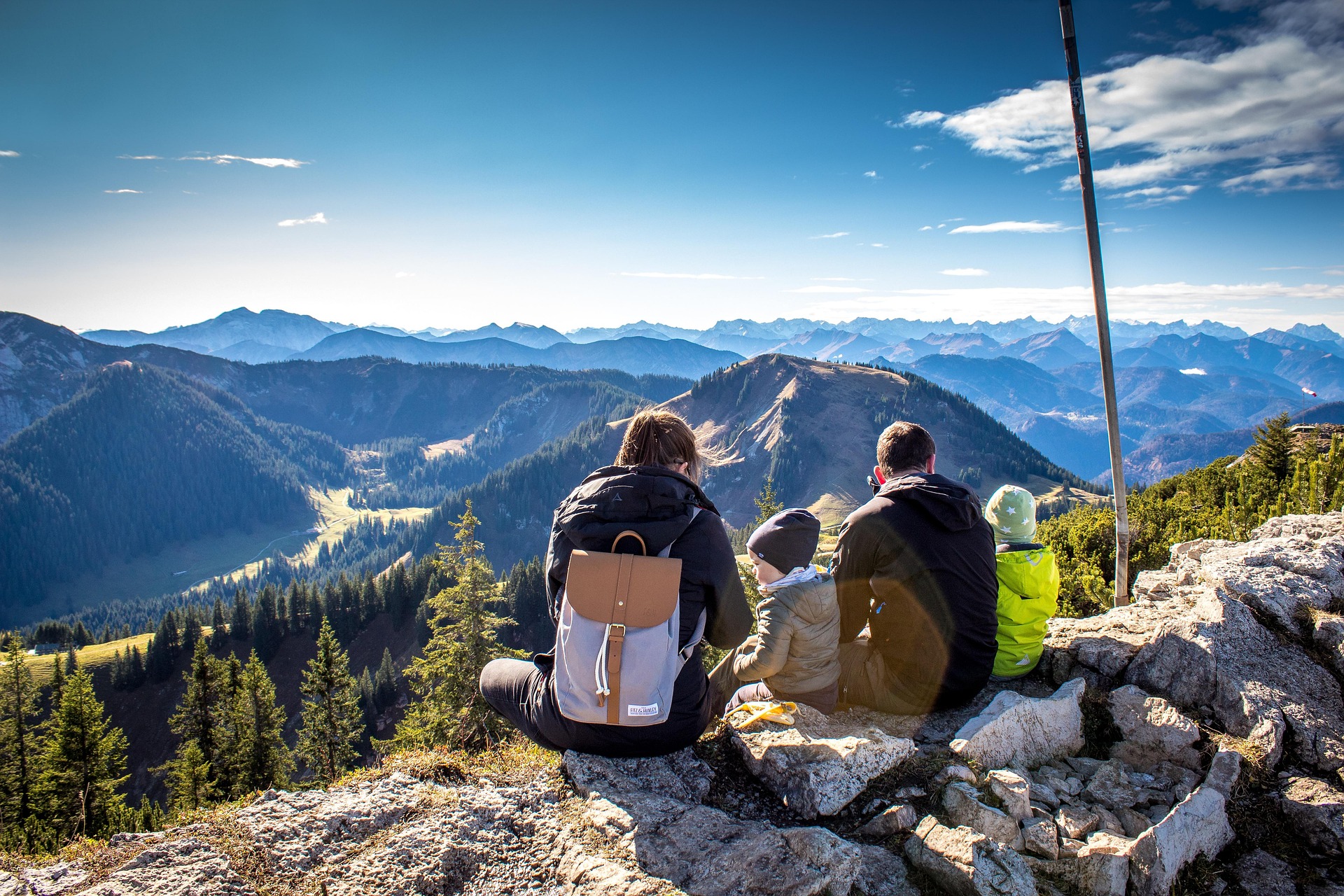 Original image
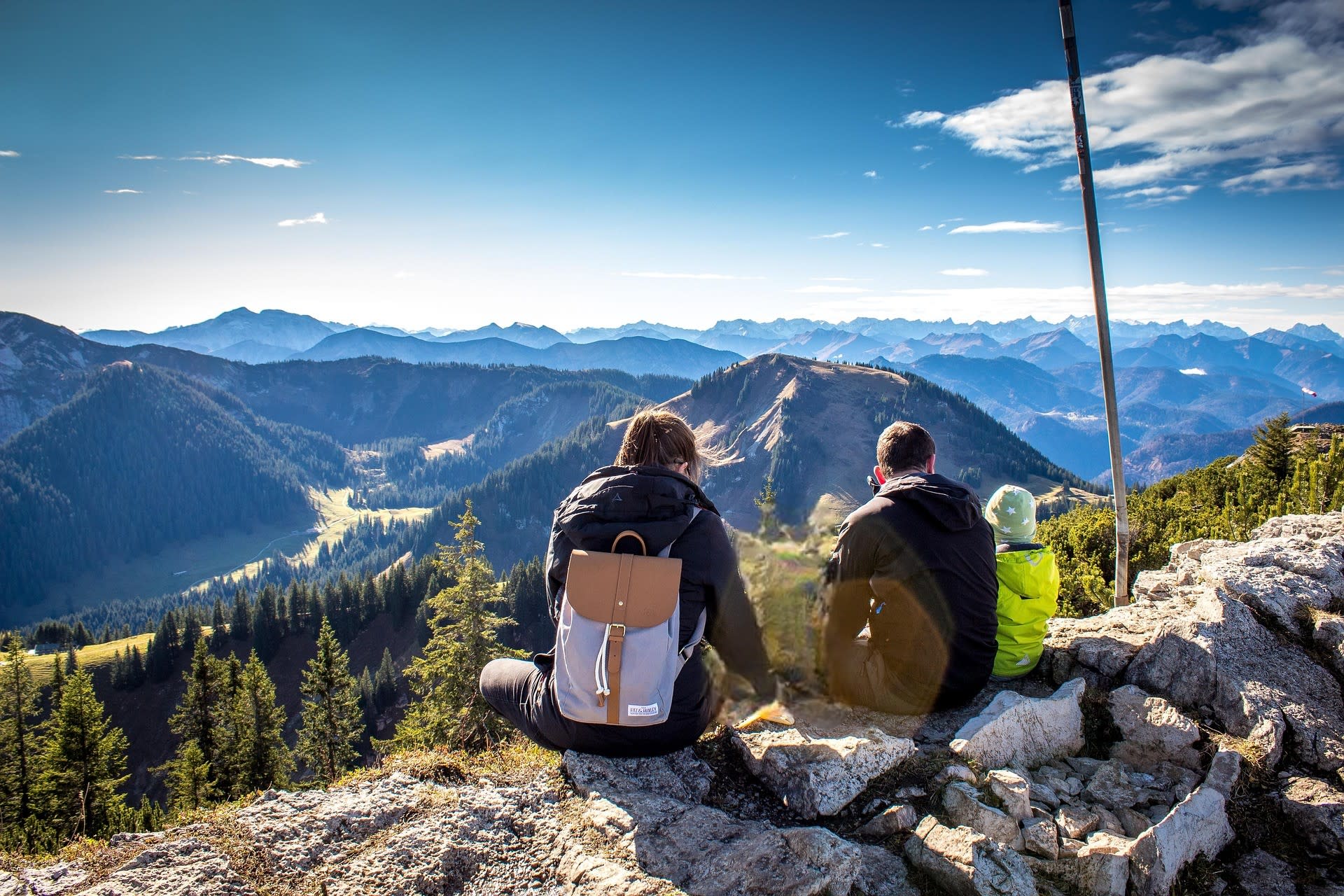 Remove the child
 Remove the child in green
Remove multiple items
If there is more than one of the same item in an image, you can remove them all using by setting multiple to true. For example, remove all the geese in this image (e_gen_remove:prompt_goose;multiple_true):
 Original image
 Remove all the geese
Otherwise, only one is removed:

If there are a number of different things that you want to remove, you can specify more than one prompt. Note that when you specify more than one prompt, multiple instances of each prompt are removed regardless of the multiple parameter setting. For example, in this image, all phones are removed, together with the mouse and keyboard:
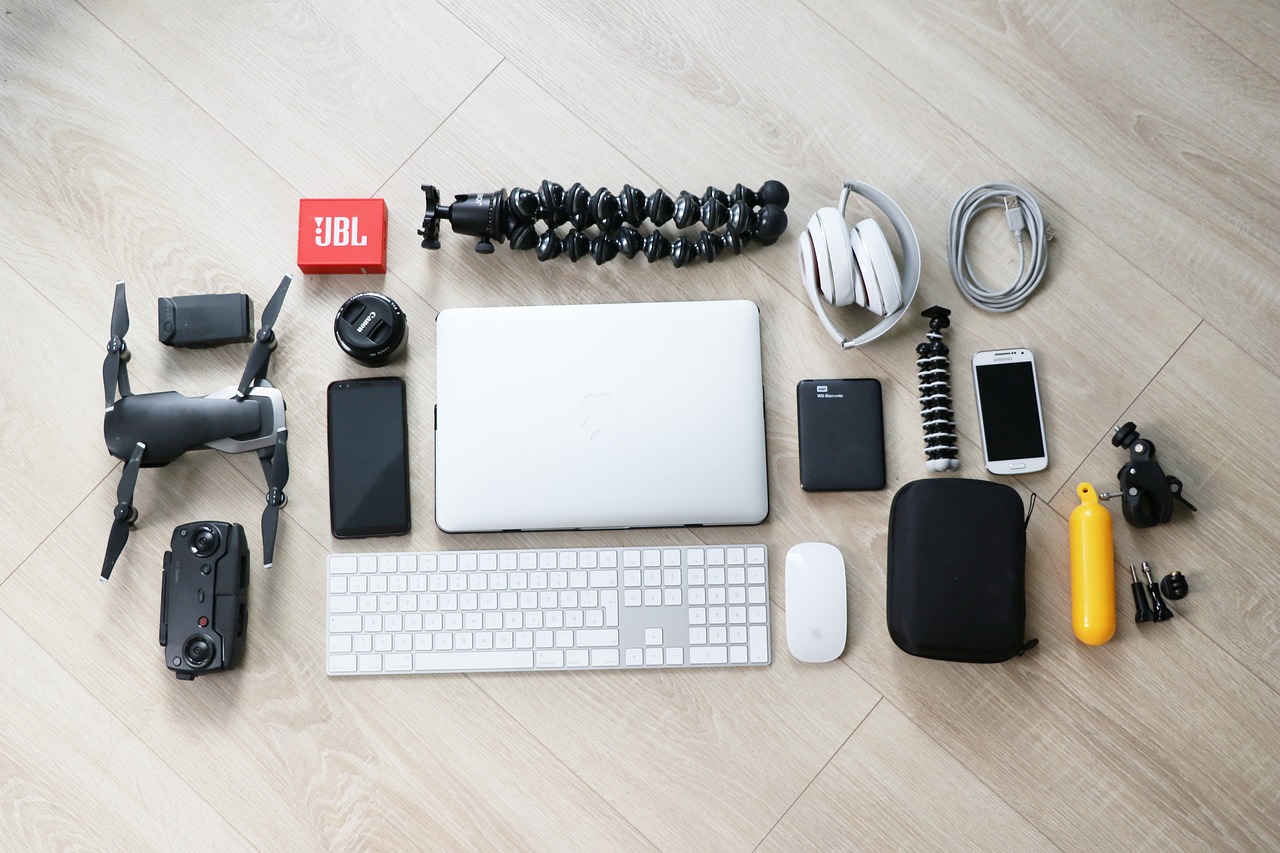 Original image
/docs/gadgets.jpg "Scene with geese removed") Remove specified gadgets
Remove specified gadgets
Remove items from a region
You can also specify one or more region if you know the co-ordinates of the pixels that you want to remove. For each region, specify the x,y co-ordinates of the top left of the region, plus its width and height in pixels. For example, remove the objects from the top left and bottom right of the image:
 Original image
;(x_1800;y_1200;w_1000;h_800))/docs/accessories-bag.jpg "Remove two regions") Remove specified regions
Remove specified regions
Remove shadows and reflections
By default, shadows and reflections cast by objects specified in the prompt aren't removed. If you want to remove the shadow/reflection, set the remove-shadow parameter to true:
 Original image
 Remove the dog
(but not its shadow by default)
 Remove the dog
(and its shadow)
Remove text
You can remove all the text from an image by setting the prompt to text e.g. e_gen_remove:prompt_text, or e_gen_remove:prompt_(dog;text).
For example, remove the text and person from this storefront (e_gen_remove:prompt_(text;person)):
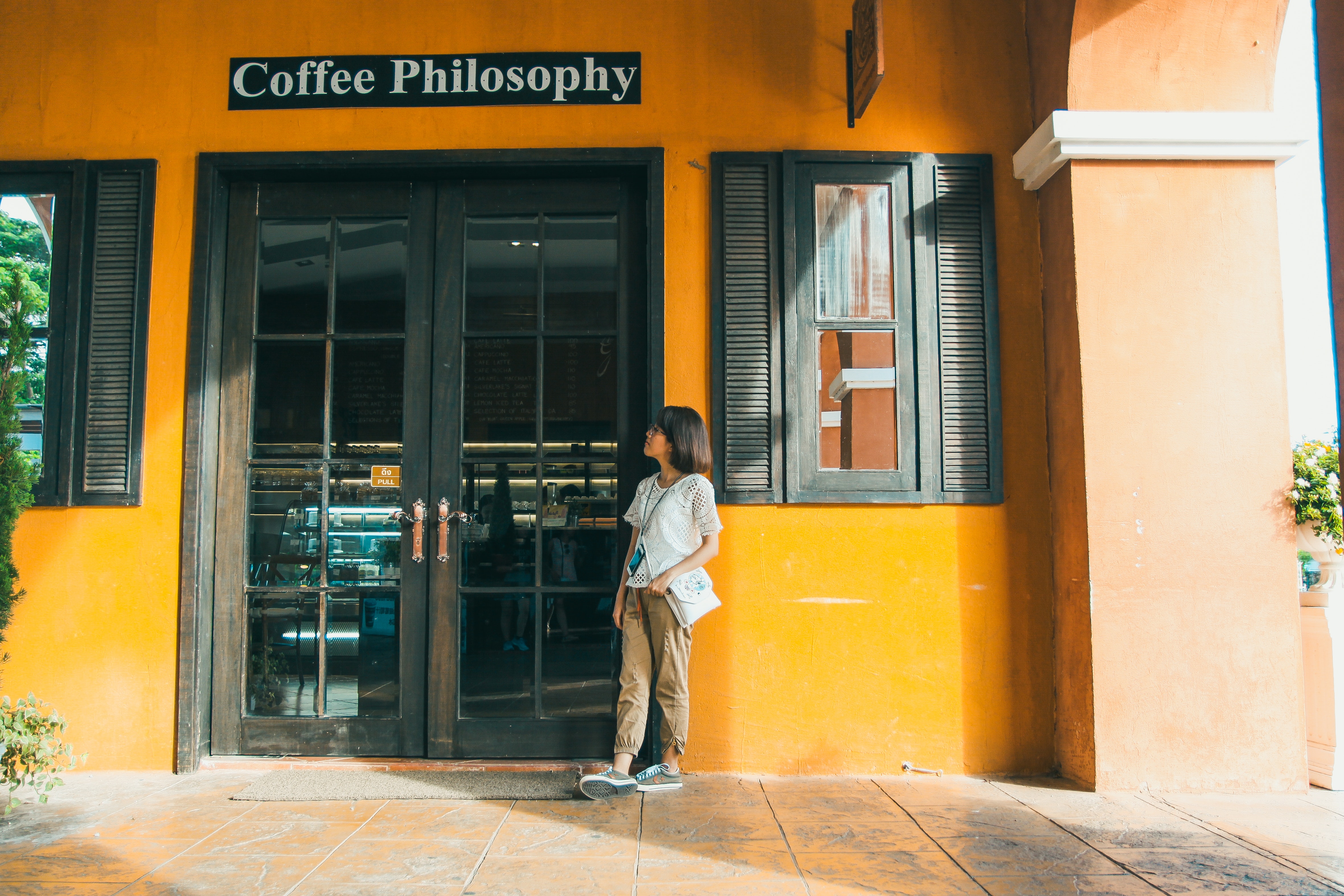 Original image
/docs/shop-person.jpg "Remove the text and the person") Remove the text
Remove the textand the person
If you don't want to remove all the text in the image, specify the object you want to remove the text from by using the syntax text:<object> as the prompt (either as the only prompt, or together with other prompts as in the previous example).
For example, in the following image there is text in the main part of the image in addition to text on the mobile screen. You can remove the text on the mobile screen only, as follows (e_gen_remove:prompt_text:the%20mobile%20screen):
 Original image
 Remove all the text
 Remove the text
from the mobile screen only
Limitations
- The generative remove effect can only be used on non-transparent images.
- The use of generative AI means that results may not be 100% accurate.
- The generative remove effect works best on simple objects that are clearly visible.
- Very small objects and very large objects may not be detected.
- Don't attempt to remove faces or hands.
- During processing, large images are downscaled to a maximum of 6140 x 6140 pixels, then upscaled back to their original size, which may affect quality.
- When you specify more than one prompt, all the objects specified in each of the prompts will be removed whether or not
multiple_trueis specified in the URL. - There is a special transformation count for the generative remove effect.
- If you get blurred results when using this feature, it's likely that the built-in NSFW (Not Safe For Work) check has detected something inappropriate. You can contact support to disable this check if you believe it's too sensitive.
- The generative remove effect isn't supported for animated images or fetched images.
- User-defined variables can't be used for the prompt when more than one prompt is specified.
- When Cloudinary is generating a derived version, you may get a 423 response returned until the version is ready. You can prepare derived versions in advance using an eager transformation.
- When Cloudinary is generating an incoming transformation, you may get a 420 response returned, with status
pendinguntil the asset is ready. - If you're using our Asia Pacific data center, you currently can't apply the generative remove effect.
Error
Rate this page:
