 Ask AI
Layer placement
Last updated: Jun-22-2026
This page covers how to position and arrange layers on images. For the layer syntax itself, see Layer syntax. For transformations and relative sizing, see Transforming layers.
The fl_layer_apply flag
The fl_layer_apply component not only acts as the closing bracket for the layer, but is also used to include any options that will control how the layer is placed on the base image, and any details regarding the relationship between the overlay element and the base image.
Positioning layers with gravity
To determine the position of the new layer, you can add the gravity parameter to define the location to place the layer within the base image ('center' by default). The gravity parameter is added in the same component as the layer_apply flag.
For example, to add an image overlay to the base image with gravity set to west (l_lotus_layer/fl_layer_apply,g_west):

To fine-tune the exact location of the layer, you can offset the overlay from the focus of gravity by also adding the x and y coordinate offset parameters. These parameters accept either integer values representing the number of pixels to adjust the overlay position in the horizontal or vertical directions, or decimal values representing a percentage-based offset relative to the containing image (e.g., 0.2 for an offset of 20%).
For example, to place a text overlay at a vertical distance of 5% from the top of the image (l_text:Roboto_400:Paradise/fl_layer_apply,g_north,y_0.05):

The direction of x and y depends on the compass position:
| Compass position | Positive x | Positive y | Negative x | Negative y |
|---|---|---|---|---|
center, north_west, north, west
|
right | down | left | up |
north_east, east
|
left | down | right | up |
south_east |
left | up | right | down |
south, south_west
|
right | up | left | down |

Overlays on special positions
The gravity parameter can also be set to a custom region within an image, which becomes the focus when placing the overlay. These 'special positions' are locations within the image that are either automatically detected by Cloudinary (e.g., a face), custom coordinates that were previously specified (e.g., as part of the upload method), or detected by one of the Cloudinary add-ons (e.g., eyes or text within the image).
For a full list of all the special positions available to use for placing overlays with the gravity parameter, see the <special position> section in the Transformation Reference.
For example:
-
Add an overlay of the
purple-maskimage over all faces detected in thecouple-cornfieldimage:
-
Use the OCR Text Detection and Extraction add-on to add an overlay with your site's contact information that covers any detected text in an uploaded image:

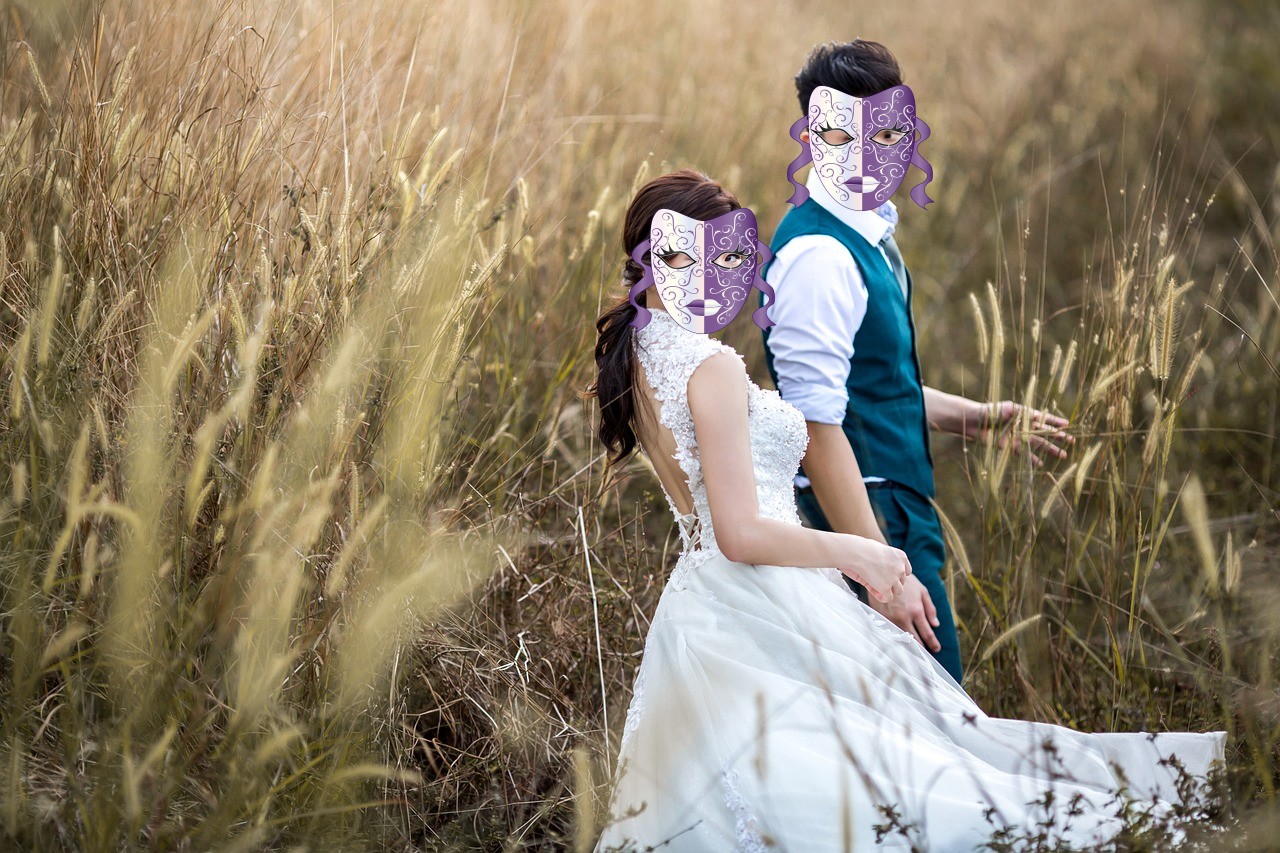
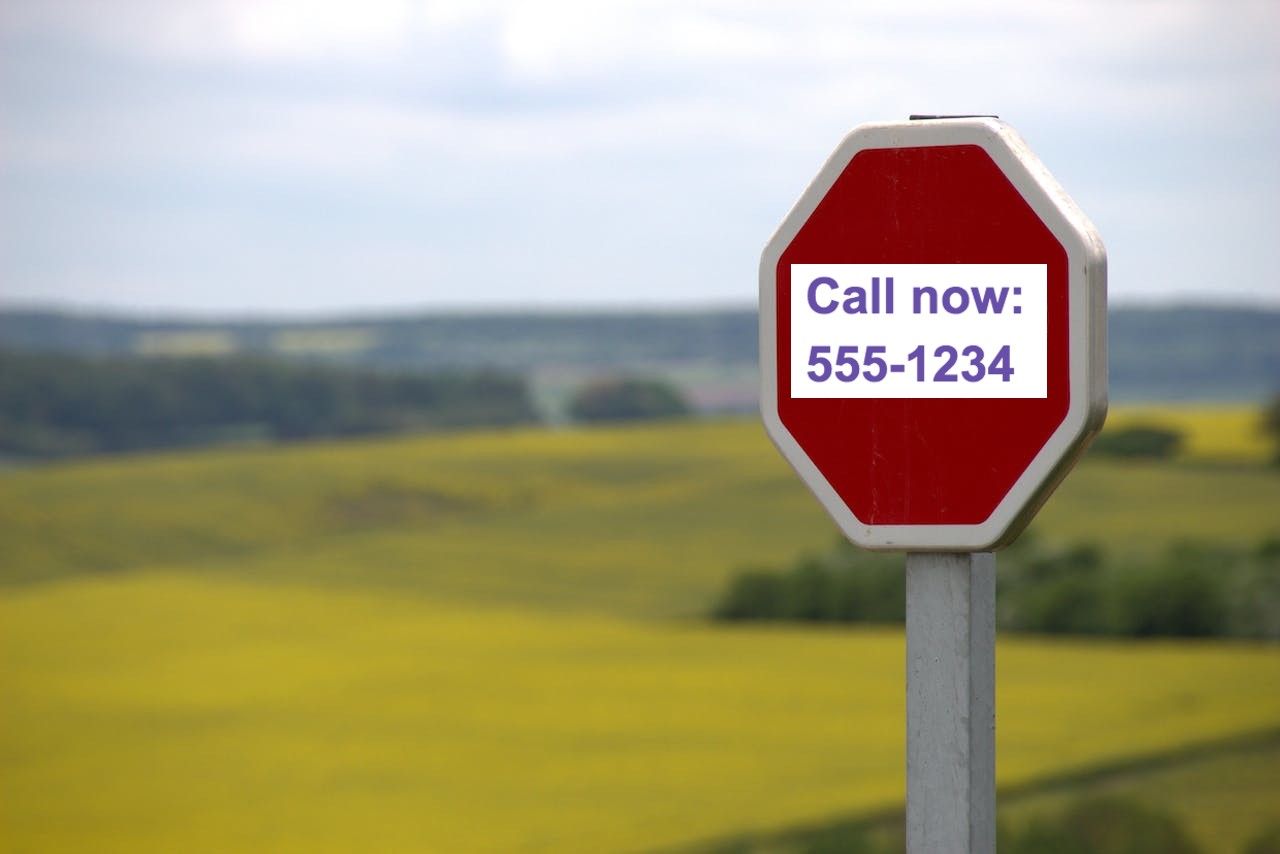
You may also want to position an overlay ensuring that it avoids a special position. See Position overlays avoiding detected faces for an example of how to achieve this.
- When gravity is set to one of the special position values, and no special position is detected in the image, then no overlay is placed at all.
- Instead of specifying an absolute width for overlays, you can use the fl_region_relative flag to place each overlay relative to the size of each detected region.
Layer overflow behavior
By default, if a layer (image or text) has a larger width or height than the base image, the delivered image canvas is resized to display the entire layer. If you want to ensure that the delivered size will never be larger than the base image, you can use the fl_no_overflow flag in the same component as the layer_apply flag.
For example, the no_overflow flag prevents the logo overlay from extending the canvas of the base image (c_scale,w_400/l_cloudinary_icon_blue/fl_layer_apply,fl_no_overflow):

- Layer syntax: Learn the layer URL syntax and overlay types for images.
- Text layer options: Text styling, color, multi-line text, and special characters.
- Transforming layers: Apply transformations, multiple overlays, and relative sizing to layers.
- Underlays, watermarking, and special effects: Image underlays, watermarking, tiling, and special layer applications.
Error
Rate this page:
