 Ask AI
Generative background replace
Last updated: Jul-22-2026
Use AI to generate an alternative background for your images. The new background takes into account the foreground elements, positioning them naturally within the scene.
For product and lifestyle photography, this means you can place the same subject in entirely different settings, such as seasonal scenes, branded backdrops, or new campaign concepts, without a new photo shoot. One source photo can be reused across many contexts, each with a background suited to its audience.
Explore the complete syntax and all options for this effect, or try it out on your own images in the Console:
- See full syntax: e_gen_background_replace in the Transformation Reference
- Try it out: Generative background replace
Generative background replace overview
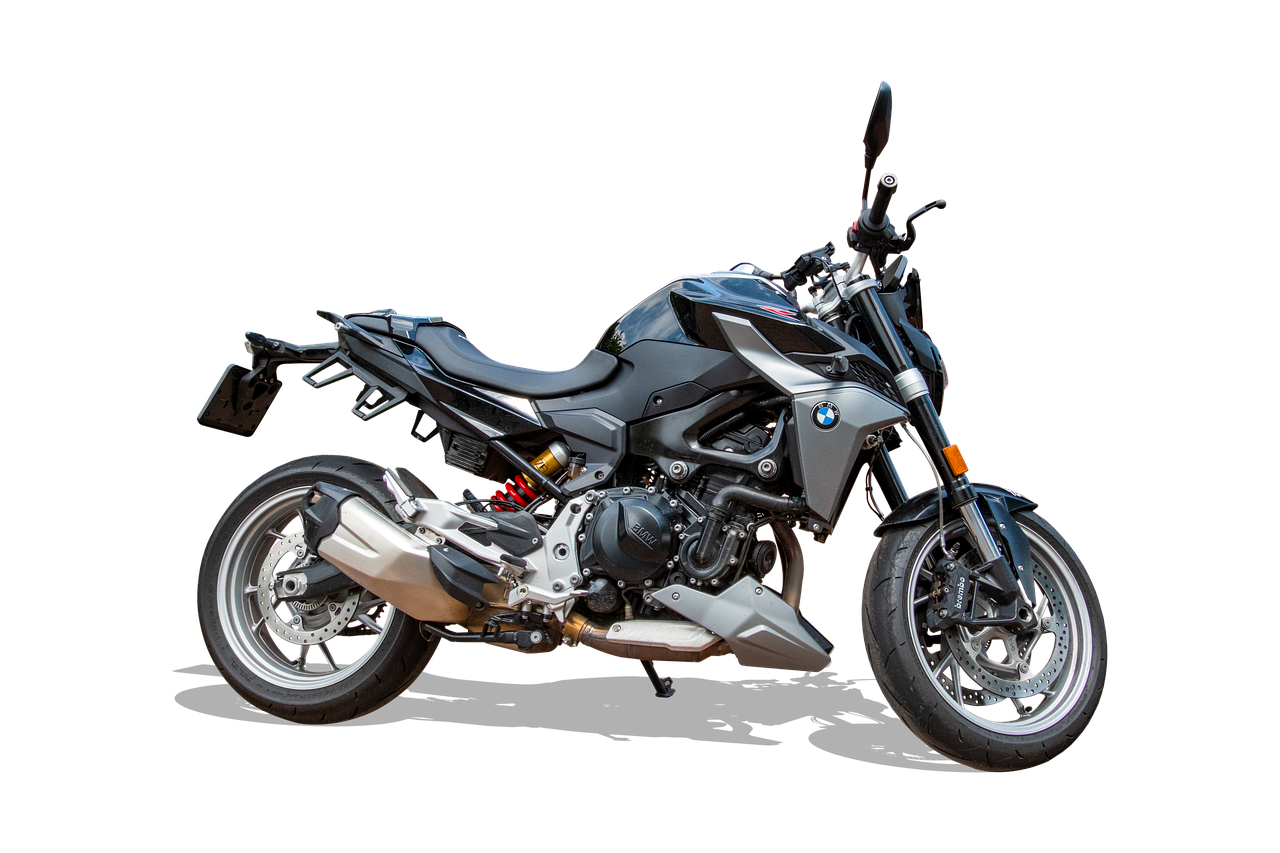
For images with transparency, the generated background replaces the transparent area. For images without transparency, the effect first determines the foreground elements and leaves those areas intact, while replacing the background.
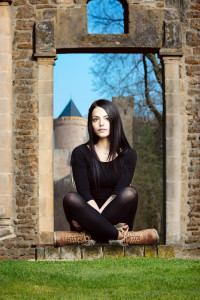
You can use generative background replace without a prompt, and let the AI decide what to show in the background, based on the foreground elements. For example, replace the background of this image (e_gen_background_replace):
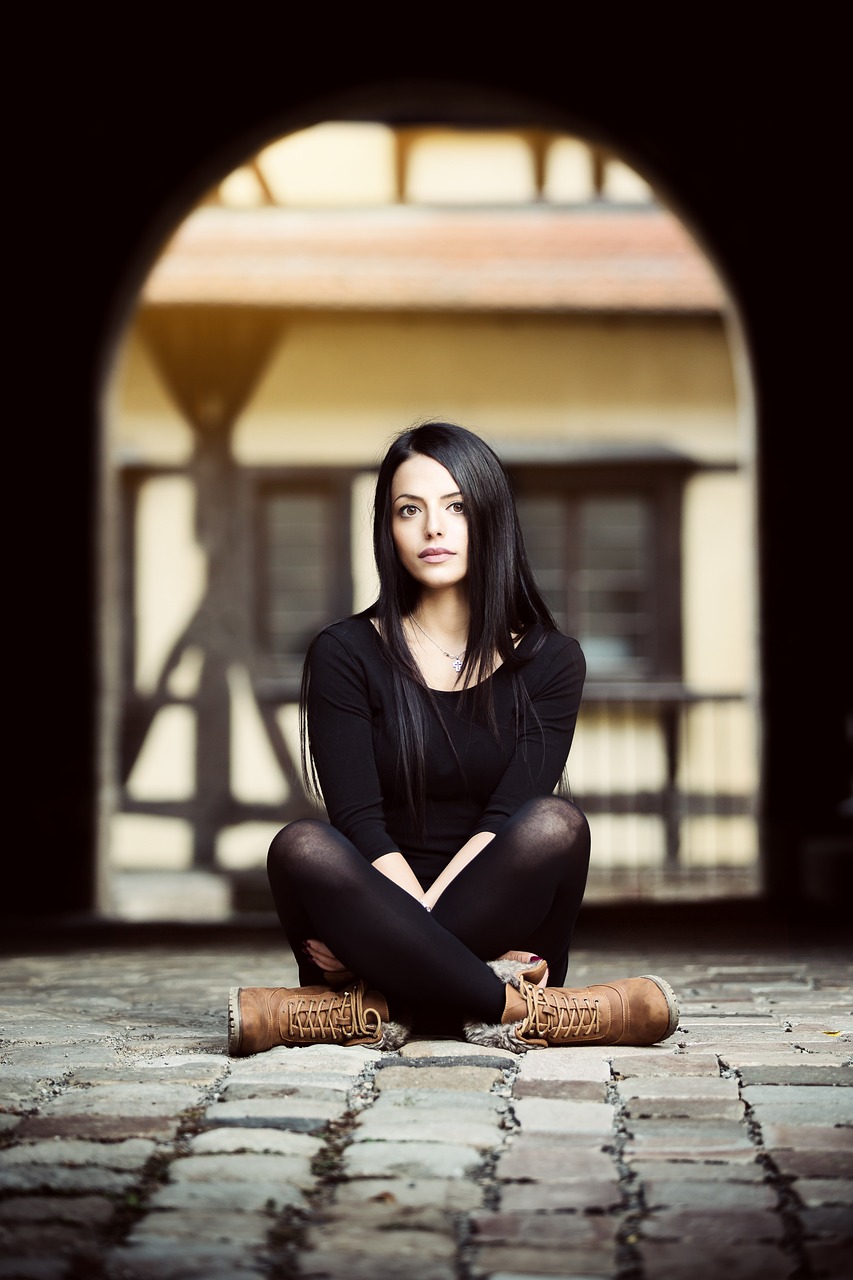 Original image
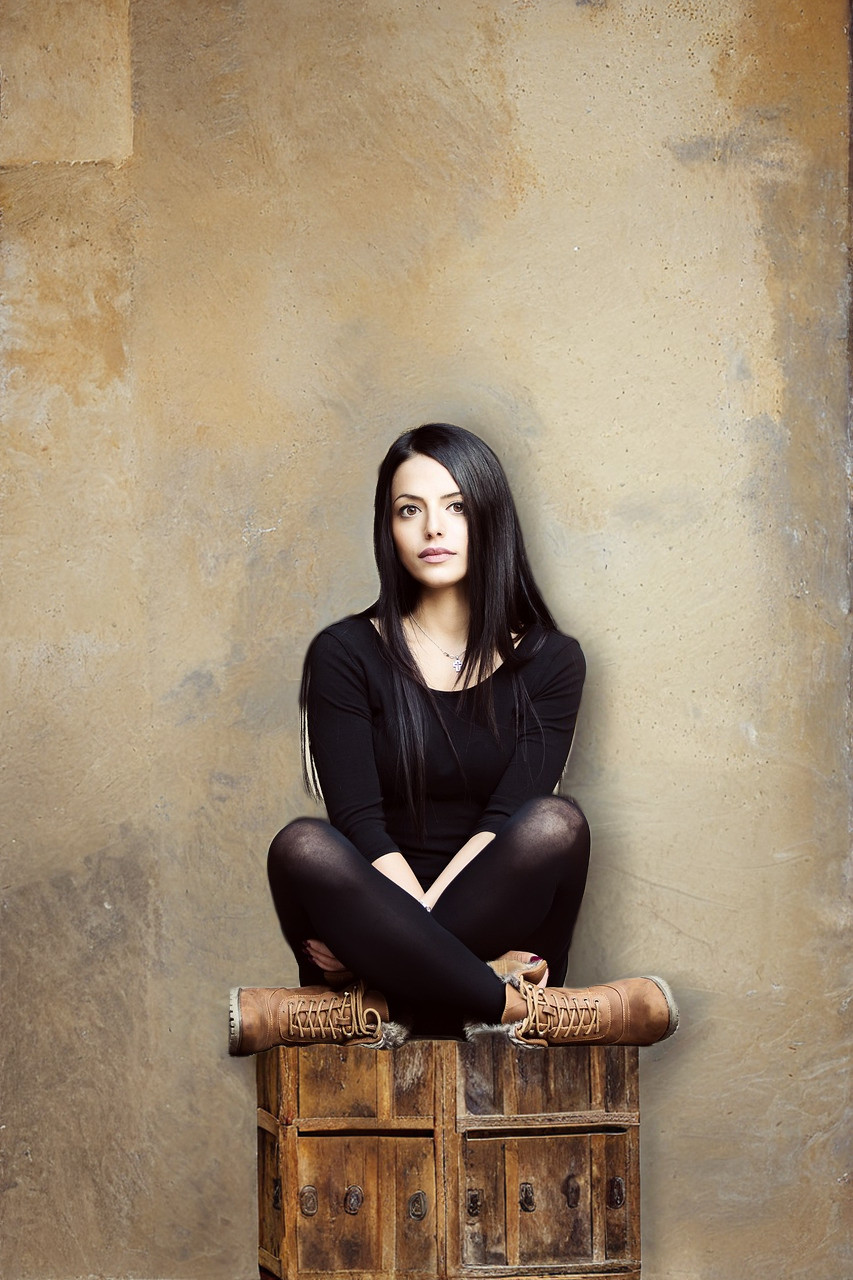 Replace the background
Alternatively, you can use a natural language prompt to guide the AI and describe what you want to see in the background. For example, place the model in front of an old castle (e_gen_background_replace:prompt_an%20old%20castle):
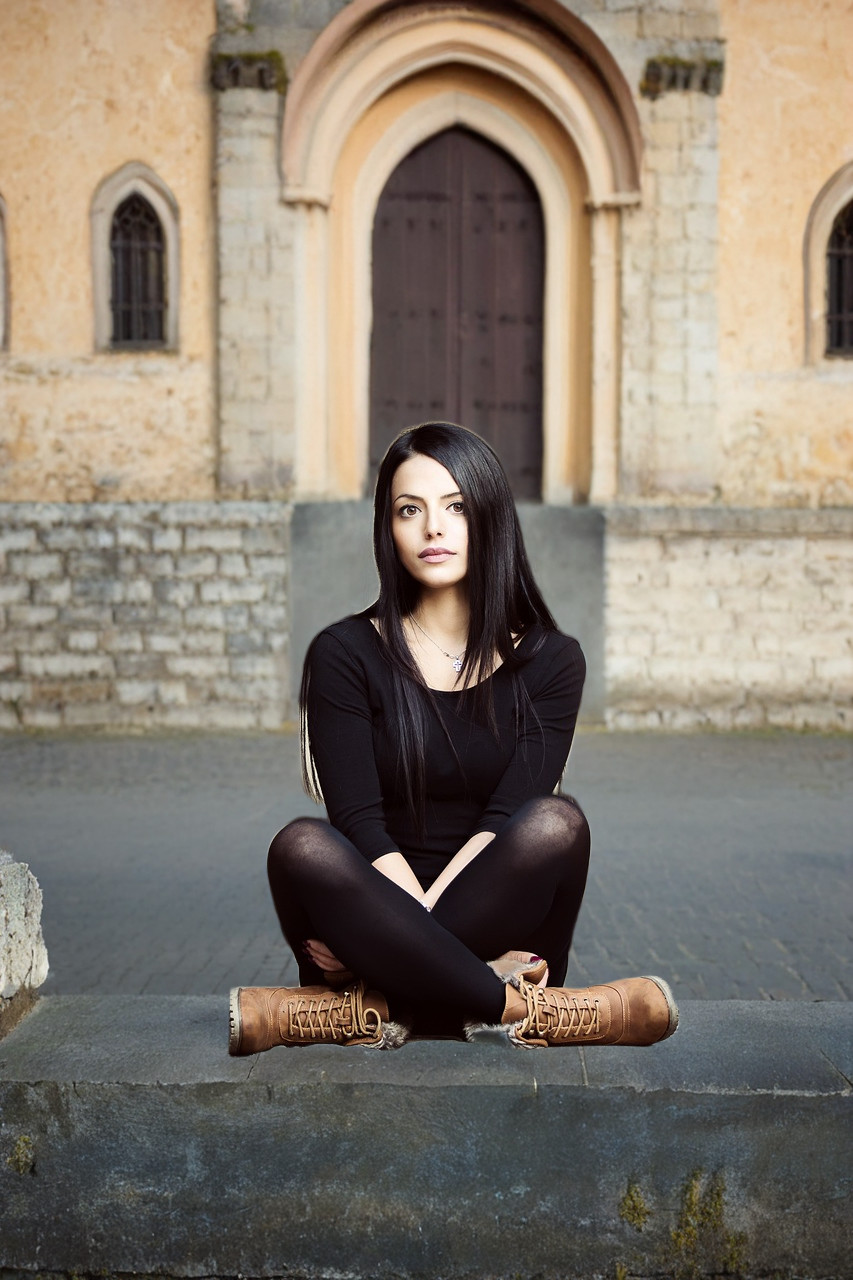
Generate different backgrounds
The same background is generated every time you use the same prompt (and keep any preceding transformations the same). You can generate a different background with the same prompt (or no prompt) by setting theseed parameter. A different result is generated for each value you set. For example, regenerate the background for the old castle example (e_gen_background_replace:prompt_an%20old%20castle;seed_1):
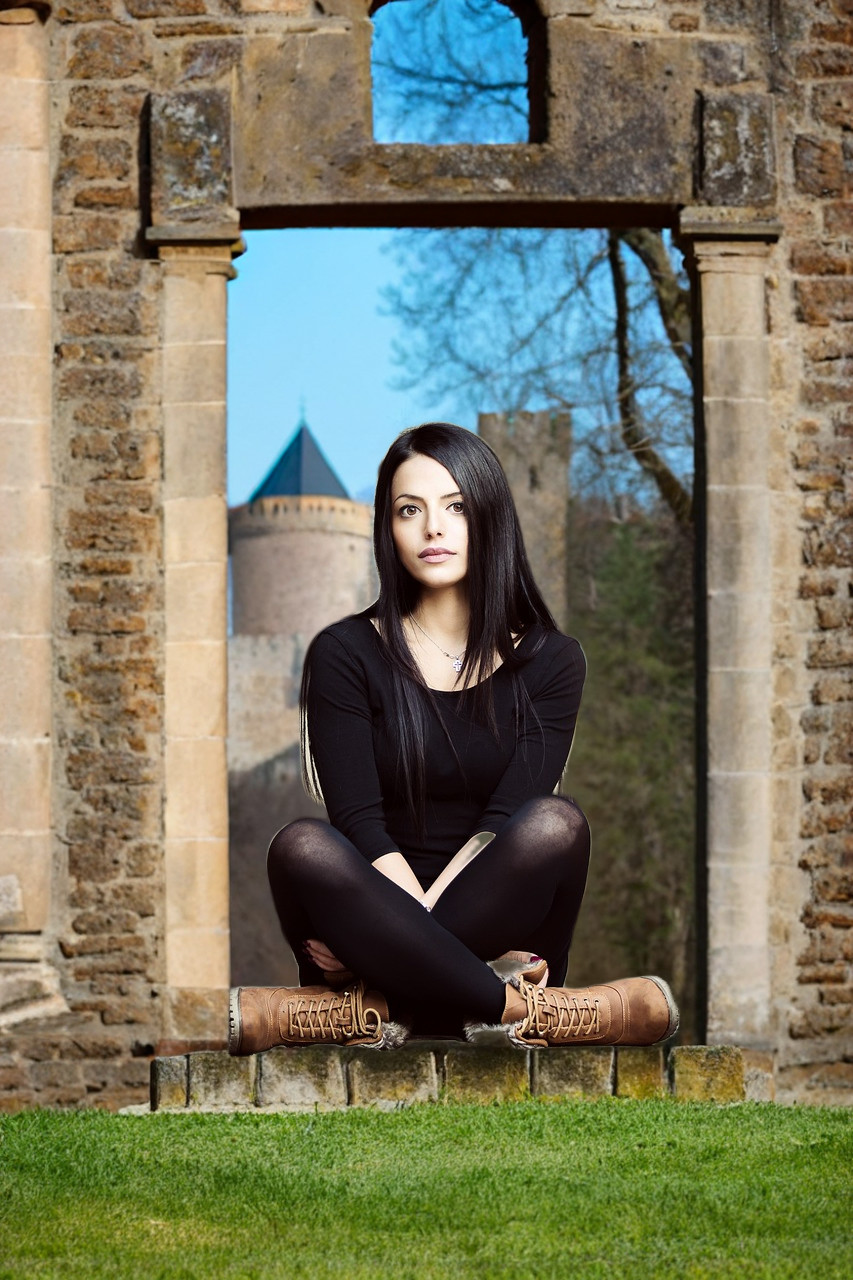
If you want to reproduce a background, use the same seed value, and make sure to keep any preceding transformation parameters the same. Subsequent parameters can be different, for example, scale down the same image:
Replace transparent backgrounds
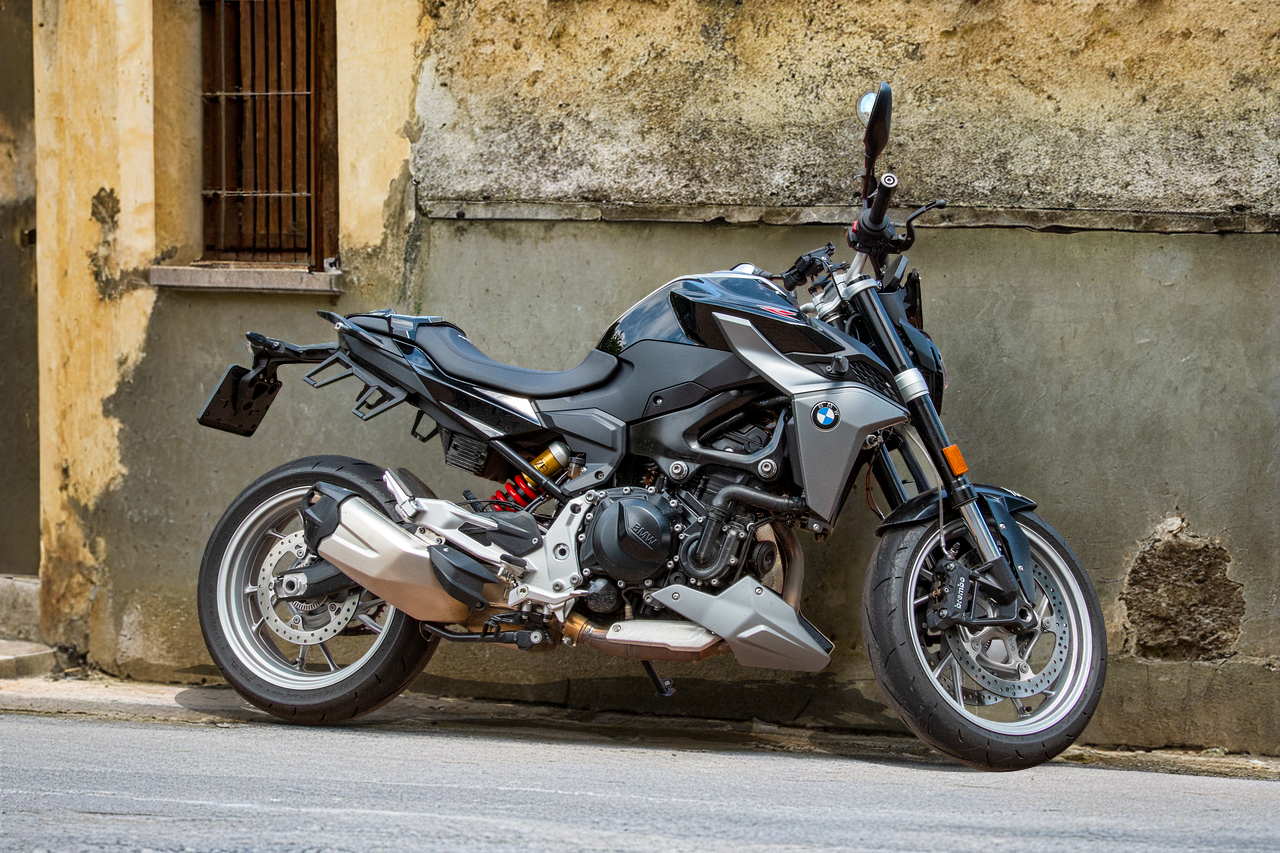
In this next example, the transparent background of the original image is replaced to give context to the motorbike (e_gen_background_replace:prompt_a%20deserted%20street):
 Original image
 Replace the background
Limitations
- The use of generative AI means that results may not be 100% accurate.
- There's a special transformation count for the generative background replace effect.
- If you get blurred results when using this feature, it's likely that the built-in NSFW (Not Safe For Work) check has detected something inappropriate. You can contact support to disable this check if you believe it's too sensitive.
- The generative background replace effect isn't supported for animated images or fetched images.
- When Cloudinary is generating a derived version, you may get a 423 response returned until the version is ready. You can prepare derived versions in advance using an eager transformation.
- When Cloudinary is generating an incoming transformation, you may get a 420 response returned, with status
pendinguntil the asset is ready. - If you're using our Asia Pacific data center, you currently can't apply the generative background replace effect.
Error
Rate this page:
