 Ask AI
Automatic gravity for image crops
Last updated: Jun-19-2026
Automatic gravity (g_auto) uses AI to identify the most visually important areas of an image and keeps them in frame when you crop or resize. This page covers how to configure automatic gravity, adjust its focal preferences, select between algorithms, and use the rule of thirds principle.
- How automatic gravity works
- Adjusting the automatic gravity focal preference
- Automatic gravity with the fill mode
- Automatic gravity with the thumb mode
- Automatic gravity with the crop mode
- Automatic gravity with the auto cropping mode
- The rule of thirds
- Selecting a single automatic gravity algorithm
How automatic gravity works
Cloudinary's intelligent gravity selection capabilities ensure that the most interesting areas of each image are selected as the main focus for the requested crop, not only for photos with faces, but for any content type. Each image is analyzed individually to find the optimal region to include while cropping. Automatically detected faces (or other elements) are, by default, given higher priority while analyzing the image content.
You apply automatic content-aware gravity by setting the gravity transformation parameter to auto (g_auto in URLs).
Here's an example of using automatic gravity when changing the aspect ratio of an image:
 Original
 c_fill,g_center,h_300,w_200
Regular fill
 c_fill,g_auto,h_300,w_200
Automatic fill
Automatic gravity for crops is supported for the fill, lfill, fill_pad, thumb, crop and auto modes.
- Automatic gravity can be further qualified with various focal gravity options, such as
g_auto:faces. - If custom coordinates have been specified for an image (using the Upload API or the Cloudinary Console), the cropping or overlay will be based on that definition, taking the custom coordinates as-is and overriding the detection algorithm (the same as
g_custom). This applies to allfocal_gravityoptions except forg_auto:custom_no_override,g_auto:aoi_<custom coordinates>andg_auto:none. - You can add the getinfo flag (
fl_getinfoin URLs) in your transformation to return the proposedg_autocropping results in JSON instead of delivering the transformed image. You can then integrate theg_autoresults into an external workflow, for example to display the proposedg_autocrop as the initial cropping suggestion in an external editing tool. - By default,
g_autoapplies an optimal combination of our AI and saliency-based algorithms to capture the best region to include in your cropped image. However, in certain situations you may want to explicitly request only one of the automatic gravity algorithms and/or adjust the default focal preference of the chosen algorithm. - Automatic gravity is not supported for animated images. If
g_autois used in an animated image transformation,centergravity is applied, except whenc_fill_padis also specified, in which case an error is returned. - By default, the automatic gravity algorithm uses the rule of thirds principle. You can disable this if you want the focal point to be at the center of the image.
Adjusting the automatic gravity focal preference
By default, both the saliency and subject automatic gravity algorithms give increased priority to detected faces. To adjust the focal preference of the automatic gravity algorithm, you can specify a different focal_gravity option.
To adjust the focal preference for automatic gravity:
- Set the crop mode to a cropping mode that supports automatic gravity (such as
fill,lfill,fill_pad,thumb,crop, orauto). - Set the gravity to
autowith a specific focal preference, for example:-
g_auto:faces- Prioritize faces (default) -
g_auto:hat- Prioritize hats (requires Cloudinary AI Content Analysis add-on) -
g_auto:ocr_text- Prioritize text (requires OCR Text Detection and Extraction Add-on) - Or any other focal gravity option
-
- Specify your desired dimensions.
For example, if you are registered to the Cloudinary AI Content Analysis add-on, you can instruct the gravity algorithm to give top priority to one or more specific objects or categories from an extensive list.
In this example, give top priority to any hat in the picture (g_auto:hat), while taking other elements of the picture into account (for example, the face):
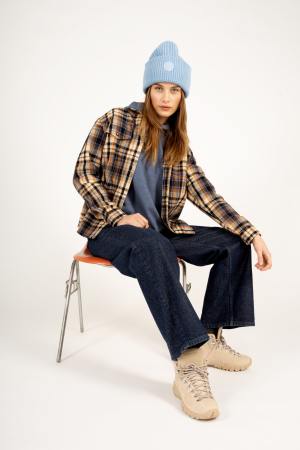 Original
 ar_1:1,c_auto,g_auto:hat,w_400
Focus on the hat
The OCR Text Detection and Extraction Add-on lets you give a higher priority to text by setting the gravity qualifier to auto:ocr_text, while also giving priority to faces and other very prominent elements of an image.
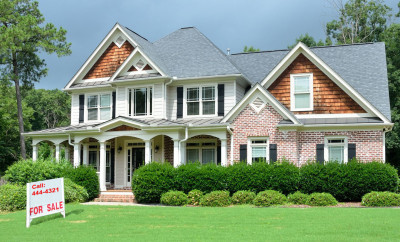 Original
 ar_1.1,c_crop,g_auto:ocr_text,w_300
Focus on the text
For a complete list of all focal_gravity options, see the g_<special_position> section of the Transformation URL API Reference.
Automatic gravity with the fill mode
Use the fill mode with automatic gravity to keep most of the original image according to the requested dimensions of the derived image, ensuring that the most interesting regions of the original image are included in the resulting image.
Example of square aspect ratio cropping, regular vs. automatic:
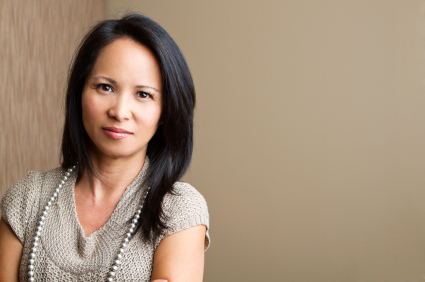 Original
 c_fill,g_center,h_200,w_200
Regular fill
 c_fill,g_auto,h_200,w_200
Automatic fill
Automatic gravity with the thumb mode
Use the thumb mode with automatic gravity to apply more aggressive cropping than the fill mode. This mode attempts to further zoom in and crop out less interesting image regions when relevant in order to include the most interesting objects in the resulting derived image. The automatic cropping algorithm decides whether and how aggressively to zoom in and crop according to the content and cropping ratio of each image individually. A numerical value between 0 and 100 can be added to the g_auto parameter in order to advise the algorithm regarding the desired aggressiveness level (e.g., g_auto:0 for the most aggressive thumb cropping).
Example of a square thumbnail, regular vs. automatic cropping:
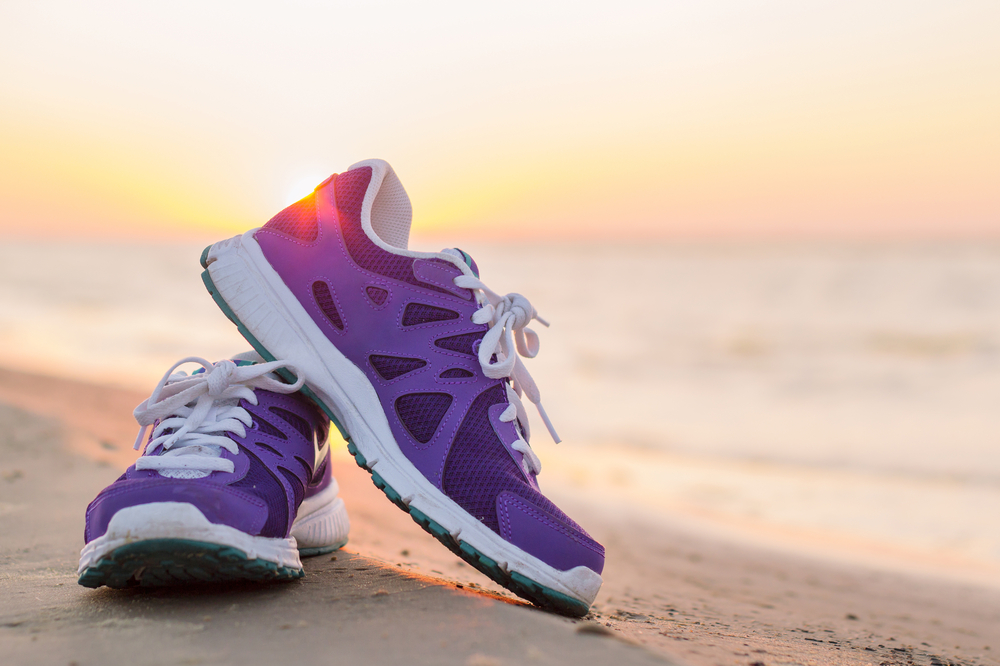 Original
 c_thumb,g_center
 Regular thumbnail
 c_thumb,g_auto
 Automatic thumbnail
 c_thumb,g_auto:0
 Automatic thumbnail -
most aggressive
auto gravity together with thumb cropping indicates your preference for more or less aggressive zooming and the algorithm takes that preference into account. However, the automatic gravity algorithm may still determine that for a particular image and aspect ratio, its default zoom selection is the appropriate zoom for this image. In such a case, you may not see a difference between the default g_auto and g_auto with a specific aggressiveness level.Automatic gravity with the crop mode
Use the crop mode with automatic gravity to crop a region of exactly the specified dimensions out of the original image while automatically focusing on the most interesting region of the original image that fits within the required dimensions. The portion of the interesting area depends on the resolution of the original image. The crop mode is less useful than the fill, lfill, and thumb modes, as it is only practical to use when both the dimensions of the original image and the size of the interesting region are already known.
Example of a square crop, regular vs. auto cropping:
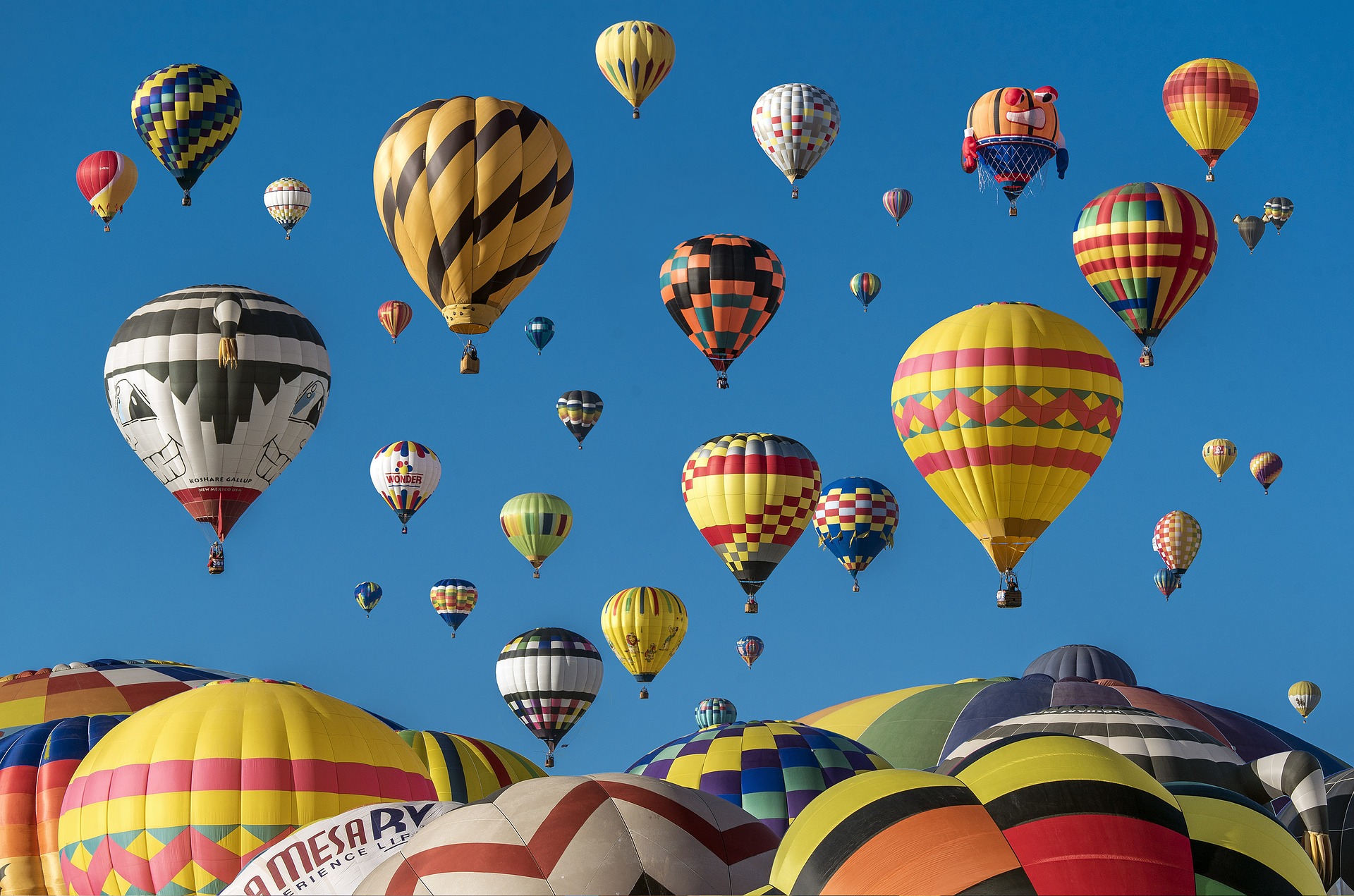 Original
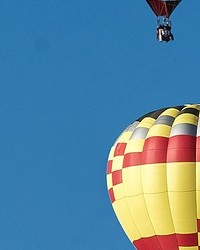 c_crop,g_center
 Regular crop
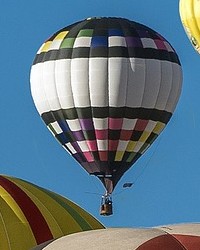 c_crop,g_auto
 Automatic crop
Automatic gravity with the auto cropping mode
For maximum automation, use the automatic crop mode (c_auto) with automatic gravity (g_auto). This is less aggressive than automatic gravity with the thumb mode, and is smarter about what to keep than automatic gravity with the fill mode.
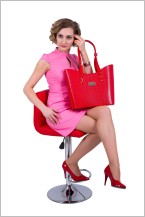
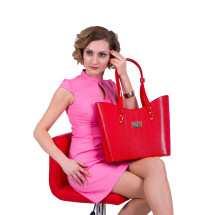 c_fill,g_auto
 Fill crop
 c_thumb,g_auto
 Thumbnail crop
 c_auto,g_auto
 Automatic crop
The rule of thirds
The rule of thirds is a fundamental principle in photography and visual composition. It involves dividing an image into nine equal parts by two equally spaced horizontal lines and two equally spaced vertical lines. Key elements and points of interest in the scene are then positioned along these lines or at their intersections, rather than in the center of the frame. This technique helps create balance, draw the viewer's eye to important parts of the photo, and make the composition more dynamic and engaging.
By default, automatic gravity follows the rule of thirds principle. If you want to disable this functionality because you specifically want to center important elements, you can adjust the gravity setting.
To disable the rule of thirds and center important elements:
- Set the crop mode to a cropping mode that supports automatic gravity (such as
fill,thumb,crop, orauto). - Set the gravity to
auto:thirds_0(g_auto:thirds_0in URLs). - Specify your desired dimensions.
See the difference when cropping this image to a square:
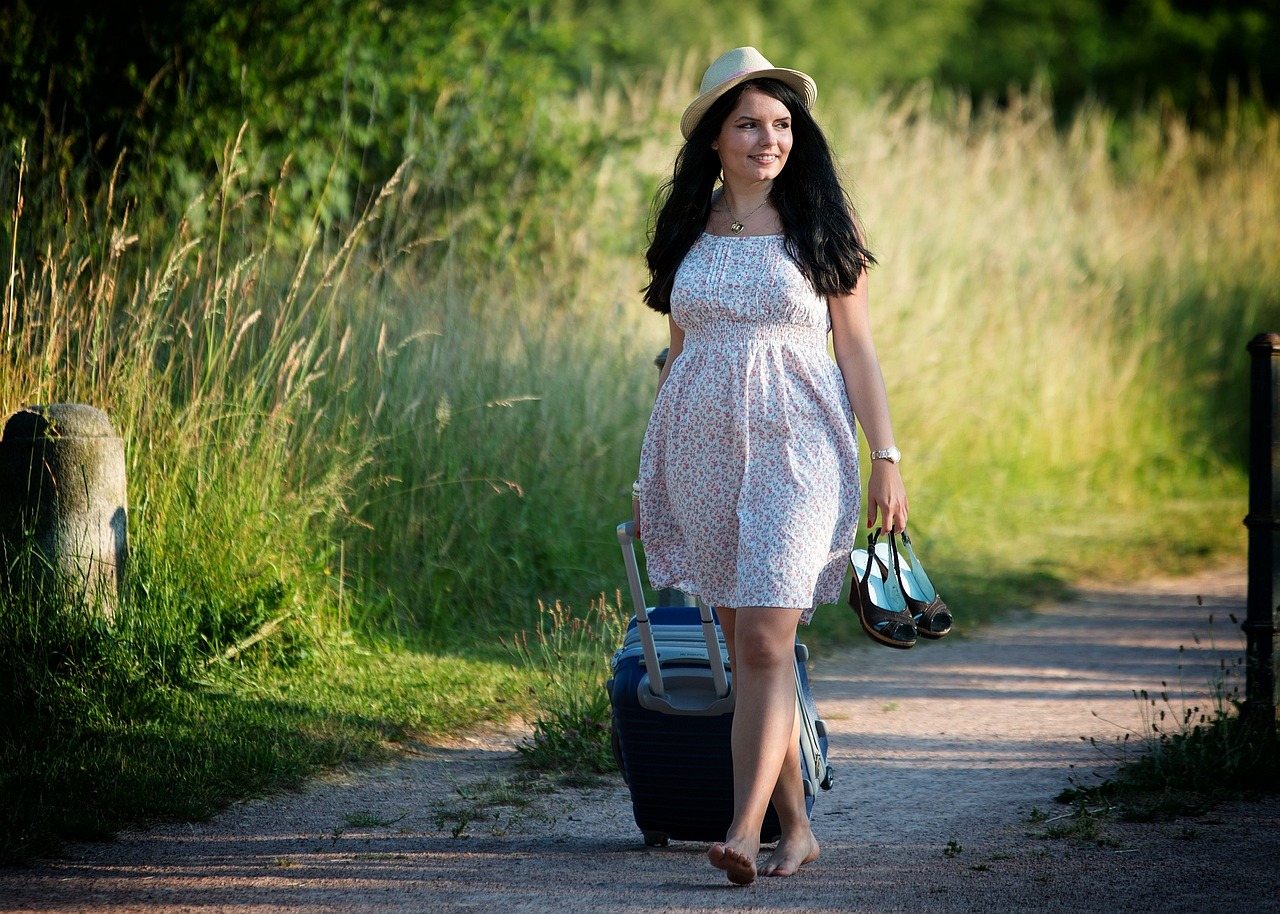 Original
 Default algorithm
 Rule of thirds disabled
Selecting a single automatic gravity algorithm
The default g_auto option applies an optimal mixture of two different methods of identifying the most important region of your image:
- AI-based algorithm (subject) - Uses deep-learning algorithms to identify the subjects of an image that are most likely to attract a person's gaze.
- Saliency algorithm (classic) - Uses a combination of saliency heuristics, edge detection, light, skin-tone prioritization, and more to automatically detect and prioritize significant region(s) in the image.
In the majority of cases, the most salient elements in an image are also the main subjects of the photo, and thus both algorithms often produce very similar or identical results. However, in some cases, results can be somewhat different and therefore the weighted mixture that g_auto applies by default usually gives the best results.
If you find that for the types of images you are delivering, one of the algorithms consistently gives a better result than the other, you can override the default combined mechanism and explicitly request your preferred algorithm.
To select a specific automatic gravity algorithm:
- Set the crop mode to a cropping mode that supports automatic gravity (such as
fill,lfill,fill_pad,thumb,crop, orauto). - Set the gravity to either:
-
auto:subject(g_auto:subjectin URLs) - Use only the AI-based algorithm -
auto:classic(g_auto:classicin URLs) - Use only the saliency algorithm
-
- Optionally, you can also specify an additional focal gravity option (e.g.,
g_auto:subject:faces). - Specify your desired dimensions.
For example, when cropping the landscape image below to a portrait view, the classic algorithm selects the areas with the most graphically salient spots, which includes the colorful garden in the south east corner, while the subject algorithm focuses on the subjects that the AI-engine predicts are most likely to capture human attention, primarily the tower, cloud and fountains.
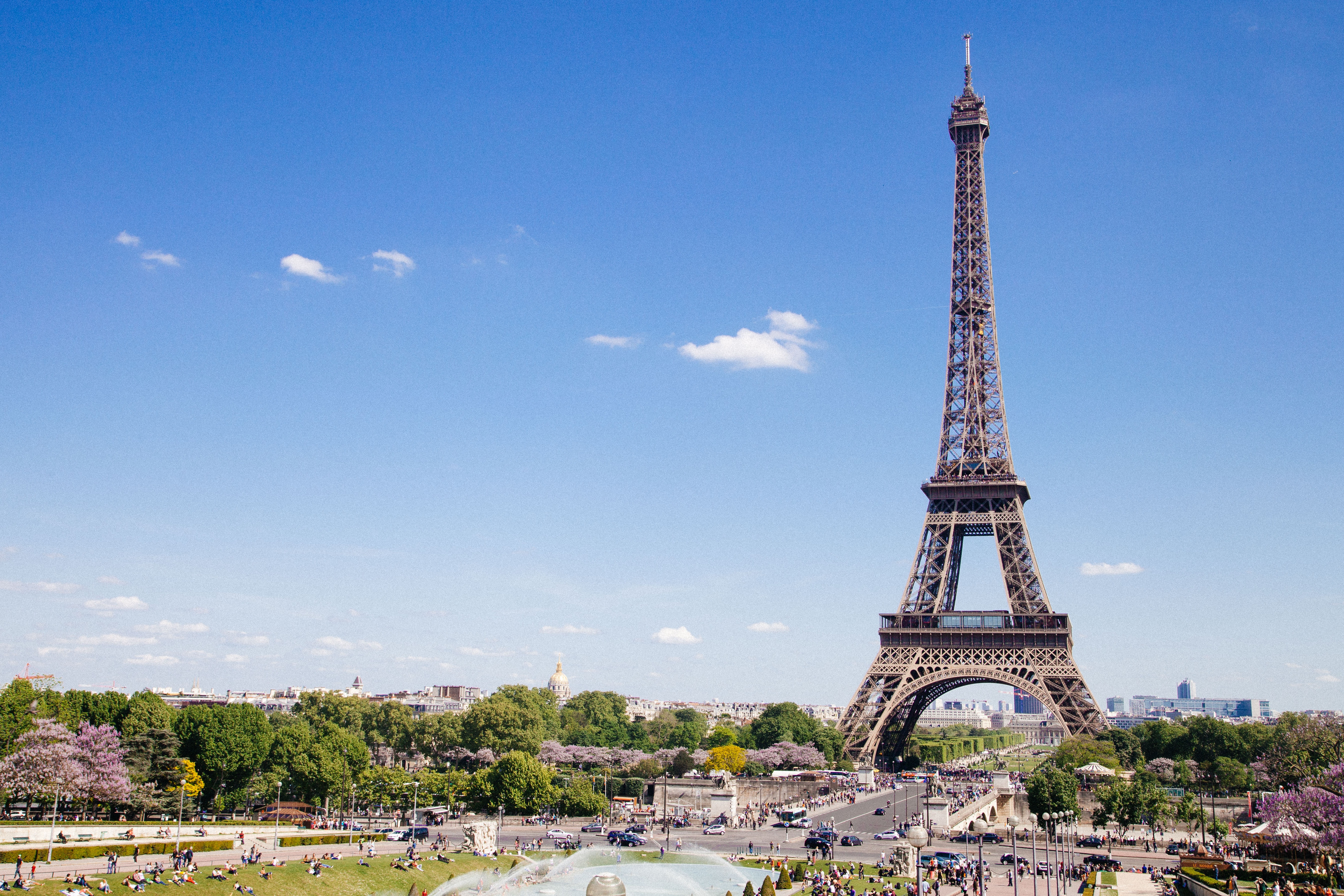 Original image
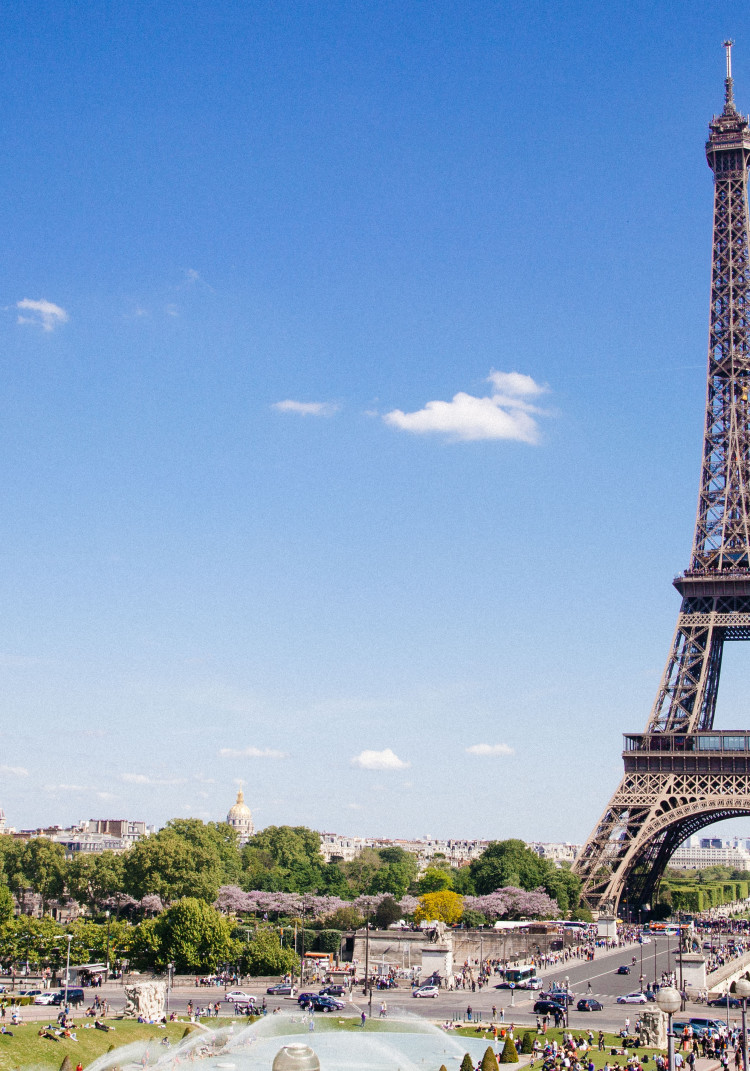 Default crop
(Center gravity)
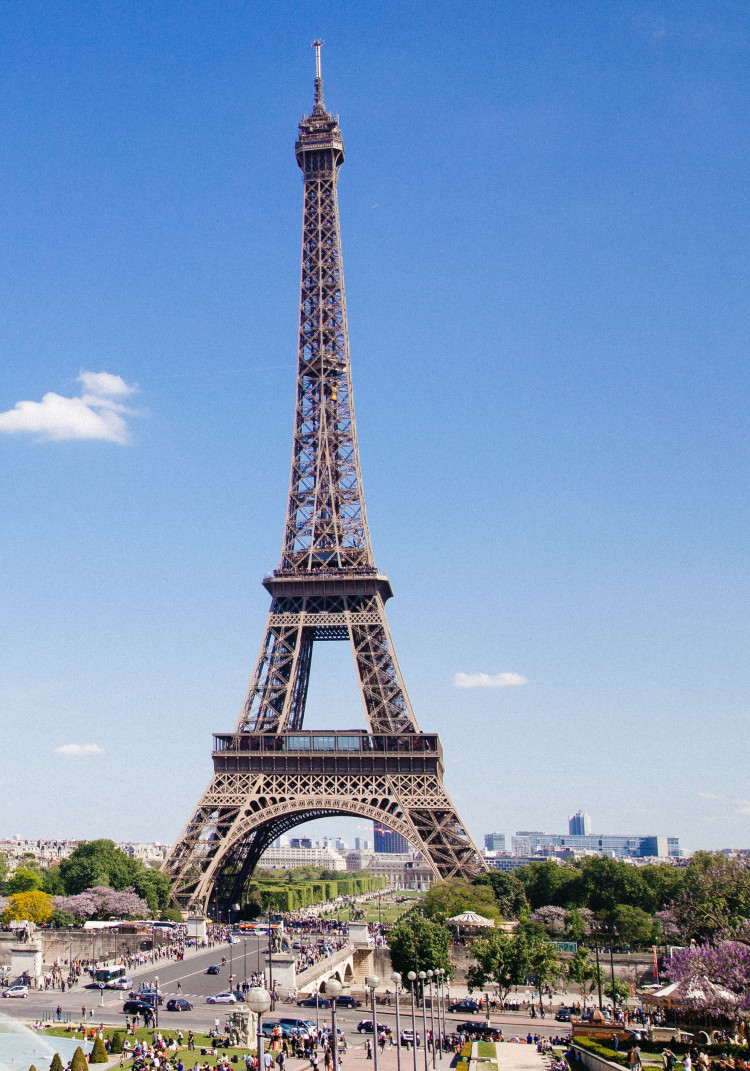 Auto-gravity
Saliency (classic) method
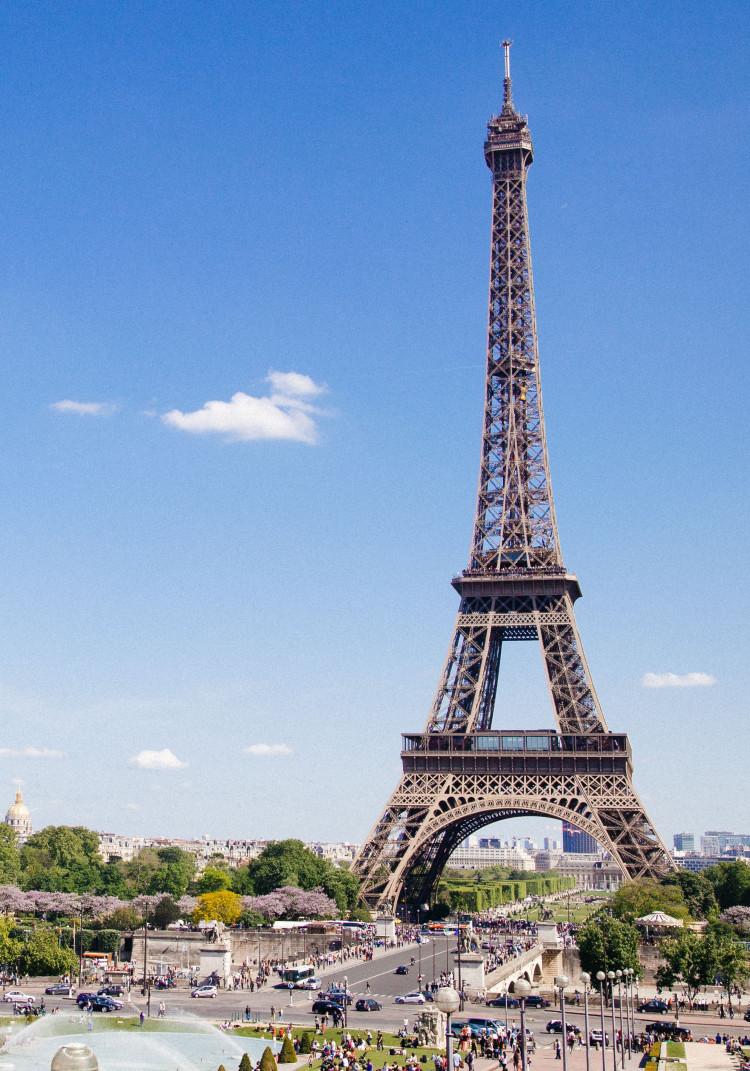 Auto-gravity
AI-based subject method
- Image gravity for crops: Control which part of the image to keep using compass positions, face detection, or object positions.
- Image crop modes: Detailed examples of fill, lfill, fill_pad, crop, thumb, auto, and auto_pad.
- Image upscaling and downscaling: Upscale with super resolution, preserve quality when downscaling, and deliver at the right resolution using DPR.
- Cloudinary AI Content Analysis add-on: AI-powered content analysis for smarter cropping decisions.
Error
Rate this page:
