 Ask AI
Cloudinary Image and Video for Shopify
Last updated: Sep-03-2026
 Is your Shopify store ready for peak season?
This guide shows you how to set up Cloudinary's image and video optimization, transformations, and delivery for your Shopify store using theme-level changes. This approach keeps Shopify as the origin for your media files, while Cloudinary acts as a caching proxy that optimizes, transforms, and delivers them. You can typically complete this implementation in one day and boost site performance by up to 30%.
Prerequisites
- A Cloudinary account with access to the Assets product. If you don't yet have a Cloudinary account, you can sign up for free.
- At least one Shopify store where you want to sync assets
Overview
In order to set up your Shopify-Cloudinary integration, you'll need to do the following:
- Set up your Cloudinary account to allow delivery of the Shopify store's images and videos
- Edit your store theme code to use Cloudinary image URLs instead of Shopify image URLs
Stage 1: Cloudinary account setup
Set up upload mapping
Upload mappings allow Cloudinary to fetch and deliver assets from your Shopify store. An upload mapping maps a Cloudinary folder to an external URL, enabling Cloudinary to act as a caching proxy for your Shopify media.
To set up an upload mapping:
- Go to the Auto Upload Mapping tab of the Upload page in Console Settings.
- Click Add Mapping.
- Configure the mapping fields with the following values:
| Field | Value |
|---|---|
| Source URL prefix | https://store-name.myshopify.com/cdn/shop/ |
| Target folder | shop |
Replace store-name with your actual Shopify store ID.
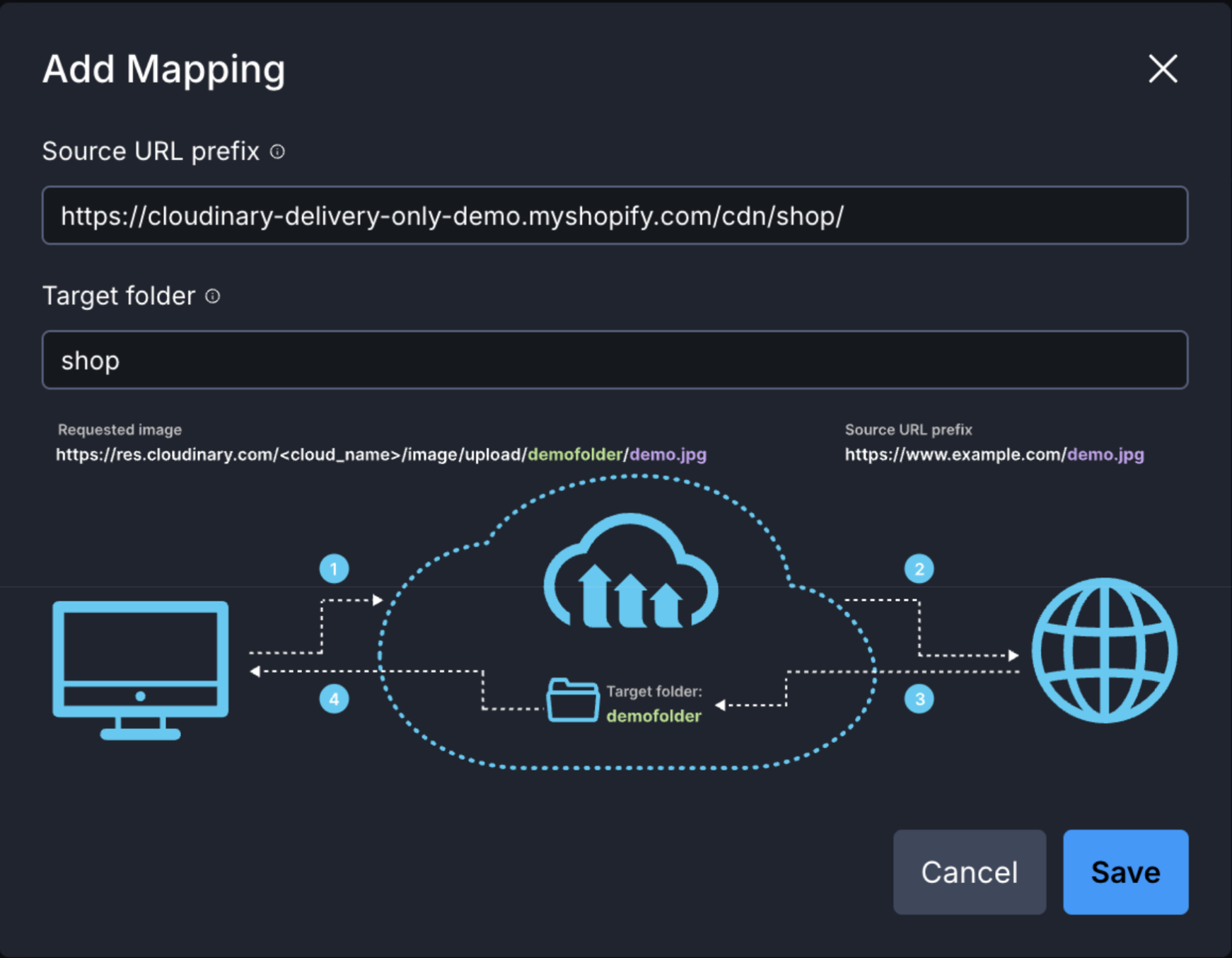
Get your account details
You'll need your Cloudinary cloud name to build delivery URLs for your Shopify assets.
To find your cloud name:
- Go to the developer Dashboard of your product environment.
- Copy the Cloud name. Record this value for use in the theme setup.
media.yourdomain.com) instead of using the standard Cloudinary URL format.Test Cloudinary URL structure
To test delivering an optimized, resized image or video, take a URL from your store and test it.
- You must use
<your_cloud_name>/videoor<your_cloud_name>/imagein the prefix, depending on which file type you want to optimize and deliver. - The transformations shown in the examples below are just suggestions. You can customize the transformation parameters based on your specific needs. For example, you may want different image sizes, video resolutions, aspect ratios, or quality settings. For a complete list of available transformations, see the Transformation URL API reference.
Images
Given an image URL from your store in one of these formats:
Or:
If you want optimized delivery with width 1000, you'll need to convert the Shopify image URL to:
Where:
-
c_scale,w_1000- Scales the image to a width of 1000 pixels while maintaining aspect ratio -
f_auto- Automatically delivers the optimal image format based on the browser -
q_auto- Automatically applies the optimal quality compression
You can also apply creative transformations dynamically. For example, to change a portrait image to landscape using generative fill:
Where:
-
ar_16:9- Sets the aspect ratio to 16:9 -
b_gen_fill- Uses AI generative fill to seamlessly extend the background -
c_pad- Pads the image to fit the new aspect ratio
Videos
Given a video URL:
Replace it with the optimized delivery URL. Note that you want to use original videos with Cloudinary, so replace /c/vp with /c/o/v and remove the Shopify-processed video file name:
Where:
-
ac_none- Disables audio codec transformation, keeping the original audio -
c_limit,h_1080- Limits the height to 1080 pixels (won't upscale if the video is smaller) -
f_auto- Automatically delivers the optimal video format -
q_auto- Automatically applies the optimal quality compression
Stage 2: Shopify Theme setup
Add Cloudinary settings to theme configuration
Set Cloudinary Image and Video hostnames as theme variables in your Shopify Theme settings (settings_schema.json).
Edit the settings_schema.json and add the following global theme settings:
Add the cloudinary-url snippet
Add the cloudinary-url.liquid snippet to the /snippets/ directory of your theme. This snippet enables you to replace Shopify image and video URLs with Cloudinary URLs throughout your theme files.
The recommended approach is to wrap existing media tags with the capture Liquid tag and then render the cloudinary-url snippet on the captured content. For example, if your original theme has:
You would wrap it as follows:
For implementation examples showing how to use the cloudinary-url snippet in different themes, see the cloudinary-shopify-theme-delivery repository.
Enable preconnect for performance
In your theme's global files, add a preconnect link to the <head> section of your HTML files. This ensures that the browser connects to the Cloudinary CDN as the page render starts, which helps boost LCP (Largest Contentful Paint) performance:
https://res.cloudinary.com with your custom domain (e.g., https://media.yourdomain.com).The preconnect header prevents the additional CDN handshake from impacting performance.
Get help
For additional assistance with your implementation, contact Cloudinary support.
Error
Rate this page:
