 Ask AI
Shopify AssetLink admin guide
Last updated: Sep-03-2026
 Is your Shopify store ready for peak season?
The Shopify AssetLink app allows you to link product assets in your Cloudinary Media Library to your Shopify stores, attaching them to products based on metadata matching. This guide is for account administrators, walking you through the installation and configuration of the required components, the Shopify and Cloudinary app setups.
Prerequisites
-
A Cloudinary account with access to the Assets product
NoteShopify AssetLink is available on the free tier of Cloudinary for Shopify Core customers. For Shopify Plus customers, a Cloudinary Enterprise or Pro+ plan is required to use AssetLink after a 30-day trial. Don't have a Cloudinary account yet? Sign up for free. If you are a Shopify Plus customer, please contact us for pricing and setup options. At least one Shopify store where you want to sync assets
Admin-level access to both your Cloudinary account and Shopify store(s)
Installation
To get started with Shopify AssetLink, you need to install the app in two places:
- Enable Shopify AssetLink in Cloudinary Assets - Enable the app in your Cloudinary product environment
- Install the Cloudinary AssetLink Shopify app in your stores - Install the app from the Shopify App Store on each store you want to connect
Enable Shopify AssetLink in Cloudinary Assets
You'll need to enable Shopify AssetLink in the Cloudinary Assets product environment containing the images and videos you want to sync to Shopify.
To enable Shopify AssetLink in Cloudinary:
- Log into your Cloudinary account.
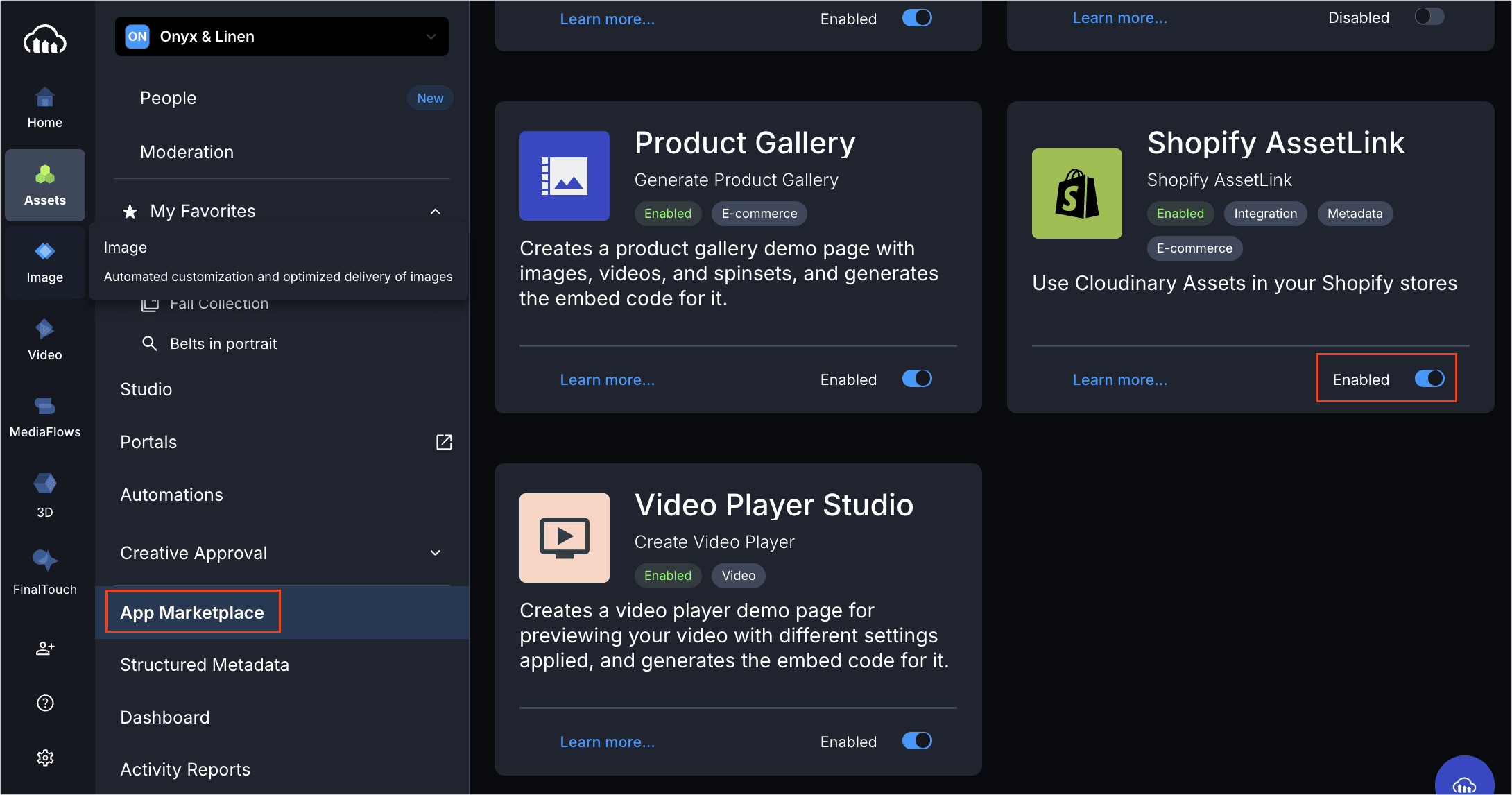
- In the Console, use the Product Navigation menu on the left:
- In the dropdown at the top of the menu, select the product environment that contains the images you want to use on your storefront.
- Select Assets to navigate to the Assets product.
- Select App Marketplace.
- In the App Marketplace, find the Shopify AssetLink app and set it to Enabled.
Install the Cloudinary AssetLink Shopify app in your stores
Before you can connect your Shopify stores to Cloudinary, you need to install the Cloudinary AssetLink app from the Shopify App Store on each store you want to connect.
To install the Cloudinary AssetLink app:
- Go to the Cloudinary AssetLink app in the Shopify App Store.
- Click Install (or Add app if you have multiple stores).
- If you have multiple Shopify stores, select which store you want to install the app on.
- Follow the prompts to complete the installation.
- Repeat these steps for each additional store you want to connect to your Cloudinary account.
Setup and configuration
After installing the apps, you need to set up and configure AssetLink to connect your Shopify stores and configure synchronization settings. This involves:
- Opening Shopify AssetLink in Cloudinary - Access the app from selected assets or from the App Marketplace settings
- Linking your Shopify stores to Cloudinary - Connect each store using a connection code
- Configuring asset synchronization settings - Set up how assets are transformed, named, and synced
Open Shopify AssetLink in Cloudinary
You'll need to open Shopify AssetLink whenever you want to configure settings or work with assets. Here's how to access it:
Open the Shopify AssetLink setup
- In the Console, make sure Assets is selected.
- Select App Marketplace.
- Find Shopify AssetLink.
- Click Settings to open the Setup tab.
Open a Shopify AssetLink workflow from selected assets
To perform Shopify AssetLink actions on assets, select one or more assets and choose a Shopify AssetLink action. For details, see Select assets and choose an AssetLink action in the user guide.
Link your Shopify stores to Cloudinary
After you've installed the Cloudinary AssetLink app on your Shopify stores, you need to connect them to your Cloudinary account using a connection code.
If Shopify AssetLink setup is not already open, open it from the App Marketplace settings.
To link your Shopify store to Cloudinary:
- Click Connect new store. The Connect Cloudinary AssetLink to Shopify Store dialog box opens.
- Click Cloudinary AssetLink app to access your AssetLink app within your Shopify store.
- In the Shopify admin for every store you want to add:
- Go to the Cloudinary AssetLink on the App menu.
- Select Settings in the app menu.
- Select the Shopify AssetLink in Cloudinary tab.
- Click Connect Cloudinary account and copy the connection code.
- Go back to the Setup tab of the Shopify AssetLink app in your Cloudinary environment and paste the connection code in the Connect Cloudinary AssetLink to Shopify Store dialog box.
- Click Connect.
Configure asset synchronization settings
Once you've connected Cloudinary to your Shopify stores, you can configure asset synchronization settings in the Setup tab.
If Shopify AssetLink setup isn't already open, open it from the App Marketplace settings.
Select the Shopify stores these settings should apply to:

Then, apply configuration settings:
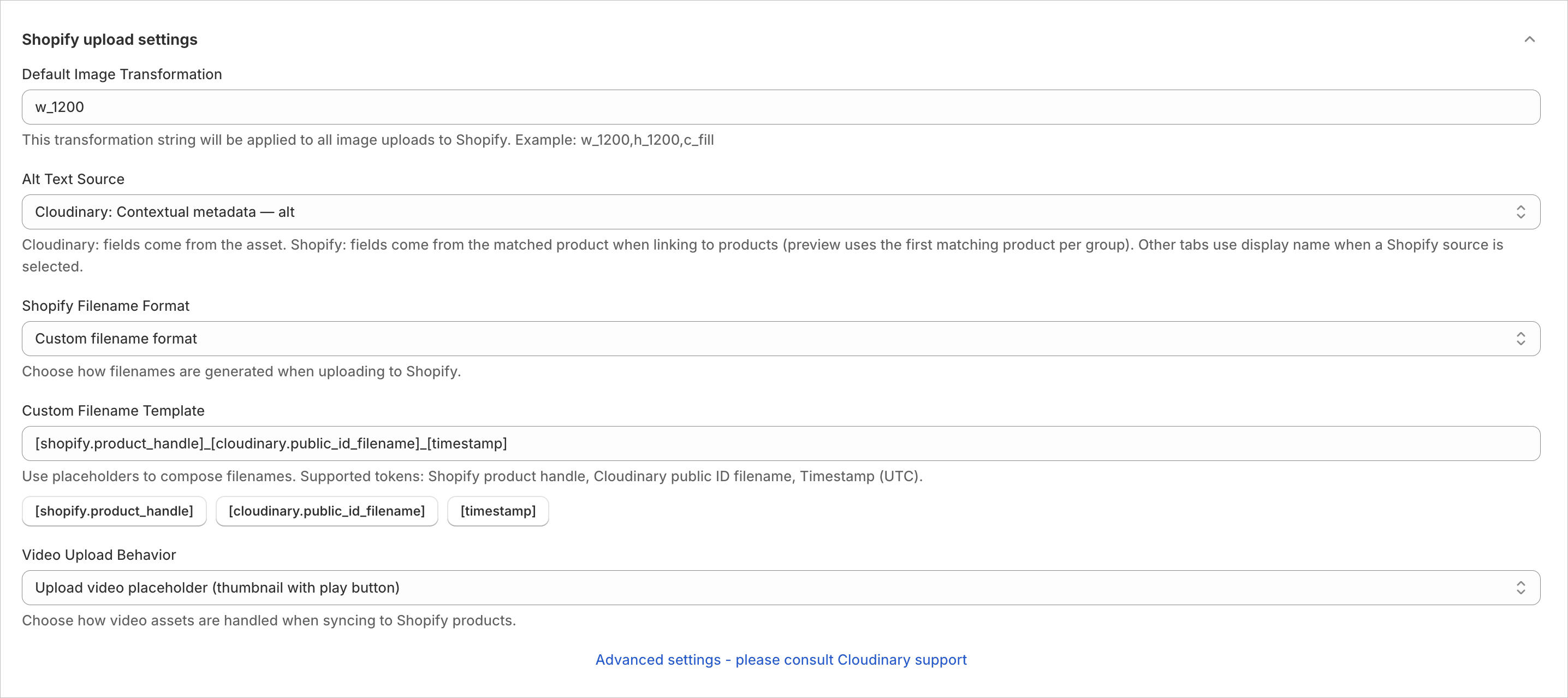
Default Image Transformation
Define the transformation applied to images uploaded to Shopify. The transformation can be specified as a transformation string or a named transformation.

This default is used when users sync assets to Shopify products from Link to Products or upload assets to Shopify Files from Upload to Store Files. It lets you standardize product images across stores, for example by ensuring all product images use the same dimensions, crop mode, background handling, quality, and format.
The transformation string uses the transformation URL syntax, which is a comma-separated list of transformation parameters.
Example 1: Crop images to a square
c_fill,h_1200,w_1200
-
c_fill- Crop mode: fills the specified dimensions by cropping the image -
h_1200- Height: sets the height to 1200 pixels -
w_1200- Width: sets the width to 1200 pixels
Example 2: Pad images with generative fill
b_gen_fill,c_pad,h_1200,w_1200
-
b_gen_fill- Background: uses generative AI to fill the padded areas with contextually relevant content -
c_pad- Crop mode: pads the image to fit the specified dimensions without cropping -
h_1200- Height: sets the height to 1200 pixels -
w_1200- Width: sets the width to 1200 pixels
Named transformations
A named transformation is a reusable transformation configuration defined in Cloudinary. Instead of specifying individual transformation parameters, you can reference the named transformation and Cloudinary applies the saved transformation settings.
For example, t_shopify_product_square applies a predefined transformation named shopify_product_square.
Named transformations can simplify governance and maintenance because the rendition logic is managed in one place and can be reused across AssetLink, delivery URLs, and other workflows. For more information, see Named transformations.
When to use a named transformation:
- Your merchandising team needs a consistent, approved product rendition.
- The transformation is complex or likely to change over time.
- You want users to select a readable template instead of editing raw transformation syntax.
- Different teams or stores use different approved product image profiles.
Alt Text Source
Select the Cloudinary field used to populate alt text in Shopify. The selected source provides the default alt text in the Link to Products tab. Users can override the value for individual assets before completing the sync.

You can map alt text to a Cloudinary field, a Shopify product field, or disable automatic pre-population entirely.
Cloudinary
Use a Cloudinary asset field as the source of alt text. You can map alt text to values such as the asset display name, public ID, contextual metadata alt, or a structured metadata field.
Enter the field name directly or prefix it with Cloudinary:.
-
Examples
-
display_nameorCloudinary:display_name Cloudinary:context.altCloudinary:metadata.<field_external_id>
-
For backward compatibility, values without a prefix are treated as Cloudinary fields.
Shopify
Use a field from the matched Shopify product as the source of alt text. Enter the value using the format Shopify:<field>.
-
Examples
-
Shopify:title— product title -
Shopify:handle— product handle -
Shopify:productType— product type -
Shopify:tags— product tags (comma-separated when multiple) -
Shopify:tagsWithPrefix— for tag-prefix style matching; preview uses the Cloudinary metadata match value for the row -
Shopify:sku— SKU from the first product variant -
Shopify:barcode— barcode from the first variant that has one, otherwise the first variant -
Shopify:metafields.<namespace>.<key>— product metafield value, for exampleShopify:metafields.custom.seo_description
-
None
Don't automatically populate alt text. Users can enter alt text manually or generate it later from the Link to Products tab.
Shopify Filename Format
Choose how filenames are generated when uploading to Shopify. This setting affects how assets appear in Shopify's product media library.

Options:
- Use Public ID only for filename - Uses only the Cloudinary public ID as the filename in Shopify
- Include all metadata in filename - Embeds the metadata needed to reconstruct the Cloudinary asset URL in the filename, including cloud name, resource type (image/video), delivery type (upload/private), and public ID. These components are concatenated with underscores.
Video Upload Behavior
Configure how video assets are handled when syncing to Shopify products.

Options:
- Upload video placeholder: Uploads a thumbnail with a play button.
- Upload full video to Shopify: Uploads the actual video (coming soon).
- No upload: Skips uploading to Shopify but updates the Product Media metafield.
Advanced settings
-
Asset Type Metadata Field: Allows you to select a metadata field (must be type single-select) that contains asset type information. The field should have values of either
productorswatch.- When set to
product, the asset is attached to the product's media gallery normally. - When set to
swatch, the asset's public ID is written to thecloudinary.swatchmetafield in Shopify instead of being added to the product gallery.NoteThis requires setup: You must first create a metadata field of type enum with valuesproductorswatch, then set this field for all relevant assets before syncing.
- When set to
Product Sync Completed Webhook: Specifies a webhook URL to receive a notification when a product sync operation completes.
Enable Cache Busting: Adds today’s timestamp as a version prefix to the
public_idin theproductmedia_v1metadata.
AI Swatch Generator settings
Configure the default field values used when generating AI swatches in the AI Swatch tab.

Product Type Field: Choose a structured metadata field (text, single-select, or multi-select) that describes the type of product in the image, such as shirt, pants, or accessory. AssetLink passes this value to the AI image provider to focus swatch generation on the correct object or material. For single-select fields, the selected option label is used; for multi-select fields, labels are joined with commas. The AI Swatch tab shows only fields that have a value on the selected asset.
Swatch name source: Sets the default source for the generated swatch filename. Options include Manual Entry, asset display name, public ID, or any text structured metadata field on the asset. The AI Swatch tab shows only fields that have a value on the selected asset, plus Manual Entry and the saved source if one is already configured. Using a dedicated text field such as a color or swatch name field produces more consistent, predictable Cloudinary asset names.
Recommended metadata fields for AI swatches
Create these structured metadata fields in Cloudinary before using AI swatches broadly:
-
Asset Type: A single-select field with values
productandswatch. Use this as the Asset Type Metadata Field in Advanced settings. This is the most important field for swatch workflows . It tells AssetLink whether to add an asset to the product media gallery or write it to thecloudinary.swatchShopify metafield. - Product Type: A text, single-select, or multi-select field describing the type of product in the source image. Use this as the Product Type Field above.
-
Swatch Name or Color Name: A text field containing the desired swatch filename or color/material label, such as
navy_blue,pink_canvas, orlinen_stripe. Use this as the Swatch name source above for consistent generated asset names. - Product identifier: A field such as SKU, style ID, product handle, or product ID. This should match the metadata strategy you use for product linking so generated swatches stay associated with the same product group as their source images.
AssetLink API and automation
Shopify AssetLink provides HTTP APIs that automation systems can use to upload assets to Shopify Files, link assets to Shopify products, manage existing links, and generate AI swatches.
To use the APIs, create an API key from either:
- Apps > Cloudinary AssetLink > Settings > API Keys
- The Setup tab in Cloudinary
Generate a separate key per automation system so you can revoke access independently.
For API documentation, authentication details, request schemas, and examples, see the Developer guide.
Shopify theme setup for optimized delivery
Syncing assets to Shopify products doesn't automatically change how those assets are delivered in your storefront.
To deliver images and videos through Cloudinary's CDN and optimization pipeline, your Shopify theme must be updated to use Cloudinary delivery URLs.
This requires theme-level development work. For implementation details and Liquid snippet examples, see the Developer guide.
Using Shopify AssetLink
After you configure the basic synchronization settings in the Setup tab, users can work with assets in the other Shopify AssetLink tabs. These tabs provide the main interface for daily operations with AssetLink.
For complete details on using these tabs, including step-by-step instructions and workflow procedures, see the User guide.
Link to Products tab
The Link to Products tab is where users organize selected assets and configure how AssetLink links them to Shopify products. Users can:
- Group assets based on metadata matching (e.g., by SKU or product ID)
- Set alt text for each asset
- Choose link modes (overwrite, append, prepend, or reset)
- Control asset ordering within product listings
- Preview and exclude assets before syncing
Links to Shopify tab
The Links to Shopify tab lets users review where a selected Cloudinary asset is already connected in Shopify. Users can:
- See each Shopify store connected to the asset.
- Open the linked Shopify file or its references view in Shopify admin.
- Load cached links from Cloudinary context, or refresh by scanning Shopify (with optional product search on large catalogs).
- Review products that use the asset.
- Reorder product media by dragging thumbnails.
- Mark the asset for removal from a product, then save or revert the change (saved removals update link metadata on the asset).
Upload to Store Files tab
The Upload to Store Files tab allows users to upload assets directly to a Shopify store's file library without linking them to specific products. This is useful for general assets like logos, banners, or other store-wide content that doesn't belong to a specific product.
AI Swatch tab
The AI Swatch tab helps users generate swatch assets from product images and save those generated swatches back to Cloudinary. To use AI swatches, configure the Asset Type Metadata Field in Advanced settings so AssetLink knows to write generated swatches to the cloudinary.swatch Shopify metafield instead of the product media gallery.
For full usage details, see AI Swatch tab in the user guide.
Error
Rate this page:
