
As web applications continue to grow in complexity and become more interactive, ensuring they load on time for users to interact with is a constant priority for developers. Lazy loading is one of the most effective techniques to improve the loading speed and performance of a Vue application. Instead of downloading the entire application code at once, lazy loading allows Vue to load parts of the app only when they are needed. This helps users interact with your application faster, which improves user experience, SEO, and overall performance.
In this guide, we walk you through how Vue lazy loading works, how to set it up for routes and components, and strategies to optimize it further.
In this article:
- What is Vue Lazy Loading and Why Does it Matter?
- Route-level lazy loading in Vue Router
- defineAsyncComponent and Suspense
- Vue Component Lazy Loading with Cloudinary Media
- SEO and Accessibility Considerations
What is Vue Lazy Loading and Why Does it Matter?
In many Single Page Applications (SPAs), the JavaScript code for every single page or route is usually sent to the browser during the initial page load when users visit the website. For small apps, this is fine, but for larger, complex applications, this leads to a massive initial download. This results in slow-loading websites, consuming unnecessary bandwidth and resources for both you and the user.
Lazy loading addresses this problem by letting you break your application’s code into smaller, separate chunks, instead of loading everything at once. Here’s why it matters:
- Faster Initial Page Load: Your website or app starts faster because less code is downloaded during the initial render
- Better User Experience: Users don’t have to wait as long to see something useful on the page
- Lower Data Usage: Mobile users don’t download code they might never use
- Improved Performance: Especially important for large applications with many features
Without lazy loading, the browser will need to download and parse your entire JavaScript bundle before it can even begin to render the page, leading to a single, large bottleneck that delays the Time to Interactive (TTI).
Route-level lazy loading in Vue Router
The most common and effective place to start lazy loading is at the route level in a SPA. This means that when you define a route in your Vue Router setup, the corresponding view component will only be fetched when the user actually visits that route.
In a standard Vue setup, you import components like this:
// Standard static Import
import About from './views/About.vue'
Since Vue Router supports lazy loading out of the box, we just need to replace the regular import with a special function called a dynamic import (() => import(...)) when defining routes in your router.ts file.
This technique, often called route-level code splitting, tells the bundler to split the application into smaller chunks, loading route components only when they are needed.
For example, if your project is bootstrapped using the official quickstart guide, and you add Vue Router during the setup, you can see in router/index.ts that the /about route is lazy loaded since its component is not immediately visible to the user when they land on the website:
import { createRouter, createWebHistory } from 'vue-router'
import HomeView from '../views/HomeView.vue'

const router = createRouter({
  history: createWebHistory(import.meta.env.BASE_URL),
  routes: [
    {
      path: '/',
      name: 'home',
      component: HomeView,
    },
    {
      path: '/about',
      name: 'about',
      // route level lazy-loading
      component: () => import('../views/AboutView.vue'),
    },
  ],
})

export default router
Let’s see how this works using browser devtools. If you’re using Chrome, open the devtools by pressing F12 (or Cmd+Option+J on Mac).
- Navigate to the Network tab.
- In the Filter input field, add
.vueto filter only Vue components. - Select the JS filter to only see JavaScript files.
- Reload the home path (
http://localhost:5173/). In the devtools results, you will see the main application chunks being downloaded (includingHomeView.vue‘s code), but not the chunk forAboutView.vue:
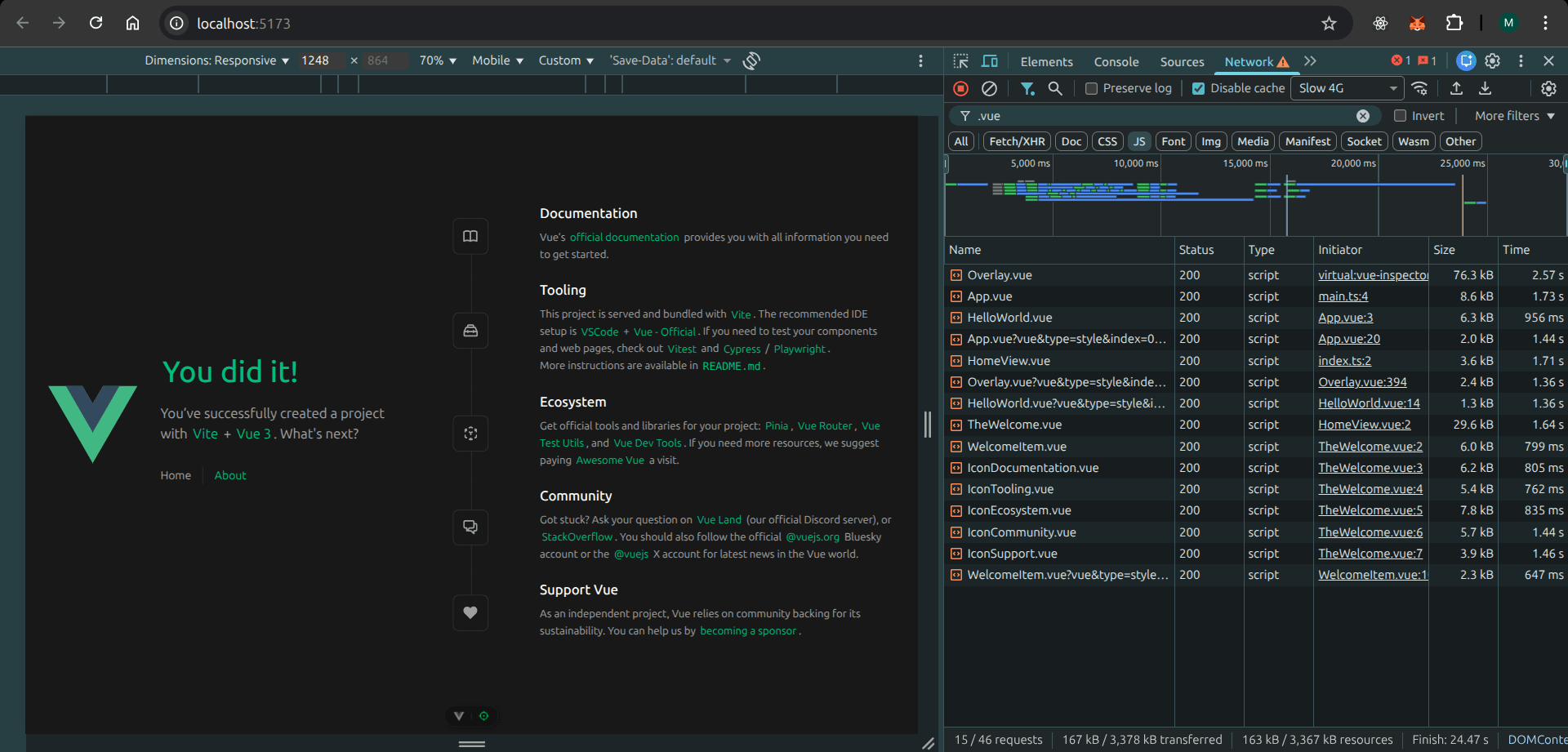
5. Now, click the link to navigate to the /about route.You will immediately observe that the code for AboutView.vue is only fetched when the route was accessed:
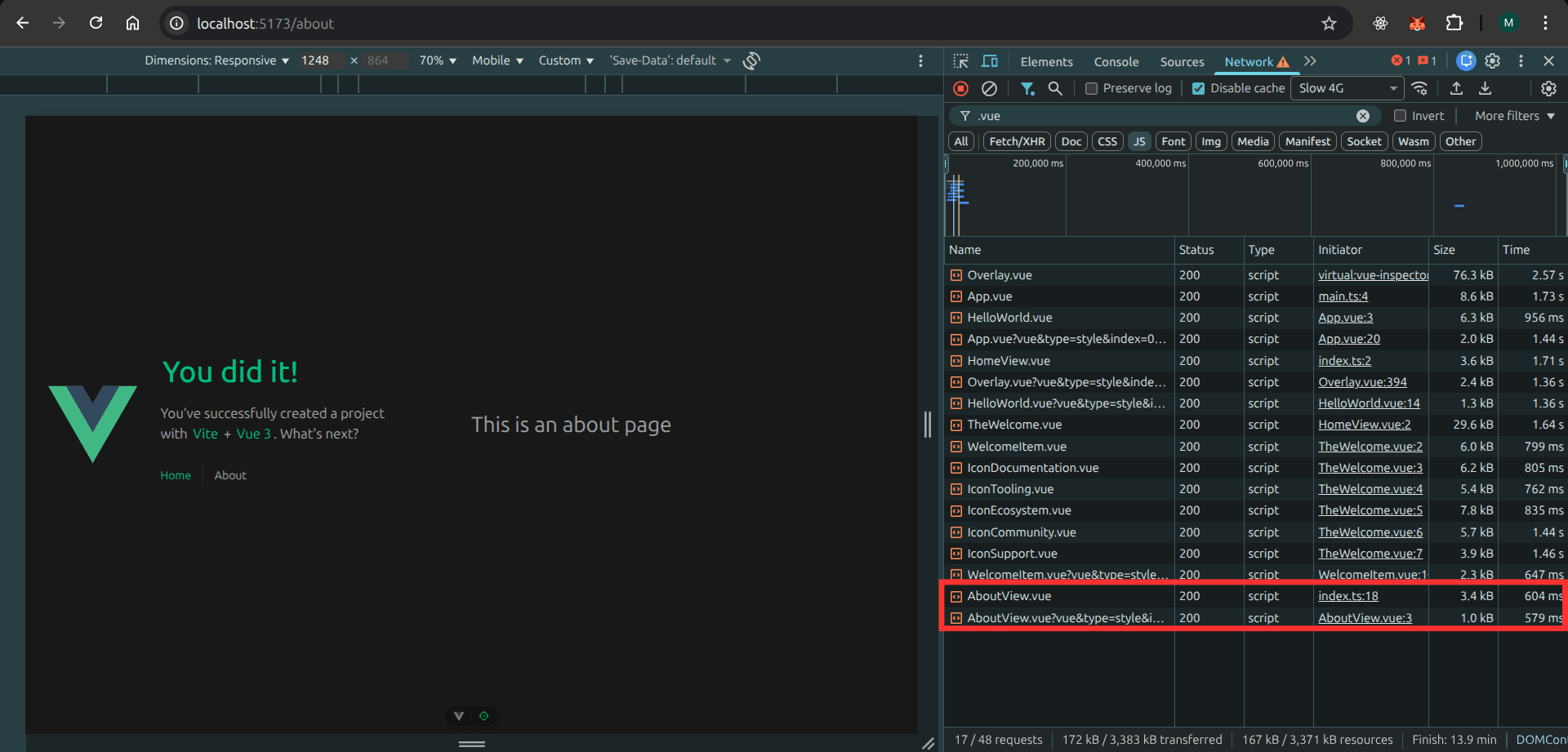
This confirms that the component was lazy loaded. If the AboutView component was heavy and there are several components or routes across your app, this optimization would significantly impact the overall speed of your application.
defineAsyncComponent and Suspense
Apart from route-level lazy loading, we can also lazy load single components inside a page, not just whole routes. A typical use case is when you want to display heavy modals, hidden tabs, or components that would require user actions before they are loaded.
defineAsyncComponent is a Vue.js utility function for lazy loading components. It’s typically used for lazy loading by combining it with the dynamic import function:
import { defineAsyncComponent } from 'vue'

const AsyncComp = defineAsyncComponent(() =>
  import('./components/MyComponent.vue')
)
For example, imagine you have a Dashboard.vue component that renders a user profile modal when a user clicks their profile avatar. Typically, your code would look like this:
<!-- Dashboard.vue -->
<script setup>
import { ref } from 'vue'
import ProfileComponent from '../components/ProfileComponent.vue'

const showProfile = ref(false)

const openProfile = () => {
  showProfile.value = true
}

const closeProfile = () => {
  showProfile.value = false
}
</script>

<template>
  <div class="dashboard">
    <img
      src="/avatar.png"
      alt="User avatar"
      @click="openProfile"
      class="avatar"
    />

    <ProfileComponent v-if="showProfile" @close="closeProfile" />
  </div>
</template>
In the above code, ProfileComponent is imported upfront–even though the user might never open the modal. This means the component is bundled into the initial JavaScript payload, increasing load time unnecessarily.
Since the profile modal is only needed after the avatar is clicked, it is a perfect candidate for lazy loading. Here’s how the previous code can be optimized to use lazy loading:
<!-- Dashboard.vue -->
<script setup>
import { ref, defineAsyncComponent } from 'vue'

const showProfile = ref(false)

const ProfileComponent = defineAsyncComponent(() =>
  import('../components/ProfileComponent.vue')
)

const openProfile = () => {
  showProfile.value = true
}

const closeProfile = () => {
  showProfile.value = false
}
</script>

<template>
  <div class="dashboard">
    <img
      src="/avatar.png"
      alt="User avatar"
      @click="openProfile"
      class="avatar"
    />

    <!-- Lazy-loaded component -->
    <ProfileComponent v-if="showProfile" @close="closeProfile" />
  </div>
</template>
Using Suspense to Display Fallback Content
Since a component imported by defineAsyncComponent is essentially a promise (it’s loaded asynchronously), there’s a likelihood the component might fail to be imported due to network problems or some other issues.
For a better user experience, <Suspense> is a built-in component in Vue that allows us to display a fallback (like a loading spinner) while waiting for multiple async components to load. The <Suspense> component has two slots:
#default: This slot holds the component(s) that are being waited on (the asynchronous component).#fallback: This slot holds the content to be displayed while the components in the default slot are loading.
Here is how you would use <Suspense> in a parent component (for instance., in App.vue or a page component) to handle the loading state of an asynchronously loaded component:
<script setup>
import { defineAsyncComponent } from 'vue'

// 1. Define the component asynchronously
const AsyncHeavyDataComponent = defineAsyncComponent(() =>
  import('./components/HeavyDataComponent.vue')
)
</script>

<template>
  <main>
    <h1>Welcome to the Page</h1>


    <Suspense>
      <template #default>
        <AsyncHeavyDataComponent />
      </template>

      <template #fallback>
        <div class="loading-state">
          Loading Data... <span class="spinner"></span>
        </div>
      </template>
    </Suspense>
  </main>
</template>
Now, when this component is rendered:
- The content in the
#fallbackslot is immediately displayed. - Vue starts fetching and rendering the
AsyncHeavyDataComponent. - Once the
AsyncComponentis fully resolved, the content in the#fallbackslot is swapped out, and theAsyncComponentis displayed.
Vue Component Lazy Loading with Cloudinary Media
Lazy loading components is a strategy that delays the download of non critical UI pieces until they are needed. When working with large media galleries, this keeps your initial page load fast. Vue’s dynamic import feature lets you wrap heavy components so they load only when the user interacts with a part of the app, while Cloudinary optimizes and serves media assets best fit for the user’s device.
This pattern is useful when you have components that perform transformations or pull multiple assets at once. Instead of loading everything upfront, you defer the cost until the user chooses to view that section. The interface feels more responsive because initial rendering remains lightweight.
Once the component loads, you can use Cloudinary’s Vue SDK to serve the right version of each image or video. Vue’s watchers and computed properties make it simple to adjust transformations based on viewport size. This produces an experience that feels fast while still handling sophisticated media logic.
SEO and Accessibility Considerations
While lazy loading helps to improve performance, it requires careful consideration to avoid negative impacts on SEO and user accessibility.
In terms of SEO, the primary risk associated with lazy loading is that search engine crawlers may not wait for the lazy-loaded content to appear, which can severely harm your ranking for relevant keywords. To ensure your content is crawled by all search bots, use Server-Side Rendering (SSR), an optimization strategy that allows us to render the full content of the page on the server before it’s delivered to the browser, ensuring that the initial HTML contains all the necessary information for indexing.
For accessibility, provide loading indicators that screen readers can announce, like aria-live regions. Also, ensure lazy-loaded parts don’t break the page layout. Use placeholders for lazy-loaded contents to prevent potential layout shifts that might occur when an element suddenly appears.
Wrapping Up
As web applications continue to grow in complexity, lazy loading has evolved from an optional improvement to a standard practice. In this article, we explored how lazy loading works in Vue applications using practical examples, providing you with the insights to build more scalable, maintainable, and user-centric applications. Being deliberate about what loads right away and what can wait can significantly improve the efficiency and usability of your apps. As a general rule, always ensure critical ‘above-the-fold’ content loads instantly, while less urgent features can load asynchronously.
Frequently Asked Questions
How does lazy loading impact SEO?
Generally, lazy loading improves performance, which automatically impacts SEO positively as metrics such as LCP and TTI are improved and used as ranking signals. However, lazy loading can also become a problem for SEO when important content is not immediately available, for example, on landing pages or blog articles.
Can I lazy load state management modules?
Yes. In fact, almost anything can be lazy loaded in a Vue app. You can dynamically import and register a Pinia store or a Vuex module in a comport using the import() function:
<script setup>
import { ref, onMounted } from 'vue'

const profileStore = ref(null)

onMounted(async () => {
  const { useProfileStore } = await import('@/stores/useProfileStore')
  profileStore.value = useProfileStore()

  await profileStore.value.fetchUser()
})
</script>
How do I handle authentication with lazy-loaded routes?
When lazy loading protected pages, you can use route navigation guards in Vue Router to run authentication checks before the component code is downloaded:
const routes = [
  {
    path: '/dashboard',
    component: () => import('./pages/Dashboard.vue'),
    meta: { requiresAuth: true }
  }
]

router.beforeEach((to, from, next) => {
  if (to.meta.requiresAuth && !isAuthenticated()) {
    next('/login')
  } else {
    next()
  }
})


