
Converting PDF documents to images is a common requirement for document management systems, preview generators, and media pipelines. Whether we’re building a document viewer, generating thumbnails for a content management system, or enabling users to share individual pages as images, having a reliable PDF-to-image workflow is essential.
In this guide, we’ll walk through building a complete Java PDF-to-image converter. We’ll use the Apache PDFBox library for local PDF rendering and Cloudinary for cloud-based storage, transformation, and delivery. By the end, we’ll have a reusable pipeline that extracts pages from PDFs, converts them to optimized images, and delivers them efficiently through a global CDN.
Key takeaways:
- Java’s Apache PDFBox library provides reliable, free PDF rendering in Java with DPI control
- Cloudinary acts as both a storage and a transformation engine, eliminating the need to store multiple image variants
- On-the-fly transformations reduce storage costs while improving delivery performance
- A well-designed pipeline handles errors gracefully and scales to larger documents
In this article:
- Understanding the Java PDF to Image Workflow
- Why Convert PDFs to Images?
- Where Cloudinary Fits In
- Project Setup and Required Tools
- Uploading PDF Files to Cloudinary
- Rendering PDF Pages as Images in Java
- Transforming Images with Cloudinary
- Automating the Conversion Pipeline
- Delivering Optimized Images
- How Cloudinary Enhances Java PDF to Image Workflows
Understanding the Java PDF to Image Workflow
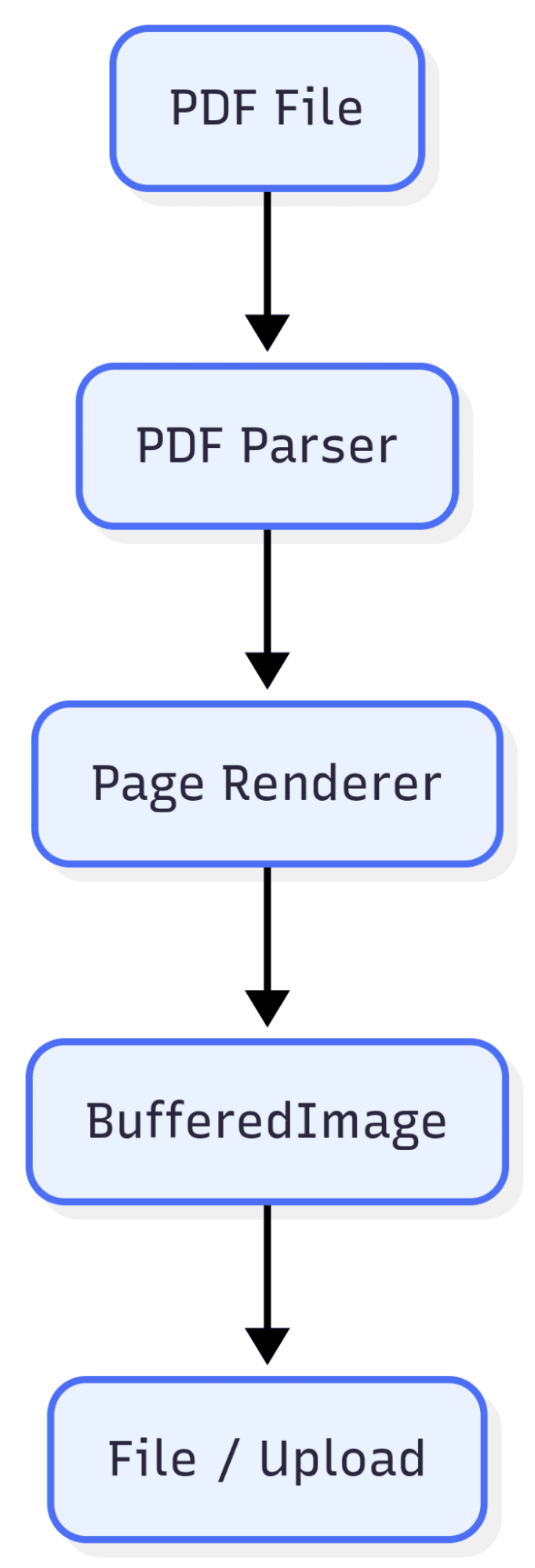
PDF rendering in Java works by parsing the PDF structure and drawing each page onto a canvas represented as a BufferedImage. The rendering quality depends on the DPI (dots per inch) setting. Higher DPI produces sharper images but larger file sizes.
Here’s the typical workflow of PDF to image conversion in Java:
Why Convert PDFs to Images?
The following table shows some benefits of converting PDFs to images:
| Use Case | Benefit |
| Document previews | Users see content without PDF viewers |
| Thumbnail galleries | Quick visual navigation of multi-page documents |
| Social sharing | Images are universally supported |
| OCR preprocessing | Image format required for text extraction |
| Print workflows | Consistent rendering across systems |
Where Cloudinary Fits In
Cloudinary is a cloud-based media platform designed to handle image and video management at scale. Instead of manually storing files, generating multiple image sizes, or optimizing formats for different devices, Cloudinary provides a single API-driven solution for storage, transformation, optimization, and delivery. This makes it especially well-suited for media pipelines where performance, consistency, and scalability matter.
After rendering pages locally, Cloudinary takes over for storage, optimization, and delivery:
- Storage: PDFs and rendered images are stored securely in the cloud
- Transformation: Resize, crop, and format images on-the-fly without storing variants
- Optimization: Automatic quality and format selection reduces bandwidth
- Delivery: Global CDN ensures fast loading worldwide
This split approach, combining local rendering with cloud delivery, gives us full control over the conversion process while offloading the infrastructure burden.
Project Setup and Required Tools
Let’s set up a Maven project with the required dependencies for PDF rendering and Cloudinary integration.
Prerequisites
Before we begin, ensure we have:
- Java JDK 11 or later
- Apache Maven
- Cloudinary account: Sign up for Cloudinary and get your Cloudinary credentials.
Step 1: Create Project Structure
Create the following folder structure:
java-pdf-to-image/examples
├── pom.xml
├── src/
│   └── (Java files will go here)
├── pdf/
│   └── (PDF files will be auto-created here)
└── output/
    └── (Converted images will appear here)
Step 2: Create pom.xml
Create a file named pom.xml in the java-pdf-to-image/examples folder with this exact content:
<?xml version="1.0" encoding="UTF-8"?>
<project xmlns="http://maven.apache.org/POM/4.0.0"
         xmlns:xsi="http://www.w3.org/2001/XMLSchema-instance"
         xsi:schemaLocation="http://maven.apache.org/POM/4.0.0
                             http://maven.apache.org/xsd/maven-4.0.0.xsd">
    <modelVersion>4.0.0</modelVersion>

    <groupId>com.example</groupId>
    <artifactId>java-pdf-to-image</artifactId>
    <version>1.0-SNAPSHOT</version>
    <packaging>jar</packaging>

    <name>Java PDF to Image Converter</name>
    <description>Convert PDF to images using Java and Cloudinary</description>

    <properties>
        <maven.compiler.source>11</maven.compiler.source>
        <maven.compiler.target>11</maven.compiler.target>
        <project.build.sourceEncoding>UTF-8</project.build.sourceEncoding>
        <cloudinary.version>2.3.2</cloudinary.version>
        <pdfbox.version>3.0.1</pdfbox.version>
    </properties>

    <dependencies>
        <!-- Apache PDFBox for PDF rendering -->
        <dependency>
            <groupId>org.apache.pdfbox</groupId>
            <artifactId>pdfbox</artifactId>
            <version>${pdfbox.version}</version>
        </dependency>


        <!-- Cloudinary Java SDK (HTTP5 for Java 11+) -->
        <dependency>
            <groupId>com.cloudinary</groupId>
            <artifactId>cloudinary-http5</artifactId>
            <version>${cloudinary.version}</version>
        </dependency>


        <!-- SLF4J for logging (required by PDFBox) -->
        <dependency>
            <groupId>org.slf4j</groupId>
            <artifactId>slf4j-simple</artifactId>
            <version>2.0.9</version>
        </dependency>
    </dependencies>

    <build>
        <sourceDirectory>src</sourceDirectory>
        <plugins>
            <plugin>
                <groupId>org.apache.maven.plugins</groupId>
                <artifactId>maven-compiler-plugin</artifactId>
                <version>3.11.0</version>
                <configuration>
                    <source>11</source>
                    <target>11</target>
                </configuration>
            </plugin>
            <plugin>
                <groupId>org.codehaus.mojo</groupId>
                <artifactId>exec-maven-plugin</artifactId>
                <version>3.1.0</version>
            </plugin>
        </plugins>
    </build>
</project>
Step 3: Install Dependencies
Run mvn install from the java-pdf-to-image/examples folder
Step 4: Set Cloudinary Credentials (for cloud examples)
For examples that use Cloudinary, set your credentials as an environment variable. You can get these credentials from your Cloudinary dashboard.
export CLOUDINARY_URL=cloudinary://api_key:api_secret@cloud_name
Uploading PDF Files to Cloudinary
Before we convert pages to images, let’s see how to upload PDF files to Cloudinary. This is useful when we want Cloudinary to handle the page extraction, or when we need the original PDF stored in the cloud.
PDF Cloudinary Upload Example
Let’s create an example demonstrating how to upload a PDF file to Cloudinary and access its pages as individual images.
Create a file named PdfUploadExample.java in the src/ folder with the following code. Also, add a “sample.pdf” file in the pdf/ folder. This sample PDF file will be uploaded to Cloudinary and converted to an image.
The code first initializes the Cloudinary client using credentials from the CLOUDINARY_URL environment variable, then uploads the PDF in two different ways:
- When uploaded as a raw resource, Cloudinary stores the original PDF without modification, making it useful for archival or later processing.
- When uploaded as an image resource, Cloudinary treats the PDF as a renderable asset and automatically enables page extraction. Once the PDF is stored as an image resource, each page can be accessed dynamically by adding a .page(n) transformation to the delivery URL.
Cloudinary renders the requested page on the fly and applies additional transformations such as resizing or format conversion, without requiring any local image generation or storage of multiple variants.
Here is the explanation of the resource types and the upload options used in the code:
Resource Types:
resource_type: "raw": Stores the PDF as-is, preserving the original fileresource_type: "image": Enables Cloudinary to extract and render individual pages
Upload Options:
public_id: Custom identifier to reference the asset laterfolder: Organizes assets into hierarchical foldersoverwrite: true: Replaces existing file with the same public_id
pages: true: Extracts page count and dimensions from the PDF
import com.cloudinary.Cloudinary;
import com.cloudinary.Transformation;
import com.cloudinary.utils.ObjectUtils;

import java.io.File;
import java.util.Map;

/**
 * Demonstrates uploading a PDF file to Cloudinary.
 *
 * Usage:
 *   mvn exec:java -Dexec.mainClass="PdfUploadExample" -Dexec.args="path/to/your.pdf"
 */
public class PdfUploadExample {

    public static void main(String[] args) {
        try {
            // Initialize Cloudinary from CLOUDINARY_URL environment variable
            Cloudinary cloudinary = new Cloudinary();
            System.out.println("[OK] Cloudinary initialized\n");

            // Get PDF path from command line or use default
            if (args.length == 0) {
                System.err.println("Usage: PdfUploadExample <path-to-pdf>");
                System.err.println("Example: mvn exec:java -Dexec.mainClass=\"PdfUploadExample\" -Dexec.args=\"sample.pdf\"");
                System.exit(1);
            }


            File pdfFile = new File(args[0]);
            if (!pdfFile.exists()) {
                System.err.println("Error: PDF file not found: " + args[0]);
                System.exit(1);
            }

            System.out.println("--- Uploading PDF to Cloudinary ---");
            System.out.println("File: " + pdfFile.getName());
            System.out.println("Size: " + (pdfFile.length() / 1024) + " KB\n");

            // Upload PDF as a "raw" resource (stores original PDF)
            Map uploadResult = cloudinary.uploader().upload(pdfFile, ObjectUtils.asMap(
                "resource_type", "raw",              // Raw = store as-is (not an image)
                "public_id", "pdfs/my-document",     // Custom ID for easy reference
                "folder", "java-examples",            // Organize in folders
                "overwrite", true                     // Replace if already exists
            ));

            // Display upload results
            System.out.println("[OK] Upload successful!");
            System.out.println("Public ID:  " + uploadResult.get("public_id"));
            System.out.println("URL:        " + uploadResult.get("secure_url"));
            System.out.println("Format:     " + uploadResult.get("format"));
            System.out.println("Size:       " + uploadResult.get("bytes") + " bytes");

            // Upload PDF as "image" resource (enables page extraction)
            System.out.println("\n--- Uploading as Image Resource ---");
            System.out.println("(This allows Cloudinary to extract individual pages)\n");

            Map imageResult = cloudinary.uploader().upload(pdfFile, ObjectUtils.asMap(
                "resource_type", "image",            // Image = enable page extraction
                "public_id", "pdf-pages/my-document",
                "pages", true                         // Extract page metadata
            ));

            System.out.println("[OK] Image upload successful!");
            System.out.println("Public ID:  " + imageResult.get("public_id"));
            System.out.println("Pages:      " + imageResult.get("pages"));
            System.out.println("Dimensions: " + imageResult.get("width") + "x" + imageResult.get("height"));

            // Generate URLs for individual pages
            String publicId = (String) imageResult.get("public_id");
            System.out.println("\n--- Accessing Individual Pages ---");


            // Page 1 as JPG
            String page1 = cloudinary.url()
                .resourceType("image")
                .format("jpg")
                .transformation(new Transformation().page(1))
                .generate(publicId);
            System.out.println("Page 1 (JPG): " + page1);


            // Page 2 as PNG with width=400
            String page2 = cloudinary.url()
                .resourceType("image")
                .format("png")
                .transformation(new Transformation()
                    .page(2)
                    .width(400))
                .generate(publicId);
            System.out.println("Page 2 (PNG): " + page2);

        } catch (Exception e) {
            System.err.println("Error: " + e.getMessage());
            e.printStackTrace();
        }
    }
}
Then, we can execute the following script to run the above code:
# Run with your PDF file
mvn exec:java -Dexec.mainClass="src/PdfUploadExample" -Dexec.args="pdf/sample.pdf"
Here is the expected output:
[OK] Cloudinary initialized

--- Uploading PDF to Cloudinary ---
File: sample.pdf
Size: 15 KB

[OK] Upload successful!
Public ID:  java-examples/pdfs/my-document
URL:        https://res.cloudinary.com/...
Format:     pdf
Size:       15360 bytes

--- Uploading as Image Resource ---
(This allows Cloudinary to extract individual pages)

[OK] Image upload successful!
Public ID:  pdf-pages/my-document
Pages:      2
Dimensions: 1275x1650

--- Accessing Individual Pages ---
Page 1 (JPG): https://res.cloudinary.com/.../pg_1/...
Page 2 (PNG): https://res.cloudinary.com/.../pg_2/w_400/...
[OK] Cloudinary initialized

--- Uploading PDF to Cloudinary ---
File: sample.pdf
Size: 15 KB

[OK] Upload successful!
Public ID:  java-examples/pdfs/my-document
URL:        https://res.cloudinary.com/...
Format:     pdf
Size:       15360 bytes

--- Uploading as Image Resource ---
(This allows Cloudinary to extract individual pages)

[OK] Image upload successful!
Public ID:  pdf-pages/my-document
Pages:      2
Dimensions: 1275x1650

--- Accessing Individual Pages ---
Page 1 (JPG): https://res.cloudinary.com/.../pg_1/...
Page 2 (PNG): https://res.cloudinary.com/.../pg_2/w_400/...
[OK] Cloudinary initialized

--- Uploading PDF to Cloudinary ---
File: sample.pdf
Size: 15 KB

[OK] Upload successful!
Public ID:  java-examples/pdfs/my-document
URL:        https://res.cloudinary.com/...
Format:     pdf
Size:       15360 bytes

--- Uploading as Image Resource ---
(This allows Cloudinary to extract individual pages)

[OK] Image upload successful!
Public ID:  pdf-pages/my-document
Pages:      2
Dimensions: 1275x1650

--- Accessing Individual Pages ---
Page 1 (JPG): https://res.cloudinary.com/.../pg_1/...
Page 2 (PNG): https://res.cloudinary.com/.../pg_2/w_400/...
Now, if we go to our Cloudinary account, we’ll see the uploaded PDF document. Also, using the links above, we can access the PNG images for the different pages of the PDF document.
Cloudinary PDF Upload Options
When uploading PDFs to Cloudinary, using the right options makes your assets easier to manage and scale as your pipeline grows.
The following are some upload options:
- public_id: Used to assign a predictable and human-readable identifier to the uploaded PDF, making it easy to reference later when generating delivery URLs or transformations.
- folder: Helps group related assets under a logical directory structure, which becomes especially important when managing multiple PDFs or environments.
- resource_type: Determines how Cloudinary treats the uploaded file. Using “raw” preserves the original PDF without rendering, while “image” enables page extraction and rendering as images.
- overwrite: Ensures that re-uploading a PDF with the same public_id replaces the existing asset, which is useful during development or when updating documents.
- pages: Instructs Cloudinary to extract page metadata from the PDF, allowing individual pages to be accessed and rendered dynamically through transformations.
Rendering PDF Pages as Images in Java
For full control over the rendering process, including DPI, color depth, and format, we render pages locally using Apache PDFBox before uploading.
Create a file named PdfToImageConverter.java in the src/ folder, and we’ll add some new code to it.
We use Apache PDFBox to render PDF pages locally and convert them into images with full control over resolution, format, and quality.
The code demonstrates three common workflows: converting all pages to PNG for high-quality, lossless output, converting pages to JPEG with adjustable compression to reduce file size, and rendering a single page directly into memory as a BufferedImage.
These patterns cover most real-world PDF-to-image use cases and form the foundation for integrating local rendering with cloud-based delivery or further image processing.
import org.apache.pdfbox.Loader;
import org.apache.pdfbox.pdmodel.PDDocument;
import org.apache.pdfbox.rendering.PDFRenderer;
import org.apache.pdfbox.rendering.ImageType;

import javax.imageio.ImageIO;
import javax.imageio.ImageWriteParam;
import javax.imageio.ImageWriter;
import javax.imageio.stream.ImageOutputStream;
import java.awt.image.BufferedImage;
import java.io.File;
import java.io.IOException;
import java.util.Iterator;

/**
 * Converts PDF pages to images locally using Apache PDFBox.
 *
 * Usage:
 *   mvn exec:java -Dexec.mainClass="PdfToImageConverter" -Dexec.args="path/to/your.pdf"
 */
public class PdfToImageConverter {


    private static final int DEFAULT_DPI = 150;

    public static void main(String[] args) {
        try {
            if (args.length == 0) {
                System.err.println("Usage: PdfToImageConverter <path-to-pdf> [dpi]");
                System.err.println("Example: mvn exec:java -Dexec.mainClass=\"PdfToImageConverter\" -Dexec.args=\"pdf/sample.pdf 150\"");
                System.exit(1);
            }

            File pdfFile = new File(args[0]);
            if (!pdfFile.exists()) {
                System.err.println("Error: PDF file not found: " + args[0]);
                System.exit(1);
            }

            int dpi = args.length > 1 ? Integer.parseInt(args[1]) : DEFAULT_DPI;
            File outputDir = new File("output");
            outputDir.mkdirs();

            System.out.println("==================================================");
            System.out.println("        PDF to Image Converter (PDFBox)           ");
            System.out.println("==================================================\n");
            System.out.println("Input PDF:  " + pdfFile.getName());
            System.out.println("Output DPI: " + dpi);
            System.out.println("Output Dir: " + outputDir.getAbsolutePath() + "\n");

            // Example 1: Convert all pages to PNG
            System.out.println("--- Converting to PNG ---");
            convertToPng(pdfFile, dpi, outputDir);

            // Example 2: Convert all pages to JPEG with quality control
            System.out.println("\n--- Converting to JPEG (75% quality) ---");
            convertToJpeg(pdfFile, dpi, outputDir, 0.75f);

            // Example 3: Render a single page as BufferedImage
            System.out.println("\n--- Rendering Single Page as BufferedImage ---");
            BufferedImage firstPage = renderSinglePage(pdfFile, 0, dpi);
            System.out.println("Page 1 rendered: " + firstPage.getWidth() + "x" + firstPage.getHeight() + " pixels");

            System.out.println("\n[OK] All conversions complete!");

        } catch (Exception e) {
            System.err.println("Error: " + e.getMessage());
            e.printStackTrace();
        }
    }

    /**
     * Converts all PDF pages to PNG images.
     */
    public static void convertToPng(File pdfFile, int dpi, File outputDir) throws IOException {
        try (PDDocument document = Loader.loadPDF(pdfFile)) {
            PDFRenderer renderer = new PDFRenderer(document);
            int pageCount = document.getNumberOfPages();
            String baseName = pdfFile.getName().replaceFirst("[.][^.]+$", "");

            for (int i = 0; i < pageCount; i++) {
                // Render page at specified DPI as RGB image
                BufferedImage image = renderer.renderImageWithDPI(i, dpi, ImageType.RGB);

                // Save as PNG
                String fileName = String.format("%s_page_%03d.png", baseName, i + 1);
                File outputFile = new File(outputDir, fileName);
                ImageIO.write(image, "PNG", outputFile);

                System.out.println("  Page " + (i + 1) + ": " + fileName +
                    " (" + (outputFile.length() / 1024) + " KB)");
            }
        }
    }

    /**
     * Converts all PDF pages to JPEG with quality control.
     */
    public static void convertToJpeg(File pdfFile, int dpi, File outputDir, float quality)
            throws IOException {
        try (PDDocument document = Loader.loadPDF(pdfFile)) {
            PDFRenderer renderer = new PDFRenderer(document);
            int pageCount = document.getNumberOfPages();
            String baseName = pdfFile.getName().replaceFirst("[.][^.]+$", "");

            // Get JPEG writer and configure quality
            Iterator<ImageWriter> writers = ImageIO.getImageWritersByFormatName("jpg");
            ImageWriter writer = writers.next();
            ImageWriteParam writeParam = writer.getDefaultWriteParam();
            writeParam.setCompressionMode(ImageWriteParam.MODE_EXPLICIT);
            writeParam.setCompressionQuality(quality);  // 0.0 to 1.0

            for (int i = 0; i < pageCount; i++) {
                BufferedImage image = renderer.renderImageWithDPI(i, dpi, ImageType.RGB);

                String fileName = String.format("%s_page_%03d.jpg", baseName, i + 1);
                File outputFile = new File(outputDir, fileName);

                // Write with quality settings
                try (ImageOutputStream ios = ImageIO.createImageOutputStream(outputFile)) {
                    writer.setOutput(ios);
                    writer.write(null, new javax.imageio.IIOImage(image, null, null), writeParam);
                }

                System.out.println("  Page " + (i + 1) + ": " + fileName +
                    " (" + (outputFile.length() / 1024) + " KB)");
            }

            writer.dispose();
        }
    }

    /**
     * Renders a single page from PDF as a BufferedImage.
     * Useful when you need to process the image in memory.
     */
    public static BufferedImage renderSinglePage(File pdfFile, int pageIndex, int dpi)
            throws IOException {
        try (PDDocument document = Loader.loadPDF(pdfFile)) {
            if (pageIndex < 0 || pageIndex >= document.getNumberOfPages()) {
                throw new IllegalArgumentException(
                    "Page index " + pageIndex + " out of range (0-" +
                    (document.getNumberOfPages() - 1) + ")");
            }

            PDFRenderer renderer = new PDFRenderer(document);
            return renderer.renderImageWithDPI(pageIndex, dpi, ImageType.RGB);
        }
    }
}
This example doesn’t require Cloudinary credentials and can be executed using the following script:
mvn exec:java -Dexec.mainClass="src/PdfToImageConverter" -
Here is the expected output:
Input PDF:  sample.pdf
Output DPI: 150
Output Dir: /path/to/output

--- Converting to PNG ---
  Page 1: sample_page_001.png (28 KB)
  Page 2: sample_page_002.png (25 KB)

--- Converting to JPEG (75% quality) ---
  Page 1: sample_page_001.jpg (51 KB)
  Page 2: sample_page_002.jpg (48 KB)

--- Rendering Single Page as BufferedImage ---
Page 1 rendered: 1275x1649 pixels

[OK] All conversions complete!
Once you run the above script, you will see PNG and JPG images for the PDF files in the “output” folder you create.
Transforming Images with Cloudinary
Once PDF documents are uploaded, Cloudinary enables powerful on-the-fly image transformations.
Create a file named CloudinaryTransformExample.java in the src/ folder and add the following code to this file.
The code shows how Cloudinary applies on-the-fly transformations to PDF pages without generating or storing additional image files. After initializing the Cloudinary client, the code works with a previously uploaded PDF stored as an image resource, which allows individual pages to be rendered dynamically. Each transformation generates a delivery URL that converts a specific page of the PDF into an optimized image at request time.
We’ll cover five common transformation types:
- Basic page extraction renders individual PDF pages as standard image formats such as JPG or PNG.
- Resize and scale transformations adjust image dimensions for previews, thumbnails, or responsive layouts.
- Format conversion outputs pages in modern formats like WebP or automatically selects the best format for the requesting browser.
- Quality optimization applies automatic compression to reduce file size while maintaining visual clarity.
- Visual enhancements such as sharpening and rounded corners improve presentation without modifying the original asset.
import com.cloudinary.Cloudinary;
import com.cloudinary.Transformation;
public class CloudinaryTransformExample {

    public static void main(String[] args) {
        try {
            Cloudinary cloudinary = new Cloudinary();
            System.out.println("[OK] Cloudinary initialized successfully");

            // The public ID of your uploaded PDF (from PdfUploadExample)
            String pdfPublicId = "pdf-pages/my-document";

            System.out.println("\n==================================================");
            System.out.println("      Cloudinary PDF Transformation Examples      ");
            System.out.println("==================================================");
            System.out.println("\nSource PDF: " + pdfPublicId);

            // 1. Basic Page Extraction
            System.out.println("\n--- 1. Basic Page Extraction ---");

            String page1Url = cloudinary.url()
                    .resourceType("image")
                    .format("jpg")
                    .transformation(new Transformation().page(1))
                    .generate(pdfPublicId);
            System.out.println("Page 1 (JPG): " + page1Url);

            String page2Url = cloudinary.url()
                    .resourceType("image")
                    .format("png")
                    .transformation(new Transformation().page(2))
                    .generate(pdfPublicId);
            System.out.println("Page 2 (PNG): " + page2Url);

            // 2. Resize and Scale Transformations
            System.out.println("\n--- 2. Resize and Scale ---");

            String scaled = cloudinary.url()
                    .resourceType("image")
                    .format("jpg")
                    .transformation(new Transformation()
                            .page(1)
                            .width(800)
                            .crop("scale"))
                    .generate(pdfPublicId);
            System.out.println("Width 800px (scaled): " + scaled);

            String thumbnail = cloudinary.url()
                    .resourceType("image")
                    .format("jpg")
                    .transformation(new Transformation()
                            .page(1)
                            .width(300)
                            .height(400)
                            .crop("fill")
                            .gravity("north"))
                    .generate(pdfPublicId);
            System.out.println("Thumbnail 300x400: " + thumbnail);

            // 3. Format Conversion
            System.out.println("\n--- 3. Format Conversion ---");

            String webpUrl = cloudinary.url()
                    .resourceType("image")
                    .format("webp")
                    .transformation(new Transformation()
                            .page(1)
                            .width(800))
                    .generate(pdfPublicId);
            System.out.println("WebP format: " + webpUrl);

            String autoFormat = cloudinary.url()
                    .resourceType("image")
                    .transformation(new Transformation()
                            .page(1)
                            .width(800)
                            .fetchFormat("auto"))
                    .generate(pdfPublicId);
            System.out.println("Auto format: " + autoFormat);

            // 4. Quality Optimization
            System.out.println("\n--- 4. Quality Optimization ---");

            String autoQuality = cloudinary.url()
                    .resourceType("image")
                    .format("jpg")
                    .transformation(new Transformation()
                            .page(1)
                            .width(800)
                            .quality("auto"))
                    .generate(pdfPublicId);
            System.out.println("Auto quality: " + autoQuality);

            // 5. Visual Enhancements
            System.out.println("\n--- 5. Visual Enhancements ---");

            String sharpened = cloudinary.url()
                    .resourceType("image")
                    .format("jpg")
                    .transformation(new Transformation()
                            .page(1)
                            .width(800)
                            .effect("sharpen:100"))
                    .generate(pdfPublicId);
            System.out.println("Sharpened: " + sharpened);

            String rounded = cloudinary.url()
                    .resourceType("image")
                    .format("png")
                    .transformation(new Transformation()
                            .page(1)
                            .width(600)
                            .radius(20))
                    .generate(pdfPublicId);
            System.out.println("Rounded corners: " + rounded);

            System.out.println("\n==================================================");
            System.out.println("All URLs are generated on-the-fly!");

        } catch (Exception e) {
            System.err.println("Error: " + e.getMessage());
            e.printStackTrace();
        }
    }
}
Run the following command to execute the above code:
export CLOUDINARY_URL=cloudinary://api_key:api_secret@cloud_name

mvn exec:java -Dexec.mainClass="src/CloudinaryTransformExample"
Here is the expected output:
[OK] Cloudinary initialized successfully

==================================================
      Cloudinary PDF Transformation Examples
==================================================

Source PDF: pdf-pages/my-document

--- 1. Basic Page Extraction ---
Page 1 (JPG): https://res.cloudinary.com/cloud_url/image/upload/pg_1/v1/pdf-pages/my-document.jpg?_a=Dxxxxxxxxx
Page 2 (PNG): https://res.cloudinary.com/cloud_url/image/upload/pg_2/v1/pdf-pages/my-document.png?_a=Dxxxxxxxxx

--- 2. Resize and Scale ---
Width 800px (scaled): https://res.cloudinary.com/cloud_url/image/upload/c_scale,pg_1,w_800/v1/pdf-pages/my-document.jpg?_a=Dxxxxxxxxx
Thumbnail 300x400: https://res.cloudinary.com/cloud_url/image/upload/c_fill,g_north,h_400,pg_1,w_300/v1/pdf-pages/my-document.jpg?_a=Dxxxxxxxxx

--- 3. Format Conversion ---
WebP format: https://res.cloudinary.com/cloud_url/image/upload/pg_1,w_800/v1/pdf-pages/my-document.webp?_a=Dxxxxxxxxx
Auto format: https://res.cloudinary.com/cloud_url/image/upload/f_auto,pg_1,w_800/v1/pdf-pages/my-document?_a=Dxxxxxxxxx

--- 4. Quality Optimization ---
Auto quality: https://res.cloudinary.com/cloud_url/image/upload/pg_1,q_auto,w_800/v1/pdf-pages/my-document.jpg?_a=Dxxxxxxxxx

--- 5. Visual Enhancements ---
Sharpened: https://res.cloudinary.com/cloud_url/image/upload/e_sharpen:100,pg_1,w_800/v1/pdf-pages/my-document.jpg?_a=Dxxxxxxxxx
Rounded corners: https://res.cloudinary.com/cloud_url/image/upload/pg_1,r_20,w_600/v1/pdf-pages/my-document.png?_a=Dxxxxxxxxx

==================================================
All URLs are generated on-the-fly!
If you click on the URLs from your output, you should see PDF documents converted into processed images with Cloudinary.
Automating the Conversion Pipeline
Now let’s combine local rendering with Cloudinary upload into a single automated pipeline. This demonstrates the complete workflow: render a PDF page locally, upload it to Cloudinary, and generate an optimized delivery URL.
Add the following sample code in the PdfConversionPipeline.java file in the src/ folder.
The code creates a complete pipeline for converting PDF documents into optimized, cloud-delivered images. For each page in the PDF, the pipeline follows four steps:
- First, the page is rendered locally using Apache PDFBox and converted into a
BufferedImageat a fixed DPI. - Next, the rendered image is converted into an in-memory PNG byte array, avoiding temporary files on disk.
- The image data is then uploaded directly to Cloudinary as an image resource with a custom public ID.
- Finally, an optimized delivery URL is generated that applies automatic quality and format selection, ensuring efficient delivery across devices.
This approach combines precise local rendering with Cloudinary’s transformation and CDN capabilities, producing a scalable, reusable workflow for document previews, thumbnails, and image-based PDF delivery.
import com.cloudinary.Cloudinary;
import com.cloudinary.Transformation;
import com.cloudinary.utils.ObjectUtils;
import org.apache.pdfbox.Loader;
import org.apache.pdfbox.pdmodel.PDDocument;
import org.apache.pdfbox.rendering.PDFRenderer;
import org.apache.pdfbox.rendering.ImageType;

import javax.imageio.ImageIO;
import java.awt.image.BufferedImage;
import java.io.ByteArrayOutputStream;
import java.io.File;
import java.io.IOException;
import java.util.Map;

/**
 * Complete pipeline: render PDF locally -> upload to Cloudinary -> generate
 * URLs.
 *
 * Usage:
 * mvn exec:java -Dexec.mainClass="PdfConversionPipeline"
 * -Dexec.args="path/to/your.pdf"
 */
public class PdfConversionPipeline {

    private final Cloudinary cloudinary;
    private final int dpi;

    public PdfConversionPipeline() {
        this.cloudinary = new Cloudinary();
        this.dpi = 150;
    }

    /**
     * Processes a single PDF page: render -> upload -> generate URL
     */
    public String processPage(File pdfFile, int pageIndex, String publicId) throws IOException {
        try (PDDocument document = Loader.loadPDF(pdfFile)) {
            // Step 1: Render page to image
            PDFRenderer renderer = new PDFRenderer(document);
            BufferedImage image = renderer.renderImageWithDPI(pageIndex, dpi, ImageType.RGB);

            // Step 2: Convert to byte array
            ByteArrayOutputStream baos = new ByteArrayOutputStream();
            ImageIO.write(image, "png", baos);
            byte[] imageBytes = baos.toByteArray();

            // Step 3: Upload to Cloudinary
            Map uploadResult = cloudinary.uploader().upload(
                    imageBytes,
                    ObjectUtils.asMap(
                            "public_id", publicId,
                            "overwrite", true,
                            "resource_type", "image"));

            // Step 4: Generate optimized URL
            String optimizedUrl = cloudinary.url()
                    .transformation(new Transformation()
                            .quality("auto")
                            .fetchFormat("auto"))
                    .generate(publicId);

            return optimizedUrl;
        }
    }

    public static void main(String[] args) {
        try {
            if (args.length == 0) {
                System.err.println("Usage: PdfConversionPipeline <path-to-pdf>");
                System.exit(1);
            }

            File pdfFile = new File(args[0]);
            if (!pdfFile.exists()) {
                System.err.println("Error: PDF file not found: " + args[0]);
                System.exit(1);
            }

            PdfConversionPipeline pipeline = new PdfConversionPipeline();

            System.out.println("==================================================");
            System.out.println("         PDF Conversion Pipeline                  ");
            System.out.println("==================================================\n");
            System.out.println("Processing: " + pdfFile.getName() + "\n");

            try (PDDocument document = Loader.loadPDF(pdfFile)) {
                int pageCount = document.getNumberOfPages();

                for (int i = 0; i < pageCount; i++) {
                    String publicId = "pipeline-output/page_" + (i + 1);
                    String url = pipeline.processPage(pdfFile, i, publicId);

                    System.out.println("Page " + (i + 1) + " -> " + url);
                }
            }

            System.out.println("\n[OK] Pipeline complete!");

        } catch (Exception e) {
            System.err.println("Error: " + e.getMessage());
            e.printStackTrace();
        }
    }
}
Execute the following command to run the code:
export CLOUDINARY_URL=cloudinary://api_key:api_secret@cloud_name
mvn exec:java -Dexec.mainClass="src/PdfConversionPipeline" -Dexec.args="pdf/sample.pdf"
The expected output will contain optimized image links for all the pages in the sample PDF.
==================================================
         PDF Conversion Pipeline
==================================================

Processing: sample.pdf

Page 1 -> https://res.cloudinary.com/cloud_url/image/upload/f_auto,q_auto/v1/pipeline-output/page_1?_a=xxxxxxxxxx
Page 2 -> https://res.cloudinary.com/cloud_url/image/upload/f_auto,q_auto/v1/pipeline-output/page_2?_a=xxxxxxxxxx
Page 3 -> https://res.cloudinary.com/cloud_url/image/upload/f_auto,q_auto/v1/pipeline-output/page_3?_a=xxxxxxxxxx

[OK] Pipeline complete!
Delivering Optimized Images
After conversion, Cloudinary provides multiple ways to deliver optimized images for different contexts and devices.
This code comprises the final delivery layer of the PDF-to-image pipeline, focusing entirely on how converted pages are served efficiently to end users. It works with images that already exist in Cloudinary and generates multiple delivery URLs without creating new files.
Create a file named OptimizedDeliveryExample.java in the src/ folder and add the following code to it:
import com.cloudinary.Cloudinary;
import com.cloudinary.Transformation;

/**
 * Demonstrates generating optimized delivery URLs for images.
 *
 * Usage:
 * mvn exec:java -Dexec.mainClass="OptimizedDeliveryExample"
 */
public class OptimizedDeliveryExample {

    public static void main(String[] args) {
        try {
            Cloudinary cloudinary = new Cloudinary();
            String publicId = "pipeline-output/page_1";

            System.out.println("==================================================");
            System.out.println("      Optimized Image Delivery Examples          ");
            System.out.println("==================================================\n");

            // 1. Responsive URLs for different screen sizes
            System.out.println("--- Responsive Image URLs ---");
            int[] widths = { 320, 640, 1024 };
            for (int width : widths) {
                String url = cloudinary.url()
                        .transformation(new Transformation()
                                .width(width)
                                .crop("scale")
                                .quality("auto")
                                .fetchFormat("auto"))
                        .generate(publicId);
                System.out.println(width + "px: " + url);
            }

            // 2. Device Pixel Ratio (Retina support)
            System.out.println("\n--- Retina Display Support ---");
            String retina = cloudinary.url()
                    .transformation(new Transformation()
                            .width(400)
                            .dpr(2.0f)
                            .quality("auto"))
                    .generate(publicId);
            System.out.println("2x DPR: " + retina);

            // 3. Format optimization
            System.out.println("\n--- Format Optimization ---");
            String webOptimized = cloudinary.url()
                    .transformation(new Transformation()
                            .width(800)
                            .fetchFormat("auto")
                            .quality("auto"))
                    .generate(publicId);
            System.out.println("Auto format: " + webOptimized);

            System.out.println("\n==================================================");
            System.out.println("All URLs use Cloudinary's global CDN.");

        } catch (Exception e) {
            System.err.println("Error: " + e.getMessage());
            e.printStackTrace();
        }
    }
}
In this code, the first section produces responsive image URLs at different widths so the same asset adapts to mobile, tablet, and desktop screens. The second section generates a high-DPI version using device pixel ratio, ensuring crisp rendering on Retina displays without duplicating assets. The final section applies automatic format and quality selection, allowing Cloudinary to deliver the smallest possible file while preserving visual clarity.
Run the command below to execute the code above
mvn exec:java -Dexec.mainClass="OptimizedDeliveryExample"
Here is the expected output:
==================================================
      Optimized Image Delivery Examples
==================================================

--- Responsive Image URLs ---
320px: https://res.cloudinary.com/.../w_320,c_scale,q_auto,f_auto/...
640px: https://res.cloudinary.com/.../w_640,c_scale,q_auto,f_auto/...
1024px: https://res.cloudinary.com/.../w_1024,c_scale,q_auto,f_auto/...

--- Retina Display Support ---
2x DPR: https://res.cloudinary.com/.../w_400,dpr_2.0,q_auto/...

--- Format Optimization ---
Auto format: https://res.cloudinary.com/.../w_800,f_auto,q_auto/...

==================================================
All URLs use Cloudinary's global CDN.
How Cloudinary Enhances Java PDF to Image Workflows
Throughout this tutorial, we’ve seen how Cloudinary complements our Java PDF processing pipeline at every stage. Let’s recap the advantages Cloudinary brings to PDF-to-image workflows.
- Centralized cloud storage: PDFs and rendered pages are stored in a single managed platform with built-in redundancy, removing the need for file servers, object storage setup, or backup strategies.
- Flexible asset organization: Folders, public IDs, and tags make it easy to organize PDF-derived images by project, environment, client, or document type, even as the number of assets grows.
- On-the-fly page rendering: Individual PDF pages are rendered dynamically as images using URL parameters, so one source PDF can generate unlimited page images without storing duplicates.
- Automatic format and quality optimization: Each request delivers the best image format and compression level for the user’s browser and device, improving load times while preserving visual clarity.
- Bandwidth optimization: Automatic format selection, adaptive quality, and responsive sizing work together to significantly reduce bandwidth usage compared to serving fixed image files.
- Powerful resizing and cropping: Pages can be resized, scaled, or cropped for previews, thumbnails, and responsive layouts directly through delivery URLs, without additional processing code.
- Global CDN delivery: Images are cached and served from edge locations around the world, ensuring consistently fast delivery regardless of where users are located.
- Security with signed URLs: Private PDFs and page images can be protected using time-limited, signed URLs, giving fine-grained control over access to sensitive documents.
- Developer-friendly integration: A single Java SDK handles uploads, transformations, and URL generation, keeping the entire PDF-to-image pipeline simple, readable, and easy to maintain.
Wrapping Up
Building a robust PDF-to-image converter in Java doesn’t require complex infrastructure or heavy image processing logic. In this guide, we created a complete pipeline that uploads PDFs to the cloud, renders individual pages on demand, applies real-time transformations, and delivers optimized images through a global CDN. The workflow supports everything from simple page previews to large-scale document processing while remaining easy to extend and maintain.
What makes this approach effective is Cloudinary’s ability to generate image variants dynamically instead of storing them upfront. A single PDF page can be delivered at different sizes, formats, and quality levels using URL parameters alone. This reduces storage overhead, improves performance, and keeps bandwidth usage low, all while ensuring fast delivery to users worldwide.
If you want to explore this further, you can start with Cloudinary’s free tier and experiment with additional transformations such as responsive resizing, visual enhancements, and secure delivery. The pipeline you’ve built here provides a solid foundation for handling PDF documents efficiently at any scale.
Frequently Asked Questions
How do you convert a PDF to an image in Java?
You can convert a PDF to an image in Java using libraries such as Apache PDFBox or iText with additional image-processing support. These tools let developers render each PDF page as a buffered image and then save it in formats like PNG or JPEG. The best option depends on your project requirements, performance needs, and licensing preferences.
What is the best Java library for PDF to image conversion?
Apache PDFBox is one of the most popular choices for converting PDF files to images in Java because it is widely used and relatively easy to implement. It supports rendering PDF pages into high-quality images for many common use cases. Developers often choose it for server-side applications, document previews, and automated workflows.
Why convert PDF files to images in Java?
Converting PDF files to images in Java is useful for generating thumbnails, creating previews, and displaying document content in applications that do not support PDF rendering. It can also simplify sharing pages as static visuals across web and mobile platforms. This approach is common in document management systems and content processing pipelines.


