
Adding videos to your website can make your static website into an engaging experience. Whether you’re showcasing product demos, tutorials, or promotional content, video embeds keep visitors on your site longer and communicate your message more effectively than text.
In this guide, we’ll walk you through everything you need to know about embedding videos on your website using Cloudinary.
Key takeaways:
- Embedding videos on your website helps capture attention, explain ideas clearly, and improve user experience, which can lead to better search rankings. Businesses often use videos for product demos, testimonials, tutorials, and promotions to build trust, reduce support needs, and make their pages more engaging.
- A video embed code is a small piece of HTML that lets you display a video on your site by linking to where it’s hosted. It takes care of loading the video, showing the player controls, and making sure it works across devices, all with just a simple copy and paste.
In this article:
- Why Embed Videos on Your Website?
- What is a Video Embed Code?
- How to Get a Video Embed Code Using Cloudinary
- Embedding in Different Platforms
- Troubleshooting Video Embed Code Issues
Why Embed Videos on Your Website?
Embedding videos on your website is one of the most effective ways to capture attention and communicate information quickly. Videos help visitors understand products, services, and ideas in a format that feels engaging and easy to follow. They also support stronger storytelling, which can improve user experience and keep people on your site longer. Search engines notice these signals, and pages with video often perform better in search results.
Businesses use embedded videos for many reasons. Product demos show how an item works in real life. Customer testimonials build trust by letting real users share their experiences. Tutorials and walkthroughs help reduce support requests by teaching customers how to complete tasks on their own. Even short promotional videos can strengthen brand identity and make landing pages more compelling.
What is a Video Embed Code?
A video embed code is a snippet of HTML code that you paste into your website to display a video. Let’s think of it as a window that shows content hosted elsewhere. The video file lives on a server, but the embed code tells your webpage where it’s from, how to play it, and where it goes.
The embed code handles all the complex work: fetching the video file, creating the player interface with play/pause buttons, managing playback, and adapting to different screen sizes. You simply copy and paste the code, and everything works automatically.
Basic Video Embed Code Example
A typical video embed might look like this:
<video controls width="640">
  <source src="example.mp4" type="video/mp4">
  <source src="example.webm" type="video/webm">
  Your browser does not support the video tag.
</video>
This structure includes several key parts:
- The
<video>tag creates the player and can hold attributes like controls, autoplay, loop, or width. - Inside the tag, each
<source>element points to a video file and tells the browser which format it should try to load. - Providing multiple formats improves compatibility across devices.
- Finally, the fallback text appears if the browser cannot play any of the sources.
Together, these components ensure the video loads correctly, give users essential playback controls, and remain accessible even in older environments.
How to Get a Video Embed Code Using Cloudinary
Getting your video embed code from Cloudinary is straightforward. First, sign up for an account with Cloudinary. The free tier is generous enough for most small to medium websites.
Step 1: Upload Your Video
Once you’re logged in, navigate to the Media Library and click the “Upload” button in the top right. You can drag and drop your video file or select it from your computer. Cloudinary supports all major video formats, including MP4, MOV, AVI, and WebM.
Step 2: Locate Your Video
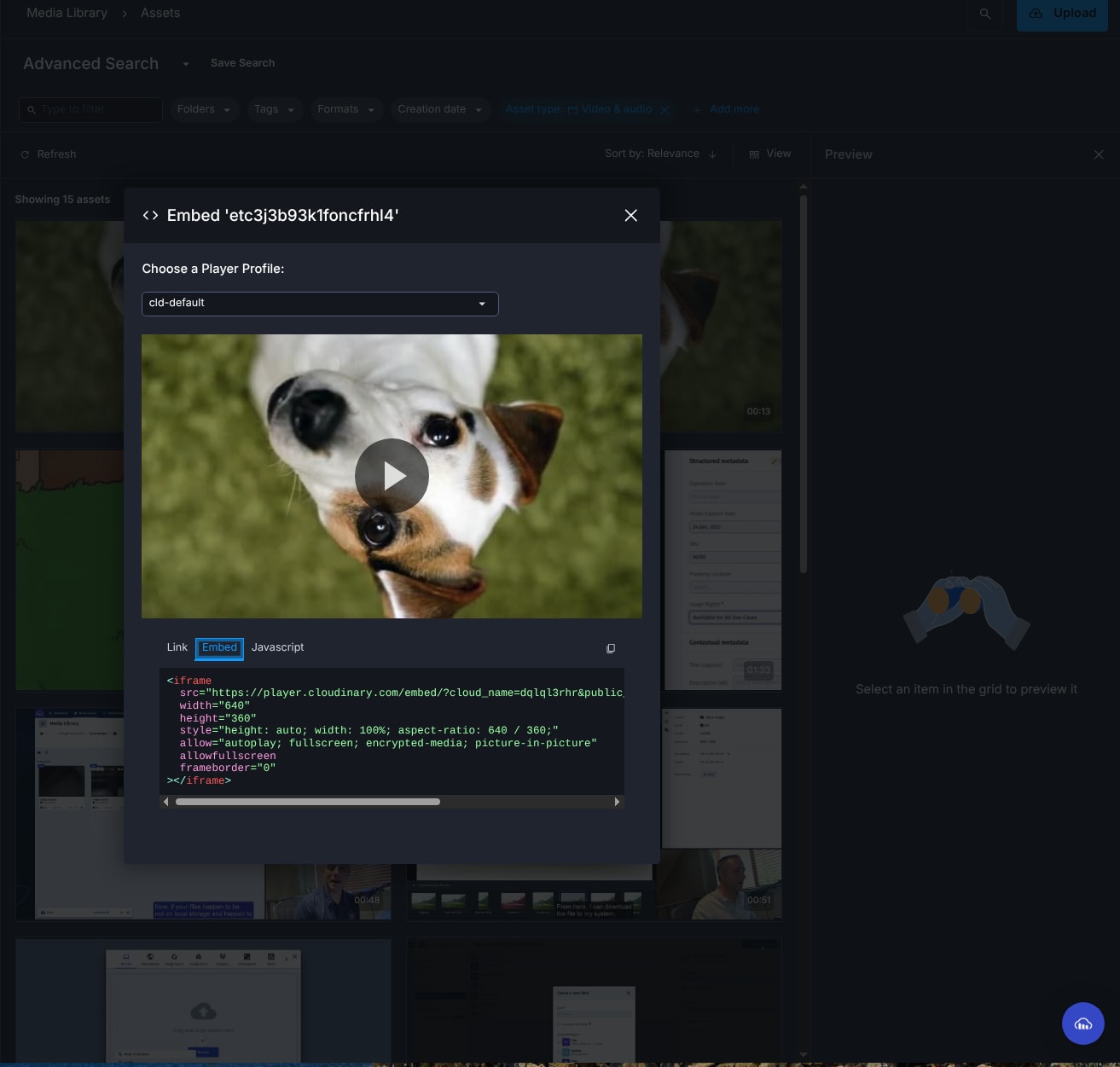
After uploading, find your video in the Media Library under Assets. You can click any one of your media assets and find more information about them, such as metadata, dimensions, tags, and more. Right-clicking the image and then “Embed” will open a modal menu where we can grab the full video embed code.
Step 3: Embed the Video
Now that we’ve got our video embed code, all we need to do is put it somewhere! Cloudinary specifically offers either an iframe option for simple embeds, a JavaScript snippet, and a simple URL for <video> embeds.
Embedding in Different Platforms
Basic HTML Website
If you’re working with a basic HTML website, embedding is simple:
- Open your HTML file in your IDE
- Find the location in the
<body>where you want the video - Paste the embed code directly into the HTML
Save the file and refresh your browser to see the video
<!DOCTYPE html>
<html>
<head>
  <title>Embedding video using Cloudinary</title>
</head>
<body>
  <h1>Video embedding example</h1>
    <p> This is a simple html page </p>
   <video controls width="100%" height="auto">
    <source src="https://player.cloudinary.com/embed/?cloud_name=dj5jsgwep&public_id=reel_01_1_o7l0ja&profile=cld-default" type="video/mp4">
  </video>
</body>
</html>
WordPress
If you want to embed a video on WordPress, open the post or page where you want to add the video and:
- Click the “+” button to add a new block
- Search for “Custom HTML” block (or “HTML” depending on your version)
- Paste your Cloudinary embed code into the HTML block
- Preview or publish to see your video
Alternatively, you can switch the entire editor to “Code editor” mode from the three-dot menu in the top right, then paste your code directly into the appropriate location.
Squarespace
If you want to embed a video in a Squarespace site:
- Edit the page where you want the video
- Click an insert point and select “Code” from the block menu
- Paste your embed code into the code block
- Click “Apply” and save your page
- The video will appear in the specified location
Squarespace’s code blocks handle HTML embed codes seamlessly.
Wix
Embedding on Wix requires the HTML iframe element:
- Click the “+” button to add elements
- Select “Embed” then “Custom Embeds” → “Embed a Widget”
- Paste your Cloudinary embed code
- Click “Update” and adjust the size of the embed container as needed
- Position the video where you want it on the page
Keep in mind that Wix works best with iframe-based embeds. If you have a video tag, you may need to wrap it in an appropriate HTML structure.
Troubleshooting Video Embed Code Issues
As developers, we know that things rarely go as smoothly as expected. Here are some common issues that can crop up with video embeds:
- Video doesn’t appear: Check that you’ve pasted the code in HTML mode, not visual editor mode. Also, verify the video URL is accessible by pasting it directly into a browser.
- Video won’t play: Ensure your video format is web-compatible (MP4 with H.264 encoding is the most universally supported). Check the browser console for error messages.
- Poor quality playback: Add
q_autoto your Cloudinary URL for automatic quality optimization. If quality is still poor, the source video may need higher-quality encoding. - Mobile playback issues: Make sure your embed is responsive and that you’re not forcing desktop-only features. Test the
playsinlineattribute for iOS devices with<video controls playsinline> - HTTPS errors: If your website uses HTTPS, ensure your video URL also uses HTTPS. Cloudinary supports HTTPS by default.
- Slow loading: Use lazy loading for videos below the fold by adding the
preload="none"attribute, which prevents the video from loading until the user clicks play.
Wrapping Up
Video embed code gives you a simple way to place high-quality media directly on your website. It tells the browser how to load and play your video and helps create a smooth viewing experience for your audience. When you use Cloudinary, this process becomes even easier because the platform handles hosting, optimization, and format generation for you.
By uploading your video to Cloudinary and using the embed code it provides, you deliver fast, reliable playback without extra setup. Cloudinary also offers powerful features like transformations, responsive delivery, and automated format selection. These tools help you enhance performance and keep your media workflow efficient as your content library grows.
Dive into effortless video handling and see the difference Cloudinary makes. Sign up today and discover the ease of managing your video content with Cloudinary.
Frequently Asked Questions
What is a video embed code?
A video embed code is a snippet of HTML that lets you display a video from a host (like YouTube, Vimeo, or your own server) directly on a web page. It typically includes an <iframe> or <video> tag pointing to the video source. When placed in your page’s HTML, it renders the playable video inline.
How do I get the embed code for a video?
Most video hosting platforms provide an “Embed” option that generates the HTML code you can copy. For example, on YouTube you click Share → Embed to copy the <iframe> snippet. You then paste that code into your website where you want the video to appear.
Can I customize a video embed code?
Yes, you can often customize aspects like width, height, autoplay, controls, and privacy settings either through the host platform’s options or by editing parameters in the embed code. Be mindful of autoplay and mobile restrictions, as many browsers limit these features for user experience.


