
Video is now the standard way to deliver media on the web, which is why seeing an “HTML5 Video Not Found” error can be so frustrating. This message appears when the browser tries to load a video file but cannot access it.
The problem can often be attributed to missing or moved files, incorrect file paths, formats that are not supported, or server setup problems. Sometimes the error shows up only on certain devices or browsers, making it harder to diagnose.
This guide covers both sides of the problem. If you’re trying to watch a video, jump to the visitor troubleshooting steps below. If you’re the developer or site owner, skip ahead to the fixes for your server and code.
Key takeaways:
- The “HTML5 Video Not Found” error means the browser tried to load a video through the
<video>element and couldn’t find or decode it. The fix depends on whether you’re watching a video or maintaining the site that serves it. - Viewers can usually clear it with a hard refresh, a cache and cookie clear, or by testing in a private window to rule out an extension.
- Developers should check the file path and status code first, then confirm format support, server MIME types, and CORS headers. Cloudinary can automate format delivery to prevent the error at scale.
In this article:
- What is the “HTML5 Video Not Found” Error?
- If You’re Trying to Watch a Video
- If You’re a Developer Fixing Your Site
What is the “HTML5 Video Not Found” Error?
The “HTML5 Video Not Found” error occurs when a browser cannot load or play a video using the HTML5 <video> element. This error usually occurs as a black video player with an error message stating the video file cannot be found or played.
The most frequent reasons include:
- File Path Issues: The video source URL is incorrect, broken, or points to a file that has been moved or deleted.
- Format Incompatibility: The browser doesn’t support the video format or codec. Different browsers support different video formats (such as MP4, WebM, or Ogg).
- Network Problems: Slow or unstable internet connections can prevent video files from loading properly, especially for large files.
- Browser Issues: Outdated browsers, corrupted cache, disabled JavaScript, or third-party extensions can interfere with video playback.
- Server Configuration: Incorrect MIME types, CORS policies, or missing HTTP headers can block video delivery.
- Hardware Acceleration Conflicts: GPU-accelerated rendering can sometimes cause compatibility issues with certain video formats or drivers.
If You’re Trying to Watch a Video
Try these in order. Most viewers fix the error within the first two or three steps.
1. Do a Hard Refresh
Press Ctrl+F5 on Windows or Linux, or Cmd+Shift+R on Mac. This reloads the page and skips whatever the browser has already cached for it, which clears up a surprising number of one-off loading failures before you need to touch any settings.
2. Update the Browser
Ensuring your user’s browser is up to date is a crucial first step when troubleshooting the “HTML5 video not found” error, as the issue often stems from a lack of compatibility.
An up-to-date browser is essential for modern video codec support, as new, efficient codecs (like AV1 or VP9) may not be supported by older browsers, which might only recognize H.264. Full HTML5 feature support, including controls and adaptive streaming (HLS/MPEG-DASH), relies on modern browser APIs.
3. Clear Cache and Cookies
The most common and easily resolvable cause for “HTML5 Video Not Found” is corrupted or outdated cached data within your web browser. While temporary files and cookies stored by browsers can make things load quicker, this stored information can become fragmented or inconsistent, which can lead to these types of errors.
To resolve this, users must clear their browser’s cache and cookies, forcing it to download a fresh set of data. After clearing the data (including cached images/files and cookies from “All time”), navigate back to the web page and perform a hard refresh (Ctrl+F5 on Windows/Linux or Cmd+Shift+R on macOS). This process eliminates a primary software conflict and often successfully resolves the video playback error.
4. Enable JavaScript
HTML5 video players often rely on JavaScript for controls, autoplay functionality, and adaptive streaming. Disabled JavaScript will break these features.
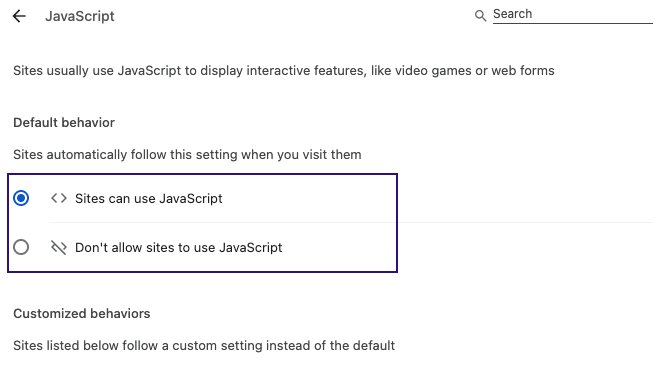
To enable JavaScript:
- Chrome:
chrome://settings/content/javascript– toggle to “Allowed” - Firefox: Type
about:config, search forjavascript.enabled, set totrue - Safari: Preferences > Security > Enable JavaScript
Verify JavaScript is working by opening the browser console (F12) and typing console.log("JS works").
5. Disable Hardware Acceleration
Hardware acceleration uses the GPU to render video content, but driver incompatibilities or outdated graphics cards can cause playback failures. Hardware acceleration offloads video rendering from the CPU to the GPU, a process designed to enhance performance and provide smoother, higher-quality playback for high-definition and 4K content. On the other hand, this delegation might cause instability, and the quality of video playback could be affected by several GPU factors.
Common issues include incompatible or unstable graphics drivers, which can lead to rendering errors and visual artifacts. Additionally, relying on outdated graphics cards or failing to update drivers can result in a lack of support for modern video decoding standards. If playback fails, turning off hardware acceleration is an easy fix, making the system use the CPU to fix GPU issues and get video working.
6. Try Incognito or Disable Extensions
Open the video in an incognito or private window, which disables most extensions by default. If it plays there, an ad blocker or privacy extension on your main profile is likely blocking the video file from loading. Turn extensions off one at a time on your regular profile to find which one is responsible.
If You’re a Developer Fixing Your Site
If visitors are seeing this error on a site you built or maintain, the cause is almost always a broken path or a server misconfiguration, not the visitor’s browser.
Check Video File Path and Status
Broken or incorrect file paths are among the most common causes of video errors. Verify the video source is accurate and accessible.
<!-- Check your video source path -->
<video controls>
  <source src="/videos/sample.mp4" type="video/mp4">
  <source src="/videos/sample.webm" type="video/webm">
  Your browser does not support the video tag.
</video>
Debugging steps:
- Open the browser Developer Tools and check the Network tab
- Look for the video request and verify the status code (200 = success, 404 = not found)
- Copy the video URL and paste it directly into the browser to test accessibility
- Verify file permissions on the server allow read access
- Check if the file exists at the specified location
Common path mistakes:
- Relative vs absolute paths (
/videos/file.mp4vsvideos/file.mp4) - Case sensitivity on Linux servers (
Video.mp4vsvideo.mp4) - Special characters or spaces in filenames (
video_1.mp4vsvideo 1.mp4)
Verify Video Format and Codec Compatibility
Video playback often fails when the browser cannot decode the format or codec used in the file. Different browsers support different combinations of formats and codecs, so a file that plays on one device may fail on another. MP4 with H.264 is widely supported, but newer codecs like AV1 or VP9 only work for newer versions (and only partially supported in Safari).
Provide more than one format inside the HTML5 video tag by listing multiple <source> elements, so the browser can pick one it supports.
To avoid these issues, make sure your videos are encoded in formats that match the needs of your audience. A reliable approach is to generate multiple versions of the same video and let the browser pick the best one. By using platforms like Cloudinary, this can be automated by serving the best format for each device, which can prevent playback errors and improve the user experience.
Set CORS Headers for CDN-Hosted Video
If you’re serving video from a CDN or a different domain than the page itself, missing CORS headers can block the browser from loading it. Set Access-Control-Allow-Origin on the server or CDN serving the video so the requesting domain is explicitly allowed. A CDN buys you more than avoiding CORS errors too, it also caches video closer to your viewers and cuts load times.
Use Cloudinary Transformations for Fallback Support
One of the most effective ways to prevent the HTML5 Video Not Found error is to give browsers multiple versions of the same video so they can choose the one they support. Cloudinary Video can automatically handle format conversion and provide fallback options, reducing compatibility issues. Instead of manually encoding MP4, WebM, or other versions, you can rely on Cloudinary transformations to handle the heavy lifting in the background.
With a simple URL parameter, Cloudinary can convert your source file into formats like MP4, WebM, or AV1. It can also adjust codecs, quality, and resolution to match the viewer’s capabilities. If a browser can’t play one format, Cloudinary seamlessly provides another, which keeps playback smooth and reduces error rates.
<video controls>
  <source
       src="https://res.cloudinary.com/demo/video/upload/c_scale,h_280/f_auto/docs/hotel_buffet.mp4">
</video>
Here, the f_auto parameter automatically selects the optimal format based on the browser’s capabilities, serving WebM to Chrome/Firefox and MP4 to Safari.
Behind the scenes, Cloudinary re-encodes the source file into whichever format and codec best matches the requesting browser, which is worth understanding if you want more control over quality and file size trade-offs.
You can also use Cloudinary’s responsive delivery features to serve optimized videos based on network speed and screen size. This ensures users get a compatible file that loads quickly, even in challenging environments. By automating fallback support through Cloudinary, you create a more reliable video experience and reduce the need for manual troubleshooting.
Pro Tip!
Stop maintaining separate video files for every browser.
Cloudinary can automatically deliver the right format and fallback for each visitor’s device, so you don’t re-encode and host multiple versions manually.
-> Talk to Cloudinary to see how automatic format delivery fits your video pipeline.
Wrapping Up
For end users, the quickest fixes are usually updating the browser, clearing the cache, or disabling extensions. For developers, ensuring proper video encoding, providing multiple format options, configuring server headers correctly, and implementing robust error handling will create a reliable video playback experience across all devices and browsers. And platforms like Cloudinary can handle all of this.
Remember to test your video implementation across different browsers and devices, implement fallback mechanisms, and provide clear error messages to users when videos fail to load. Using modern video delivery platforms with automatic format optimization can significantly reduce compatibility issues and improve the overall user experience.
Ensure your videos are served without any “Video not found” errors with Cloudinary. Create a Cloudinary account and make sure your videos reach the right audience.
Frequently Asked Questions
Why does the “HTML5 Video Not Found” error happen?
This error usually means the browser couldn’t locate or load the video file at the provided source URL. It can happen if the file path is incorrect, the video was moved or deleted, or the server isn’t serving the file properly.
How do I fix an “HTML5 Video Not Found” issue on my website?
Check that the <video> tag’s src or <source> URLs point to a file that actually exists, confirm the server allows access to it, and make sure it’s served with the correct MIME type. The Network tab in your browser’s developer tools will show you a 404 if the path is the problem. From there, embedding the video correctly in the first place is usually the best prevention.
Which browsers support HTML5 video?
All modern browsers, including Chrome, Firefox, Safari, and Edge, support the HTML5 <video> element. Codec support varies though: MP4 with H.264 works almost everywhere, while newer formats like AV1 have more limited support, particularly in Safari.
How do I fix “HTML5 video not found” on iPhone?
Try a hard refresh or reopen the page in a private tab first, then check for a pending iOS or Safari update. If the error only happens on one site, make sure the video is served as MP4 with H.264 and AAC audio, since Safari supports a narrower range of formats than desktop browsers.
What’s the difference between “video not found” and “video not properly encoded”?
“Not found” means the browser couldn’t locate the video at all. “Not properly encoded” means the file loaded but the browser couldn’t decode it, which usually points to a codec problem rather than a missing file.


